

Ready to Optimize Your Business? Get Started with aACE Basics
aACE is a single, comprehensive business management solution comprised of “modules" that each handle particular business functions. For example, aACE includes Accounting modules like the General Ledger and General Journal, CRM modules like Companies and Contacts, and ERP modules like Jobs and Projects. Each module has search capabilities, list views, expanded detail views, reporting tools, and record-specific functionality. The way aACE “thinks” is consistent across all modules, so once you understand one module, you’re well on your way to mastering the entire software package. This makes aACE very user friendly.
aACE opens with the main menu. Along with quick access buttons for some of the most-used features like Notices, Tasks, and the Calendar, the menu makes it easy to navigate to the modules you need by grouping them together — clicking on any of these headings displays a list of related modules. Clicking a module title opens the actual module. The main menu can be customized for each group of users to include as few or as many modules as they need.
All aACE modules are designed with a consistent look and feel, making it easy to get oriented and go forward with your work.
aACE header colors help you quickly recognize what kinds of information you are looking at. For example, purple and magenta are for CRM modules, such as Companies, Contacts, and Leads; red and orange are for fulfillment, such as Orders and Jobs; green is for money, so that’s what you’ll find on Invoices and GL Accounts.
When you open most modules, aACE presents a list view showing the records that are likely to need your attention. For example, a sales representative using the Orders module would see a list of orders assigned to him; similarly, a supervisor viewing the Jobs module would see assignments both for her and her subordinates.
At the top of most modules, the header provides access to common functions. For example, the Print button opens a drop-down menu for tasks such as printing, running reports, or emailing the records displayed in the list. The Actions button allows you to import, export, and execute batch updates on all records in the list. Also near the top, the Quick Search bar allows you to search each field in the list view, helping you easily constrain the list and show the records you’re looking for. Clicking on the various list view columns allows you to sort the displayed records.
Each record in a list has a color-coded status indicator that lets you see at a glance whether the record is active, inactive, or pending. If the record has a next step — for example, an invoice that needs to be sent or a task that needs to be completed — the status will indicate whether it’s due today, at some point in the future, or whether it’s already past due. This visual makes it easy to see which records need immediate attention.
At the bottom of most list views, Quick Links allow you to adjust the displayed records with a single click. Additionally, users with administration access privileges can use the Admin Actions button at the bottom-right corner to perform batch updates or drill down into related records.
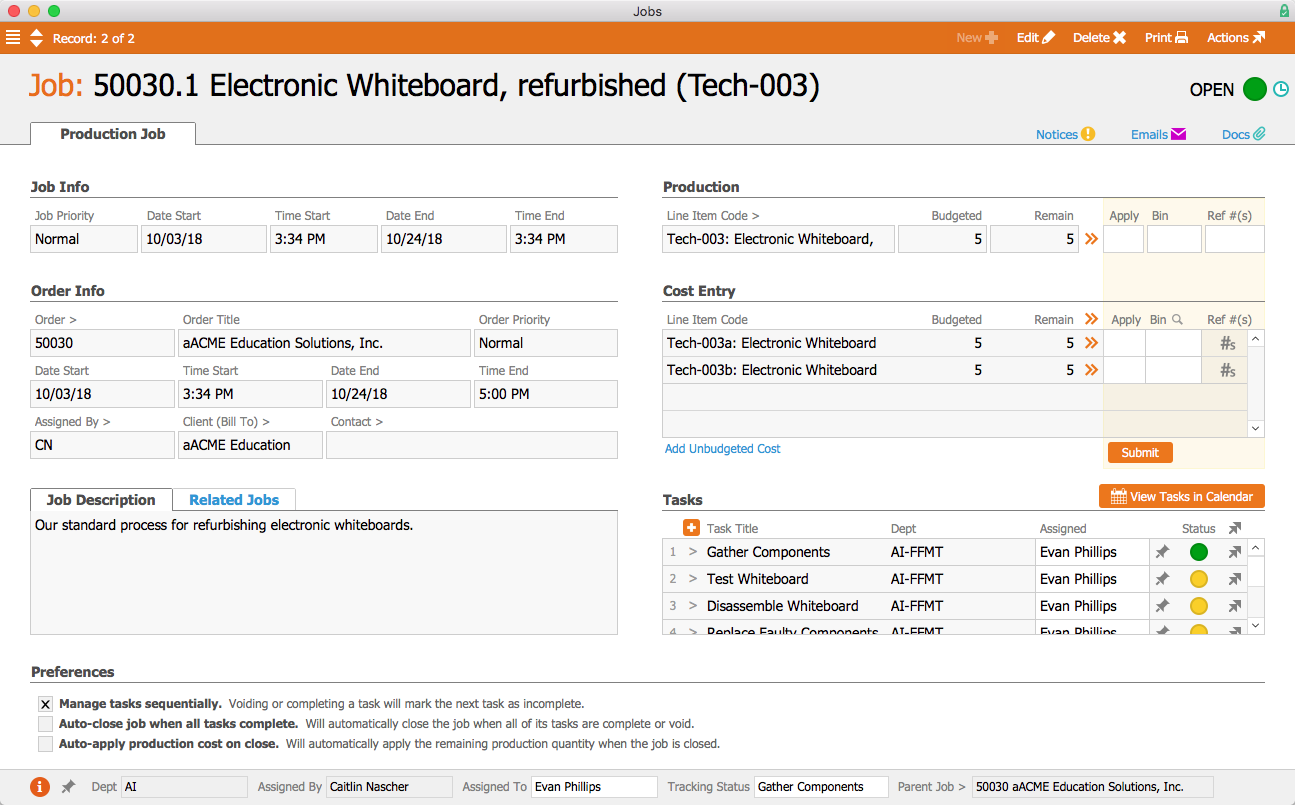
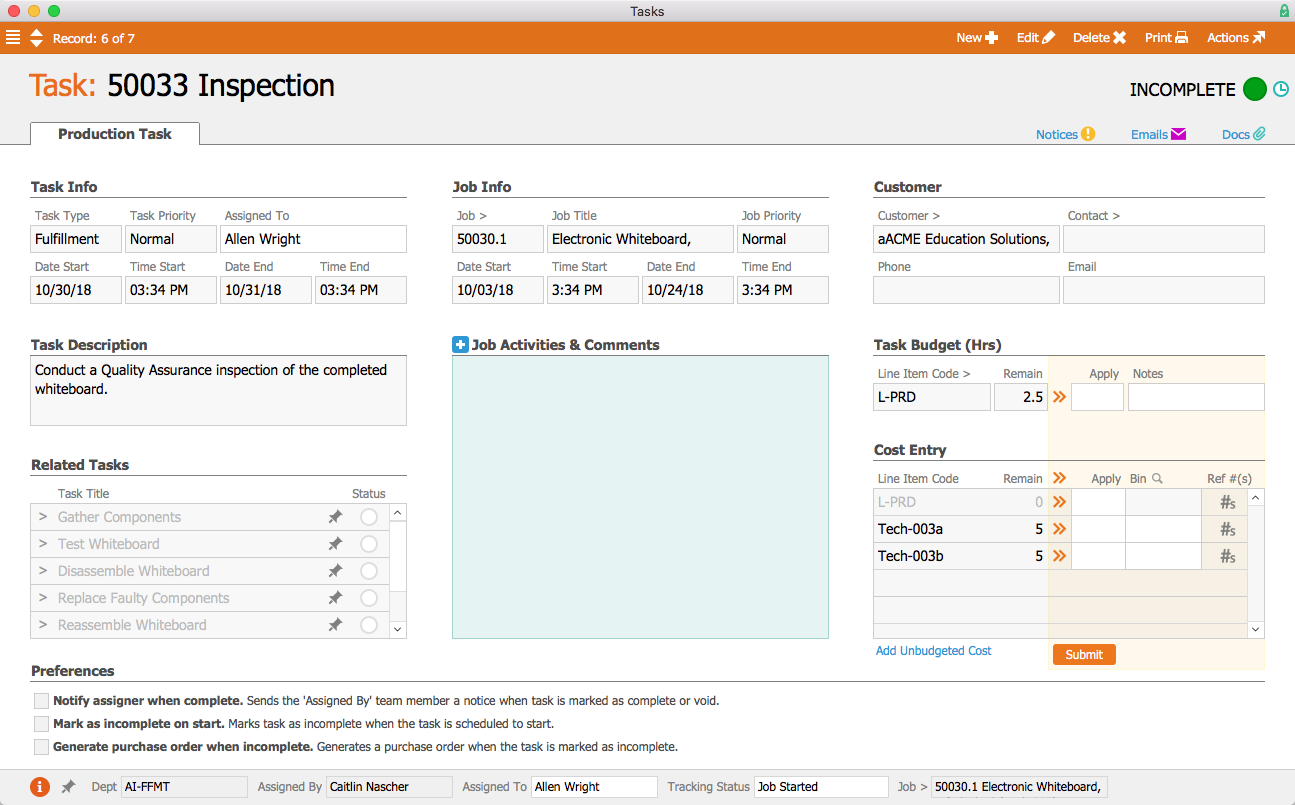
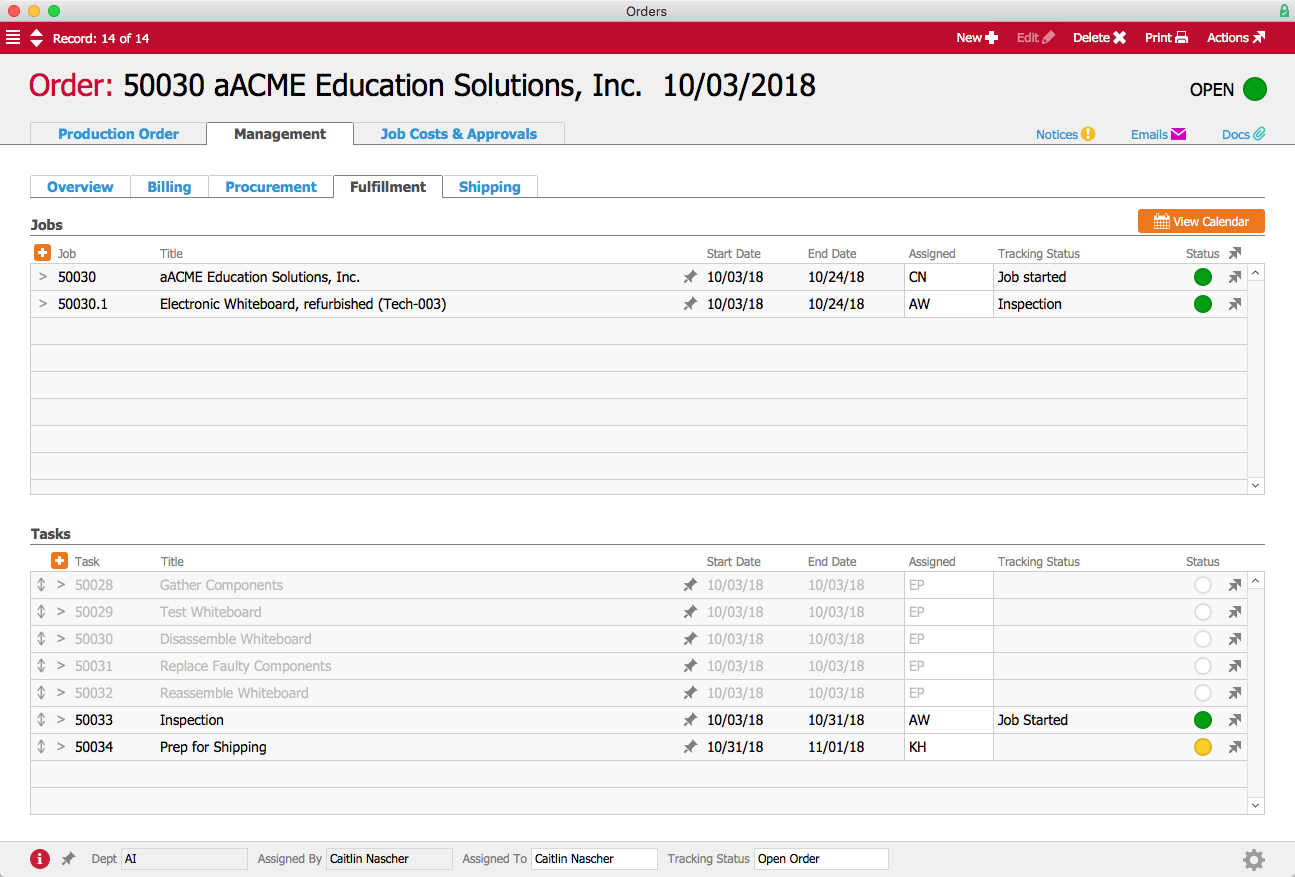
Clicking on a specific record displays that record’s detail view. This is where you can find extensive information pertaining to the record. For example, an order record’s detail view includes the name of the customer and the items they bought, while a job record’s detail view may include a list of tasks required to complete the job and a bill of materials.
Typically, when you first open a record, it will be in read-only mode. This is indicated by a system-wide convention of showing the data in gray fields. To make changes to a record, users can enter Edit mode by clicking on the Edit button at the top of the screen.
At the top of the detail view, you can work with notices, emails, and documents. The Notices icon opens the Notices module, where you can send messages to other aACE users about particular records. These messages include a link to the records you were viewing, so the recipient can quickly review that data too.
The Emails icon displays the Email Viewer, where you can review emails related to the current record. (For details on how aACE captures and stores email, check out our demo video in the Feature Highlights section of our blog.)
The Docs icon opens the Document Viewer, where you can review files related to the current record. You can drag and drop files such as PDFs, images, or Word documents here as well as anywhere in the system that you see a Paperclip icon. aACE allows you to manage these documents with folders.
Throughout the aACE modules, you will find helpful features. For example, Chevron icons are “go-to” buttons, and anywhere you see them you can navigate to another record. These go-to buttons help keep information at your fingertips without cluttering each interface with ancillary details.
Magnifying Glass icons can also be seen throughout the system. Clicking one opens a search dialog to help you easily find the records you need. And if you discover that the needed record doesn’t exist yet, you can simply click the Plus button to create a new record without having to leave the one you were working with.
Thumbtack icons indicate places where notes can be stored. The thumbtack turns yellow when the Note field is populated. In some cases, notes entered from one module — for instance, billing notes entered in a Company record — will also be visible in related modules – such as the orders and invoices associated with that company.
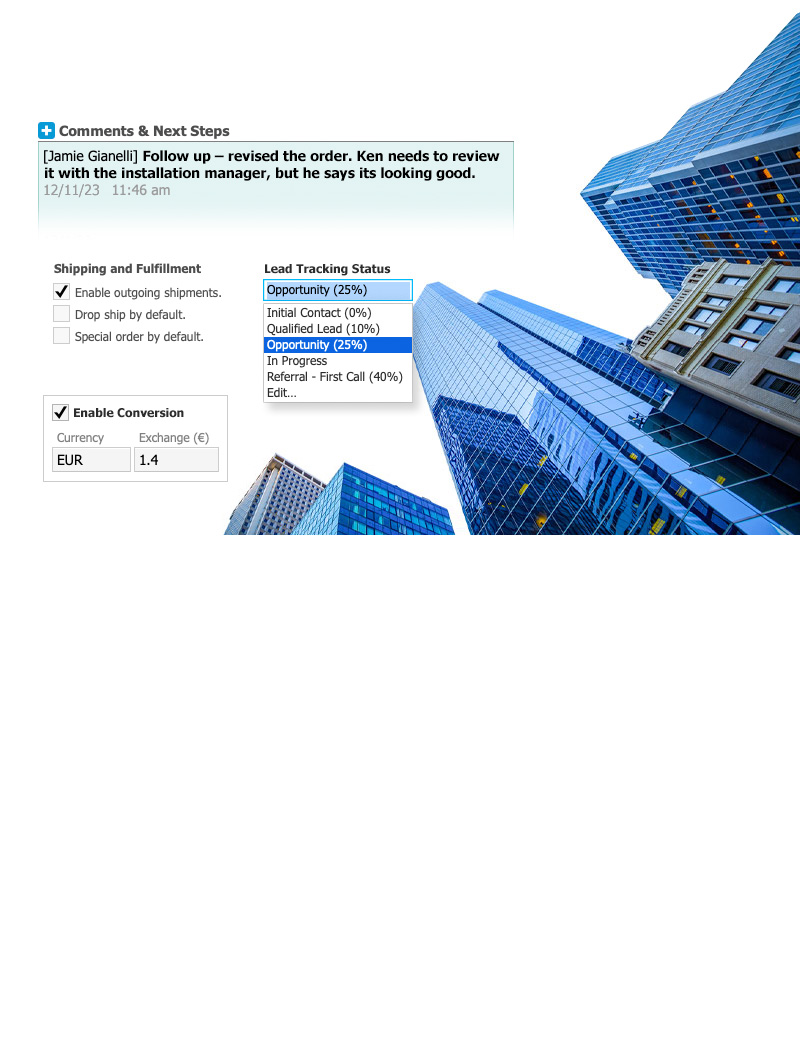
Some modules have Comments & Activities fields where you can enter call notes and other interactions. Notes entered in these fields show up in the record’s log, which also captures key changes to the record. (To learn more about these features, check out the Advanced Logging feature highlight on our blog.)
In the detail view footer, you may see fields such as Assigned To, Assigned By, and Tracking Status. These fields allow you to easily manage next steps and track who is responsible for which records. Typically, these footer fields are editable, even outside of Edit mode.
aACE is designed to simplify data entry. Drop-down lists make it easy to select existing records or options that have been previously entered in that field. You can use the type-ahead feature to locate a record using the first letters or numbers of a name, code, or associated SKU number. Selecting an existing record auto-populates the related fields, minimizing the chance of error.
Fields highlighted in pink are required, meaning that aACE won’t open or activate the record until those fields have been populated. Similarly, if aACE recognizes a problem with the data, it will keep the record in Pending status and display an error message to alert the user.
Now that you understand these aACE basics, you can feel confident in navigating through the software and working on records. As a comprehensive accounting, CRM, & ERP solution, your aACE system includes extensive functionality. But the consistent layout and conventions mean that even with a small amount of training, you are ready to go deeper into the system with hands-on learning.
Learn MoreLearning a new business management solution can be intimidating. Fortunately, aACE makes it easy with our system-wide conventions and intuitive, user-friendly design. Check out our new video or read the transcript below for a crash course on the fundamentals of aACE. Then register for an upcoming... Learn More
-->Learning a new business management solution can be intimidating. Fortunately, aACE makes it easy with our system-wide conventions and intuitive, user-friendly design. Check out our new video or read the transcript below for a crash course on the fundamentals of aACE. Then register for an upcoming webinar to learn more about how aACE can help you take your business to the next level.
aACE is a single, comprehensive business management solution comprised of “modules" that each handle particular business functions. For example, aACE includes Accounting modules like the General Ledger and General Journal, CRM modules like Companies and Contacts, and ERP modules like Jobs and Projects. Each module has search capabilities, list views, expanded detail views, reporting tools, and record-specific functionality. The way aACE “thinks” is consistent across all modules, so once you understand one module, you’re well on your way to mastering the entire software package. This makes aACE very user friendly.
aACE opens with the main menu. Along with quick access buttons for some of the most-used features like Notices, Tasks, and the Calendar, the menu makes it easy to navigate to the modules you need by grouping them together — clicking on any of these headings displays a list of related modules. Clicking a module title opens the actual module. The main menu can be customized for each group of users to include as few or as many modules as they need.
All aACE modules are designed with a consistent look and feel, making it easy to get oriented and go forward with your work.
aACE header colors help you quickly recognize what kinds of information you are looking at. For example, purple and magenta are for CRM modules, such as Companies, Contacts, and Leads; red and orange are for fulfillment, such as Orders and Jobs; green is for money, so that’s what you’ll find on Invoices and GL Accounts.
When you open most modules, aACE presents a list view showing the records that are likely to need your attention. For example, a sales representative using the Orders module would see a list of orders assigned to him; similarly, a supervisor viewing the Jobs module would see assignments both for her and her subordinates.
At the top of most modules, the header provides access to common functions. For example, the Print button opens a drop-down menu for tasks such as printing, running reports, or emailing the records displayed in the list. The Actions button allows you to import, export, and execute batch updates on all records in the list. Also near the top, the Quick Search bar allows you to search each field in the list view, helping you easily constrain the list and show the records you’re looking for. Clicking on the various list view columns allows you to sort the displayed records.
Each record in a list has a color-coded status indicator that lets you see at a glance whether the record is active, inactive, or pending. If the record has a next step — for example, an invoice that needs to be sent or a task that needs to be completed — the status will indicate whether it’s due today, at some point in the future, or whether it’s already past due. This visual makes it easy to see which records need immediate attention.
At the bottom of most list views, Quick Links allow you to adjust the displayed records with a single click. Additionally, users with administration access privileges can use the Admin Actions button at the bottom-right corner to perform batch updates or drill down into related records.
Clicking on a specific record displays that record’s detail view. This is where you can find extensive information pertaining to the record. For example, an order record’s detail view includes the name of the customer and the items they bought, while a job record’s detail view may include a list of tasks required to complete the job and a bill of materials.
Typically, when you first open a record, it will be in read-only mode. This is indicated by a system-wide convention of showing the data in gray fields. To make changes to a record, users can enter Edit mode by clicking on the Edit button at the top of the screen.
At the top of the detail view, you can work with notices, emails, and documents. The Notices icon opens the Notices module, where you can send messages to other aACE users about particular records. These messages include a link to the records you were viewing, so the recipient can quickly review that data too.
The Emails icon displays the Email Viewer, where you can review emails related to the current record. (For details on how aACE captures and stores email, check out our demo video in the Feature Highlights section of our blog.)
The Docs icon opens the Document Viewer, where you can review files related to the current record. You can drag and drop files such as PDFs, images, or Word documents here as well as anywhere in the system that you see a Paperclip icon. aACE allows you to manage these documents with folders.
Throughout the aACE modules, you will find helpful features. For example, Chevron icons are “go-to” buttons, and anywhere you see them you can navigate to another record. These go-to buttons help keep information at your fingertips without cluttering each interface with ancillary details.
Magnifying Glass icons can also be seen throughout the system. Clicking one opens a search dialog to help you easily find the records you need. And if you discover that the needed record doesn’t exist yet, you can simply click the Plus button to create a new record without having to leave the one you were working with.
Thumbtack icons indicate places where notes can be stored. The thumbtack turns yellow when the Note field is populated. In some cases, notes entered from one module — for instance, billing notes entered in a Company record — will also be visible in related modules – such as the orders and invoices associated with that company.
Some modules have Comments & Activities fields where you can enter call notes and other interactions. Notes entered in these fields show up in the record’s log, which also captures key changes to the record. (To learn more about these features, check out the Advanced Logging feature highlight on our blog.)
In the detail view footer, you may see fields such as Assigned To, Assigned By, and Tracking Status. These fields allow you to easily manage next steps and track who is responsible for which records. Typically, these footer fields are editable, even outside of Edit mode.
aACE is designed to simplify data entry. Drop-down lists make it easy to select existing records or options that have been previously entered in that field. You can use the type-ahead feature to locate a record using the first letters or numbers of a name, code, or associated SKU number. Selecting an existing record auto-populates the related fields, minimizing the chance of error.
Fields highlighted in pink are required, meaning that aACE won’t open or activate the record until those fields have been populated. Similarly, if aACE recognizes a problem with the data, it will keep the record in Pending status and display an error message to alert the user.
Now that you understand these aACE basics, you can feel confident in navigating through the software and working on records. As a comprehensive accounting, CRM, & ERP solution, your aACE system includes extensive functionality. But the consistent layout and conventions mean that even with a small amount of training, you are ready to go deeper into the system with hands-on learning.
Learn More