Business Process Improvement Through Software

Dive into the details to discover how aACE can help your business.

aACE software blog -  a complete resource for SMBs looking to improve their business processes. Read our articles on all things CRM, Accounting Software, ERP, Inventory Management & more

Business Process Improvement Through Software!

All things CRM, Accounting Software, ERP, Inventory Management & more

Read more about aACE Lot and Serial Tracking Offers Precision in Inventory Management

aACE Lot and Serial Tracking Offers Precision in Inventory Management

To understand how aACE tracks lots and serial numbers, let’s take a look at how our fictional company, aACME Education Solutions, uses these features in their day-to-day operations.

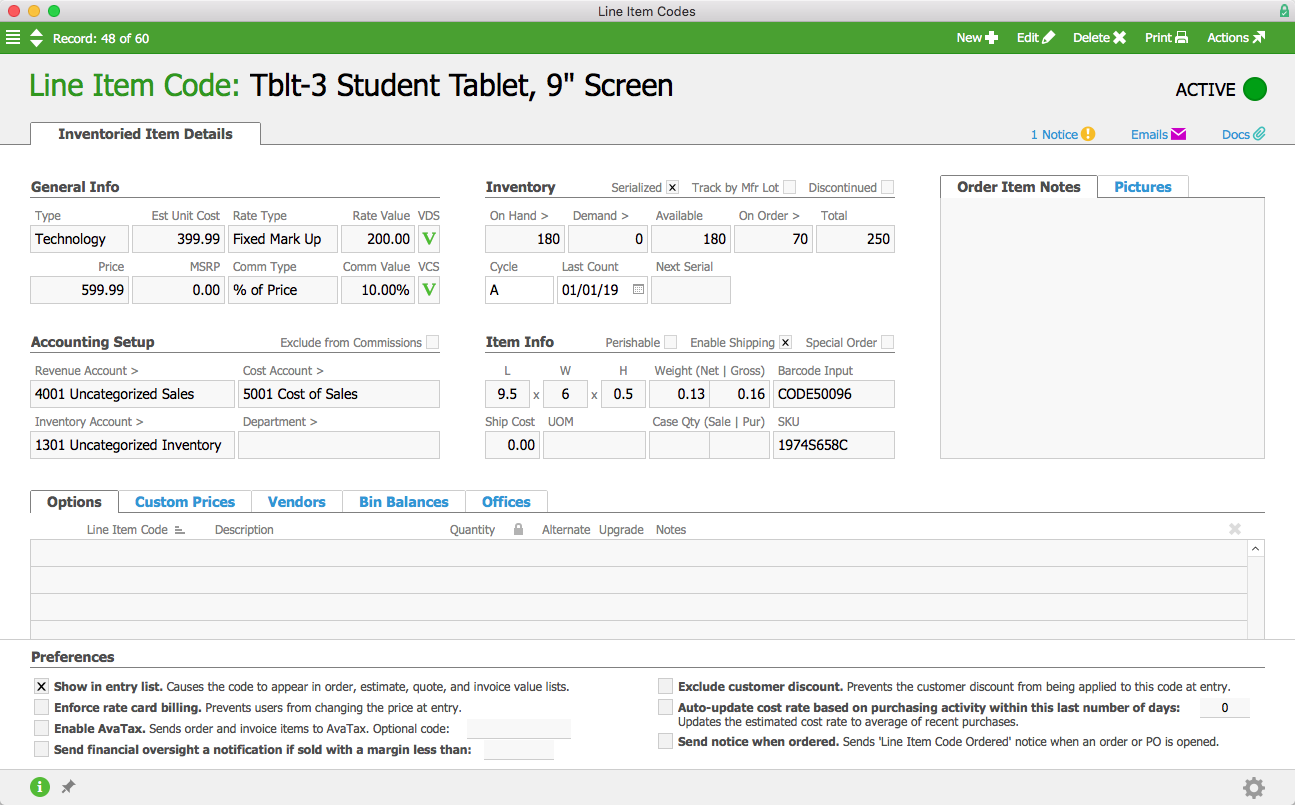
aACME sells student tablet computers, which are tracked individually by serial number. In each tablet’s product record, the Serialized flag is checked.

Tablet LIC

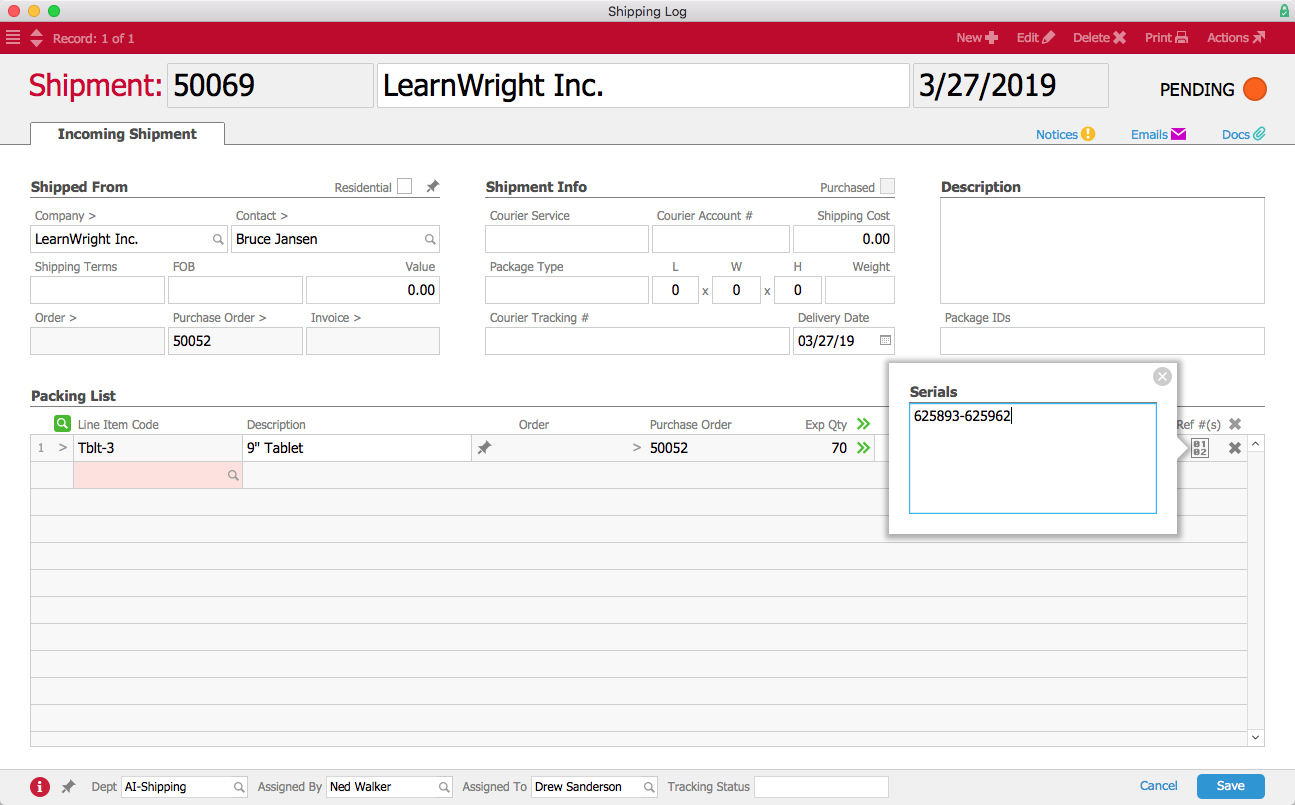
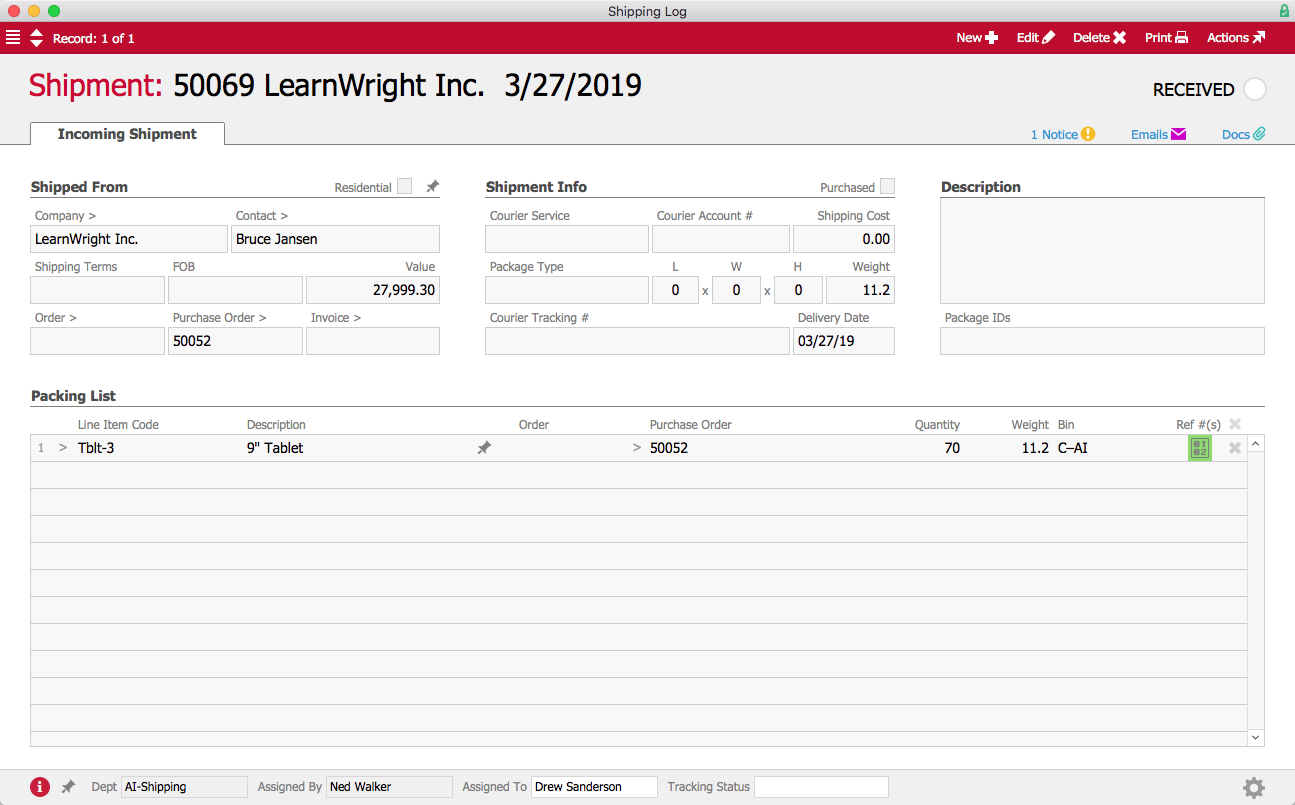
When a shipment of tablets comes in from the vendor, aACME employee Drew Sanderson fills out the shipment record in aACE. Because this product is serialized, aACE includes a space to enter the serial numbers received in this particular shipment. He clicks on the Serial Numbers icon in the Reference Numbers field and enters the range of serial numbers. He could also scan them in via a barcode scanner. The Serialized flag makes this is a required field; aACE won’t allow Drew to process the shipment unless he enters a serial number for each tablet.

Incoming Tablet Shipment

After Drew enters those numbers, the Serial Numbers icon is highlighted in green to show that the field has been populated. He can now process the shipment, letting aACE know it’s been received.

Received Tablet Shipment

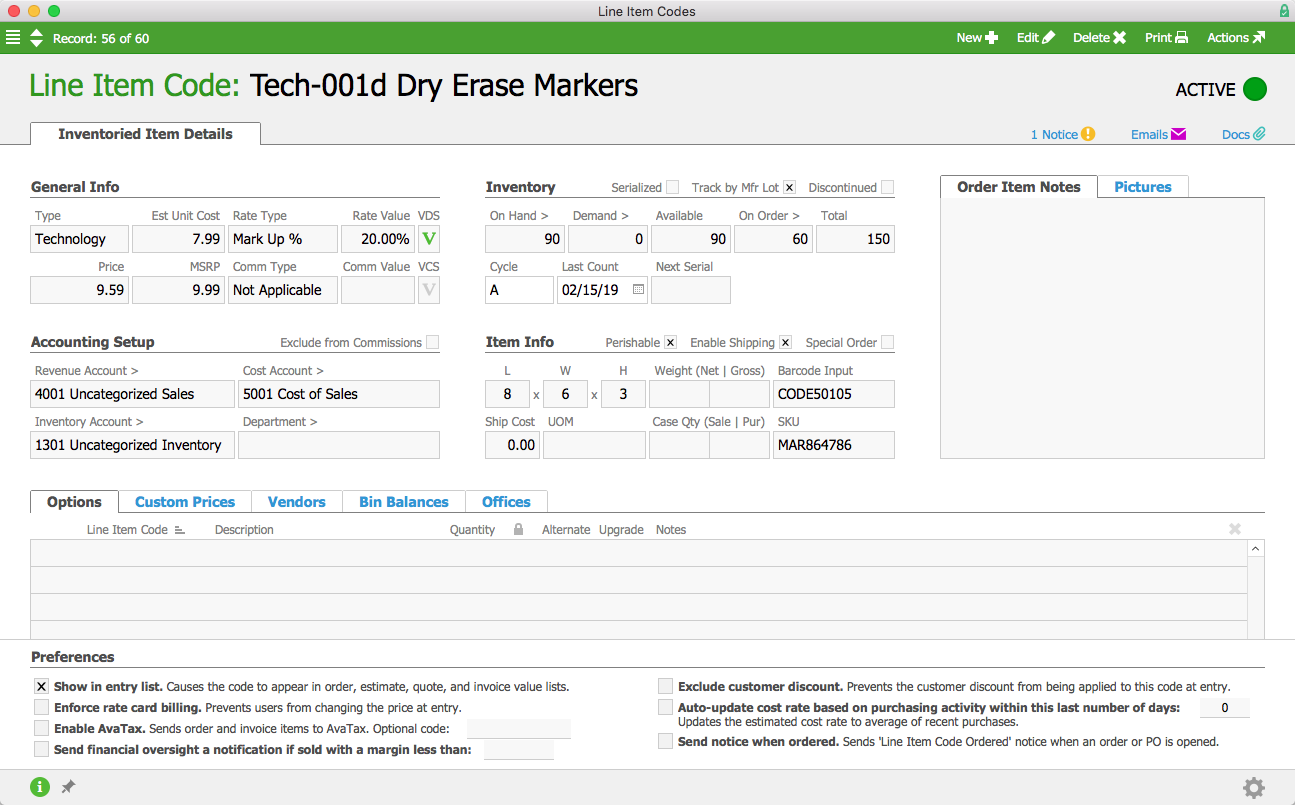
aACME also sells dry erase markers, which are tracked by manufacturer lot. In the markers’ product record, the Track by Mfr Lot flag is checked. Because the markers expire after a few years, the Perishable flag is also checked.

Dry Erase Marker LIC

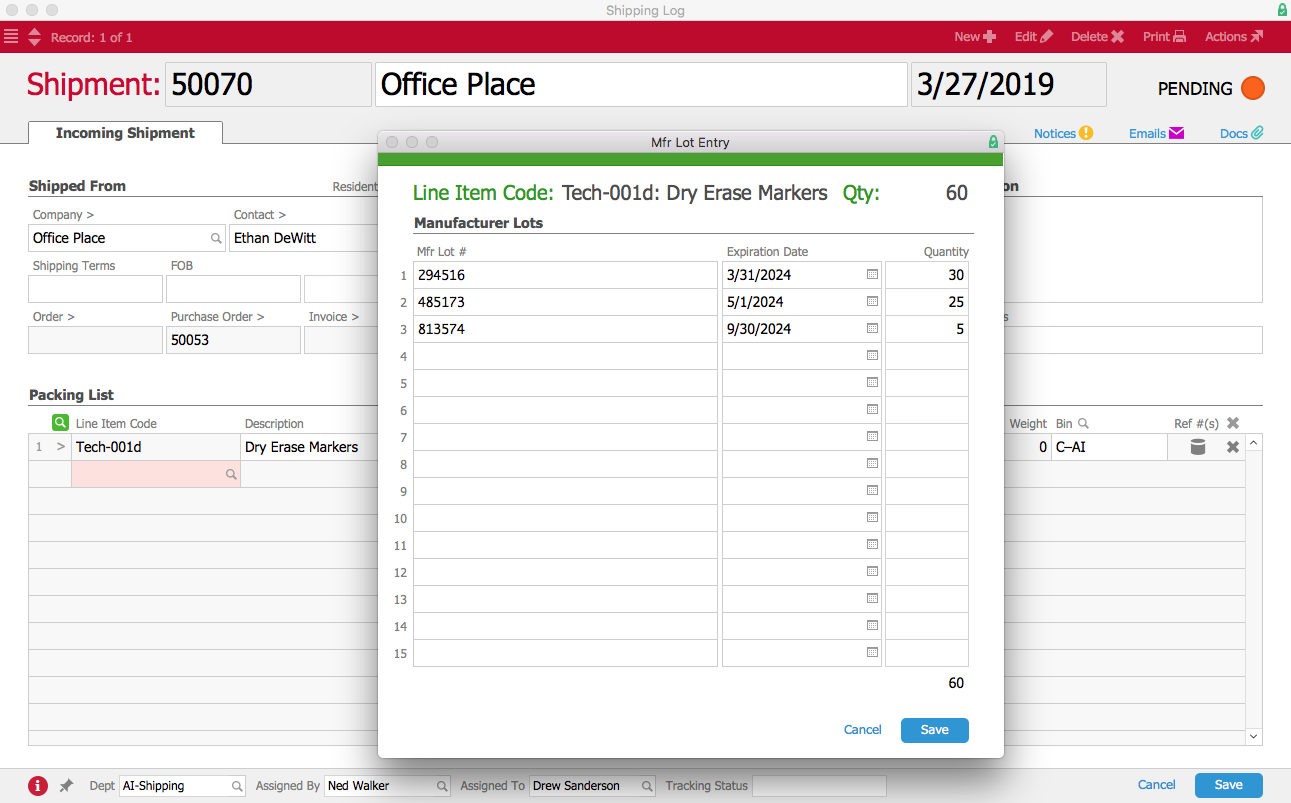
When a shipment of dry erase markers comes in, Drew again fills out the shipment record in aACE. When Drew clicks the Lot Number icon, he is able to enter the lot numbers, expiration dates, and quantities of each lot of markers in this shipment. He could also scan them in with a barcode scanner. As with serial numbers, aACE requires Drew to enter this information in order to process the shipment.

Dry Erase Markers Incoming Shipment

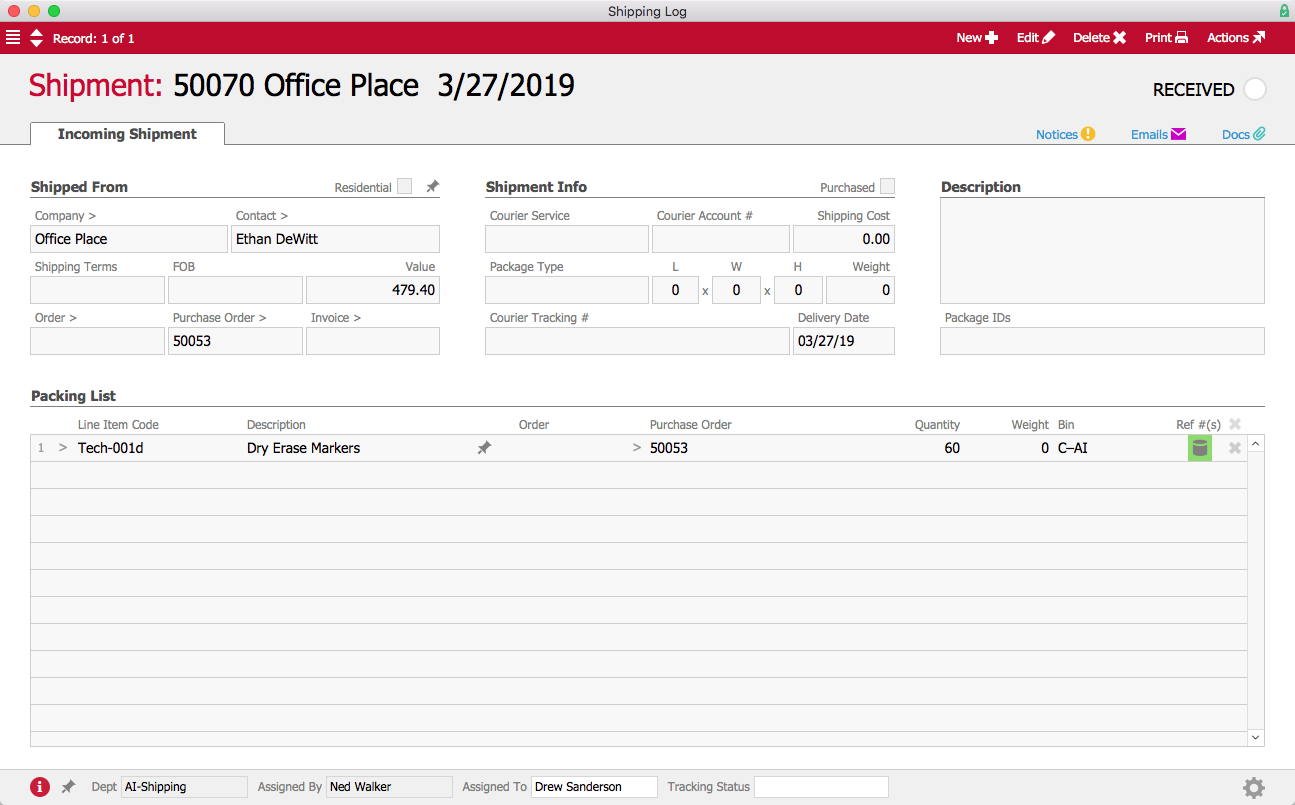
When Drew finishes entering the lot information, the Lot Number icon is highlighted in green. He is now able to process the shipment, and the shipment record’s status changes to Received.

Dry Erase Markers Received Shipment

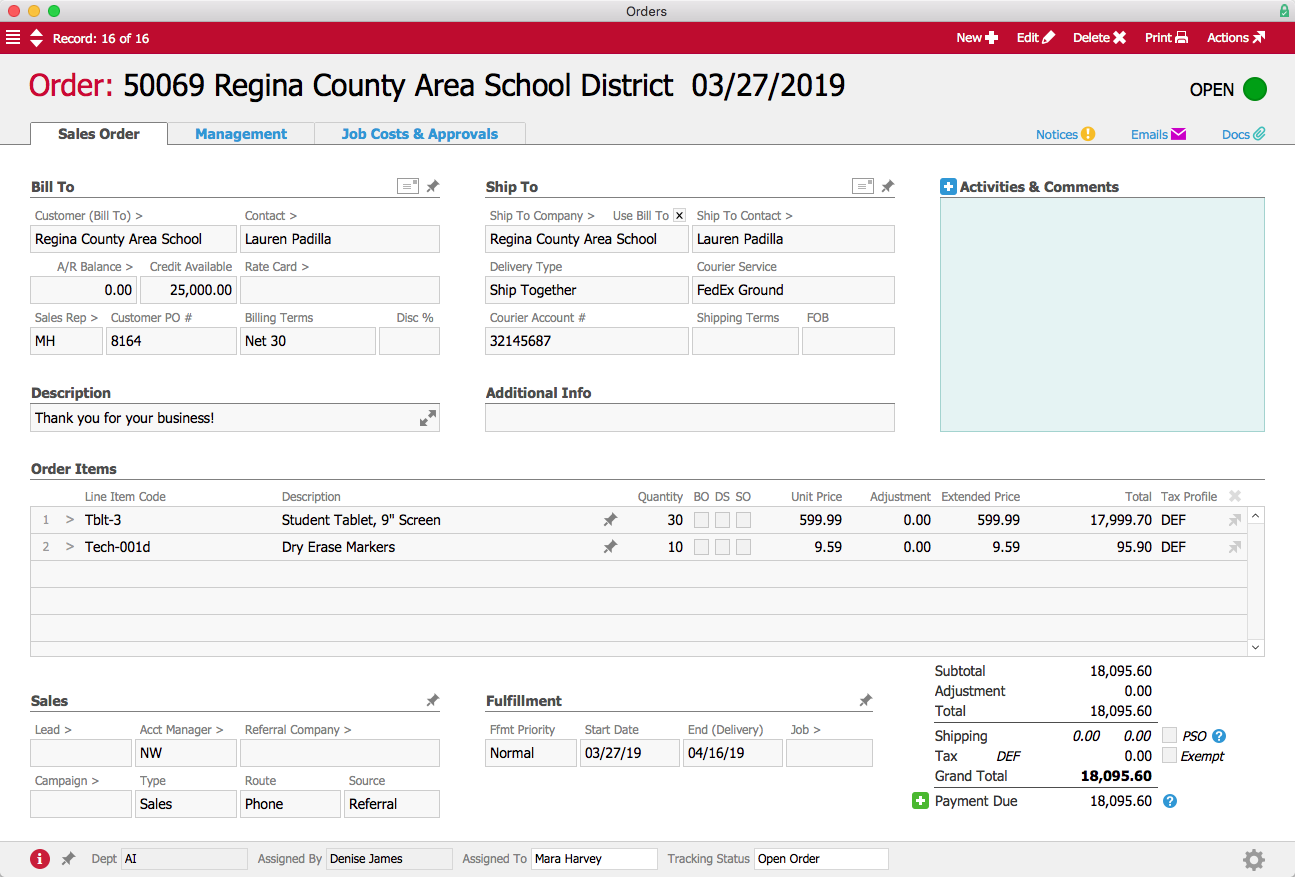
Now let’s see what happens when an order is placed. Over in the Sales Department, Mara Harvey receives an order for 30 student tablets and 10 packs of dry erase markers from the Regina County Area School District.

Order

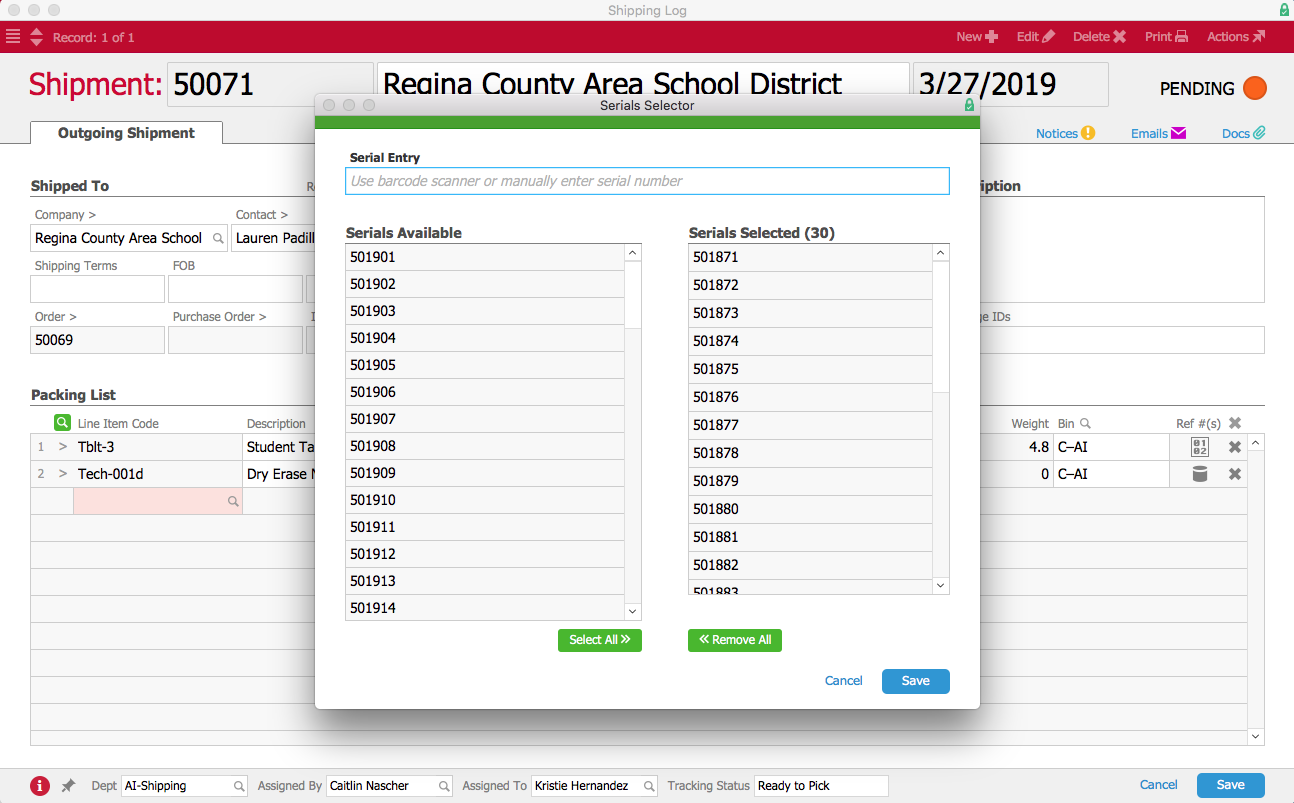
In the warehouse, aACME employee Kristie Hernandez prepares the order to be shipped. To process the outgoing shipment, she must enter the tracking numbers for both tablets and markers. For the tablets, when she clicks on the Serial Numbers icon, aACE gives her a list of the serial numbers for all tablets currently in stock.

Shipment Serial Selector

Kristie can scan in each tablet with a barcode reader or choose the applicable serial numbers from the list. After she has entered and saved the serial numbers of all 30 tablets, the Serial Numbers icon is highlighted in green.

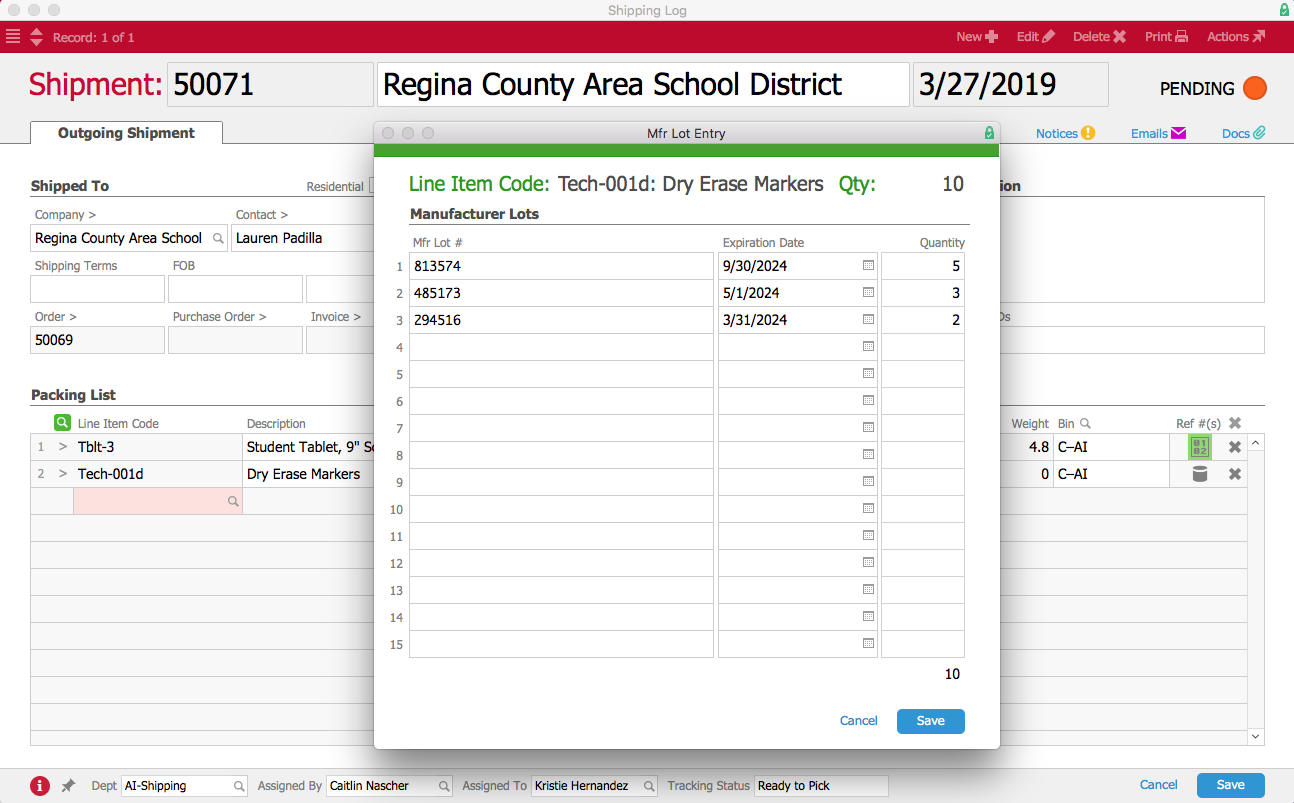
Next, she clicks on the Lot Numbers icon. This opens the Manufacturer Lot Entry screen, where Kristie can choose lot numbers from a drop-down list that tells her which lots are available and how many items are in each lot.

Shipment Lot Selector

When Kristie chooses a lot, aACE automatically populates the Expiration Date field with the date that was entered when the lot was received. Kristie then enters the quantity of items from each lot. If the shipment includes dry erase markers from multiple lots, she can enter each lot either manually or by using a barcode scanner. When she finishes entering the lots, the Lot Numbers icon is highlighted in green.

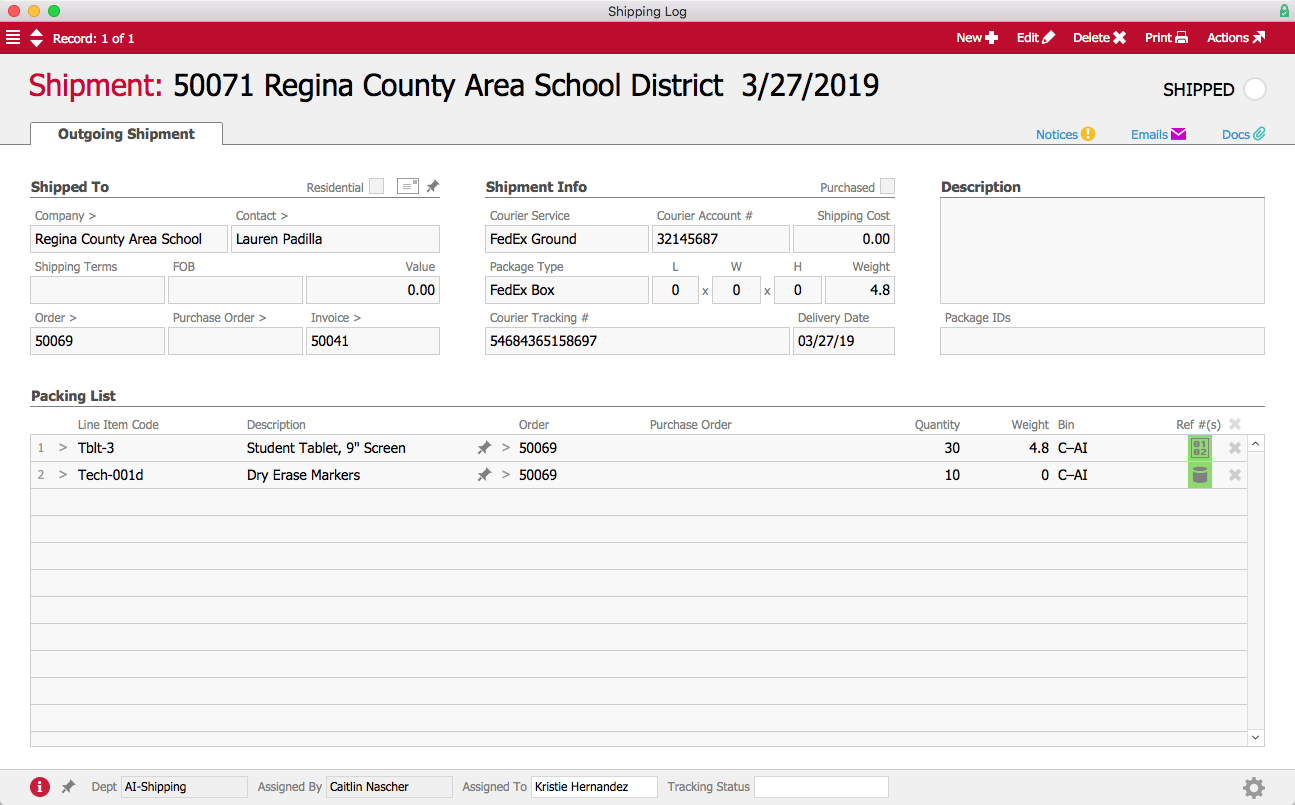
Now that all the tracking information is entered, the outgoing shipment can be processed.

Outgoing Shipment

But what happens when aACME needs to locate products from a specific lot or a particular serial number, for instance because a recall has been issued? This is where aACE’s Inventory Transactions module comes in.

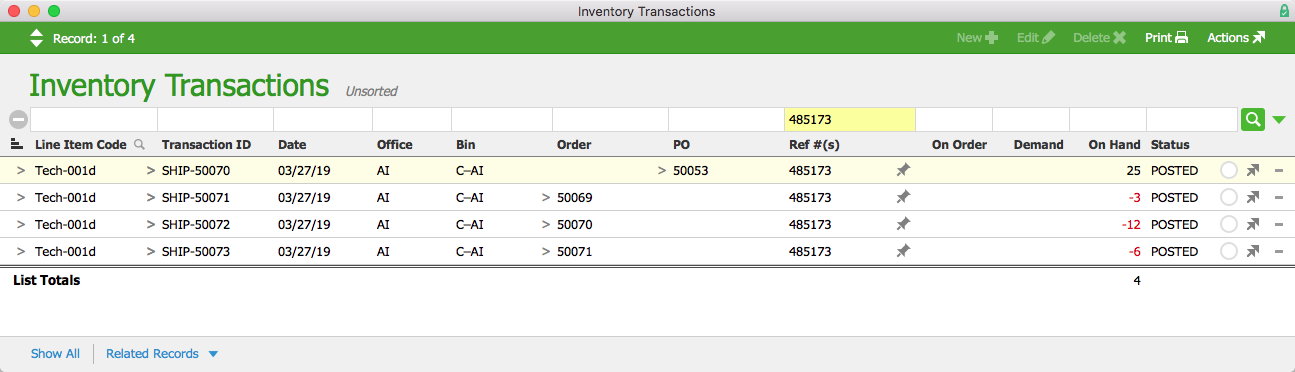
When aACME manager Denise James receives word that the manufacturer of the dry erase markers has issued a recall on lot #485173, she opens the Inventory Transactions module and performs a quick search. Immediately, aACE generates a list of every transaction involving the markers from that lot.

Inventory Transactions

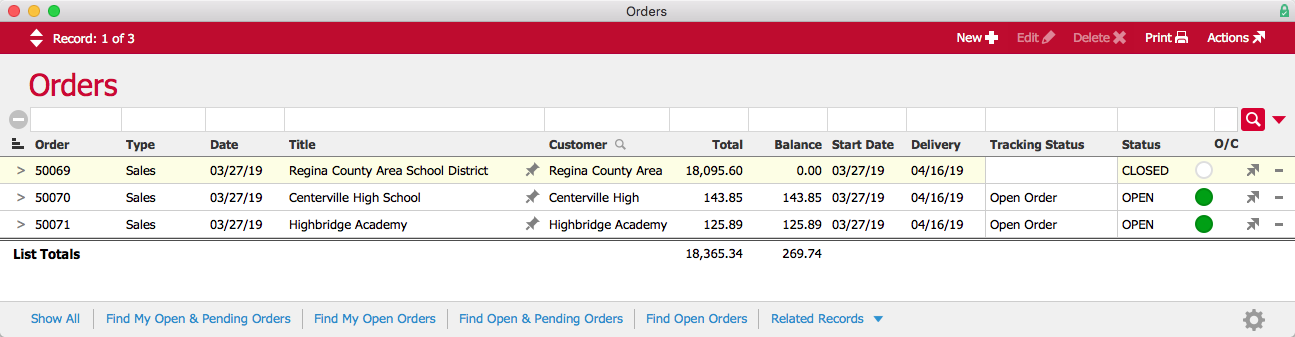
Denise selects Orders from the Related Records link at the bottom of the screen. With one click, she can see all of the orders that are affected by the recall and take steps to recall the product.

Orders

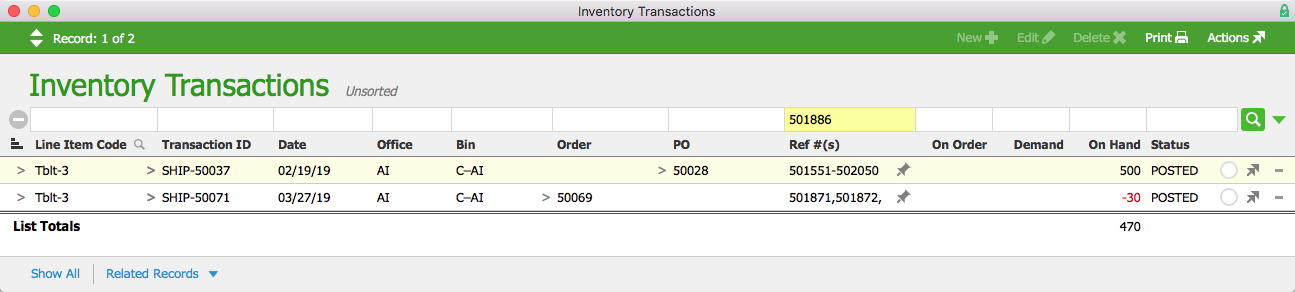
Likewise, if Denise needs to find out where a certain tablet is, she can enter the tablet’s serial number in the Quick Search bar and aACE will generate a list of every transaction involving that particular tablet.

13 Inventory Transactions Serial


aACE lot and serial number tracking gives you better insight into your inventory, ensuring that you’re always prepared in the event of a recall or return. To learn more about what aACE can do for your business, check out our customer success stories or register for an upcoming webinar today.

Learn More

Managing inventory well involves a lot of moving parts – especially when you need to know exactly which specific units are going to whom. aACE allows you to track products by lot or by serial number, giving you the traceability required to handle product recalls, warranty claims, and other... Learn More

-->

Managing inventory well involves a lot of moving parts – especially when you need to know exactly which specific units are going to whom. aACE allows you to track products by lot or by serial number, giving you the traceability required to handle product recalls, warranty claims, and other requirements linked to specific units.

To understand how aACE tracks lots and serial numbers, let’s take a look at how our fictional company, aACME Education Solutions, uses these features in their day-to-day operations.

aACME sells student tablet computers, which are tracked individually by serial number. In each tablet’s product record, the Serialized flag is checked.

Tablet LIC

When a shipment of tablets comes in from the vendor, aACME employee Drew Sanderson fills out the shipment record in aACE. Because this product is serialized, aACE includes a space to enter the serial numbers received in this particular shipment. He clicks on the Serial Numbers icon in the Reference Numbers field and enters the range of serial numbers. He could also scan them in via a barcode scanner. The Serialized flag makes this is a required field; aACE won’t allow Drew to process the shipment unless he enters a serial number for each tablet.

Incoming Tablet Shipment

After Drew enters those numbers, the Serial Numbers icon is highlighted in green to show that the field has been populated. He can now process the shipment, letting aACE know it’s been received.

Received Tablet Shipment

aACME also sells dry erase markers, which are tracked by manufacturer lot. In the markers’ product record, the Track by Mfr Lot flag is checked. Because the markers expire after a few years, the Perishable flag is also checked.

Dry Erase Marker LIC

When a shipment of dry erase markers comes in, Drew again fills out the shipment record in aACE. When Drew clicks the Lot Number icon, he is able to enter the lot numbers, expiration dates, and quantities of each lot of markers in this shipment. He could also scan them in with a barcode scanner. As with serial numbers, aACE requires Drew to enter this information in order to process the shipment.

Dry Erase Markers Incoming Shipment

When Drew finishes entering the lot information, the Lot Number icon is highlighted in green. He is now able to process the shipment, and the shipment record’s status changes to Received.

Dry Erase Markers Received Shipment

Now let’s see what happens when an order is placed. Over in the Sales Department, Mara Harvey receives an order for 30 student tablets and 10 packs of dry erase markers from the Regina County Area School District.

Order

In the warehouse, aACME employee Kristie Hernandez prepares the order to be shipped. To process the outgoing shipment, she must enter the tracking numbers for both tablets and markers. For the tablets, when she clicks on the Serial Numbers icon, aACE gives her a list of the serial numbers for all tablets currently in stock.

Shipment Serial Selector

Kristie can scan in each tablet with a barcode reader or choose the applicable serial numbers from the list. After she has entered and saved the serial numbers of all 30 tablets, the Serial Numbers icon is highlighted in green.

Next, she clicks on the Lot Numbers icon. This opens the Manufacturer Lot Entry screen, where Kristie can choose lot numbers from a drop-down list that tells her which lots are available and how many items are in each lot.

Shipment Lot Selector

When Kristie chooses a lot, aACE automatically populates the Expiration Date field with the date that was entered when the lot was received. Kristie then enters the quantity of items from each lot. If the shipment includes dry erase markers from multiple lots, she can enter each lot either manually or by using a barcode scanner. When she finishes entering the lots, the Lot Numbers icon is highlighted in green.

Now that all the tracking information is entered, the outgoing shipment can be processed.

Outgoing Shipment

But what happens when aACME needs to locate products from a specific lot or a particular serial number, for instance because a recall has been issued? This is where aACE’s Inventory Transactions module comes in.

When aACME manager Denise James receives word that the manufacturer of the dry erase markers has issued a recall on lot #485173, she opens the Inventory Transactions module and performs a quick search. Immediately, aACE generates a list of every transaction involving the markers from that lot.

Inventory Transactions

Denise selects Orders from the Related Records link at the bottom of the screen. With one click, she can see all of the orders that are affected by the recall and take steps to recall the product.

Orders

Likewise, if Denise needs to find out where a certain tablet is, she can enter the tablet’s serial number in the Quick Search bar and aACE will generate a list of every transaction involving that particular tablet.

13 Inventory Transactions Serial


aACE lot and serial number tracking gives you better insight into your inventory, ensuring that you’re always prepared in the event of a recall or return. To learn more about what aACE can do for your business, check out our customer success stories or register for an upcoming webinar today.

Learn More

Read more about Stock the Right Products at the Right Time with aACE Reorder Management

Stock the Right Products at the Right Time with aACE Reorder Management

Wouldn’t it be great if your ERP software could track changes in inventory and automatically generate or adjust pending POs in real time?

aACE does that.

Our smart reorder management features ensure your purchase orders are always up to date. This saves you time and minimizes the potential for errors that comes with manual data entry. To learn how aACE streamlines this essential process, let’s take a look at our fictional company, aACME Education Solutions, handling inventory reorder management in their day-to-day operations.

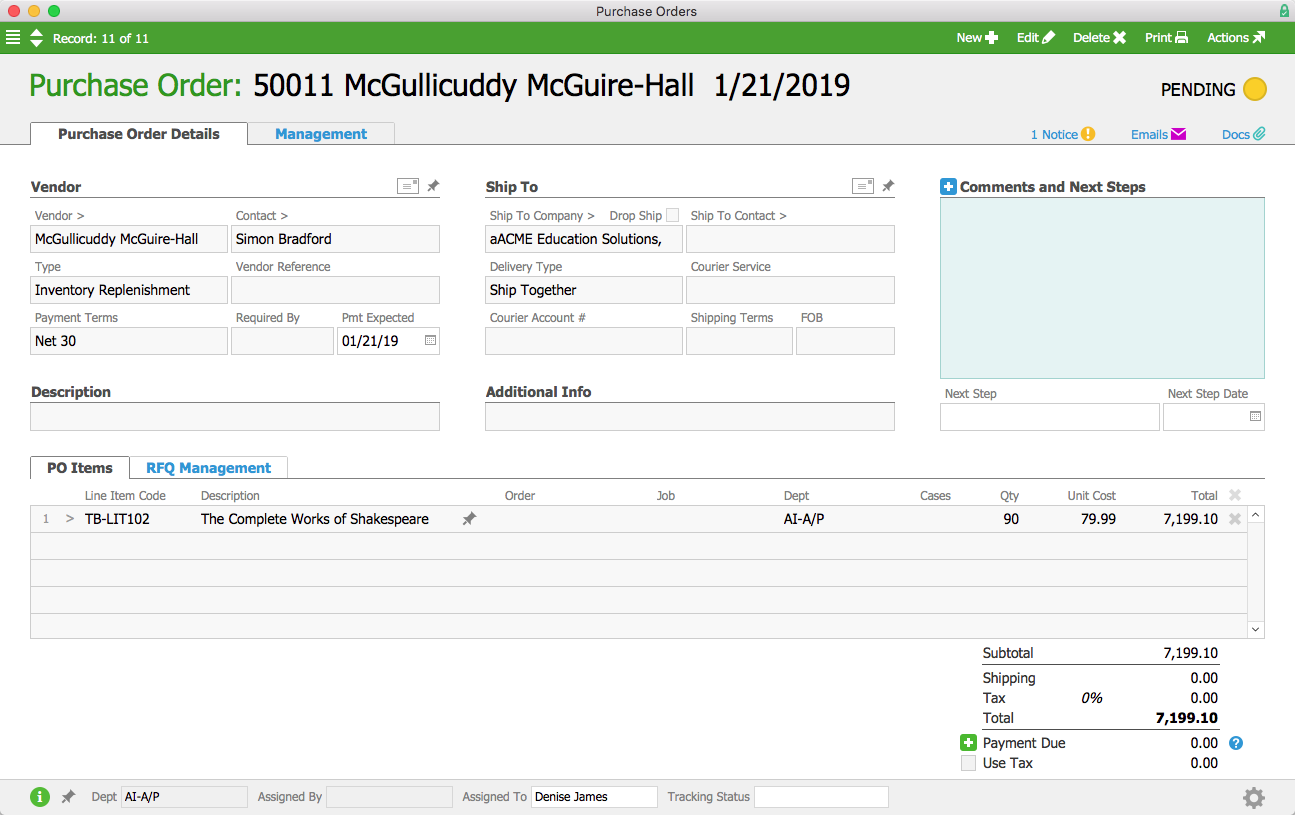
As we saw in the backorder management workflow, aACME’s textbooks have a replenishment balance of 50 and a target balance of 125. This means that when a textbook’s inventory dips below 50, aACE automatically generates a purchase order to bring the available inventory back up to 125.

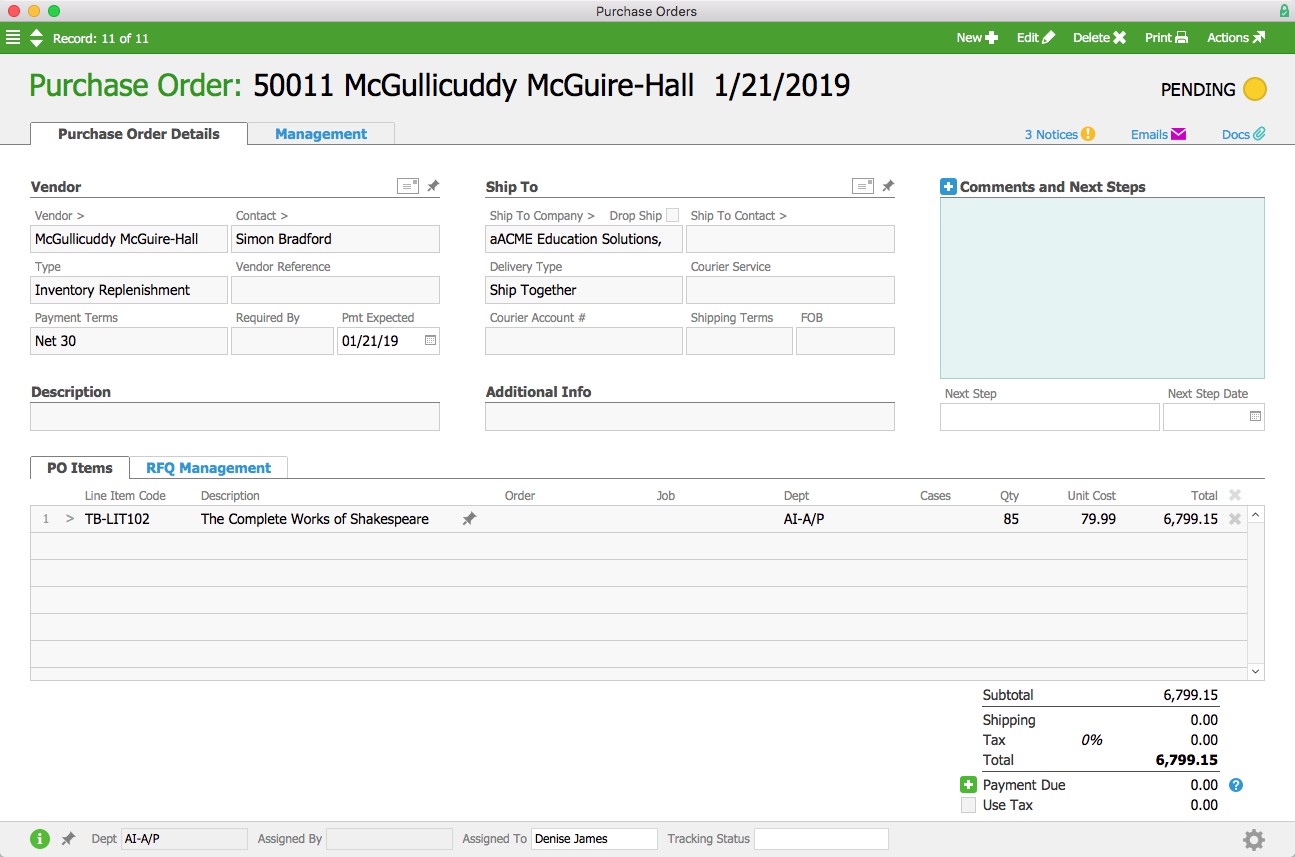
aACME salesperson Jamie Gianelli receives an order for 25 English textbooks from the Brightside Charter School. aACME currently has 60 textbooks in stock, so when Jamie processes the order, a PO is automatically generated for 90 textbooks. It’s kept in Pending status until the A/P department is ready to open it and send it to the vendor.

PO1

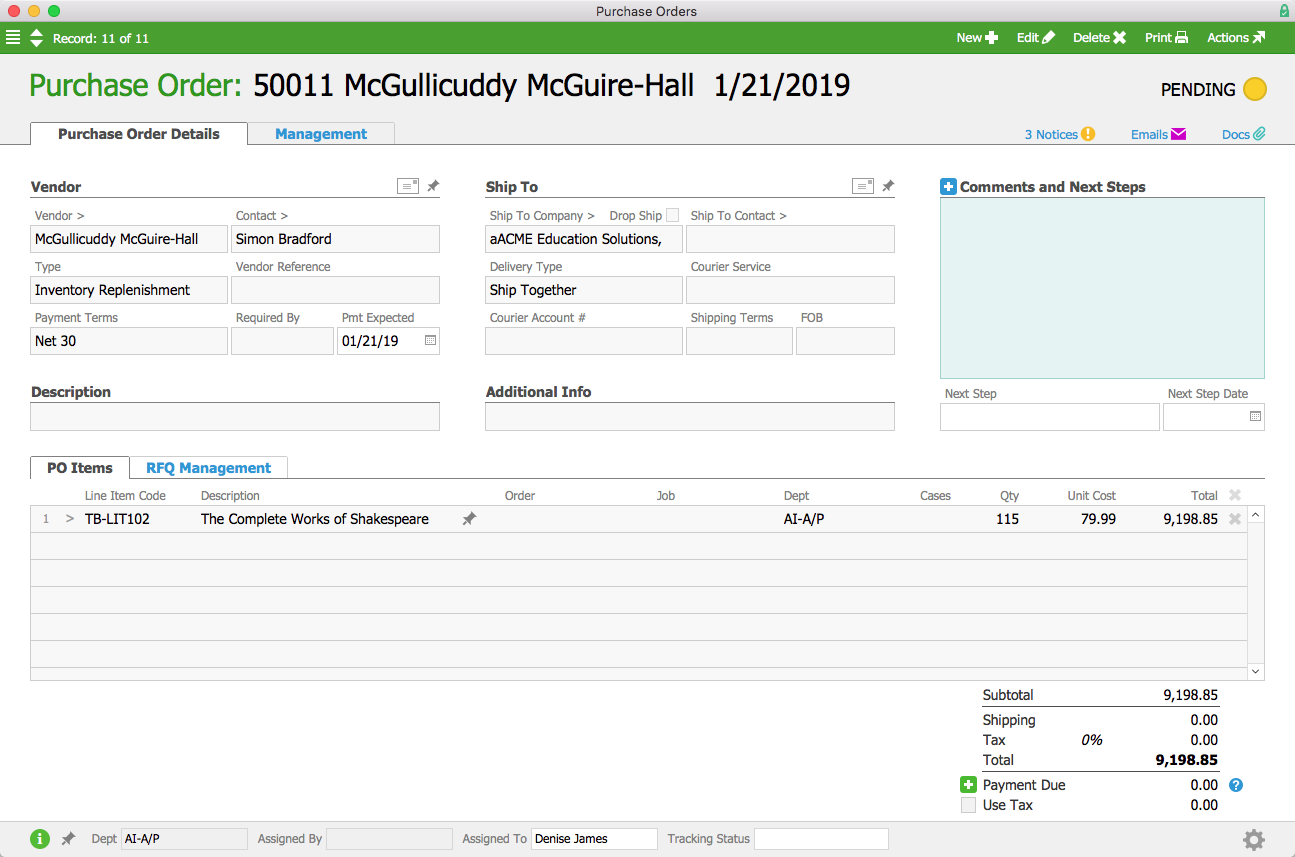
Over in the warehouse, a shipment comes in from the Full STEAM Academy Charter School. They accidentally ordered too many English textbooks, so they’re returning five. When Drew Sanderson processes the incoming shipment and returns the textbooks to aACME’s inventory, aACE automatically removes five textbooks from the pending purchase order.

PO2

Back in the Sales department, Mara Harvey receives an order for 30 textbooks from the Shea Township School District. Because the textbook PO from the last order hasn’t yet been sent to the vendor, aACE simply updates that record, adding the 30 additional textbooks to the existing purchase order instead of generating a new one.

PO3

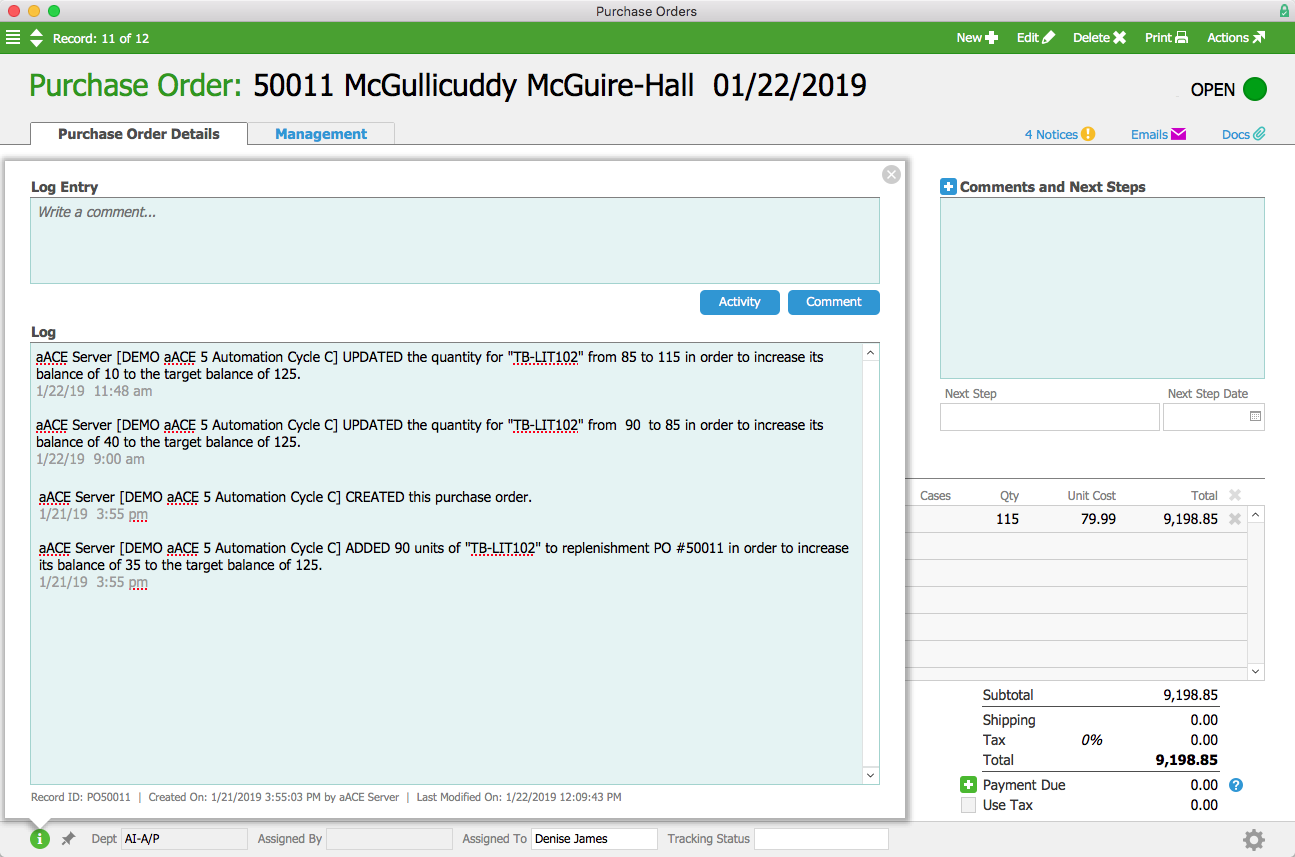
At the end of the day, Denise James in the Accounts Payable department is ready to send the PO off to the vendor. She knows aACE has been adjusting the PO in real time based on current demand, so Denise feels confident that she’s ordering the perfect number of textbooks. She can review recent updates to the PO by checking the log. When the shipment arrives from the vendor a few days later, there are enough textbooks to bring the available inventory back to 125.

PO Log

aACE makes inventory reorder management easy and accurate, saving you time and money by eliminating the need to manually enter and sort through POs. And because aACE leaves the PO in pending status until it’s approved, you’ll never have to worry about sinking money into products you don’t need. Our smart automation and real-time updates give you the peace of mind that comes from knowing you’ll always have the right products on hand.

See more of aACE’s reorder management in action by reading our feature highlights on backorder management and lot and serial tracking. And to learn more about what aACE can do for your business, check out our customer success stories today.

Learn More
Keeping the right number of products in stock can be a challenge – between new orders coming in, returned products being restocked, and other inventory fluctuations, a purchase order created just a few hours ago might already be outdated by the time it’s sent to the vendor. And if your business... Learn More

-->

Keeping the right number of products in stock can be a challenge – between new orders coming in, returned products being restocked, and other inventory fluctuations, a purchase order created just a few hours ago might already be outdated by the time it’s sent to the vendor. And if your business management solution requires you to manually create POs, or if it generates new POs every time there’s a change without considering existing ones, you could end up with a handful of inaccurate or overlapping purchase orders for a single product in the same day.

Wouldn’t it be great if your ERP software could track changes in inventory and automatically generate or adjust pending POs in real time?

aACE does that.

Our smart reorder management features ensure your purchase orders are always up to date. This saves you time and minimizes the potential for errors that comes with manual data entry. To learn how aACE streamlines this essential process, let’s take a look at our fictional company, aACME Education Solutions, handling inventory reorder management in their day-to-day operations.

As we saw in the backorder management workflow, aACME’s textbooks have a replenishment balance of 50 and a target balance of 125. This means that when a textbook’s inventory dips below 50, aACE automatically generates a purchase order to bring the available inventory back up to 125.

aACME salesperson Jamie Gianelli receives an order for 25 English textbooks from the Brightside Charter School. aACME currently has 60 textbooks in stock, so when Jamie processes the order, a PO is automatically generated for 90 textbooks. It’s kept in Pending status until the A/P department is ready to open it and send it to the vendor.

PO1

Over in the warehouse, a shipment comes in from the Full STEAM Academy Charter School. They accidentally ordered too many English textbooks, so they’re returning five. When Drew Sanderson processes the incoming shipment and returns the textbooks to aACME’s inventory, aACE automatically removes five textbooks from the pending purchase order.

PO2

Back in the Sales department, Mara Harvey receives an order for 30 textbooks from the Shea Township School District. Because the textbook PO from the last order hasn’t yet been sent to the vendor, aACE simply updates that record, adding the 30 additional textbooks to the existing purchase order instead of generating a new one.

PO3

At the end of the day, Denise James in the Accounts Payable department is ready to send the PO off to the vendor. She knows aACE has been adjusting the PO in real time based on current demand, so Denise feels confident that she’s ordering the perfect number of textbooks. She can review recent updates to the PO by checking the log. When the shipment arrives from the vendor a few days later, there are enough textbooks to bring the available inventory back to 125.

PO Log

aACE makes inventory reorder management easy and accurate, saving you time and money by eliminating the need to manually enter and sort through POs. And because aACE leaves the PO in pending status until it’s approved, you’ll never have to worry about sinking money into products you don’t need. Our smart automation and real-time updates give you the peace of mind that comes from knowing you’ll always have the right products on hand.

See more of aACE’s reorder management in action by reading our feature highlights on backorder management and lot and serial tracking. And to learn more about what aACE can do for your business, check out our customer success stories today.

Learn More
Read more about Drop Shipping and Special Orders Made Easy with aACE

Drop Shipping and Special Orders Made Easy with aACE

Fortunately aACE offers robust features to automate drop shipping and special ordering. To learn how aACE makes these workflows a snap, let’s take a look at how our fictional company, aACME Education Solutions, handles them in their day-to-day operations.

Drop Shipping

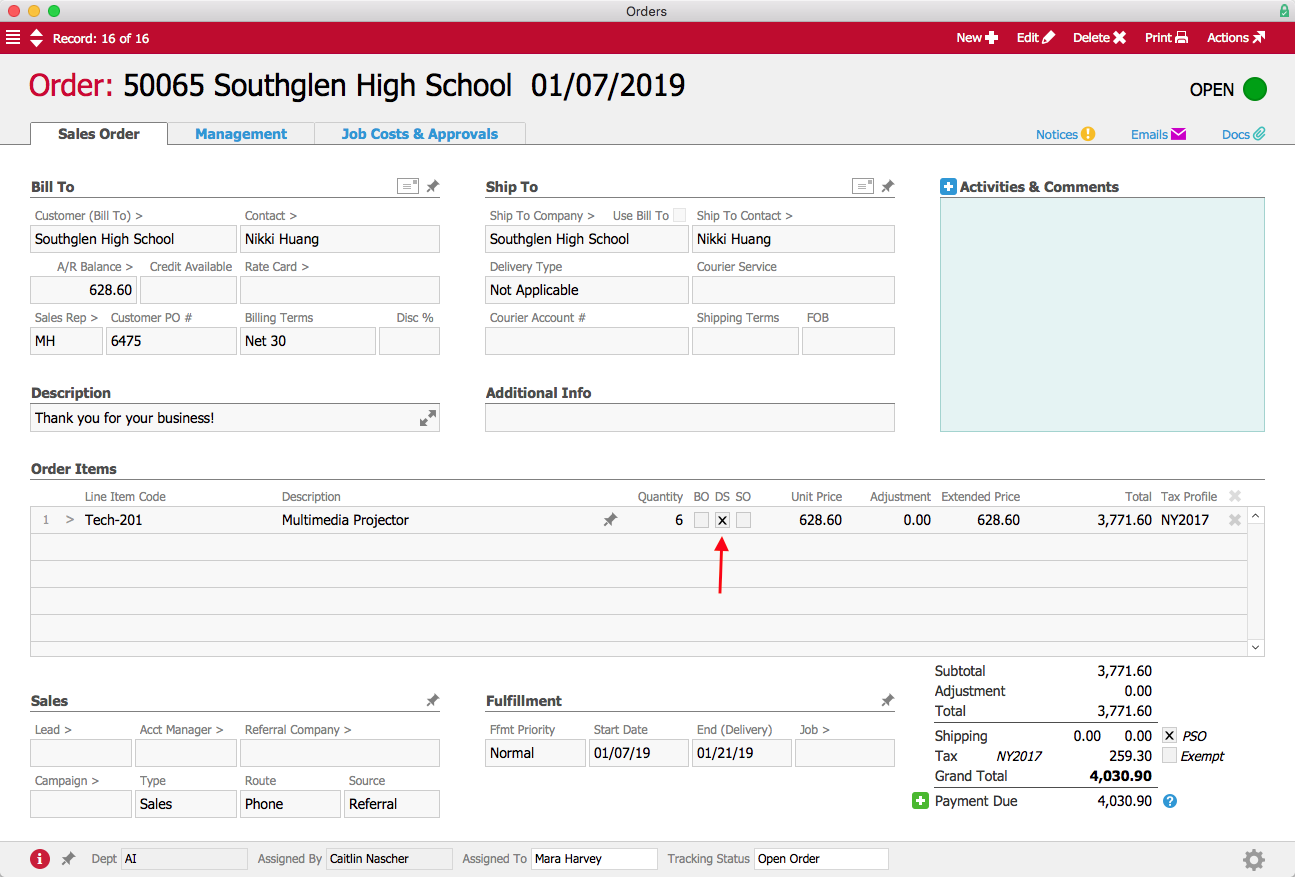
aACME sells multimedia projectors through their website, but they aren’t kept in stock at aACME’s warehouse. When Mara Harvey receives an order for six projectors from the Southglen High School, she enters the order in aACE and checks the Drop Ship (“DS”) flag for the product.

DS Order Annotated

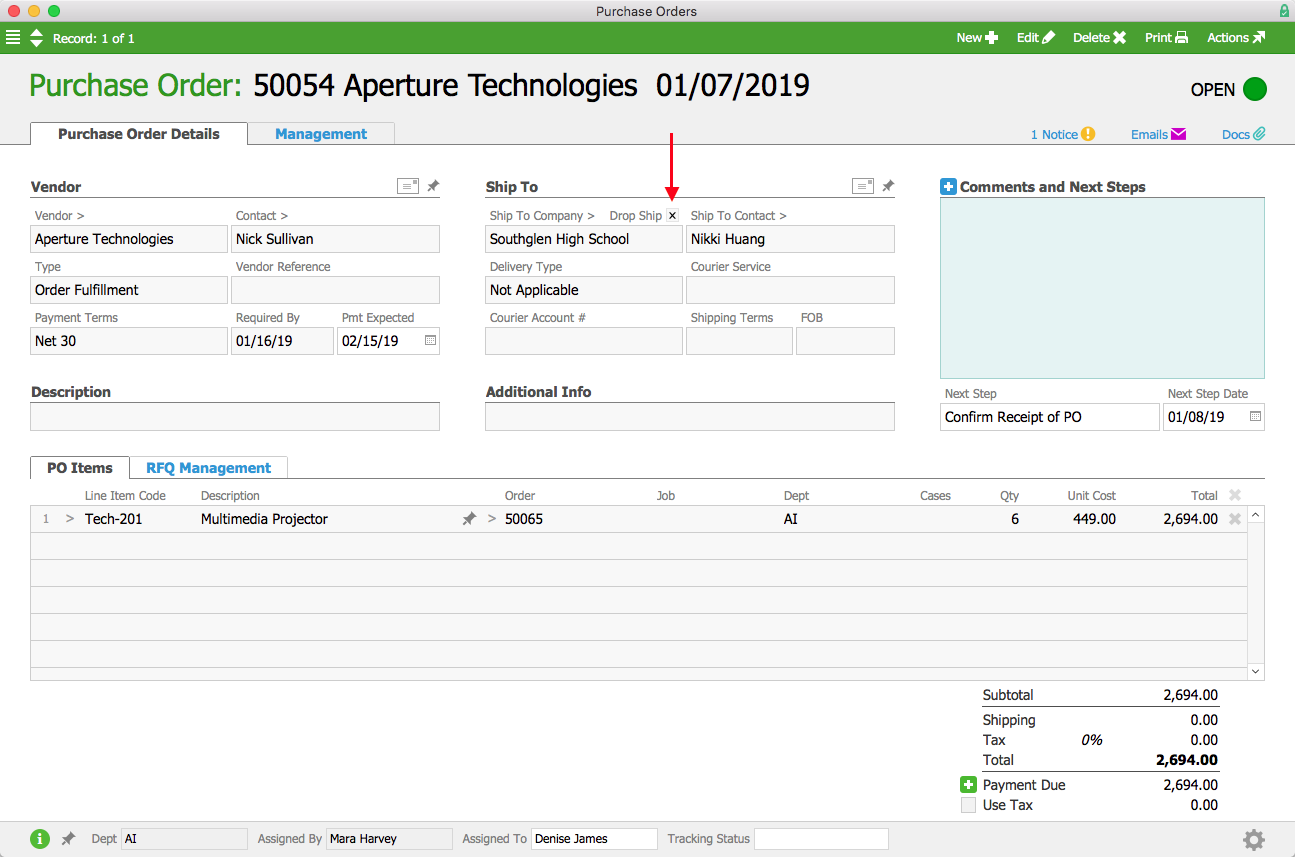
When Mara opens the order, a purchase order is generated and a notice is sent to the Accounts Payable user group. Denise James in the A/P department reviews the purchase order and sends it to the vendor, Aperture Technologies. Unlike a typical purchase order, where the ship-to address would be an aACME warehouse, this PO will be shipped directly to the school. The Drop Ship flag is checked to indicate that the ship-to address belongs to the customer.

DS PO Annotated

A few days later, the vendor ships the order to the customer and sends a bill to aACME’s Accounts Payable department. When Denise enters the vendor’s bill, aACE automatically generates the customer invoice.

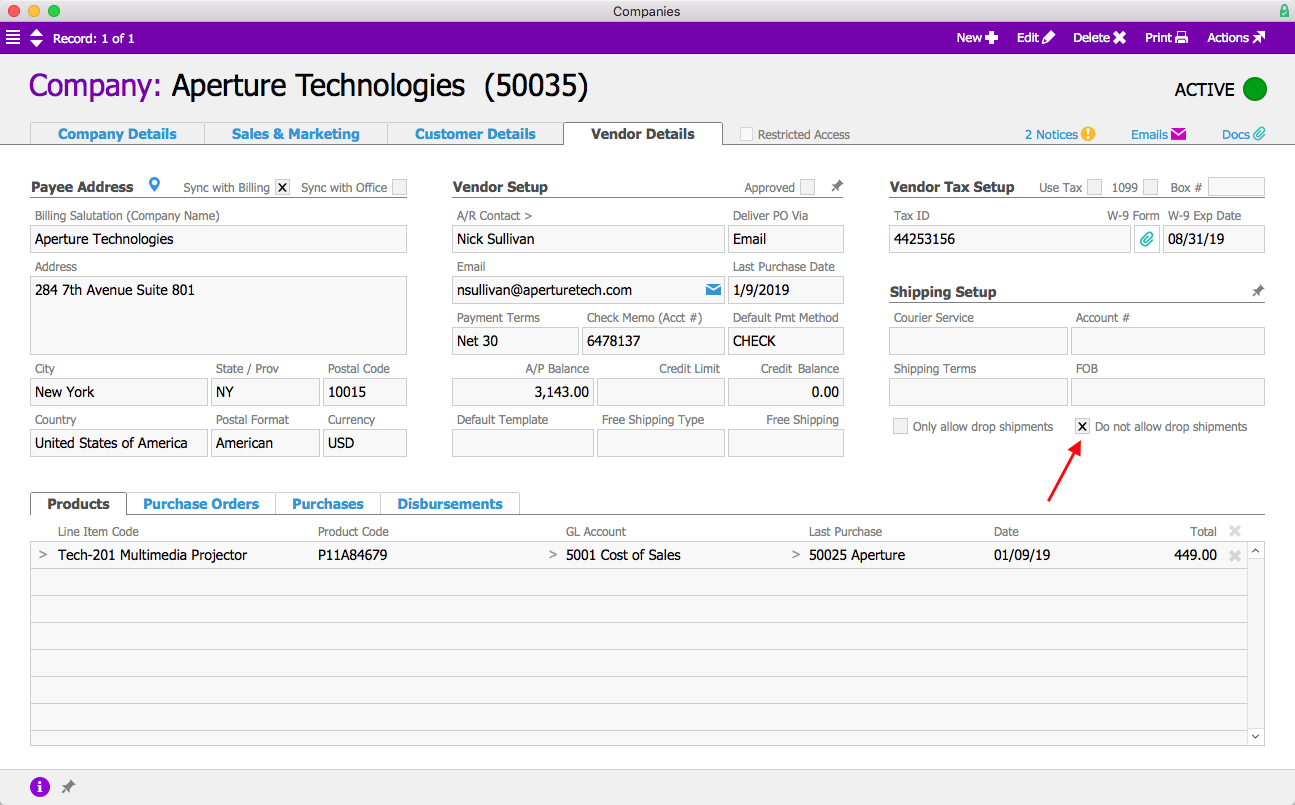
aACME wants all of their customers to have a good experience, so when they receive several complaints about drop shipments from Aperture Technologies arriving sloppily packaged, they quickly act to make sure those mistakes aren’t repeated. aACME manager Jason Dunn navigates to Aperture’s company record and checks the “Do not allow drop shipments flag” to prevent further orders from being shipped from this vendor directly to customers.

DS Company Record Annotated

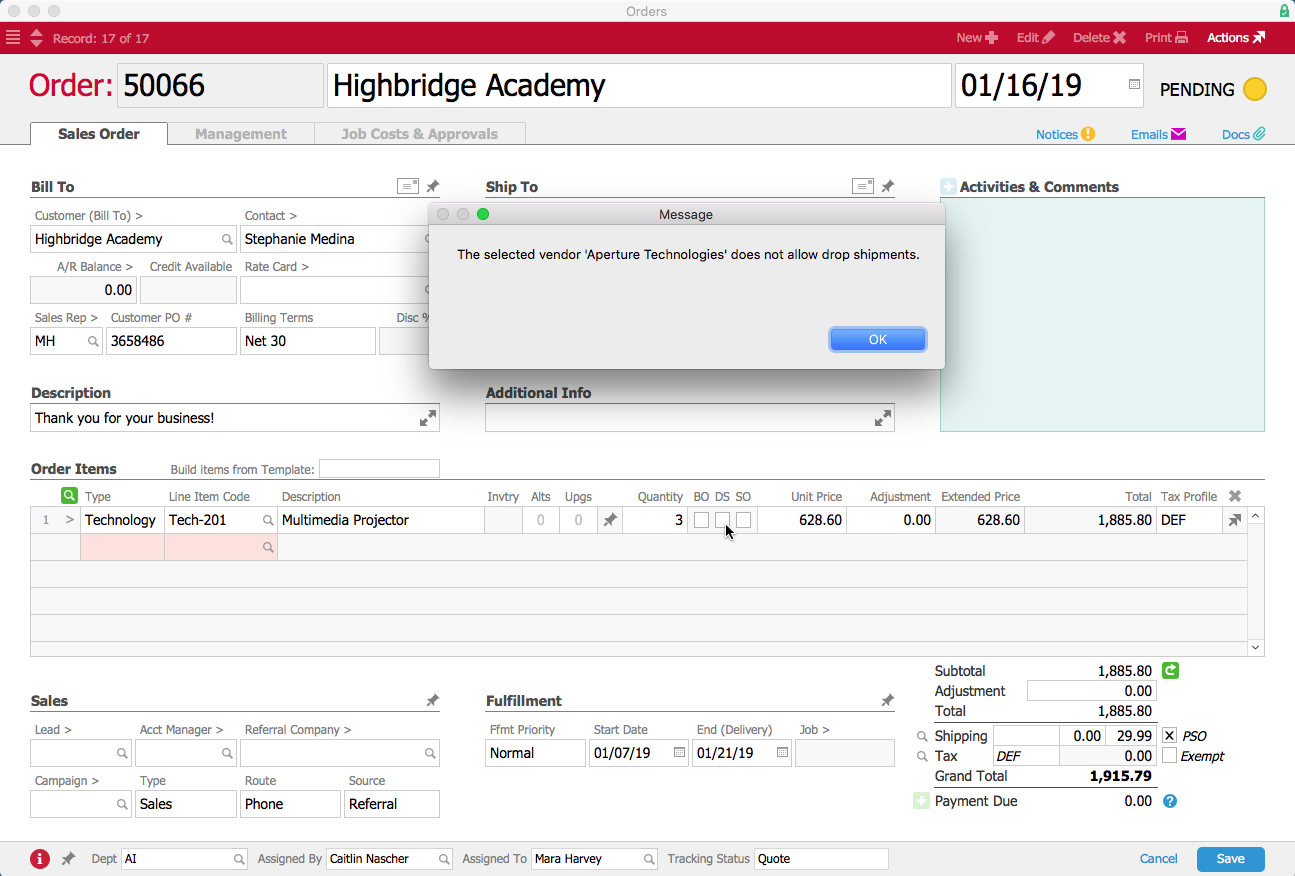
Now when Mara enters an order for an Aperture Technologies product, if she tries to check the Drop Ship flag, she’ll get an error stating that the product cannot be drop shipped. Instead it will be sent to aACME’s warehouse as a special order, where it can be inspected and repackaged before being delivered to the customer.

DS Order Error

Special Orders

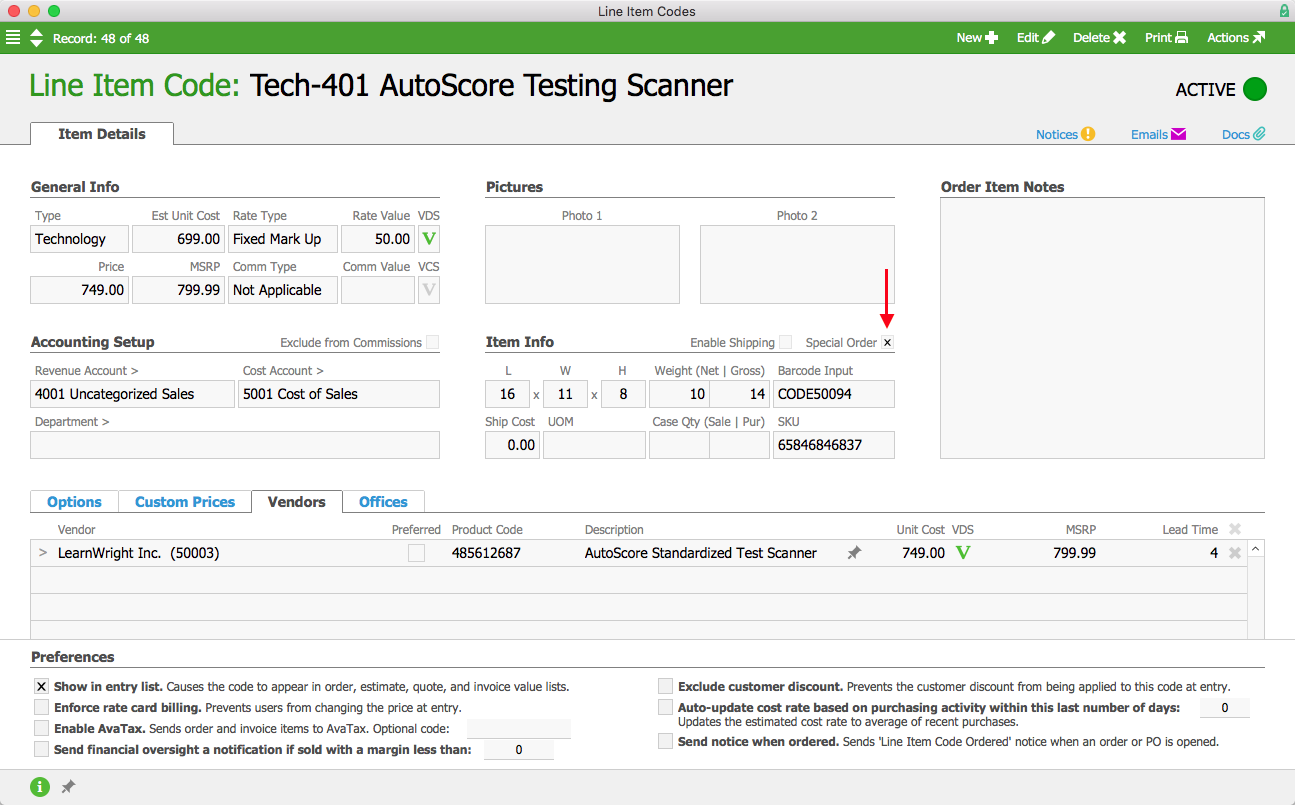
aACME also sells scanners for electronically scoring multiple-choice tests, but since these items don’t sell quickly, aACME doesn’t typically keep them in stock on warehouse shelves. Instead the scanners are ordered on an as-needed basis. In the product’s record, the Special Order flag is checked, meaning that the product will be special ordered by default.

SO Line Item Code Annotated

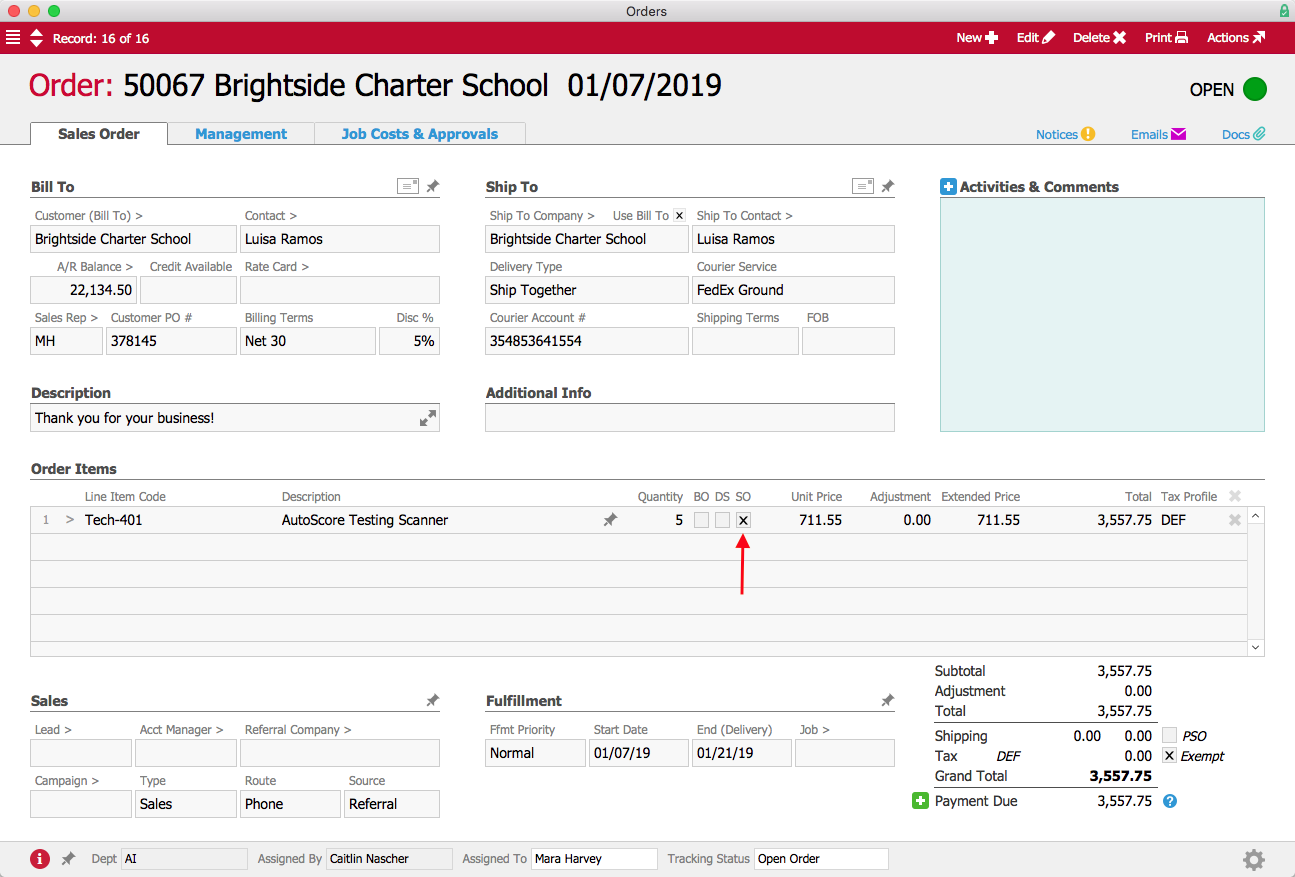
When Mara Harvey receives an order for five of these scanners for the Brightside Charter School, she enters the order in aACE. The Special Order (“SO”) flag for the product is automatically checked since the product is flagged as Special Order. Products that aren’t normally special-ordered can also be flagged as special orders as necessary.

SO Order Annotated

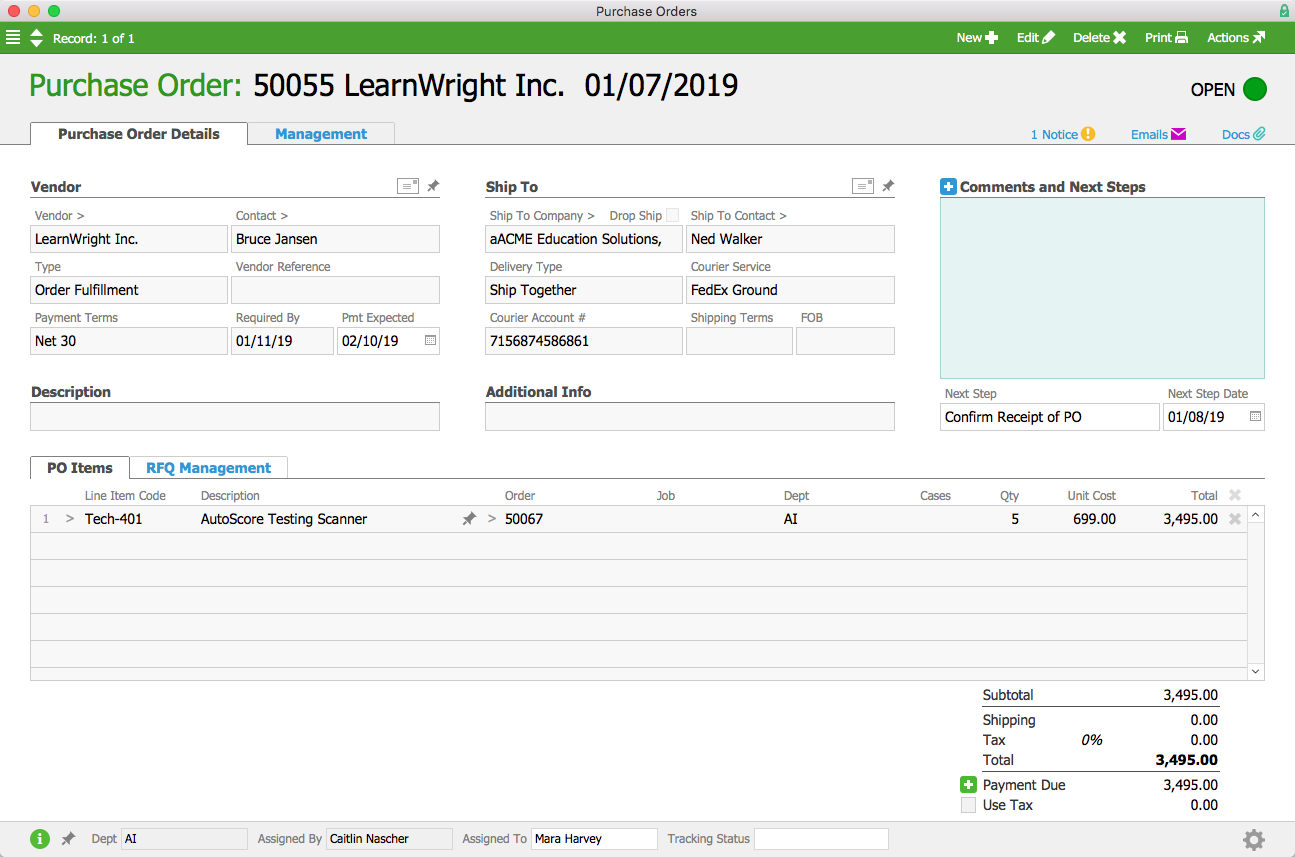
When Mara processes the order, a purchase order is generated and a notice is sent to the Accounts Payable user group. Denise James again opens the purchase order and sends it to the vendor; this time, however, the Ship To address is one of aACME’s warehouses.

SO PO

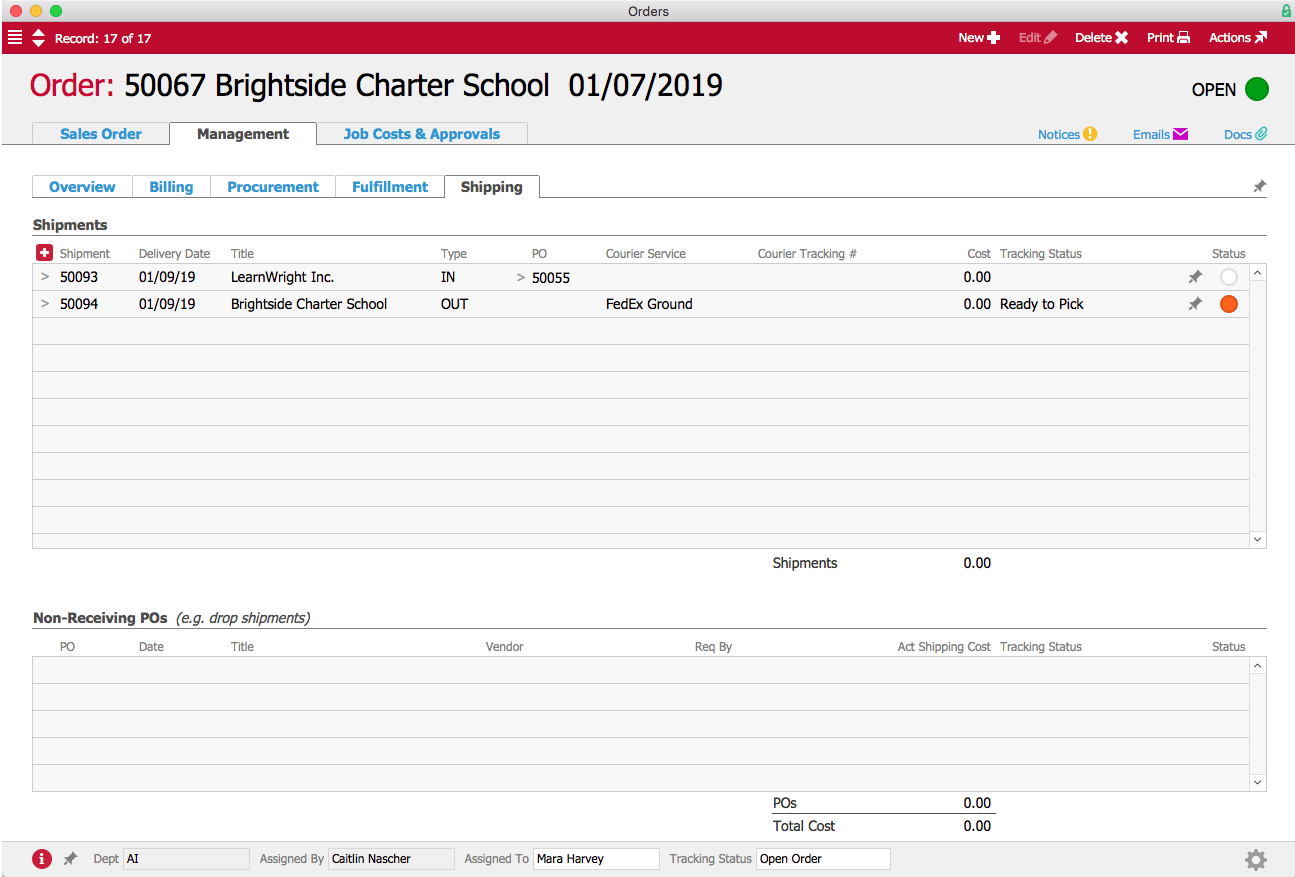
A few days later, the shipment of scanners arrives from the vendor. When aACME employee Kristie Hernandez marks the shipment as received, a notice is sent to Mara so that she can come and inspect the goods. Additionally, aACE automatically generates a pending outgoing shipment to send the scanners to the Brightside Charter School. This pending shipment is also visible in the order’s Shipping screen.

SO Shipments

Once Mara has approved the products, Kristie repackages the scanners and prepares them for delivery to the customer. When the shipment to the school is processed, aACE automatically generates the customer invoice.


aACE makes managing drop shipments and special orders easy and accurate by automating key aspects of the processes and reducing the need for manual data entry. Check out our customer success stories to learn what else aACE can do for your business.

Learn More

Drop shipping and special ordering allow you to offer a wide range of products to your customers without the overhead costs of storing and managing inventory. But tracking those sales in your business management solution can get complicated fast. Fortunately aACE offers robust features to automate... Learn More

-->

Drop shipping and special ordering allow you to offer a wide range of products to your customers without the overhead costs of storing and managing inventory. But tracking those sales in your business management solution can get complicated fast.

Fortunately aACE offers robust features to automate drop shipping and special ordering. To learn how aACE makes these workflows a snap, let’s take a look at how our fictional company, aACME Education Solutions, handles them in their day-to-day operations.

Drop Shipping

aACME sells multimedia projectors through their website, but they aren’t kept in stock at aACME’s warehouse. When Mara Harvey receives an order for six projectors from the Southglen High School, she enters the order in aACE and checks the Drop Ship (“DS”) flag for the product.

DS Order Annotated

When Mara opens the order, a purchase order is generated and a notice is sent to the Accounts Payable user group. Denise James in the A/P department reviews the purchase order and sends it to the vendor, Aperture Technologies. Unlike a typical purchase order, where the ship-to address would be an aACME warehouse, this PO will be shipped directly to the school. The Drop Ship flag is checked to indicate that the ship-to address belongs to the customer.

DS PO Annotated

A few days later, the vendor ships the order to the customer and sends a bill to aACME’s Accounts Payable department. When Denise enters the vendor’s bill, aACE automatically generates the customer invoice.

aACME wants all of their customers to have a good experience, so when they receive several complaints about drop shipments from Aperture Technologies arriving sloppily packaged, they quickly act to make sure those mistakes aren’t repeated. aACME manager Jason Dunn navigates to Aperture’s company record and checks the “Do not allow drop shipments flag” to prevent further orders from being shipped from this vendor directly to customers.

DS Company Record Annotated

Now when Mara enters an order for an Aperture Technologies product, if she tries to check the Drop Ship flag, she’ll get an error stating that the product cannot be drop shipped. Instead it will be sent to aACME’s warehouse as a special order, where it can be inspected and repackaged before being delivered to the customer.

DS Order Error

Special Orders

aACME also sells scanners for electronically scoring multiple-choice tests, but since these items don’t sell quickly, aACME doesn’t typically keep them in stock on warehouse shelves. Instead the scanners are ordered on an as-needed basis. In the product’s record, the Special Order flag is checked, meaning that the product will be special ordered by default.

SO Line Item Code Annotated

When Mara Harvey receives an order for five of these scanners for the Brightside Charter School, she enters the order in aACE. The Special Order (“SO”) flag for the product is automatically checked since the product is flagged as Special Order. Products that aren’t normally special-ordered can also be flagged as special orders as necessary.

SO Order Annotated

When Mara processes the order, a purchase order is generated and a notice is sent to the Accounts Payable user group. Denise James again opens the purchase order and sends it to the vendor; this time, however, the Ship To address is one of aACME’s warehouses.

SO PO

A few days later, the shipment of scanners arrives from the vendor. When aACME employee Kristie Hernandez marks the shipment as received, a notice is sent to Mara so that she can come and inspect the goods. Additionally, aACE automatically generates a pending outgoing shipment to send the scanners to the Brightside Charter School. This pending shipment is also visible in the order’s Shipping screen.

SO Shipments

Once Mara has approved the products, Kristie repackages the scanners and prepares them for delivery to the customer. When the shipment to the school is processed, aACE automatically generates the customer invoice.


aACE makes managing drop shipments and special orders easy and accurate by automating key aspects of the processes and reducing the need for manual data entry. Check out our customer success stories to learn what else aACE can do for your business.

Learn More

Read more about Low Inventory? No Problem! aACE Makes Backorder Management a Breeze

Low Inventory? No Problem! aACE Makes Backorder Management a Breeze

Fortunately, aACE is here to help. To learn how aACE makes managing backorders easy, let’s follow our fictional company, aACME Education Solutions, as they handle backorders in their day-to-day operations.

To keep the unfortunate occurrence of out-of-stock items to a minimum, aACME has set target balances and replenishment balances on their inventoried items. The target balances tell aACE the maximum number of items that should be kept on their warehouse shelves. The replenishment balances tell aACE when to automatically generate a purchase order to bring the inventory back up. aACME’s textbooks have a target balance of 125 and a replenishment balance of 50.

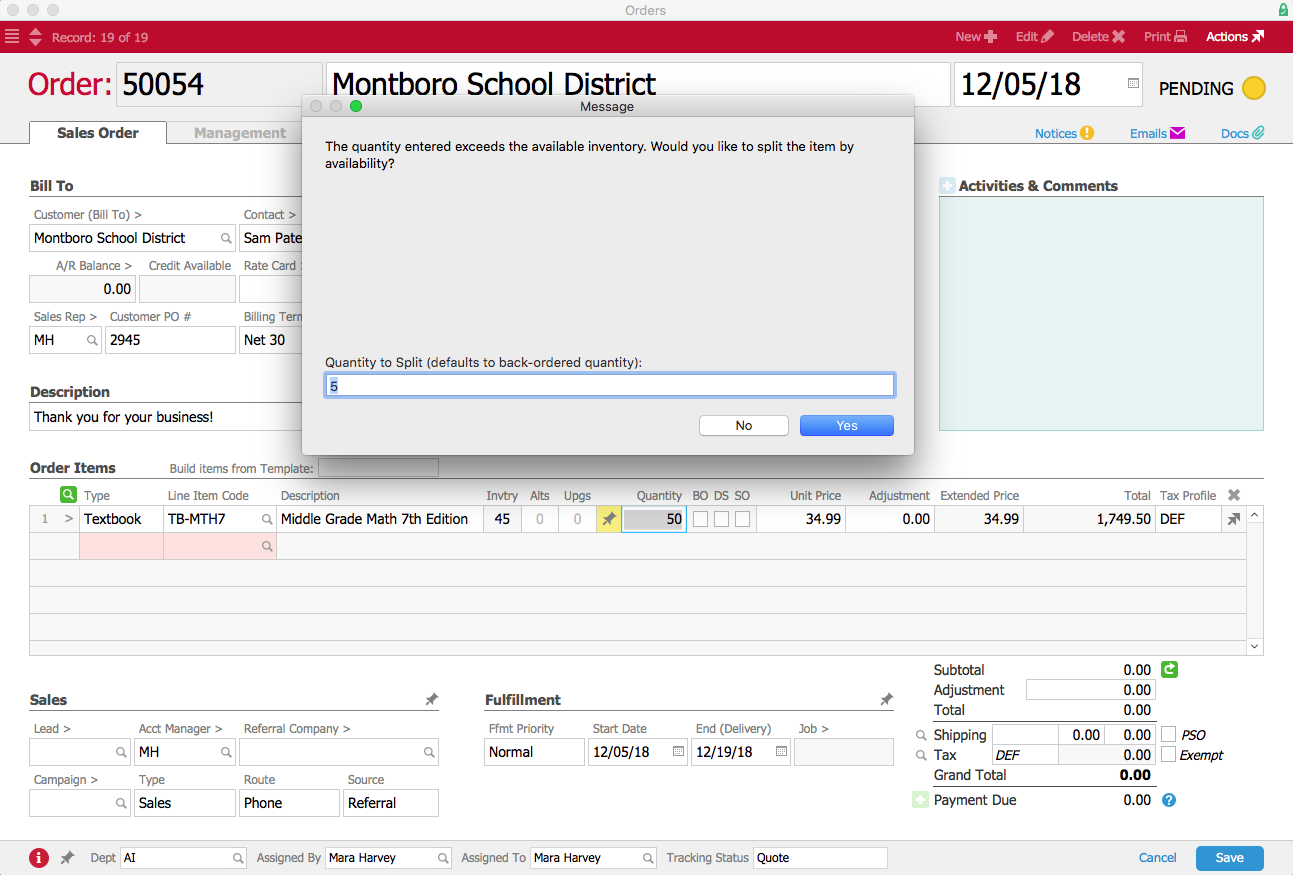
aACME has 45 math textbooks in stock, with 80 more on order from the publisher. Before that shipment arrives, the sales department receives an order from the Montboro School District for 50 math textbooks. When Account Manager Mara Harvey enters the 50 textbooks into the order, a dialog box pops up informing her that the quantity exceeds the available inventory.

Mara could choose to put all 50 textbooks on backorder so that the entire order will be filled once the inventory is replenished. She also has the option of splitting the line item so the customer receives some of the items from the current inventory, with the rest placed on backorder. She calls her contact, Sam Patel, at Montboro to explain the situation; with all the necessary information at her fingertips in aACE, she’s able to present Sam with all of his options. Sam lets Mara know that they are not in a rush but that they’ll take as many textbooks as they can now and the rest when they’re back in stock.

Order with Back Order Dialog

Mara clicks ‘Yes’ to split the order based on the available inventory. aACE automatically updates the quantity of the textbooks in the first line item to 45 and creates a second line item for the remaining 5. This second line item is marked with the backorder (“BO”) flag, and aACE automatically generates an outgoing shipment for the 45 textbooks in stock.

Order Items with Back Order

But what happens when another order is placed for the same product?

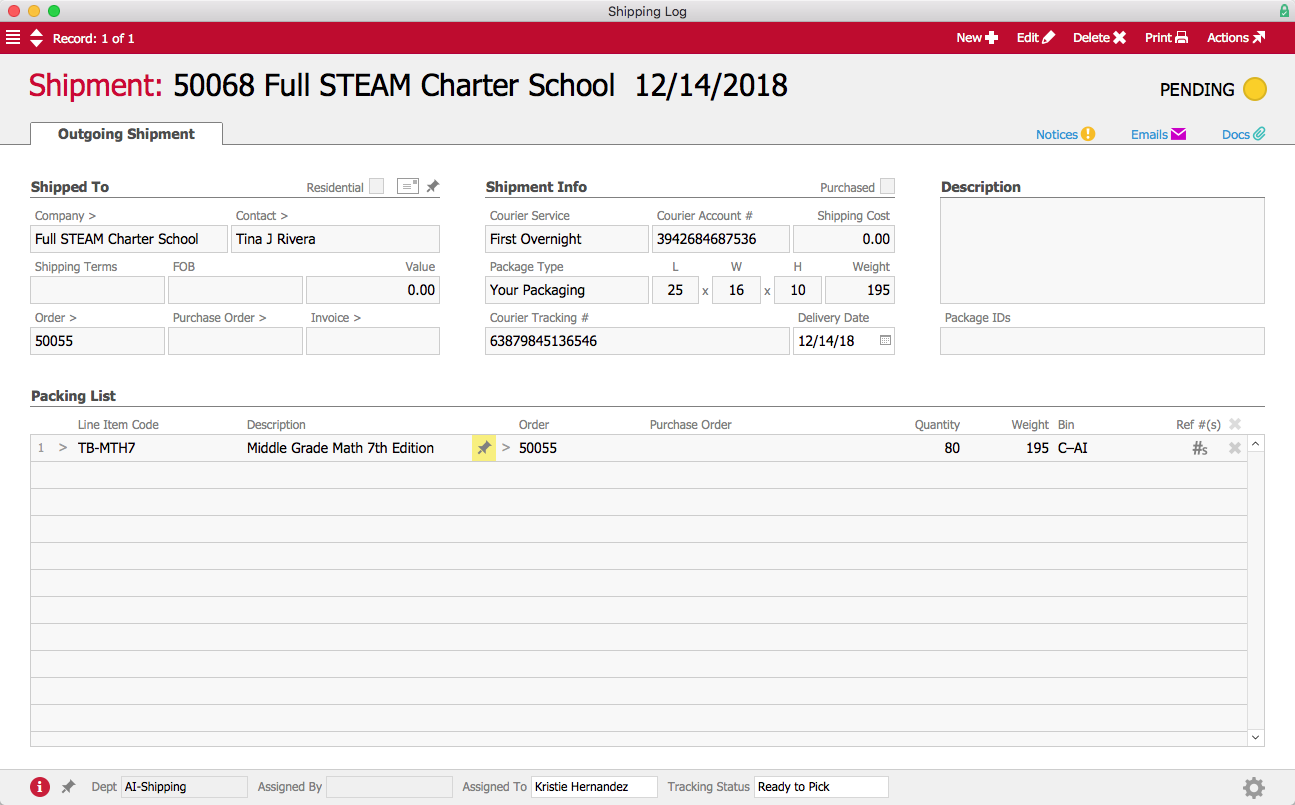
Before the next shipment of textbooks comes in from the vendor, Mara receives another order for 80 math textbooks from the Full STEAM Academy Charter School. Since there are no more books left in the available inventory, all 80 textbooks are placed on backorder. Typically backorders would be filled on a first-come, first-served basis. In this case, however, the Full STEAM Academy needs the textbooks for the fast-approaching winter term, and they’re willing to pay a rush fee to expedite their order.

Mara changes the order’s fulfillment priority to Rush 50%, automatically adding a 50% rush fee to the total. Since the 80 backordered textbooks from the Full STEAM Order plus the 5 backordered textbooks from the Montboro order will use up all of the inventory that’s currently on order from the publisher, aACE automatically generates a purchase order for 130 textbooks to bring the available inventory back up to its target balance.

The typical lead time for the textbooks is two weeks from the time the Accounts Payable department emails the PO to the vendor to the time the new stock arrives in aACME’s warehouse. When the first shipment of 80 textbooks comes in from the publisher a few days later, aACE automatically allocates the new inventory to backorders, first in order of fulfillment priority and then in chronological order. Because the Full STEAM Academy’s order has the Rush 50% fulfillment priority, aACE fills that order first. A shipment is automatically generated to send 80 textbooks to that school.

Full STEAM Rush Shipment

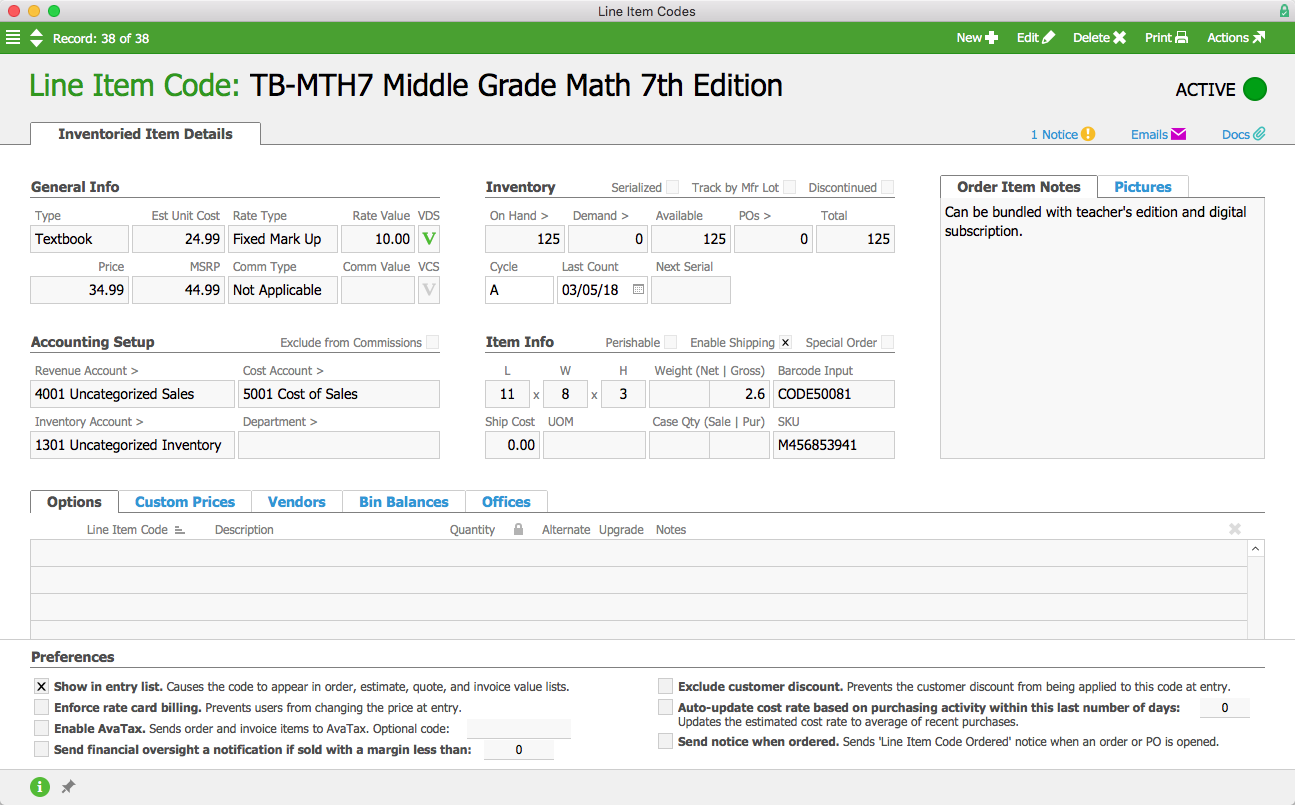
Two weeks later, the shipment of 130 textbooks comes in. With the rush order completed, aACE generates a shipment for the Montboro School District’s 5 backordered textbooks. This brings the available inventory to the target balance of 125, with no additional POs outstanding.

Line Item Code after Back Orders

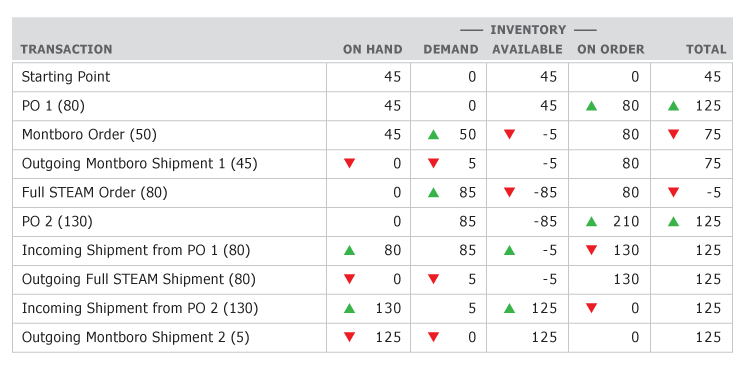
The table below illustrates the movement of inventory throughout this example, using red and green arrows to indicate the values that have changed with each event.

Chart-Inventory

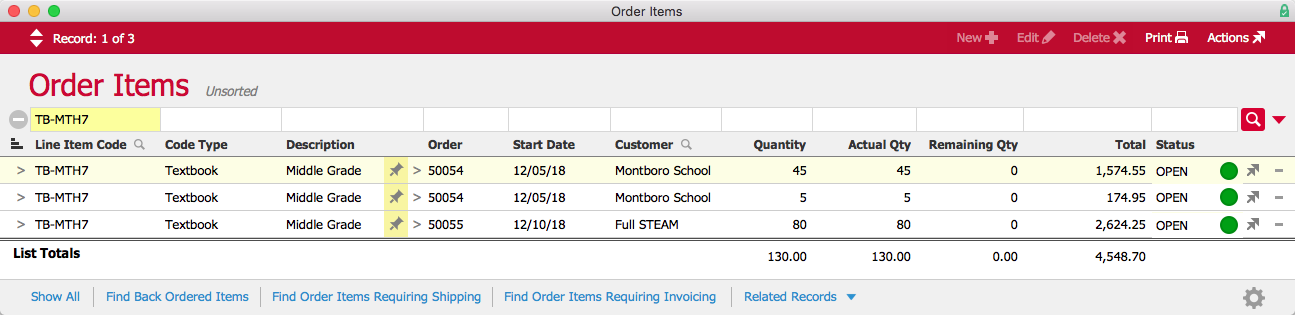
If the managers at aACME want to see what items are on backorder, aACE offers different ways to access that information. In the Order Items module, they can quickly pull up a list of all backordered items, with links to the associated orders. Likewise, from the Line Item Codes module they can review backorders for a specific item, like the math textbook; aACE makes it easy to view a list of the orders placing demand on that item’s inventory with just one click.

Order Items

aACE streamlines backorder management, keeping your business moving and your customers happy. Now that we've seen what it's done for our fictional company, take a look at our Southwest Auto Accessories success story to learn how this feature helped a real aACE client gain visibility into their backorder process. Check out our other customer success stories below to learn what else aACE can do for your business today.

Learn More
Most businesses experience this at some point or another: orders are pouring in and your inventory can’t quite keep up with the demand. If you can’t manage backorders properly, your customers may get frustrated or go somewhere else. Fortunately, aACE is here to help. To learn how aACE makes... Learn More

-->

Most businesses experience this at some point or another: orders are pouring in and your inventory can’t quite keep up with the demand. If you can’t manage backorders properly, your customers may get frustrated or go somewhere else.

Fortunately, aACE is here to help. To learn how aACE makes managing backorders easy, let’s follow our fictional company, aACME Education Solutions, as they handle backorders in their day-to-day operations.

To keep the unfortunate occurrence of out-of-stock items to a minimum, aACME has set target balances and replenishment balances on their inventoried items. The target balances tell aACE the maximum number of items that should be kept on their warehouse shelves. The replenishment balances tell aACE when to automatically generate a purchase order to bring the inventory back up. aACME’s textbooks have a target balance of 125 and a replenishment balance of 50.

aACME has 45 math textbooks in stock, with 80 more on order from the publisher. Before that shipment arrives, the sales department receives an order from the Montboro School District for 50 math textbooks. When Account Manager Mara Harvey enters the 50 textbooks into the order, a dialog box pops up informing her that the quantity exceeds the available inventory.

Mara could choose to put all 50 textbooks on backorder so that the entire order will be filled once the inventory is replenished. She also has the option of splitting the line item so the customer receives some of the items from the current inventory, with the rest placed on backorder. She calls her contact, Sam Patel, at Montboro to explain the situation; with all the necessary information at her fingertips in aACE, she’s able to present Sam with all of his options. Sam lets Mara know that they are not in a rush but that they’ll take as many textbooks as they can now and the rest when they’re back in stock.

Order with Back Order Dialog

Mara clicks ‘Yes’ to split the order based on the available inventory. aACE automatically updates the quantity of the textbooks in the first line item to 45 and creates a second line item for the remaining 5. This second line item is marked with the backorder (“BO”) flag, and aACE automatically generates an outgoing shipment for the 45 textbooks in stock.

Order Items with Back Order

But what happens when another order is placed for the same product?

Before the next shipment of textbooks comes in from the vendor, Mara receives another order for 80 math textbooks from the Full STEAM Academy Charter School. Since there are no more books left in the available inventory, all 80 textbooks are placed on backorder. Typically backorders would be filled on a first-come, first-served basis. In this case, however, the Full STEAM Academy needs the textbooks for the fast-approaching winter term, and they’re willing to pay a rush fee to expedite their order.

Mara changes the order’s fulfillment priority to Rush 50%, automatically adding a 50% rush fee to the total. Since the 80 backordered textbooks from the Full STEAM Order plus the 5 backordered textbooks from the Montboro order will use up all of the inventory that’s currently on order from the publisher, aACE automatically generates a purchase order for 130 textbooks to bring the available inventory back up to its target balance.

The typical lead time for the textbooks is two weeks from the time the Accounts Payable department emails the PO to the vendor to the time the new stock arrives in aACME’s warehouse. When the first shipment of 80 textbooks comes in from the publisher a few days later, aACE automatically allocates the new inventory to backorders, first in order of fulfillment priority and then in chronological order. Because the Full STEAM Academy’s order has the Rush 50% fulfillment priority, aACE fills that order first. A shipment is automatically generated to send 80 textbooks to that school.

Full STEAM Rush Shipment

Two weeks later, the shipment of 130 textbooks comes in. With the rush order completed, aACE generates a shipment for the Montboro School District’s 5 backordered textbooks. This brings the available inventory to the target balance of 125, with no additional POs outstanding.

Line Item Code after Back Orders

The table below illustrates the movement of inventory throughout this example, using red and green arrows to indicate the values that have changed with each event.

Chart-Inventory

If the managers at aACME want to see what items are on backorder, aACE offers different ways to access that information. In the Order Items module, they can quickly pull up a list of all backordered items, with links to the associated orders. Likewise, from the Line Item Codes module they can review backorders for a specific item, like the math textbook; aACE makes it easy to view a list of the orders placing demand on that item’s inventory with just one click.

Order Items

aACE streamlines backorder management, keeping your business moving and your customers happy. Now that we've seen what it's done for our fictional company, take a look at our Southwest Auto Accessories success story to learn how this feature helped a real aACE client gain visibility into their backorder process. Check out our other customer success stories below to learn what else aACE can do for your business today.

Learn More

Scroll to Top