
Business Process Improvement Through Software

Dive into the details to discover how aACE can help your business.

aACE software blog -  a complete resource for SMBs looking to improve their business processes. Read our articles on all things CRM, Accounting Software, ERP, Inventory Management & more

Business Process Improvement Through Software!

All things CRM, Accounting Software, ERP, Inventory Management & more

Read more about Keep Your Production Staff Organized on the Floor with the aACE Job Shop App

Keep Your Production Staff Organized on the Floor with the aACE Job Shop App

A Day in the Life

aACME Education Solutions refurbishes electronic whiteboards for use in schools and college classrooms. Because these whiteboards aren’t being sold new, each one goes through rigorous repairs and inspections—and it’s vital that each step is followed to the letter. That’s where aACE’s Task Groups module come in.

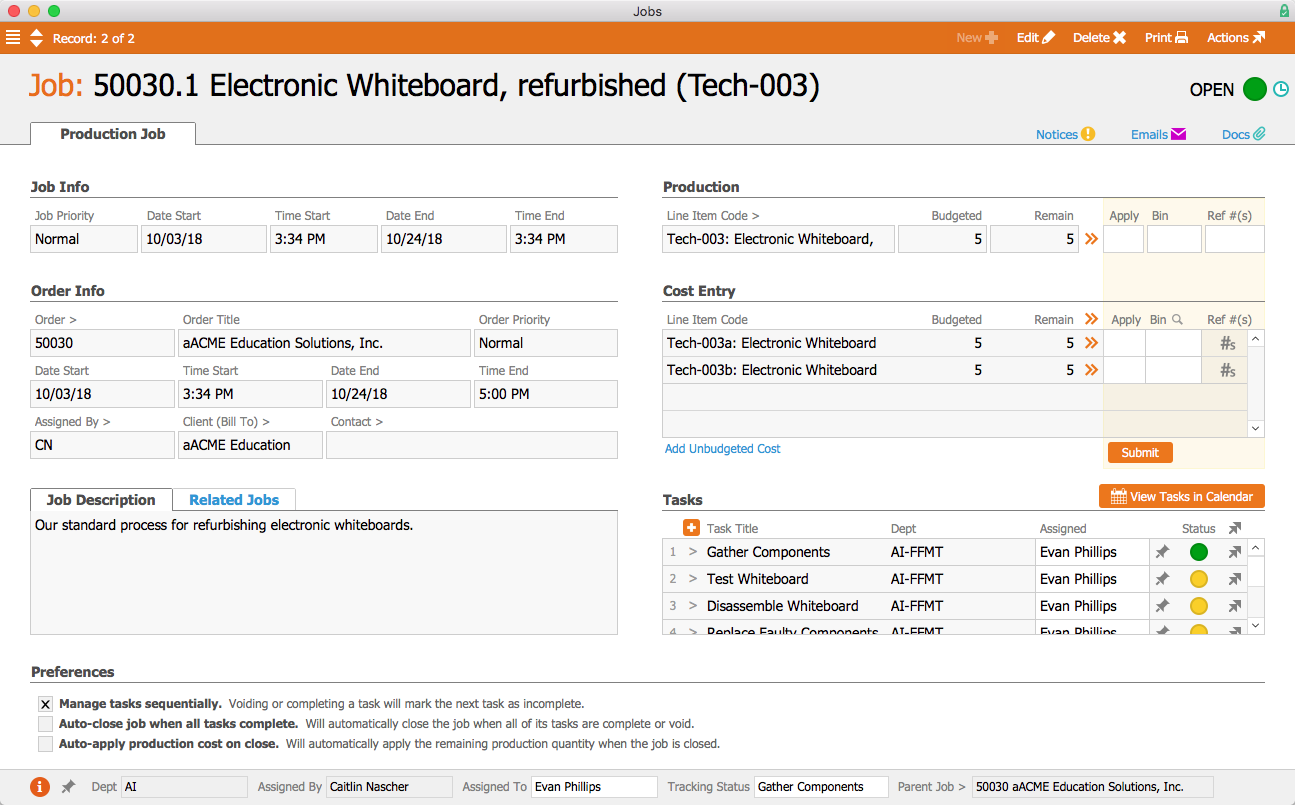
When a production order for the refurbished whiteboards is opened, aACE automatically generates a job associated with the order. Because the “Electronic Whiteboard Refurbishment Process” task group has been linked to the Refurbished Electronic Whiteboard line item code, the job is automatically populated with a pre-set list of tasks as specified in the task group.
 

Jobs


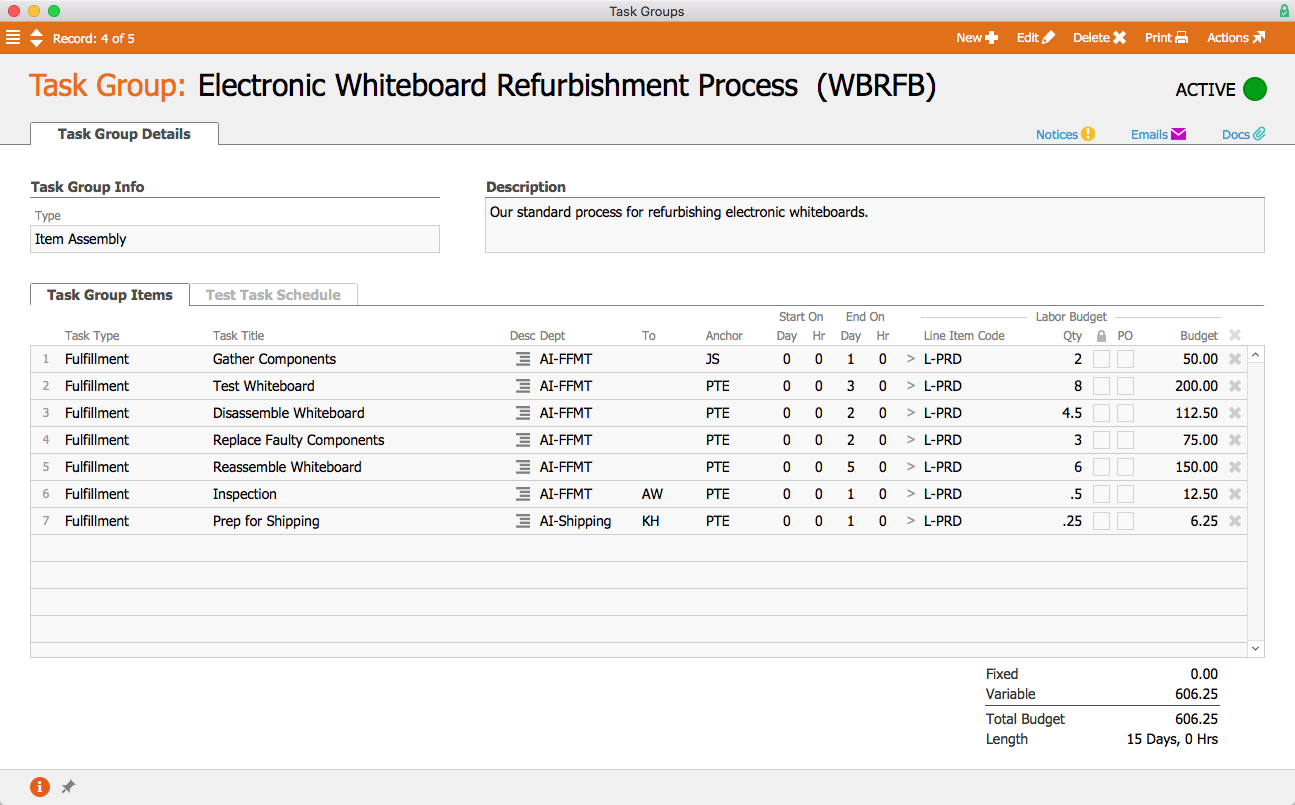
The first task, Gather Components, is configured to begin as soon as the job is opened. Tasks can be assigned to either a department or a specific user; because this task has been assigned to the Fulfillment Department, aACME’s Fulfillment Manager Evan Phillips is automatically assigned to the task. On the production floor, Evan can apply time and materials to the task using the aACE Job Shop app. In the task group, we can see that this first task is set to end one business day after the job starts. Two hours of labor have been budgeted for this task, and it has been assigned the line item code L-PRODUCTION. That is the line item code to which Evan’s time will be applied when he works on this task. When Evan marks the task complete, the next task, Test Whiteboard, will automatically begin.
 

Task Group


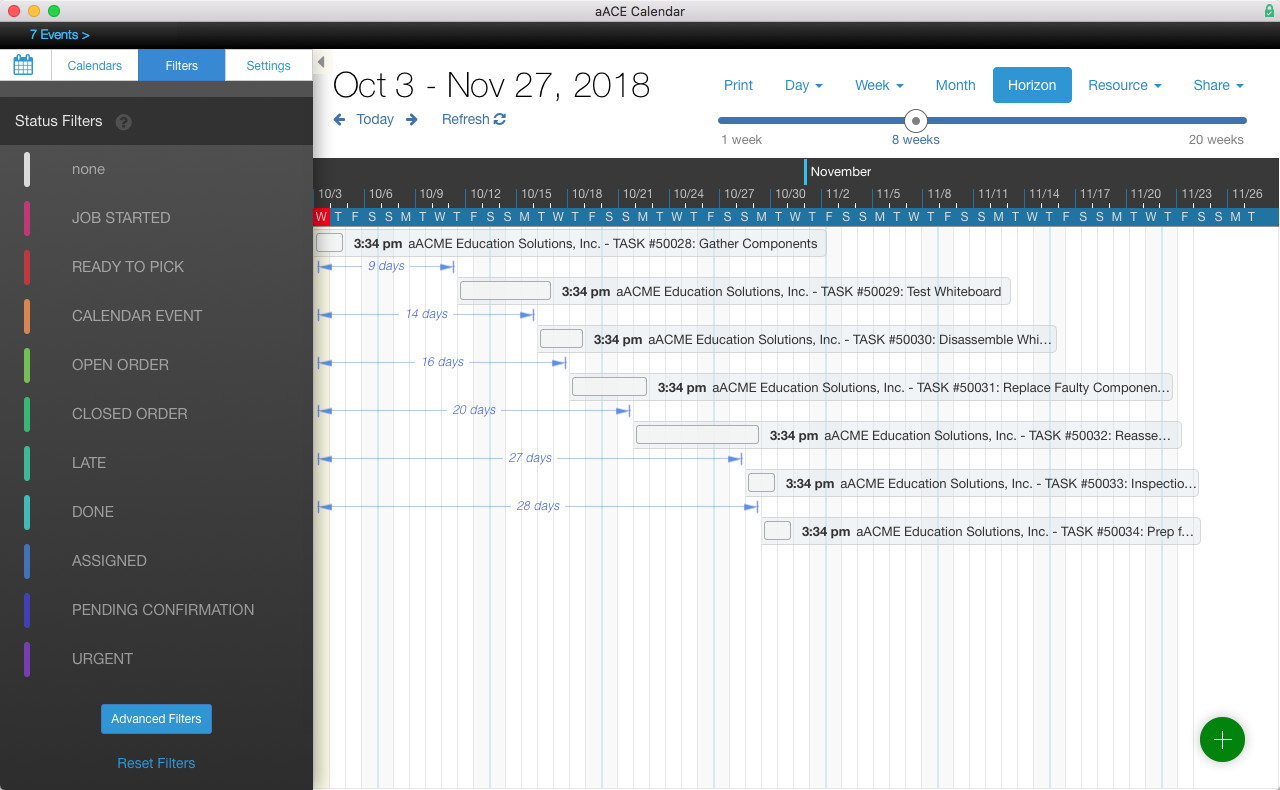
In the aACE+ DayBack calendar, we can see that all of the tasks associated with the job have been scheduled according to the amount of time they were allotted in the task group. But what if troubleshooting the whiteboards takes longer than expected? aACE’s anchoring features make rescheduling a snap. Because each task is set to begin only when the task before it has been completed, moving the Test Whiteboard task up a week will also move all of the tasks after it by the same amount of time.
 

Calendar-1


When the production team has finished the whiteboards, they need to be inspected. This task has been assigned to Allen Wright, aACME’s Quality Control Officer; when he’s ready to begin, the task will appear in his Tasks module with a green status indicator. In the task’s detail view he can view related tasks as well as apply time and materials to the task. He can also leave comments and activity notes that will appear in all task records associated with the job.
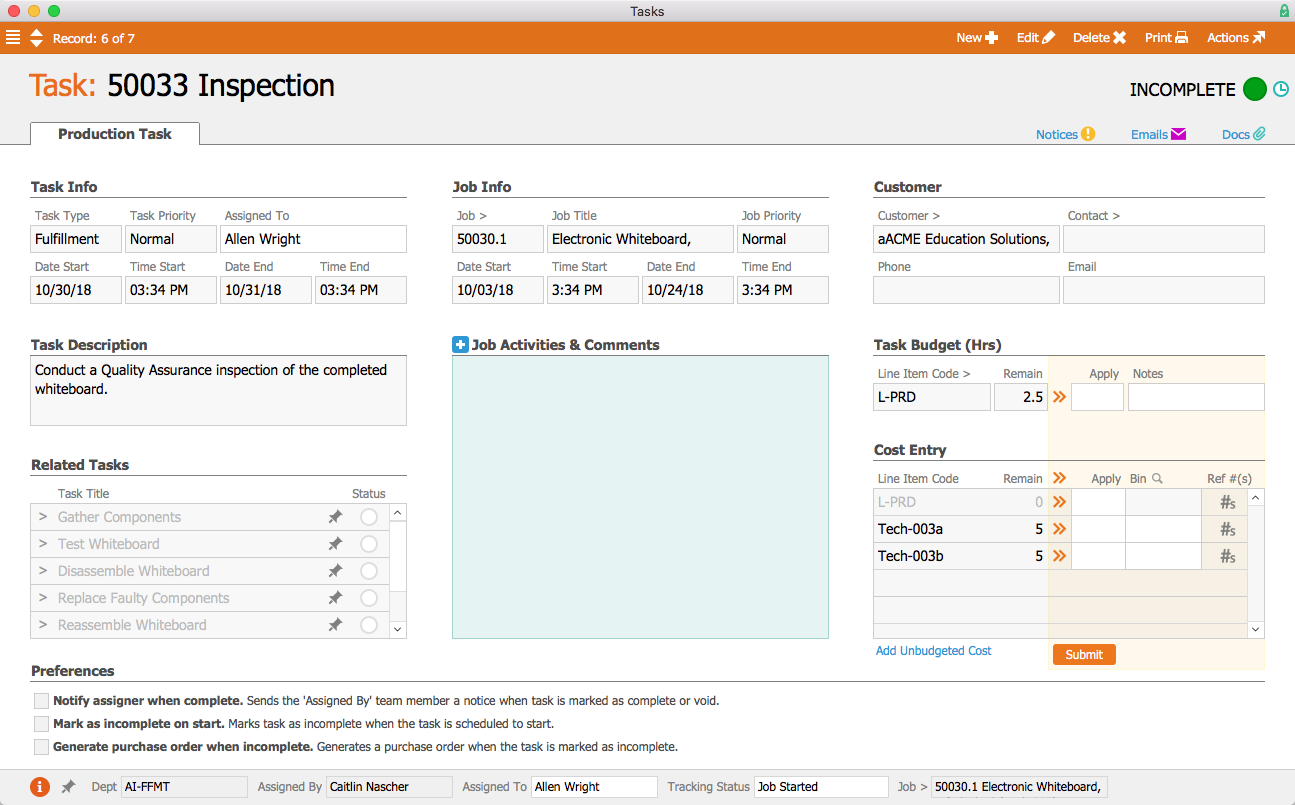
 

Task


If the manager who placed the order wants to check in on how it’s progressing, the order’s Fulfillment tab shows which tasks have been completed, which tasks are in progress, which have yet to start, and when they are all scheduled to begin and end. Gone are the days of following up with other departments to find out when a job is going to be done—aACE provides all of that information at a glance!
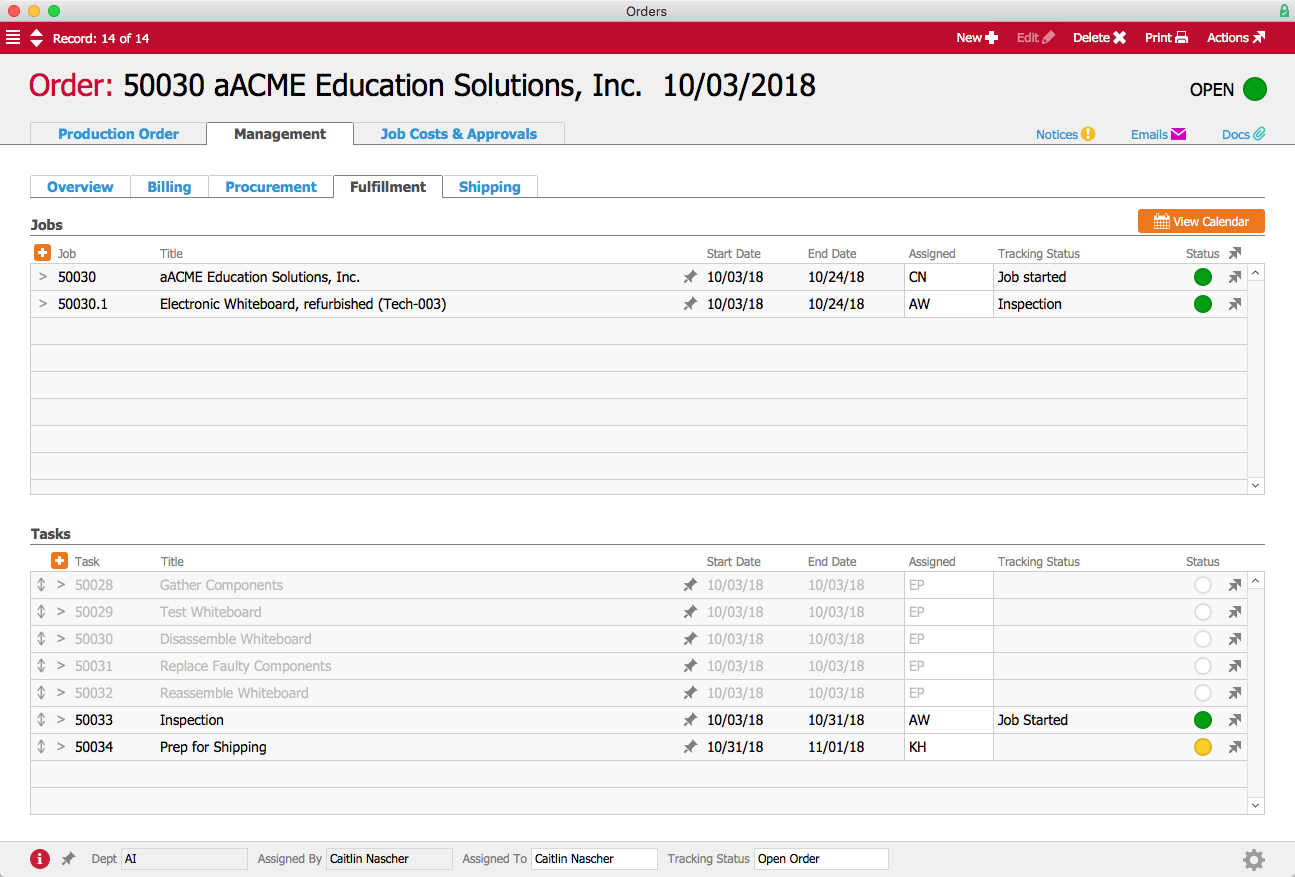
 

Order


Now that we’ve seen how aACE’s Task Groups work for our fictional company, take a look at our Gable success story to learn more about how this feature has helped a real aACE client better track their orders. Discover even more ways that aACE works for everyday businesses when you check out our other success stories below.

"aACE transformed our order fulfillment process during implementation by helping us see trouble spots in our processes."
- Derek Navratil, IT Administrator, Essential Water Solutions

Learn More

In every business there are processes that must be carried out the same way each and every time. aACE Task Groups allow you to create templates for your standard workflows, helping to ensure that your operations run smoothly and according to schedule. And if one step in your process is delayed,... Learn More

-->

In every business there are processes that must be carried out the same way each and every time. aACE Task Groups allow you to create templates for your standard workflows, helping to ensure that your operations run smoothly and according to schedule. And if one step in your process is delayed, aACE’s Task Anchoring feature automatically shifts the rest of the tasks to accommodate your new timeline. To learn more about Task Groups, let’s take a look at how our fictional company, aACME Education Solutions, uses them in their day-to-day business.

A Day in the Life

aACME Education Solutions refurbishes electronic whiteboards for use in schools and college classrooms. Because these whiteboards aren’t being sold new, each one goes through rigorous repairs and inspections—and it’s vital that each step is followed to the letter. That’s where aACE’s Task Groups module come in.

When a production order for the refurbished whiteboards is opened, aACE automatically generates a job associated with the order. Because the “Electronic Whiteboard Refurbishment Process” task group has been linked to the Refurbished Electronic Whiteboard line item code, the job is automatically populated with a pre-set list of tasks as specified in the task group.


Jobs


The first task, Gather Components, is configured to begin as soon as the job is opened. Tasks can be assigned to either a department or a specific user; because this task has been assigned to the Fulfillment Department, aACME’s Fulfillment Manager Evan Phillips is automatically assigned to the task. On the production floor, Evan can apply time and materials to the task using the aACE Job Shop app. In the task group, we can see that this first task is set to end one business day after the job starts. Two hours of labor have been budgeted for this task, and it has been assigned the line item code L-PRODUCTION. That is the line item code to which Evan’s time will be applied when he works on this task. When Evan marks the task complete, the next task, Test Whiteboard, will automatically begin.


Task Group


In the aACE+ DayBack calendar, we can see that all of the tasks associated with the job have been scheduled according to the amount of time they were allotted in the task group. But what if troubleshooting the whiteboards takes longer than expected? aACE’s anchoring features make rescheduling a snap. Because each task is set to begin only when the task before it has been completed, moving the Test Whiteboard task up a week will also move all of the tasks after it by the same amount of time.


Calendar-1


When the production team has finished the whiteboards, they need to be inspected. This task has been assigned to Allen Wright, aACME’s Quality Control Officer; when he’s ready to begin, the task will appear in his Tasks module with a green status indicator. In the task’s detail view he can view related tasks as well as apply time and materials to the task. He can also leave comments and activity notes that will appear in all task records associated with the job.


Task


If the manager who placed the order wants to check in on how it’s progressing, the order’s Fulfillment tab shows which tasks have been completed, which tasks are in progress, which have yet to start, and when they are all scheduled to begin and end. Gone are the days of following up with other departments to find out when a job is going to be done—aACE provides all of that information at a glance!


Order


Now that we’ve seen how aACE’s Task Groups work for our fictional company, take a look at our Gable success story to learn more about how this feature has helped a real aACE client better track their orders. Discover even more ways that aACE works for everyday businesses when you check out our other success stories below.

"aACE transformed our order fulfillment process during implementation by helping us see trouble spots in our processes."
- Derek Navratil, IT Administrator, Essential Water Solutions
Learn More

Read more about Access Contacts and Leads On-the-Go with the aACE CRM App

Access Contacts and Leads On-the-Go with the aACE CRM App

With aACE, they can.

aACE’s CRM App allows your sales team to quickly and easily manage their contacts from virtually anywhere. To see the app in action, let’s take a look at how our fictional company, aACME Education Solutions, uses it in their day-to-day operations.

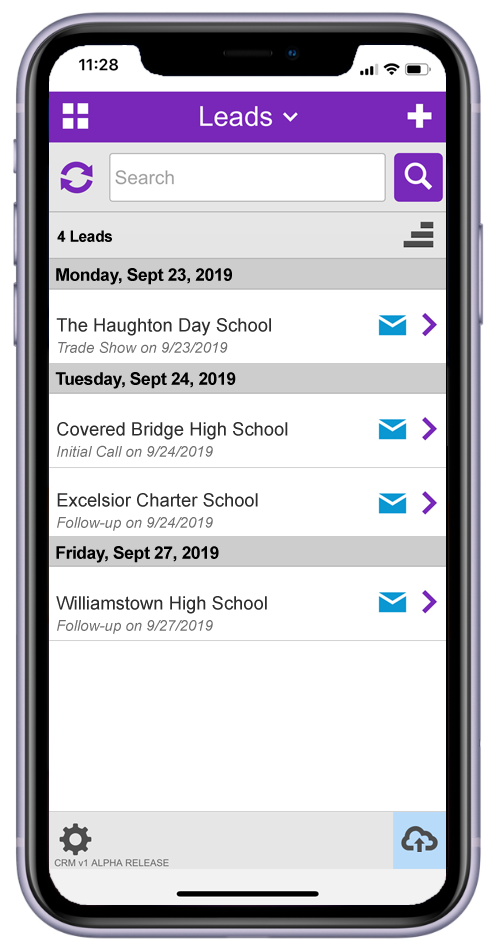
Account Manager Mara Harvey is manning a booth at a local trade show geared toward K-12 educators. In a previous conversation with Megan Lloyd, principal of The Haughton Day School and an active prospect in Mara’s pipeline, Mara learned that she too would be at the trade show, and they agreed to meet up in person. Once Mara finishes setting up the booth, she opens the CRM App on her iPhone to get in touch with Megan. The first thing she sees is a list of her current leads.

Leads List View

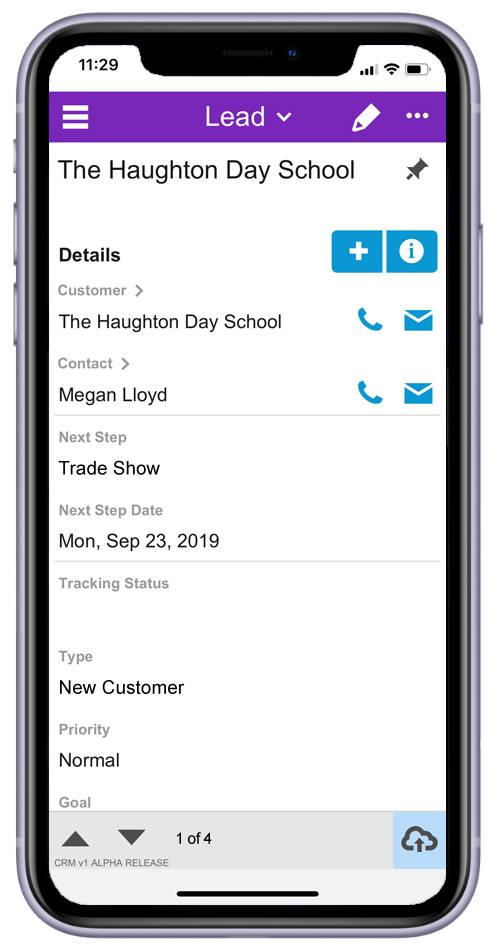
Mara selects The Haughton Day School and is taken to a detail view showing pertinent information, such as the name of her contact and the next step associated with the lead.

Lead Detail

Mara taps the phone icon next to Megan’s name, then taps Call and quickly reaches Megan. She gives Megan the location of her booth, and Megan lets her know that she plans to stop by soon.

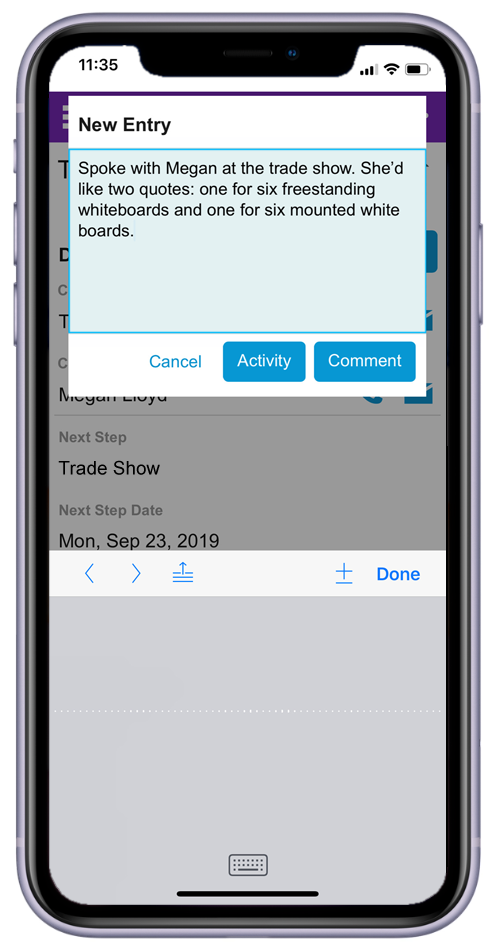
Later in the day Megan swings by the booth, where she and Mara have a productive conversation about electronic whiteboards. Afterwards, Mara taps on the Plus icon to enter a new Comment or Activity, then selects the microphone option on her keyboard to verbally record some thoughts about the conversation. She saves her remarks as an Activity so that they will appear in The Haughton Day School’s company record in addition to the lead record. When she’s back in the office she’ll send over those quotes, but for now she’s moving quickly and only wants to spend time on the essential information.

Activity Entry

Later during the trade show, Mara strikes up a conversation with Caroline Silva, the principal at Morningside Elementary School. Caroline is interested in using tablets in the classroom to help her fifth-graders become more proficient with reading. She asks Mara to send her a catalog once she’s back in the office.

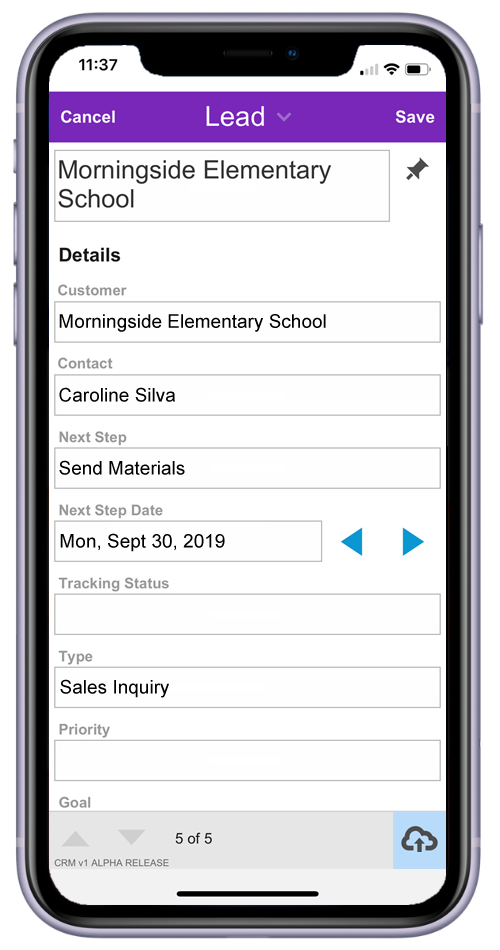
To capture this interaction with Caroline, Mara opens the Leads tab in the CRM App and taps the Plus button to create a new record. Because she’s focused on keeping the conversation going while entering this data, she only includes the most pertinent information, knowing she can go back later and add more details. Mara sets “Send Materials” as her next step and “Sales Inquiry” as the lead type.

New Lead

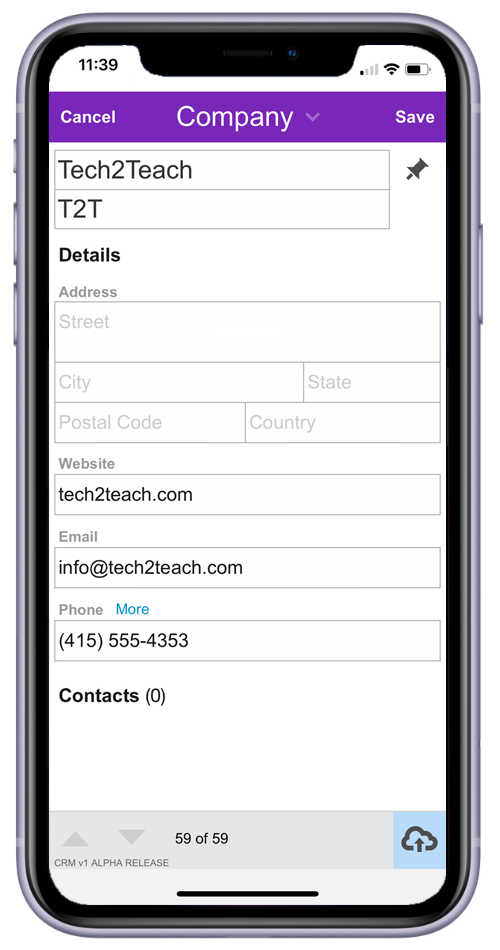
Mara also takes some time to scope out other vendors at the trade show. She is particularly intrigued by Tech2Teach, a small company selling educational software. Thinking she may want to pass their information on to aACME’s buyers as a potential vendor, Mara opens the Companies tab in the CRM App and quickly enters their information.

New Company

The cloud icon in the bottom right-hand corner of the app is highlighted in blue, meaning that Live Sync is enabled. This allows the CRM App to pass all of the information Mara is entering back to aACME’s desktop aACE solution in real time. This feature is best utilized when there is an available Wi-Fi network.

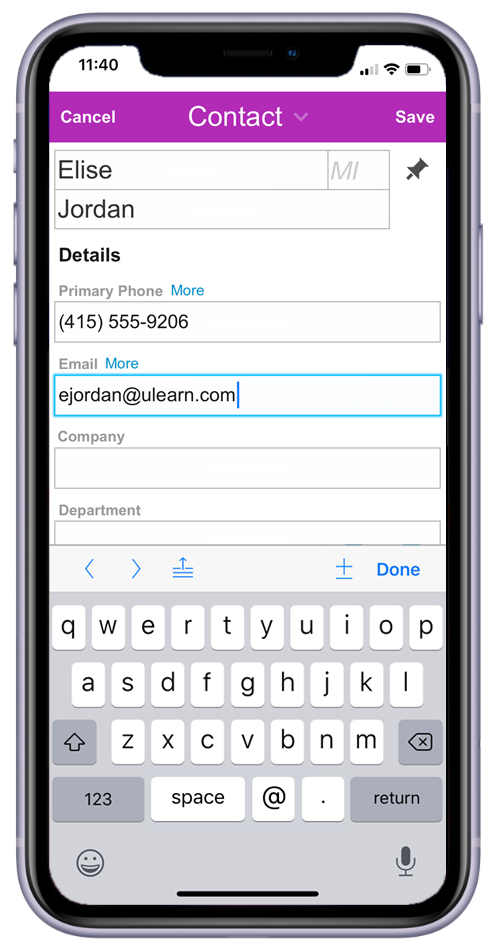
But what happens if that Wi-Fi connection is interrupted or unavailable? The flight home from the trade show doesn’t offer Wi-Fi, so Mara turns Live Sync off by tapping the cloud icon. She spends the flight entering the names and contact information from the new business cards she received.

New Contact

After landing and reconnecting to Wi-Fi, Mara taps the icon again to sync the data she entered in the app with her desktop aACE solution. Back in the office, the contacts she entered are now available for her colleagues to see and follow up with.

aACE’s CRM App puts the information your sales team needs directly at their fingertips, making it easy to keep up with today’s fast-moving markets. To learn more about how aACE unites your desktop and mobile CRM tools to empower your sales team, check out our related feature highlight. And to discover what else aACE can do for your business, sign up for a webinar today.

Learn More

Whether they’re meeting existing clients for lunch or greeting new prospects at a conference, your sales team is constantly in motion – and they need a CRM solution that will move with them. Wouldn’t it be great if they could create contacts, update leads, and set next steps directly from the... Learn More

-->

Whether they’re meeting existing clients for lunch or greeting new prospects at a conference, your sales team is constantly in motion – and they need a CRM solution that will move with them. Wouldn’t it be great if they could create contacts, update leads, and set next steps directly from the same phones they already take everywhere they go?

With aACE, they can.

aACE’s CRM App allows your sales team to quickly and easily manage their contacts from virtually anywhere. To see the app in action, let’s take a look at how our fictional company, aACME Education Solutions, uses it in their day-to-day operations.

Account Manager Mara Harvey is manning a booth at a local trade show geared toward K-12 educators. In a previous conversation with Megan Lloyd, principal of The Haughton Day School and an active prospect in Mara’s pipeline, Mara learned that she too would be at the trade show, and they agreed to meet up in person. Once Mara finishes setting up the booth, she opens the CRM App on her iPhone to get in touch with Megan. The first thing she sees is a list of her current leads.

Leads List View

Mara selects The Haughton Day School and is taken to a detail view showing pertinent information, such as the name of her contact and the next step associated with the lead.

Lead Detail

Mara taps the phone icon next to Megan’s name, then taps Call and quickly reaches Megan. She gives Megan the location of her booth, and Megan lets her know that she plans to stop by soon.

Later in the day Megan swings by the booth, where she and Mara have a productive conversation about electronic whiteboards. Afterwards, Mara taps on the Plus icon to enter a new Comment or Activity, then selects the microphone option on her keyboard to verbally record some thoughts about the conversation. She saves her remarks as an Activity so that they will appear in The Haughton Day School’s company record in addition to the lead record. When she’s back in the office she’ll send over those quotes, but for now she’s moving quickly and only wants to spend time on the essential information.

Activity Entry

Later during the trade show, Mara strikes up a conversation with Caroline Silva, the principal at Morningside Elementary School. Caroline is interested in using tablets in the classroom to help her fifth-graders become more proficient with reading. She asks Mara to send her a catalog once she’s back in the office.

To capture this interaction with Caroline, Mara opens the Leads tab in the CRM App and taps the Plus button to create a new record. Because she’s focused on keeping the conversation going while entering this data, she only includes the most pertinent information, knowing she can go back later and add more details. Mara sets “Send Materials” as her next step and “Sales Inquiry” as the lead type.

New Lead

Mara also takes some time to scope out other vendors at the trade show. She is particularly intrigued by Tech2Teach, a small company selling educational software. Thinking she may want to pass their information on to aACME’s buyers as a potential vendor, Mara opens the Companies tab in the CRM App and quickly enters their information.

New Company

The cloud icon in the bottom right-hand corner of the app is highlighted in blue, meaning that Live Sync is enabled. This allows the CRM App to pass all of the information Mara is entering back to aACME’s desktop aACE solution in real time. This feature is best utilized when there is an available Wi-Fi network.

But what happens if that Wi-Fi connection is interrupted or unavailable? The flight home from the trade show doesn’t offer Wi-Fi, so Mara turns Live Sync off by tapping the cloud icon. She spends the flight entering the names and contact information from the new business cards she received.

New Contact

After landing and reconnecting to Wi-Fi, Mara taps the icon again to sync the data she entered in the app with her desktop aACE solution. Back in the office, the contacts she entered are now available for her colleagues to see and follow up with.

aACE’s CRM App puts the information your sales team needs directly at their fingertips, making it easy to keep up with today’s fast-moving markets. To learn more about how aACE unites your desktop and mobile CRM tools to empower your sales team, check out our related feature highlight. And to discover what else aACE can do for your business, sign up for a webinar today.

Learn More

Read more about Save Time, Improve Accuracy in Time and Materials Tracking With aACE Job Shop App

Save Time, Improve Accuracy in Time and Materials Tracking With aACE Job Shop App

With the aACE Job Shop app, there's a better way.

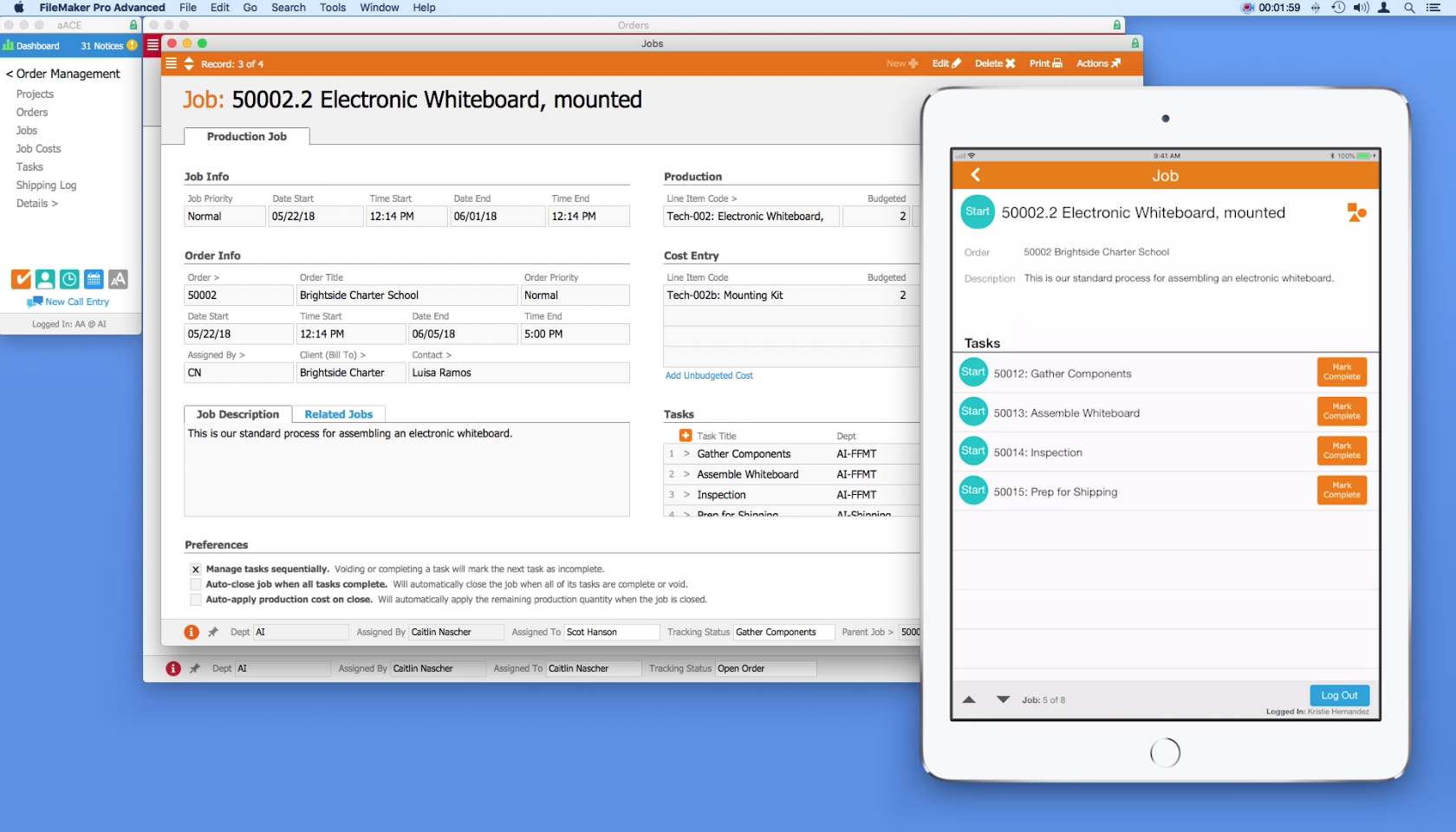
The aACE Job Shop app is a mobile app that can be deployed on shared iPads. It allows your production staff to quickly log in and record time or apply materials to a job. Information from the app is passed back to aACE automatically, allowing aACE users in the office to stay apprised of what’s happening on the production floor.

Let’s take a look at how it works:

Now that we’ve seen the Job Shop app in action, let’s see how the fictional company aACME Education Solutions uses it in their day-to-day operations.

aACME customer Brightside Charter School orders two mounted whiteboards for their classrooms. The whiteboards need to be assembled before they can be shipped. When the order is opened, aACE automatically generates a job record for the assembly. Inside the job are a series of tasks and a bill of materials.

On the production floor, aACME employee Evan Phillips is ready to work. He goes to any of the shared iPads mounted on the wall throughout the site and logs into the Job Shop app by entering his unique PIN. From a list of open jobs, he chooses the Brightside Charter School whiteboard assembly. In the job’s detail view, Evan can see the order associated with the job, a description of the job, and a list of tasks that make up the job. To start a task, he simply taps that task’s Start button. The app then logs him out automatically, clearing the way for the next employee to log in.

The first task in the whiteboard assembly job is to gather materials. When Evan has finished collecting the components needed for the whiteboard, he logs back into the app. To enter the parts in the job record, he taps the Apply Materials icon. Using a barcode scanner connected to the iPad, he quickly scans in each of the required materials. The Job Shop app pushes that information back to the central aACE solution, automatically updating the job record with the materials applied.

After Evan is finished with a task, he logs in and taps the Mark Complete button. The task is also marked complete in aACE. Now he can see that the next task, Assemble Whiteboard, is ready to start.

Back in the office, Account Manager Mara Harvey gets a call from her contact at Brightside Charter School asking for a status update on the whiteboards. With just a few clicks, Mara can see that the job has been started, the materials have been applied, and assembly is currently underway.

At the end of the day, Evan submits his time by logging into the app and tapping the Timesheet button. Here he can review a list of all of the tasks he worked on today and how much time he spent on each task. He notices a mistake though – he forgot to pause a task while he went on his lunch break. The app allows Evan to record a note to his manager which will be sent along with the timesheet so that he can explain the discrepancy.

Evan’s manager can review the notes in aACE, adjust the timesheet, then approve it.

When the job is finished, the project manager can review the details in aACE, checking and approving the time and materials that were applied to the job.

The fully-integrated, easy-to-use Job Shop app allows managers to keep track of what their teams are doing throughout the day, while also giving employees the ability to track their progress without slowing down. To learn more about this app or find out what else aACE can do for your business, contact us today.

"Without much training, you can logically understand how this program fits into your work environment. The program is user friendly and easy enough for our whole staff, with varying levels of technical skills, to embrace." ~ Lili Hall, President, KNOCK Inc.
Learn More

Are your production staff recording time and material usage on paper, in Excel, or with software that doesn't "talk" to your business management solution? Is it somebody's job to manually key that data into your accounting system? With the aACE Job Shop app, there's a better way. The aACE Job Shop... Learn More

-->

Are your production staff recording time and material usage on paper, in Excel, or with software that doesn't "talk" to your business management solution? Is it somebody's job to manually key that data into your accounting system?

With the aACE Job Shop app, there's a better way.

The aACE Job Shop app is a mobile app that can be deployed on shared iPads. It allows your production staff to quickly log in and record time or apply materials to a job. Information from the app is passed back to aACE automatically, allowing aACE users in the office to stay apprised of what’s happening on the production floor.

Let’s take a look at how it works:

Now that we’ve seen the Job Shop app in action, let’s see how the fictional company aACME Education Solutions uses it in their day-to-day operations.

aACME customer Brightside Charter School orders two mounted whiteboards for their classrooms. The whiteboards need to be assembled before they can be shipped. When the order is opened, aACE automatically generates a job record for the assembly. Inside the job are a series of tasks and a bill of materials.

On the production floor, aACME employee Evan Phillips is ready to work. He goes to any of the shared iPads mounted on the wall throughout the site and logs into the Job Shop app by entering his unique PIN. From a list of open jobs, he chooses the Brightside Charter School whiteboard assembly. In the job’s detail view, Evan can see the order associated with the job, a description of the job, and a list of tasks that make up the job. To start a task, he simply taps that task’s Start button. The app then logs him out automatically, clearing the way for the next employee to log in.

The first task in the whiteboard assembly job is to gather materials. When Evan has finished collecting the components needed for the whiteboard, he logs back into the app. To enter the parts in the job record, he taps the Apply Materials icon. Using a barcode scanner connected to the iPad, he quickly scans in each of the required materials. The Job Shop app pushes that information back to the central aACE solution, automatically updating the job record with the materials applied.

After Evan is finished with a task, he logs in and taps the Mark Complete button. The task is also marked complete in aACE. Now he can see that the next task, Assemble Whiteboard, is ready to start.

Back in the office, Account Manager Mara Harvey gets a call from her contact at Brightside Charter School asking for a status update on the whiteboards. With just a few clicks, Mara can see that the job has been started, the materials have been applied, and assembly is currently underway.

At the end of the day, Evan submits his time by logging into the app and tapping the Timesheet button. Here he can review a list of all of the tasks he worked on today and how much time he spent on each task. He notices a mistake though – he forgot to pause a task while he went on his lunch break. The app allows Evan to record a note to his manager which will be sent along with the timesheet so that he can explain the discrepancy.

Evan’s manager can review the notes in aACE, adjust the timesheet, then approve it.

When the job is finished, the project manager can review the details in aACE, checking and approving the time and materials that were applied to the job.

The fully-integrated, easy-to-use Job Shop app allows managers to keep track of what their teams are doing throughout the day, while also giving employees the ability to track their progress without slowing down. To learn more about this app or find out what else aACE can do for your business, contact us today.

"Without much training, you can logically understand how this program fits into your work environment. The program is user friendly and easy enough for our whole staff, with varying levels of technical skills, to embrace." ~ Lili Hall, President, KNOCK Inc.
Learn More

Read more about Streamline Your Shipping Process with aACE+ ReadyCloud

Streamline Your Shipping Process with aACE+ ReadyCloud

With aACE, you can.

The aACE+ ReadyCloud ReadyShipper integration significantly reduces the need for manual data entry, a common source of delays and costly errors. Our automated shipping integration passes information seamlessly between the two solutions, so it's a breeze to get deliveries to your customers on time. And when you receive a bill from a courier, aACE also makes it easy to reconcile that statement with your existing records. Here’s how:


Now that we’ve seen the shipping integration in action, let’s look at how the fictional company aACME Education Solutions uses it in their day-to-day operations.

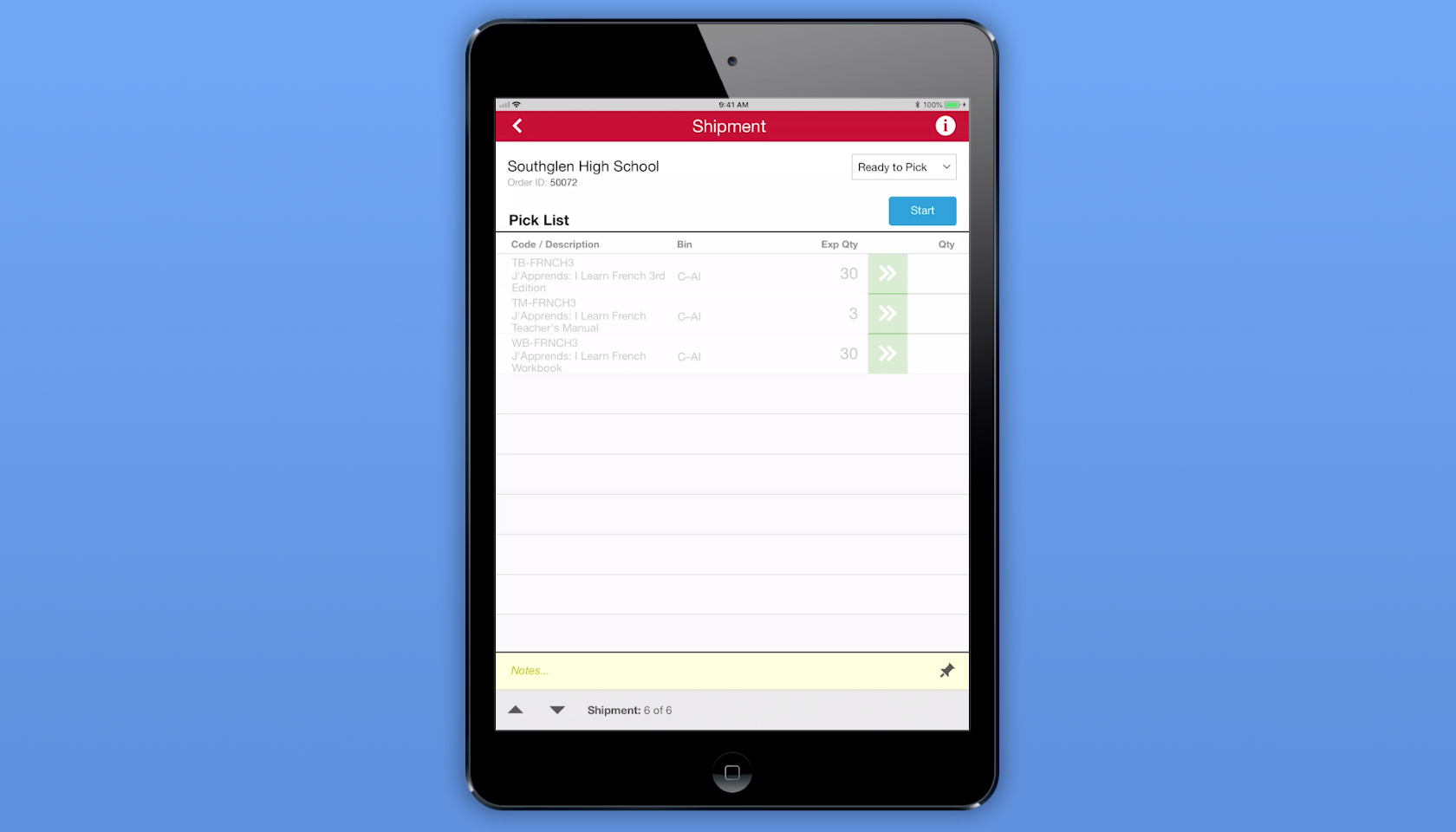
aACME customer Southglen High School places an order for 30 French textbooks, 3 of the corresponding teacher’s manuals, and 30 workbooks. As soon as the order is opened, aACE automatically generates a shipment with the tracking status Ready to Pick. The shipment is immediately passed to the aACE Pick app.

On the warehouse floor, aACME employee Ned Walker logs into the Pick app via a shared iPad. He chooses the Southglen High School shipment from a list of shipments that are ready to pick. In the shipment’s detail view, he sees each line item in the shipment, the bin where each line item is located, and the expected quantity of each item that he needs to pick. When Ned taps the Start button, the Pick app updates the shipment record’s tracking status to In Progress.

When Ned finishes picking the required textbooks, he enters the quantities of each item into the Pick app. When he’s finished with the shipment, he taps the Done button and the app updates the shipment’s tracking status to Ready to Transmit. From there, aACE automatically transmits the shipment to ReadyCloud.

Over in aACME’s Shipping Department, employee Kristie Hernandez packages the shipment. She then logs into ReadyCloud’s ReadyShipper terminal and schedules the packages for delivery. The shipment information is automatically pulled back into aACE, where the record is updated with cost and tracking information and the shipment’s tracking status is changed to Shipped. An invoice for the shipment is automatically generated — and all of this happens without Kristie ever needing to log into aACE.

Another source of frustration for companies like aACME is entering and reconciling courier bills. The aACE+ ReadyCloud integration makes this a snap. Drew Sanderson works in aACME’s Accounts Payable Department. Rather than manually entering the courier bill at the end of each month, Drew can see all of the shipments he hasn’t yet purchased at a glance with aACE’s Build Courier Invoice feature. With one click, Drew can organize each shipment, its costs, and its tracking information for easy line-by-line comparison with the courier’s statement.

What if the cost of a shipment on the courier’s bill doesn’t match the cost in aACE? For example, what if an address turned out to be residential instead of commercial? If Drew finds a discrepancy, he can easily adjust it in the purchase. That change automatically updates the shipment record, which in turn updates the order so the costs stay correct. To keep shipping costs in check, his aACE solution is configured to automatically send notifications to an oversight group if the difference between the courier’s bill and the shipment cost in aACE exceeds a certain value or percentage.

For a company like aACME with hundreds of shipments per day, this automation saves hours of labor and keeps the fulfillment process running smoothly. To learn more about this feature or find out what else aACE can do for your business, contact us today.

"The more we use this program, the more we love it! The biggest asset to our company has been the automated workflows, especially in our customer care and shipping departments. We have been able to reduce order entry errors and drastically improve our ship time from order entry to out-the-door. The shipping integration has helped reduce picking errors and assist in a speedy pick and pack process." - Daniel Chapman, Founder and CEO, Redd Remedies


Learn More

A key to success for any business is getting your customers what they want, when they want it. This means your fulfillment process is crucial. But as your company grows, you may find that shipping solutions that don’t talk to your ERP system are grinding your fulfillment process to a halt as... Learn More

-->

A key to success for any business is getting your customers what they want, when they want it. This means your fulfillment process is crucial. But as your company grows, you may find that shipping solutions that don’t talk to your ERP system are grinding your fulfillment process to a halt as employees manually copy information from one system to the other. Wouldn’t it be great if you could speed up your fulfillment process and improve accuracy?

With aACE, you can.

The aACE+ ReadyCloud ReadyShipper integration significantly reduces the need for manual data entry, a common source of delays and costly errors. Our automated shipping integration passes information seamlessly between the two solutions, so it's a breeze to get deliveries to your customers on time. And when you receive a bill from a courier, aACE also makes it easy to reconcile that statement with your existing records. Here’s how:


Now that we’ve seen the shipping integration in action, let’s look at how the fictional company aACME Education Solutions uses it in their day-to-day operations.

aACME customer Southglen High School places an order for 30 French textbooks, 3 of the corresponding teacher’s manuals, and 30 workbooks. As soon as the order is opened, aACE automatically generates a shipment with the tracking status Ready to Pick. The shipment is immediately passed to the aACE Pick app.

On the warehouse floor, aACME employee Ned Walker logs into the Pick app via a shared iPad. He chooses the Southglen High School shipment from a list of shipments that are ready to pick. In the shipment’s detail view, he sees each line item in the shipment, the bin where each line item is located, and the expected quantity of each item that he needs to pick. When Ned taps the Start button, the Pick app updates the shipment record’s tracking status to In Progress.

When Ned finishes picking the required textbooks, he enters the quantities of each item into the Pick app. When he’s finished with the shipment, he taps the Done button and the app updates the shipment’s tracking status to Ready to Transmit. From there, aACE automatically transmits the shipment to ReadyCloud.

Over in aACME’s Shipping Department, employee Kristie Hernandez packages the shipment. She then logs into ReadyCloud’s ReadyShipper terminal and schedules the packages for delivery. The shipment information is automatically pulled back into aACE, where the record is updated with cost and tracking information and the shipment’s tracking status is changed to Shipped. An invoice for the shipment is automatically generated — and all of this happens without Kristie ever needing to log into aACE.

Another source of frustration for companies like aACME is entering and reconciling courier bills. The aACE+ ReadyCloud integration makes this a snap. Drew Sanderson works in aACME’s Accounts Payable Department. Rather than manually entering the courier bill at the end of each month, Drew can see all of the shipments he hasn’t yet purchased at a glance with aACE’s Build Courier Invoice feature. With one click, Drew can organize each shipment, its costs, and its tracking information for easy line-by-line comparison with the courier’s statement.

What if the cost of a shipment on the courier’s bill doesn’t match the cost in aACE? For example, what if an address turned out to be residential instead of commercial? If Drew finds a discrepancy, he can easily adjust it in the purchase. That change automatically updates the shipment record, which in turn updates the order so the costs stay correct. To keep shipping costs in check, his aACE solution is configured to automatically send notifications to an oversight group if the difference between the courier’s bill and the shipment cost in aACE exceeds a certain value or percentage.

For a company like aACME with hundreds of shipments per day, this automation saves hours of labor and keeps the fulfillment process running smoothly. To learn more about this feature or find out what else aACE can do for your business, contact us today.

"The more we use this program, the more we love it! The biggest asset to our company has been the automated workflows, especially in our customer care and shipping departments. We have been able to reduce order entry errors and drastically improve our ship time from order entry to out-the-door. The shipping integration has helped reduce picking errors and assist in a speedy pick and pack process." - Daniel Chapman, Founder and CEO, Redd Remedies


Learn More

Scroll to Top