With aACE+ Payments, you can.
A growing list of leading payment processing services integrate seamlessly with your aACE solution, ensuring that you’re able to quickly and securely process credit card, debit card, and ACH check payments. Eliminate the hassle of manually entering payment information into multiple solutions; with aACE+ Payments, you can enter payment information directly into a payment processor’s secure servers from aACE. Securely applying payment is a breeze, saving you time and minimizing the potential for errors. To learn more, let’s take a look at how our sample company, aACME Education Solutions, uses this feature in their day-to-day operations.
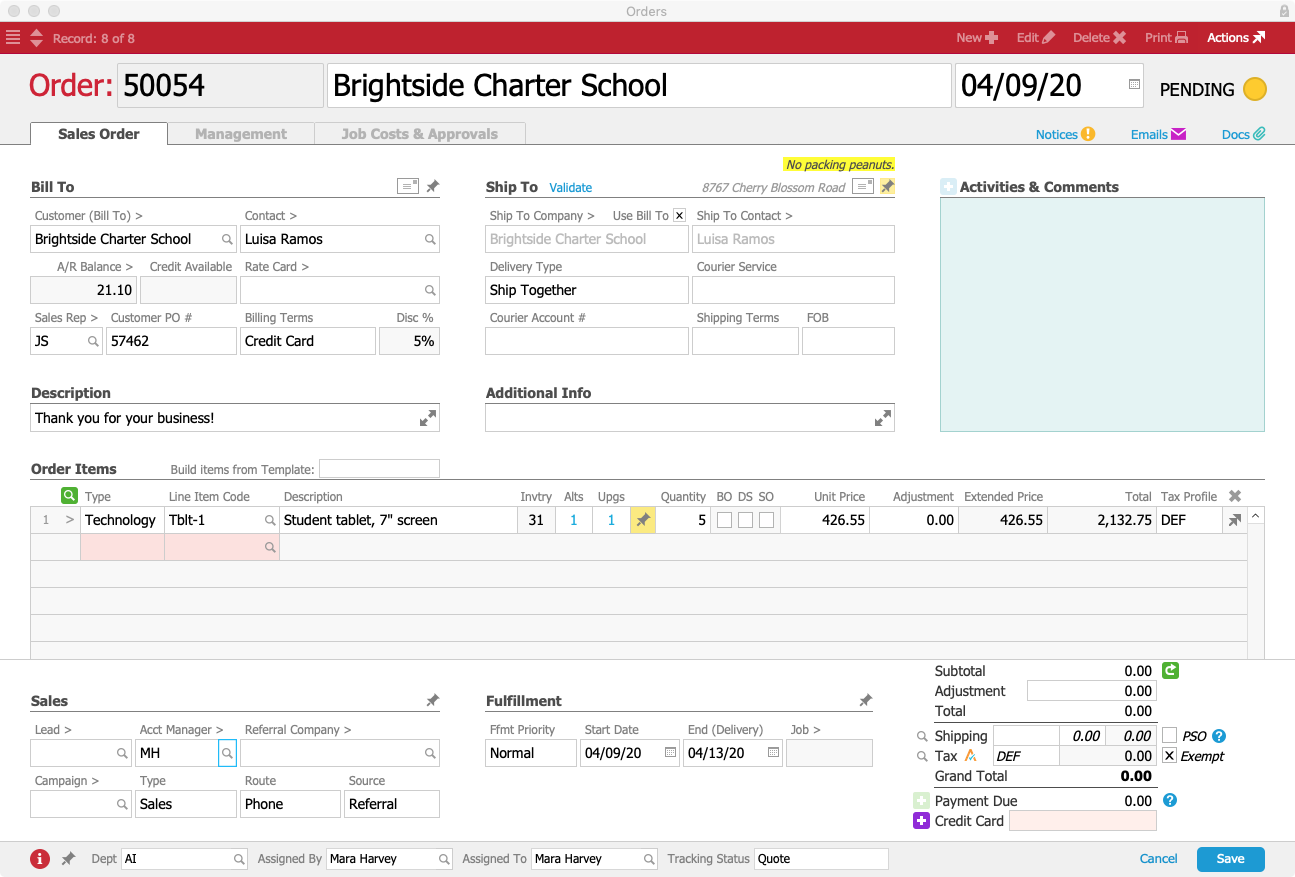
Mara Harvey receives a call from Luisa Ramos at the Brightside Charter School. Luisa would like to place an order for 5 student tablets and put it on her company card. Mara creates the order in aACE, specifying Credit Card as the billing terms.
When Mara selects Credit Card as the billing terms, a Credit Card field appears underneath the order’s total. Because Luisa doesn’t have a credit card on file yet, Mara will need to enter one so that it’s available when the product ships.
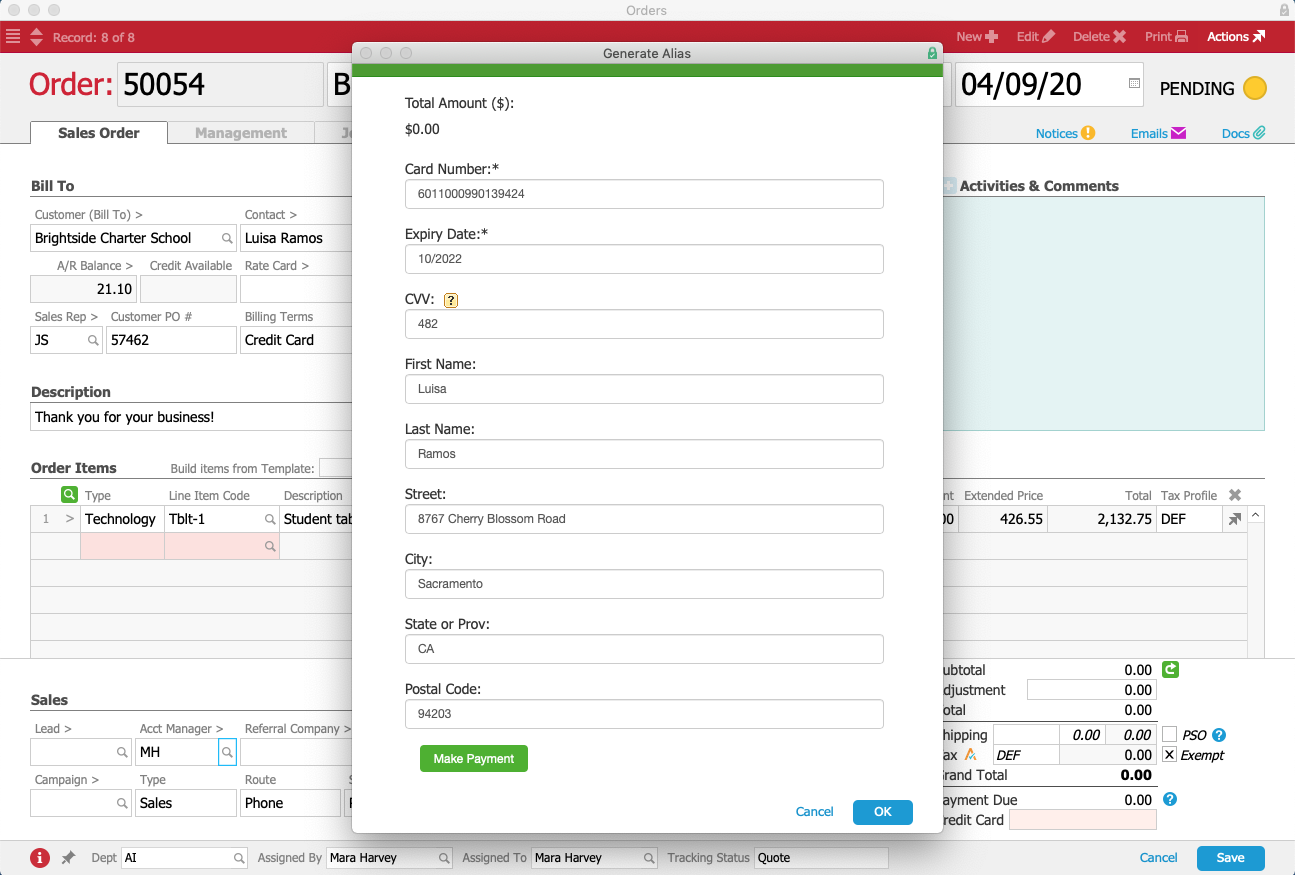
To add Luisa’s credit card, Mara clicks on the  button to the left of the Credit Card field. A form pops up where Mara can enter Luisa’s credit card details without leaving the order. The form automatically pulls in address information from Brightside Charter School’s company record, and Mara fills in the card number, expiration date, security code, and cardholder name.
Although this form was launched by a button in aACE, the form itself isn’t part of aACE — instead it’s a portal into the payment processor’s server that has been integrated seamlessly into aACME’s aACE solution. This ensures that when Mara enters Luisa’s sensitive credit card information, that data is never stored locally where it may be at risk, but rather is stored only on the payment processor’s secure servers.
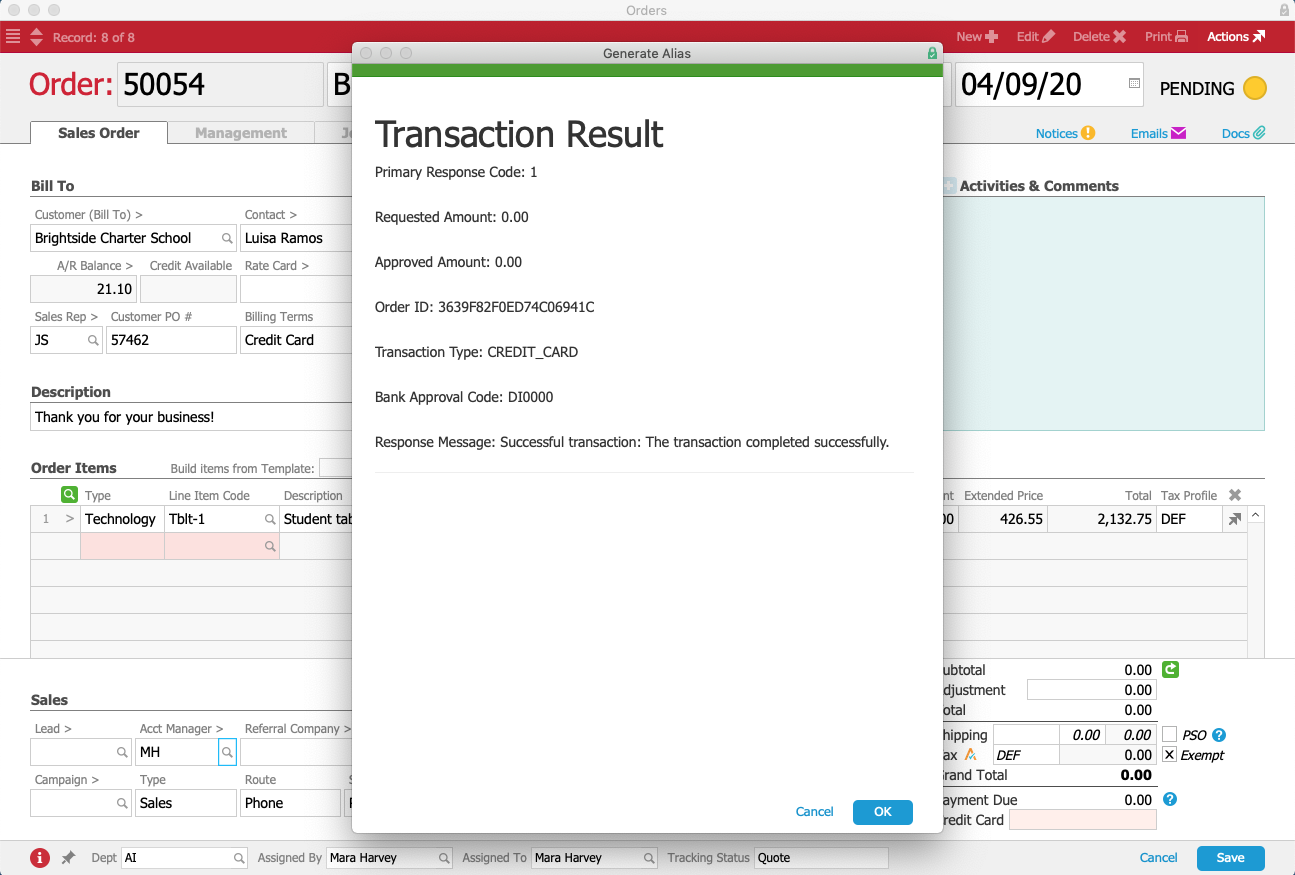
Once the Mara submits the form, the payment processor generates a token for Luisa’s credit card that is stored in aACE. This makes it easier for the aACME sales team to process future orders, while still maintaining PCI compliance. In seconds, Mara receives a message that the transaction went through successfully. The card is now ready to be used.
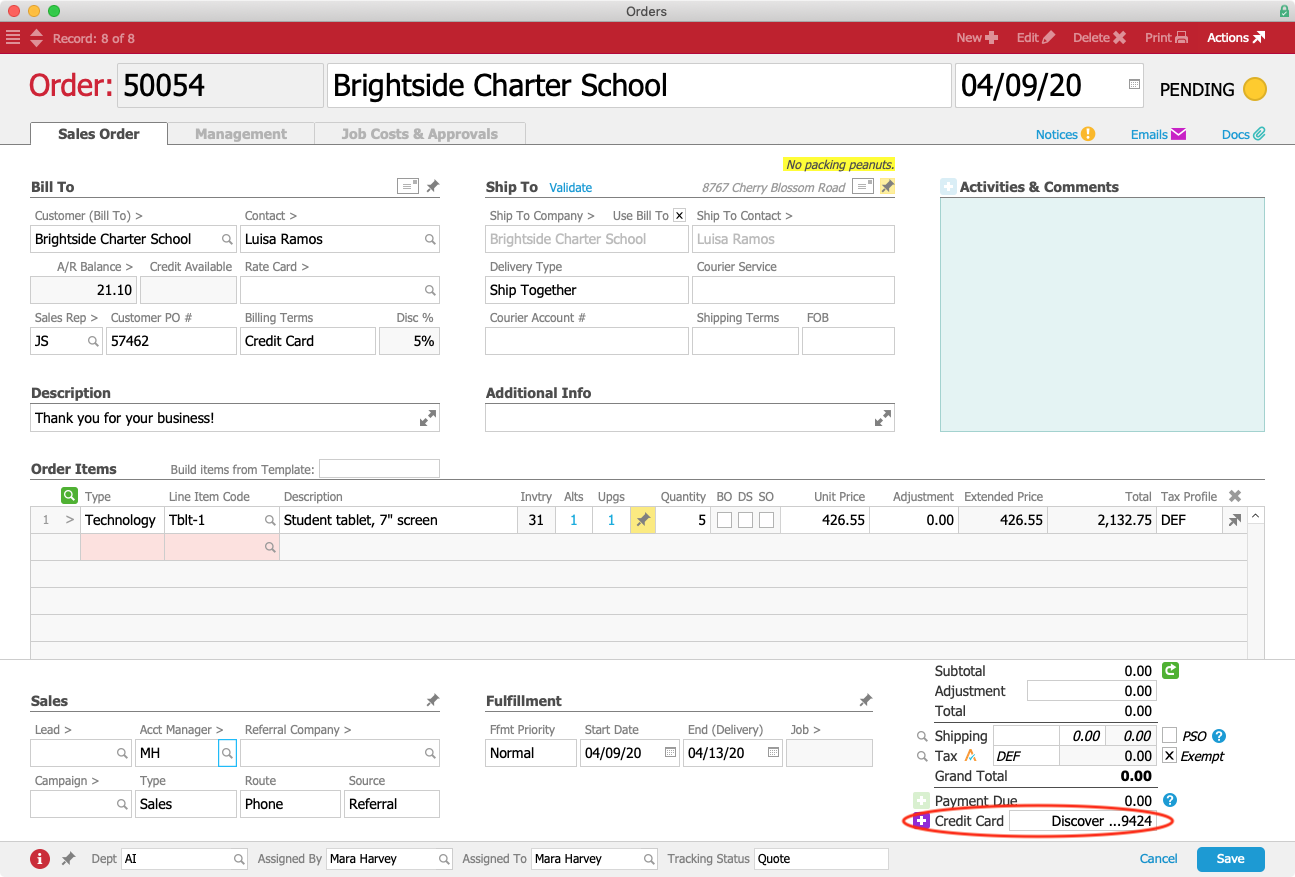
Mara closes the form, and aACE automatically pulls the card’s alias into the Credit Card field. Only the card brand, last four digits, and expiration date are displayed. A hidden field contains the token; remember, at no point does aACE itself or Mara’s workstation have access to the full credit card number.
Mara saves and processes Luisa’s order, which prompts aACE to automatically generate a shipment for the tablets. In aACME’s warehouse, Ned Walker picks the tablets using the aACE Pick App. When he’s finished, aACE automatically transmits the shipment to aACME’s shipping solution.
Over in the Shipping Department, Kristie Hernandez logs into the shipping solution and schedules Luisa’s package for delivery. The shipment information is automatically pulled back into aACE, where the shipment record’s status is updated to Shipped.
At this point, aACE automatically generates an invoice for the order. Because the order is configured to charge the card on file, Luisa’s card is automatically charged for the balance, resulting in a posted receipt and closed invoice.
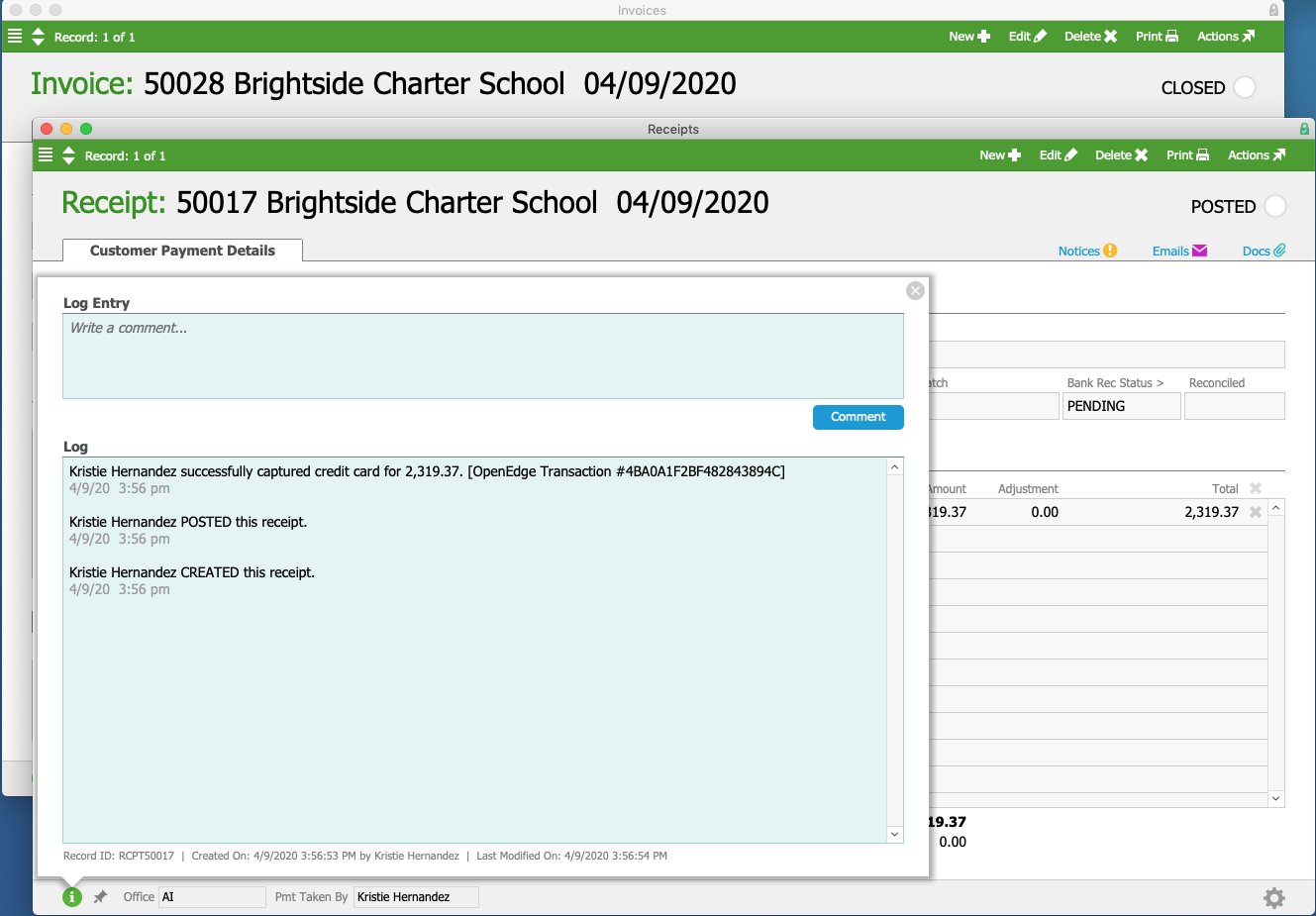
In the receipt’s log, we can see that the credit card was successfully charged.
But what happens when there’s a problem with the credit card and the payment fails to go through? aACE notifies the relevant parties immediately, enabling you to prevent products from going out the door without having been paid for. Let’s take a look at how that works.
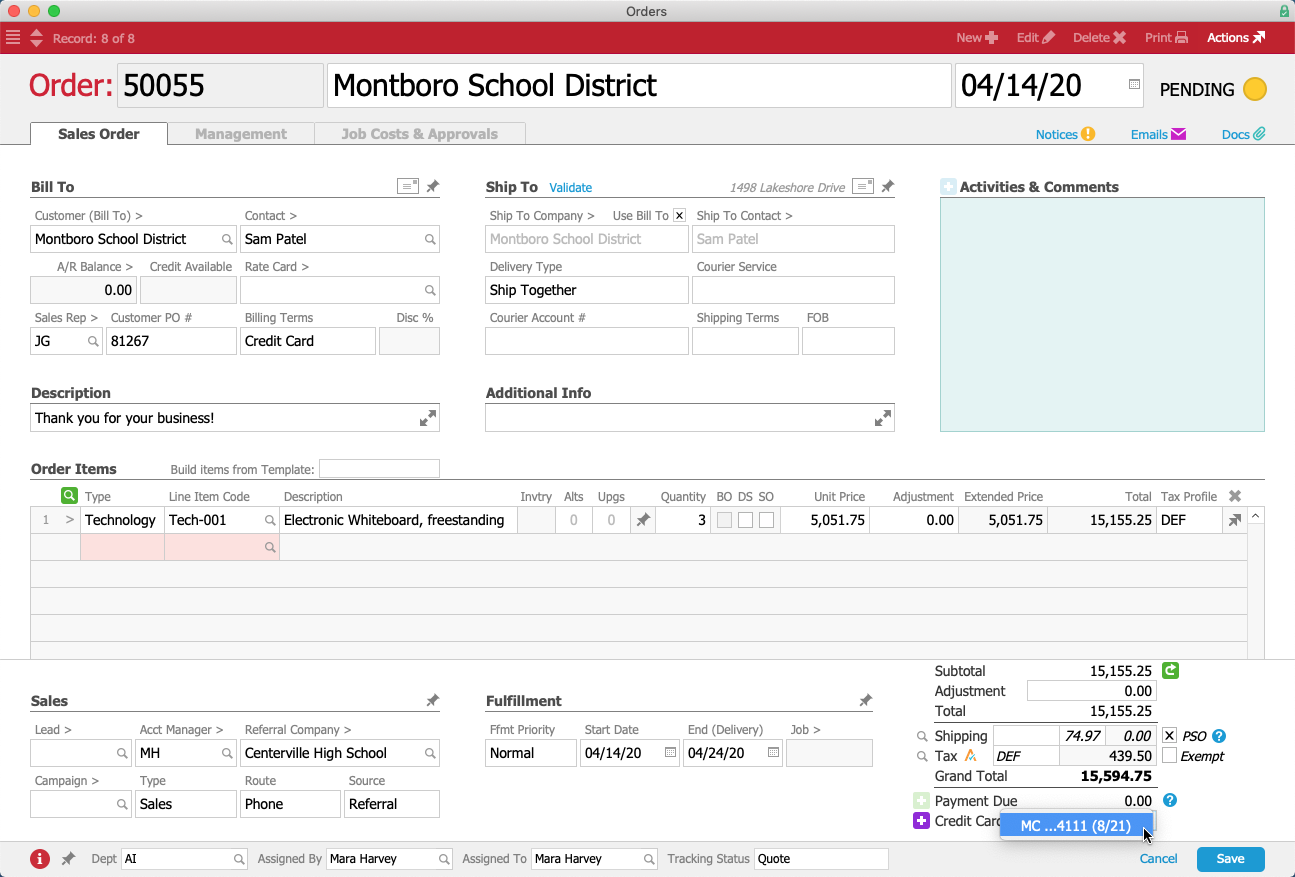
Mara receives another order, this time for 3 electronic whiteboards from the Montboro School District. Sam Patel, the Assistant Superintendent placing the order, would like to pay with a credit card he has used previously with aACME. As before, Mara selects Credit Card as the billing terms and the Credit Card field appears under the order’s total. This time, instead of entering new credit card details, Mara can simply choose the card Sam wants to use from the drop-down list.
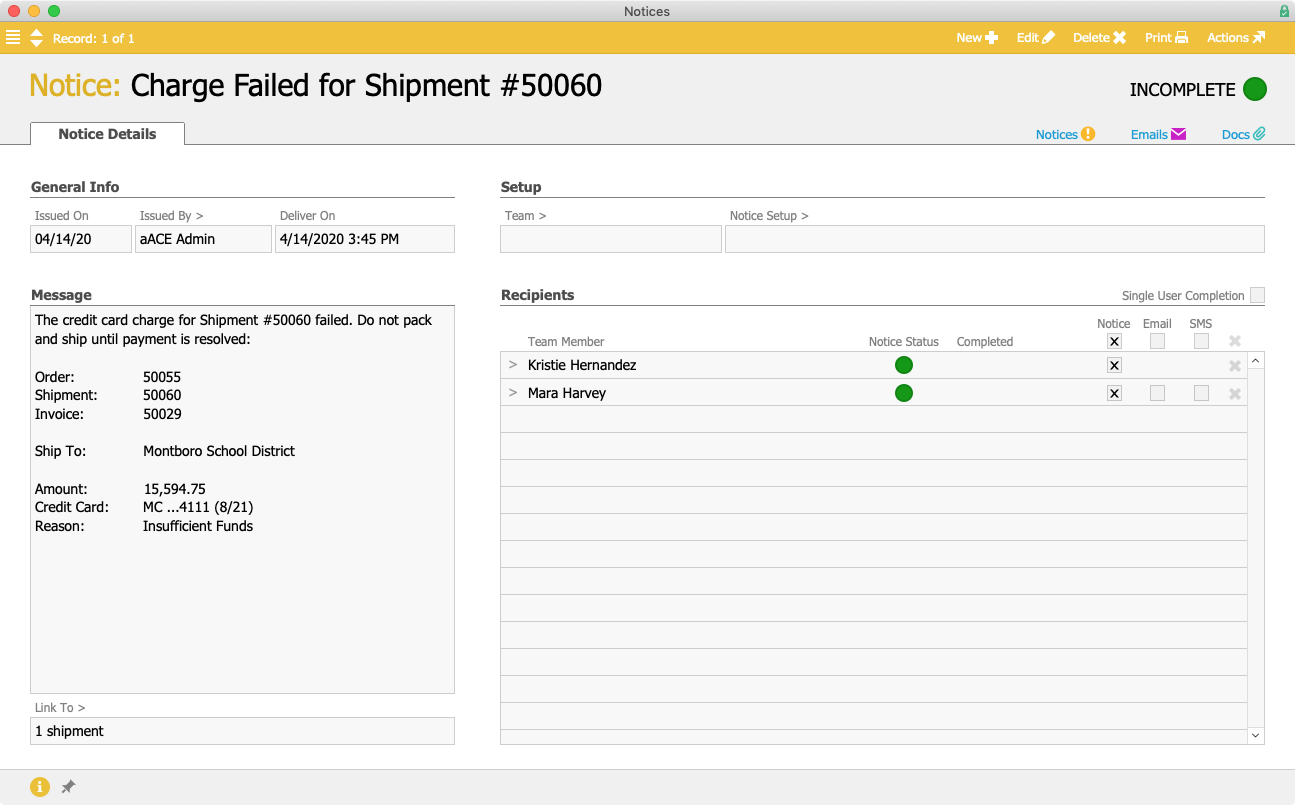
The order proceeds to the warehouse, where it’s picked, packed, and prepared to be shipped. When Kristie schedules the shipment, aACE again automatically generates an invoice and charges the credit card on file – but this time, the card is declined.
Immediately, aACE sends a text message to Kristie’s mobile phone. She cancels the shipment and stops the package from leaving before payment is received. Mara also receives a notification, allowing her to quickly follow up with Sam to get a new credit card for the order.
Now we’ve seen how aACE+ Payments makes it easy to take credit card payments, but what happens if a customer requests a refund or exchange?
The Full STEAM Academy Charter School ordered 25 French textbooks, but when they arrive, two of the books are damaged. Tina Rivera, the school principal, contacts aACME to initiate the refund process and send the damaged books back.
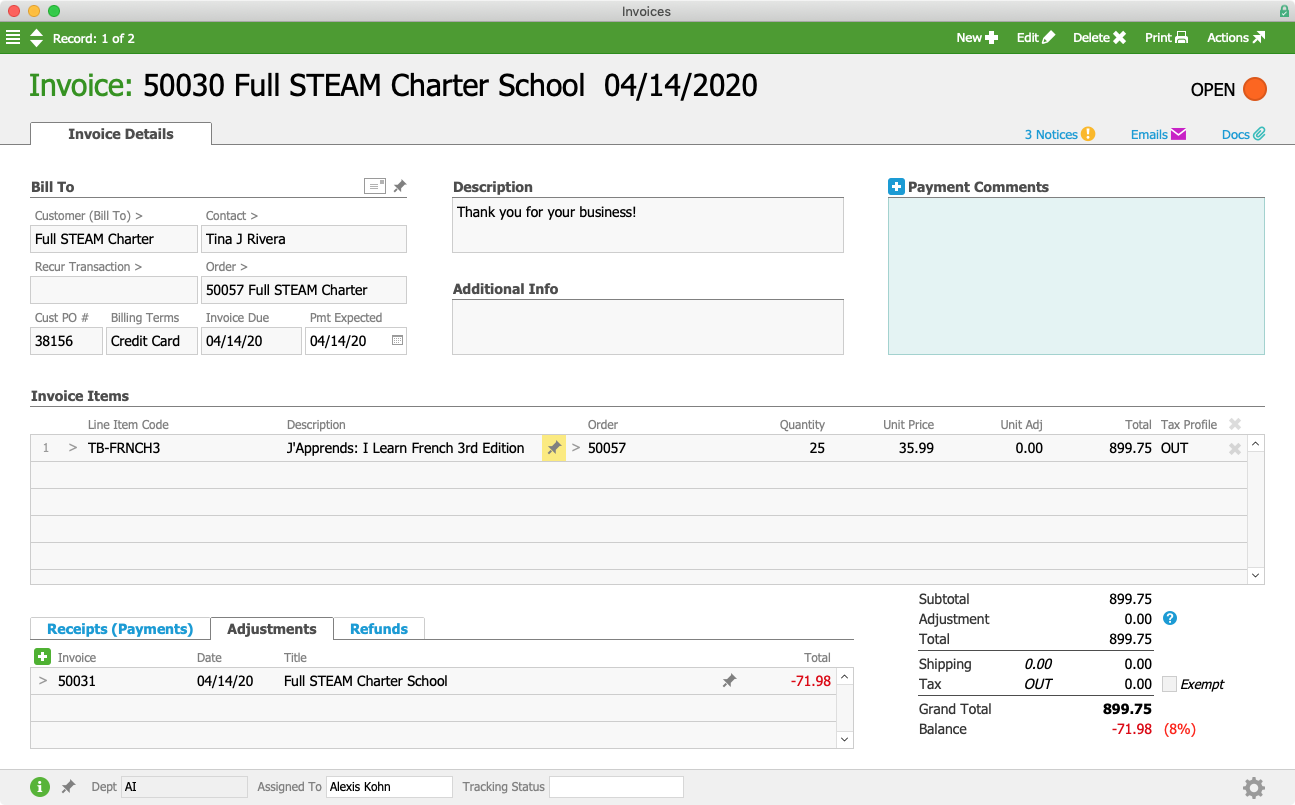
When the package from Full STEAM arrives in aACME’s warehouse, Alexis Kohn in the Billing department receives a notice alerting her that an adjustment invoice has been generated. She determines that everything looks correct and processes it, which reverses the amount of the two textbooks from the original invoice.
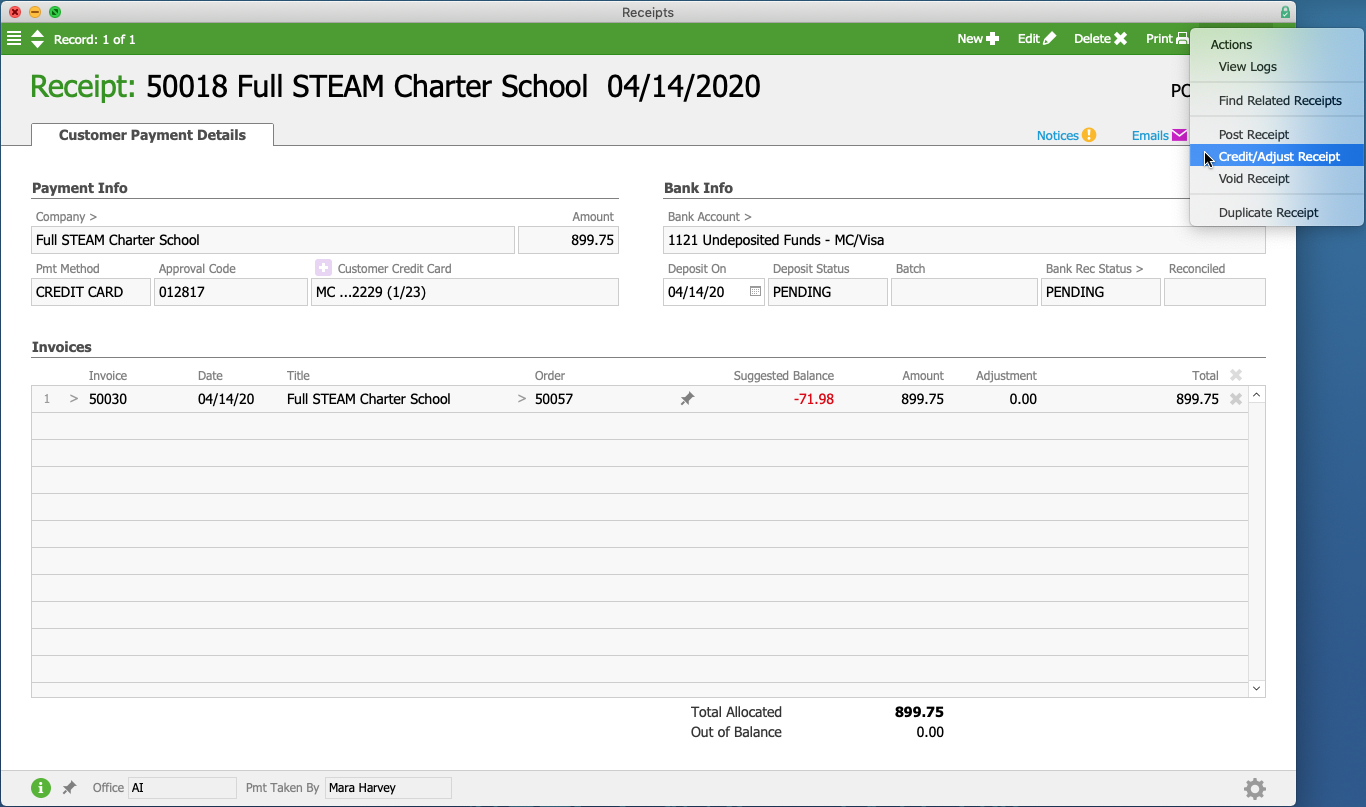
Next, Alexis needs to issue a partial refund for the two damaged books. To do that, she pulls up the original receipt and selects Credit/Adjust Receipt from the Actions menu.
aACE automatically pulls in the customer, method of payment, invoice, order, and a suggested amount for the refund. After double-checking that the information is correct, Alexis posts the receipt. Tina’s credit card is then refunded when the credit card batch settles overnight.
What if a sales rep makes a mistake and accidentally overcharges the customer? Fortunately, aACE+ Payments makes it easy to correct those errors — and as long as the mistake is fixed on the same day, the erroneous charge won’t even make it to the customer’s credit card statement.
Jamie Gianelli, a sales rep at aACME, receives an order from Southglen High School for new textbooks to replace the outdated ones the school has been using. Nikki Huang, the Vice Principal at Southglen, gives Jamie a long list of books and their quantities, including 45 natural science textbooks. Jamie accidentally mistypes this number as 54, and due to the many items in the order, neither she nor Nikki realize that the total is higher than it should be. It’s only after Jamie has opened the order and taken the payment that she realizes the mistake.
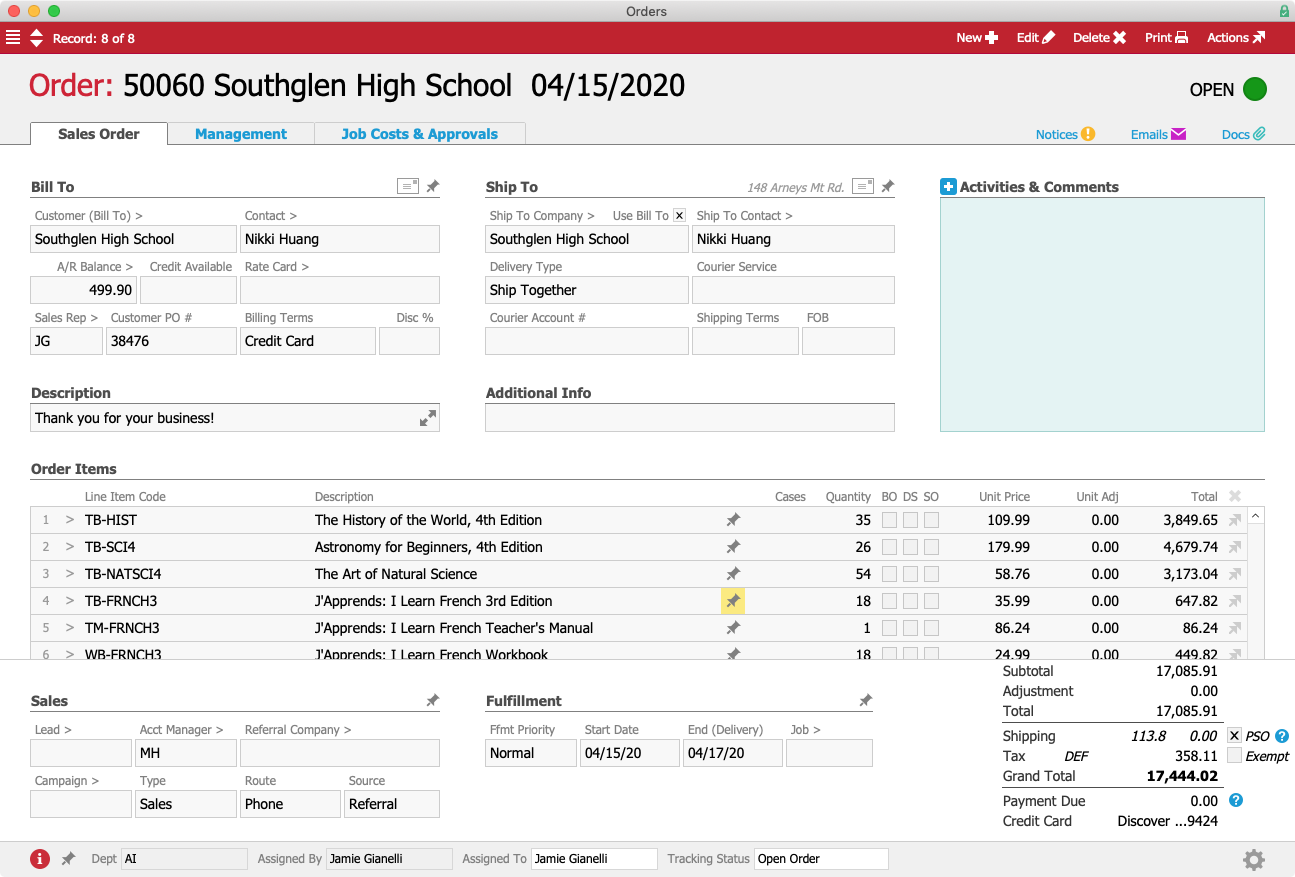
Fortunately, because Jamie caught the error on the same day that the payment was processed, she can fix it before the incorrect charge hits Nikki’s credit card. She pulls up the order and changes the quantity of the science books from 54 to 45, then voids the receipt that was originally created, which voids the pending charge and removes it from Nikki’s credit card statement. With the updated order Jamie can charge the correct amount without Nikki ever seeing the mistake.
And if a customer wants to pay by ACH? aACE+ Payments supports that too.
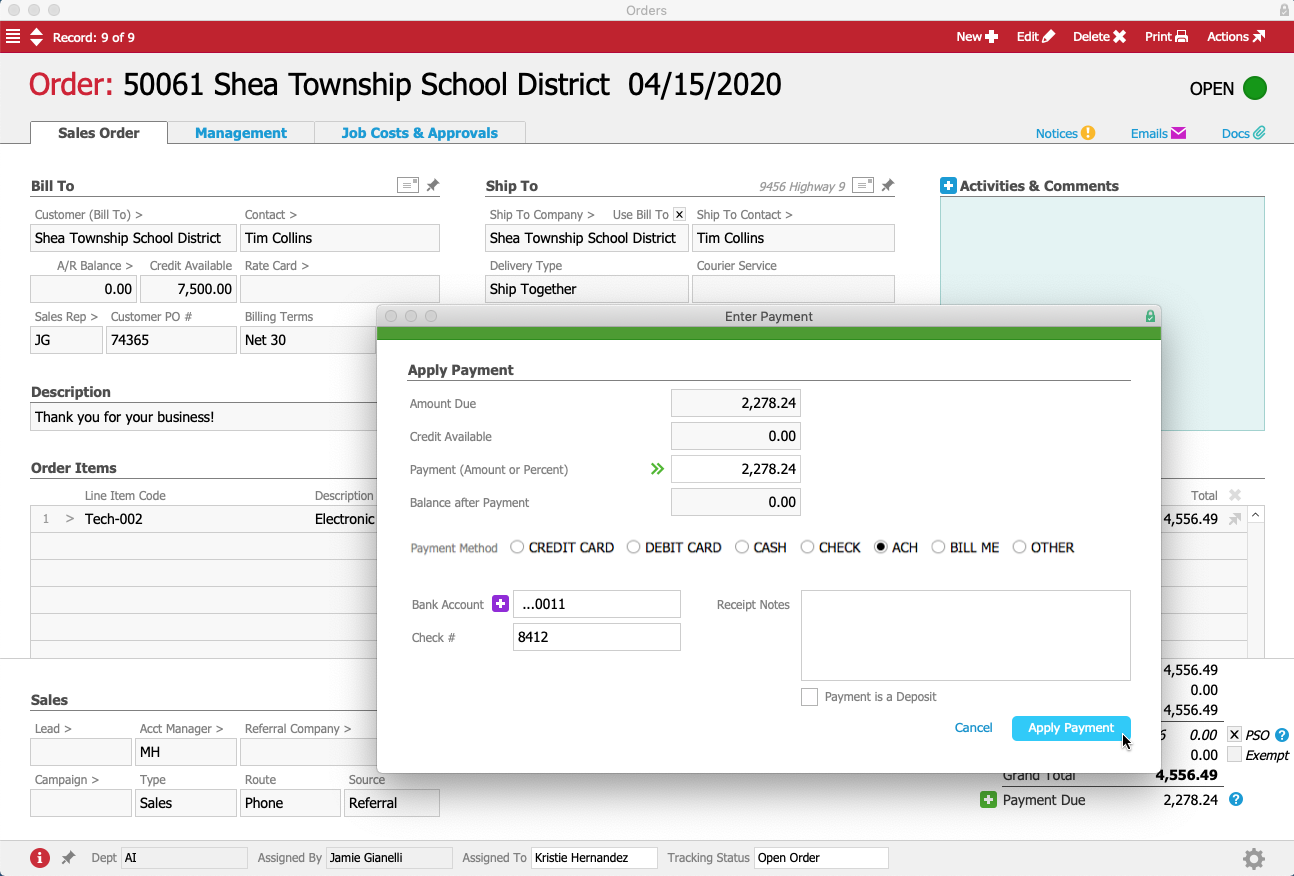
Jamie receives an order from the Shea Township School District for a new mounted electronic whiteboard. Tim Collins, the Administrative Assistant at Shea Township, would like to place a 50% deposit on the order using ACH.
To process the deposit right away, Jamie clicks on the  icon next to the Payment Due field, which opens up a payment dialog. Jamie enters “50%” in the Payment field and marks the “Payment is a Deposit” flag at the bottom of the screen. She selects “ACH” as the payment method.
Jamie clicks on the icon next to the Bank Account field, and a form for entering the bank account details pops up. Like we saw in the first example, this form is not part of aACE — rather, it’s an integrated portal to aACME’s payment processor.
Jamie enters Tim’s bank information in the form to authorize the payment processor to take the deposit directly from Tim’s checking account — all without his sensitive banking information ever entering aACE.
Jamie closes the form and returns to the payment dialog in aACE. As above, the bank account has been “tokenized” so it can be used for future payments. The only thing left for Jamie to do is click on the Apply Payment button to record the deposit in aACE.
Days later, Jamie receives a notification that the order has been shipped and it’s time to process the final payment. She returns to the order record and again clicks on the icon next to the Payment Due field.
As before, she selects “ACH” as the payment method. She has already entered Tim’s banking information in aACME’s payment processor, so a token representing the account appears in a drop-down menu when Jamie clicks into the Bank Account field. Jamie selects the account and clicks the Apply Payment button to process the payment.
As these examples show, aACE+ Payments enables your business to take credit card and ACH payments swiftly and securely, removing the opportunity for errors introduced by duplicate data entry. To learn more about what aACE can do for you, register for a webinar today.
"We wouldn’t be able to do what we do without what aACE does for us. We used to spend hours entering each piece of data by hand — aACE automates ALL of it, freeing up our employees to handle our increasing volume of orders. We can do a lot more now thanks to aACE’s near-limitless functionality." - Cory Elliot, Founder and President, Troy Filters Ltd.
Learn More
You’ve nurtured a lead through the buyer’s journey, matched them with a product that’s sure to fit their needs, and now it’s time to take their payment. If you’re still using outdated manual methods and terminals that don’t communicate with your ERP, this may be time-consuming,... Learn More
-->
You’ve nurtured a lead through the buyer’s journey, matched them with a product that’s sure to fit their needs, and now it’s time to take their payment. If you’re still using outdated manual methods and terminals that don’t communicate with your ERP, this may be time-consuming, error-prone, and unsecured. Wouldn’t it be great if you could process payments quickly and securely all from within your order management solution?
With aACE+ Payments, you can.
A growing list of leading payment processing services integrate seamlessly with your aACE solution, ensuring that you’re able to quickly and securely process credit card, debit card, and ACH check payments. Eliminate the hassle of manually entering payment information into multiple solutions; with aACE+ Payments, you can enter payment information directly into a payment processor’s secure servers from aACE. Securely applying payment is a breeze, saving you time and minimizing the potential for errors. To learn more, let’s take a look at how our sample company, aACME Education Solutions, uses this feature in their day-to-day operations.
Mara Harvey receives a call from Luisa Ramos at the Brightside Charter School. Luisa would like to place an order for 5 student tablets and put it on her company card. Mara creates the order in aACE, specifying Credit Card as the billing terms.
When Mara selects Credit Card as the billing terms, a Credit Card field appears underneath the order’s total. Because Luisa doesn’t have a credit card on file yet, Mara will need to enter one so that it’s available when the product ships.
To add Luisa’s credit card, Mara clicks on the button to the left of the Credit Card field. A form pops up where Mara can enter Luisa’s credit card details without leaving the order. The form automatically pulls in address information from Brightside Charter School’s company record, and Mara fills in the card number, expiration date, security code, and cardholder name.
Although this form was launched by a button in aACE, the form itself isn’t part of aACE — instead it’s a portal into the payment processor’s server that has been integrated seamlessly into aACME’s aACE solution. This ensures that when Mara enters Luisa’s sensitive credit card information, that data is never stored locally where it may be at risk, but rather is stored only on the payment processor’s secure servers.
Once the Mara submits the form, the payment processor generates a token for Luisa’s credit card that is stored in aACE. This makes it easier for the aACME sales team to process future orders, while still maintaining PCI compliance. In seconds, Mara receives a message that the transaction went through successfully. The card is now ready to be used.
Mara closes the form, and aACE automatically pulls the card’s alias into the Credit Card field. Only the card brand, last four digits, and expiration date are displayed. A hidden field contains the token; remember, at no point does aACE itself or Mara’s workstation have access to the full credit card number.
Mara saves and processes Luisa’s order, which prompts aACE to automatically generate a shipment for the tablets. In aACME’s warehouse, Ned Walker picks the tablets using the aACE Pick App. When he’s finished, aACE automatically transmits the shipment to aACME’s shipping solution.
Over in the Shipping Department, Kristie Hernandez logs into the shipping solution and schedules Luisa’s package for delivery. The shipment information is automatically pulled back into aACE, where the shipment record’s status is updated to Shipped.
At this point, aACE automatically generates an invoice for the order. Because the order is configured to charge the card on file, Luisa’s card is automatically charged for the balance, resulting in a posted receipt and closed invoice.
In the receipt’s log, we can see that the credit card was successfully charged.
But what happens when there’s a problem with the credit card and the payment fails to go through? aACE notifies the relevant parties immediately, enabling you to prevent products from going out the door without having been paid for. Let’s take a look at how that works.
Mara receives another order, this time for 3 electronic whiteboards from the Montboro School District. Sam Patel, the Assistant Superintendent placing the order, would like to pay with a credit card he has used previously with aACME. As before, Mara selects Credit Card as the billing terms and the Credit Card field appears under the order’s total. This time, instead of entering new credit card details, Mara can simply choose the card Sam wants to use from the drop-down list.
The order proceeds to the warehouse, where it’s picked, packed, and prepared to be shipped. When Kristie schedules the shipment, aACE again automatically generates an invoice and charges the credit card on file – but this time, the card is declined.
Immediately, aACE sends a text message to Kristie’s mobile phone. She cancels the shipment and stops the package from leaving before payment is received. Mara also receives a notification, allowing her to quickly follow up with Sam to get a new credit card for the order.
Now we’ve seen how aACE+ Payments makes it easy to take credit card payments, but what happens if a customer requests a refund or exchange?
The Full STEAM Academy Charter School ordered 25 French textbooks, but when they arrive, two of the books are damaged. Tina Rivera, the school principal, contacts aACME to initiate the refund process and send the damaged books back.
When the package from Full STEAM arrives in aACME’s warehouse, Alexis Kohn in the Billing department receives a notice alerting her that an adjustment invoice has been generated. She determines that everything looks correct and processes it, which reverses the amount of the two textbooks from the original invoice.
Next, Alexis needs to issue a partial refund for the two damaged books. To do that, she pulls up the original receipt and selects Credit/Adjust Receipt from the Actions menu.
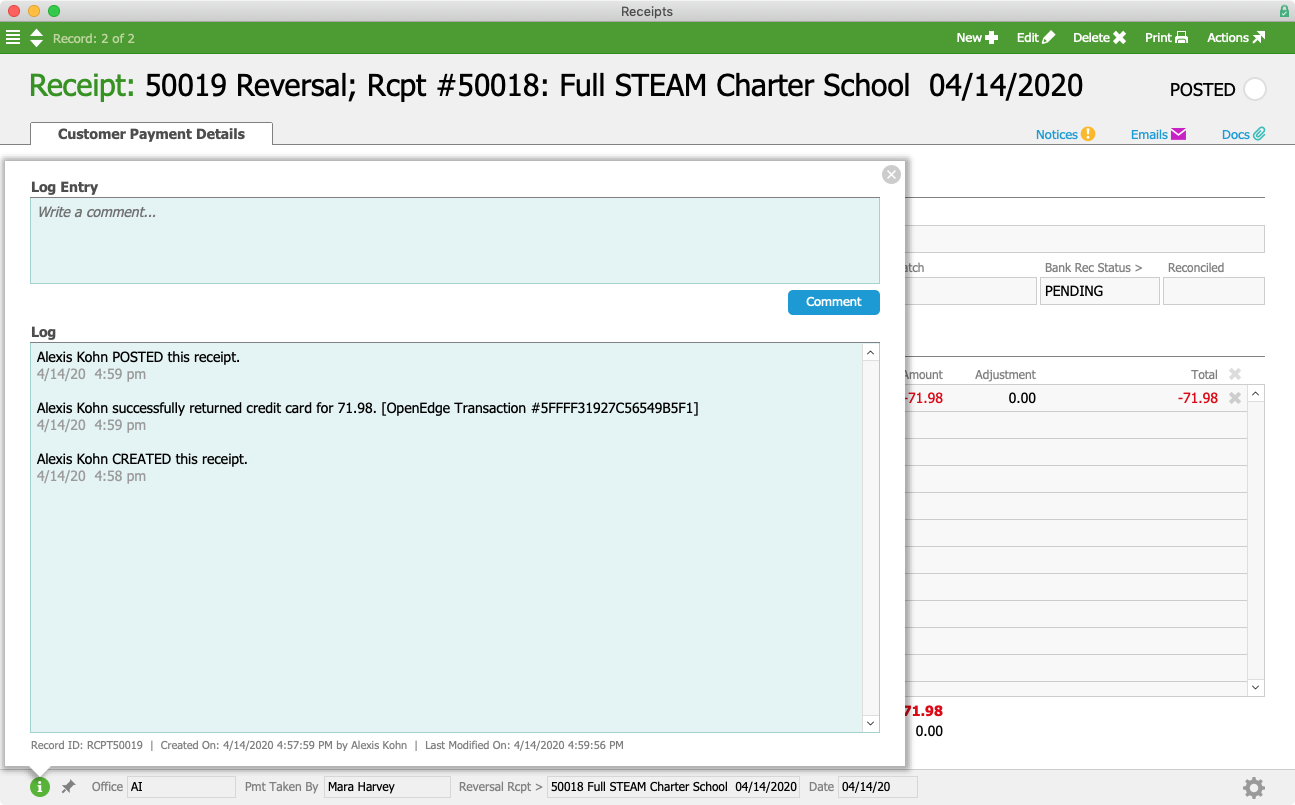
aACE automatically pulls in the customer, method of payment, invoice, order, and a suggested amount for the refund. After double-checking that the information is correct, Alexis posts the receipt. Tina’s credit card is then refunded when the credit card batch settles overnight.
What if a sales rep makes a mistake and accidentally overcharges the customer? Fortunately, aACE+ Payments makes it easy to correct those errors — and as long as the mistake is fixed on the same day, the erroneous charge won’t even make it to the customer’s credit card statement.
Jamie Gianelli, a sales rep at aACME, receives an order from Southglen High School for new textbooks to replace the outdated ones the school has been using. Nikki Huang, the Vice Principal at Southglen, gives Jamie a long list of books and their quantities, including 45 natural science textbooks. Jamie accidentally mistypes this number as 54, and due to the many items in the order, neither she nor Nikki realize that the total is higher than it should be. It’s only after Jamie has opened the order and taken the payment that she realizes the mistake.
Fortunately, because Jamie caught the error on the same day that the payment was processed, she can fix it before the incorrect charge hits Nikki’s credit card. She pulls up the order and changes the quantity of the science books from 54 to 45, then voids the receipt that was originally created, which voids the pending charge and removes it from Nikki’s credit card statement. With the updated order Jamie can charge the correct amount without Nikki ever seeing the mistake.
And if a customer wants to pay by ACH? aACE+ Payments supports that too.
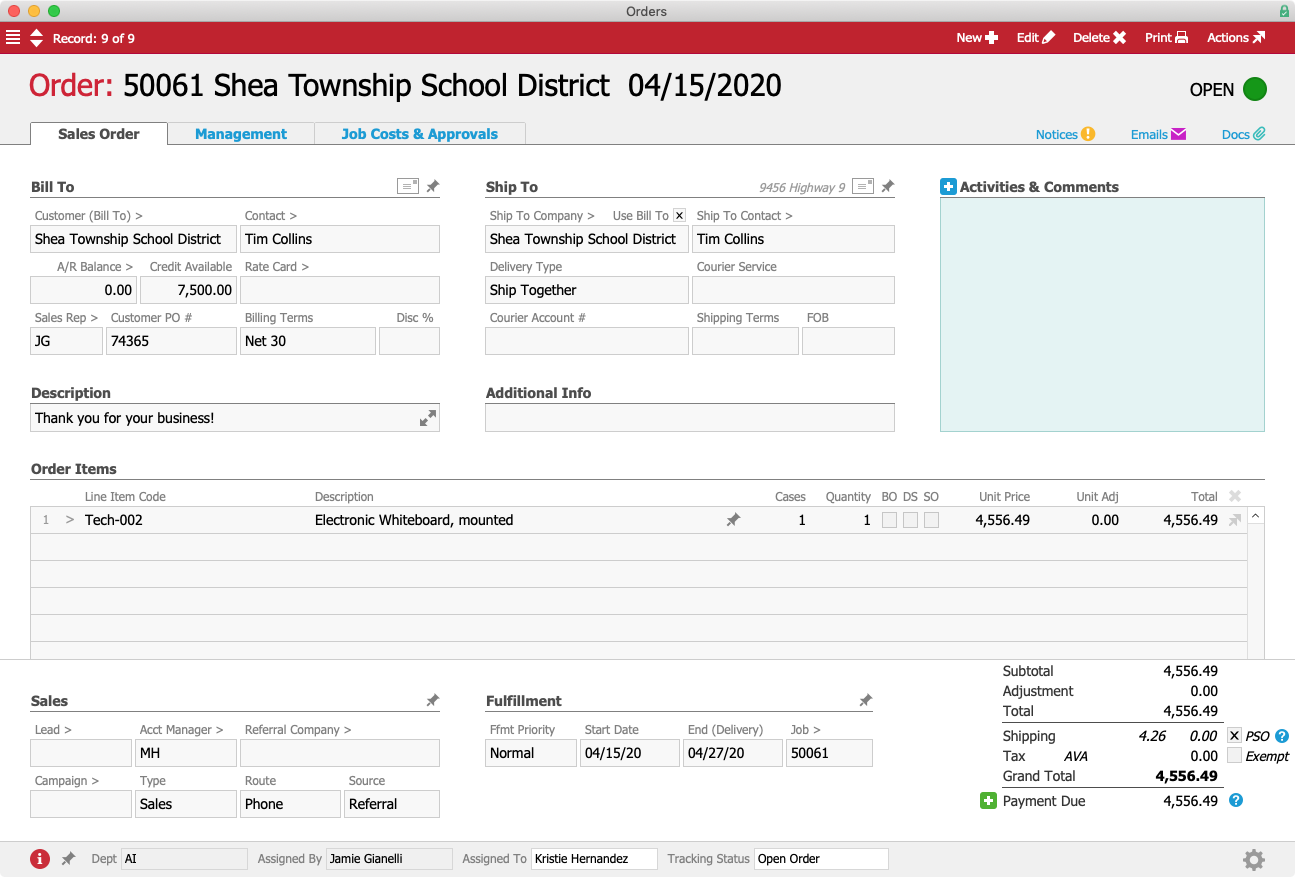
Jamie receives an order from the Shea Township School District for a new mounted electronic whiteboard. Tim Collins, the Administrative Assistant at Shea Township, would like to place a 50% deposit on the order using ACH.
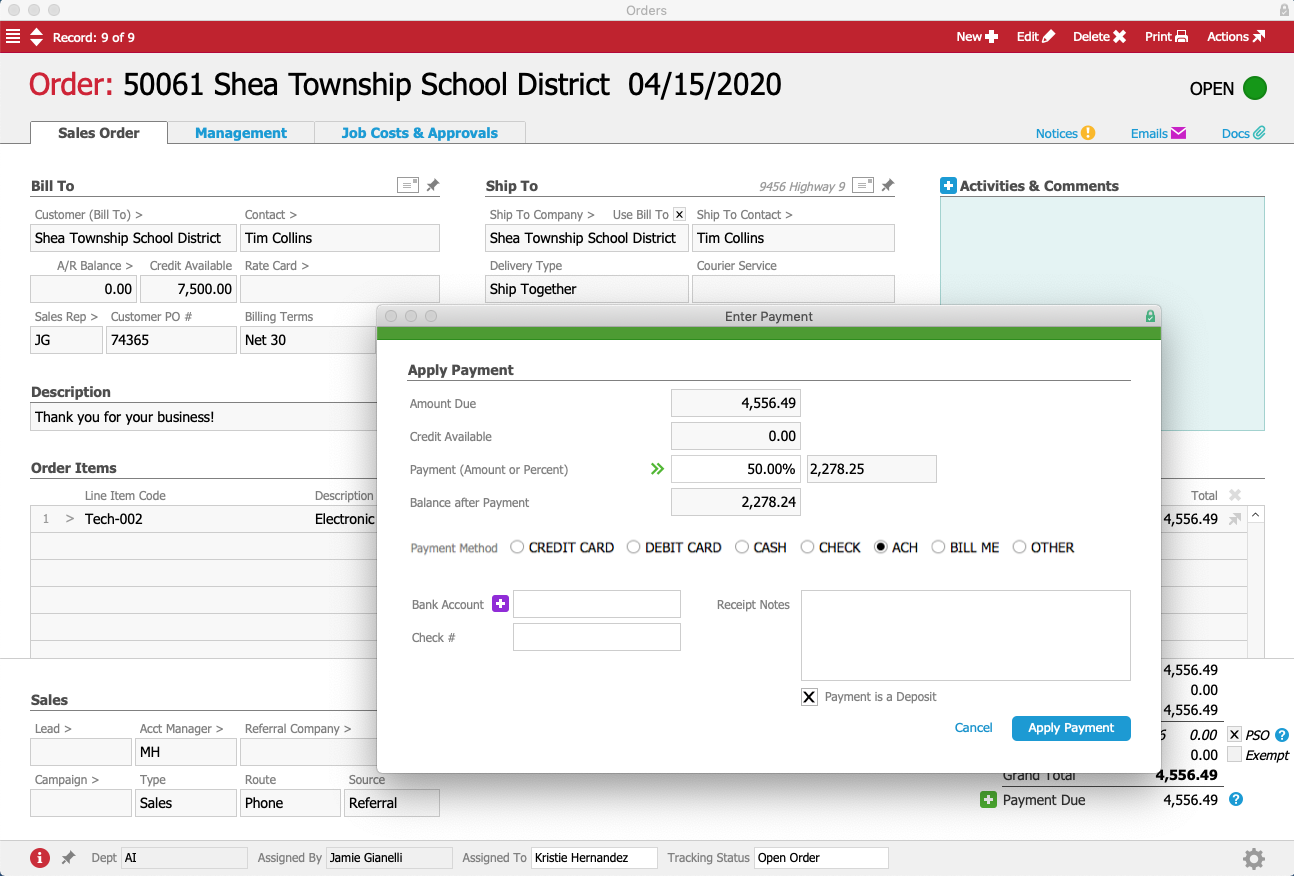
To process the deposit right away, Jamie clicks on the icon next to the Payment Due field, which opens up a payment dialog. Jamie enters “50%” in the Payment field and marks the “Payment is a Deposit” flag at the bottom of the screen. She selects “ACH” as the payment method.
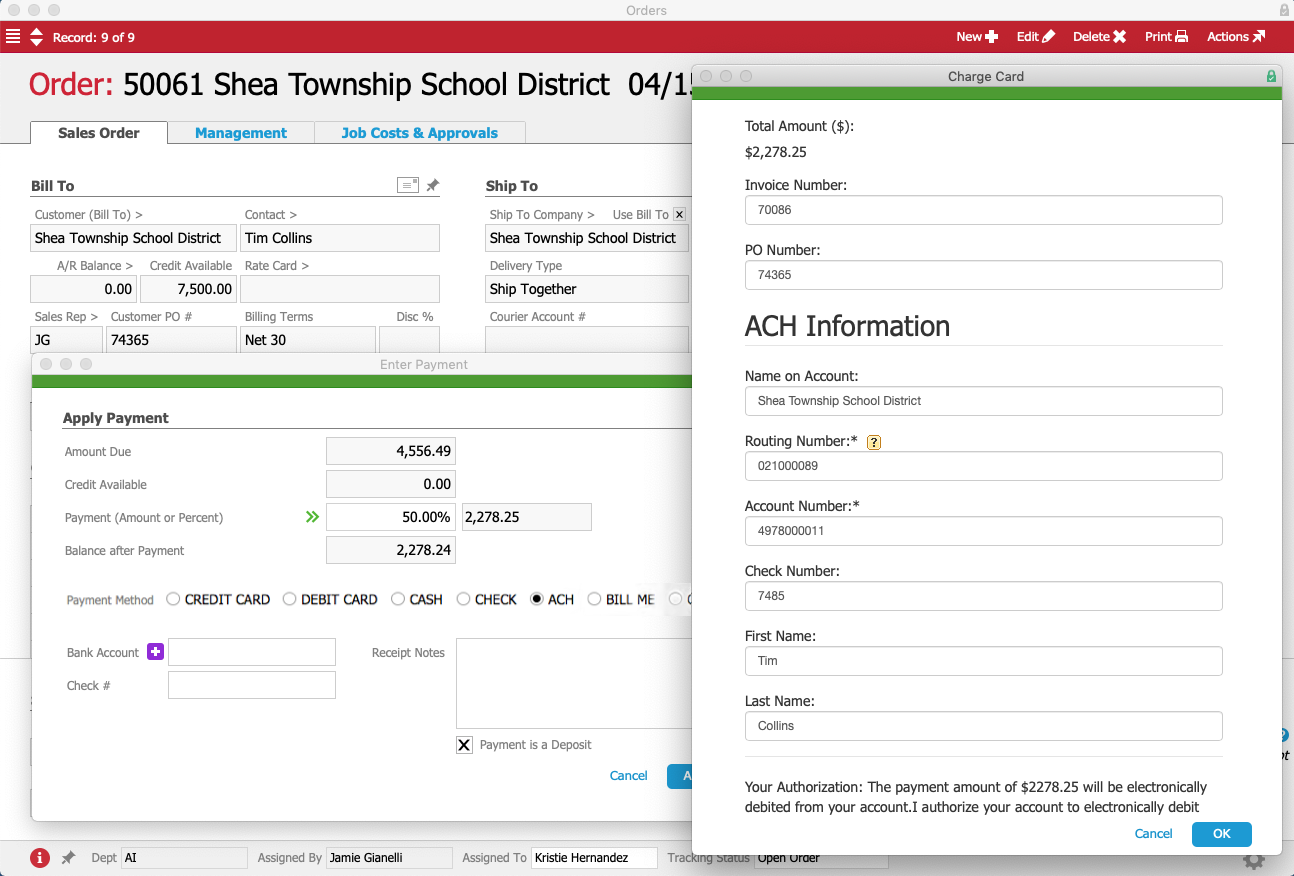
Jamie clicks on the icon next to the Bank Account field, and a form for entering the bank account details pops up. Like we saw in the first example, this form is not part of aACE — rather, it’s an integrated portal to aACME’s payment processor.
Jamie enters Tim’s bank information in the form to authorize the payment processor to take the deposit directly from Tim’s checking account — all without his sensitive banking information ever entering aACE.
Jamie closes the form and returns to the payment dialog in aACE. As above, the bank account has been “tokenized” so it can be used for future payments. The only thing left for Jamie to do is click on the Apply Payment button to record the deposit in aACE.
Days later, Jamie receives a notification that the order has been shipped and it’s time to process the final payment. She returns to the order record and again clicks on the icon next to the Payment Due field.
As before, she selects “ACH” as the payment method. She has already entered Tim’s banking information in aACME’s payment processor, so a token representing the account appears in a drop-down menu when Jamie clicks into the Bank Account field. Jamie selects the account and clicks the Apply Payment button to process the payment.
As these examples show, aACE+ Payments enables your business to take credit card and ACH payments swiftly and securely, removing the opportunity for errors introduced by duplicate data entry. To learn more about what aACE can do for you, register for a webinar today.
"We wouldn’t be able to do what we do without what aACE does for us. We used to spend hours entering each piece of data by hand — aACE automates ALL of it, freeing up our employees to handle our increasing volume of orders. We can do a lot more now thanks to aACE’s near-limitless functionality." - Cory Elliot, Founder and President, Troy Filters Ltd.
Learn More




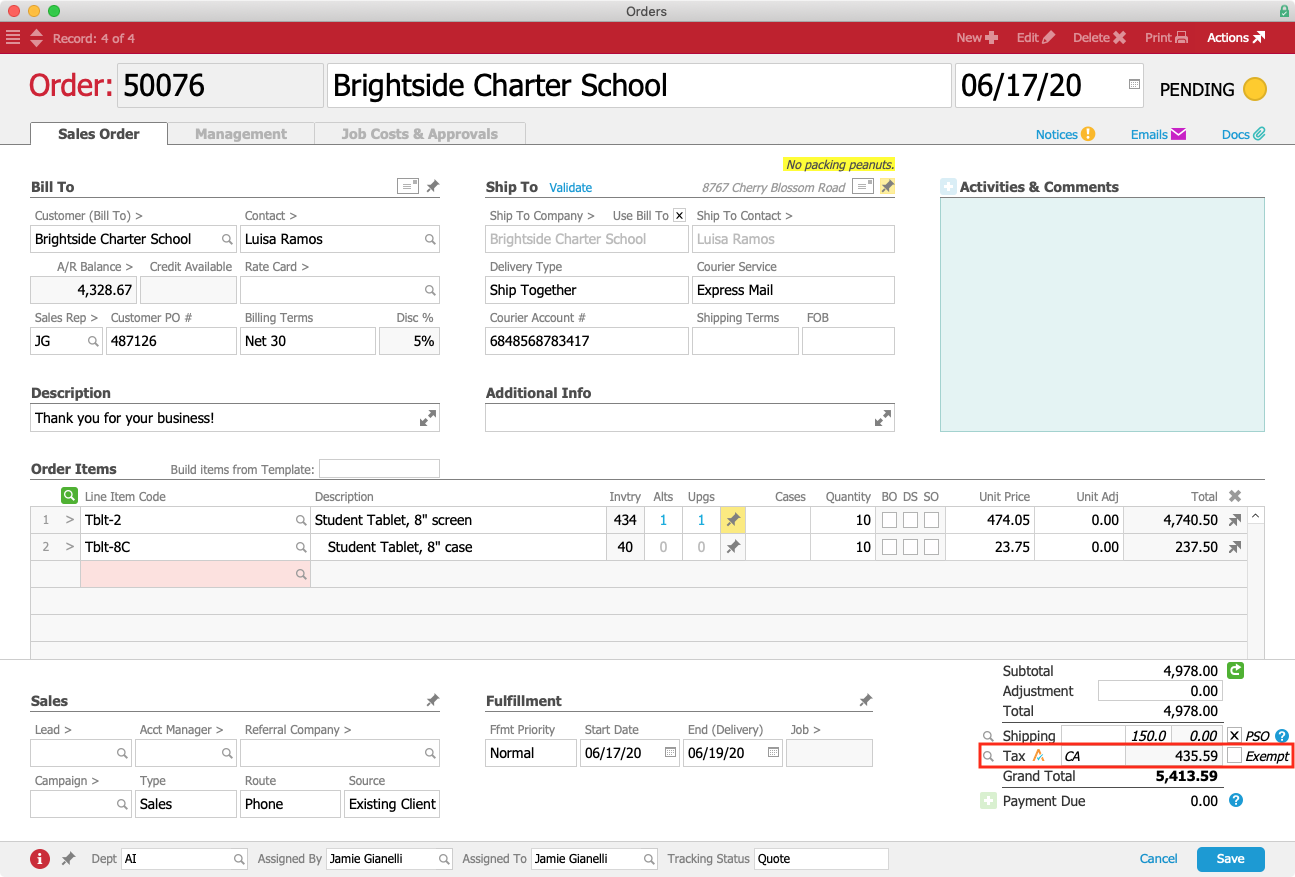
 icon, which tells aACE to bypass its internal tax infrastructure and use the Avalara integration instead.