Business Process Improvement Through Software

Dive into the details to discover how aACE can help your business.

aACE software blog -  a complete resource for SMBs looking to improve their business processes. Read our articles on all things CRM, Accounting Software, ERP, Inventory Management & more

Business Process Improvement Through Software!

All things CRM, Accounting Software, ERP, Inventory Management & more

Read more about Satisfy and Delight Your Customers With Product Options and Alternates

Satisfy and Delight Your Customers With Product Options and Alternates

If you sell more than a handful of products, chances are your staff can’t memorize every single one. So what happens when a customer wants to purchase something that’s out of stock – will your sales team know off-hand which other products would meet that customer’s needs? And if there’s a product in your catalog that would go great with the one your customer is ordering, will your employees think to recommend it? Wouldn’t it be great if you could put that information right at your order writers’ fingertips, exactly when they need it?Learn More

Read more about Never Miss an Important Date with aACE

Never Miss an Important Date with aACE

Notice Setup

Recently aACME hired Shawn Russel as a new Production Assistant. When Pete McNeil, aACME’s Director of HR, creates Shawn’s Team Member record in aACE, he fills in Shawn’s date of hire and his birthday in the “Important Dates” section of the Human Resources tab.

For each date, Pete fills in a description of the date, any notes associated with it, which team member or team should get a reminder, and when that reminder should go out. For Shawn’s Hire Date, he has the reminder sent to the entire HR team; for Shawn’s birthday, the reminder will be sent to Shawn’s manager, Evan Phillips. Pete also flags the “Annual” check box, ensuring the reminders will go out every year.

Team Member Record

When Shawn’s birthday rolls around, Evan receives a reminder via an aACE Notice.

Birthday Notice

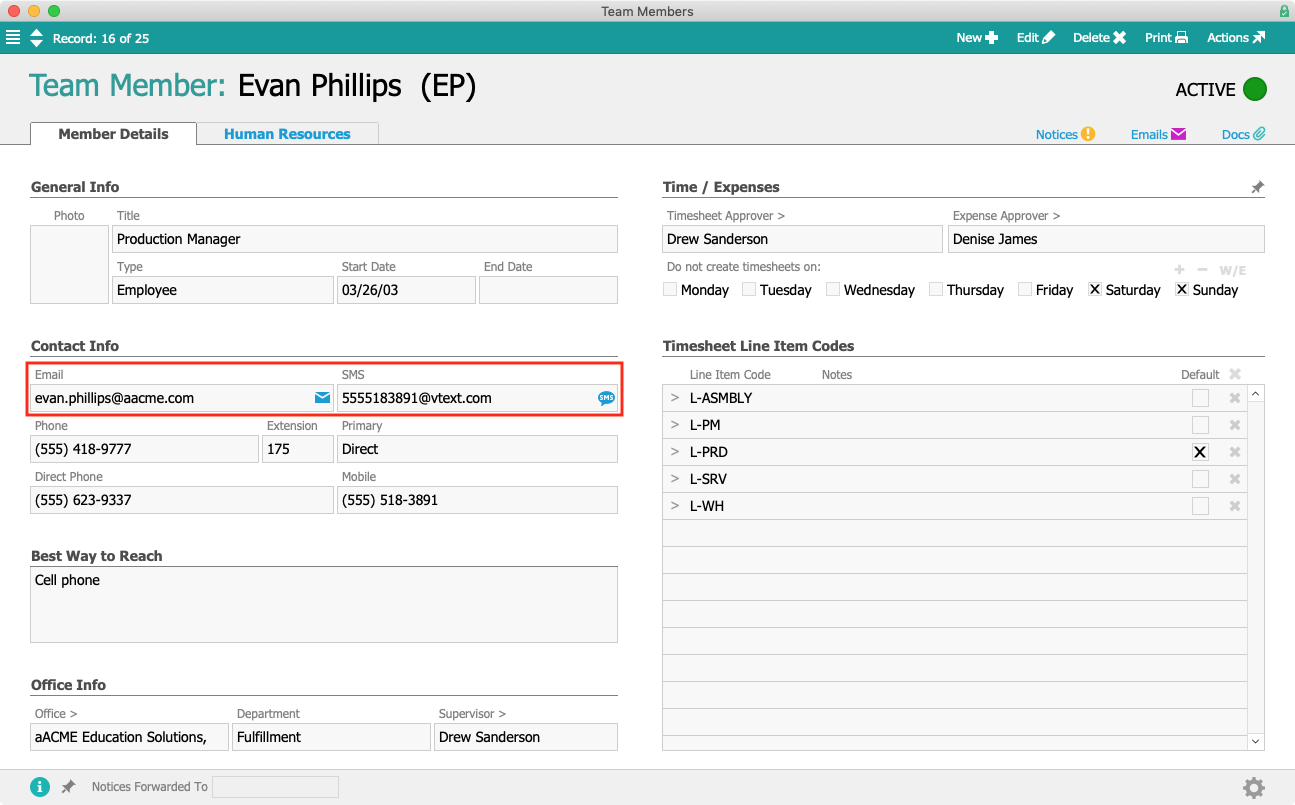
Because Evan’s Team Member record contains his email and SMS addresses, the notice is also delivered right to his phone, reminding him to wish Shawn a happy birthday right from the shop floor — without needing to be logged into aACE at a physical workstation.

Team Member Record

Because your customers and vendors have important dates too, aACE also allows you to store important dates in Company records.

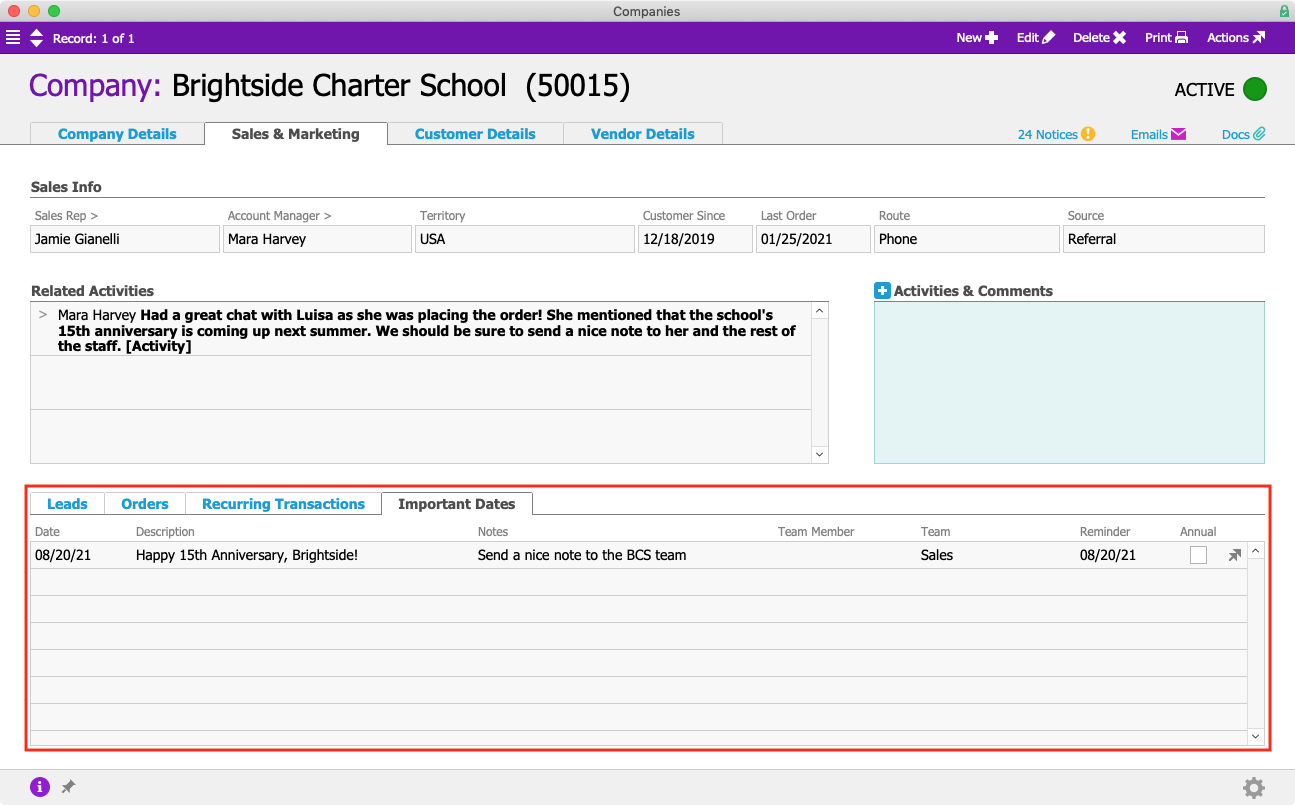
Brightside Charter School is a longtime aACME customer. While placing an order, CEO Luisa Ramos happens to mention to her account manager Mara Harvey that the school is preparing to celebrate its 15th anniversary the following summer on August 20th. After ending the call and processing the order, Mara navigates to Brightside’s Company record to make a note of the celebration.

As in the previous example, Mara fills in the name of the event, a description, relevant notes, and the date. She has the notice sent to aACME’s entire Sales team, so if Mara herself is out of the office on that date, someone else in her department will be able to fill in. Since the 15th anniversary is a one-time occurrence, Mara does not check the Annual flag.

Company Record

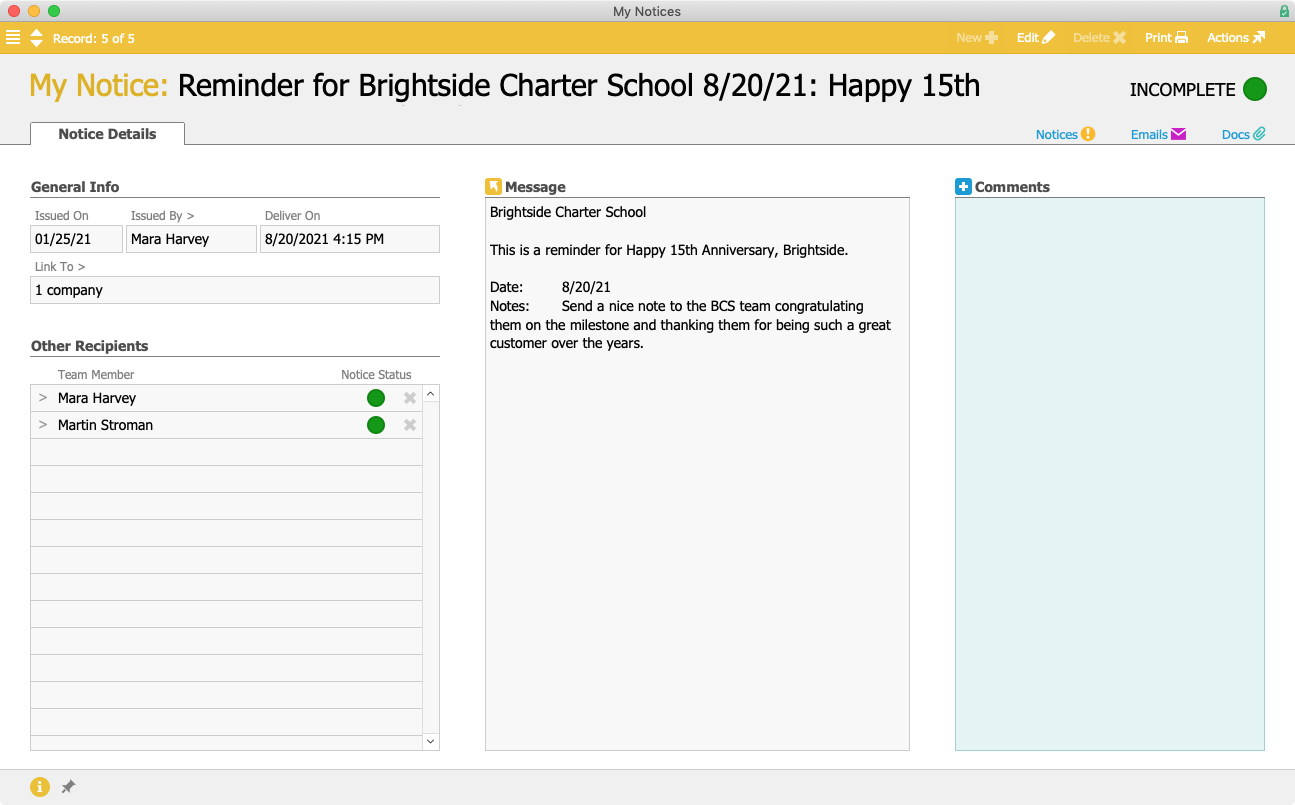
Months later, it turns out that Mara is indeed away from the office on Brightside’s big day. But that’s no problem, because the notice goes out to the entire Sales team.

BCS Notice

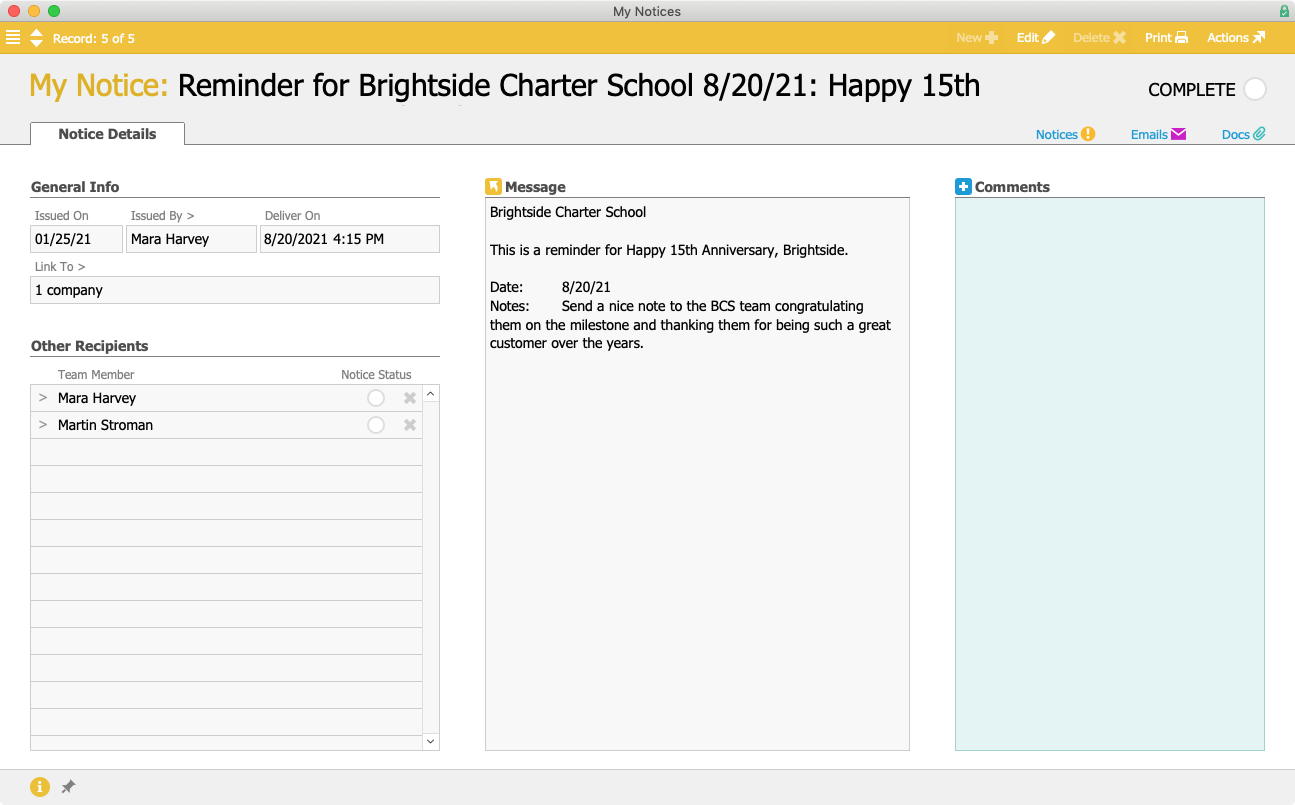
aACME Sales Rep Jamie Gianelli sees the notice and sends a nice email to Luisa and her team, congratulating them on the school’s milestone. She then marks the notice as completed in aACE, which also completes it for everyone else who received the reminder so that no one sends out a duplicate message.

BCS Notice Complete

And if an individual at another company has an important date coming up? aACE can remind you of that, too.

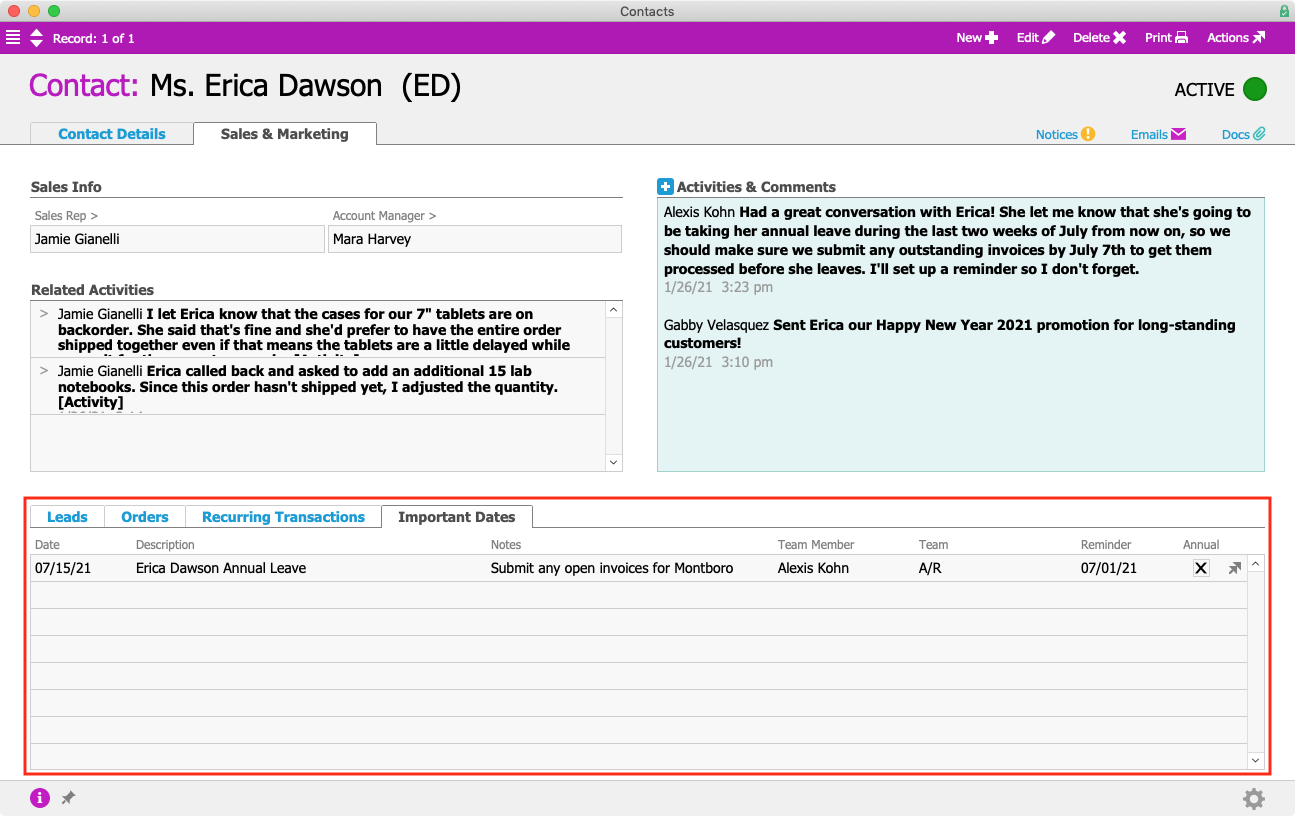
Alexis Kohn in aACME’s Accounts Receivable office has a close working relationship with Erica Dawson at the Montboro School District, one of aACME’s biggest customers. Erica goes on vacation every year for the second half of July to visit relatives overseas — so it’s important that any outstanding invoices are sent to her office by the first week of July. To prompt herself to get those invoices out early, Alexis sets an important date reminder in Erica’s Contact record.

Contact

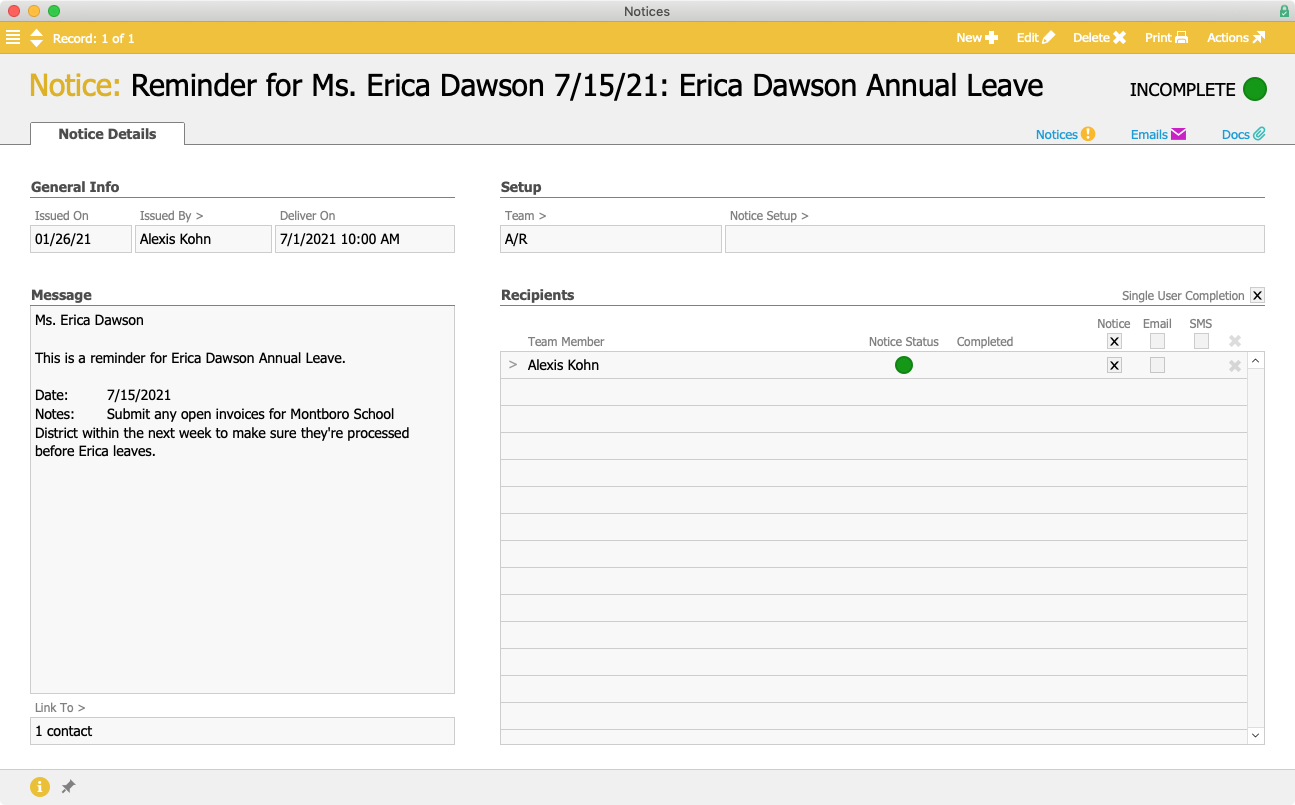
On July 1st each year, Alexis receives a Notice to email any outstanding Montboro invoices to Erica before her trip.

Contact Notice

aACE’s Important Dates reminders help you nurture your professional relationships and strengthen your network. To learn more about how aACE can help you take your business to the next level, register for one of our upcoming webinars today.

Learn More

You invest a lot of time building relationships with key contacts on behalf of your company. Whether it’s nurturing prospects through the sales pipeline, connecting with vendors who can provide vital services to your business, or keeping apprised of your employees’ important milestones, chances... Learn More

-->

You invest a lot of time building relationships with key contacts on behalf of your company. Whether it’s nurturing prospects through the sales pipeline, connecting with vendors who can provide vital services to your business, or keeping apprised of your employees’ important milestones, chances are you have a long list of people and companies whose relationships are valuable to your organization. Wouldn’t it be great if you could set reminders to reach out to them on important dates right from within your CRM?

With aACE, you can.

aACE makes it easy to record important dates and send reminders to go out to one or more team members via aACE notices, emails, or text messages – so you’re always there for your contacts when it counts.

To learn more about this feature, let’s look at how our sample company, aACME Education Solutions, uses it in their day-to-day operations.

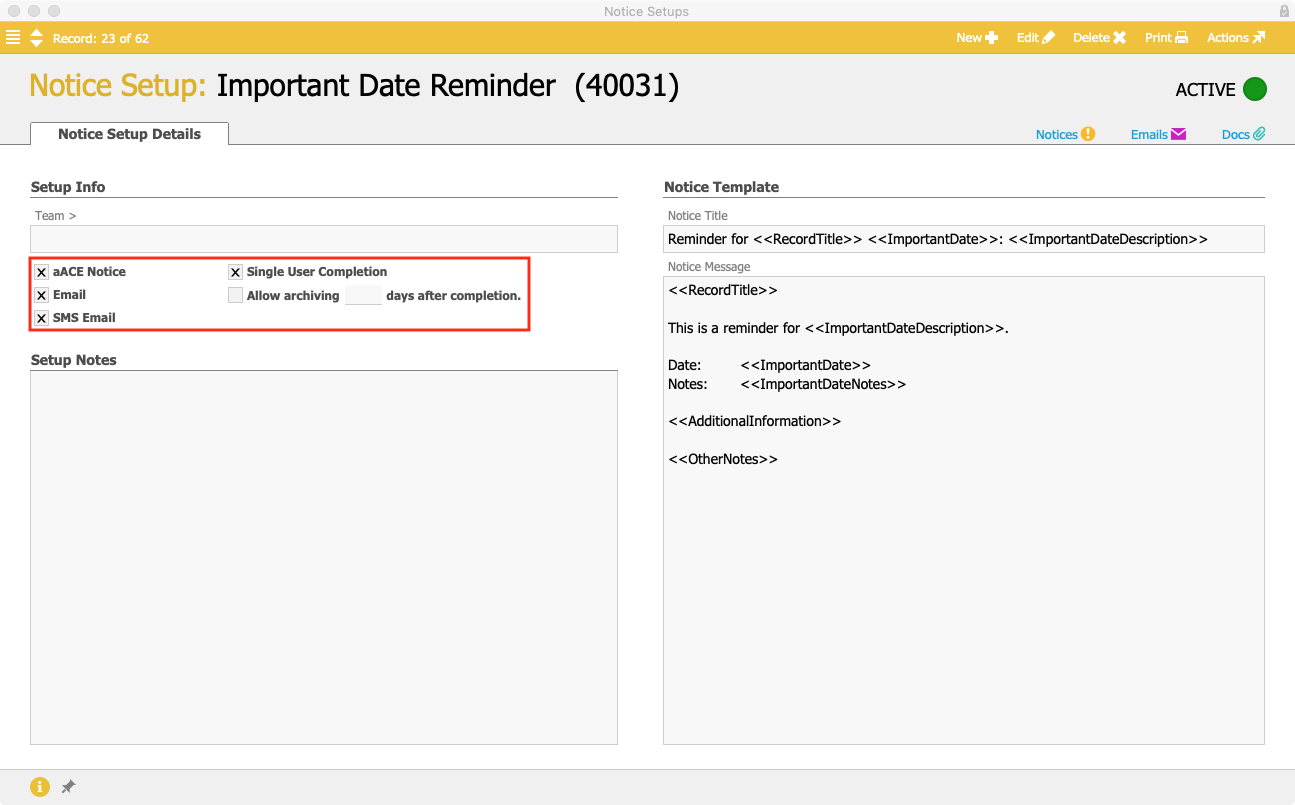
Out of the box, aACE contains a number of notices that can be auto-generated by the system and sent to designated teams or team members when certain conditions are met. The Important Date Reminder is one such notice. Merge fields allow aACE to pull relevant information — like the title, date, and description of the event — directly from the record that generates the reminder.

By default, the reminder is set to go out through aACE’s internal Notices system. But because not everyone who needs to receive these reminders is an aACE user, aACME’s system administrator also enabled the reminders to be sent out via email and text message (SMS). For notices that are sent out to multiple people or entire teams, the Single User Completion flag is checked so that one person can mark the notice as complete for everyone who receives it.

Notice Setup

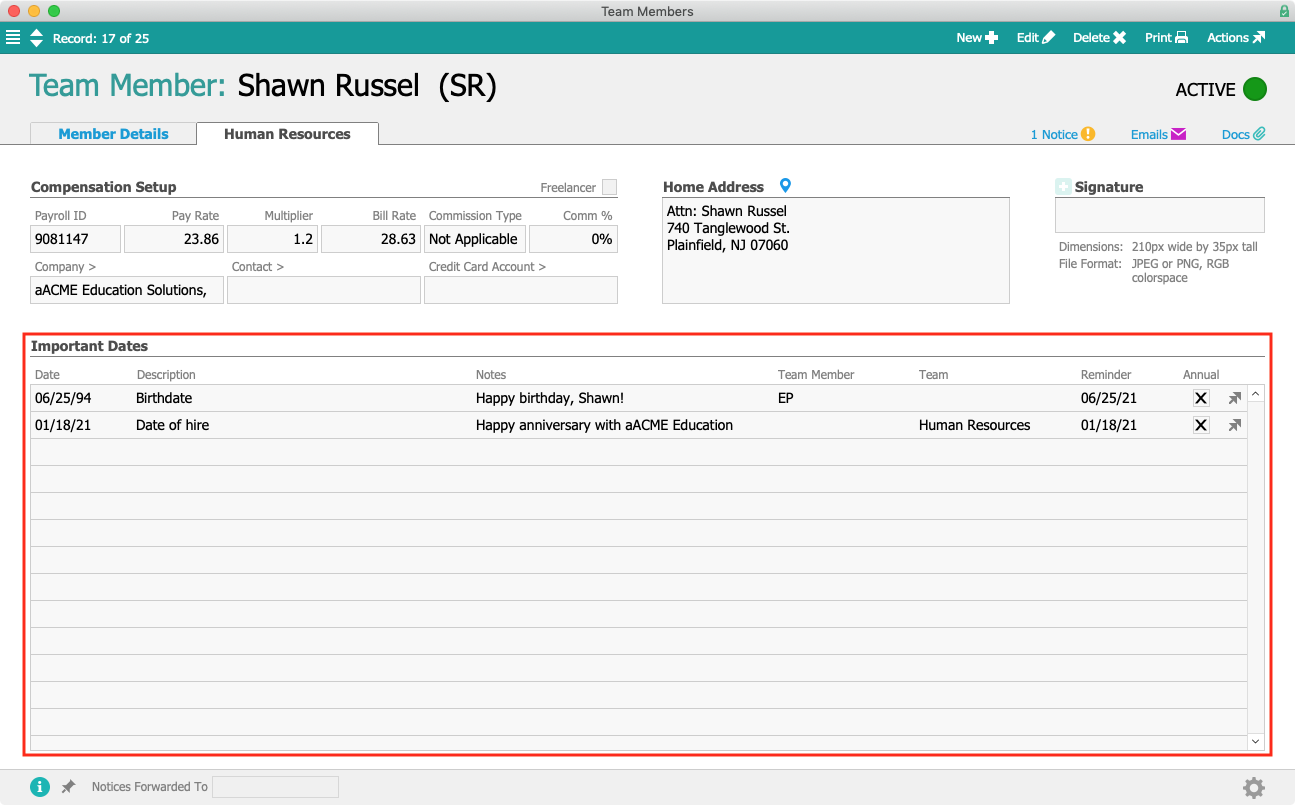
Recently aACME hired Shawn Russel as a new Production Assistant. When Pete McNeil, aACME’s Director of HR, creates Shawn’s Team Member record in aACE, he fills in Shawn’s date of hire and his birthday in the “Important Dates” section of the Human Resources tab.

For each date, Pete fills in a description of the date, any notes associated with it, which team member or team should get a reminder, and when that reminder should go out. For Shawn’s Hire Date, he has the reminder sent to the entire HR team; for Shawn’s birthday, the reminder will be sent to Shawn’s manager, Evan Phillips. Pete also flags the “Annual” check box, ensuring the reminders will go out every year.

Team Member Record

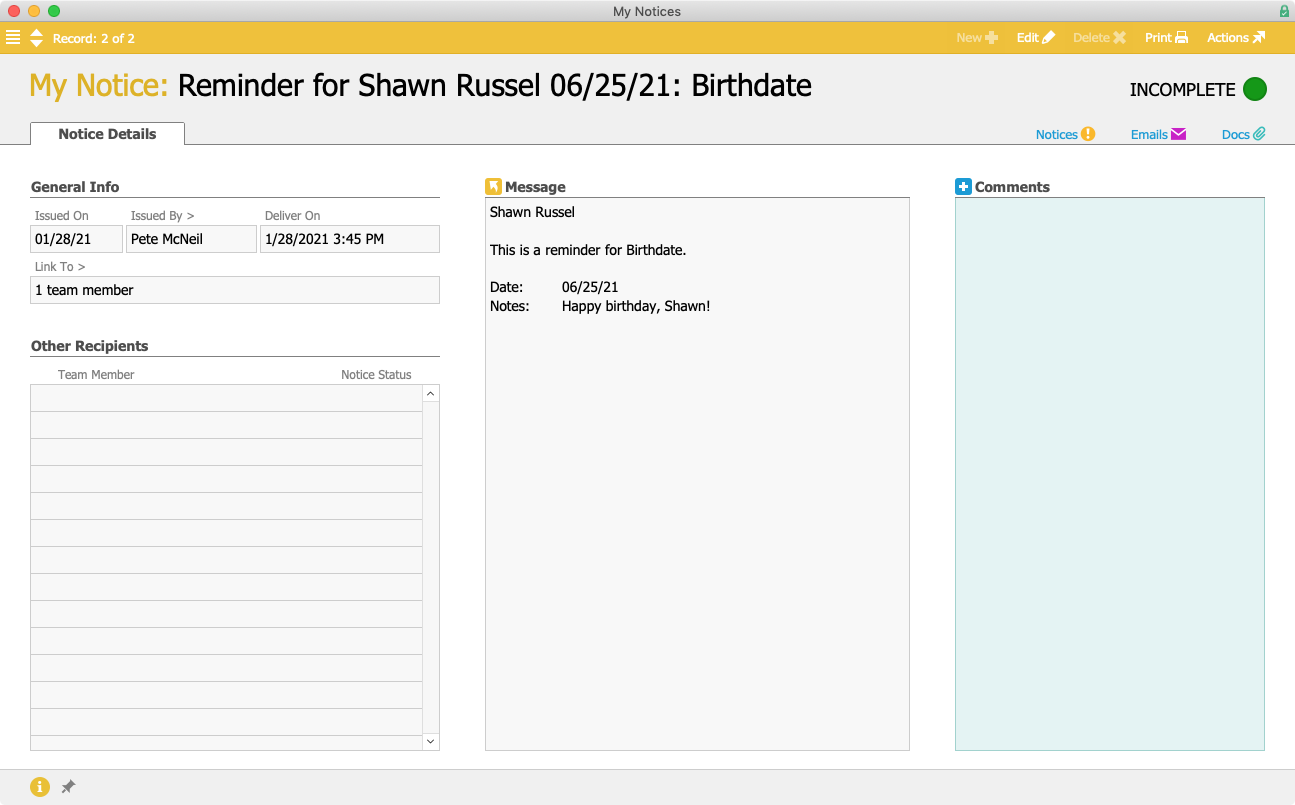
When Shawn’s birthday rolls around, Evan receives a reminder via an aACE Notice.

Birthday Notice

Because Evan’s Team Member record contains his email and SMS addresses, the notice is also delivered right to his phone, reminding him to wish Shawn a happy birthday right from the shop floor — without needing to be logged into aACE at a physical workstation.

Team Member Record

Because your customers and vendors have important dates too, aACE also allows you to store important dates in Company records.

Brightside Charter School is a longtime aACME customer. While placing an order, CEO Luisa Ramos happens to mention to her account manager Mara Harvey that the school is preparing to celebrate its 15th anniversary the following summer on August 20th. After ending the call and processing the order, Mara navigates to Brightside’s Company record to make a note of the celebration.

As in the previous example, Mara fills in the name of the event, a description, relevant notes, and the date. She has the notice sent to aACME’s entire Sales team, so if Mara herself is out of the office on that date, someone else in her department will be able to fill in. Since the 15th anniversary is a one-time occurrence, Mara does not check the Annual flag.

Company Record

Months later, it turns out that Mara is indeed away from the office on Brightside’s big day. But that’s no problem, because the notice goes out to the entire Sales team.

BCS Notice

aACME Sales Rep Jamie Gianelli sees the notice and sends a nice email to Luisa and her team, congratulating them on the school’s milestone. She then marks the notice as completed in aACE, which also completes it for everyone else who received the reminder so that no one sends out a duplicate message.

BCS Notice Complete

And if an individual at another company has an important date coming up? aACE can remind you of that, too.

Alexis Kohn in aACME’s Accounts Receivable office has a close working relationship with Erica Dawson at the Montboro School District, one of aACME’s biggest customers. Erica goes on vacation every year for the second half of July to visit relatives overseas — so it’s important that any outstanding invoices are sent to her office by the first week of July. To prompt herself to get those invoices out early, Alexis sets an important date reminder in Erica’s Contact record.

Contact

On July 1st each year, Alexis receives a Notice to email any outstanding Montboro invoices to Erica before her trip.

Contact Notice

aACE’s Important Dates reminders help you nurture your professional relationships and strengthen your network. To learn more about how aACE can help you take your business to the next level, register for one of our upcoming webinars today.

Learn More

Read more about Easily Manage Complex Business Relationships in aACE

Easily Manage Complex Business Relationships in aACE

With aACE, you can.

aACE’s CRM tools make it easy to connect parent and child companies, referrals, and other third-party relationships to give you a more complete picture of your business network. To learn more about this feature, let’s take a look at how our sample company, aACME Education Solutions, uses it in their day-to-day operations.

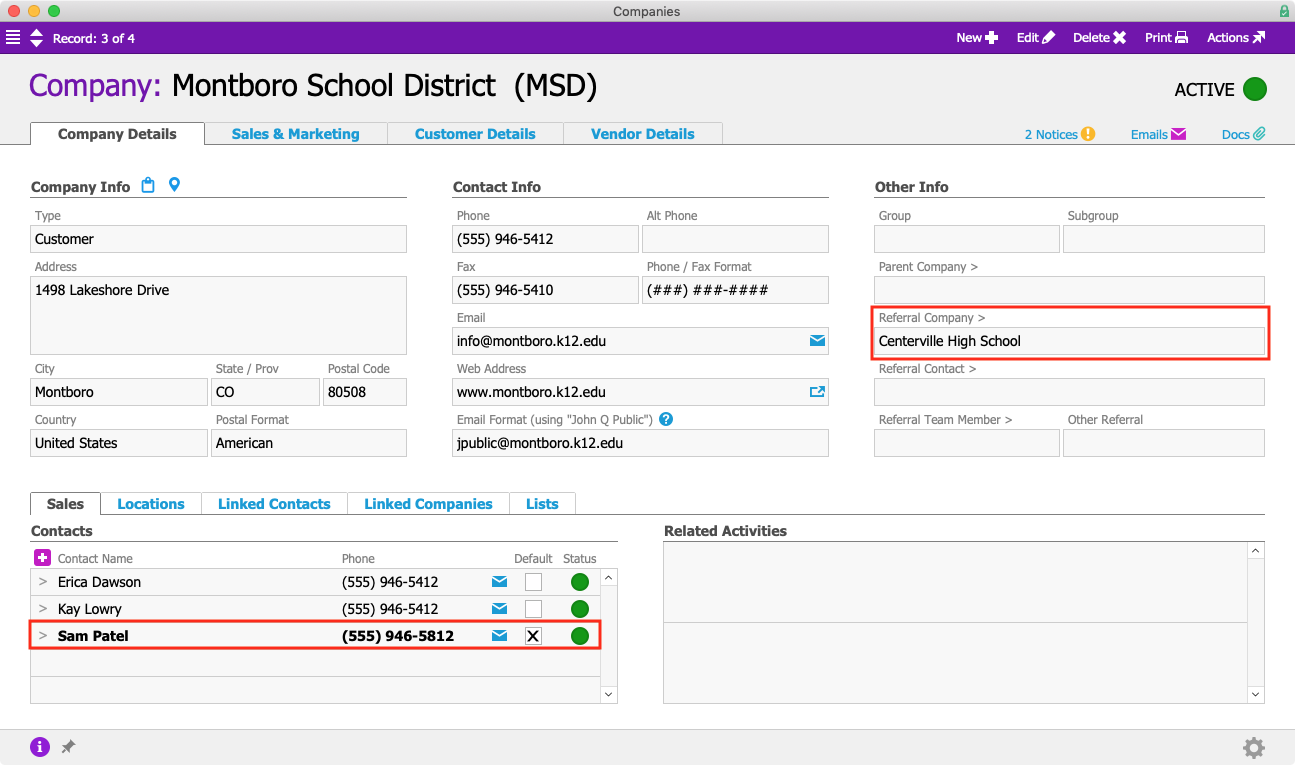
Montboro School District is a long-time aACME customer. They were referred by the Centerville School District, which is linked to their Company record as the Referring Company. Typically Montboro makes large purchases, like electronic whiteboards, at the district level. Sam Patel, the Assistant Superintendent, is usually the point person on new orders.

MSD Company Contacts

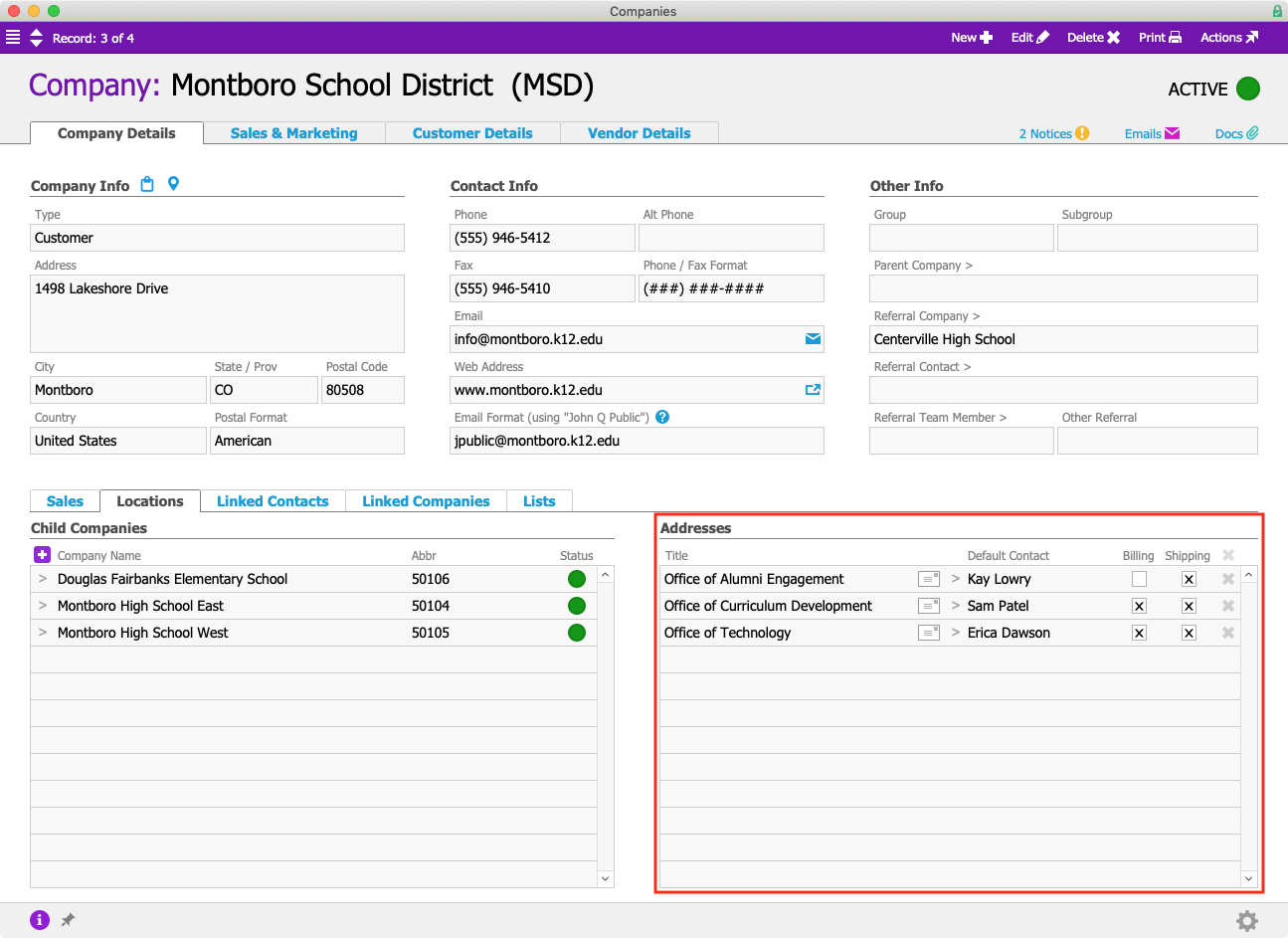
At the district level, there are multiple departments that may be used as shipping or billing addresses depending on which products are being ordered and by whom. These locations are stored as separate addresses, which can be flagged as billing and/or shipping addresses. Each address has its own designated contact person.

Company Locations

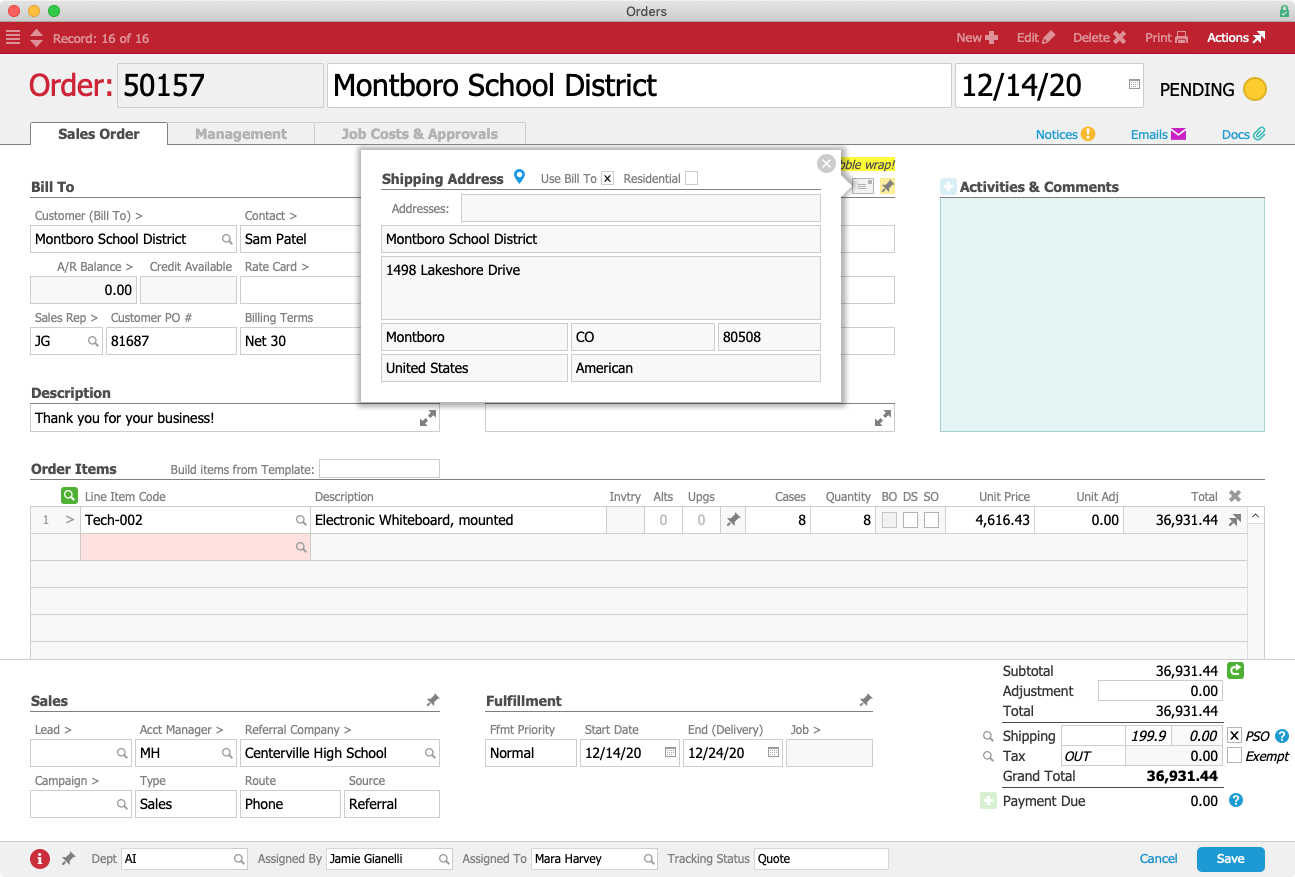
Let’s say Sam calls aACME sales rep Jamie Gianelli to place an order for 8 mounted whiteboards.

MSD Order

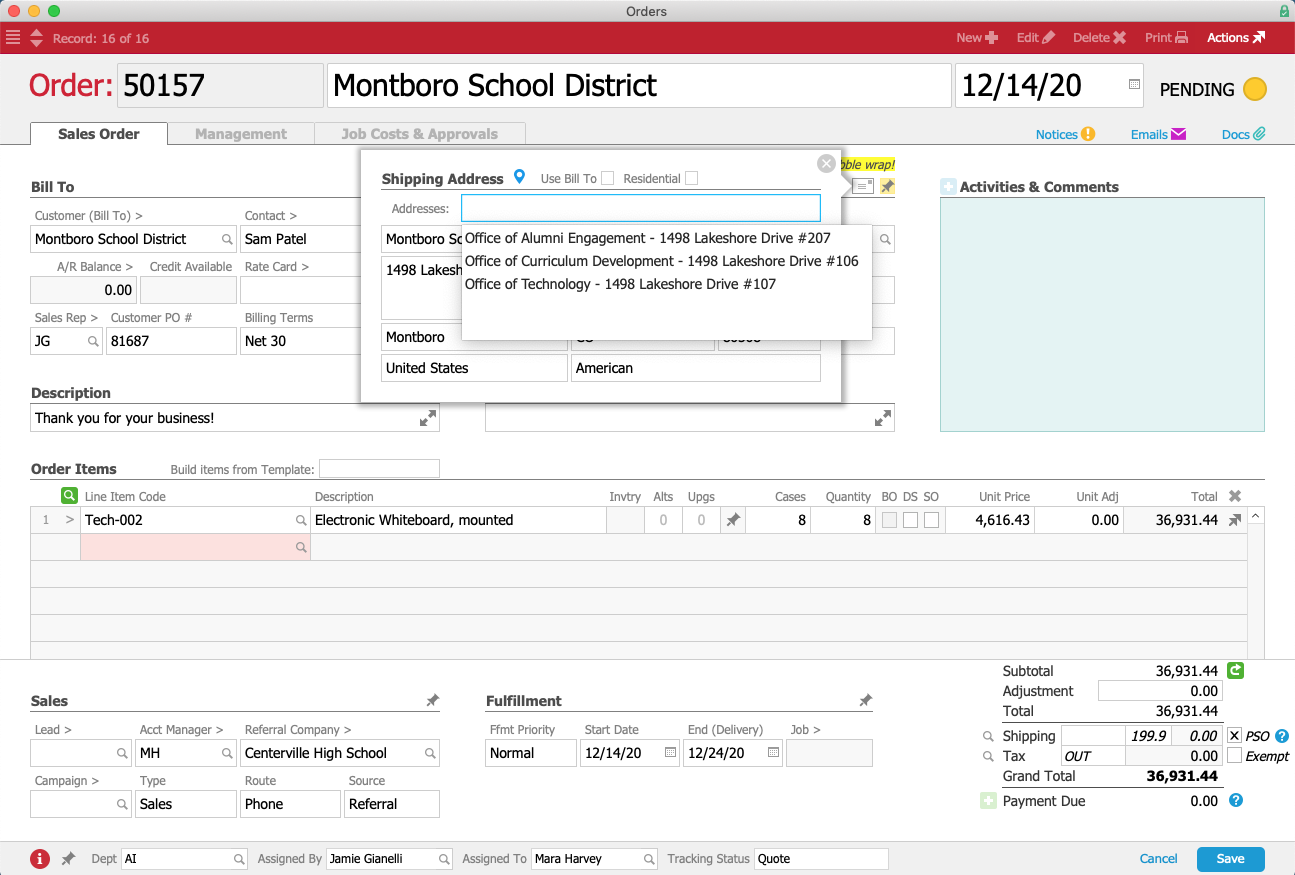
He’d like the invoice sent to the district’s main office but needs the whiteboards delivered to Erica Dawson in the Office of Technology. Jamie can easily do this right from the order by clicking on the Envelope Icon icon above the Shipping Address section and de-selecting the “Use Bill To” flag. This makes the Shipping Address fields editable. Next, she chooses “Office of Technology” from the Addresses drop-down menu.

MSD Order Addresses

When the order is processed, the Shipping department will send it to Erica at the Office of Technology, while the bill will be sent to Sam at the district’s main address.

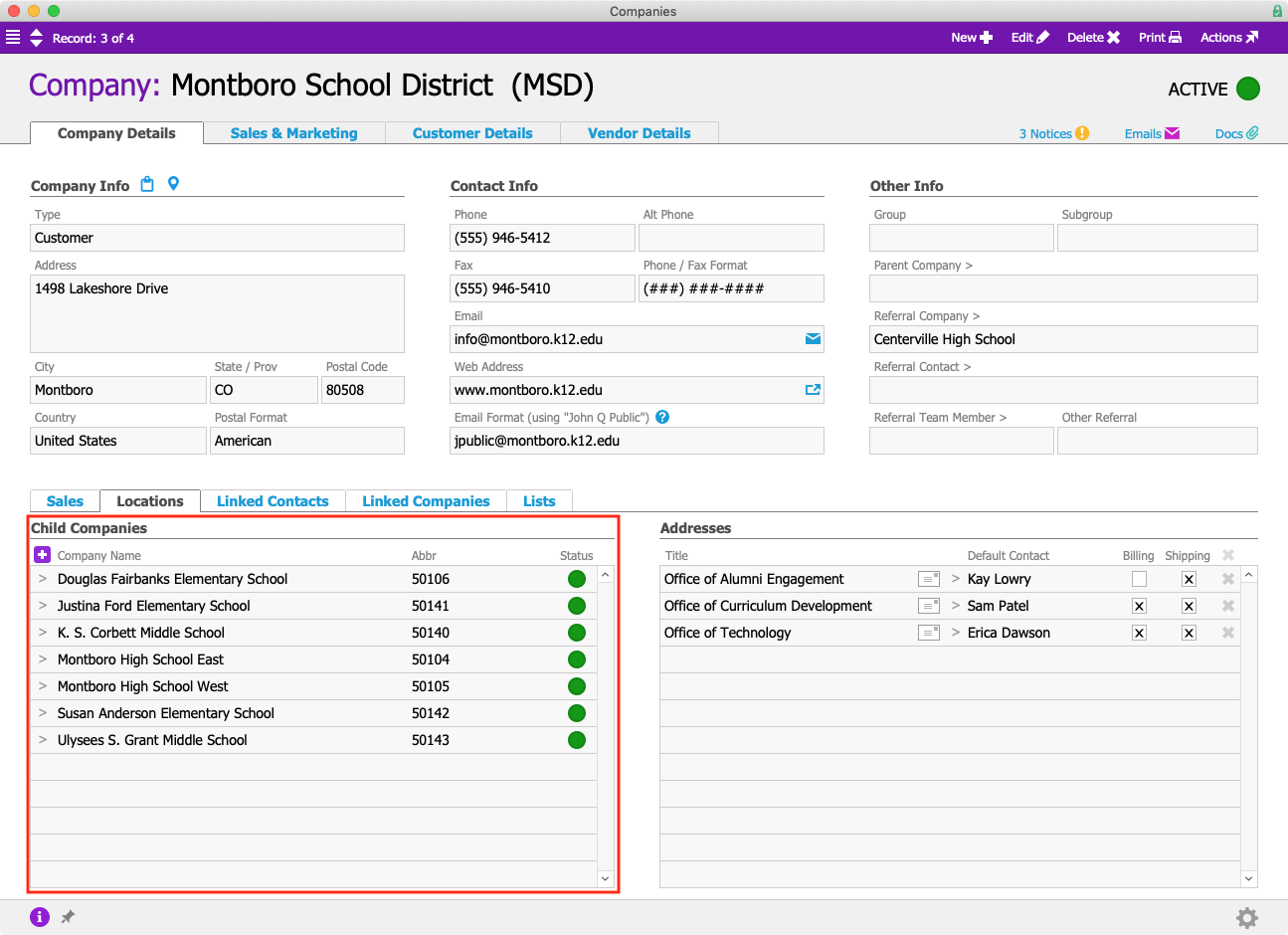
In addition to serving Montboro at the district level, aACME also counts a number of schools within the district as customers in their own right. While most orders go through the district office, some schools have the authority to place and manage their own orders. Some of those orders are billed directly to the school, while others are paid for by the district. These schools have their own Company records in aACE, which are linked to the school district as child companies.

MSD Company Locations

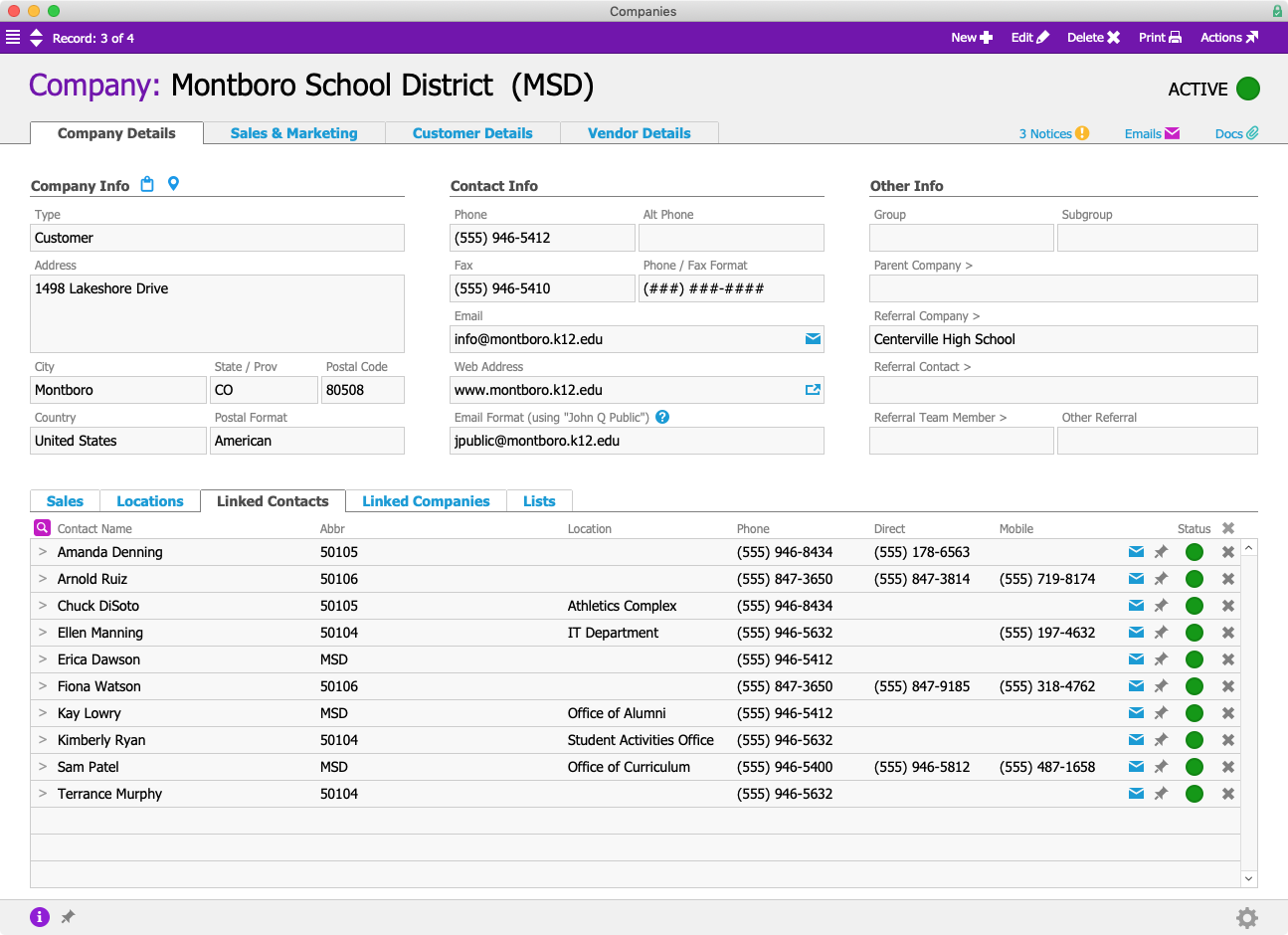
Additionally, contacts from all of these child companies are rolled into a list of Linked Contacts within the district’s company record.

MSD Company Linked Contacts

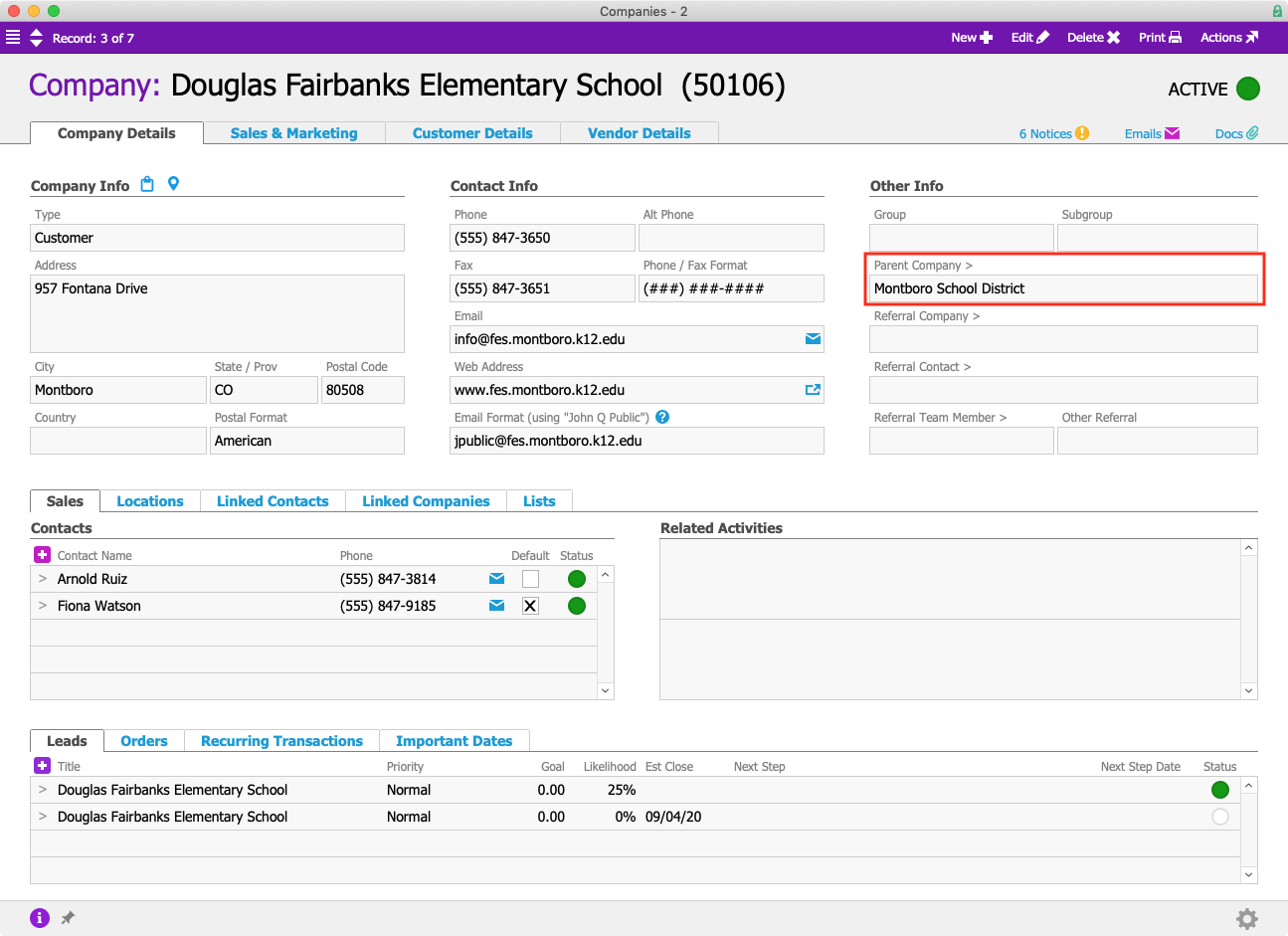
And in the individual schools’ Company records, Montboro School District is listed as the parent company. Now any aACME employee with access to aACE’s CRM tools will be able to clearly see the relationship between the school and the school district. Whether they’re viewing the school’s record, the district’s record, or that of a district staff member or school employee, aACE users can easily identify those relationships, giving them a 360º view of their business network.

DFES Parent Company

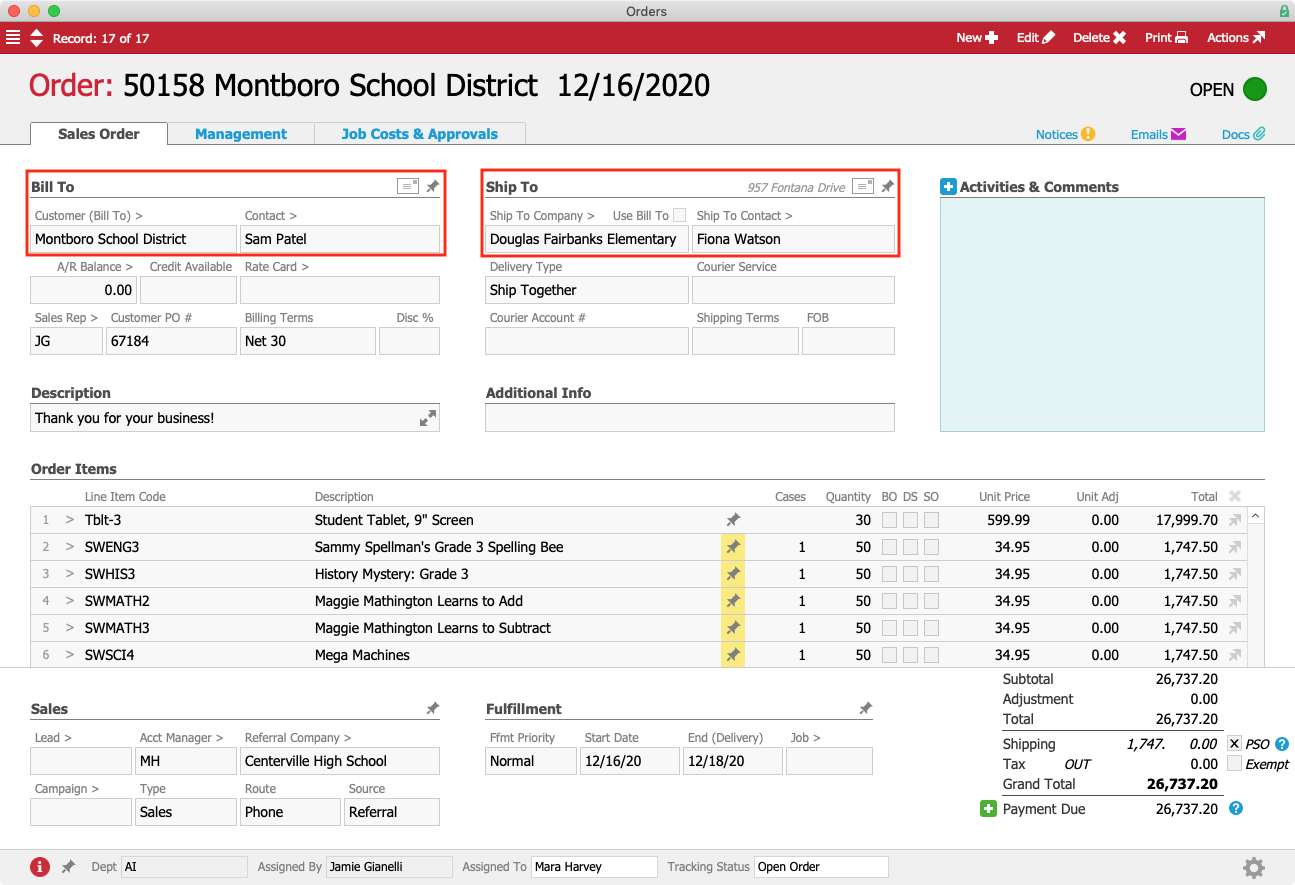
Now let’s say Sam calls back to place another order, this time on behalf of one of the schools in his district. Douglas Fairbanks Elementary School needs 30 new tablets and software for their fifth grade science program. When Jamie enters this order, she unchecks the “Use Bill To” flag above the Ship To Company field. This allows her to select one of Montboro School District’s child companies as the Ship To address, while still using the district’s office as the billing address.

MSD DFES Order

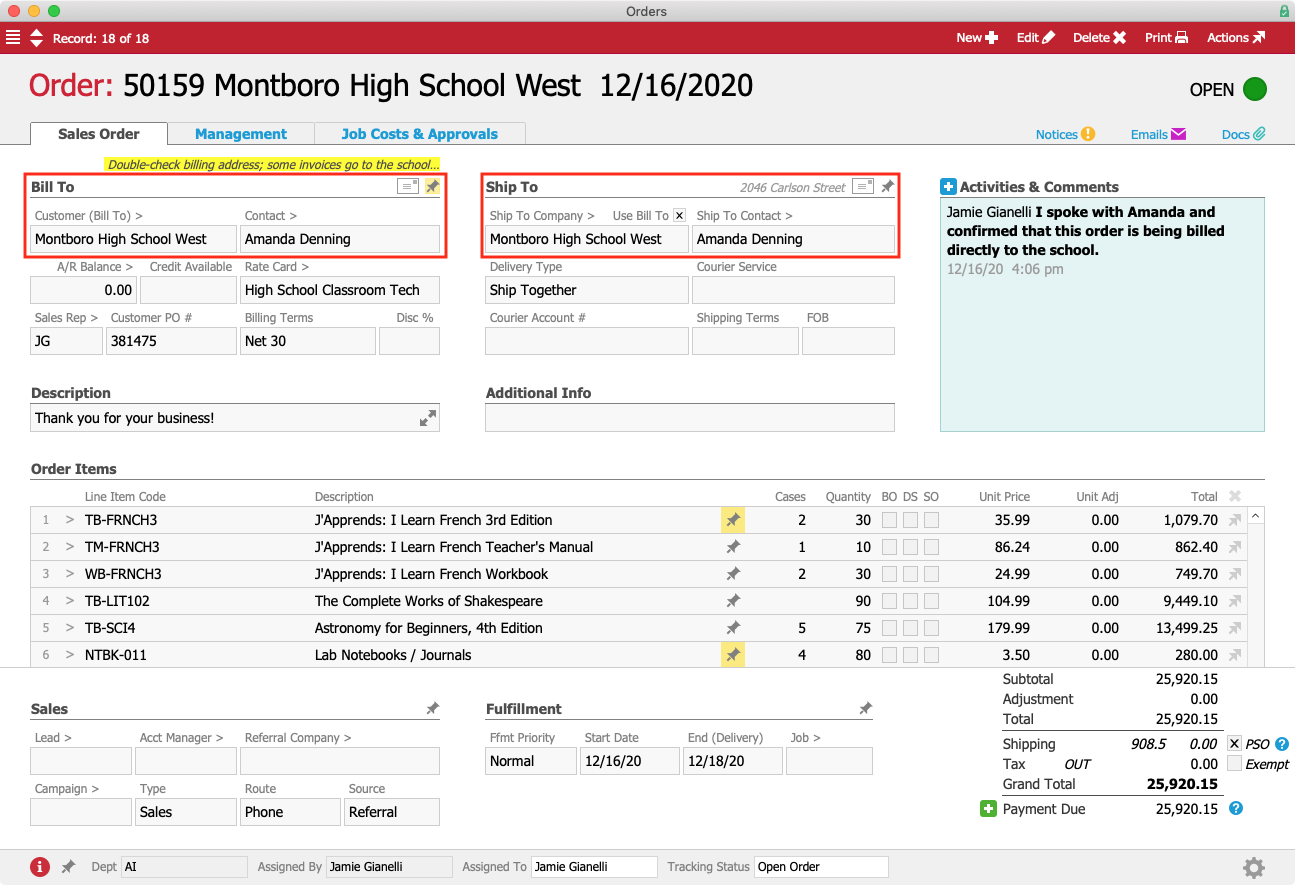
Child companies can also place their own orders with aACME. Over at Montboro High School West, Principal Amanda Denning places an order for new textbooks for the coming school year. Jamie enters that order using the high school as the customer. Since aACE automatically pulls in the school’s address for both billing and shipping, Jamie does not need to change those fields.

MHSW Order

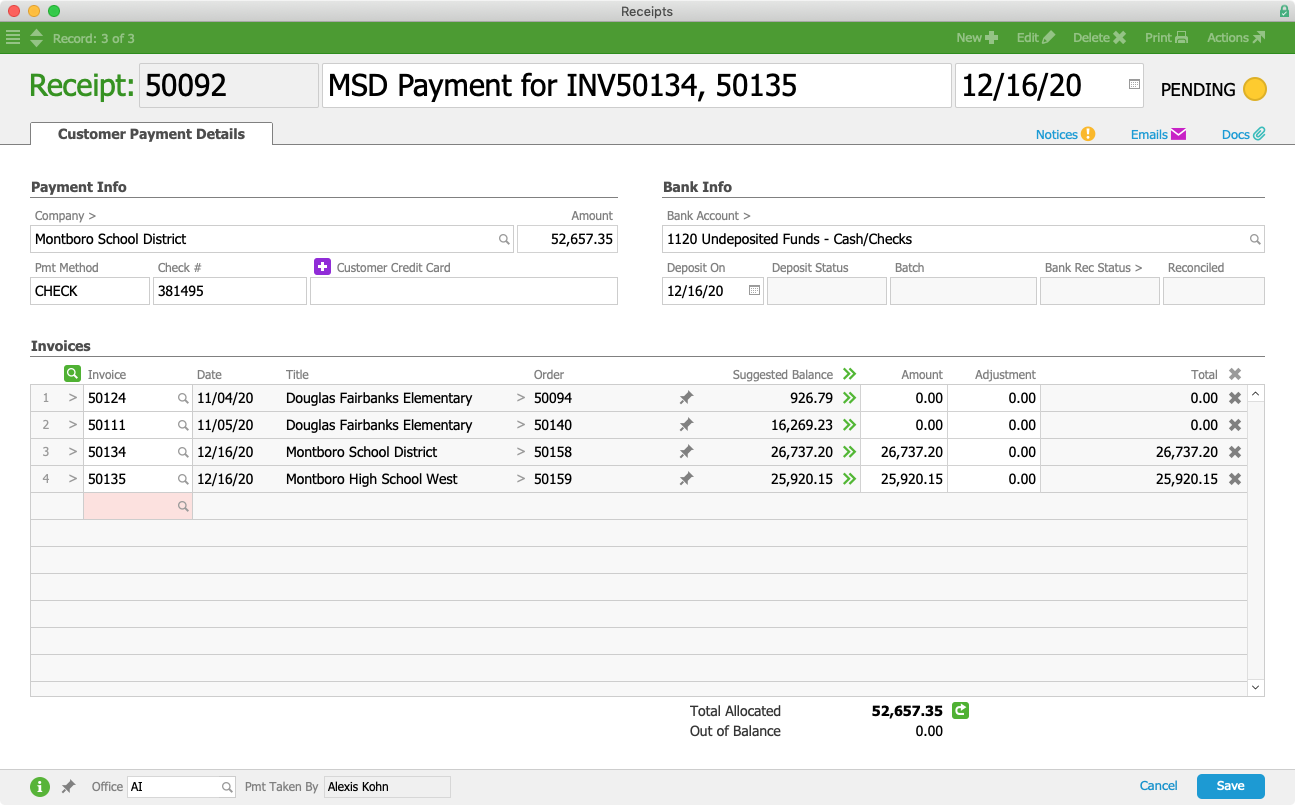
Now let’s explore those relationships from the Accounts Receivable side of the solution. Alexis Kohn, aACME’s A/R clerk, receives a check from the Montboro School District for $52,657.35. The check’s memo states that the amount should go towards the invoices for all three of the orders in the examples above. When Alexis creates a new receipt, aACE automatically pulls in all of the district’s open invoices – and any open invoices belonging to Montboro’s child companies.

MSD Receipt

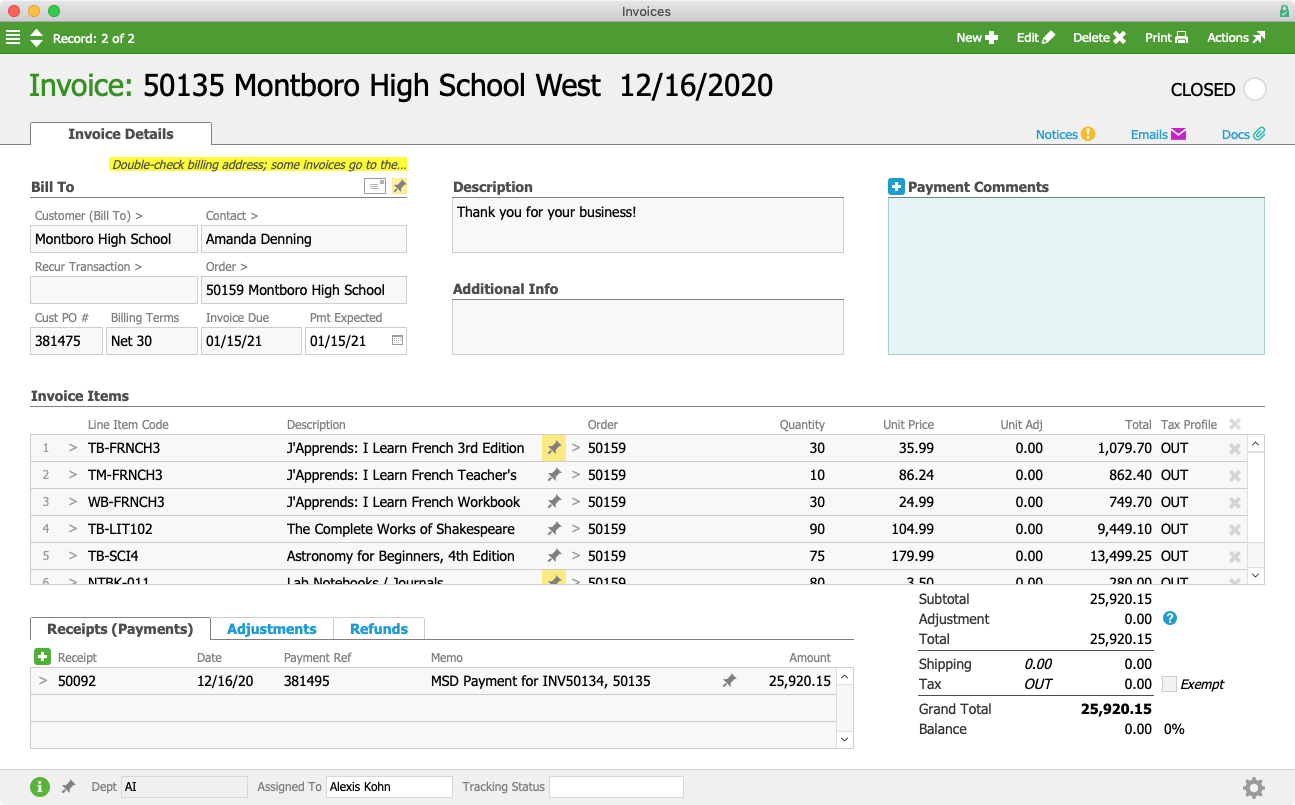
Even when invoices are addressed to a child company, as is the case with the Montboro High School West invoice, Alexis can still apply a payment from the parent company.

MHSW Invoice

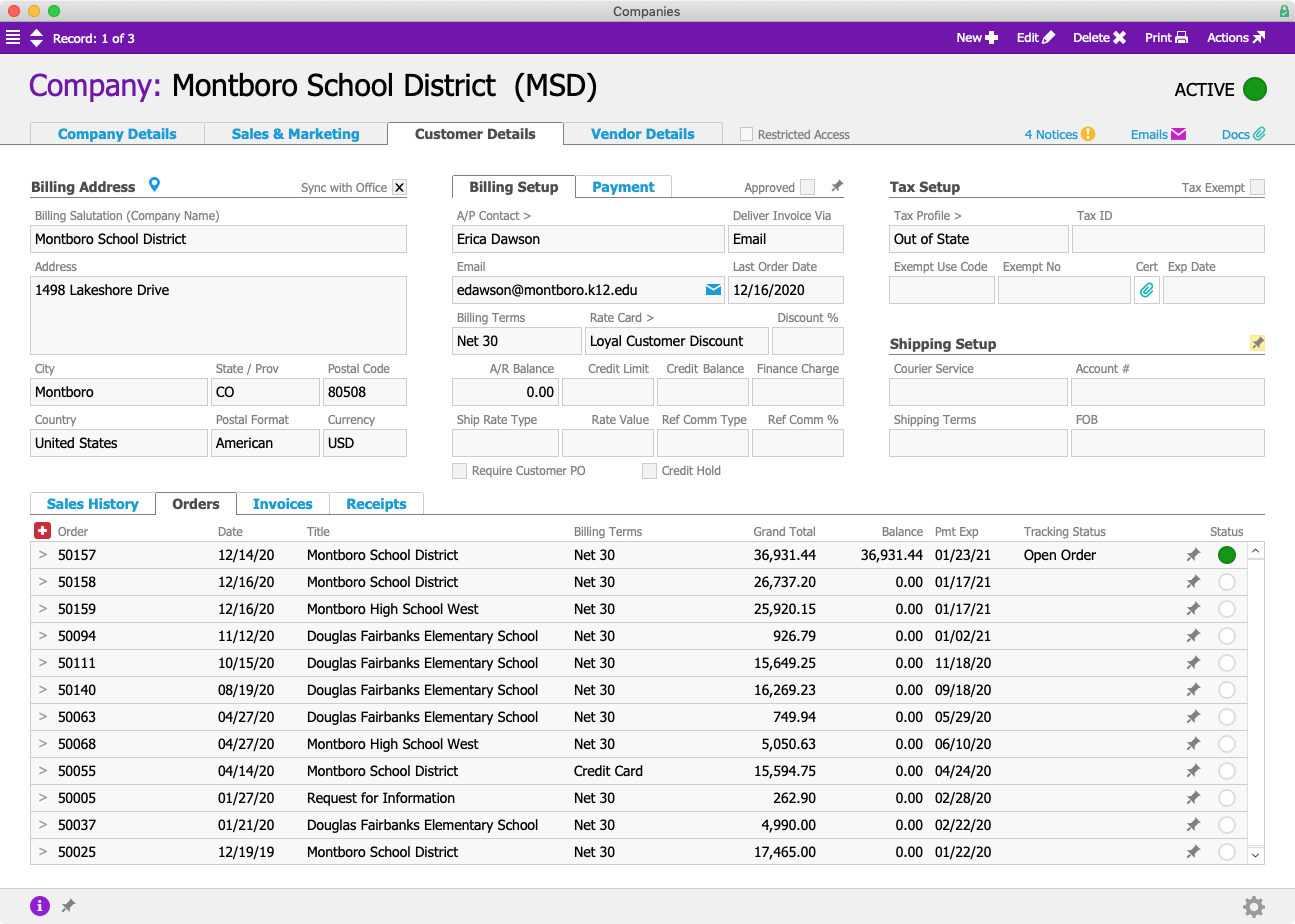
aACE also makes it a snap for aACME's sales team to see a complete picture of the school district's orders, including orders that were billed to the district but placed by any of its child companies. Links to every order associated with the district are available in one place within its Company record.

MSD Company Orders

But what about relationships that don’t have a hierarchical component — for instance, two companies who do business with each other as well as with your organization? aACE can help you keep track of those connections, too.

Tanya Glenn is an education consultant who works with aACME’s sister company, Education Elite, on designing in-school assembly programs. She also frequently makes purchases from aACME itself on behalf of her clients.

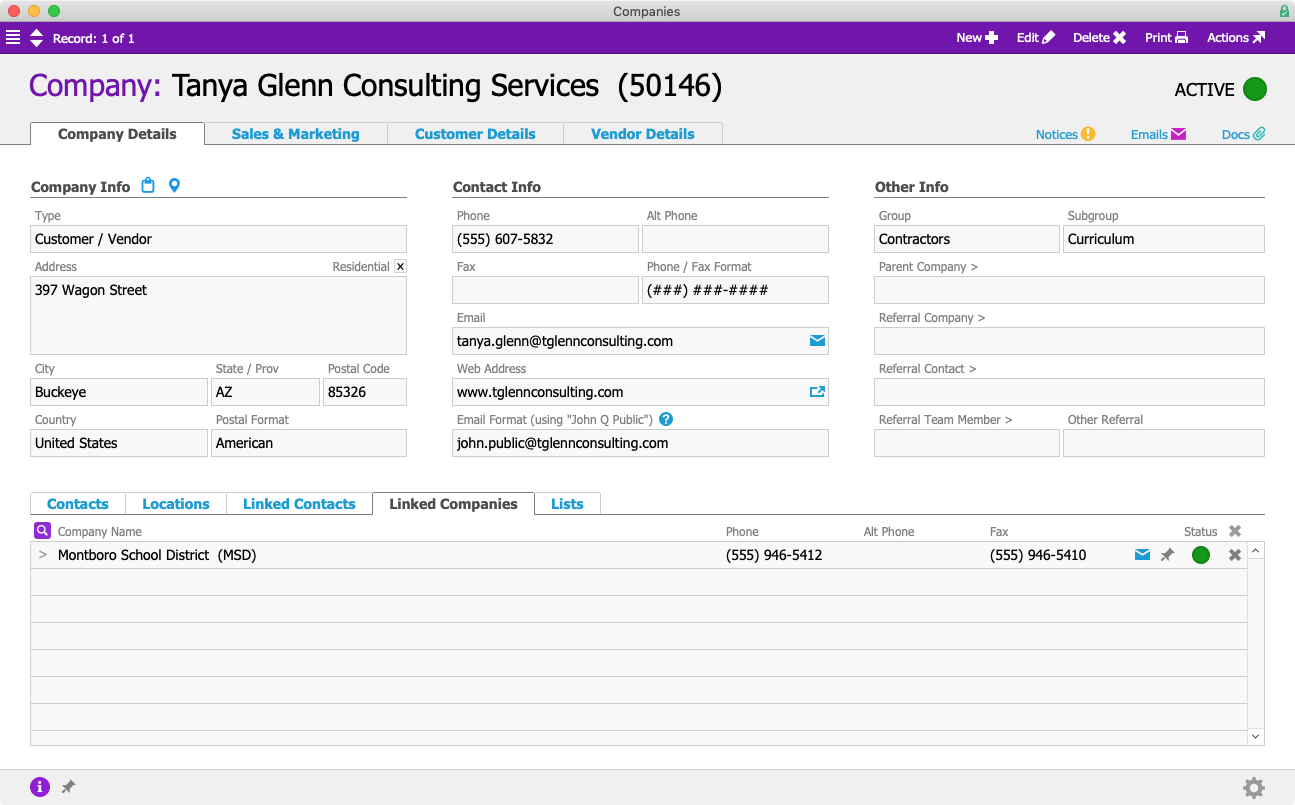
Sam Patel over at the Montboro School District hires Tanya to consult on their new hybrid learning model. The next time Tanya speaks with her account manager at aACME, Mara Harvey, she mentions that she’s now working with Montboro. Mara notes this in aACE by adding the Montboro School District to the Linked Companies section in Tanya’s Company record.

TG Linked Companies

aACE enables you to manage the different facets of your real-world relationships right from within a single comprehensive Accounting, CRM, and ERP solution. To learn more about what aACE can do for your business, check out our success stories and register for any of our upcoming webinars today.

Learn More

Relationships can be complicated — and that’s just as true in the professional world as it is anywhere else. Whether you’re dealing with franchisees, subsidiaries, divisions within a company, mergers, acquisitions, or any other type of business affiliation, it can be hard to keep track of who... Learn More

-->

Relationships can be complicated — and that’s just as true in the professional world as it is anywhere else. Whether you’re dealing with franchisees, subsidiaries, divisions within a company, mergers, acquisitions, or any other type of business affiliation, it can be hard to keep track of who is connected to whom and how. Wouldn’t it be great if you could manage that information right from your business management solution, making it easily available to everyone from your order writers to your A/R department?

With aACE, you can.

aACE’s CRM tools make it easy to connect parent and child companies, referrals, and other third-party relationships to give you a more complete picture of your business network. To learn more about this feature, let’s take a look at how our sample company, aACME Education Solutions, uses it in their day-to-day operations.

Montboro School District is a long-time aACME customer. They were referred by the Centerville School District, which is linked to their Company record as the Referring Company. Typically Montboro makes large purchases, like electronic whiteboards, at the district level. Sam Patel, the Assistant Superintendent, is usually the point person on new orders.

MSD Company Contacts

At the district level, there are multiple departments that may be used as shipping or billing addresses depending on which products are being ordered and by whom. These locations are stored as separate addresses, which can be flagged as billing and/or shipping addresses. Each address has its own designated contact person.

Company Locations

Let’s say Sam calls aACME sales rep Jamie Gianelli to place an order for 8 mounted whiteboards.

MSD Order

He’d like the invoice sent to the district’s main office but needs the whiteboards delivered to Erica Dawson in the Office of Technology. Jamie can easily do this right from the order by clicking on the Envelope Icon icon above the Shipping Address section and de-selecting the “Use Bill To” flag. This makes the Shipping Address fields editable. Next, she chooses “Office of Technology” from the Addresses drop-down menu.

MSD Order Addresses

When the order is processed, the Shipping department will send it to Erica at the Office of Technology, while the bill will be sent to Sam at the district’s main address.

In addition to serving Montboro at the district level, aACME also counts a number of schools within the district as customers in their own right. While most orders go through the district office, some schools have the authority to place and manage their own orders. Some of those orders are billed directly to the school, while others are paid for by the district. These schools have their own Company records in aACE, which are linked to the school district as child companies.

MSD Company Locations

Additionally, contacts from all of these child companies are rolled into a list of Linked Contacts within the district’s company record.

MSD Company Linked Contacts

And in the individual schools’ Company records, Montboro School District is listed as the parent company. Now any aACME employee with access to aACE’s CRM tools will be able to clearly see the relationship between the school and the school district. Whether they’re viewing the school’s record, the district’s record, or that of a district staff member or school employee, aACE users can easily identify those relationships, giving them a 360º view of their business network.

DFES Parent Company

Now let’s say Sam calls back to place another order, this time on behalf of one of the schools in his district. Douglas Fairbanks Elementary School needs 30 new tablets and software for their fifth grade science program. When Jamie enters this order, she unchecks the “Use Bill To” flag above the Ship To Company field. This allows her to select one of Montboro School District’s child companies as the Ship To address, while still using the district’s office as the billing address.

MSD DFES Order

Child companies can also place their own orders with aACME. Over at Montboro High School West, Principal Amanda Denning places an order for new textbooks for the coming school year. Jamie enters that order using the high school as the customer. Since aACE automatically pulls in the school’s address for both billing and shipping, Jamie does not need to change those fields.

MHSW Order

Now let’s explore those relationships from the Accounts Receivable side of the solution. Alexis Kohn, aACME’s A/R clerk, receives a check from the Montboro School District for $52,657.35. The check’s memo states that the amount should go towards the invoices for all three of the orders in the examples above. When Alexis creates a new receipt, aACE automatically pulls in all of the district’s open invoices – and any open invoices belonging to Montboro’s child companies.

MSD Receipt

Even when invoices are addressed to a child company, as is the case with the Montboro High School West invoice, Alexis can still apply a payment from the parent company.

MHSW Invoice

aACE also makes it a snap for aACME's sales team to see a complete picture of the school district's orders, including orders that were billed to the district but placed by any of its child companies. Links to every order associated with the district are available in one place within its Company record.

MSD Company Orders

But what about relationships that don’t have a hierarchical component — for instance, two companies who do business with each other as well as with your organization? aACE can help you keep track of those connections, too.

Tanya Glenn is an education consultant who works with aACME’s sister company, Education Elite, on designing in-school assembly programs. She also frequently makes purchases from aACME itself on behalf of her clients.

Sam Patel over at the Montboro School District hires Tanya to consult on their new hybrid learning model. The next time Tanya speaks with her account manager at aACME, Mara Harvey, she mentions that she’s now working with Montboro. Mara notes this in aACE by adding the Montboro School District to the Linked Companies section in Tanya’s Company record.

TG Linked Companies

aACE enables you to manage the different facets of your real-world relationships right from within a single comprehensive Accounting, CRM, and ERP solution. To learn more about what aACE can do for your business, check out our success stories and register for any of our upcoming webinars today.

Learn More

Read more about Gain Visibility Into Your Marketing ROI with aACE Campaigns

Gain Visibility Into Your Marketing ROI with aACE Campaigns

With aACE, you can.

aACE’s Campaigns module allows you to track the return on investment (ROI) of your marketing campaigns, giving your marketing team greater visibility into the impact that their efforts have on your company’s bottom line. And aACE’s Lists feature enables you to link customer records to your email marketing solution, allowing your order writers and account managers to see which newsletters your customers have received – making it easy to give your clients a seamless experience from that first communication through the end of the sale.

Gabby Velasquez, aACME’s VP of Marketing, is running a marketing campaign on student tablets for the fall. The campaign, which will run in educational magazines, TV commercials, and aACME’s monthly newsletter, will offer customers free shipping and 20% off of accessories like styluses and cases when they purchase a deluxe 9” student tablet.

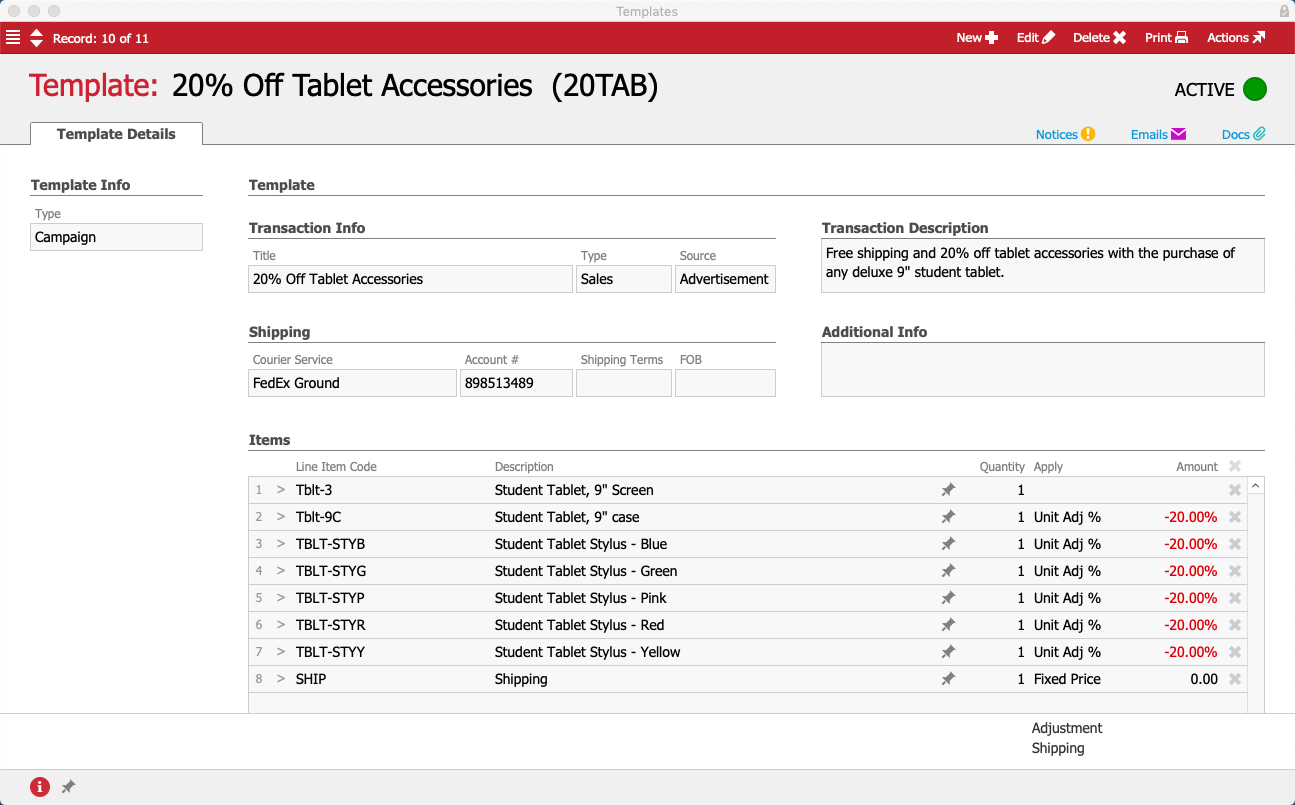
First, Gabby creates a template with all of the items that are part of the sale. She enters “20% Off Tablet Accessories” as the template’s title and “20TAB” as the abbreviation. This will make it easy to use the template again in future campaigns with the same sale. She fills in the transaction information, description, and shipping, then begins adding products to the template’s Items section.

Gabby starts with the tablets; because they’re being sold at full price, she leaves the Apply and Amount fields blank. For the case, she selects “Unit Adj %” from the Apply drop-down field. This tells aACE that the price of each case will be adjusted by a percentage. In the Amount field, she enters “-20.00%”. She repeats this for each of the tablet accessories included in the sale. Finally, she adds Shipping to the list of items, setting the Apply field to “Fixed Price” and the Amount field to “0.00”. This will override any shipping costs in orders associated with the campaign.

Template

To track the results, she creates a new Campaign record in aACE and titles it “Fall 2020 Tablet Campaign”. In the abbreviation field she enters “FALLTAB20” – this will be the coupon code that customers will refer to in order to get the discount. Whether they mention the code while ordering in person or over the phone, or type it into the Coupon Code field while checking out via aACME’s website, this code will allow aACE to tie the sale back to the campaign.

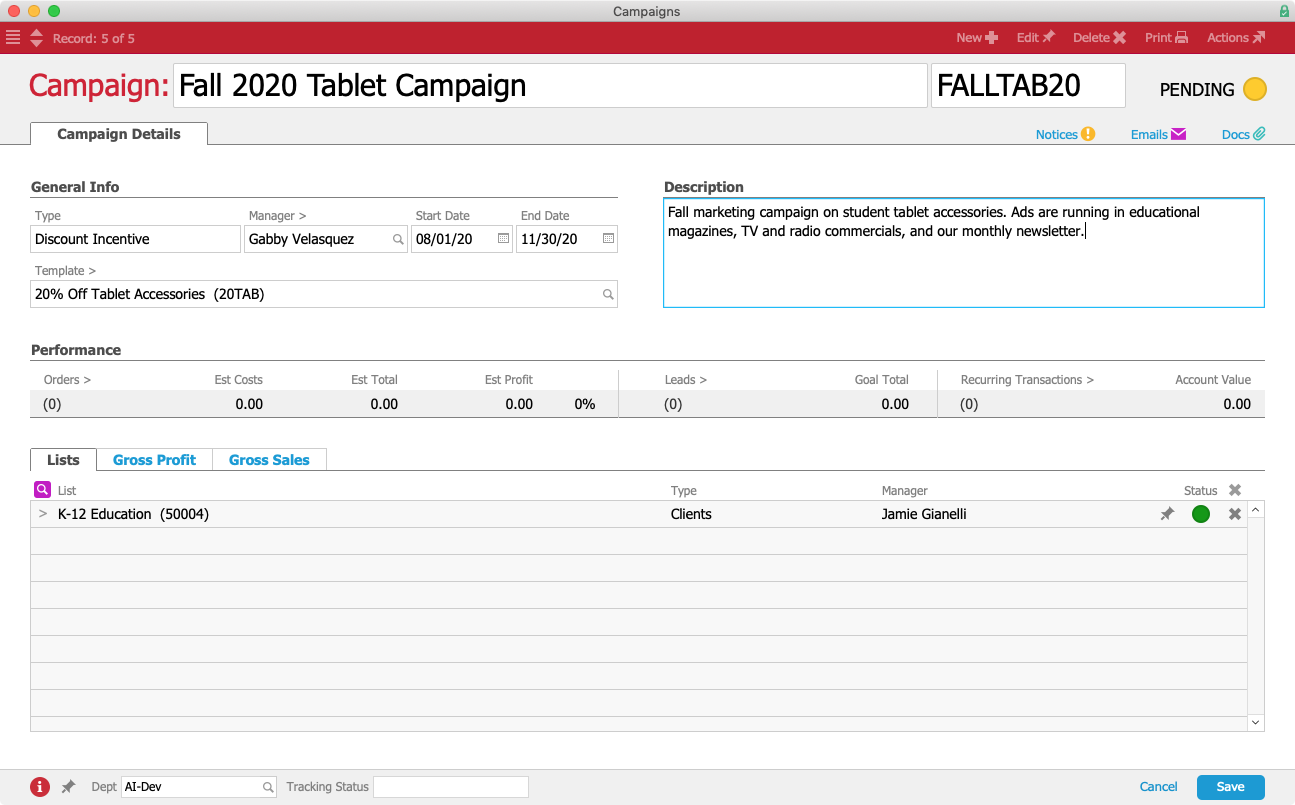
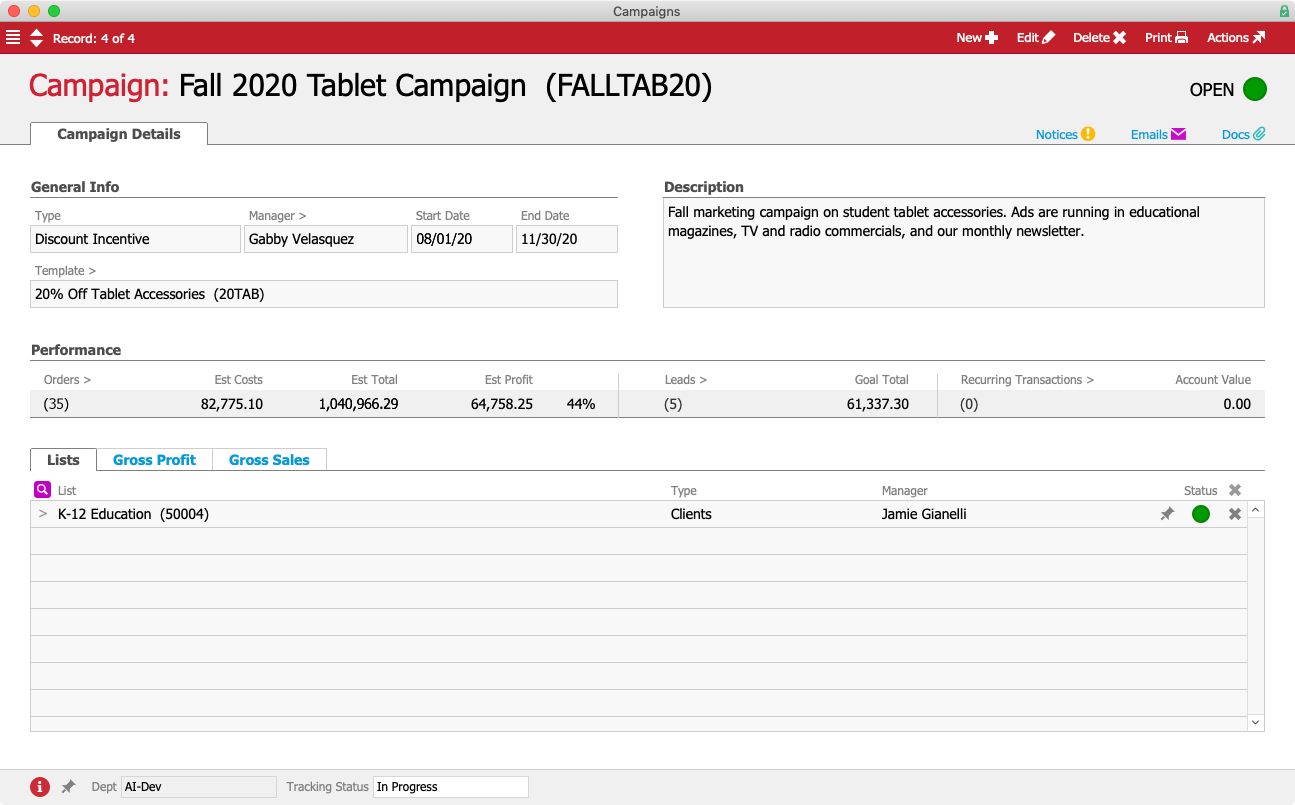
In the Campaign Type field, Gabby chooses “Discount Incentive” from the drop-down menu. She enters herself as the Campaign Manager, and sets the campaign to run from August 1st through November 30th. Then she chooses “20% Off Tablet Accessories” from the drop-down list of templates. In the Description field she records a brief note about the parameters of the campaign and where it’s being advertised. Finally, in the Lists section, she selects the “K-12 Education” list; customers associated with this list will receive a newsletter about the campaign.

Campaign

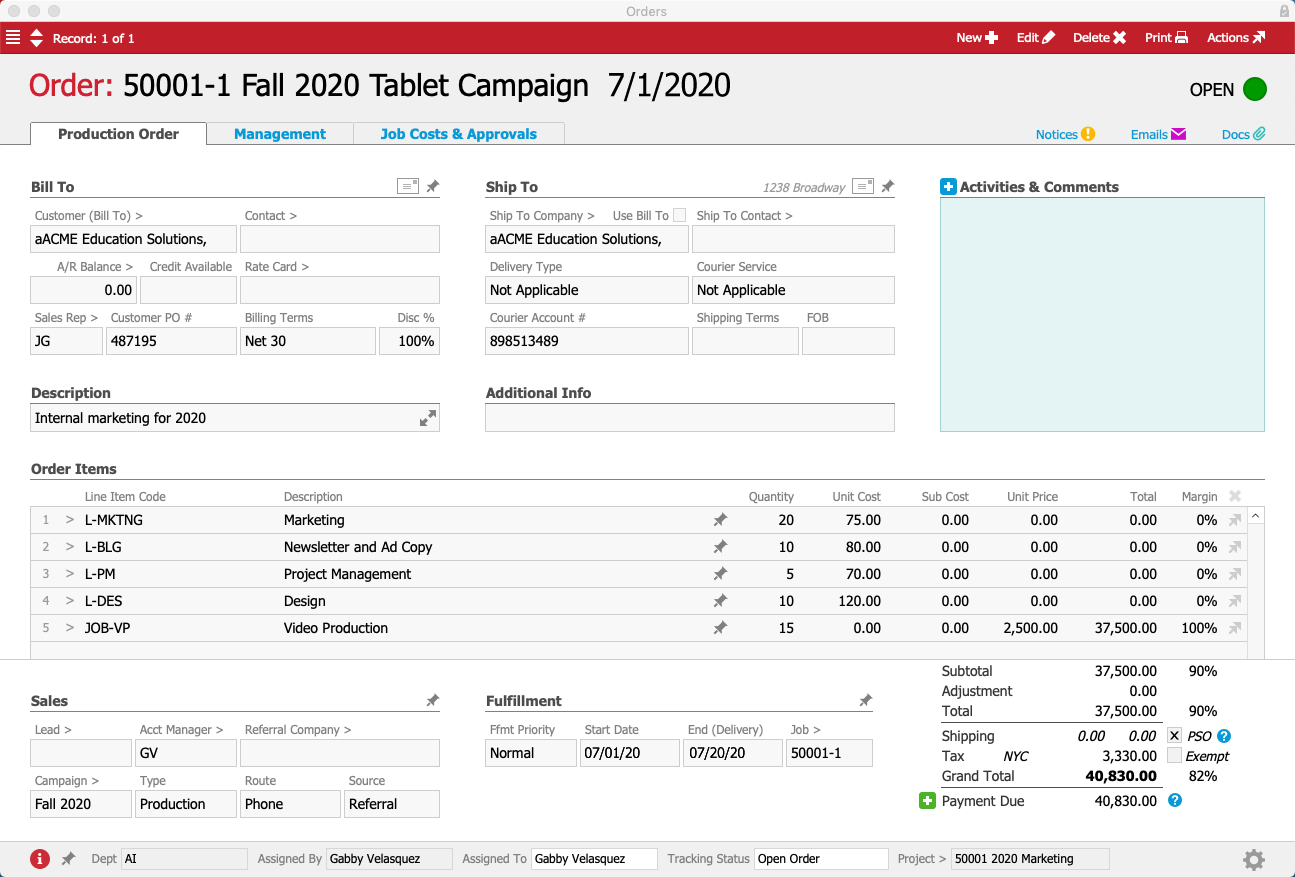
Now that the campaign has been created, it’s time to start producing the ads. First, Gabby creates an internal order for the campaign linked to aACME’s “2020 Marketing” project. She enters labor codes for the expenses that will go into the campaign — for instance, project management, video production for television ads, content development for things like a newsletter and blog post, and funding for services like Google Ads. In the Campaigns field she selects “Fall 2020 Tablet Campaign” from the drop-down, ensuring that any costs incurred will be properly tracked within the campaign record.

Order

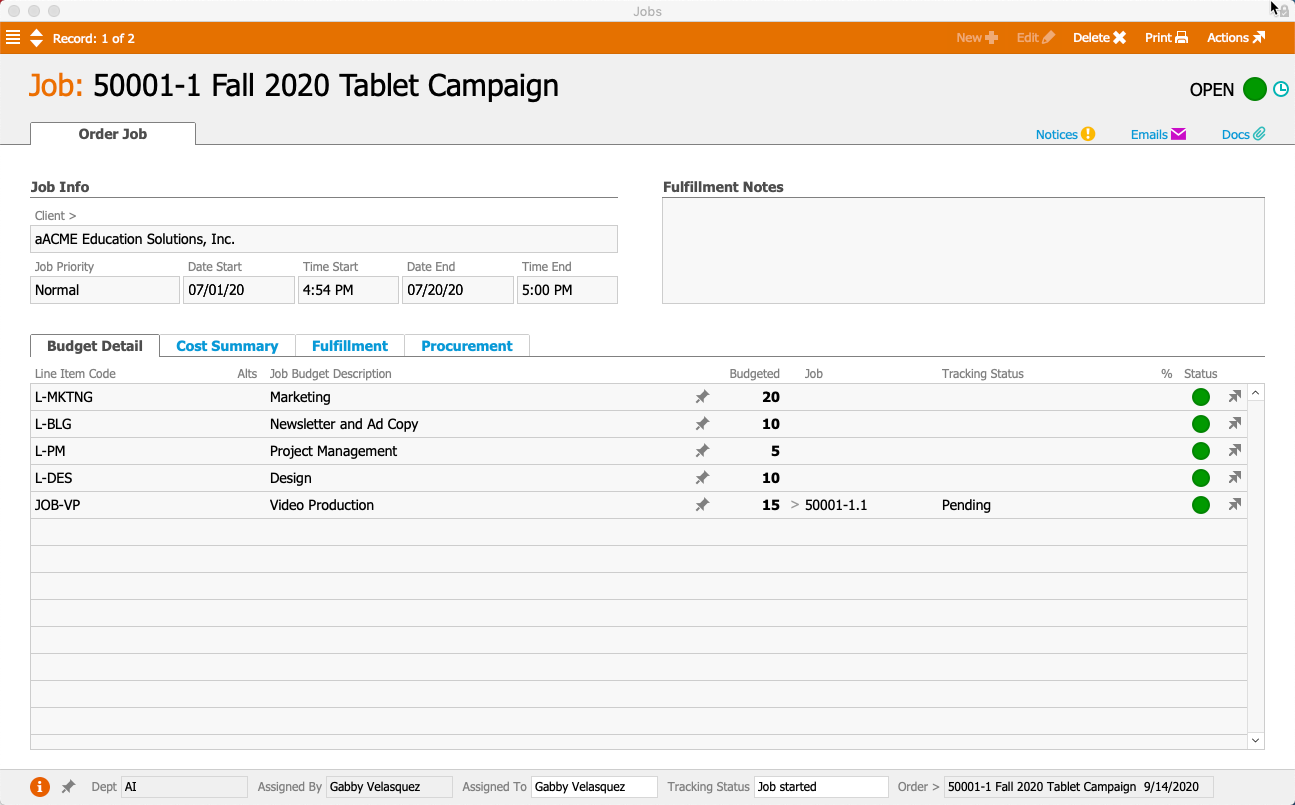
Once Gabby processes the order, aACE automatically generates a job for their marketing staff to apply any time and materials that they spend working on the campaign.

Job

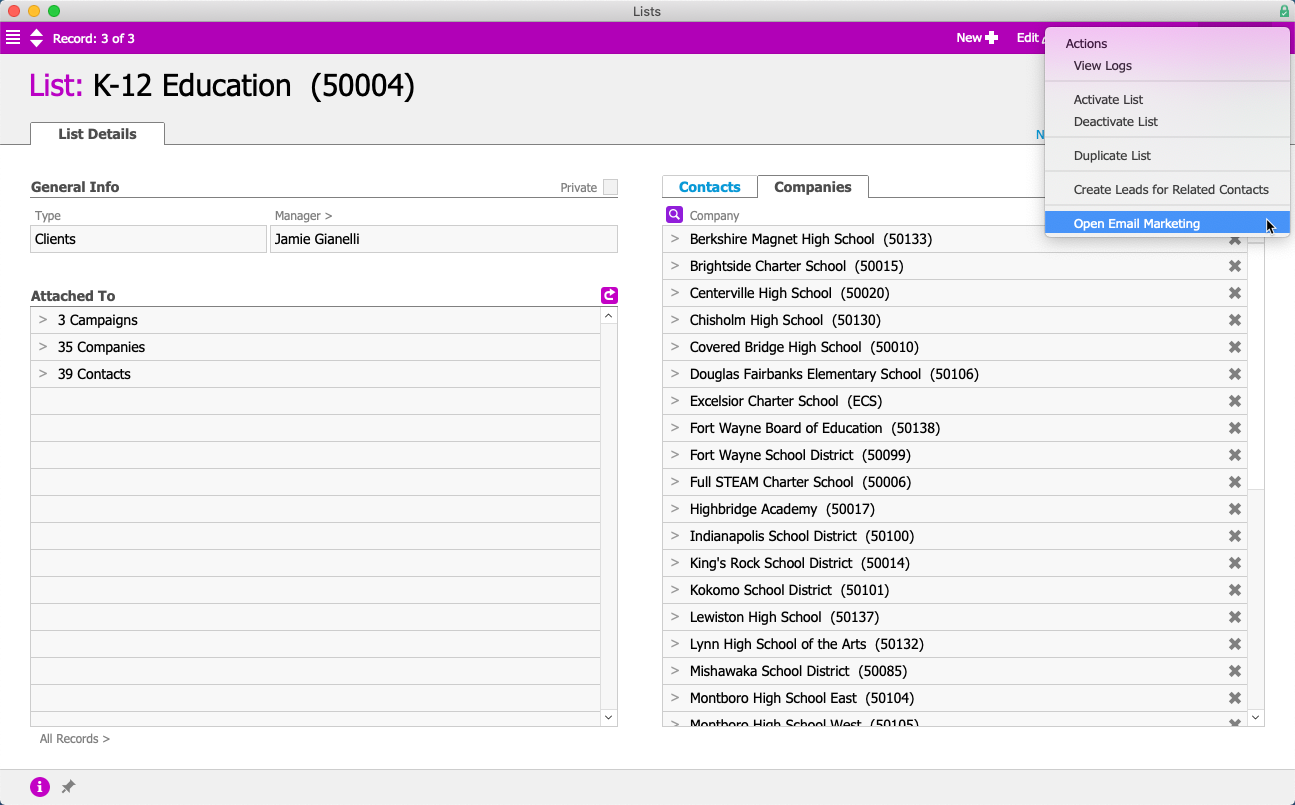
The campaign begins, and Gabby prepares to send a newsletter out to current aACME customers informing them of the sale. First she opens her list and reviews the contacts. Once she confirms that her contacts’ information is all correct, she opens the Actions menu and chooses “Open Email Marketing”. This takes Gabby to her email marketing solution, VerticalResponse, where she creates and sends a newsletter about the promotion to the list that she had put together in aACE.

List

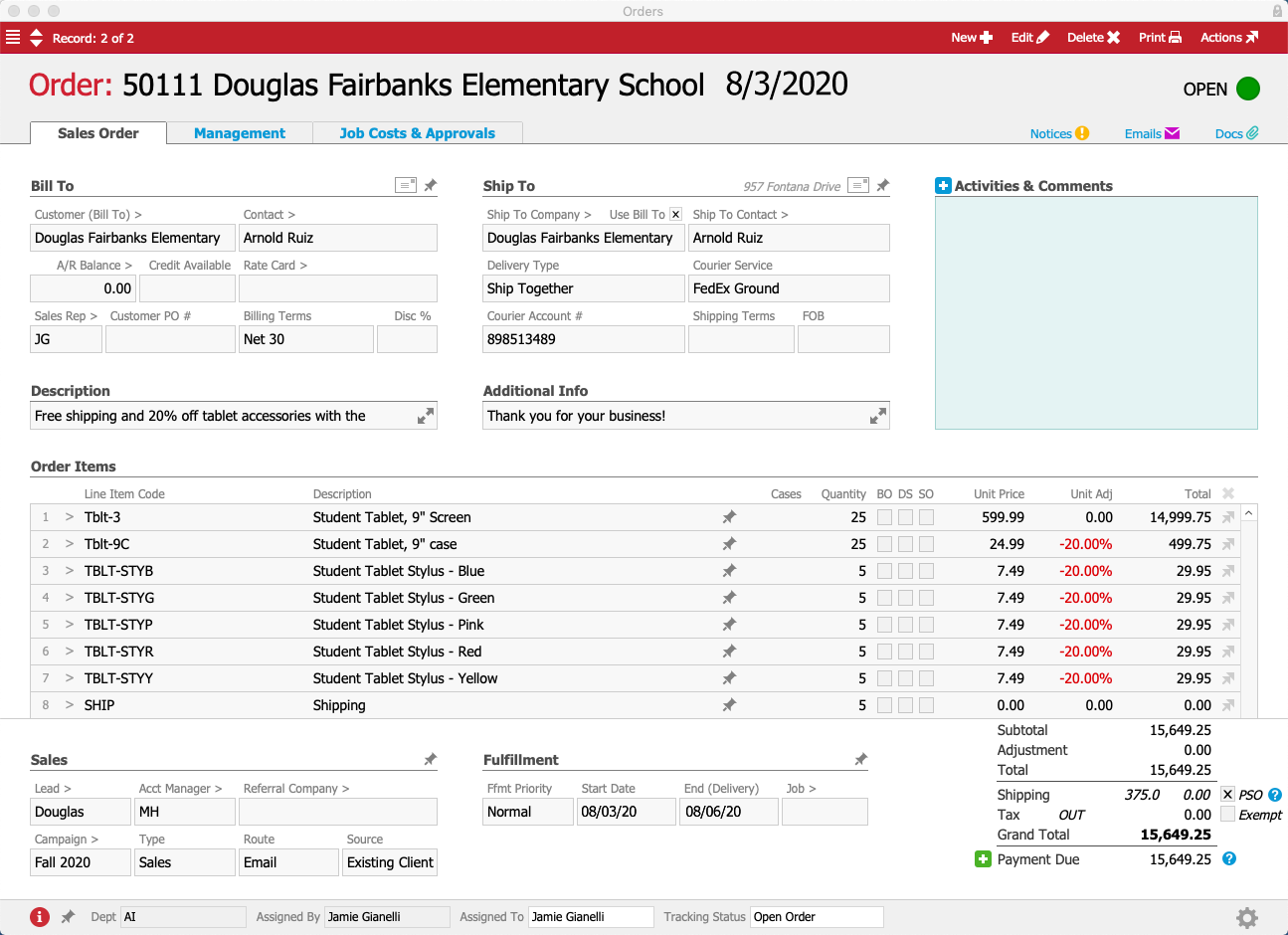
Shortly after the campaign begins, Jamie Gianelli in aACME’s Sales department receives an order from the Douglas Fairbanks Elementary School. Arnold Ruiz, the Assistant Principal, orders 25 9” student tablets along with cases and styluses for his second grade classes. He includes the code “FALLTAB20”, so when Jamie enters the code into the Campaign field, aACE automatically pulls in the 9” tablet as well as the case and stylus at 20% off of their normal prices. Jamie updates the quantities of each item and the prices update to reflect the discount. Because free shipping was also included in the template, the order’s Shipping field is automatically set to “0.00”.

Order

As the sales continue to roll in, Gabby checks the campaign’s progress periodically. She uses the advanced reporting tools in VerticalResponse to check on open, unsubscribe, and click rates; to review the promotion’s impact on sales, she navigates back to the Campaign record in aACE. In the Performance section she can see the total number of sales and their estimated costs and profits, as well as any active leads or recurring transactions.

Campaign

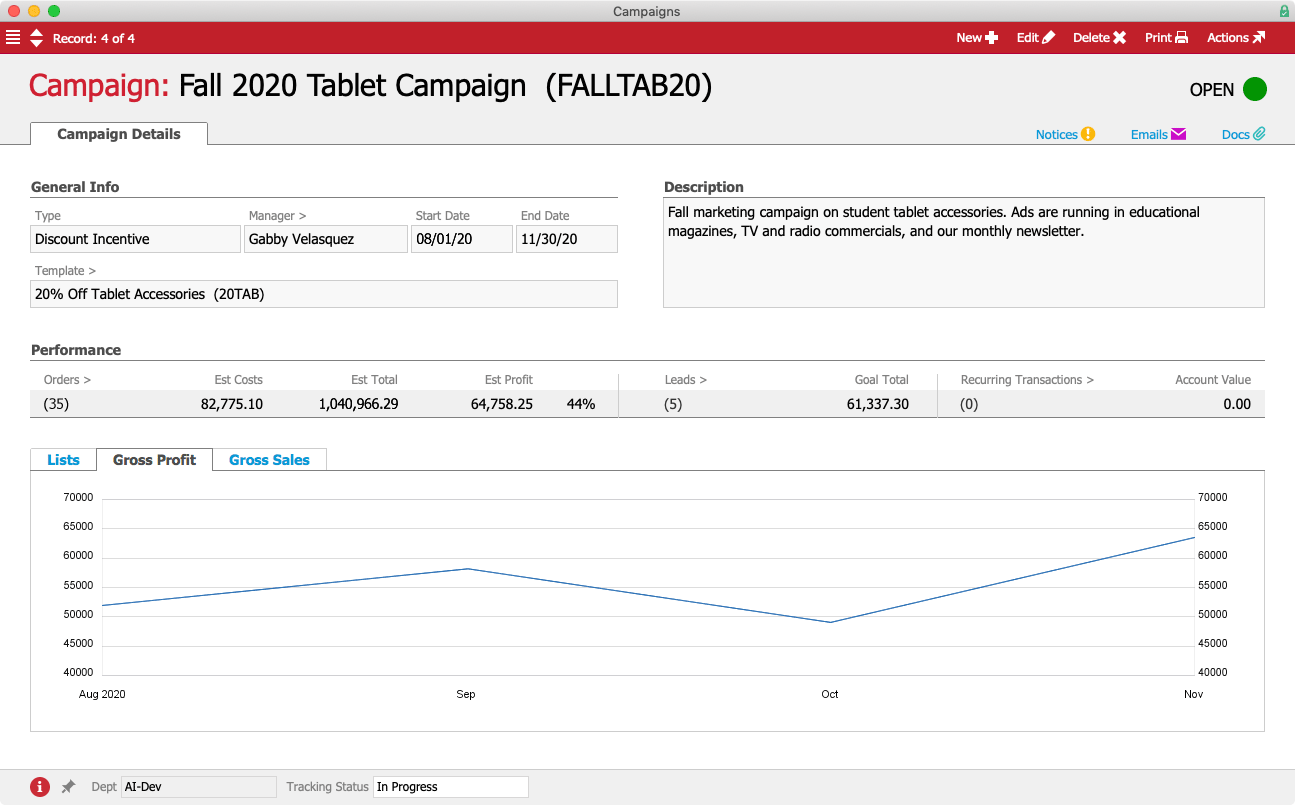
The Gross Profit tab shows her a graph of profits from orders linked to the campaign for each month that the campaign is active, minus any expenses that were captured in the Job record associated with the campaign.

Gross Profit

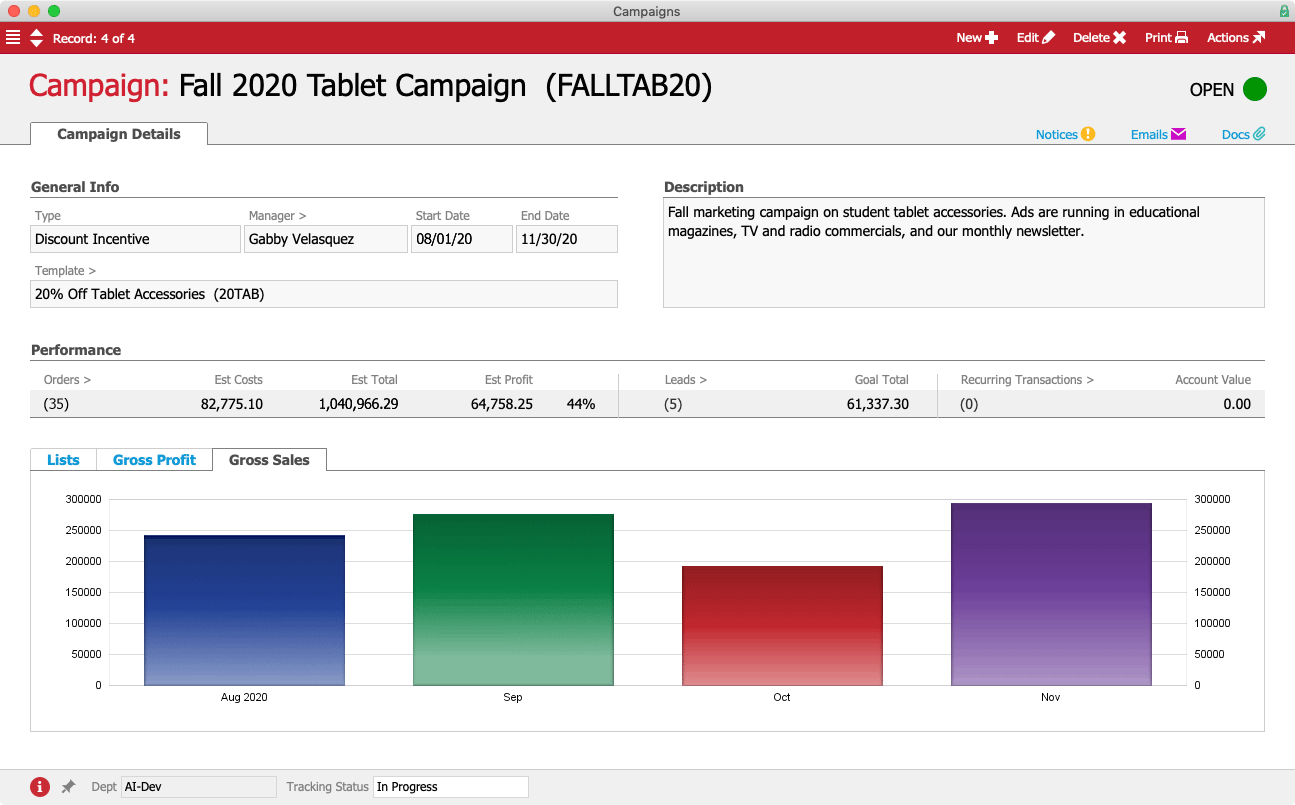
Finally, the Gross Sales tab shows her a bar graph of sales that have made as a result of the campaign, also broken down by month.

Gross Sales

aACE’s Campaigns and Newsletters help you focus your marketing efforts and measure your success at a glance. To learn more about how aACE can help you cultivate strong relationships with your customers, check out our feature highlights on sales leads and the aACE CRM App as well as our success story on Restylers’ Choice’s experience with aACE+ VerticalResponse. And to see aACE in action, register now to save your seat in one of our upcoming webinars.

"Since moving to aACE + VerticalResponse we have been able to keep our mailing lists much more up-to-date. Our email marketing campaign has grown exponentially since introducing this system, and we are seeing excellent results. The best part is that it is super simple for us to use, making it much more likely to be used time and time again." – Doug Jacobs, former President, Restylers’ Choice
Learn More

Your team has worked hard to craft an engaging marketing campaign, and now the sales are rolling in — but to know that it’s really been a success, you first need to know how much the campaign cost, which customers interacted with the campaign prior to placing an order, and the total profit... Learn More

-->

Your team has worked hard to craft an engaging marketing campaign, and now the sales are rolling in — but to know that it’s really been a success, you first need to know how much the campaign cost, which customers interacted with the campaign prior to placing an order, and the total profit generated by those orders. Wouldn’t it be great if you could see all of that information at a glance, right from within your business management solution?

With aACE, you can.

aACE’s Campaigns module allows you to track the return on investment (ROI) of your marketing campaigns, giving your marketing team greater visibility into the impact that their efforts have on your company’s bottom line. And aACE’s Lists feature enables you to link customer records to your email marketing solution, allowing your order writers and account managers to see which newsletters your customers have received – making it easy to give your clients a seamless experience from that first communication through the end of the sale.

Gabby Velasquez, aACME’s VP of Marketing, is running a marketing campaign on student tablets for the fall. The campaign, which will run in educational magazines, TV commercials, and aACME’s monthly newsletter, will offer customers free shipping and 20% off of accessories like styluses and cases when they purchase a deluxe 9” student tablet.

First, Gabby creates a template with all of the items that are part of the sale. She enters “20% Off Tablet Accessories” as the template’s title and “20TAB” as the abbreviation. This will make it easy to use the template again in future campaigns with the same sale. She fills in the transaction information, description, and shipping, then begins adding products to the template’s Items section.

Gabby starts with the tablets; because they’re being sold at full price, she leaves the Apply and Amount fields blank. For the case, she selects “Unit Adj %” from the Apply drop-down field. This tells aACE that the price of each case will be adjusted by a percentage. In the Amount field, she enters “-20.00%”. She repeats this for each of the tablet accessories included in the sale. Finally, she adds Shipping to the list of items, setting the Apply field to “Fixed Price” and the Amount field to “0.00”. This will override any shipping costs in orders associated with the campaign.

Template

To track the results, she creates a new Campaign record in aACE and titles it “Fall 2020 Tablet Campaign”. In the abbreviation field she enters “FALLTAB20” – this will be the coupon code that customers will refer to in order to get the discount. Whether they mention the code while ordering in person or over the phone, or type it into the Coupon Code field while checking out via aACME’s website, this code will allow aACE to tie the sale back to the campaign.

In the Campaign Type field, Gabby chooses “Discount Incentive” from the drop-down menu. She enters herself as the Campaign Manager, and sets the campaign to run from August 1st through November 30th. Then she chooses “20% Off Tablet Accessories” from the drop-down list of templates. In the Description field she records a brief note about the parameters of the campaign and where it’s being advertised. Finally, in the Lists section, she selects the “K-12 Education” list; customers associated with this list will receive a newsletter about the campaign.

Campaign

Now that the campaign has been created, it’s time to start producing the ads. First, Gabby creates an internal order for the campaign linked to aACME’s “2020 Marketing” project. She enters labor codes for the expenses that will go into the campaign — for instance, project management, video production for television ads, content development for things like a newsletter and blog post, and funding for services like Google Ads. In the Campaigns field she selects “Fall 2020 Tablet Campaign” from the drop-down, ensuring that any costs incurred will be properly tracked within the campaign record.

Order

Once Gabby processes the order, aACE automatically generates a job for their marketing staff to apply any time and materials that they spend working on the campaign.

Job

The campaign begins, and Gabby prepares to send a newsletter out to current aACME customers informing them of the sale. First she opens her list and reviews the contacts. Once she confirms that her contacts’ information is all correct, she opens the Actions menu and chooses “Open Email Marketing”. This takes Gabby to her email marketing solution, VerticalResponse, where she creates and sends a newsletter about the promotion to the list that she had put together in aACE.

List

Shortly after the campaign begins, Jamie Gianelli in aACME’s Sales department receives an order from the Douglas Fairbanks Elementary School. Arnold Ruiz, the Assistant Principal, orders 25 9” student tablets along with cases and styluses for his second grade classes. He includes the code “FALLTAB20”, so when Jamie enters the code into the Campaign field, aACE automatically pulls in the 9” tablet as well as the case and stylus at 20% off of their normal prices. Jamie updates the quantities of each item and the prices update to reflect the discount. Because free shipping was also included in the template, the order’s Shipping field is automatically set to “0.00”.

Order

As the sales continue to roll in, Gabby checks the campaign’s progress periodically. She uses the advanced reporting tools in VerticalResponse to check on open, unsubscribe, and click rates; to review the promotion’s impact on sales, she navigates back to the Campaign record in aACE. In the Performance section she can see the total number of sales and their estimated costs and profits, as well as any active leads or recurring transactions.

Campaign

The Gross Profit tab shows her a graph of profits from orders linked to the campaign for each month that the campaign is active, minus any expenses that were captured in the Job record associated with the campaign.

Gross Profit

Finally, the Gross Sales tab shows her a bar graph of sales that have made as a result of the campaign, also broken down by month.

Gross Sales

aACE’s Campaigns and Newsletters help you focus your marketing efforts and measure your success at a glance. To learn more about how aACE can help you cultivate strong relationships with your customers, check out our feature highlights on sales leads and the aACE CRM App as well as our success story on Restylers’ Choice’s experience with aACE+ VerticalResponse. And to see aACE in action, register now to save your seat in one of our upcoming webinars.

"Since moving to aACE + VerticalResponse we have been able to keep our mailing lists much more up-to-date. Our email marketing campaign has grown exponentially since introducing this system, and we are seeing excellent results. The best part is that it is super simple for us to use, making it much more likely to be used time and time again." – Doug Jacobs, former President, Restylers’ Choice
Learn More

Read more about Reward Loyal Customers and Entice New Prospects with aACE Rate Cards

Reward Loyal Customers and Entice New Prospects with aACE Rate Cards

With aACE, you can.

aACE Rate Cards enable you to offer flexible pricing for a variety of situations. To learn more about this feature, let’s take a look at how our sample company, aACME Education Solutions, uses it in their day-to-day operations.

Longtime aACME customer Highbridge Academy is a charter school that formerly served elementary school students only. Over the next three years they’ll be expanding to include a middle school, adding a new grade level each year – and they’ll need everything from textbooks to technology in order to outfit their new classrooms.

The school’s Senior Purchasing Specialist, Stephanie Medina, calls Mara Harvey at aACME and negotiates a deal: Highbridge will commit to purchasing electronic whiteboards for their new classrooms as well as student tablets for each class in their new grade levels exclusively from aACME over the next three years. In exchange for that long-term contract, aACME will give Highbridge a 15% discount on the whiteboards and a 10% discount on the tablets and their accessories.

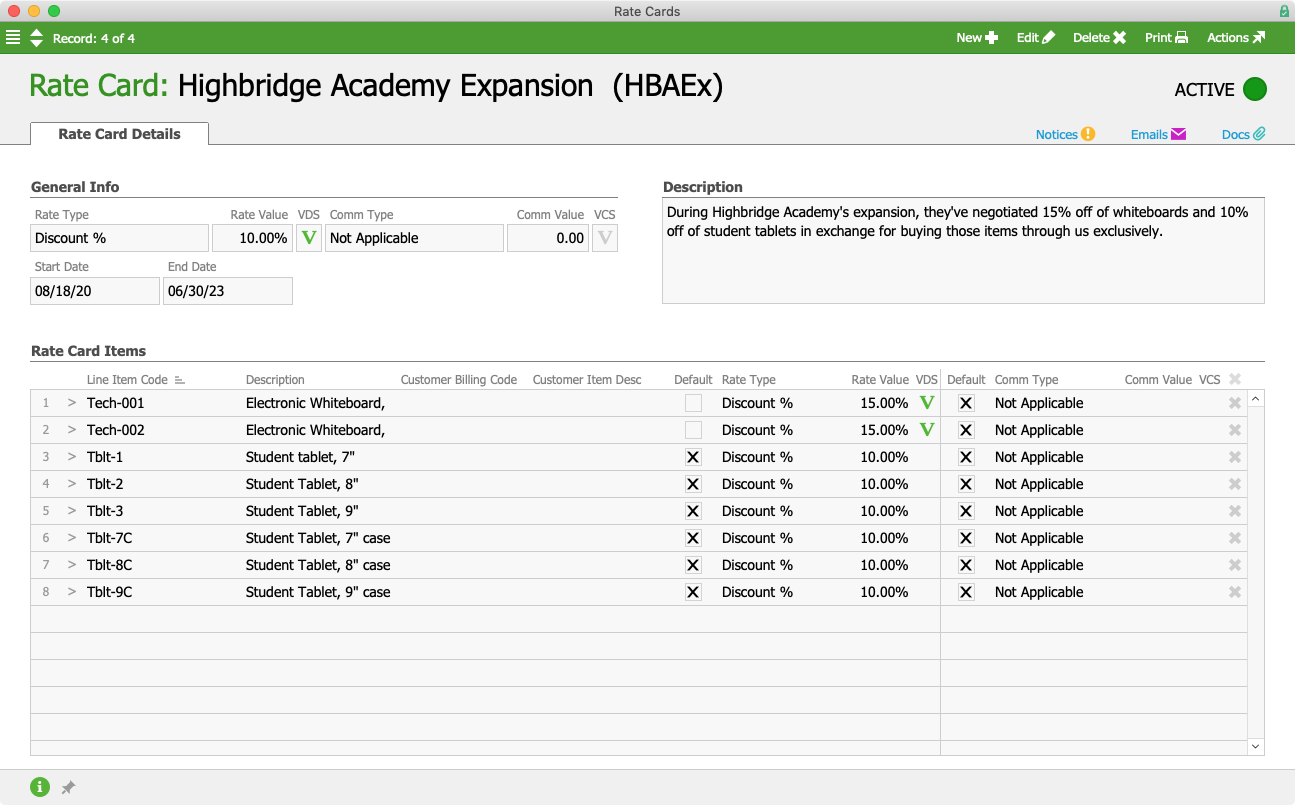
To enter this agreement in aACE, Mara creates a new rate card and titles it “Highbridge Academy Expansion”. In the General Info section, she first sets the Rate Type to “Discount %” and the Rate Value to “10%”; this sets the rate card’s default discount at 10%. Next she sets the rate card’s start date to begin immediately, and the end date to expire three years later at the end of the 2022-2023 school year. The rate card won’t affect the commission rates of the sales reps that take Highbridge’s orders, so she sets the Comm Type field to “Not Applicable”.

In the Description field, Mara records the deal that she negotiated with Stephanie so that anyone who has questions about the rate card can refer to that note.

Finally, in the Rate Card Items section, Mara enters the products that Highbridge will be getting at a discount. For the whiteboards, she unchecks the Default flag next to the Rate Type field, then sets the Rate Type to “Discount %” and the Rate Value to “15%”. For the tablets and tablet accessories, she leaves the Default flag checked so those items will be discounted at the “10%” default rate. Any products that Highbridge orders that are not on this rate card will use standard pricing.

Highbridge Rate Card

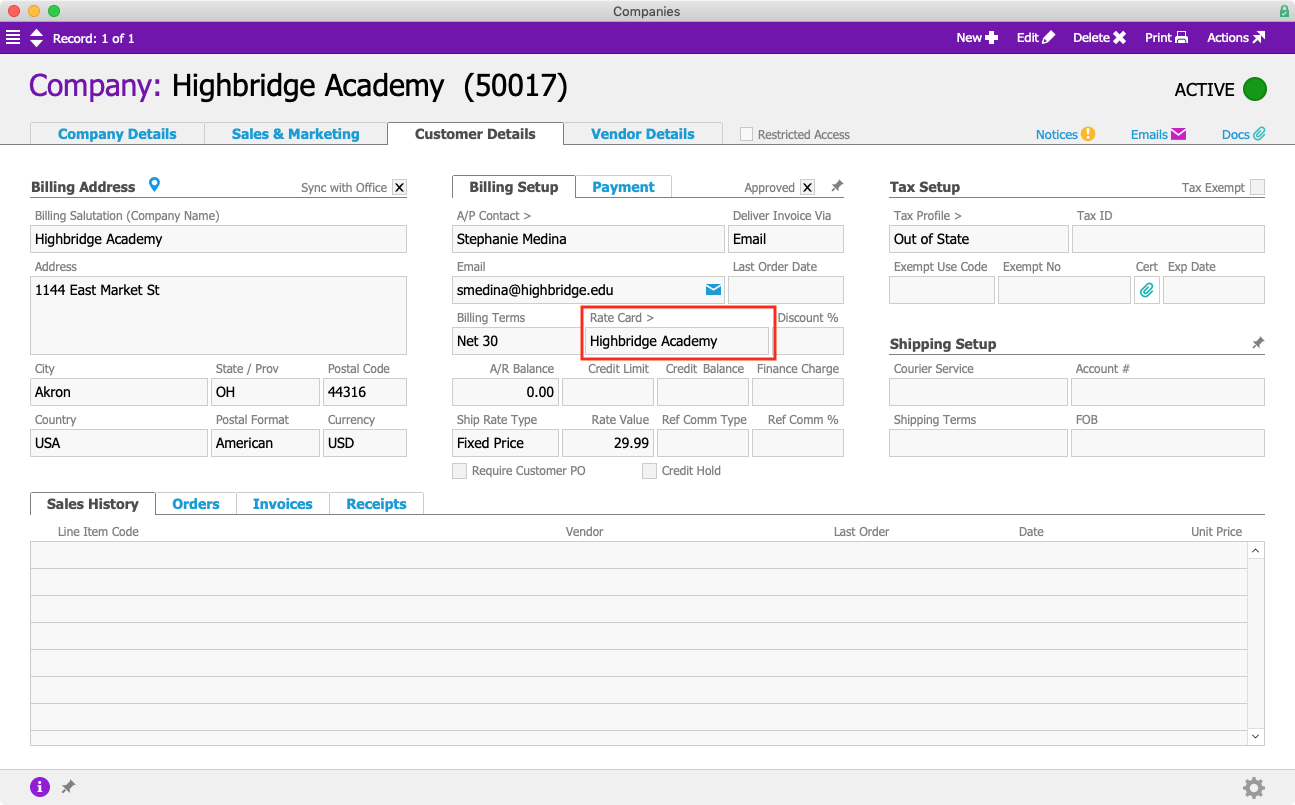
After saving and activating the rate card, Mara needs to attach it to Highbridge Academy in order to ensure that they receive the discounts automatically each time they make a purchase. To do that, Mara navigates to the Customer Details tab in Highbridge’s Company record. She enters Edit mode and chooses the correct rate card from a drop-down menu in the Billing Setup section.

Highbridge Company Record Annotated

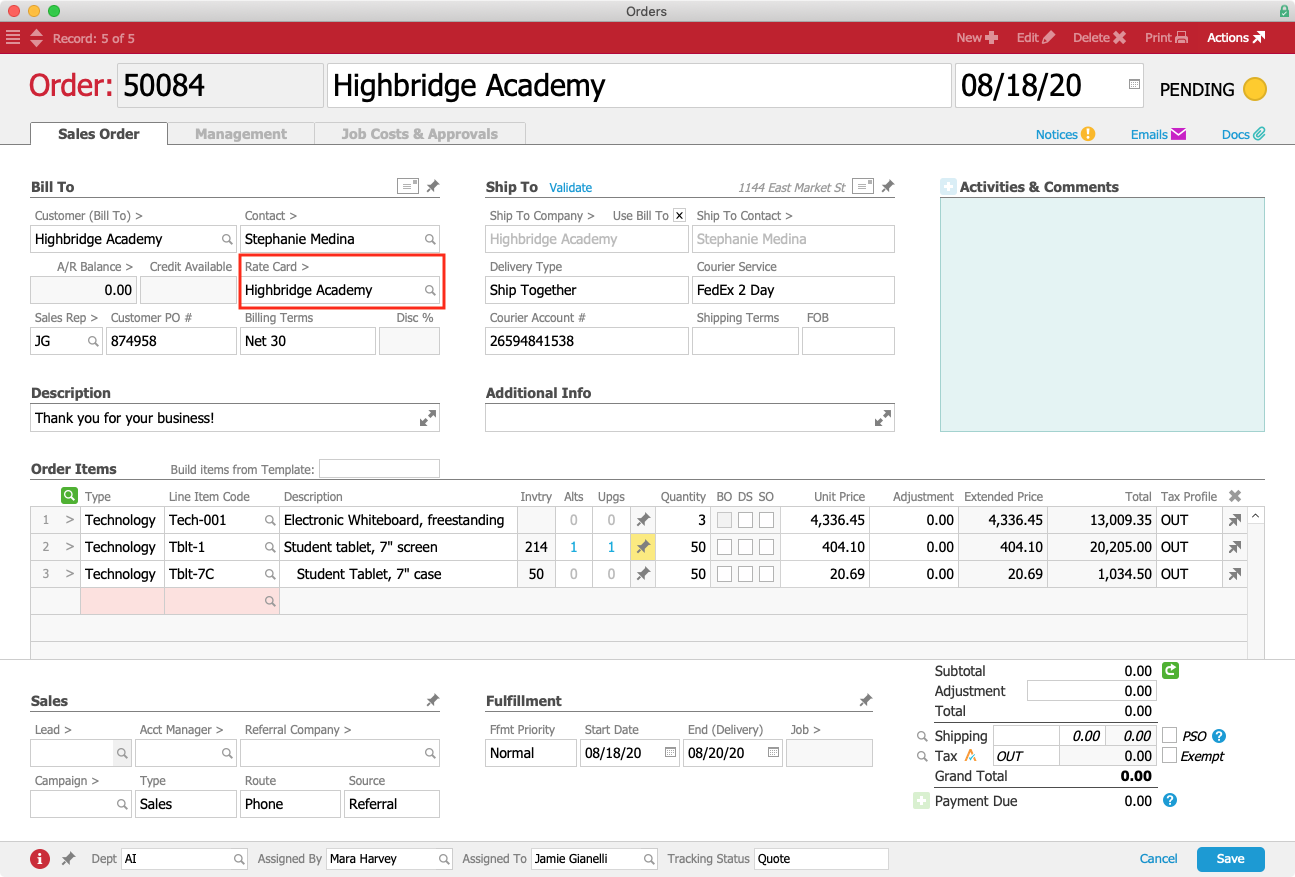
Now whenever Highbridge places an order, aACE will automatically apply the correct rate card – saving aACME’s sales reps the time and potential for human error that comes with having to remember each customer’s discounts and apply them manually.

Highbridge Order Annotated

When the sales rep hovers over the Unit Price field, a tooltip breaks down the pricing by retail unit price, rate card price, any volume or other discounts, and suggested price.

Highbridge Order Tooltip

But what if you want to offer special discounts to particular customers, like first responders or members of the military? aACE Rate Cards make that easy, too.

aACME typically sells educational materials to schools and afterschool programs, but due to the recent widespread shift towards distance learning many parents have reached out directly to inquire about their products. To help ease the burden of digital education on already-stressed families, aACME institutes a special 20% discount on student tablets and educational software for homeschoolers. To do this, aCME’s VP of Sales Martin Stroman creates a new rate card.

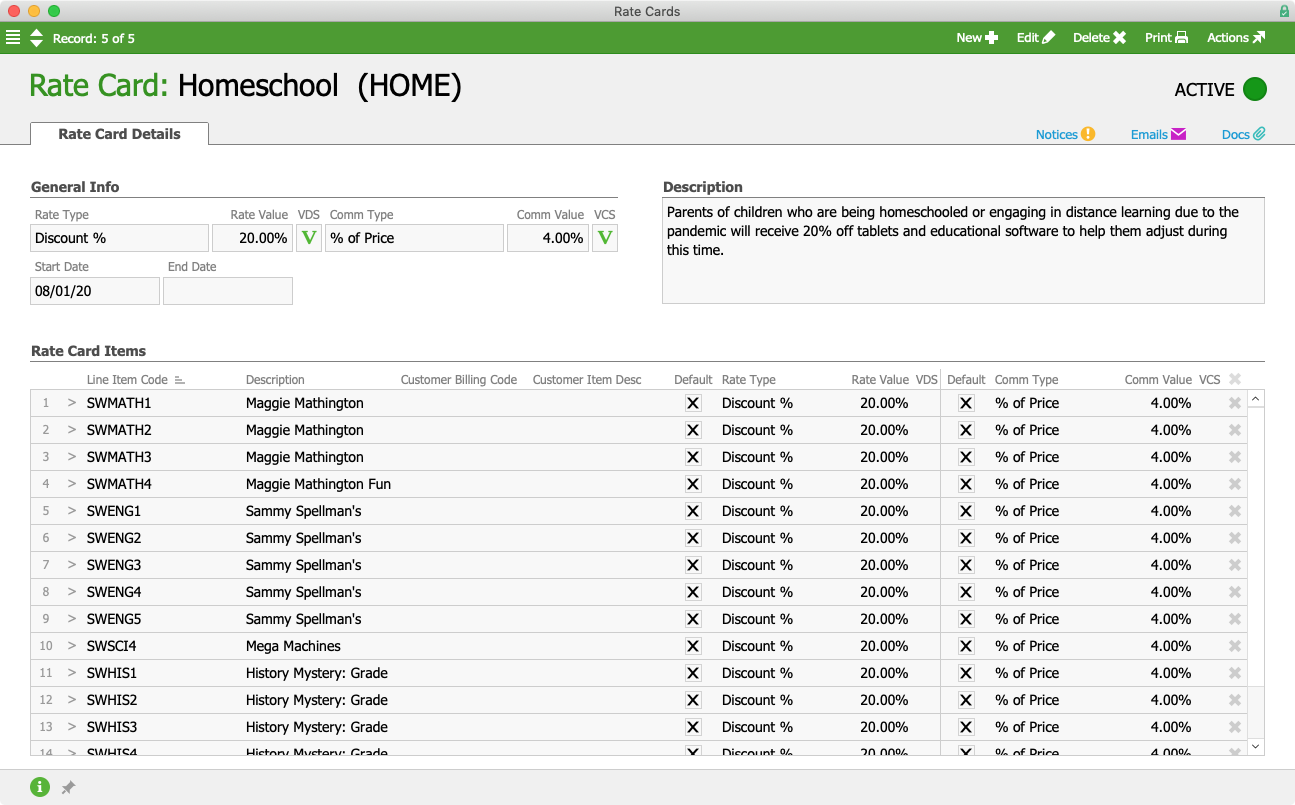
He starts by filling in the general information, including the 20% default discount rate. He sets the rate card’s start date to begin on August 1st; because he plans to run the program indefinitely, he leaves the end date blank. He wants to incentivize his sales team to encourage sales from this new market, so he sets the commission rate to “4%”, up from the usual 2.5%.

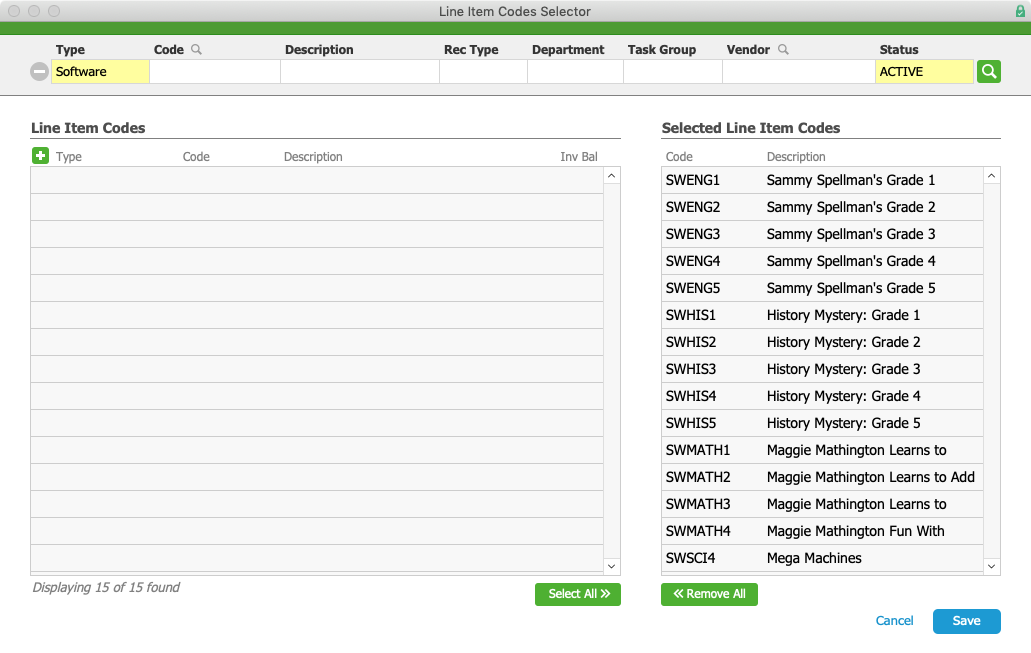
Martin records the program’s rules in the Description field, and then adds the tablets and software to the Rate Card Items section. Due to the number of software titles aACME carries, Martin adds them all using the Green Selector button instead of manually looking up the product code for each one.

Rate Card Selector

Because all of the tablets and software programs are being discounted at the same 20% rate with the same 4% commission, he simply leaves the Default flags checked and activates the rate card.

Homeschool Rate Card

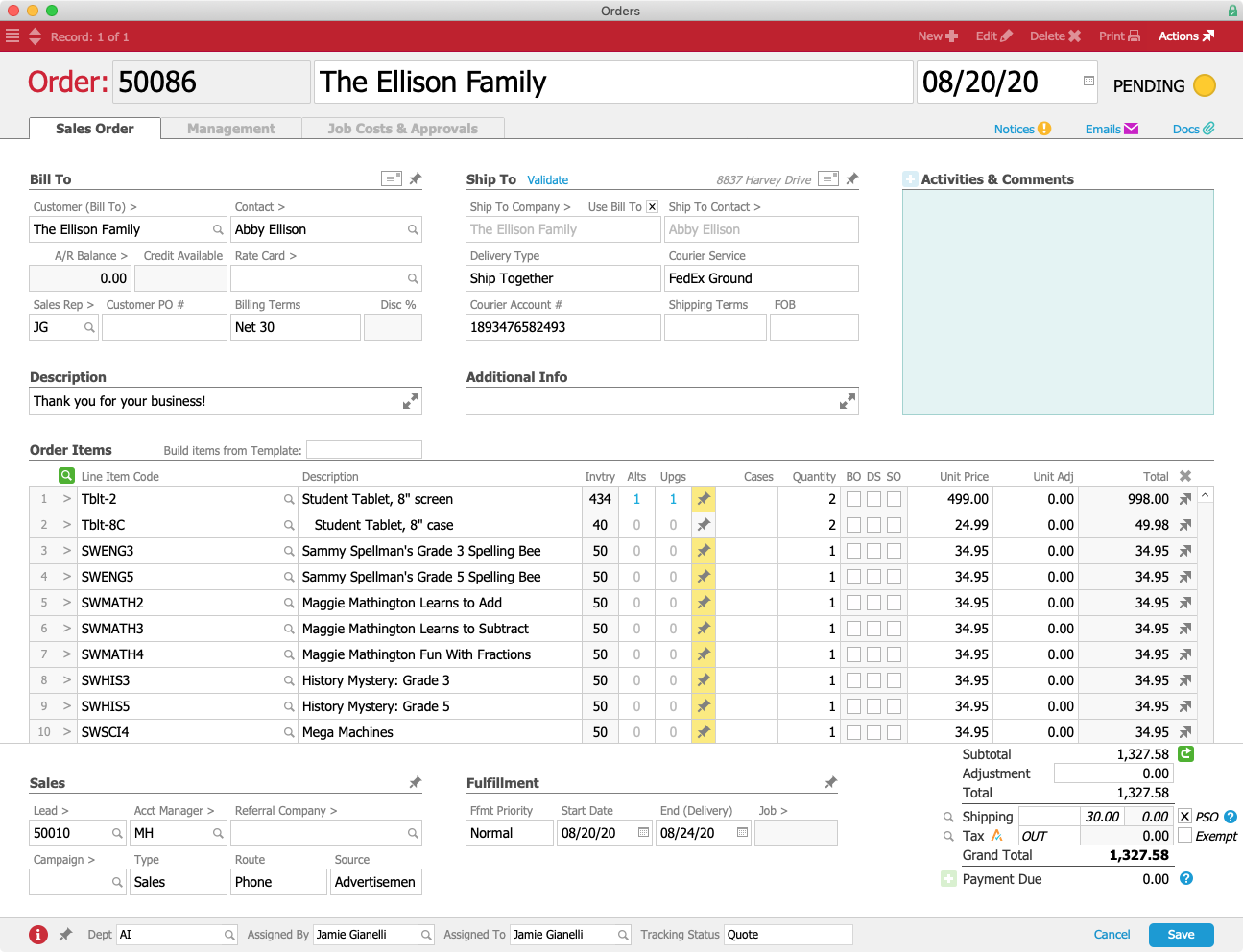
aACME sales rep Jamie Gianelli gets a call from Abby Ellison, a parent who is preparing to homeschool her third- and fifth-graders. Although they’ll be following along with the curriculum provided by her children’s teachers, Abby wants to supplement those daily Zoom calls and worksheets with some fun yet educational games. And of course, her kids will need their own tablets in order to keep up with their schoolwork. Jamie talks Abby through a few options and fills in her order accordingly.

Homeschool Order

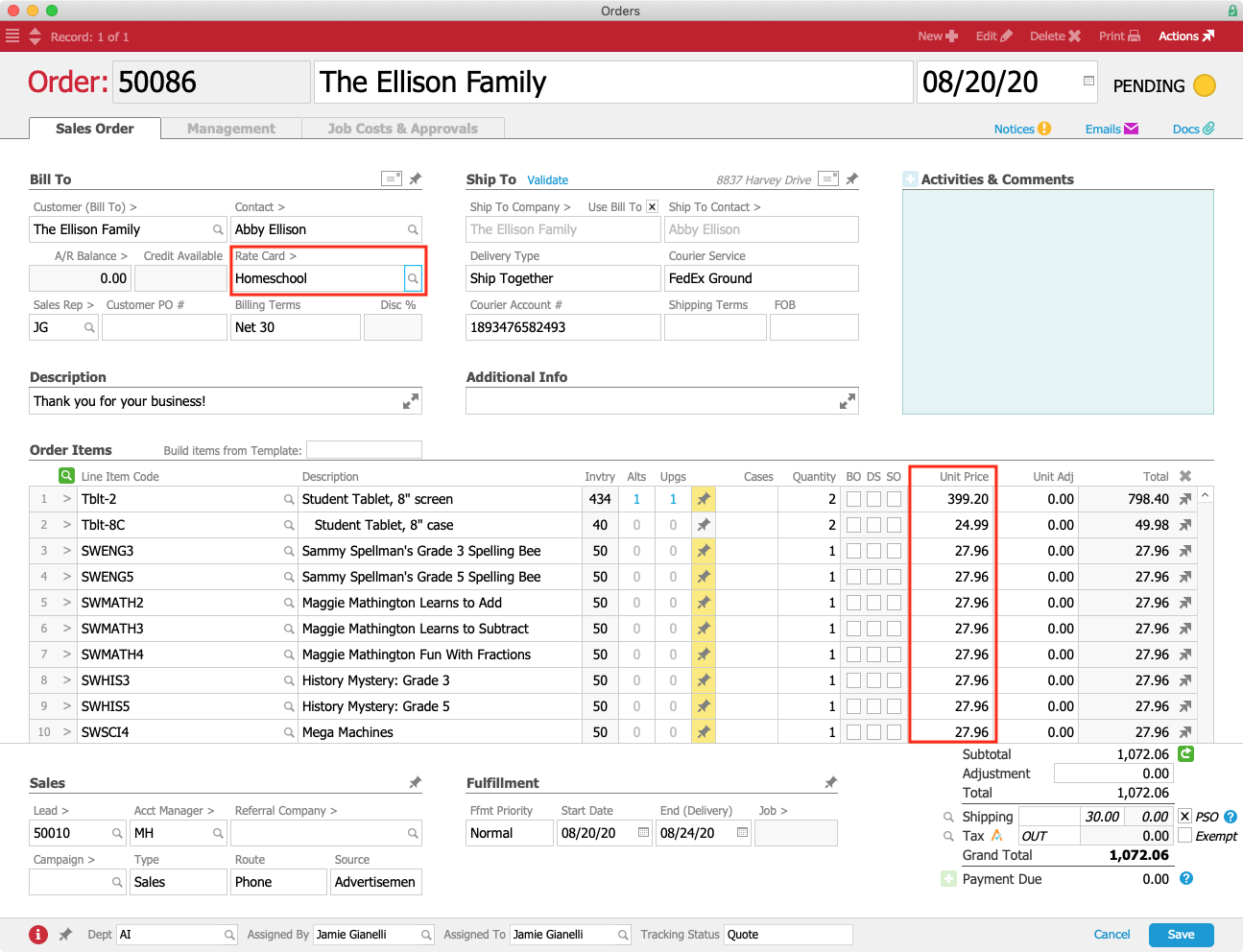
Once all of the products that Abby wants to buy have been entered, Jamie selects the “Homeschool” rate card from the Rate Card drop-down menu. aACE automatically updates the prices of each line item code to include the 20% discount.

Homeschool Order w Rate Card Annotated

And if you want to set special rates for a group of customers all at once, aACE also supports batch updates!

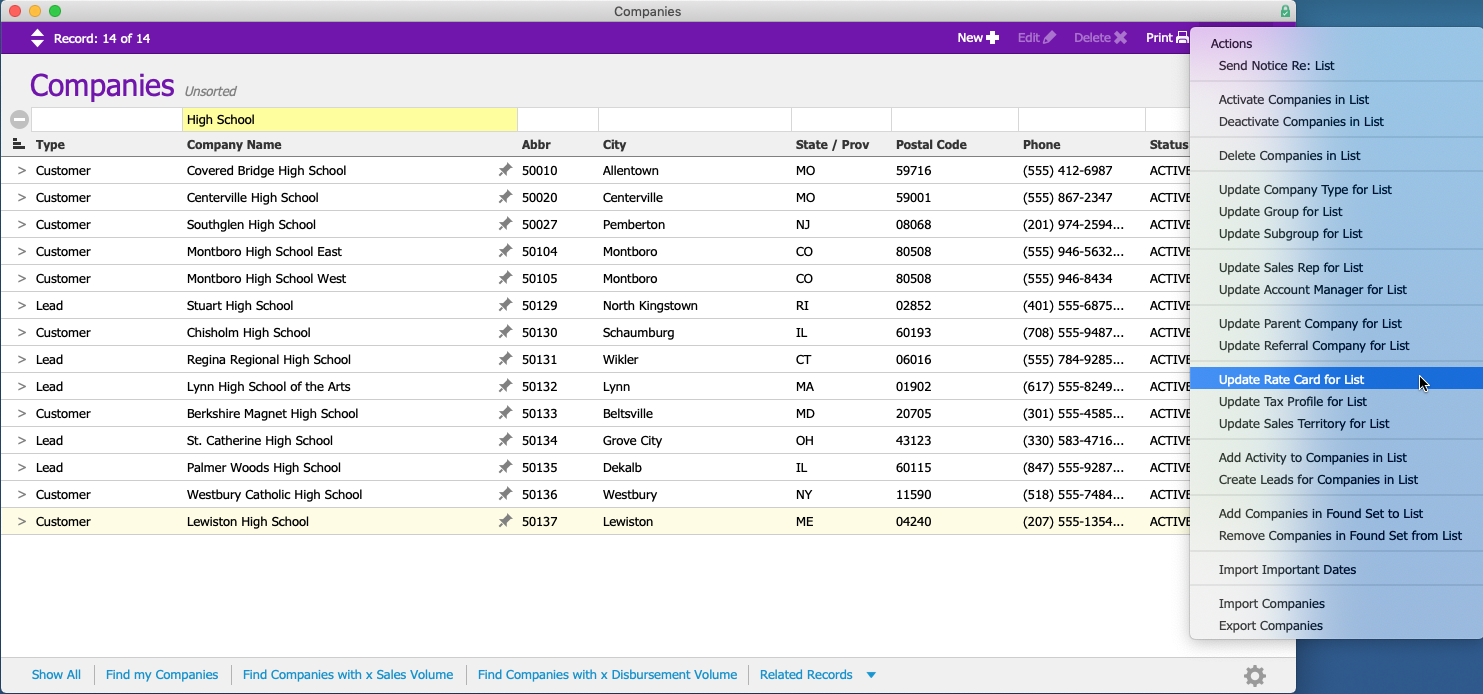
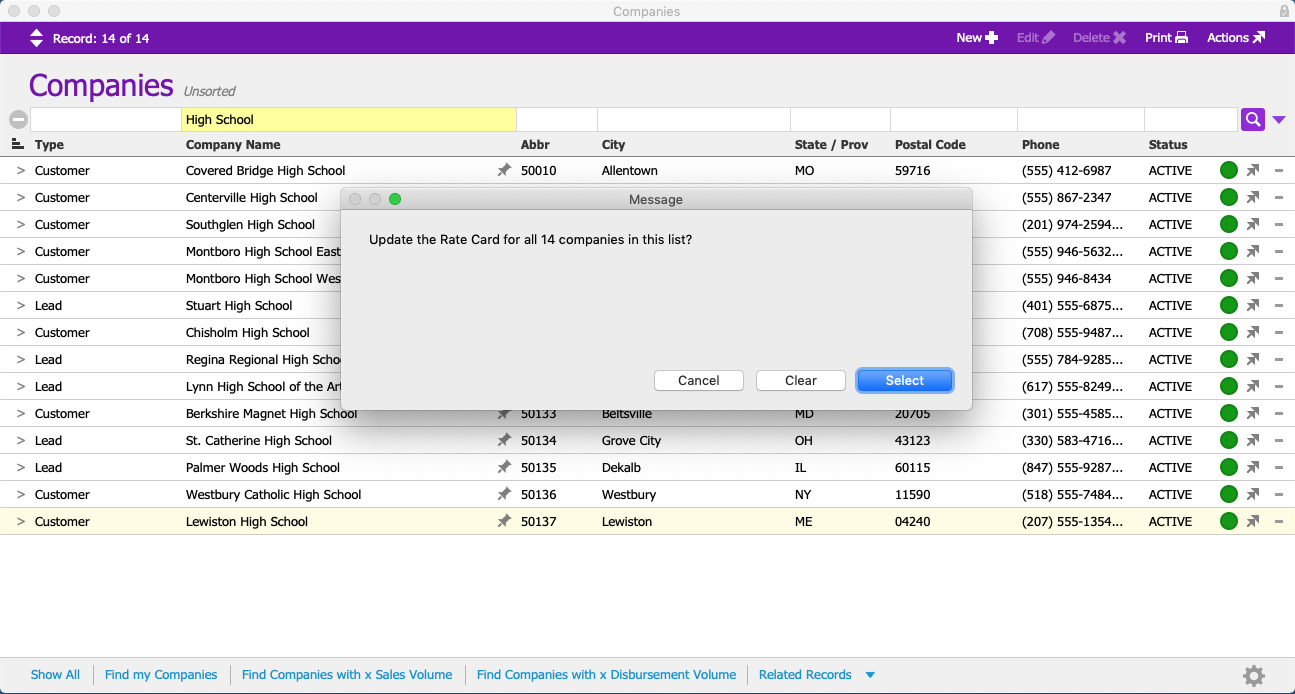
aACME implements a new rate card for high schools, offering a 5% discount on whiteboards and other classroom technology. Rather than attaching the rate card individually to each high school’s order, Martin searches for all customers with “High School” in their names in the Companies module. Once he has that list, he opens the Actions menu and selects “Update Rate Card for List”.

HS Companies

A dialog box pops up asking Martin if he wants to update the rate card for all of the companies in his list.

HS Companies Dialog

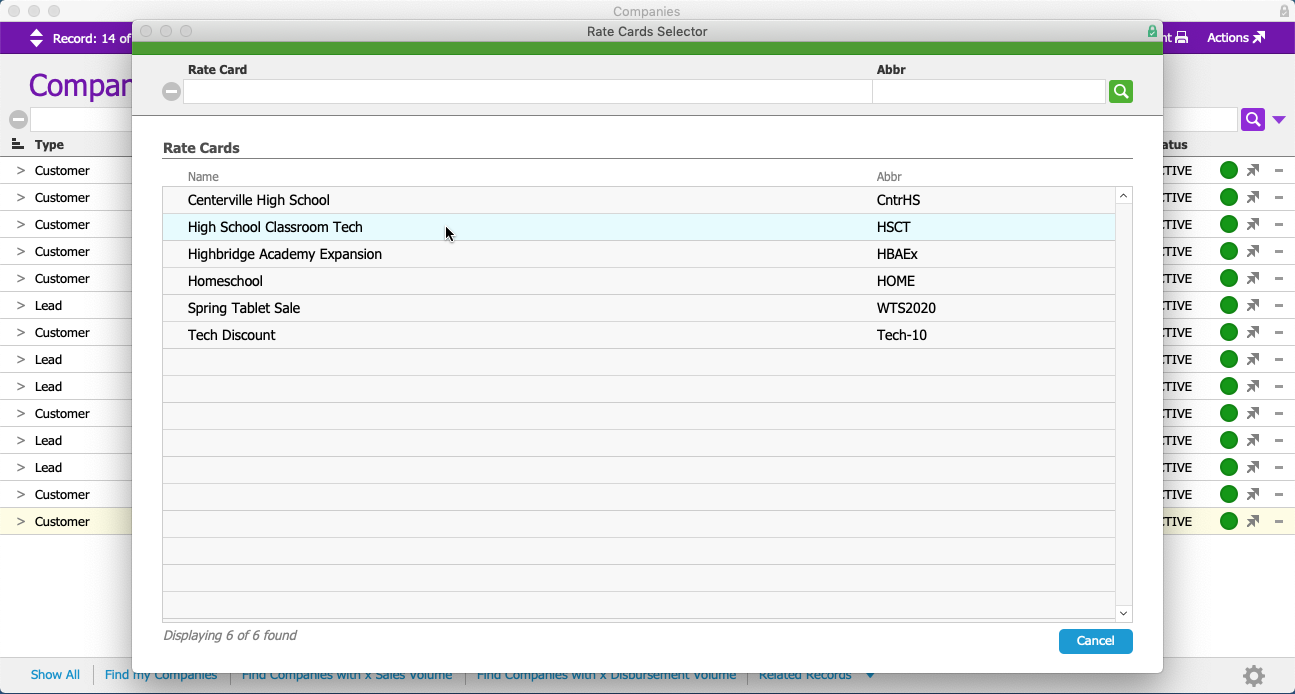
Martin clicks “Select”, and aACE opens the Rate Card Selector. This allows him to choose the applicable rate card from a list of rate cards that are currently active.

HS Companies Rate Card Selector

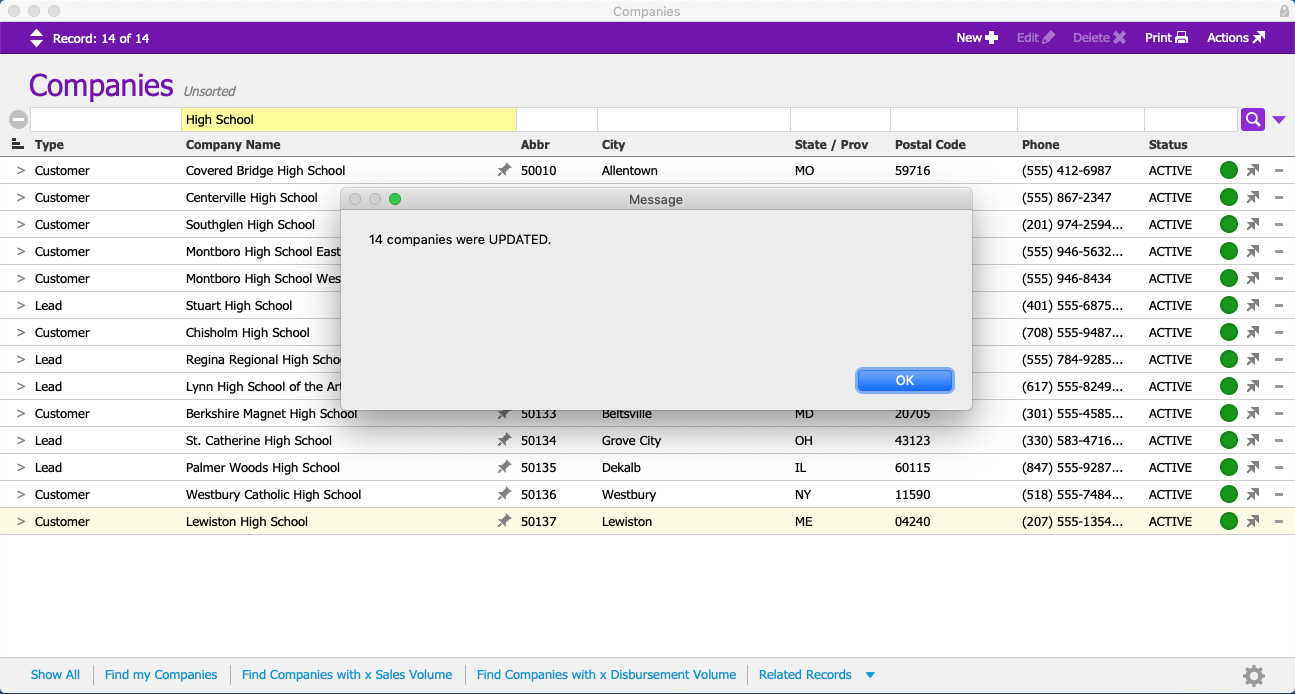
Martin chooses the “High School Tech Discount” rate card, and aACE automatically attaches it to each of the companies in his list.

HS Companies Updated

We’ve seen how aACE’s Rate Cards help you automate flexible pricing for particular customers, groups of customers, or groups of items. But what if you need to adjust the pricing on a long list of items — too many to enter manually?

aACE helps with that, too.

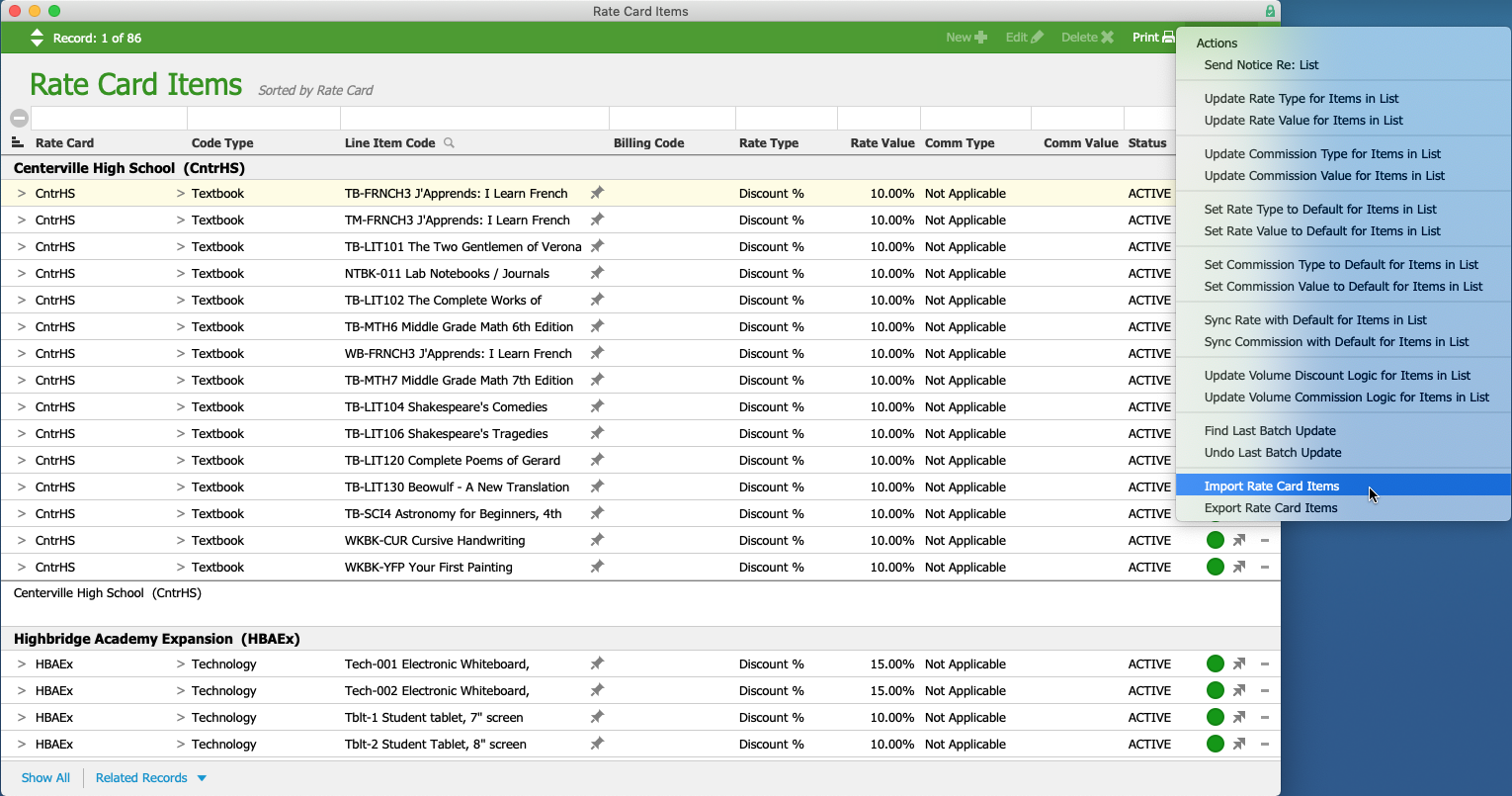
As part of their back-to-school offerings, aACME is holding a sale on all of their educational technology. Rather than enter each product individually, Martin navigates to the Rate Card Items module. From there, he can import a spreadsheet containing each of the thousands of products that are going to be on sale — along with their adjusted price rates. He can also adjust the rate types and values, the commissions types and values, or the volume discounts and commissions for all of the items in the list, all with the click of a button.

Rate Card Items

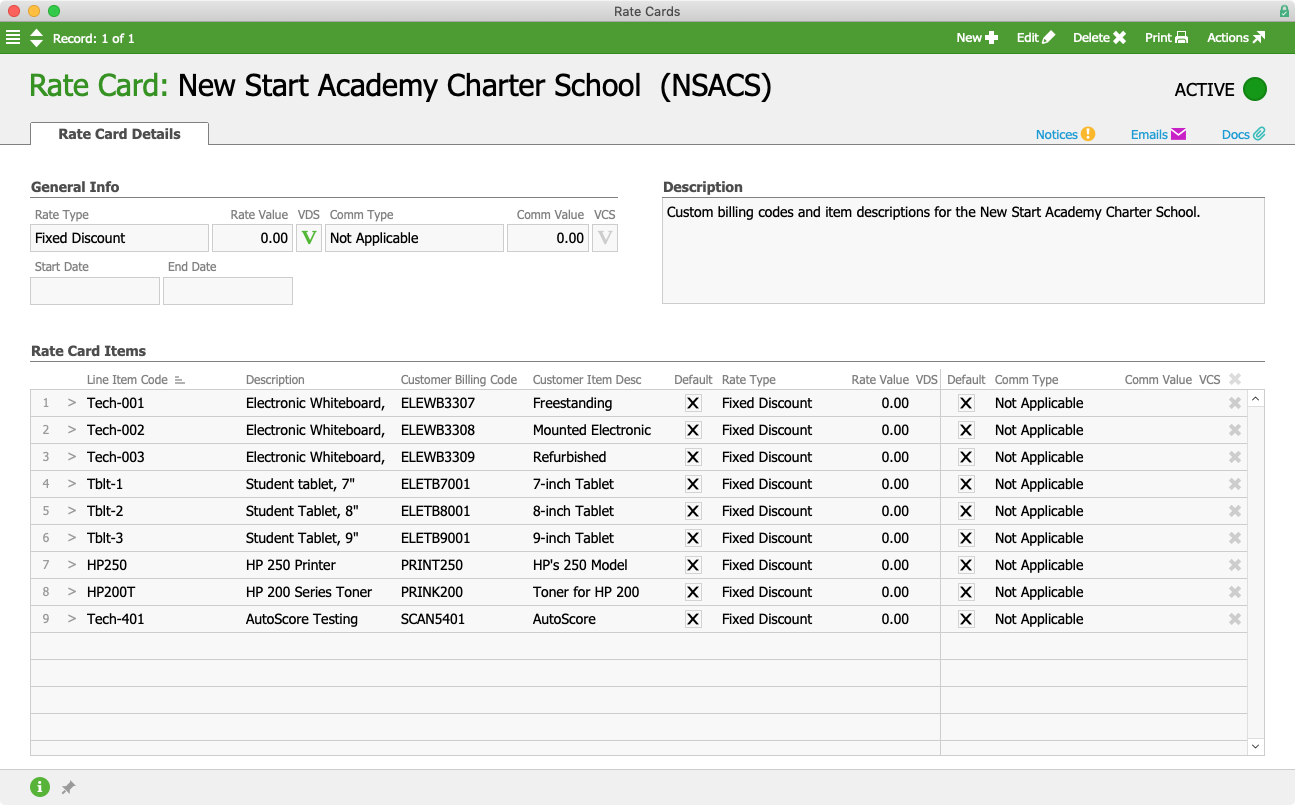
Rate cards also offer aACME the ability to store their own customers’ billing codes in aACE. The New Start Academy Charter School, a longtime aACME customer, requires both aACME’s product codes and their own product codes to appear on various documents. Their rate card lists all of the products they buy from aACME along with their own product codes.

NSACS Rate Card

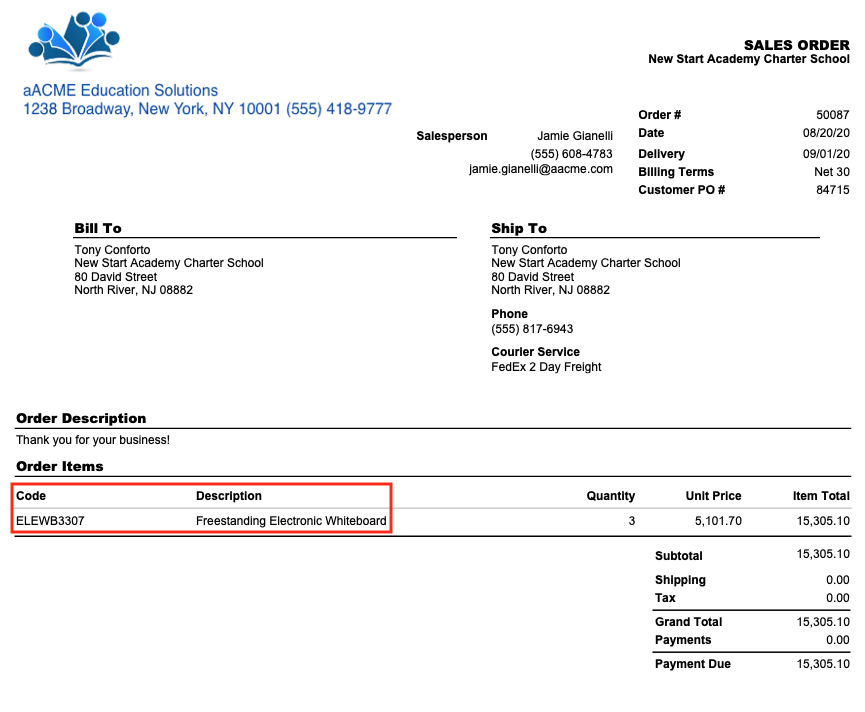
When Jamie receives an order from New Start Academy for three electronic whiteboards, she enters aACME’s code for the item, “Tech-001”, into the order. aACE automatically pulls in New Start’s product code, “ELEWB3307”. Only New Start’s code appears in the order’s print view, which is sent to New Start as confirmation that the order has been processed.

NSACS Print View Annotated

aACE’s Rate Cards allow you to set flexible pricing and commission rates, allowing you to take control over your pricing and eliminate the manual data entry that can lead to errors and wasted time. To learn more about what aACE can do for your business, register for a webinar today.

"[With aACE 5] I can pull up the appropriate rate card and change the pricing on all the products in one window. That’s a HUGE time saver! Overlapping promotions are more possible and simpler to manage in aACE. I also like that I can affect the same change on multiple accounts with one or two simple steps. The more I use this program, the more I love it!" - Joni Jarnagin, Marketing & Key Accounts Manager, Redd Remedies


Learn More

Whether you offer flexible pricing to all of your customers, discounts for certain groups of clients, or just operate on a complex pricing model, it can be hard to keep track of who is paying what for which products. In some businesses that information lives in one person’s head or in... Learn More

-->

Whether you offer flexible pricing to all of your customers, discounts for certain groups of clients, or just operate on a complex pricing model, it can be hard to keep track of who is paying what for which products. In some businesses that information lives in one person’s head or in hard-to-read spreadsheets that only a few even comprehend, creating the potential for chaos as employees move on and take that institutional knowledge with them. Wouldn’t it be great if you could track your different rate levels in a single solution that automatically enters the correct price when the order is entered?

With aACE, you can.

aACE Rate Cards enable you to offer flexible pricing for a variety of situations. To learn more about this feature, let’s take a look at how our sample company, aACME Education Solutions, uses it in their day-to-day operations.

Longtime aACME customer Highbridge Academy is a charter school that formerly served elementary school students only. Over the next three years they’ll be expanding to include a middle school, adding a new grade level each year – and they’ll need everything from textbooks to technology in order to outfit their new classrooms.

The school’s Senior Purchasing Specialist, Stephanie Medina, calls Mara Harvey at aACME and negotiates a deal: Highbridge will commit to purchasing electronic whiteboards for their new classrooms as well as student tablets for each class in their new grade levels exclusively from aACME over the next three years. In exchange for that long-term contract, aACME will give Highbridge a 15% discount on the whiteboards and a 10% discount on the tablets and their accessories.

To enter this agreement in aACE, Mara creates a new rate card and titles it “Highbridge Academy Expansion”. In the General Info section, she first sets the Rate Type to “Discount %” and the Rate Value to “10%”; this sets the rate card’s default discount at 10%. Next she sets the rate card’s start date to begin immediately, and the end date to expire three years later at the end of the 2022-2023 school year. The rate card won’t affect the commission rates of the sales reps that take Highbridge’s orders, so she sets the Comm Type field to “Not Applicable”.

In the Description field, Mara records the deal that she negotiated with Stephanie so that anyone who has questions about the rate card can refer to that note.

Finally, in the Rate Card Items section, Mara enters the products that Highbridge will be getting at a discount. For the whiteboards, she unchecks the Default flag next to the Rate Type field, then sets the Rate Type to “Discount %” and the Rate Value to “15%”. For the tablets and tablet accessories, she leaves the Default flag checked so those items will be discounted at the “10%” default rate. Any products that Highbridge orders that are not on this rate card will use standard pricing.

Highbridge Rate Card

After saving and activating the rate card, Mara needs to attach it to Highbridge Academy in order to ensure that they receive the discounts automatically each time they make a purchase. To do that, Mara navigates to the Customer Details tab in Highbridge’s Company record. She enters Edit mode and chooses the correct rate card from a drop-down menu in the Billing Setup section.

Highbridge Company Record Annotated

Now whenever Highbridge places an order, aACE will automatically apply the correct rate card – saving aACME’s sales reps the time and potential for human error that comes with having to remember each customer’s discounts and apply them manually.

Highbridge Order Annotated

When the sales rep hovers over the Unit Price field, a tooltip breaks down the pricing by retail unit price, rate card price, any volume or other discounts, and suggested price.

Highbridge Order Tooltip

But what if you want to offer special discounts to particular customers, like first responders or members of the military? aACE Rate Cards make that easy, too.

aACME typically sells educational materials to schools and afterschool programs, but due to the recent widespread shift towards distance learning many parents have reached out directly to inquire about their products. To help ease the burden of digital education on already-stressed families, aACME institutes a special 20% discount on student tablets and educational software for homeschoolers. To do this, aCME’s VP of Sales Martin Stroman creates a new rate card.

He starts by filling in the general information, including the 20% default discount rate. He sets the rate card’s start date to begin on August 1st; because he plans to run the program indefinitely, he leaves the end date blank. He wants to incentivize his sales team to encourage sales from this new market, so he sets the commission rate to “4%”, up from the usual 2.5%.

Martin records the program’s rules in the Description field, and then adds the tablets and software to the Rate Card Items section. Due to the number of software titles aACME carries, Martin adds them all using the Green Selector button instead of manually looking up the product code for each one.

Rate Card Selector

Because all of the tablets and software programs are being discounted at the same 20% rate with the same 4% commission, he simply leaves the Default flags checked and activates the rate card.

Homeschool Rate Card

aACME sales rep Jamie Gianelli gets a call from Abby Ellison, a parent who is preparing to homeschool her third- and fifth-graders. Although they’ll be following along with the curriculum provided by her children’s teachers, Abby wants to supplement those daily Zoom calls and worksheets with some fun yet educational games. And of course, her kids will need their own tablets in order to keep up with their schoolwork. Jamie talks Abby through a few options and fills in her order accordingly.

Homeschool Order

Once all of the products that Abby wants to buy have been entered, Jamie selects the “Homeschool” rate card from the Rate Card drop-down menu. aACE automatically updates the prices of each line item code to include the 20% discount.

Homeschool Order w Rate Card Annotated

And if you want to set special rates for a group of customers all at once, aACE also supports batch updates!

aACME implements a new rate card for high schools, offering a 5% discount on whiteboards and other classroom technology. Rather than attaching the rate card individually to each high school’s order, Martin searches for all customers with “High School” in their names in the Companies module. Once he has that list, he opens the Actions menu and selects “Update Rate Card for List”.

HS Companies

A dialog box pops up asking Martin if he wants to update the rate card for all of the companies in his list.

HS Companies Dialog

Martin clicks “Select”, and aACE opens the Rate Card Selector. This allows him to choose the applicable rate card from a list of rate cards that are currently active.

HS Companies Rate Card Selector

Martin chooses the “High School Tech Discount” rate card, and aACE automatically attaches it to each of the companies in his list.

HS Companies Updated

We’ve seen how aACE’s Rate Cards help you automate flexible pricing for particular customers, groups of customers, or groups of items. But what if you need to adjust the pricing on a long list of items — too many to enter manually?

aACE helps with that, too.

As part of their back-to-school offerings, aACME is holding a sale on all of their educational technology. Rather than enter each product individually, Martin navigates to the Rate Card Items module. From there, he can import a spreadsheet containing each of the thousands of products that are going to be on sale — along with their adjusted price rates. He can also adjust the rate types and values, the commissions types and values, or the volume discounts and commissions for all of the items in the list, all with the click of a button.

Rate Card Items

Rate cards also offer aACME the ability to store their own customers’ billing codes in aACE. The New Start Academy Charter School, a longtime aACME customer, requires both aACME’s product codes and their own product codes to appear on various documents. Their rate card lists all of the products they buy from aACME along with their own product codes.

NSACS Rate Card

When Jamie receives an order from New Start Academy for three electronic whiteboards, she enters aACME’s code for the item, “Tech-001”, into the order. aACE automatically pulls in New Start’s product code, “ELEWB3307”. Only New Start’s code appears in the order’s print view, which is sent to New Start as confirmation that the order has been processed.

NSACS Print View Annotated

aACE’s Rate Cards allow you to set flexible pricing and commission rates, allowing you to take control over your pricing and eliminate the manual data entry that can lead to errors and wasted time. To learn more about what aACE can do for your business, register for a webinar today.

"[With aACE 5] I can pull up the appropriate rate card and change the pricing on all the products in one window. That’s a HUGE time saver! Overlapping promotions are more possible and simpler to manage in aACE. I also like that I can affect the same change on multiple accounts with one or two simple steps. The more I use this program, the more I love it!" - Joni Jarnagin, Marketing & Key Accounts Manager, Redd Remedies


Learn More

Read more about Easily and Accurately Collect Sales Taxes with aACE+ Avalara AvaTax

Easily and Accurately Collect Sales Taxes with aACE+ Avalara AvaTax

To learn more about how aACE makes sales tax management easy, let’s look at how our sample company, aACME Education Solutions, uses these features in their day-to-day operations.

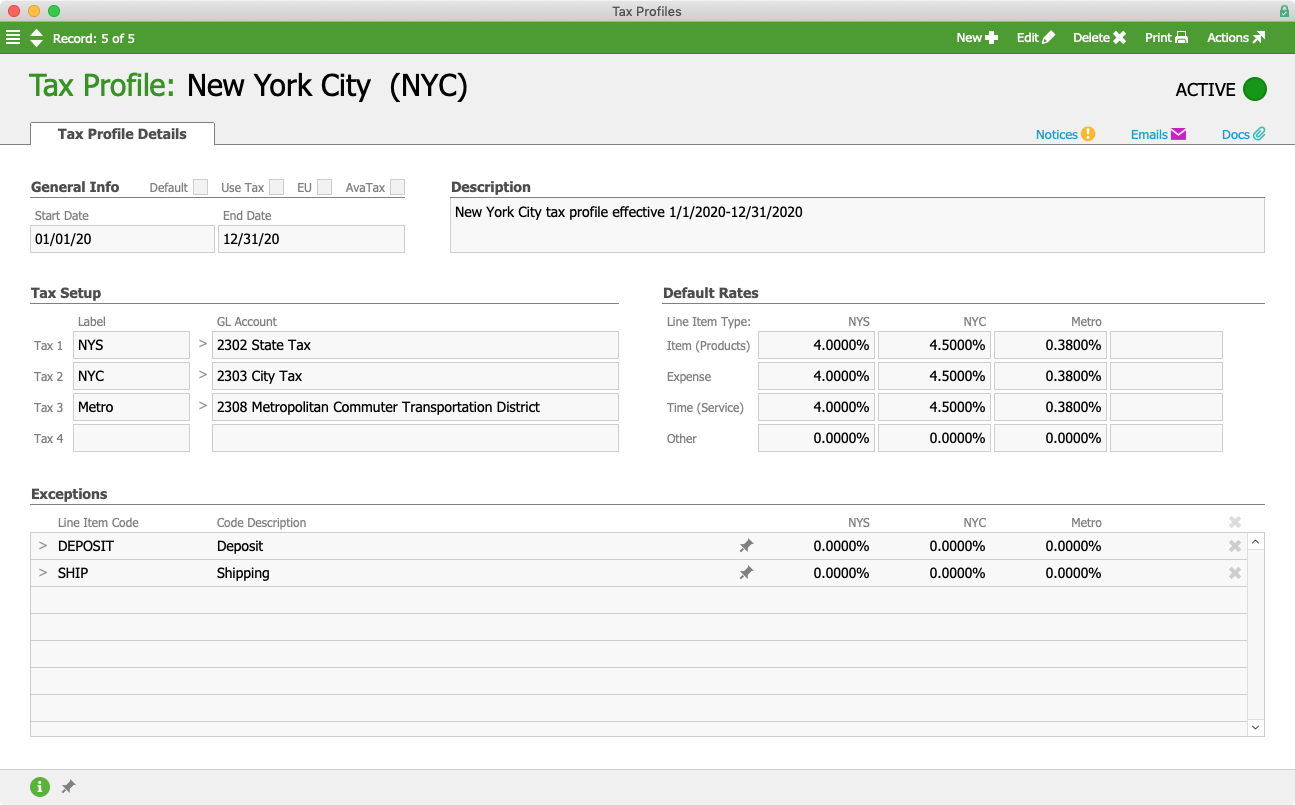
aACME sales rep Jamie Gianelli receives an order from P.S. 118 in the Bronx for 35 science textbooks and 5 hours of curriculum development. When Jamie creates the order, aACE automatically pulls in the NYC tax profile based on the postal code in P.S. 118’s shipping address. This tax profile is configured with each of the tax rates applicable in New York City as well as any items that are exempt from the local sales tax.

NYC Tax Profile

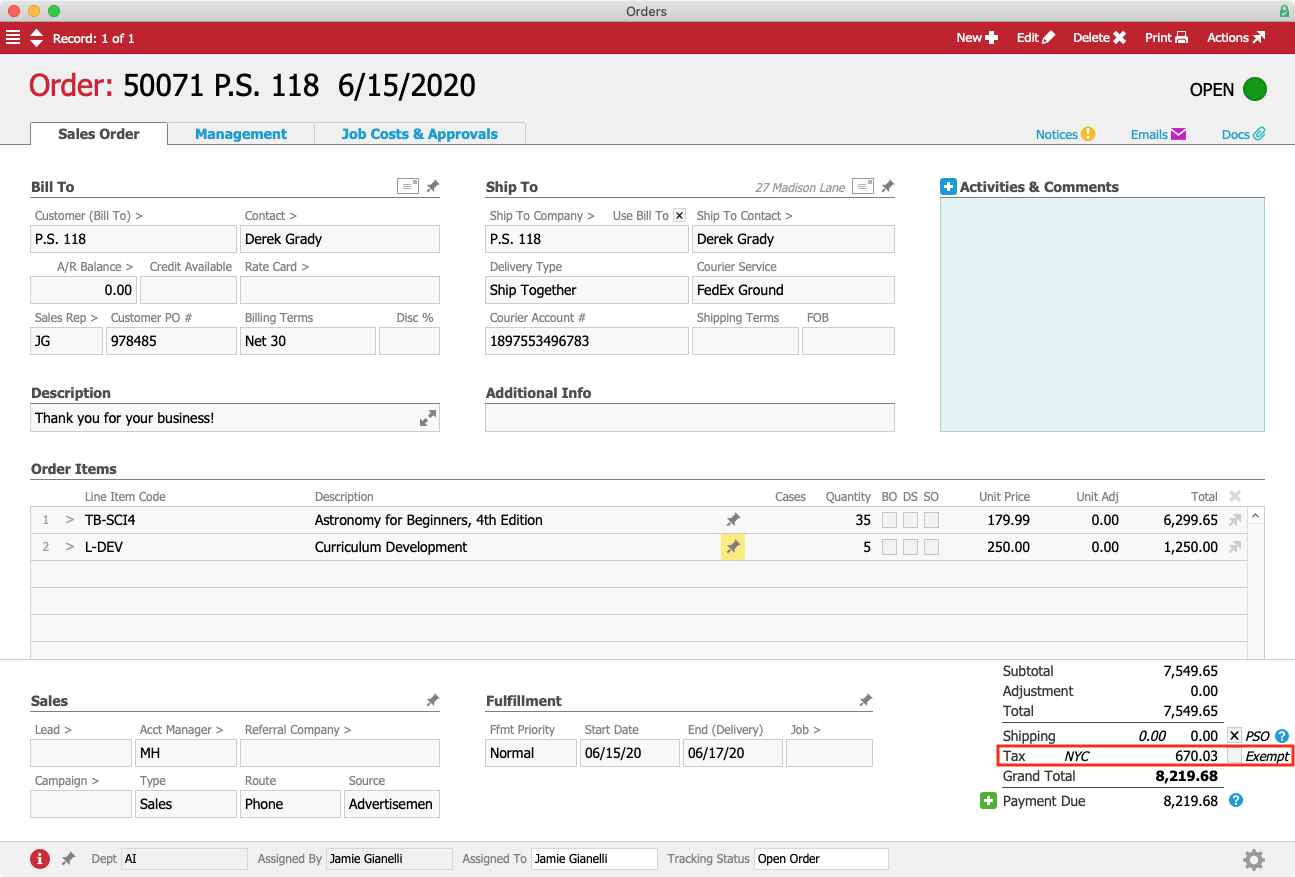
When Jamie processes the order, aACE calculates the sales tax and includes it in the grand total.

PS 118 Order Annotated

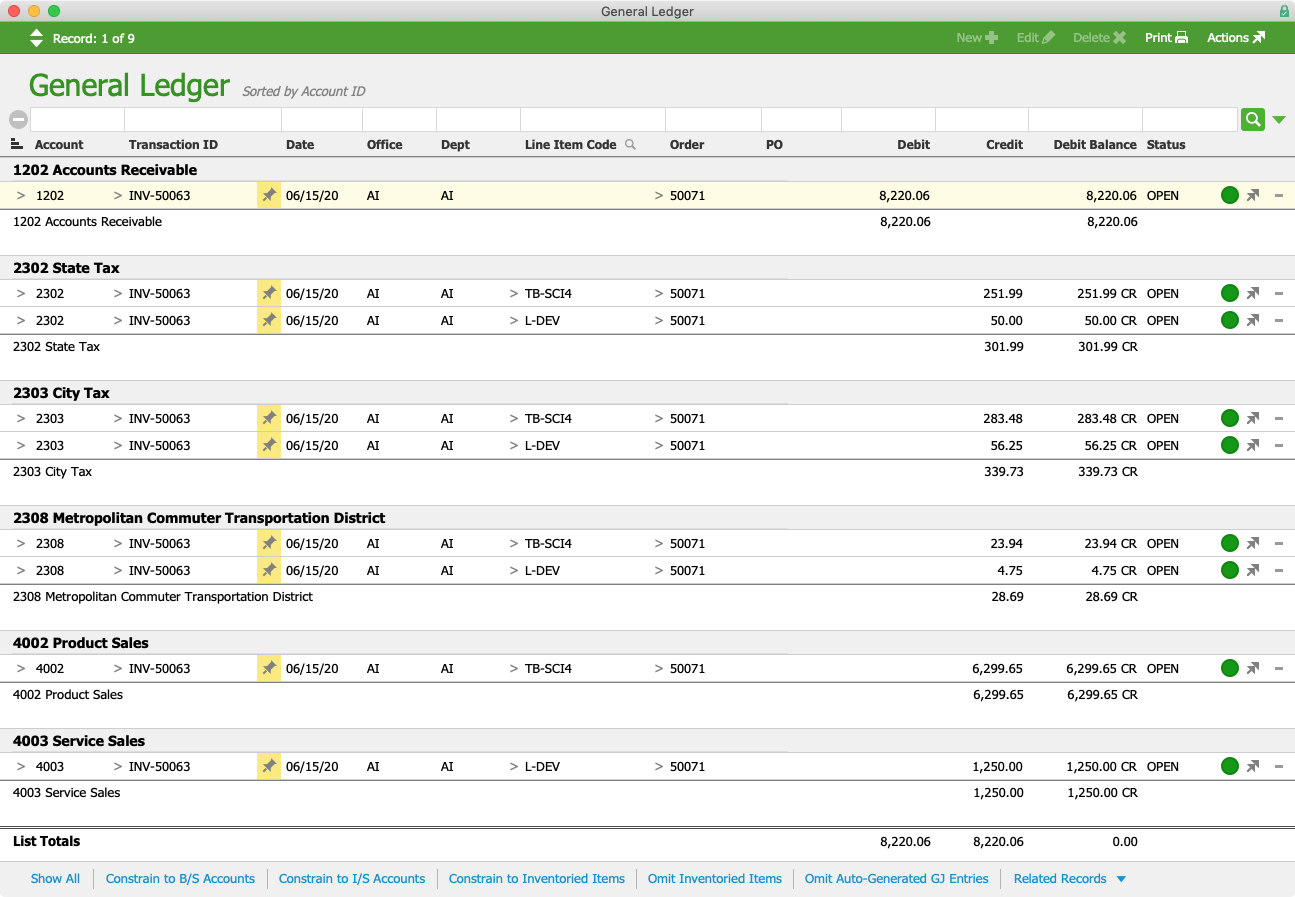
Once the order is shipped, Alexis Kohn in the Accounts Receivable department receives a notice that the related invoice has been generated. While inspecting the invoice to make sure everything looks accurate, Alexis wants to know how the sales tax was calculated. By navigating to the related general ledger transactions, she can see how much of the tax went to the GL accounts for the New York State, New York City, and Metropolitan Commuter District taxes, respectively.

This will become important when it comes time to remit these collected taxes to the government. Alexis will be able to easily see the balance owed to each tax agency and cut a check for those amounts.

PS 118 GL Entries

But what happens when an order comes in from a state where aACME is not required to collect sales taxes?

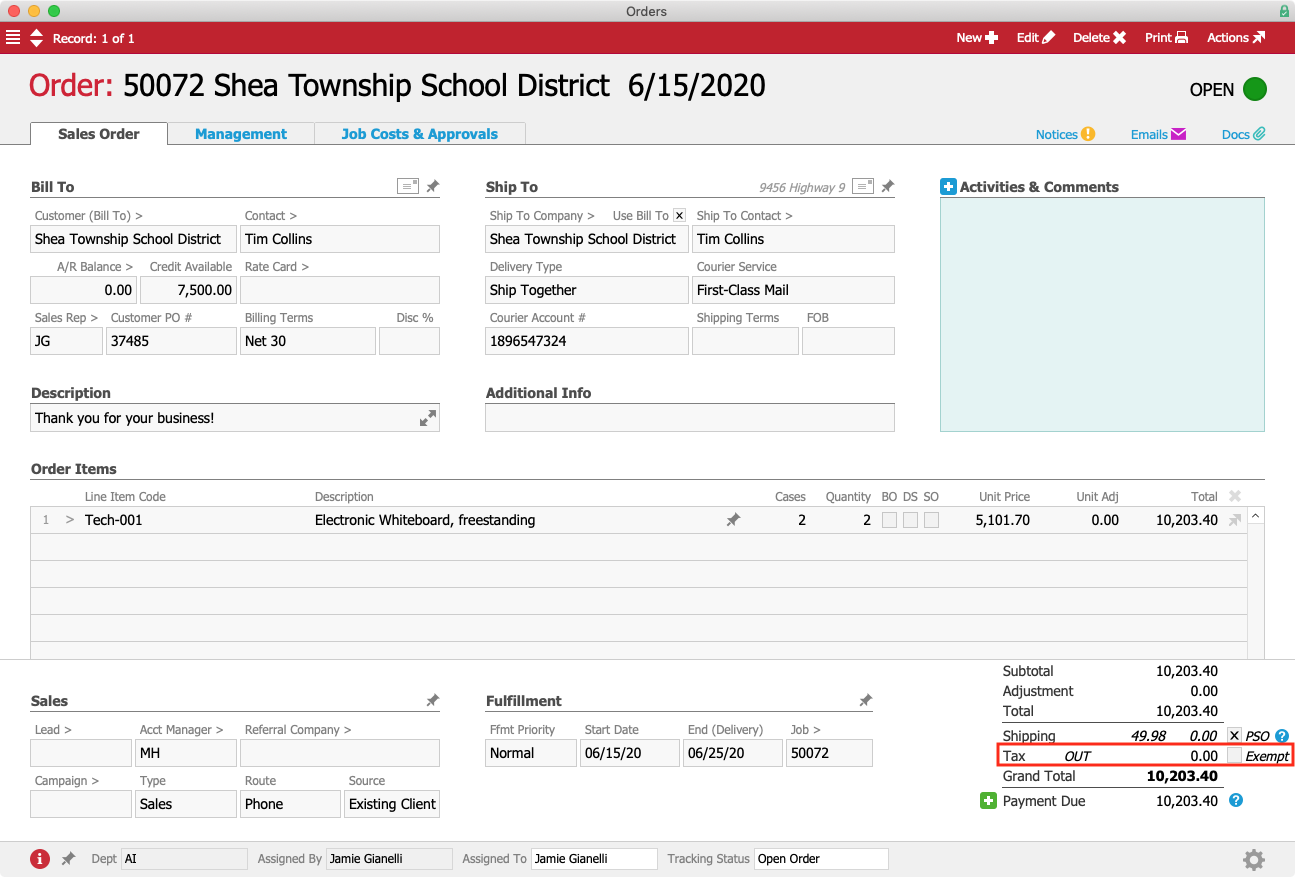
Jamie receives an order from the Shea Township School District for two new electronic whiteboards. Shea Township is located in Ohio, where aACME does not have a presence and is therefore not required to collect sales taxes. When Jamie enters the order, aACE automatically pulls in the Out-of-State tax profile based on the customer’s ship-to postal code. This tax profile is configured not to collect taxes, so when the order is processed, the sales tax comes to $0.

STSD Order Annotated

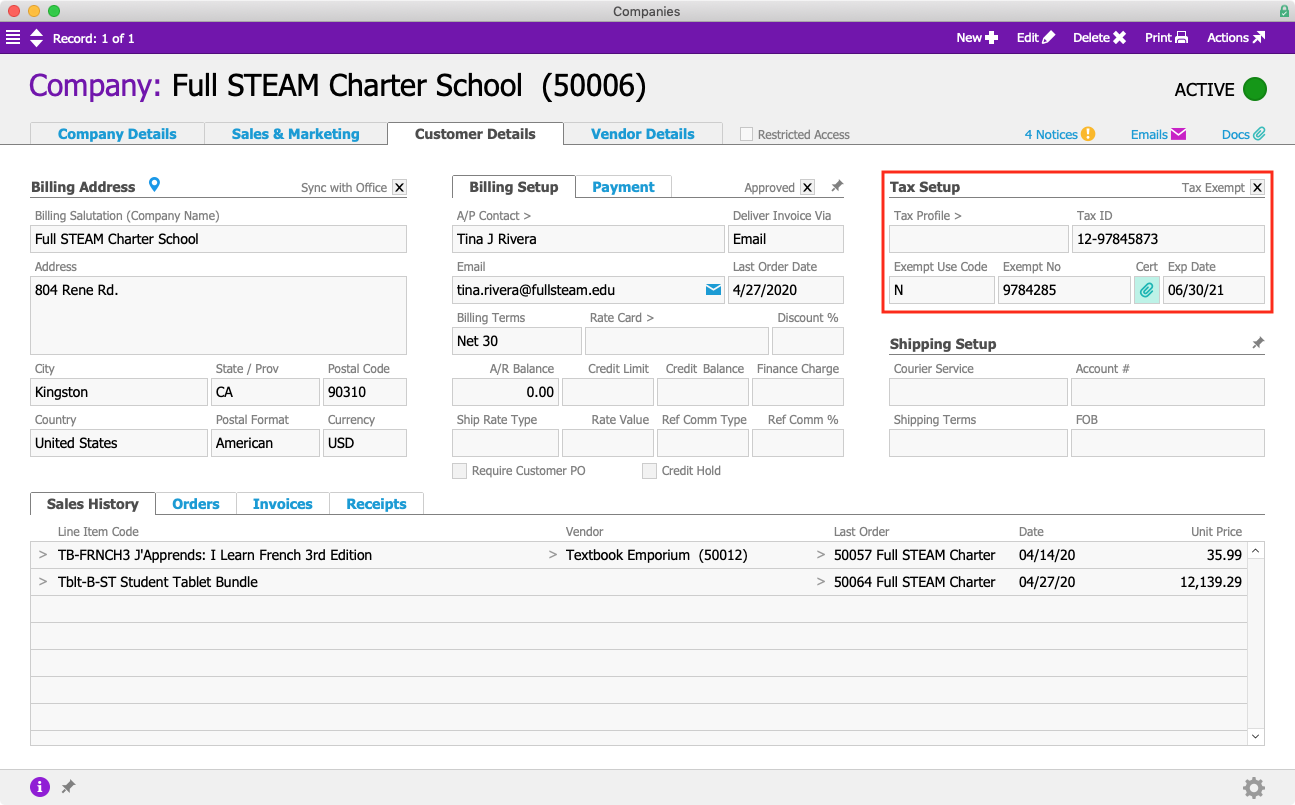
Similarly, aACE also includes tools for supporting tax-exempt customers. For example, longtime aACME client Full STEAM Charter School is a nonprofit and exempt from paying sales taxes. In Full STEAM’s Company record, they are flagged as tax exempt and their exemption certificate is kept on file.

Full STEAM Company Record Annotated

Now you may be asking, what happens when a customer located in one tax jurisdiction places an order to be picked up in another jurisdiction? aACE can handle that, too.

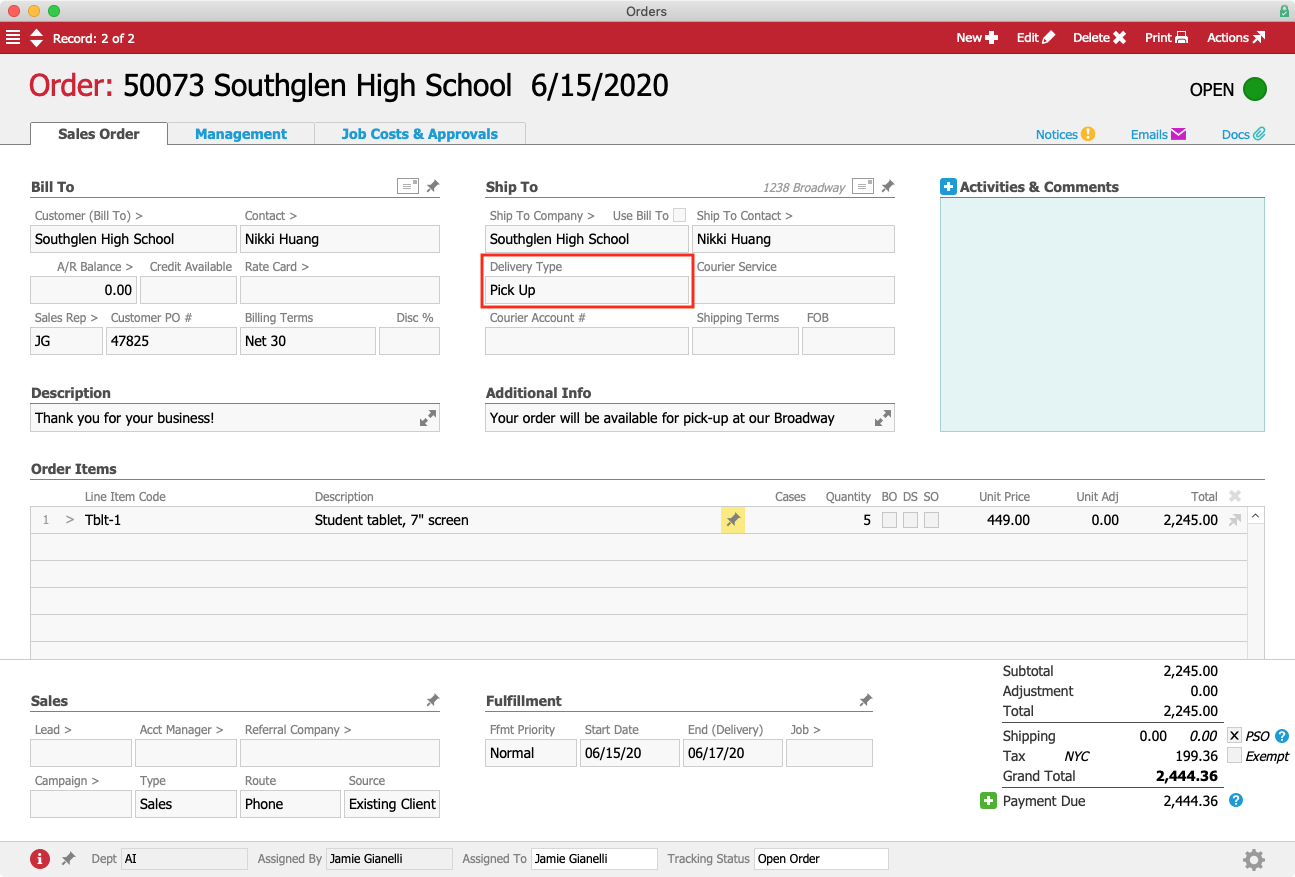
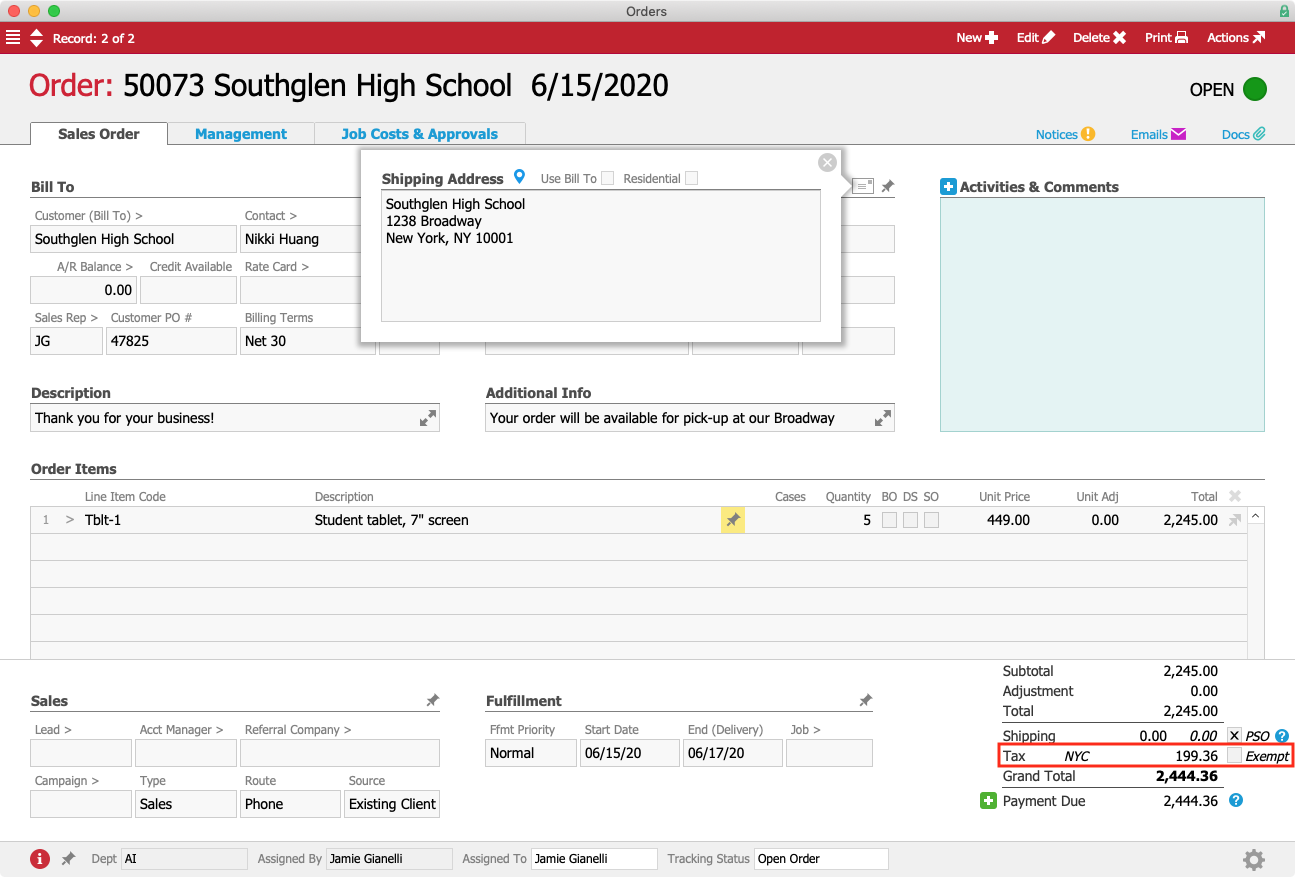
Jamie receives an order for 5 new student tablets from Nikki Huang at Southglen High School. SHS is located in Pemberton, NJ, but Nikki is going into the city for a conference and plans to pick up the tablets in person from aACME’s Manhattan location. When Jamie enters the order, she selects “Pick Up” as the type of delivery.

Southglen Order Pick Up

This automatically changes the shipping address from Southglen’s Pemberton campus to aACME’s New York office. aACE also pulls in the NYC tax profile based on the new postal code associated with the order.

Southglen Shipping Address Annotated

As you can see, aACE’s out-of-the-box tax functionality makes it simple to collect and remit sales taxes. But if you have a presence in a large number of tax jurisdictions, you may not want to manually update dozens of profiles every time there’s a change in tax rates — and some tax jurisdictions don’t align perfectly with local zip codes, complicating matters even further. Then there are jurisdictions that tax certain items on a tiered basis — meaning the first $5,000 in sales, for example, is taxed at one rate while the next $5,000 is taxed at a different rate and so on — not to mention jurisdictions that tax items differently depending on the circumstances, like a raw chicken from the grocery store’s meat department vs. that same chicken sold after having been roasted at the deli counter. Wouldn’t it be great if you could automate sales tax collection with even more precision?

That’s where aACE+ Avalara AvaTax comes in.

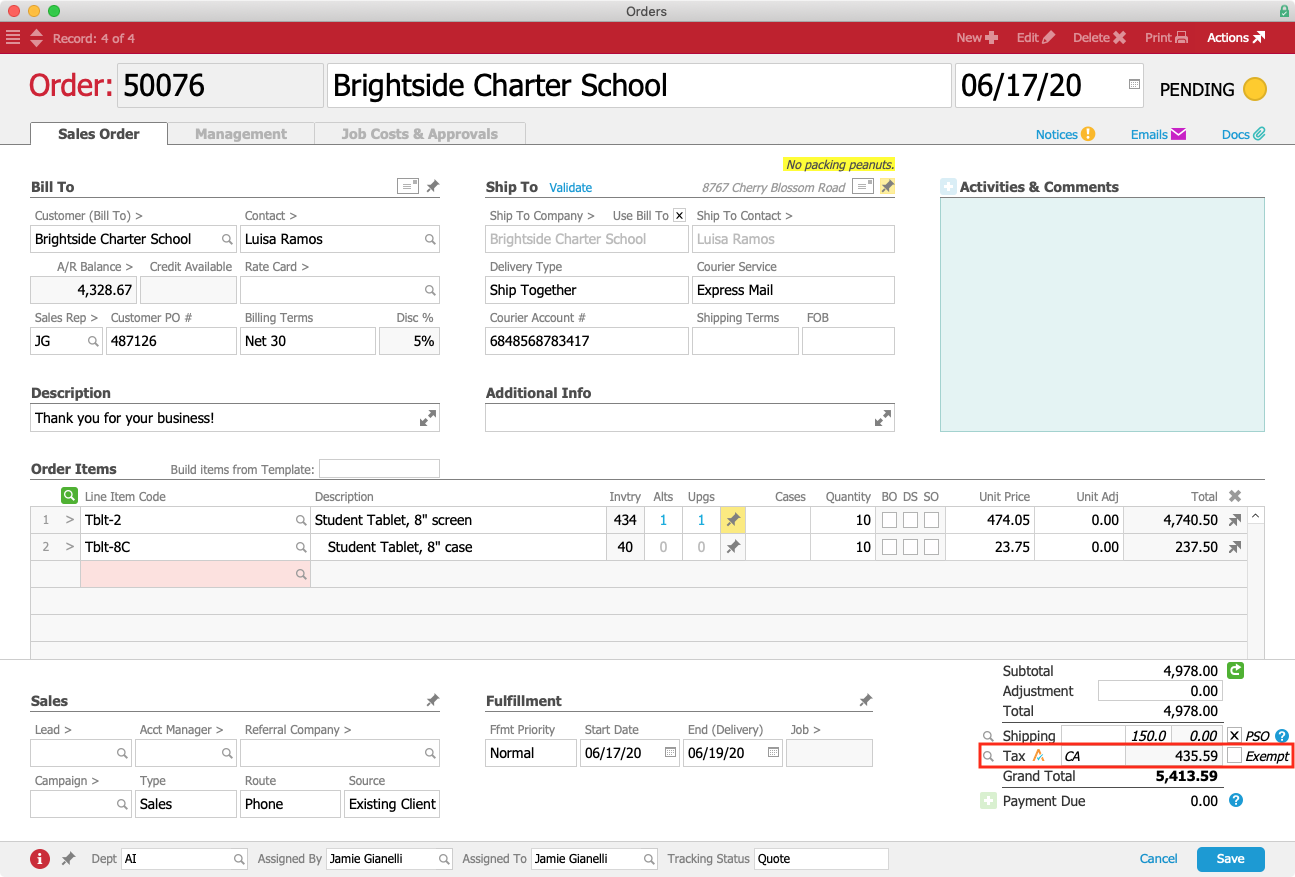
Jamie receives an order from the Brightside Charter School for 10 new student tablets and 10 cases — but now, aACME has implemented the aACE+ AvaTax integration. Like the previous examples, aACE auto-selects the tax profile associated with Brightside’s postal code. This time, however, the tax profile has AvaTax enabled as shown by the AvaTax Icon icon, which tells aACE to bypass its internal tax infrastructure and use the Avalara integration instead.

BCS Order Annotated

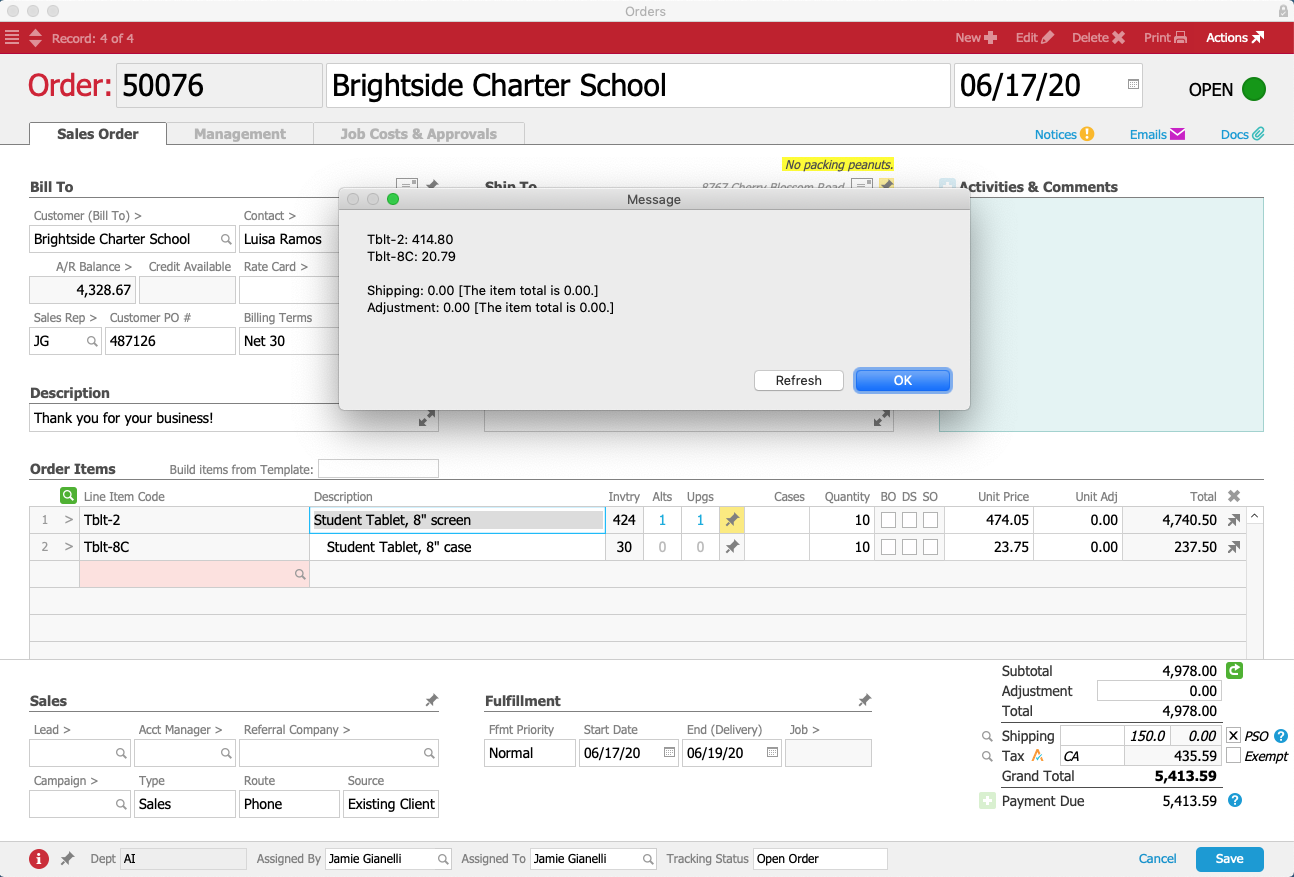
AvaTax calculates the order’s sales tax in seconds using the precise location of Brightside’s shipping address. Without leaving aACE, Jamie can see top-level details from AvaTax such as the amount of the order, the total taxable amount minus any discounts or exemptions, and the total sales tax.

BCS Order AvaTax Dialog

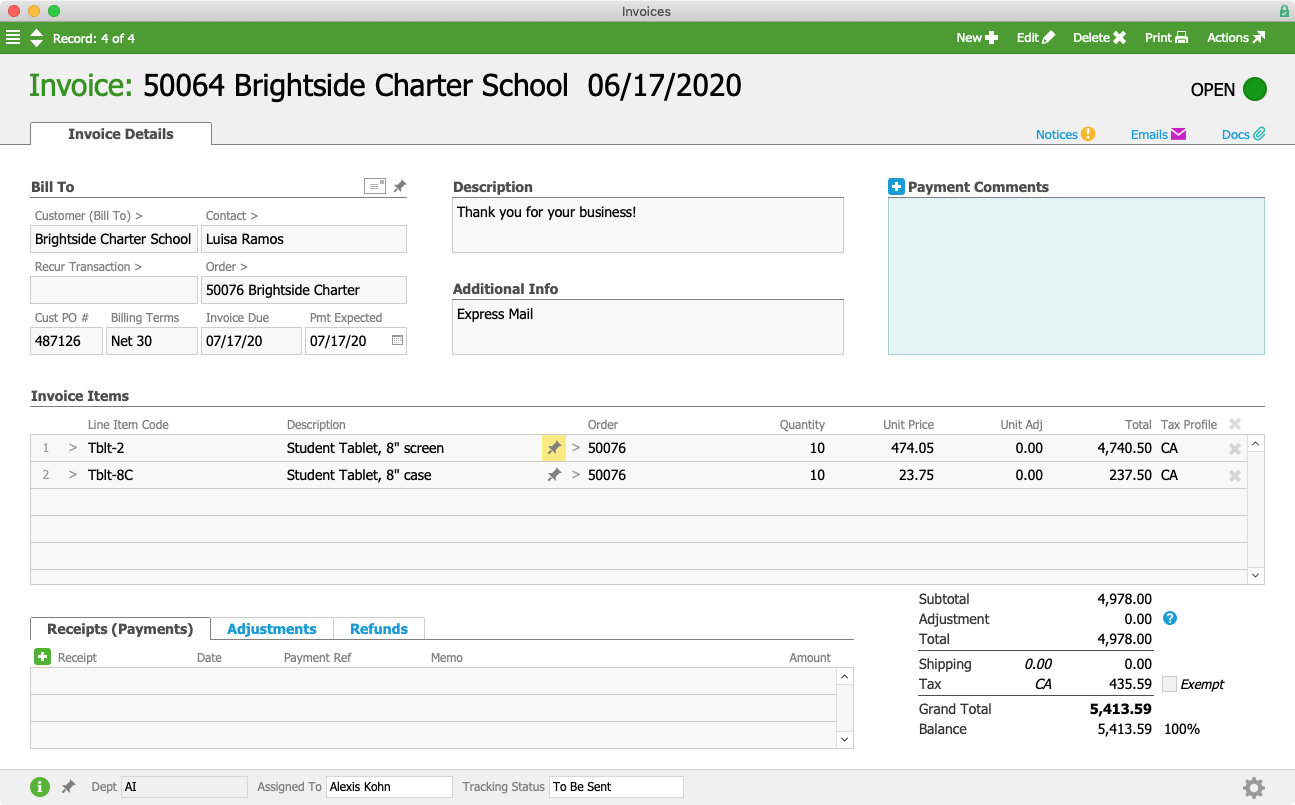
Once the order has been shipped, aACE again automatically generates an invoice. Over in the A/R department, Alexis logs in and reviews the invoice to make sure it’s correct before sending it to the customer.

BCS Invoice

If Alexis ever needs to double-check the tax calculations for this invoice, she can simply log into aACME’s Avalara AvaTax account. She finds invoice #50064 in the Transactions portal and opens up the detail view. Alexis can see the sales tax for the invoice broken down by line item, including the taxable amount of each line item, any discounts, the taxes or fees associated with each item, and the cost of each item with taxes included.

For more details, Alexis can click on the line item for the tablets. Here she can see each individual tax jurisdiction that this item was subject to as well as the tax rates and total tax amount for each one. When tax time rolls around, Alexis will use Avalara’s robust reporting and filing tools to remit any accrued taxes to the appropriate jurisdictions all over the country.

aACE tax profiles and the aACE+ Avalara AvaTax integration can help take the headache out of tax time. To learn more about aACE+ AvaTax, check out our landing page on Avalara’s website. And to discover how aACE can help streamline your business’s operations, register for a webinar today.

Learn More

Managing sales taxes isn’t anyone’s idea of a good time — but it doesn’t have to be a chore, either. aACE’s out-of-the-box tax management infrastructure makes it easy for you to set and update tax profiles for each jurisdiction in which you do business. And for even more peace of mind,... Learn More

-->

Managing sales taxes isn’t anyone’s idea of a good time — but it doesn’t have to be a chore, either. aACE’s out-of-the-box tax management infrastructure makes it easy for you to set and update tax profiles for each jurisdiction in which you do business. And for even more peace of mind, the aACE+ Avalara AvaTax integration uses geolocation to provide precise, up-to-date tax rates every time you make a sale.

To learn more about how aACE makes sales tax management easy, let’s look at how our sample company, aACME Education Solutions, uses these features in their day-to-day operations.

aACME sales rep Jamie Gianelli receives an order from P.S. 118 in the Bronx for 35 science textbooks and 5 hours of curriculum development. When Jamie creates the order, aACE automatically pulls in the NYC tax profile based on the postal code in P.S. 118’s shipping address. This tax profile is configured with each of the tax rates applicable in New York City as well as any items that are exempt from the local sales tax.

NYC Tax Profile

When Jamie processes the order, aACE calculates the sales tax and includes it in the grand total.

PS 118 Order Annotated

Once the order is shipped, Alexis Kohn in the Accounts Receivable department receives a notice that the related invoice has been generated. While inspecting the invoice to make sure everything looks accurate, Alexis wants to know how the sales tax was calculated. By navigating to the related general ledger transactions, she can see how much of the tax went to the GL accounts for the New York State, New York City, and Metropolitan Commuter District taxes, respectively.

This will become important when it comes time to remit these collected taxes to the government. Alexis will be able to easily see the balance owed to each tax agency and cut a check for those amounts.

PS 118 GL Entries

But what happens when an order comes in from a state where aACME is not required to collect sales taxes?

Jamie receives an order from the Shea Township School District for two new electronic whiteboards. Shea Township is located in Ohio, where aACME does not have a presence and is therefore not required to collect sales taxes. When Jamie enters the order, aACE automatically pulls in the Out-of-State tax profile based on the customer’s ship-to postal code. This tax profile is configured not to collect taxes, so when the order is processed, the sales tax comes to $0.

STSD Order Annotated

Similarly, aACE also includes tools for supporting tax-exempt customers. For example, longtime aACME client Full STEAM Charter School is a nonprofit and exempt from paying sales taxes. In Full STEAM’s Company record, they are flagged as tax exempt and their exemption certificate is kept on file.

Full STEAM Company Record Annotated

Now you may be asking, what happens when a customer located in one tax jurisdiction places an order to be picked up in another jurisdiction? aACE can handle that, too.

Jamie receives an order for 5 new student tablets from Nikki Huang at Southglen High School. SHS is located in Pemberton, NJ, but Nikki is going into the city for a conference and plans to pick up the tablets in person from aACME’s Manhattan location. When Jamie enters the order, she selects “Pick Up” as the type of delivery.

Southglen Order Pick Up

This automatically changes the shipping address from Southglen’s Pemberton campus to aACME’s New York office. aACE also pulls in the NYC tax profile based on the new postal code associated with the order.

Southglen Shipping Address Annotated

As you can see, aACE’s out-of-the-box tax functionality makes it simple to collect and remit sales taxes. But if you have a presence in a large number of tax jurisdictions, you may not want to manually update dozens of profiles every time there’s a change in tax rates — and some tax jurisdictions don’t align perfectly with local zip codes, complicating matters even further. Then there are jurisdictions that tax certain items on a tiered basis — meaning the first $5,000 in sales, for example, is taxed at one rate while the next $5,000 is taxed at a different rate and so on — not to mention jurisdictions that tax items differently depending on the circumstances, like a raw chicken from the grocery store’s meat department vs. that same chicken sold after having been roasted at the deli counter. Wouldn’t it be great if you could automate sales tax collection with even more precision?

That’s where aACE+ Avalara AvaTax comes in.

Jamie receives an order from the Brightside Charter School for 10 new student tablets and 10 cases — but now, aACME has implemented the aACE+ AvaTax integration. Like the previous examples, aACE auto-selects the tax profile associated with Brightside’s postal code. This time, however, the tax profile has AvaTax enabled as shown by the AvaTax Icon icon, which tells aACE to bypass its internal tax infrastructure and use the Avalara integration instead.

BCS Order Annotated

AvaTax calculates the order’s sales tax in seconds using the precise location of Brightside’s shipping address. Without leaving aACE, Jamie can see top-level details from AvaTax such as the amount of the order, the total taxable amount minus any discounts or exemptions, and the total sales tax.

BCS Order AvaTax Dialog

Once the order has been shipped, aACE again automatically generates an invoice. Over in the A/R department, Alexis logs in and reviews the invoice to make sure it’s correct before sending it to the customer.

BCS Invoice

If Alexis ever needs to double-check the tax calculations for this invoice, she can simply log into aACME’s Avalara AvaTax account. She finds invoice #50064 in the Transactions portal and opens up the detail view. Alexis can see the sales tax for the invoice broken down by line item, including the taxable amount of each line item, any discounts, the taxes or fees associated with each item, and the cost of each item with taxes included.

For more details, Alexis can click on the line item for the tablets. Here she can see each individual tax jurisdiction that this item was subject to as well as the tax rates and total tax amount for each one. When tax time rolls around, Alexis will use Avalara’s robust reporting and filing tools to remit any accrued taxes to the appropriate jurisdictions all over the country.

aACE tax profiles and the aACE+ Avalara AvaTax integration can help take the headache out of tax time. To learn more about aACE+ AvaTax, check out our landing page on Avalara’s website. And to discover how aACE can help streamline your business’s operations, register for a webinar today.

Learn More

Read more about Seamlessly, Securely Process Customer Payments with aACE+ Payments

Seamlessly, Securely Process Customer Payments with aACE+ Payments

With aACE+ Payments, you can.

A growing list of leading payment processing services integrate seamlessly with your aACE solution, ensuring that you’re able to quickly and securely process credit card, debit card, and ACH check payments. Eliminate the hassle of manually entering payment information into multiple solutions; with aACE+ Payments, you can enter payment information directly into a payment processor’s secure servers from aACE. Securely applying payment is a breeze, saving you time and minimizing the potential for errors. To learn more, let’s take a look at how our sample company, aACME Education Solutions, uses this feature in their day-to-day operations.

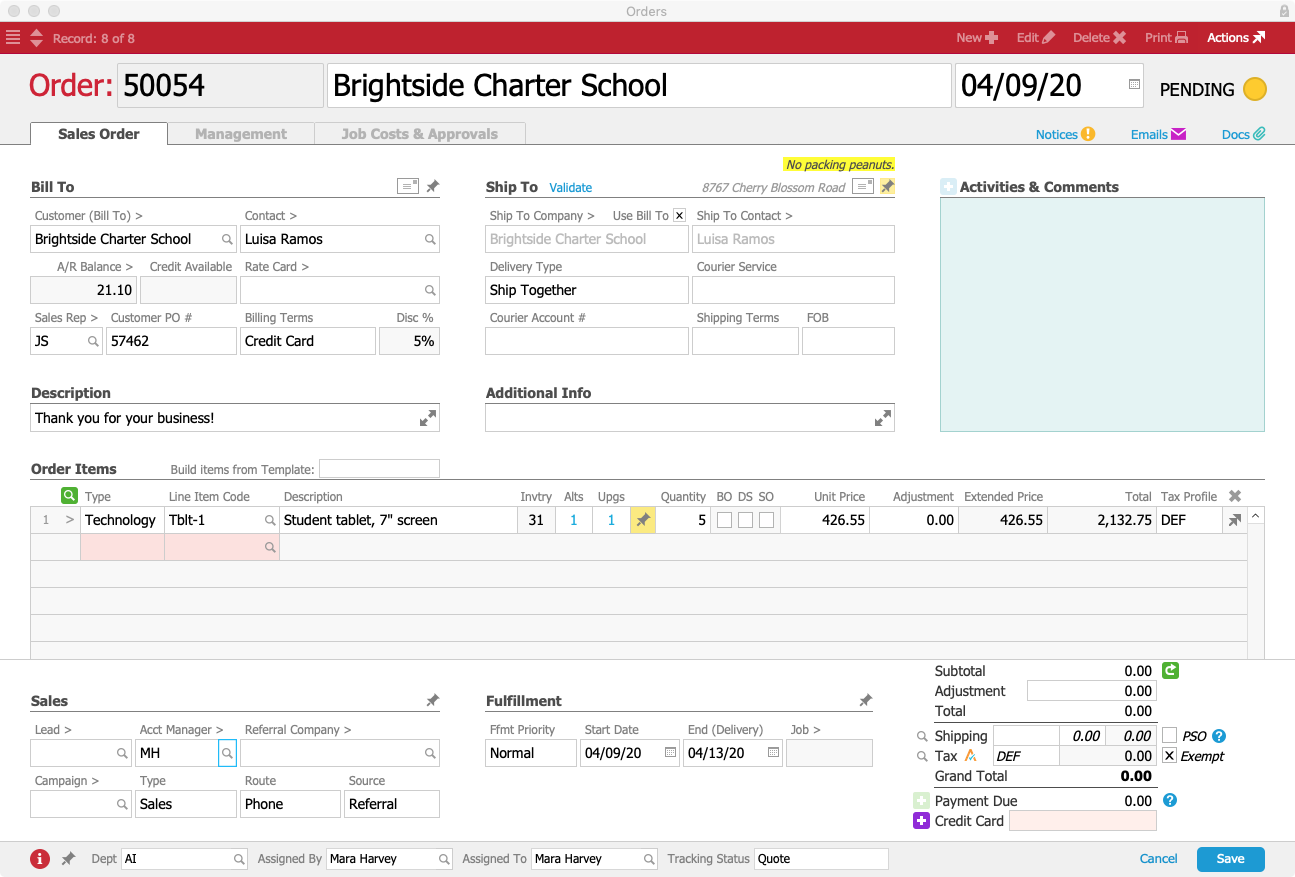
Mara Harvey receives a call from Luisa Ramos at the Brightside Charter School. Luisa would like to place an order for 5 student tablets and put it on her company card. Mara creates the order in aACE, specifying Credit Card as the billing terms.

BCS Order

When Mara selects Credit Card as the billing terms, a Credit Card field appears underneath the order’s total. Because Luisa doesn’t have a credit card on file yet, Mara will need to enter one so that it’s available when the product ships.

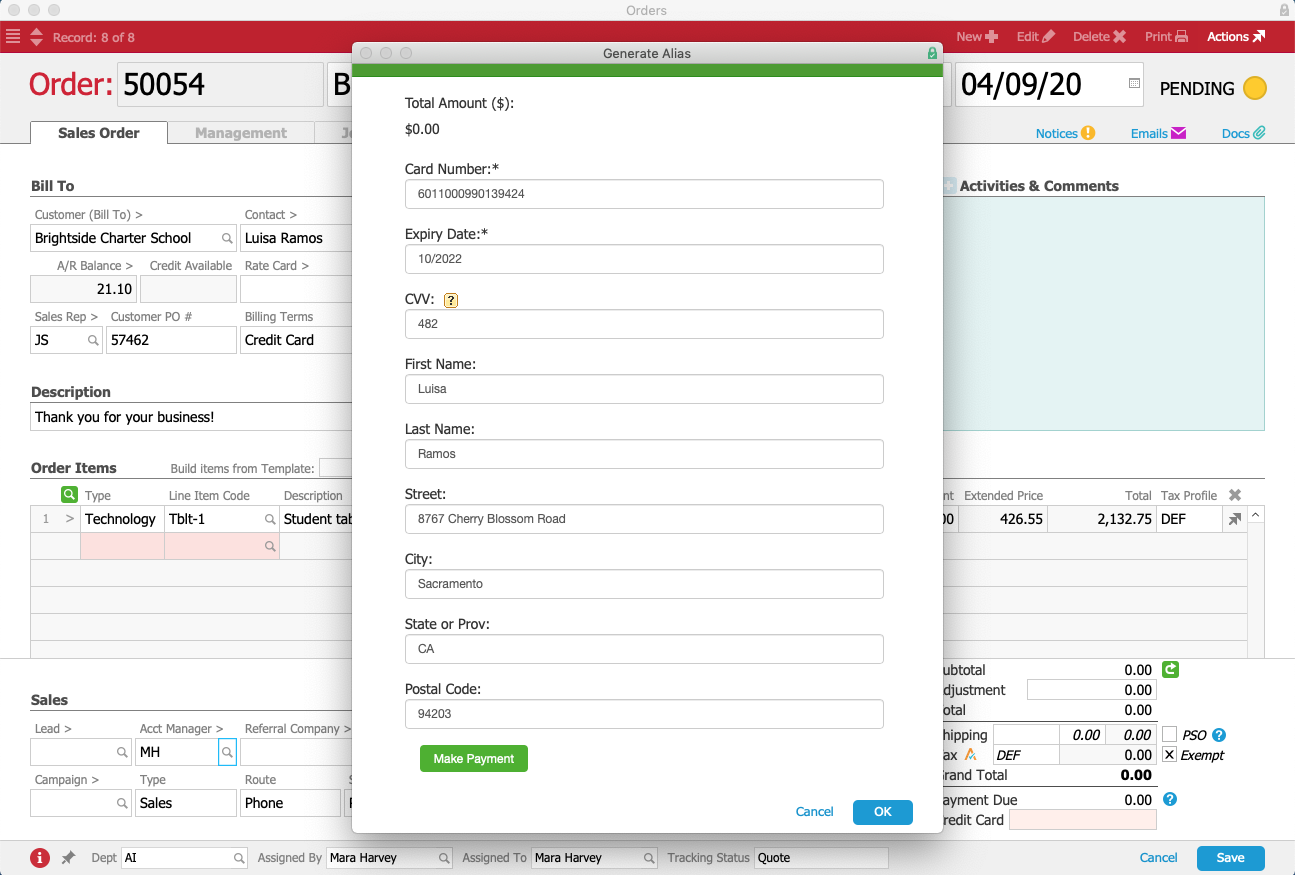
To add Luisa’s credit card, Mara clicks on the Purple Plus Icon button to the left of the Credit Card field. A form pops up where Mara can enter Luisa’s credit card details without leaving the order. The form automatically pulls in address information from Brightside Charter School’s company record, and Mara fills in the card number, expiration date, security code, and cardholder name.

BCS Generate Alias Form

Although this form was launched by a button in aACE, the form itself isn’t part of aACE — instead it’s a portal into the payment processor’s server that has been integrated seamlessly into aACME’s aACE solution. This ensures that when Mara enters Luisa’s sensitive credit card information, that data is never stored locally where it may be at risk, but rather is stored only on the payment processor’s secure servers.

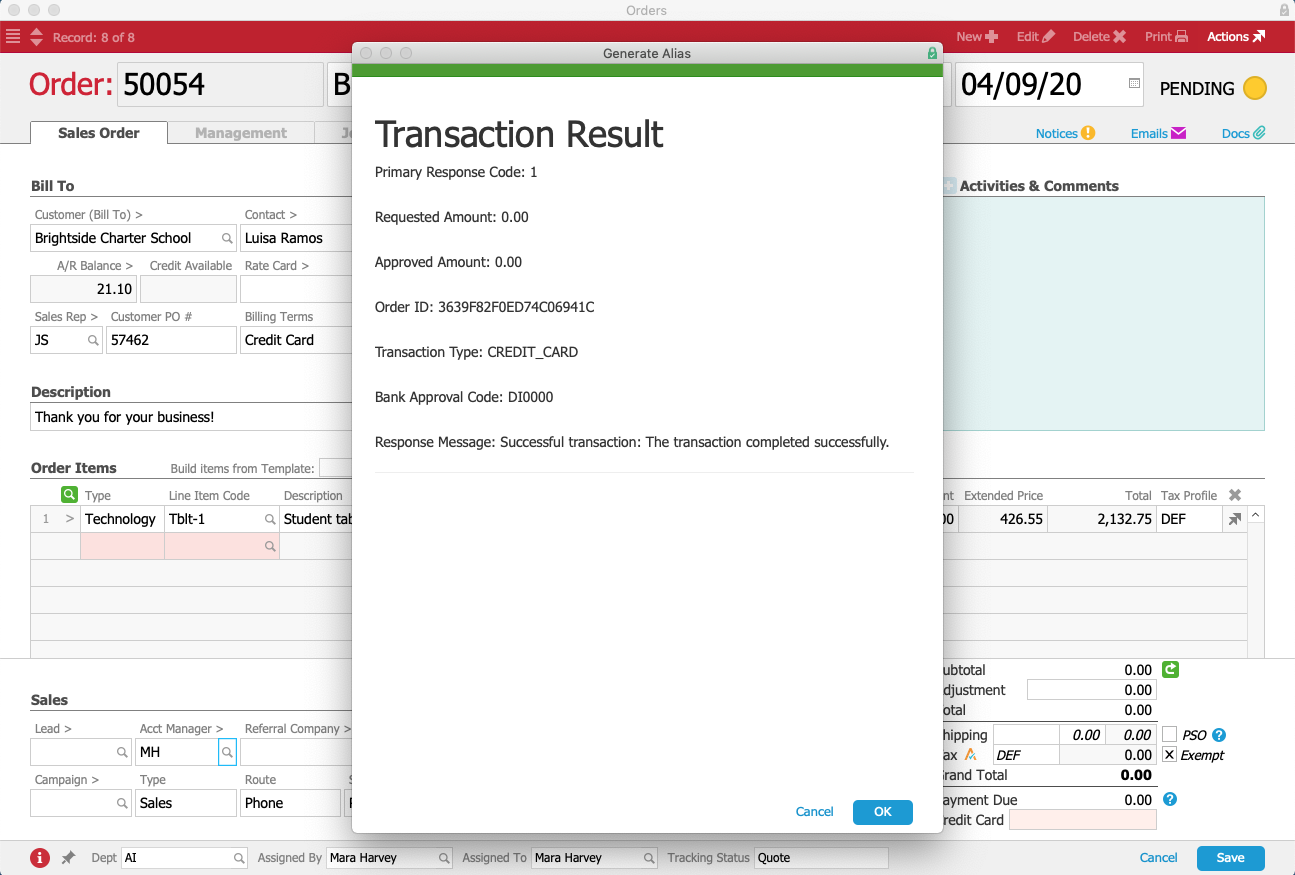
Once the Mara submits the form, the payment processor generates a token for Luisa’s credit card that is stored in aACE. This makes it easier for the aACME sales team to process future orders, while still maintaining PCI compliance. In seconds, Mara receives a message that the transaction went through successfully. The card is now ready to be used.

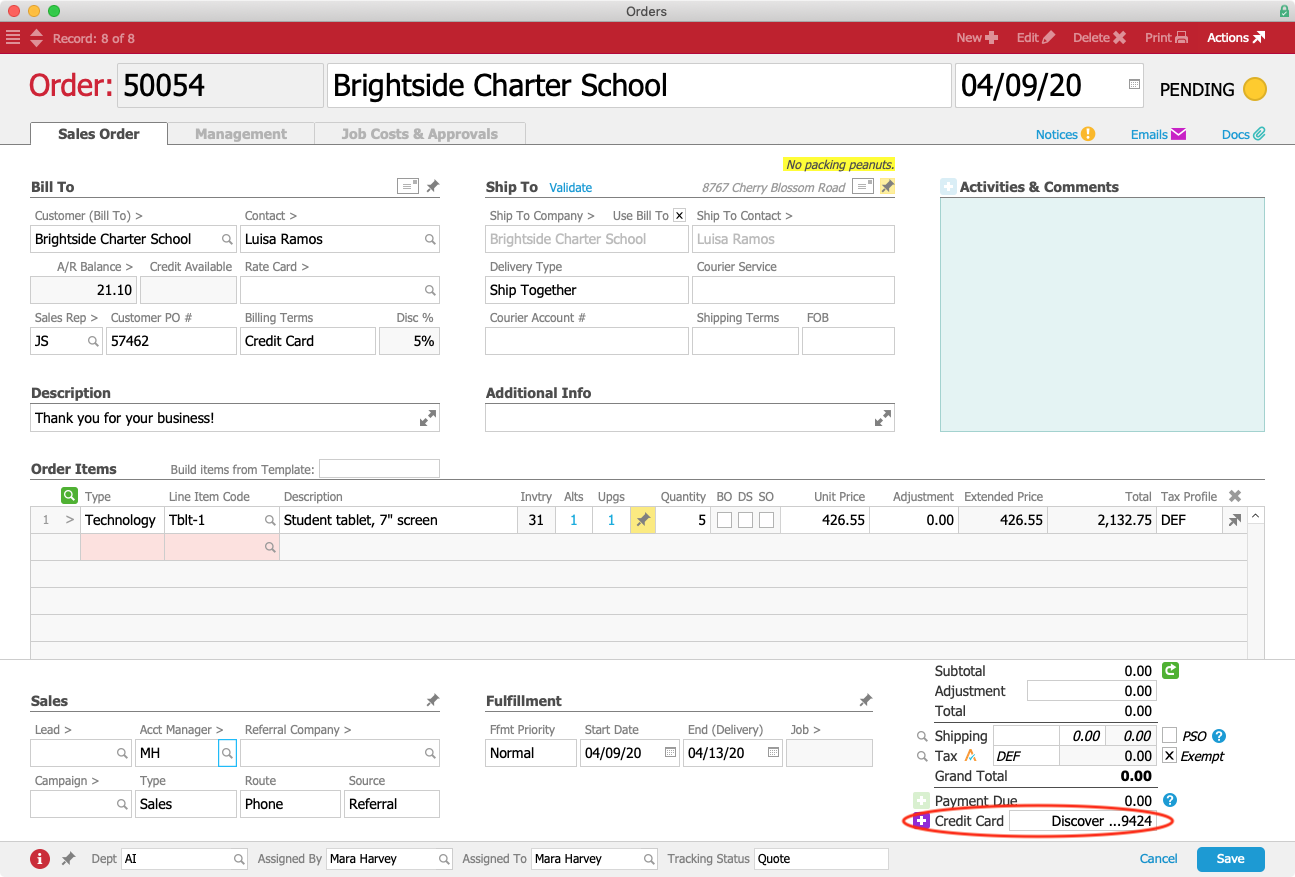
Mara closes the form, and aACE automatically pulls the card’s alias into the Credit Card field. Only the card brand, last four digits, and expiration date are displayed. A hidden field contains the token; remember, at no point does aACE itself or Mara’s workstation have access to the full credit card number.

BCS Transaction Result

Mara saves and processes Luisa’s order, which prompts aACE to automatically generate a shipment for the tablets. In aACME’s warehouse, Ned Walker picks the tablets using the aACE Pick App. When he’s finished, aACE automatically transmits the shipment to aACME’s shipping solution.

Over in the Shipping Department, Kristie Hernandez logs into the shipping solution and schedules Luisa’s package for delivery. The shipment information is automatically pulled back into aACE, where the shipment record’s status is updated to Shipped.

At this point, aACE automatically generates an invoice for the order. Because the order is configured to charge the card on file, Luisa’s card is automatically charged for the balance, resulting in a posted receipt and closed invoice.

BCS Order with CC

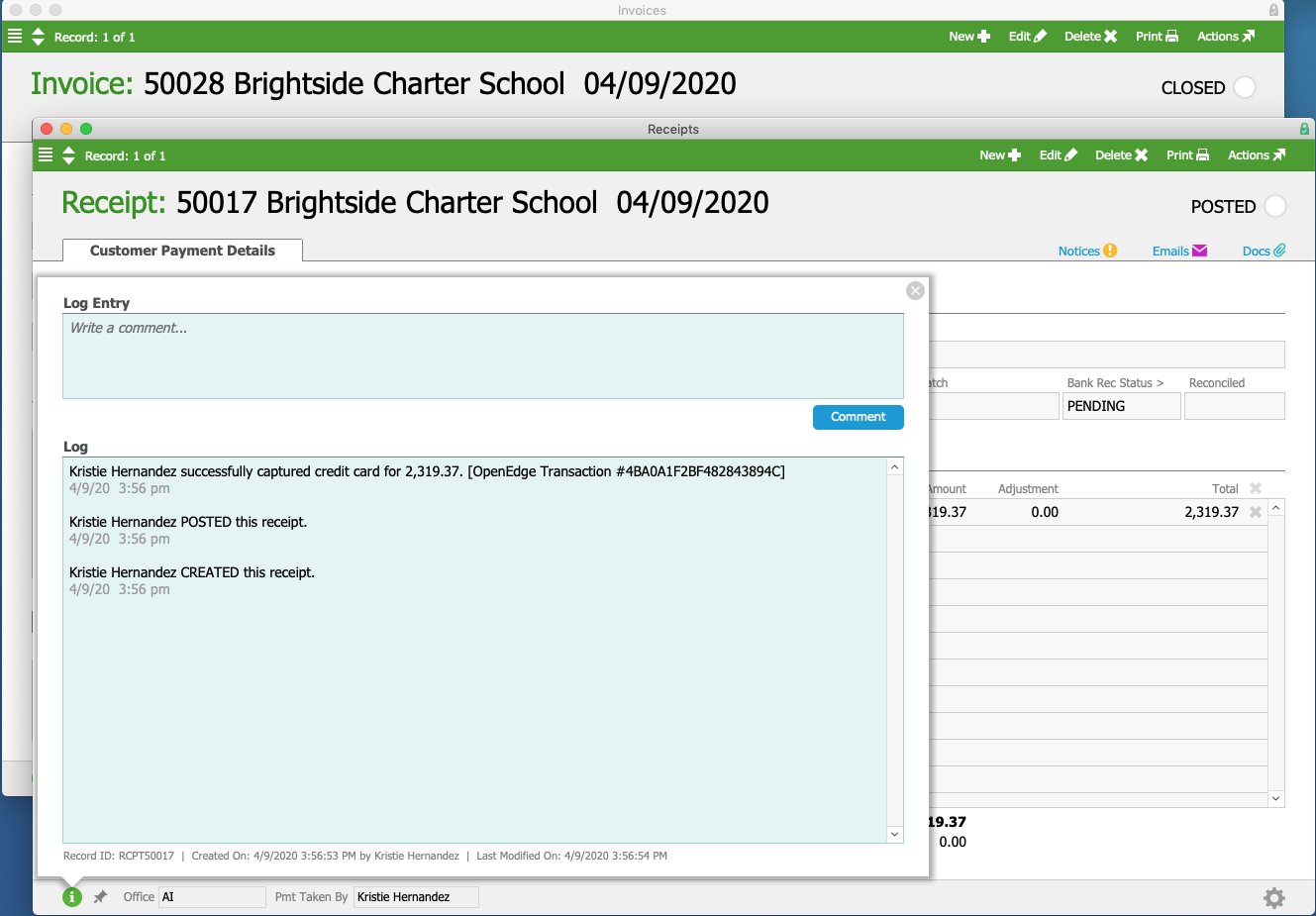
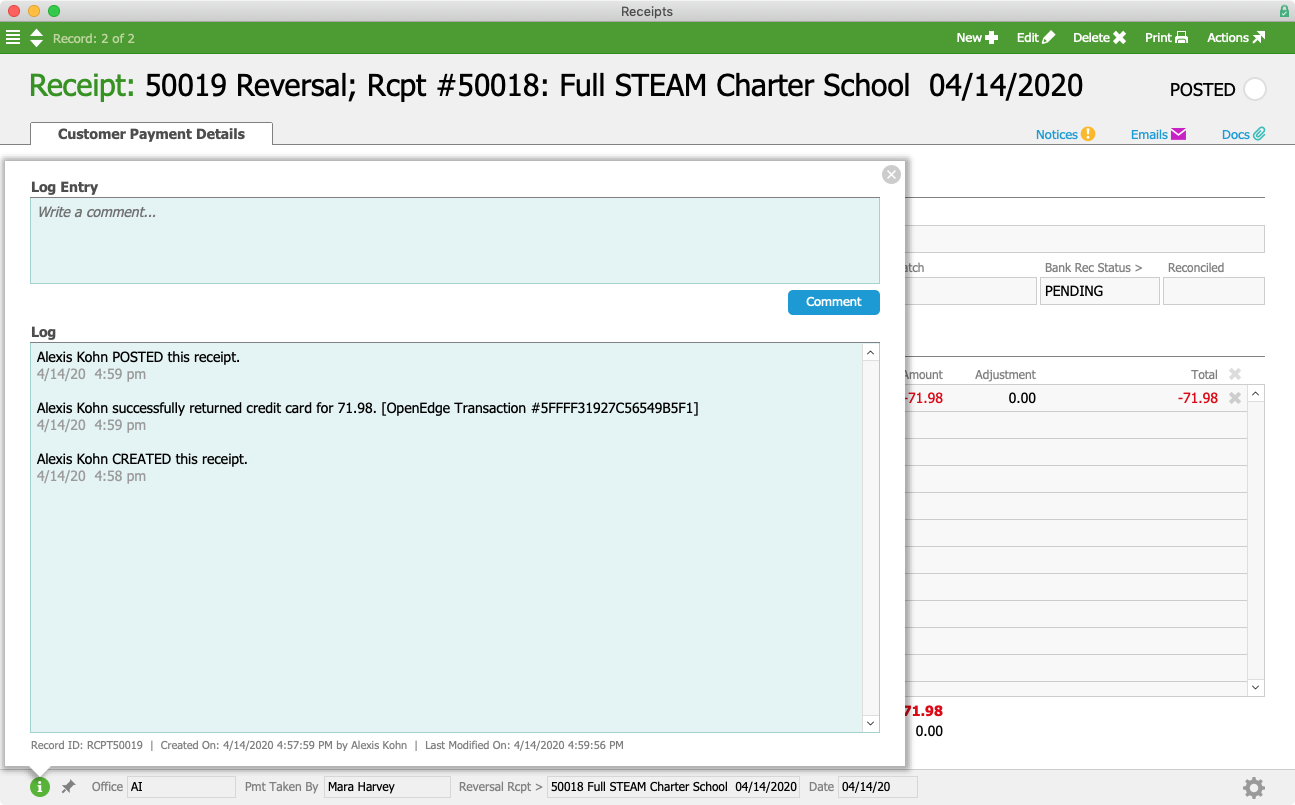
In the receipt’s log, we can see that the credit card was successfully charged.

BCS Invoice and Receipt

But what happens when there’s a problem with the credit card and the payment fails to go through? aACE notifies the relevant parties immediately, enabling you to prevent products from going out the door without having been paid for. Let’s take a look at how that works.

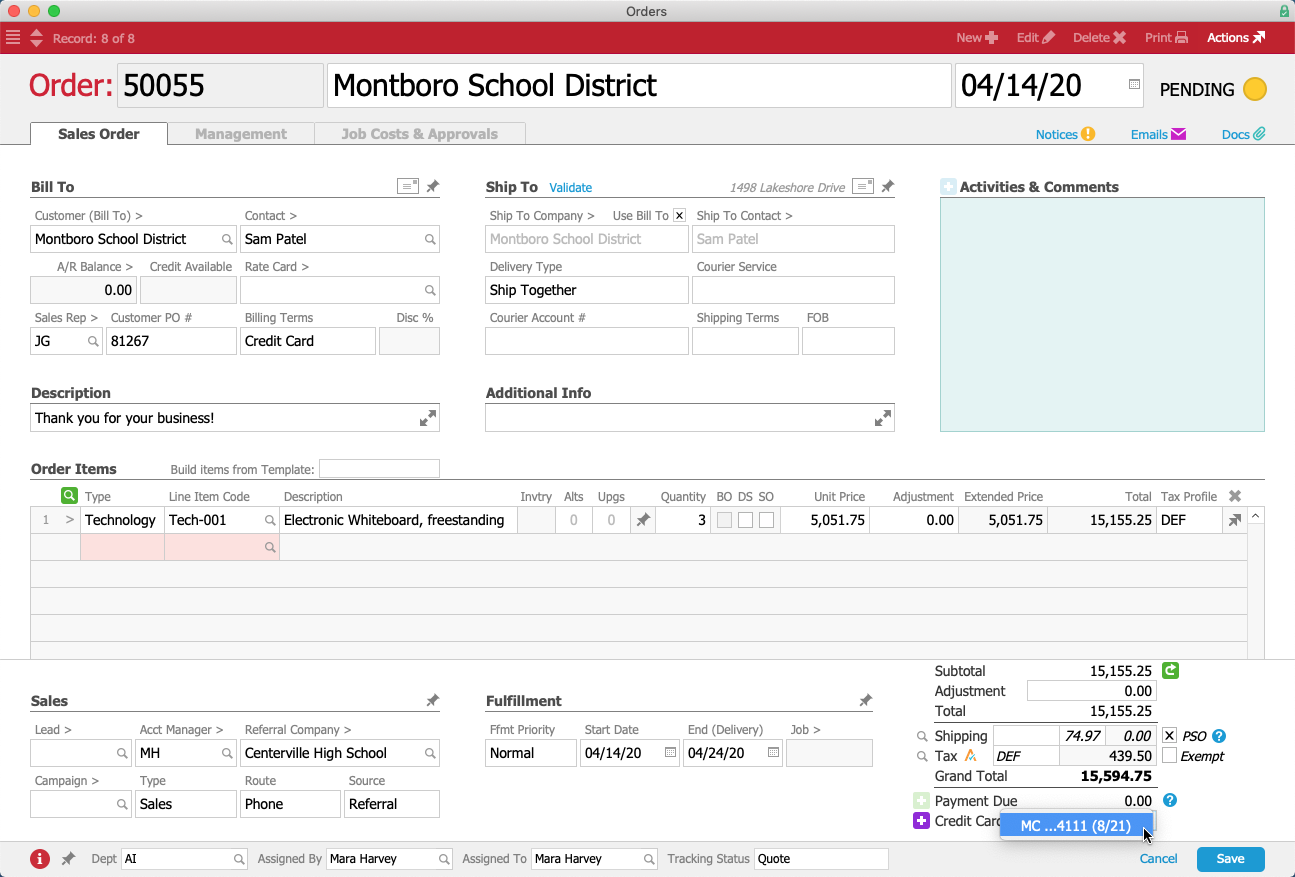
Mara receives another order, this time for 3 electronic whiteboards from the Montboro School District. Sam Patel, the Assistant Superintendent placing the order, would like to pay with a credit card he has used previously with aACME. As before, Mara selects Credit Card as the billing terms and the Credit Card field appears under the order’s total. This time, instead of entering new credit card details, Mara can simply choose the card Sam wants to use from the drop-down list.

MSD Order

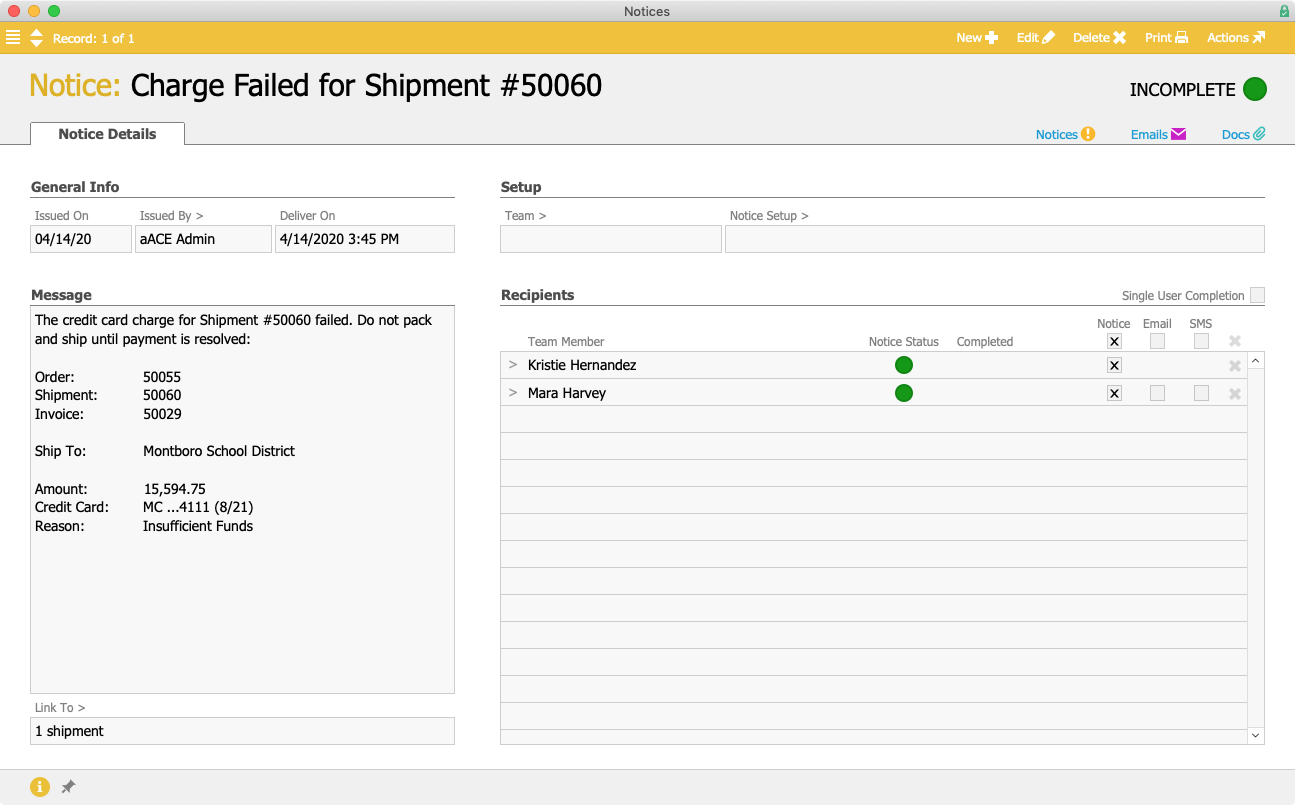
The order proceeds to the warehouse, where it’s picked, packed, and prepared to be shipped. When Kristie schedules the shipment, aACE again automatically generates an invoice and charges the credit card on file – but this time, the card is declined.

Immediately, aACE sends a text message to Kristie’s mobile phone. She cancels the shipment and stops the package from leaving before payment is received. Mara also receives a notification, allowing her to quickly follow up with Sam to get a new credit card for the order.

MSD Notice

Now we’ve seen how aACE+ Payments makes it easy to take credit card payments, but what happens if a customer requests a refund or exchange?

The Full STEAM Academy Charter School ordered 25 French textbooks, but when they arrive, two of the books are damaged. Tina Rivera, the school principal, contacts aACME to initiate the refund process and send the damaged books back.

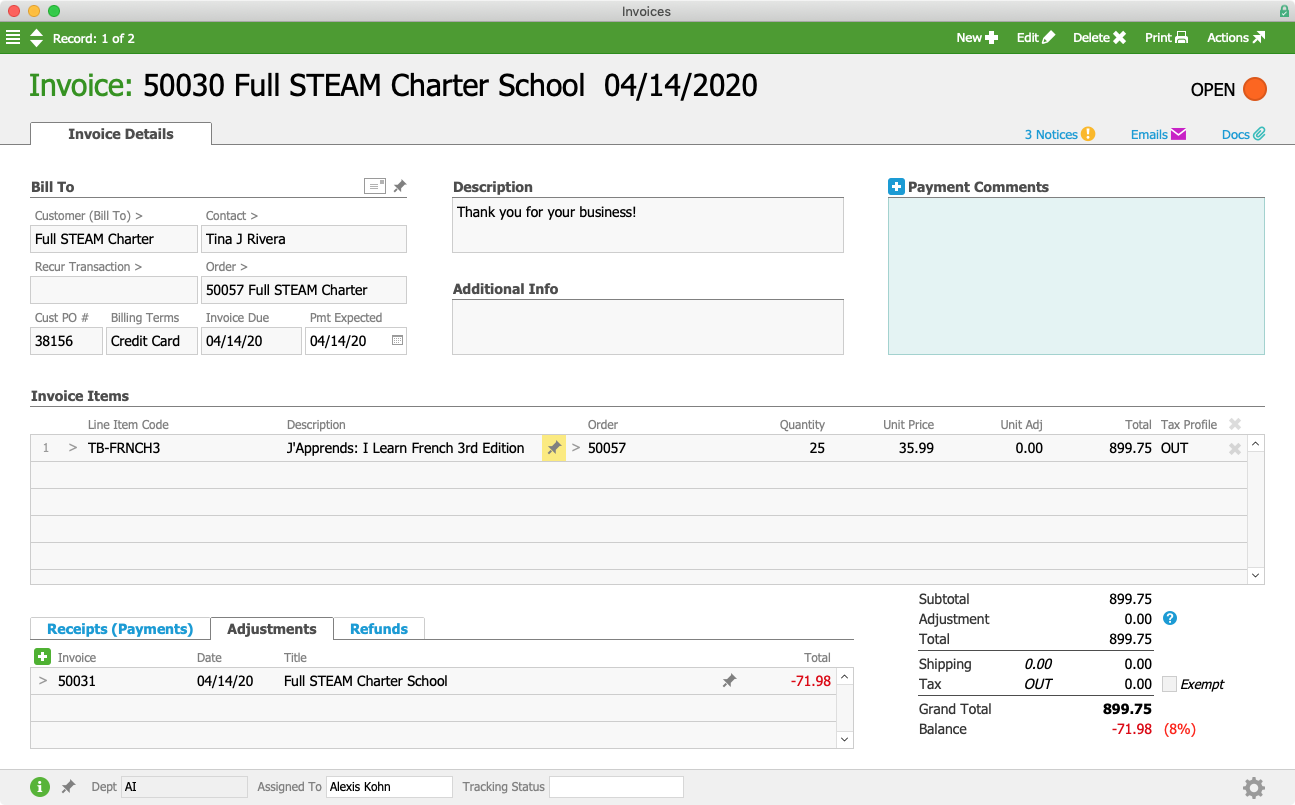
When the package from Full STEAM arrives in aACME’s warehouse, Alexis Kohn in the Billing department receives a notice alerting her that an adjustment invoice has been generated. She determines that everything looks correct and processes it, which reverses the amount of the two textbooks from the original invoice.

Full STEAM Invoice with Adjustment

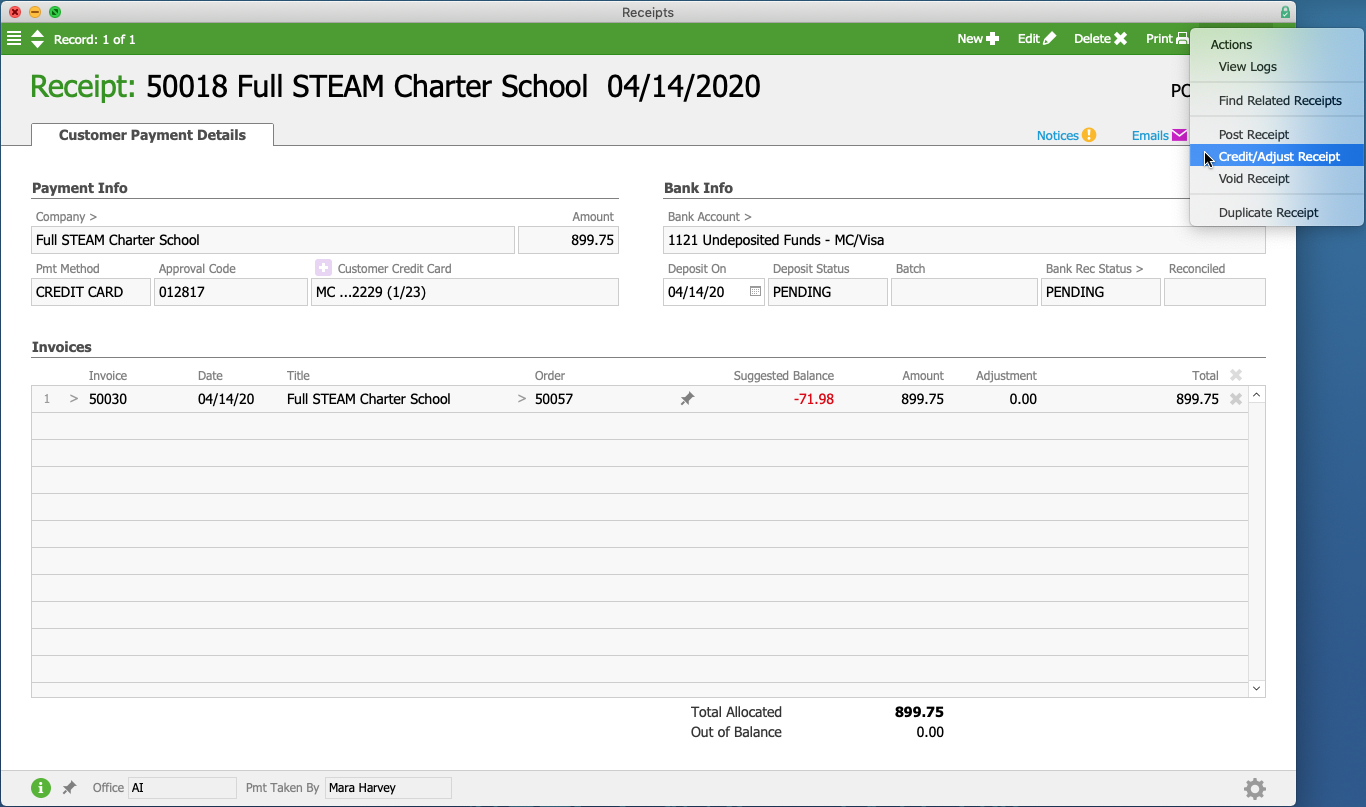
Next, Alexis needs to issue a partial refund for the two damaged books. To do that, she pulls up the original receipt and selects Credit/Adjust Receipt from the Actions menu.

Full STEAM Receipt

aACE automatically pulls in the customer, method of payment, invoice, order, and a suggested amount for the refund. After double-checking that the information is correct, Alexis posts the receipt. Tina’s credit card is then refunded when the credit card batch settles overnight.

Full STEAM Receipt Log

What if a sales rep makes a mistake and accidentally overcharges the customer? Fortunately, aACE+ Payments makes it easy to correct those errors — and as long as the mistake is fixed on the same day, the erroneous charge won’t even make it to the customer’s credit card statement.

Jamie Gianelli, a sales rep at aACME, receives an order from Southglen High School for new textbooks to replace the outdated ones the school has been using. Nikki Huang, the Vice Principal at Southglen, gives Jamie a long list of books and their quantities, including 45 natural science textbooks. Jamie accidentally mistypes this number as 54, and due to the many items in the order, neither she nor Nikki realize that the total is higher than it should be. It’s only after Jamie has opened the order and taken the payment that she realizes the mistake.
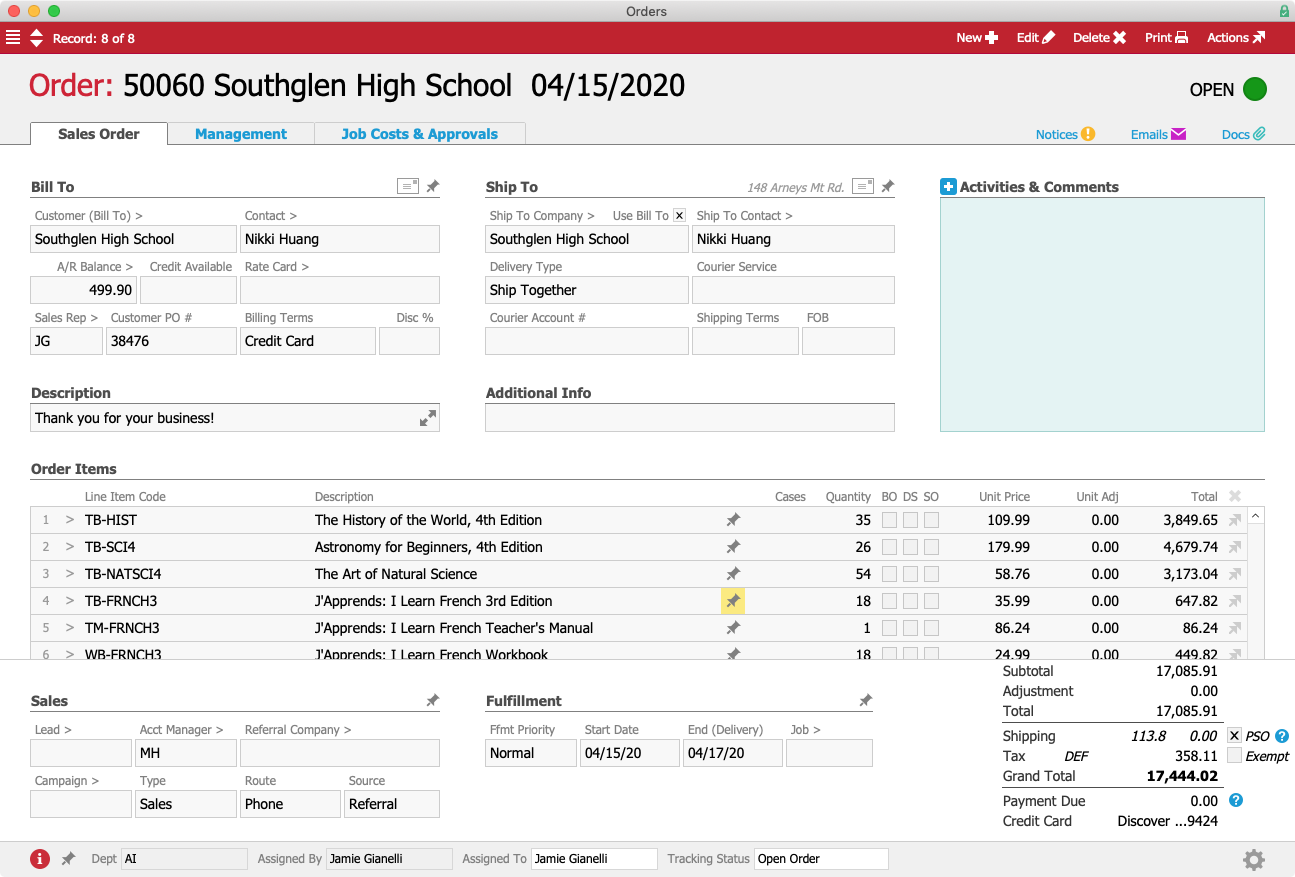
Southglen Order

Fortunately, because Jamie caught the error on the same day that the payment was processed, she can fix it before the incorrect charge hits Nikki’s credit card. She pulls up the order and changes the quantity of the science books from 54 to 45, then voids the receipt that was originally created, which voids the pending charge and removes it from Nikki’s credit card statement. With the updated order Jamie can charge the correct amount without Nikki ever seeing the mistake.

And if a customer wants to pay by ACH? aACE+ Payments supports that too.

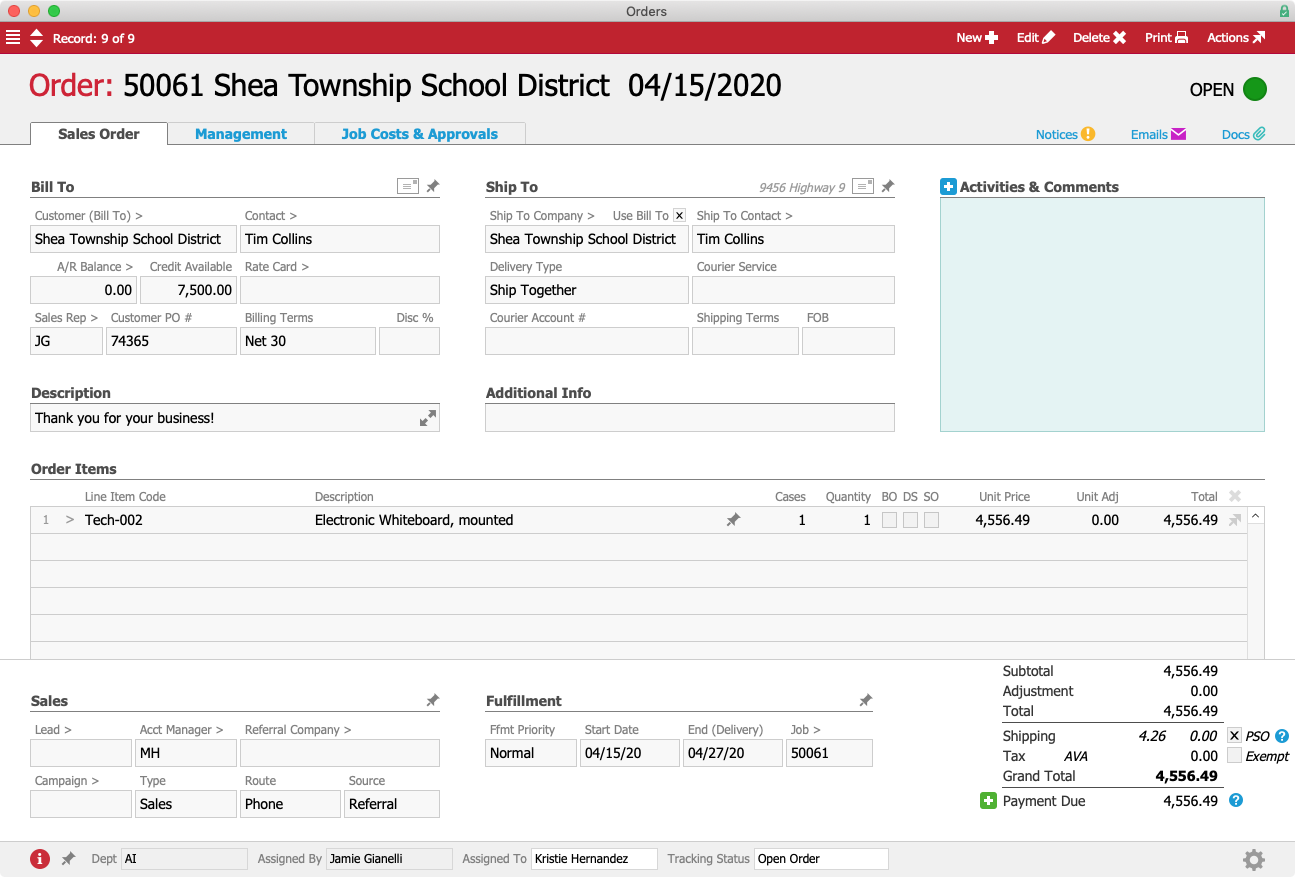
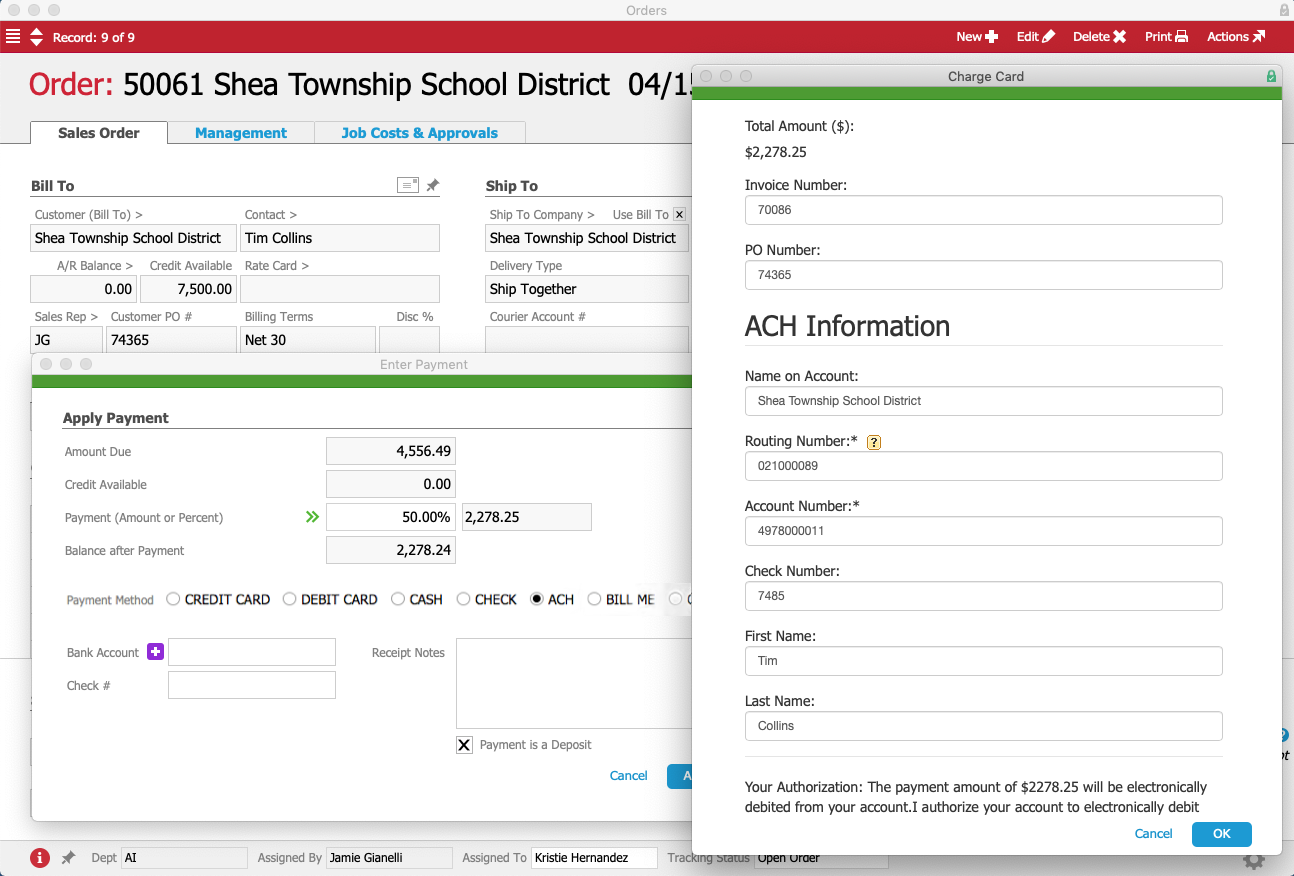
Jamie receives an order from the Shea Township School District for a new mounted electronic whiteboard. Tim Collins, the Administrative Assistant at Shea Township, would like to place a 50% deposit on the order using ACH.

STSD Order

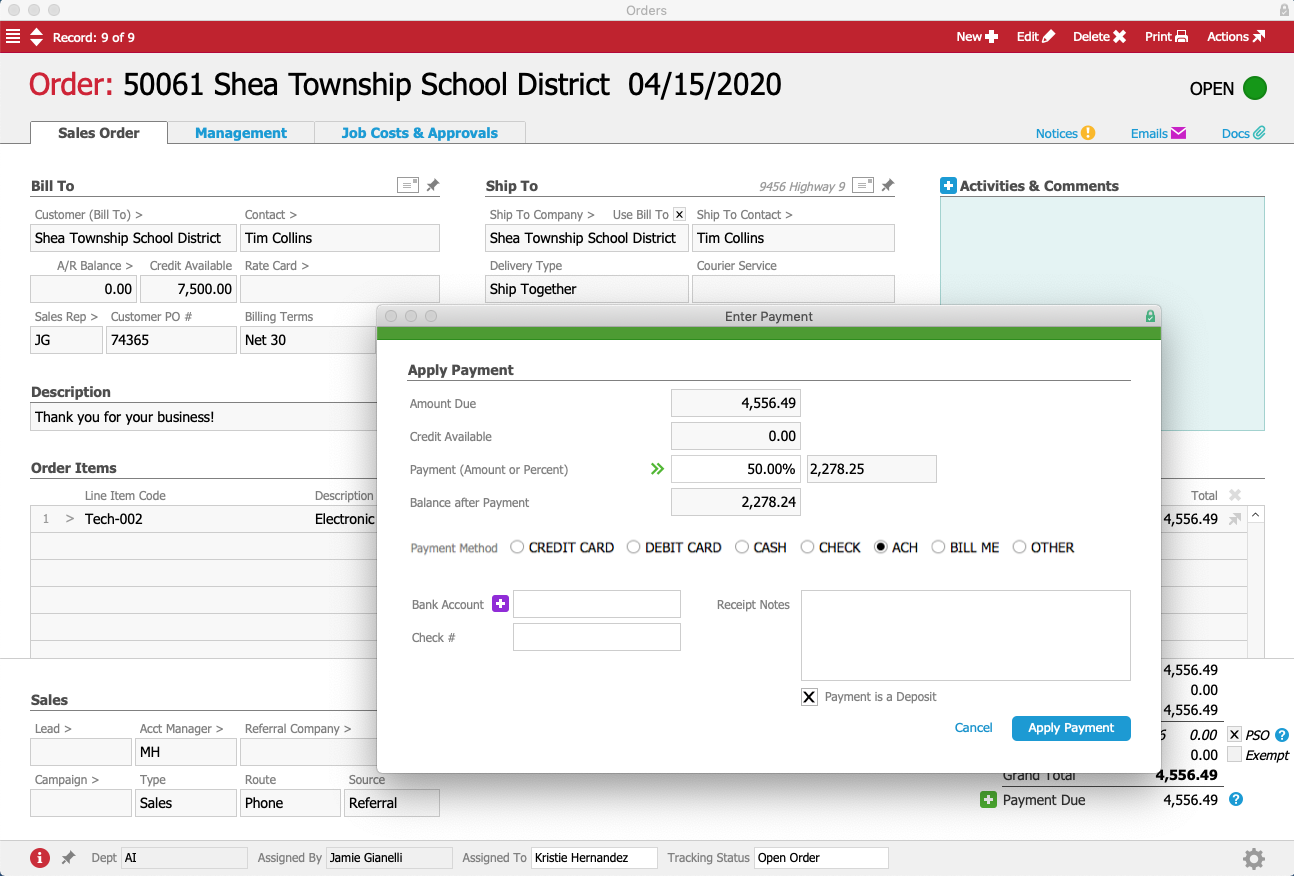
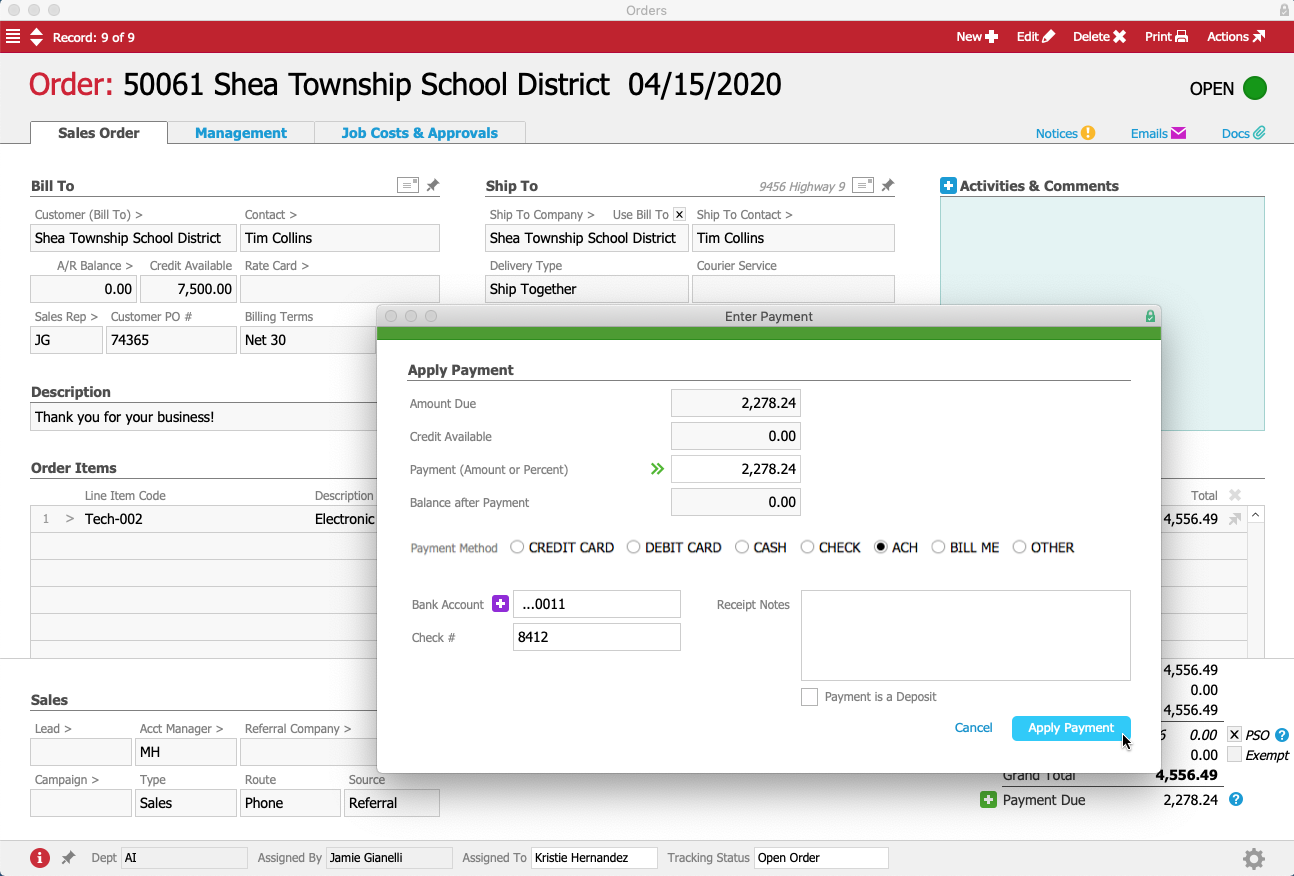
To process the deposit right away, Jamie clicks on the Green Plus Icon icon next to the Payment Due field, which opens up a payment dialog. Jamie enters “50%” in the Payment field and marks the “Payment is a Deposit” flag at the bottom of the screen. She selects “ACH” as the payment method.

STSD Enter Payment

Jamie clicks on the Purple Plus Icon icon next to the Bank Account field, and a form for entering the bank account details pops up. Like we saw in the first example, this form is not part of aACE — rather, it’s an integrated portal to aACME’s payment processor.

STSD Charge Card Screen

Jamie enters Tim’s bank information in the form to authorize the payment processor to take the deposit directly from Tim’s checking account — all without his sensitive banking information ever entering aACE.

Jamie closes the form and returns to the payment dialog in aACE. As above, the bank account has been “tokenized” so it can be used for future payments. The only thing left for Jamie to do is click on the Apply Payment button to record the deposit in aACE.

Days later, Jamie receives a notification that the order has been shipped and it’s time to process the final payment. She returns to the order record and again clicks on the Green Plus Icon icon next to the Payment Due field.

As before, she selects “ACH” as the payment method. She has already entered Tim’s banking information in aACME’s payment processor, so a token representing the account appears in a drop-down menu when Jamie clicks into the Bank Account field. Jamie selects the account and clicks the Apply Payment button to process the payment.

STSD Final Payment

As these examples show, aACE+ Payments enables your business to take credit card and ACH payments swiftly and securely, removing the opportunity for errors introduced by duplicate data entry. To learn more about what aACE can do for you, register for a webinar today.

"We wouldn’t be able to do what we do without what aACE does for us. We used to spend hours entering each piece of data by hand — aACE automates ALL of it, freeing up our employees to handle our increasing volume of orders. We can do a lot more now thanks to aACE’s near-limitless functionality." - Cory Elliot, Founder and President, Troy Filters Ltd.

Learn More

You’ve nurtured a lead through the buyer’s journey, matched them with a product that’s sure to fit their needs, and now it’s time to take their payment. If you’re still using outdated manual methods and terminals that don’t communicate with your ERP, this may be time-consuming,... Learn More

-->

You’ve nurtured a lead through the buyer’s journey, matched them with a product that’s sure to fit their needs, and now it’s time to take their payment. If you’re still using outdated manual methods and terminals that don’t communicate with your ERP, this may be time-consuming, error-prone, and unsecured. Wouldn’t it be great if you could process payments quickly and securely all from within your order management solution?

With aACE+ Payments, you can.

A growing list of leading payment processing services integrate seamlessly with your aACE solution, ensuring that you’re able to quickly and securely process credit card, debit card, and ACH check payments. Eliminate the hassle of manually entering payment information into multiple solutions; with aACE+ Payments, you can enter payment information directly into a payment processor’s secure servers from aACE. Securely applying payment is a breeze, saving you time and minimizing the potential for errors. To learn more, let’s take a look at how our sample company, aACME Education Solutions, uses this feature in their day-to-day operations.

Mara Harvey receives a call from Luisa Ramos at the Brightside Charter School. Luisa would like to place an order for 5 student tablets and put it on her company card. Mara creates the order in aACE, specifying Credit Card as the billing terms.

BCS Order

When Mara selects Credit Card as the billing terms, a Credit Card field appears underneath the order’s total. Because Luisa doesn’t have a credit card on file yet, Mara will need to enter one so that it’s available when the product ships.

To add Luisa’s credit card, Mara clicks on the Purple Plus Icon button to the left of the Credit Card field. A form pops up where Mara can enter Luisa’s credit card details without leaving the order. The form automatically pulls in address information from Brightside Charter School’s company record, and Mara fills in the card number, expiration date, security code, and cardholder name.

BCS Generate Alias Form

Although this form was launched by a button in aACE, the form itself isn’t part of aACE — instead it’s a portal into the payment processor’s server that has been integrated seamlessly into aACME’s aACE solution. This ensures that when Mara enters Luisa’s sensitive credit card information, that data is never stored locally where it may be at risk, but rather is stored only on the payment processor’s secure servers.

Once the Mara submits the form, the payment processor generates a token for Luisa’s credit card that is stored in aACE. This makes it easier for the aACME sales team to process future orders, while still maintaining PCI compliance. In seconds, Mara receives a message that the transaction went through successfully. The card is now ready to be used.

Mara closes the form, and aACE automatically pulls the card’s alias into the Credit Card field. Only the card brand, last four digits, and expiration date are displayed. A hidden field contains the token; remember, at no point does aACE itself or Mara’s workstation have access to the full credit card number.

BCS Transaction Result

Mara saves and processes Luisa’s order, which prompts aACE to automatically generate a shipment for the tablets. In aACME’s warehouse, Ned Walker picks the tablets using the aACE Pick App. When he’s finished, aACE automatically transmits the shipment to aACME’s shipping solution.

Over in the Shipping Department, Kristie Hernandez logs into the shipping solution and schedules Luisa’s package for delivery. The shipment information is automatically pulled back into aACE, where the shipment record’s status is updated to Shipped.

At this point, aACE automatically generates an invoice for the order. Because the order is configured to charge the card on file, Luisa’s card is automatically charged for the balance, resulting in a posted receipt and closed invoice.

BCS Order with CC

In the receipt’s log, we can see that the credit card was successfully charged.

BCS Invoice and Receipt

But what happens when there’s a problem with the credit card and the payment fails to go through? aACE notifies the relevant parties immediately, enabling you to prevent products from going out the door without having been paid for. Let’s take a look at how that works.

Mara receives another order, this time for 3 electronic whiteboards from the Montboro School District. Sam Patel, the Assistant Superintendent placing the order, would like to pay with a credit card he has used previously with aACME. As before, Mara selects Credit Card as the billing terms and the Credit Card field appears under the order’s total. This time, instead of entering new credit card details, Mara can simply choose the card Sam wants to use from the drop-down list.

MSD Order

The order proceeds to the warehouse, where it’s picked, packed, and prepared to be shipped. When Kristie schedules the shipment, aACE again automatically generates an invoice and charges the credit card on file – but this time, the card is declined.

Immediately, aACE sends a text message to Kristie’s mobile phone. She cancels the shipment and stops the package from leaving before payment is received. Mara also receives a notification, allowing her to quickly follow up with Sam to get a new credit card for the order.

MSD Notice

Now we’ve seen how aACE+ Payments makes it easy to take credit card payments, but what happens if a customer requests a refund or exchange?

The Full STEAM Academy Charter School ordered 25 French textbooks, but when they arrive, two of the books are damaged. Tina Rivera, the school principal, contacts aACME to initiate the refund process and send the damaged books back.

When the package from Full STEAM arrives in aACME’s warehouse, Alexis Kohn in the Billing department receives a notice alerting her that an adjustment invoice has been generated. She determines that everything looks correct and processes it, which reverses the amount of the two textbooks from the original invoice.

Full STEAM Invoice with Adjustment

Next, Alexis needs to issue a partial refund for the two damaged books. To do that, she pulls up the original receipt and selects Credit/Adjust Receipt from the Actions menu.

Full STEAM Receipt

aACE automatically pulls in the customer, method of payment, invoice, order, and a suggested amount for the refund. After double-checking that the information is correct, Alexis posts the receipt. Tina’s credit card is then refunded when the credit card batch settles overnight.

Full STEAM Receipt Log

What if a sales rep makes a mistake and accidentally overcharges the customer? Fortunately, aACE+ Payments makes it easy to correct those errors — and as long as the mistake is fixed on the same day, the erroneous charge won’t even make it to the customer’s credit card statement.

Jamie Gianelli, a sales rep at aACME, receives an order from Southglen High School for new textbooks to replace the outdated ones the school has been using. Nikki Huang, the Vice Principal at Southglen, gives Jamie a long list of books and their quantities, including 45 natural science textbooks. Jamie accidentally mistypes this number as 54, and due to the many items in the order, neither she nor Nikki realize that the total is higher than it should be. It’s only after Jamie has opened the order and taken the payment that she realizes the mistake.

Southglen Order

Fortunately, because Jamie caught the error on the same day that the payment was processed, she can fix it before the incorrect charge hits Nikki’s credit card. She pulls up the order and changes the quantity of the science books from 54 to 45, then voids the receipt that was originally created, which voids the pending charge and removes it from Nikki’s credit card statement. With the updated order Jamie can charge the correct amount without Nikki ever seeing the mistake.

And if a customer wants to pay by ACH? aACE+ Payments supports that too.

Jamie receives an order from the Shea Township School District for a new mounted electronic whiteboard. Tim Collins, the Administrative Assistant at Shea Township, would like to place a 50% deposit on the order using ACH.

STSD Order

To process the deposit right away, Jamie clicks on the Green Plus Icon icon next to the Payment Due field, which opens up a payment dialog. Jamie enters “50%” in the Payment field and marks the “Payment is a Deposit” flag at the bottom of the screen. She selects “ACH” as the payment method.

STSD Enter Payment

Jamie clicks on the Purple Plus Icon icon next to the Bank Account field, and a form for entering the bank account details pops up. Like we saw in the first example, this form is not part of aACE — rather, it’s an integrated portal to aACME’s payment processor.

STSD Charge Card Screen

Jamie enters Tim’s bank information in the form to authorize the payment processor to take the deposit directly from Tim’s checking account — all without his sensitive banking information ever entering aACE.

Jamie closes the form and returns to the payment dialog in aACE. As above, the bank account has been “tokenized” so it can be used for future payments. The only thing left for Jamie to do is click on the Apply Payment button to record the deposit in aACE.

Days later, Jamie receives a notification that the order has been shipped and it’s time to process the final payment. She returns to the order record and again clicks on the Green Plus Icon icon next to the Payment Due field.

As before, she selects “ACH” as the payment method. She has already entered Tim’s banking information in aACME’s payment processor, so a token representing the account appears in a drop-down menu when Jamie clicks into the Bank Account field. Jamie selects the account and clicks the Apply Payment button to process the payment.

STSD Final Payment

As these examples show, aACE+ Payments enables your business to take credit card and ACH payments swiftly and securely, removing the opportunity for errors introduced by duplicate data entry. To learn more about what aACE can do for you, register for a webinar today.

"We wouldn’t be able to do what we do without what aACE does for us. We used to spend hours entering each piece of data by hand — aACE automates ALL of it, freeing up our employees to handle our increasing volume of orders. We can do a lot more now thanks to aACE’s near-limitless functionality." - Cory Elliot, Founder and President, Troy Filters Ltd.

Learn More

Read more about Access Contacts and Leads On-the-Go with the aACE CRM App

Access Contacts and Leads On-the-Go with the aACE CRM App

With aACE, they can.

aACE’s CRM App allows your sales team to quickly and easily manage their contacts from virtually anywhere. To see the app in action, let’s take a look at how our fictional company, aACME Education Solutions, uses it in their day-to-day operations.

Account Manager Mara Harvey is manning a booth at a local trade show geared toward K-12 educators. In a previous conversation with Megan Lloyd, principal of The Haughton Day School and an active prospect in Mara’s pipeline, Mara learned that she too would be at the trade show, and they agreed to meet up in person. Once Mara finishes setting up the booth, she opens the CRM App on her iPhone to get in touch with Megan. The first thing she sees is a list of her current leads.

Leads List View

Mara selects The Haughton Day School and is taken to a detail view showing pertinent information, such as the name of her contact and the next step associated with the lead.

Lead Detail

Mara taps the phone icon next to Megan’s name, then taps Call and quickly reaches Megan. She gives Megan the location of her booth, and Megan lets her know that she plans to stop by soon.

Later in the day Megan swings by the booth, where she and Mara have a productive conversation about electronic whiteboards. Afterwards, Mara taps on the Plus icon to enter a new Comment or Activity, then selects the microphone option on her keyboard to verbally record some thoughts about the conversation. She saves her remarks as an Activity so that they will appear in The Haughton Day School’s company record in addition to the lead record. When she’s back in the office she’ll send over those quotes, but for now she’s moving quickly and only wants to spend time on the essential information.

Activity Entry

Later during the trade show, Mara strikes up a conversation with Caroline Silva, the principal at Morningside Elementary School. Caroline is interested in using tablets in the classroom to help her fifth-graders become more proficient with reading. She asks Mara to send her a catalog once she’s back in the office.

To capture this interaction with Caroline, Mara opens the Leads tab in the CRM App and taps the Plus button to create a new record. Because she’s focused on keeping the conversation going while entering this data, she only includes the most pertinent information, knowing she can go back later and add more details. Mara sets “Send Materials” as her next step and “Sales Inquiry” as the lead type.

New Lead

Mara also takes some time to scope out other vendors at the trade show. She is particularly intrigued by Tech2Teach, a small company selling educational software. Thinking she may want to pass their information on to aACME’s buyers as a potential vendor, Mara opens the Companies tab in the CRM App and quickly enters their information.

New Company

The cloud icon in the bottom right-hand corner of the app is highlighted in blue, meaning that Live Sync is enabled. This allows the CRM App to pass all of the information Mara is entering back to aACME’s desktop aACE solution in real time. This feature is best utilized when there is an available Wi-Fi network.

But what happens if that Wi-Fi connection is interrupted or unavailable? The flight home from the trade show doesn’t offer Wi-Fi, so Mara turns Live Sync off by tapping the cloud icon. She spends the flight entering the names and contact information from the new business cards she received.

New Contact

After landing and reconnecting to Wi-Fi, Mara taps the icon again to sync the data she entered in the app with her desktop aACE solution. Back in the office, the contacts she entered are now available for her colleagues to see and follow up with.

aACE’s CRM App puts the information your sales team needs directly at their fingertips, making it easy to keep up with today’s fast-moving markets. To learn more about how aACE unites your desktop and mobile CRM tools to empower your sales team, check out our related feature highlight. And to discover what else aACE can do for your business, sign up for a webinar today.

Learn More

Whether they’re meeting existing clients for lunch or greeting new prospects at a conference, your sales team is constantly in motion – and they need a CRM solution that will move with them. Wouldn’t it be great if they could create contacts, update leads, and set next steps directly from the... Learn More

-->

Whether they’re meeting existing clients for lunch or greeting new prospects at a conference, your sales team is constantly in motion – and they need a CRM solution that will move with them. Wouldn’t it be great if they could create contacts, update leads, and set next steps directly from the same phones they already take everywhere they go?

With aACE, they can.

aACE’s CRM App allows your sales team to quickly and easily manage their contacts from virtually anywhere. To see the app in action, let’s take a look at how our fictional company, aACME Education Solutions, uses it in their day-to-day operations.

Account Manager Mara Harvey is manning a booth at a local trade show geared toward K-12 educators. In a previous conversation with Megan Lloyd, principal of The Haughton Day School and an active prospect in Mara’s pipeline, Mara learned that she too would be at the trade show, and they agreed to meet up in person. Once Mara finishes setting up the booth, she opens the CRM App on her iPhone to get in touch with Megan. The first thing she sees is a list of her current leads.

Leads List View

Mara selects The Haughton Day School and is taken to a detail view showing pertinent information, such as the name of her contact and the next step associated with the lead.

Lead Detail

Mara taps the phone icon next to Megan’s name, then taps Call and quickly reaches Megan. She gives Megan the location of her booth, and Megan lets her know that she plans to stop by soon.

Later in the day Megan swings by the booth, where she and Mara have a productive conversation about electronic whiteboards. Afterwards, Mara taps on the Plus icon to enter a new Comment or Activity, then selects the microphone option on her keyboard to verbally record some thoughts about the conversation. She saves her remarks as an Activity so that they will appear in The Haughton Day School’s company record in addition to the lead record. When she’s back in the office she’ll send over those quotes, but for now she’s moving quickly and only wants to spend time on the essential information.

Activity Entry

Later during the trade show, Mara strikes up a conversation with Caroline Silva, the principal at Morningside Elementary School. Caroline is interested in using tablets in the classroom to help her fifth-graders become more proficient with reading. She asks Mara to send her a catalog once she’s back in the office.

To capture this interaction with Caroline, Mara opens the Leads tab in the CRM App and taps the Plus button to create a new record. Because she’s focused on keeping the conversation going while entering this data, she only includes the most pertinent information, knowing she can go back later and add more details. Mara sets “Send Materials” as her next step and “Sales Inquiry” as the lead type.

New Lead

Mara also takes some time to scope out other vendors at the trade show. She is particularly intrigued by Tech2Teach, a small company selling educational software. Thinking she may want to pass their information on to aACME’s buyers as a potential vendor, Mara opens the Companies tab in the CRM App and quickly enters their information.

New Company

The cloud icon in the bottom right-hand corner of the app is highlighted in blue, meaning that Live Sync is enabled. This allows the CRM App to pass all of the information Mara is entering back to aACME’s desktop aACE solution in real time. This feature is best utilized when there is an available Wi-Fi network.

But what happens if that Wi-Fi connection is interrupted or unavailable? The flight home from the trade show doesn’t offer Wi-Fi, so Mara turns Live Sync off by tapping the cloud icon. She spends the flight entering the names and contact information from the new business cards she received.

New Contact

After landing and reconnecting to Wi-Fi, Mara taps the icon again to sync the data she entered in the app with her desktop aACE solution. Back in the office, the contacts she entered are now available for her colleagues to see and follow up with.

aACE’s CRM App puts the information your sales team needs directly at their fingertips, making it easy to keep up with today’s fast-moving markets. To learn more about how aACE unites your desktop and mobile CRM tools to empower your sales team, check out our related feature highlight. And to discover what else aACE can do for your business, sign up for a webinar today.

Learn More

Scroll to Top