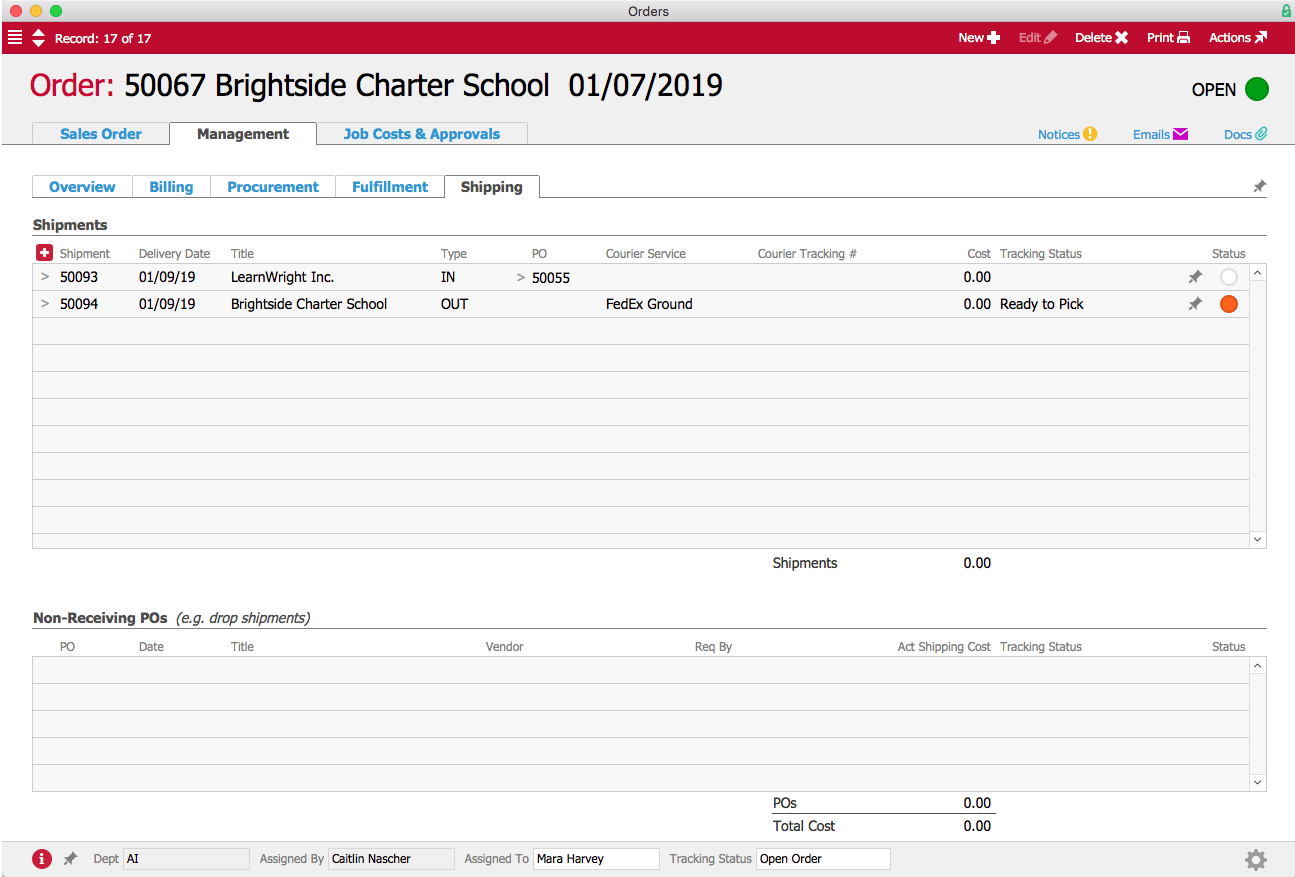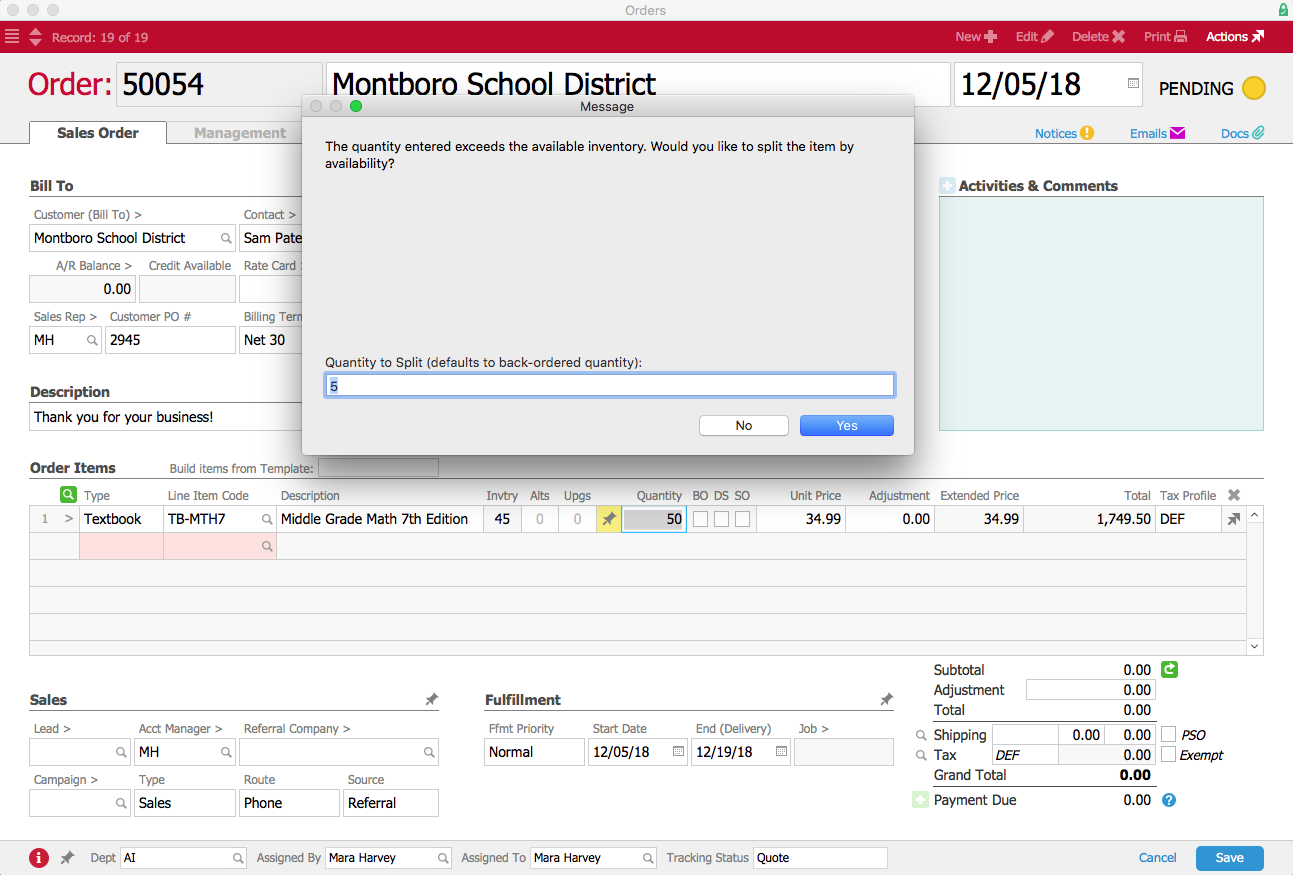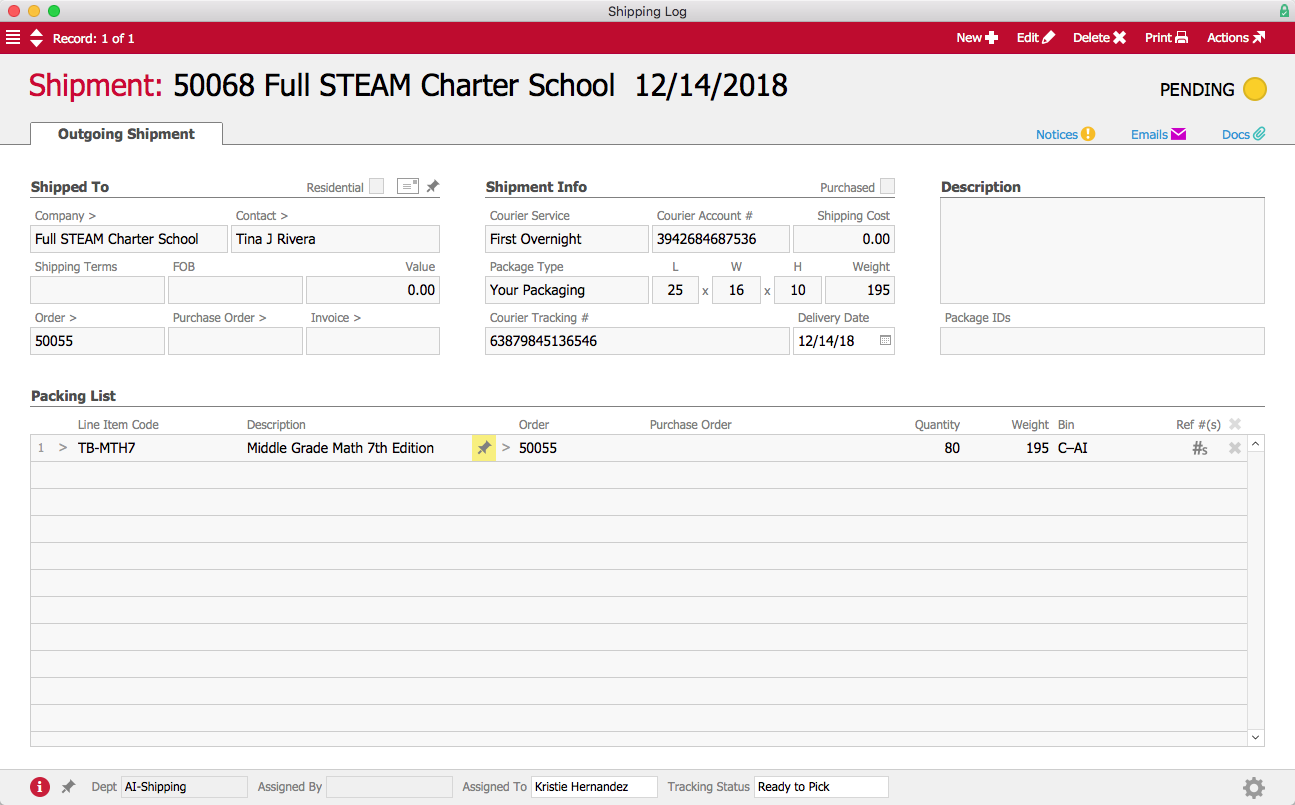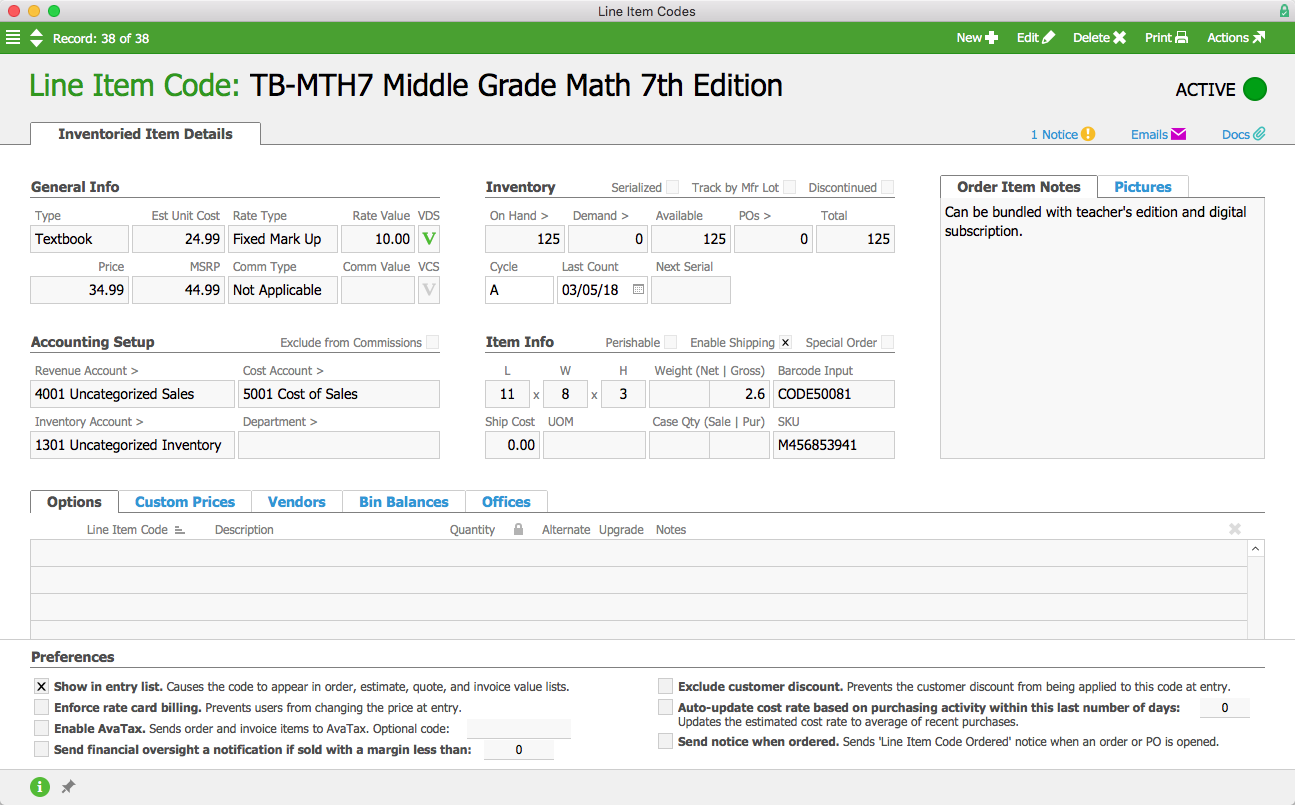


Business Process Improvement Through Software

Dive into the details to discover how aACE can help your business.

aACE software blog -  a complete resource for SMBs looking to improve their business processes. Read our articles on all things CRM, Accounting Software, ERP, Inventory Management & more

Business Process Improvement Through Software!

All things CRM, Accounting Software, ERP, Inventory Management & more

Read more about Ready to Optimize Your Business? Get Started with aACE Basics

Ready to Optimize Your Business? Get Started with aACE Basics


aACE is a single, comprehensive business management solution comprised of “modules" that each handle particular business functions. For example, aACE includes Accounting modules like the General Ledger and General Journal, CRM modules like Companies and Contacts, and ERP modules like Jobs and Projects. Each module has search capabilities, list views, expanded detail views, reporting tools, and record-specific functionality. The way aACE “thinks” is consistent across all modules, so once you understand one module, you’re well on your way to mastering the entire software package. This makes aACE very user friendly.

aACE opens with the main menu. Along with quick access buttons for some of the most-used features like Notices, Tasks, and the Calendar, the menu makes it easy to navigate to the modules you need by grouping them together — clicking on any of these headings displays a list of related modules. Clicking a module title opens the actual module. The main menu can be customized for each group of users to include as few or as many modules as they need.

All aACE modules are designed with a consistent look and feel, making it easy to get oriented and go forward with your work.

aACE header colors help you quickly recognize what kinds of information you are looking at. For example, purple and magenta are for CRM modules, such as Companies, Contacts, and Leads; red and orange are for fulfillment, such as Orders and Jobs; green is for money, so that’s what you’ll find on Invoices and GL Accounts.

When you open most modules, aACE presents a list view showing the records that are likely to need your attention. For example, a sales representative using the Orders module would see a list of orders assigned to him; similarly, a supervisor viewing the Jobs module would see assignments both for her and her subordinates.

At the top of most modules, the header provides access to common functions. For example, the Print button opens a drop-down menu for tasks such as printing, running reports, or emailing the records displayed in the list. The Actions button allows you to import, export, and execute batch updates on all records in the list. Also near the top, the Quick Search bar allows you to search each field in the list view, helping you easily constrain the list and show the records you’re looking for. Clicking on the various list view columns allows you to sort the displayed records.

Each record in a list has a color-coded status indicator that lets you see at a glance whether the record is active, inactive, or pending. If the record has a next step — for example, an invoice that needs to be sent or a task that needs to be completed — the status will indicate whether it’s due today, at some point in the future, or whether it’s already past due. This visual makes it easy to see which records need immediate attention.

At the bottom of most list views, Quick Links allow you to adjust the displayed records with a single click. Additionally, users with administration access privileges can use the Admin Actions button at the bottom-right corner to perform batch updates or drill down into related records.

Clicking on a specific record displays that record’s detail view. This is where you can find extensive information pertaining to the record. For example, an order record’s detail view includes the name of the customer and the items they bought, while a job record’s detail view may include a list of tasks required to complete the job and a bill of materials.

Typically, when you first open a record, it will be in read-only mode. This is indicated by a system-wide convention of showing the data in gray fields. To make changes to a record, users can enter Edit mode by clicking on the Edit button at the top of the screen.

At the top of the detail view, you can work with notices, emails, and documents. The Notices icon opens the Notices module, where you can send messages to other aACE users about particular records. These messages include a link to the records you were viewing, so the recipient can quickly review that data too.

The Emails icon displays the Email Viewer, where you can review emails related to the current record. (For details on how aACE captures and stores email, check out our demo video in the Feature Highlights section of our blog.)

The Docs icon opens the Document Viewer, where you can review files related to the current record. You can drag and drop files such as PDFs, images, or Word documents here as well as anywhere in the system that you see a Paperclip icon. aACE allows you to manage these documents with folders.

Throughout the aACE modules, you will find helpful features. For example, Chevron icons are “go-to” buttons, and anywhere you see them you can navigate to another record. These go-to buttons help keep information at your fingertips without cluttering each interface with ancillary details.

Magnifying Glass icons can also be seen throughout the system. Clicking one opens a search dialog to help you easily find the records you need. And if you discover that the needed record doesn’t exist yet, you can simply click the Plus button to create a new record without having to leave the one you were working with.

Thumbtack icons indicate places where notes can be stored. The thumbtack turns yellow when the Note field is populated. In some cases, notes entered from one module — for instance, billing notes entered in a Company record — will also be visible in related modules – such as the orders and invoices associated with that company.

Some modules have Comments & Activities fields where you can enter call notes and other interactions. Notes entered in these fields show up in the record’s log, which also captures key changes to the record. (To learn more about these features, check out the Advanced Logging feature highlight on our blog.)

In the detail view footer, you may see fields such as Assigned To, Assigned By, and Tracking Status. These fields allow you to easily manage next steps and track who is responsible for which records. Typically, these footer fields are editable, even outside of Edit mode.

aACE is designed to simplify data entry. Drop-down lists make it easy to select existing records or options that have been previously entered in that field. You can use the type-ahead feature to locate a record using the first letters or numbers of a name, code, or associated SKU number. Selecting an existing record auto-populates the related fields, minimizing the chance of error.

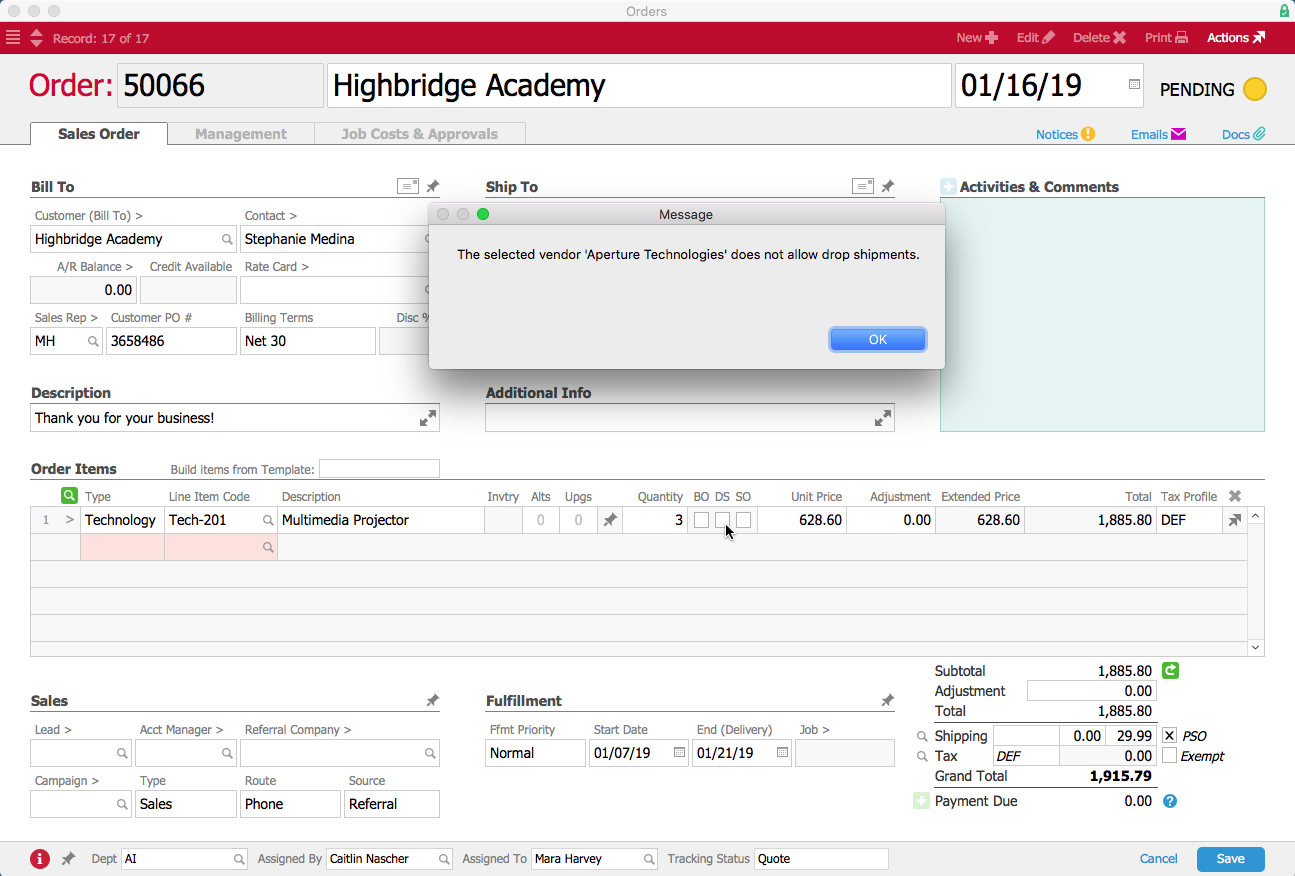
Fields highlighted in pink are required, meaning that aACE won’t open or activate the record until those fields have been populated. Similarly, if aACE recognizes a problem with the data, it will keep the record in Pending status and display an error message to alert the user.

Now that you understand these aACE basics, you can feel confident in navigating through the software and working on records. As a comprehensive accounting, CRM, & ERP solution, your aACE system includes extensive functionality. But the consistent layout and conventions mean that even with a small amount of training, you are ready to go deeper into the system with hands-on learning.

Learn More

Learning a new business management solution can be intimidating. Fortunately, aACE makes it easy with our system-wide conventions and intuitive, user-friendly design. Check out our new video or read the transcript below for a crash course on the fundamentals of aACE. Then register for an upcoming... Learn More

-->

Learning a new business management solution can be intimidating. Fortunately, aACE makes it easy with our system-wide conventions and intuitive, user-friendly design. Check out our new video or read the transcript below for a crash course on the fundamentals of aACE. Then register for an upcoming webinar to learn more about how aACE can help you take your business to the next level.


aACE is a single, comprehensive business management solution comprised of “modules" that each handle particular business functions. For example, aACE includes Accounting modules like the General Ledger and General Journal, CRM modules like Companies and Contacts, and ERP modules like Jobs and Projects. Each module has search capabilities, list views, expanded detail views, reporting tools, and record-specific functionality. The way aACE “thinks” is consistent across all modules, so once you understand one module, you’re well on your way to mastering the entire software package. This makes aACE very user friendly.

aACE opens with the main menu. Along with quick access buttons for some of the most-used features like Notices, Tasks, and the Calendar, the menu makes it easy to navigate to the modules you need by grouping them together — clicking on any of these headings displays a list of related modules. Clicking a module title opens the actual module. The main menu can be customized for each group of users to include as few or as many modules as they need.

All aACE modules are designed with a consistent look and feel, making it easy to get oriented and go forward with your work.

aACE header colors help you quickly recognize what kinds of information you are looking at. For example, purple and magenta are for CRM modules, such as Companies, Contacts, and Leads; red and orange are for fulfillment, such as Orders and Jobs; green is for money, so that’s what you’ll find on Invoices and GL Accounts.

When you open most modules, aACE presents a list view showing the records that are likely to need your attention. For example, a sales representative using the Orders module would see a list of orders assigned to him; similarly, a supervisor viewing the Jobs module would see assignments both for her and her subordinates.

At the top of most modules, the header provides access to common functions. For example, the Print button opens a drop-down menu for tasks such as printing, running reports, or emailing the records displayed in the list. The Actions button allows you to import, export, and execute batch updates on all records in the list. Also near the top, the Quick Search bar allows you to search each field in the list view, helping you easily constrain the list and show the records you’re looking for. Clicking on the various list view columns allows you to sort the displayed records.

Each record in a list has a color-coded status indicator that lets you see at a glance whether the record is active, inactive, or pending. If the record has a next step — for example, an invoice that needs to be sent or a task that needs to be completed — the status will indicate whether it’s due today, at some point in the future, or whether it’s already past due. This visual makes it easy to see which records need immediate attention.

At the bottom of most list views, Quick Links allow you to adjust the displayed records with a single click. Additionally, users with administration access privileges can use the Admin Actions button at the bottom-right corner to perform batch updates or drill down into related records.

Clicking on a specific record displays that record’s detail view. This is where you can find extensive information pertaining to the record. For example, an order record’s detail view includes the name of the customer and the items they bought, while a job record’s detail view may include a list of tasks required to complete the job and a bill of materials.

Typically, when you first open a record, it will be in read-only mode. This is indicated by a system-wide convention of showing the data in gray fields. To make changes to a record, users can enter Edit mode by clicking on the Edit button at the top of the screen.

At the top of the detail view, you can work with notices, emails, and documents. The Notices icon opens the Notices module, where you can send messages to other aACE users about particular records. These messages include a link to the records you were viewing, so the recipient can quickly review that data too.

The Emails icon displays the Email Viewer, where you can review emails related to the current record. (For details on how aACE captures and stores email, check out our demo video in the Feature Highlights section of our blog.)

The Docs icon opens the Document Viewer, where you can review files related to the current record. You can drag and drop files such as PDFs, images, or Word documents here as well as anywhere in the system that you see a Paperclip icon. aACE allows you to manage these documents with folders.

Throughout the aACE modules, you will find helpful features. For example, Chevron icons are “go-to” buttons, and anywhere you see them you can navigate to another record. These go-to buttons help keep information at your fingertips without cluttering each interface with ancillary details.

Magnifying Glass icons can also be seen throughout the system. Clicking one opens a search dialog to help you easily find the records you need. And if you discover that the needed record doesn’t exist yet, you can simply click the Plus button to create a new record without having to leave the one you were working with.

Thumbtack icons indicate places where notes can be stored. The thumbtack turns yellow when the Note field is populated. In some cases, notes entered from one module — for instance, billing notes entered in a Company record — will also be visible in related modules – such as the orders and invoices associated with that company.

Some modules have Comments & Activities fields where you can enter call notes and other interactions. Notes entered in these fields show up in the record’s log, which also captures key changes to the record. (To learn more about these features, check out the Advanced Logging feature highlight on our blog.)

In the detail view footer, you may see fields such as Assigned To, Assigned By, and Tracking Status. These fields allow you to easily manage next steps and track who is responsible for which records. Typically, these footer fields are editable, even outside of Edit mode.

aACE is designed to simplify data entry. Drop-down lists make it easy to select existing records or options that have been previously entered in that field. You can use the type-ahead feature to locate a record using the first letters or numbers of a name, code, or associated SKU number. Selecting an existing record auto-populates the related fields, minimizing the chance of error.

Fields highlighted in pink are required, meaning that aACE won’t open or activate the record until those fields have been populated. Similarly, if aACE recognizes a problem with the data, it will keep the record in Pending status and display an error message to alert the user.

Now that you understand these aACE basics, you can feel confident in navigating through the software and working on records. As a comprehensive accounting, CRM, & ERP solution, your aACE system includes extensive functionality. But the consistent layout and conventions mean that even with a small amount of training, you are ready to go deeper into the system with hands-on learning.

Learn More
Read more about Nurture Your Leads from First Contact to Final Sale in aACE

Nurture Your Leads from First Contact to Final Sale in aACE

With aACE, you can.

aACE’s comprehensive CRM tools make it easy to track the progress of each lead from the first hello to the final handshake. To see this feature in action, let’s take a look at how our fictional company, aACME Education Solutions, uses it in their day-to-day operations.

Sales Rep Jamie Gianelli gets a call from Megan Lloyd, the principal at the Haughton Day School. Megan is in the market for new electronic whiteboards. She heard about aACME from a friend who works for the King’s Rock School District, a longtime aACME customer. Megan is gathering information from several vendors and is looking to make a decision by the end of August.

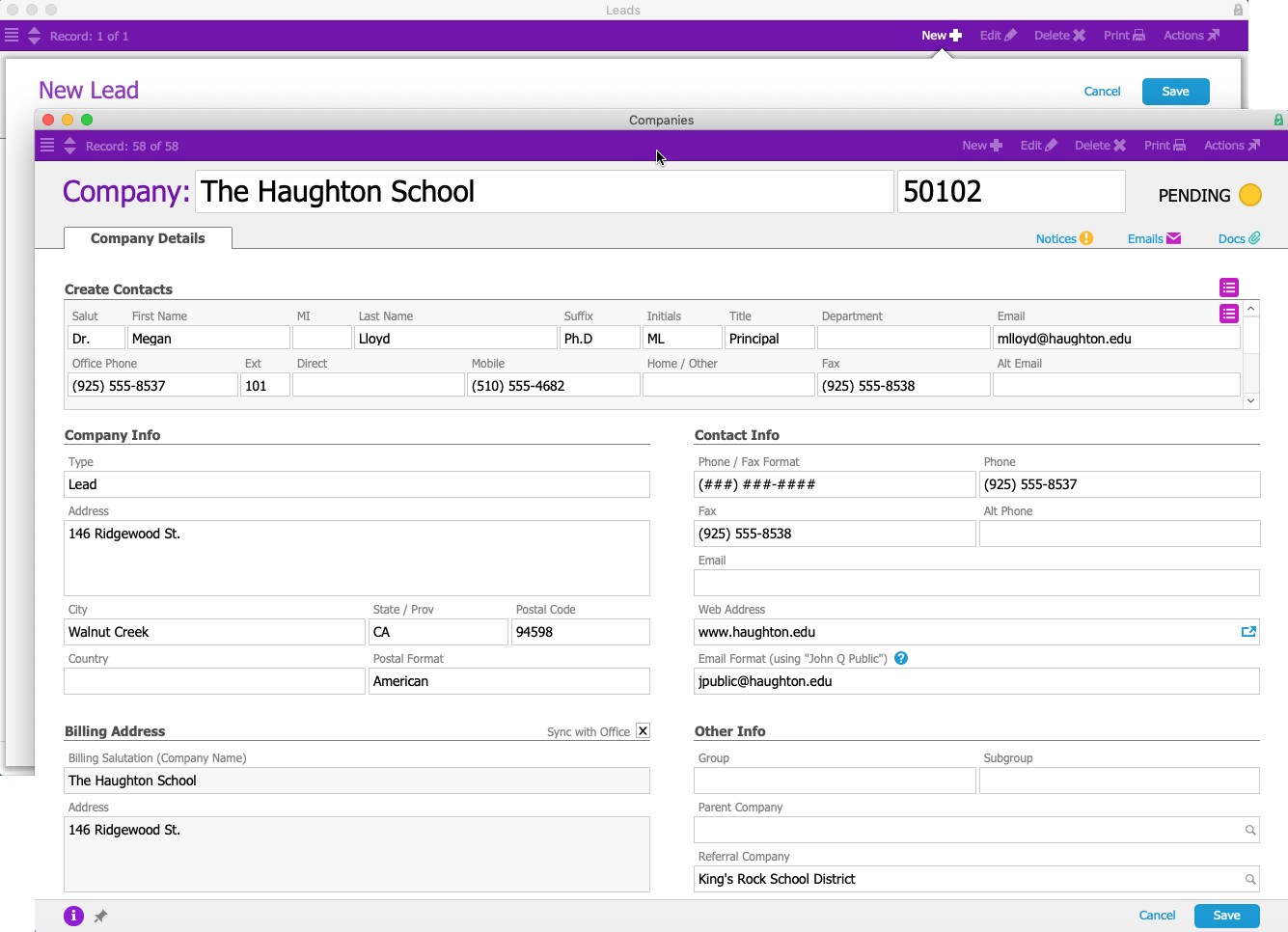
Jamie creates a new sales lead in aACE and begins entering all of the information she gathered from Megan over the phone. The Haughton Day School hasn’t previously purchased from aACME, so Jamie uses the Companies selector to create a new company record without leaving the lead interface.

New Company Record

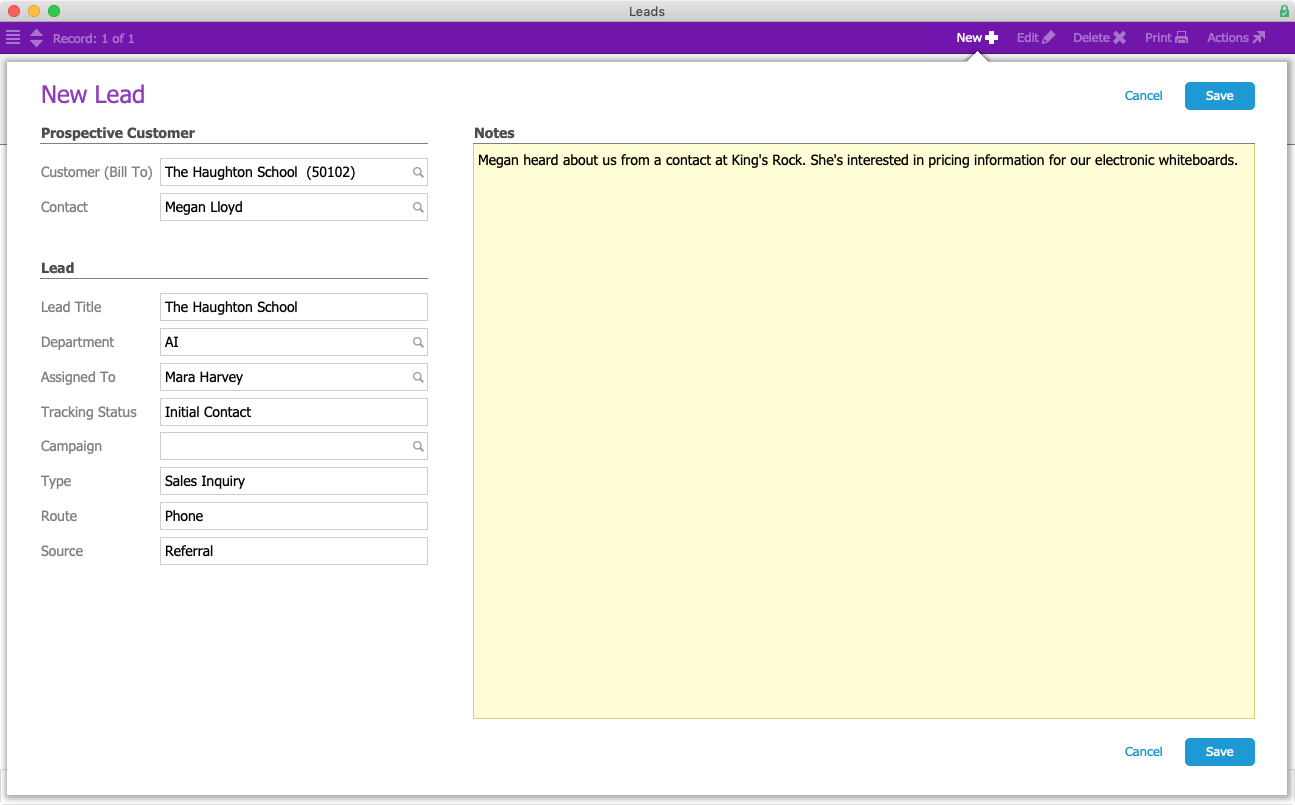
Because the Haughton Day School is located on the West Coast, aACE automatically assigns the lead to the sales rep covering that area. aACE also automatically populates the Customer and Contact fields with information from the newly-created company record. Jamie then fills in additional information about the type of lead this is and where it came from.

New Lead

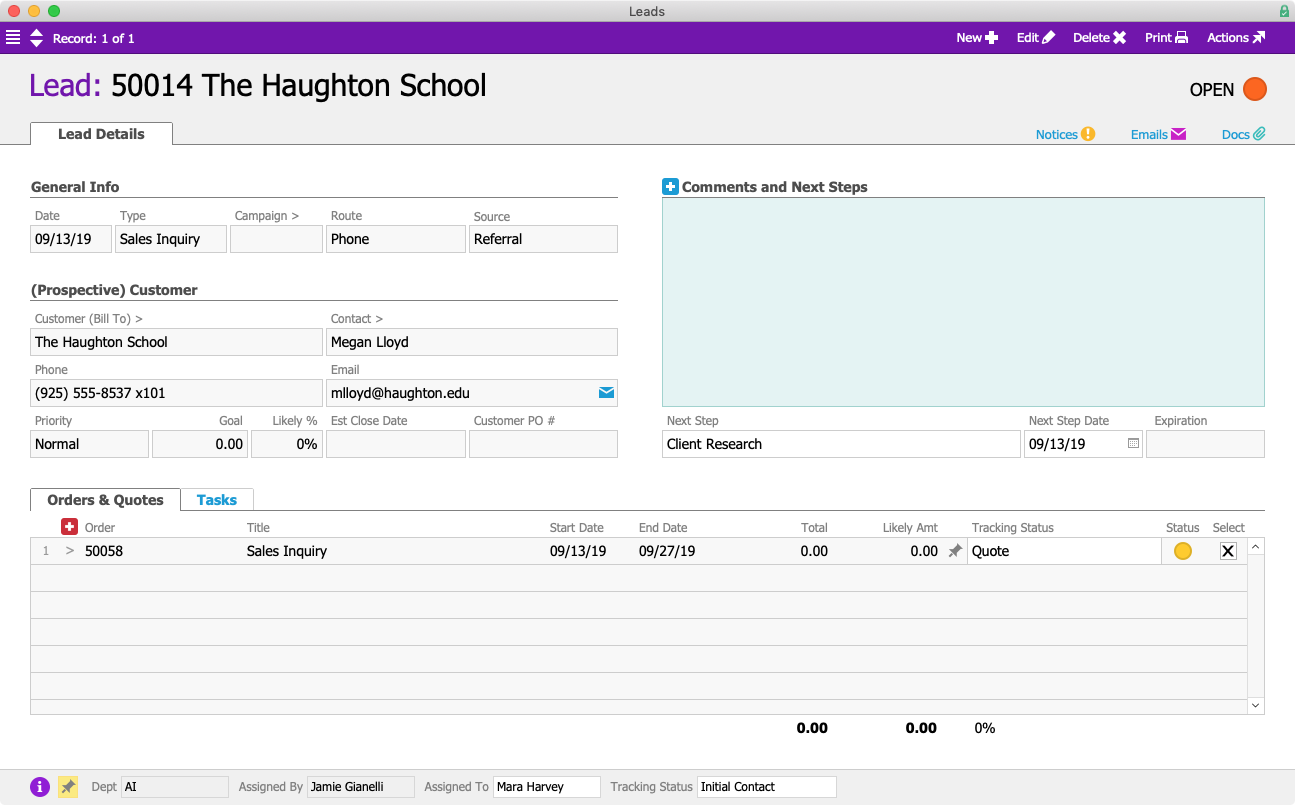
Jamie sets the lead type as Sales Inquiry, prompting aACE to look for a quote template with the same name. aACE finds a Sales Inquiry template and uses it to automatically create a new quote. When Jamie saves the Haughton lead, that quote appears in the Orders & Quotes section at the bottom of the lead record.

Lead with Quote

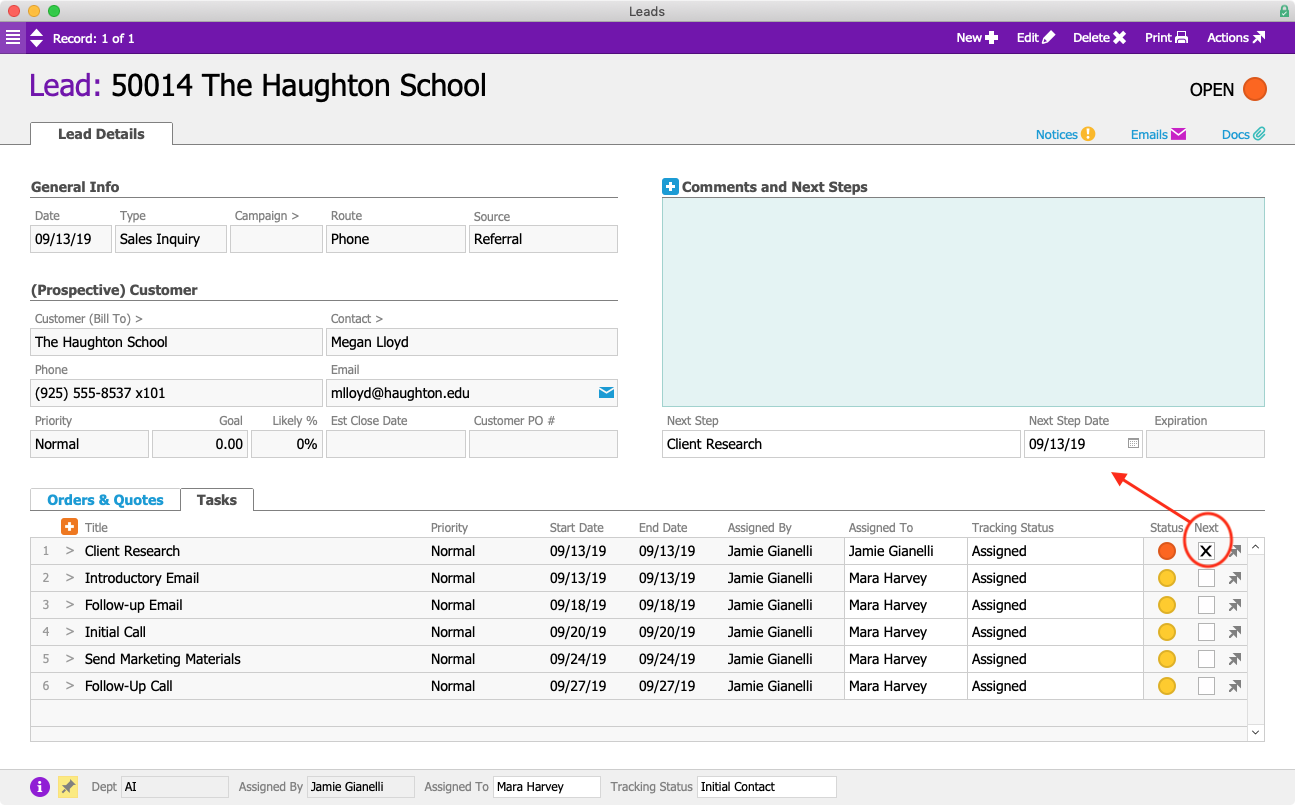
The lead type is also linked to task groups, so when aACE finds a Sales Inquiry task group, it automatically generates the needed series of tasks. Each of these tasks represents a step in aACME’s sales process. The first task, Client Research, is assigned to Jamie. Beside the Client Research task, the Next flag is marked, prompting aACE to pull that task and its due date into the Next Step and Next Step Date fields.

Lead with Tasks Annotated

After learning a little about this potential customer, Jamie marks the Client Research task complete. aACE automatically moves to the next task, Introductory Email; the Next Step and Next Step Date fields are automatically updated. Because Mara Harvey is the sales rep assigned to the lead, the rest of the tasks are assigned to her. When Mara opens the Leads module, she’ll immediately see what action she needs to take.

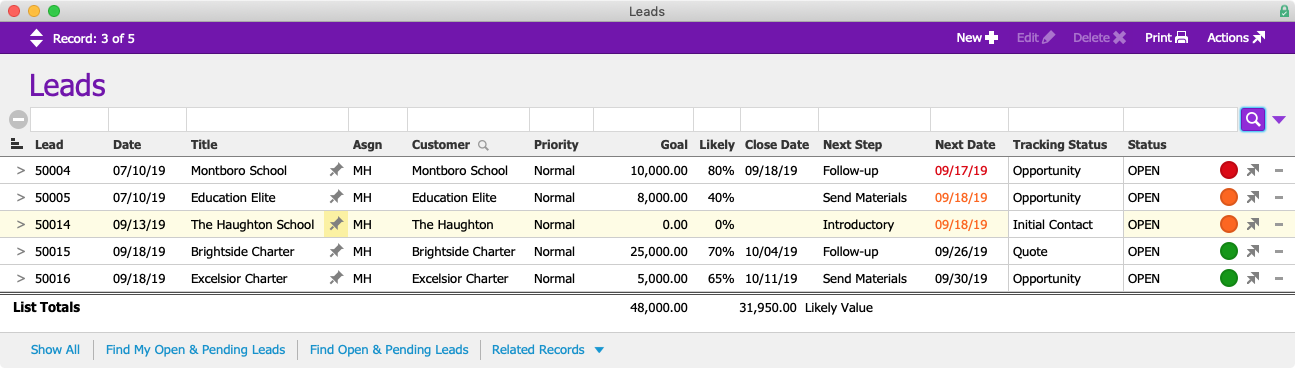
In the Leads module, Mara sees a list of all of her active sales leads, including the new lead for Haughton Day School. The list view makes it easy to see which leads need her immediate attention, where each lead is in the sales process, and more.

Leads Module List View

But what happens if a lead doesn’t quite fit the predetermined sequence of events?

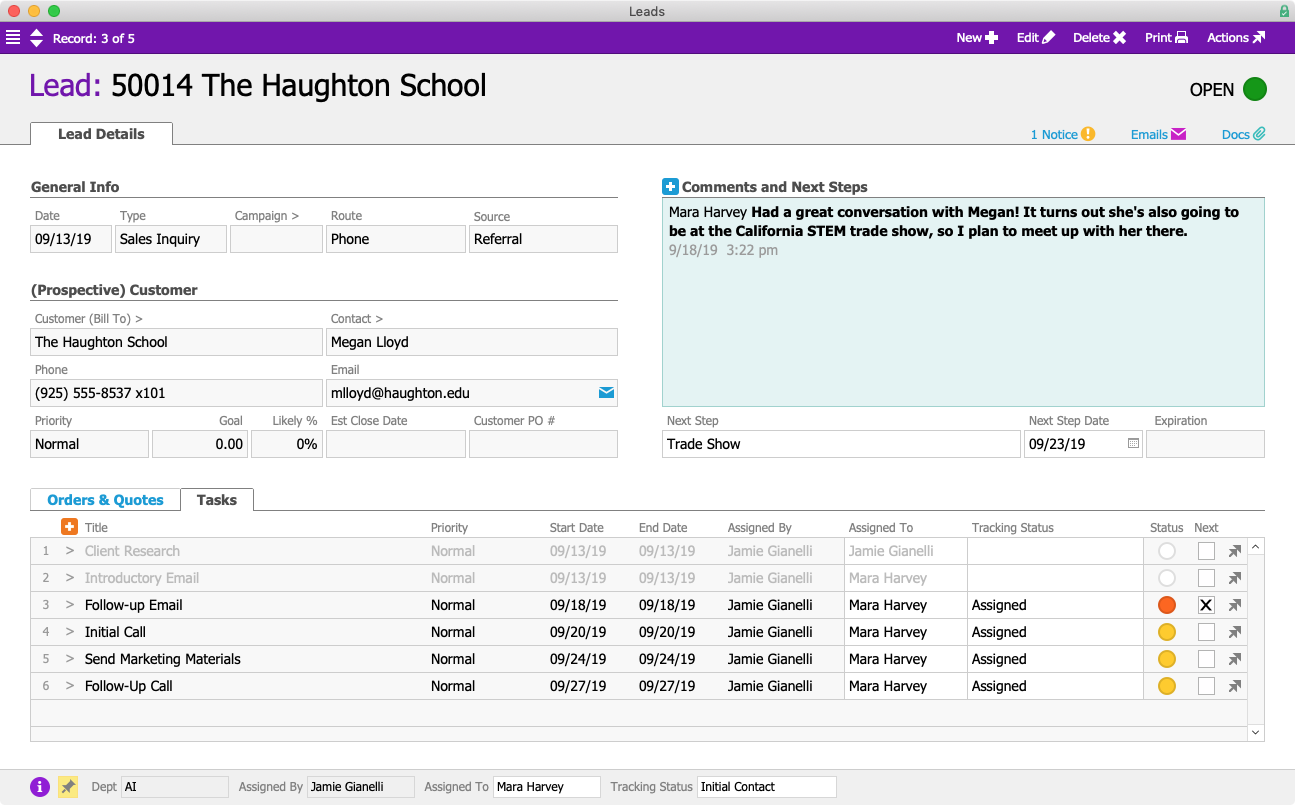
Let’s say Mara’s going to be attending a trade show in the near future. During the initial email correspondence with Megan, they realize she's going to be at the same event. Mara can manually add “Trade Show” as the Next Task, then set the date of the trade show as the Next Step Date. This overrides the template, giving Mara the flexibility she needs to tailor the standard sales process to suit this particular lead.

Lead with Custom Next Step

Megan likes what she hears from Mara at the trade show, so she asks Mara to send her two quotes – one for six freestanding whiteboards and one for six mounted whiteboards. Mara makes a note of that request via the CRM App on her phone.

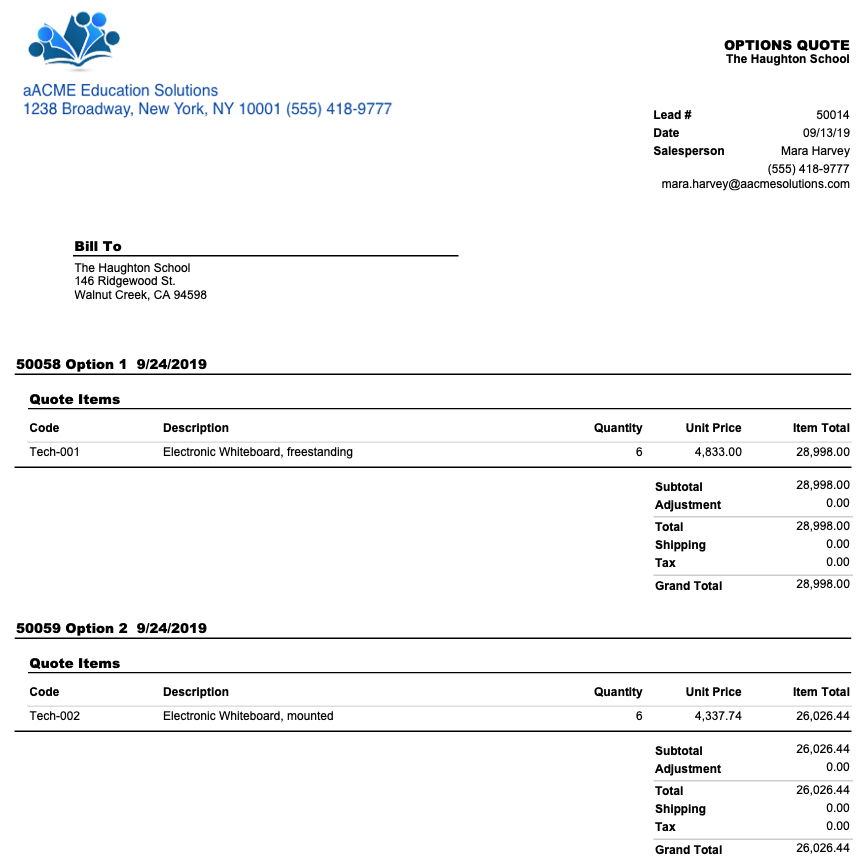
When she returns to the office, she first opens the quote that was automatically generated by the Sales Inquiry template. She populates the Order Items field with six freestanding whiteboards and saves the quote as “Option 1”. Next, Mara duplicates the “Option 1” quote and titles the duplicate “Option 2”. Here she changes the freestanding whiteboards to mounted ones. Once both quotes have been created Mara emails a PDF to Megan showcasing both options, with separate grand totals for each. aACE’s email integration feature archives the email with the Lead record.

Options PDF

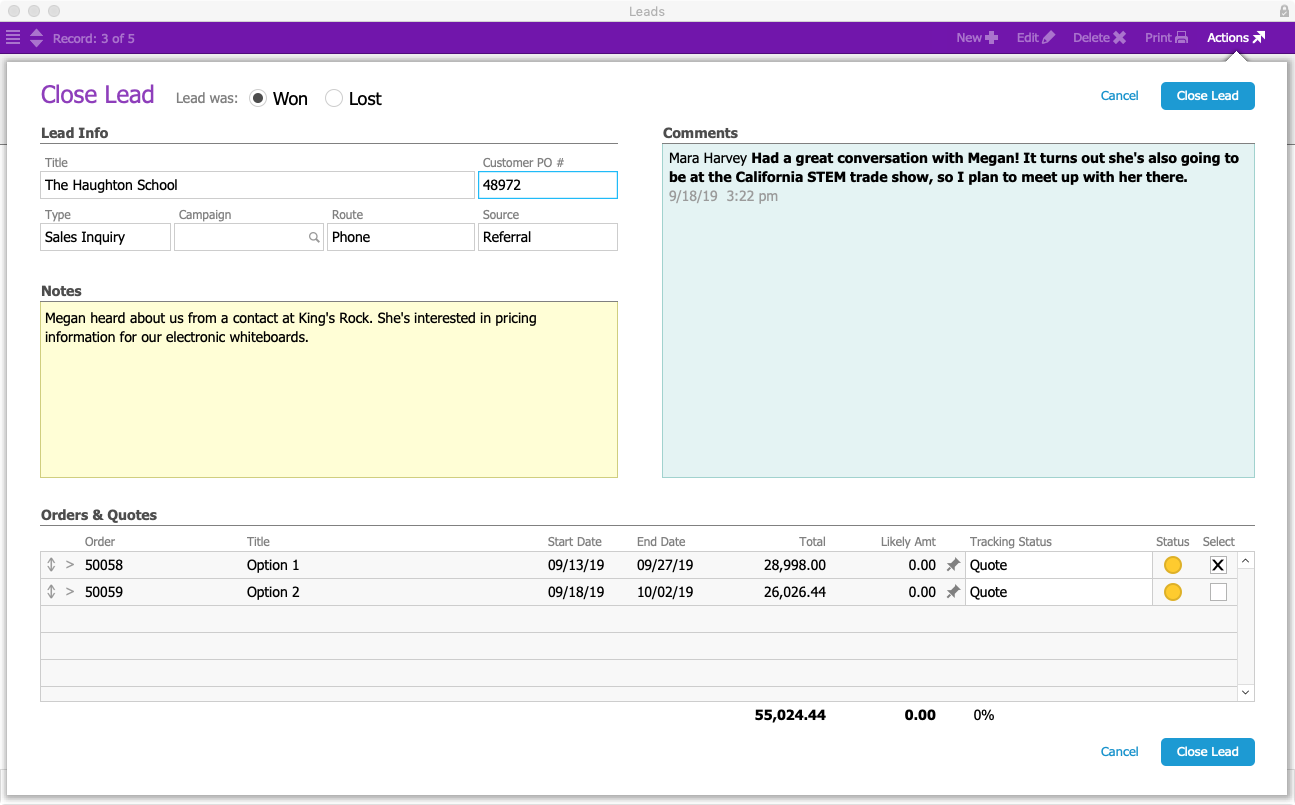
A few days later, Megan lets Mara know that she wants to move ahead with the order for six freestanding whiteboards. Since this deal has progressed from a lead to a real order, Mara closes the lead record and aACE prompts her to record whether it was won or lost. She selects Won and chooses “Option 1”, the quote for the freestanding whiteboards. She also enters any other relevant details, such as the customer’s purchase order number and any additional notes from her conversations with Megan.

Close Lead

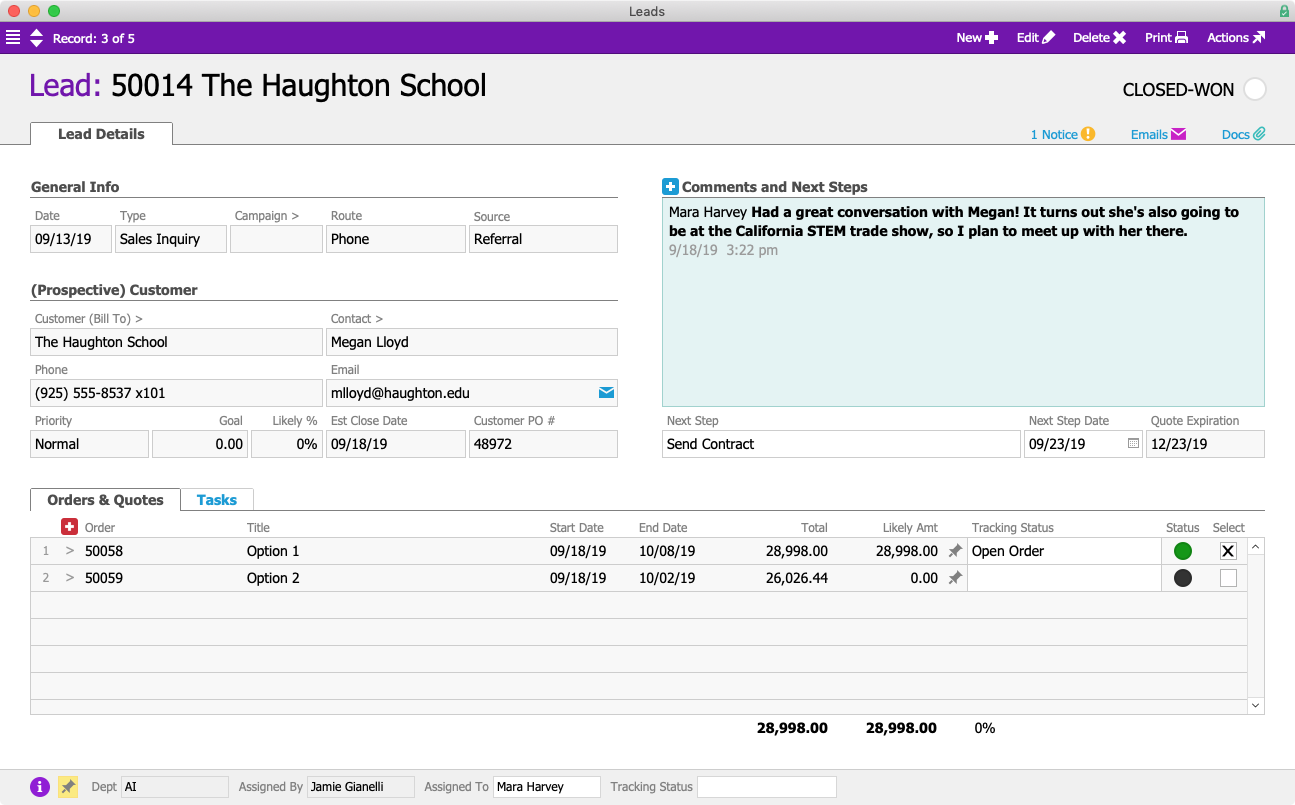
When Mara closes the lead, aACE automatically changes the quote she selected into an open order. The quote for the mounted whiteboards, “Option 2”, is automatically voided.

Closed-Won Lead

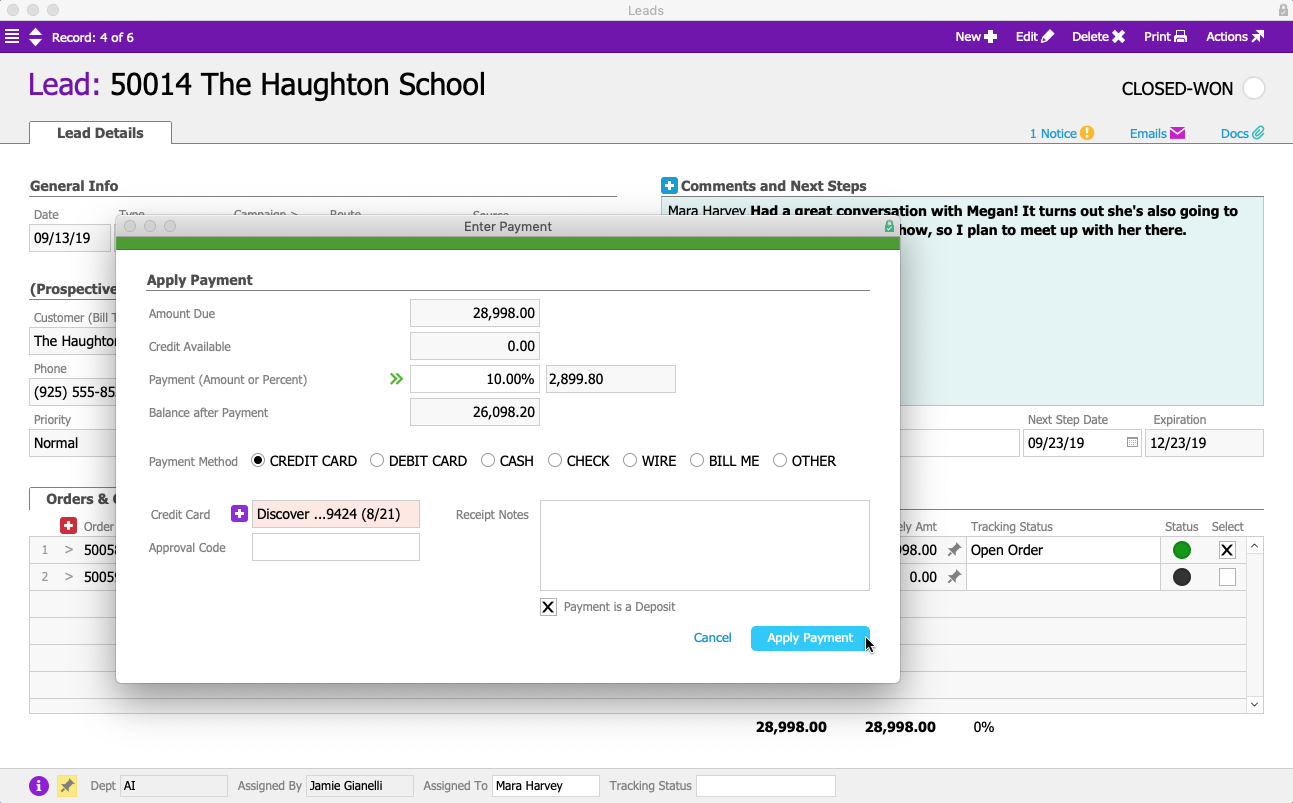
Now that the lead has been won, Mara takes a 10% deposit on the whiteboards. She can do this directly from the lead record by selecting Apply Payment from the Actions menu. Mara takes Megan’s credit card information over the phone; a token representing that credit card is stored in aACE while the sensitive card information is kept secure on the payment processor’s servers. Mara flags the payment as a deposit, and the order is ready to be fulfilled.

Payment Dialog

Now that we’ve seen how aACE takes a successful lead from start to finish, let’s take a look at what happens when a deal doesn’t end up closing.

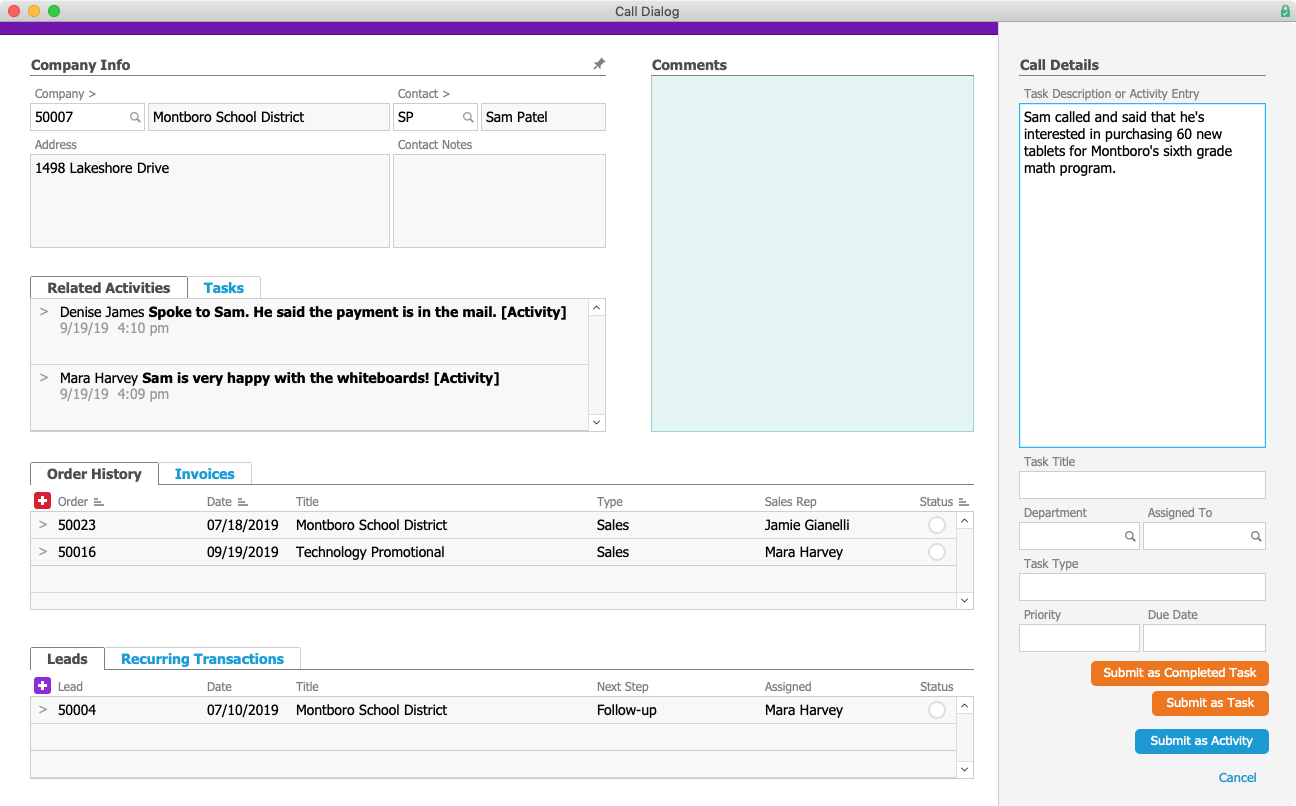
Jamie Gianelli receives another phone call, this time from Sam Patel at the Montboro School District, a longtime aACME customer that has been assigned to Jamie. Sam is thinking of buying new tablets for the sixth grade math programs at his district’s middle schools. Jamie records her notes from the call using the New Call Entry screen; this allows her to review a summary of all of Montboro’s previous orders, leads, activities, and more.

Call Dialog

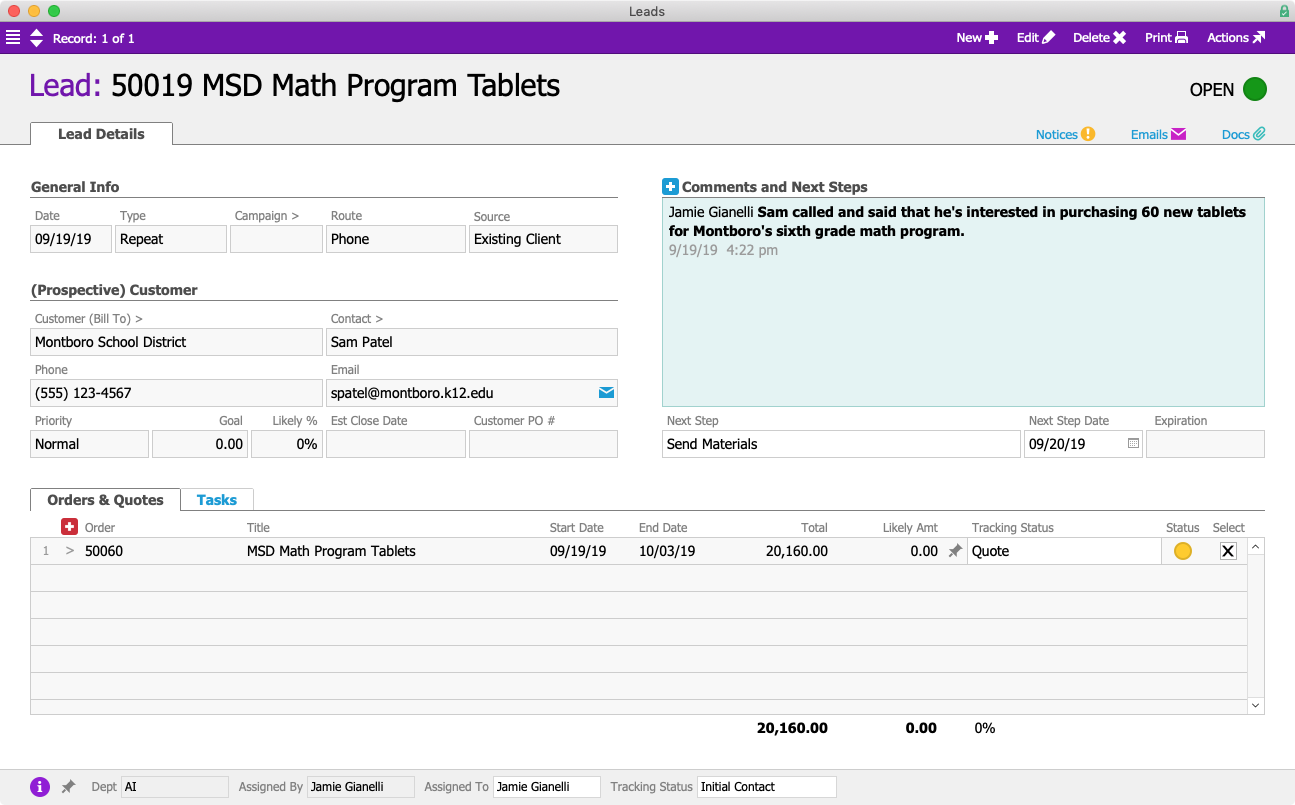
From that screen, she creates a new lead based on the conversation with Sam.

Lead

Jamie nurtures the lead through the sales process, but Sam is ultimately unable to make the purchase due to budget cuts.

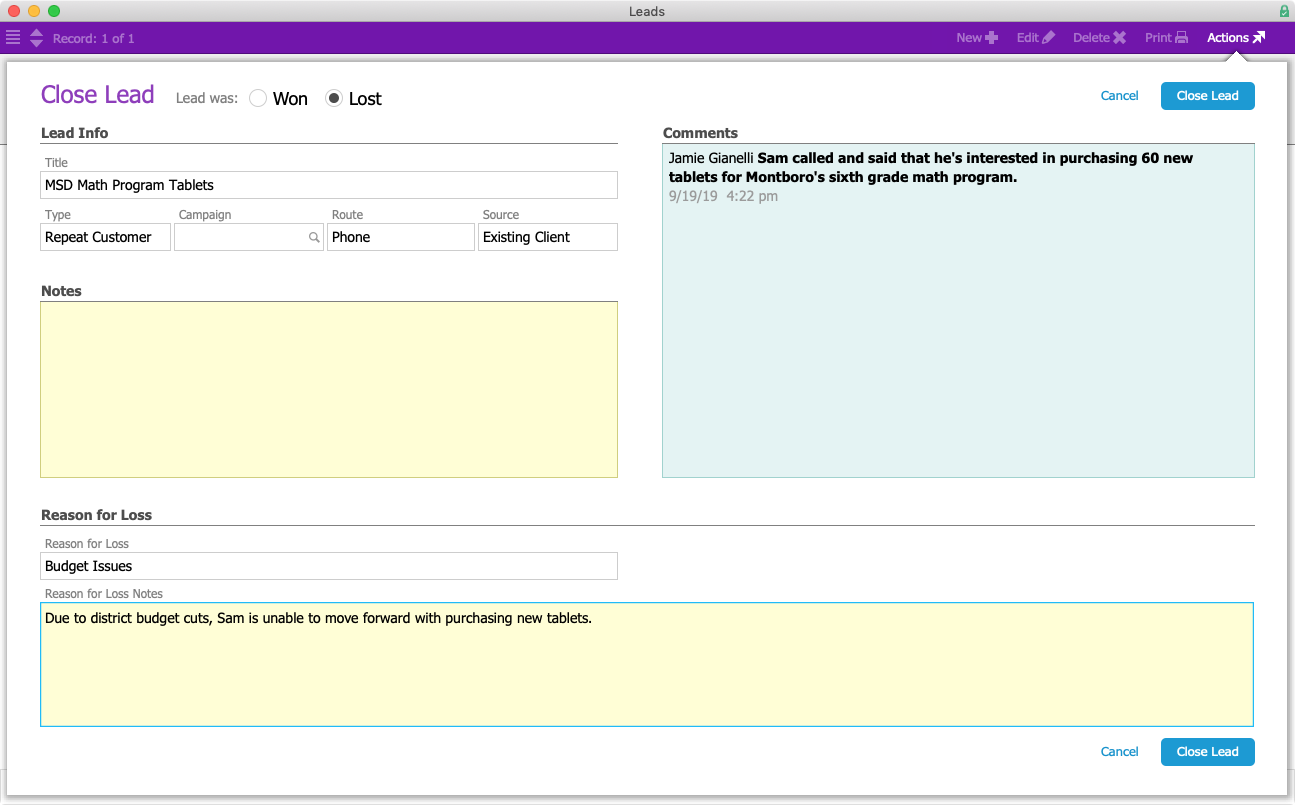
After getting the news from Sam, Jamie closes this lead for Montboro School District. Just as we saw in the previous example, aACE prompts her to choose whether the lead was won or lost. She selects Lost, and aACE prompts her to fill in additional information about the lead, including a reason for why the deal failed to close. Jamie selects the reason from a drop-down list, then adds her own notes to explain what happened.

Close Lead

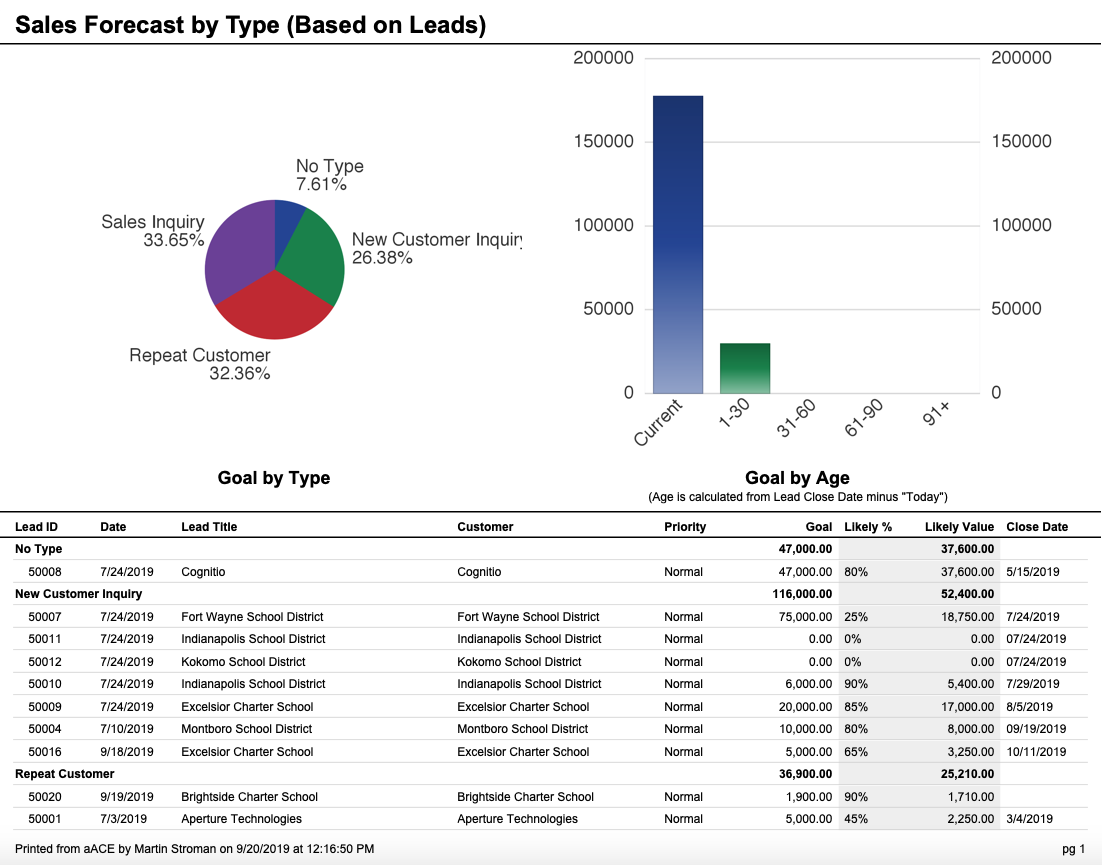
Later, aACME VP of Sales Martin Stroman is able to see at a glance how many leads have been lost this quarter as well as how many are still in the pipeline. This arms him with the information needed to adjust aACME’s sales strategy to be sure the department is targeting the right audiences in the right ways.

Sales Forecast by Type

From these examples, you can see that aACE’s Leads module is flexible and robust enough to support your business’s particular sales workflow. aACE can assist your sales team in quickly setting goals, recording activities, managing next steps, and closing deals. Check out our feature highlight on the aACE CRM App to learn how your sales team can take aACE with them wherever they go.

To learn more about what aACE can do for your business, join a webinar today.

"Without much training you can logically understand how this program fits into our work environment. It has a comprehensive Customer Relationship Management section that leads into prospective customers becoming real customers. From that point, you can take an order from start to finish by capturing deadlines, resources and material costs spent on a project, as well as extensive accounting functions. The program is user friendly and easy enough for our whole staff, who have varying levels of technical skills, to embrace." - Lili Hall, President, KNOCK, Inc.
Learn More

Whether you’re selling to a new prospect or a loyal customer, it’s important to manage your relationships with sales leads carefully. Wouldn’t it be great if you could track every interaction with your leads in a single solution? With aACE, you can. aACE’s comprehensive CRM tools make it... Learn More
-->

Whether you’re selling to a new prospect or a loyal customer, it’s important to manage your relationships with sales leads carefully. Wouldn’t it be great if you could track every interaction with your leads in a single solution?

With aACE, you can.

aACE’s comprehensive CRM tools make it easy to track the progress of each lead from the first hello to the final handshake. To see this feature in action, let’s take a look at how our fictional company, aACME Education Solutions, uses it in their day-to-day operations.

Sales Rep Jamie Gianelli gets a call from Megan Lloyd, the principal at the Haughton Day School. Megan is in the market for new electronic whiteboards. She heard about aACME from a friend who works for the King’s Rock School District, a longtime aACME customer. Megan is gathering information from several vendors and is looking to make a decision by the end of August.

Jamie creates a new sales lead in aACE and begins entering all of the information she gathered from Megan over the phone. The Haughton Day School hasn’t previously purchased from aACME, so Jamie uses the Companies selector to create a new company record without leaving the lead interface.

New Company Record

Because the Haughton Day School is located on the West Coast, aACE automatically assigns the lead to the sales rep covering that area. aACE also automatically populates the Customer and Contact fields with information from the newly-created company record. Jamie then fills in additional information about the type of lead this is and where it came from.

New Lead

Jamie sets the lead type as Sales Inquiry, prompting aACE to look for a quote template with the same name. aACE finds a Sales Inquiry template and uses it to automatically create a new quote. When Jamie saves the Haughton lead, that quote appears in the Orders & Quotes section at the bottom of the lead record.

Lead with Quote

The lead type is also linked to task groups, so when aACE finds a Sales Inquiry task group, it automatically generates the needed series of tasks. Each of these tasks represents a step in aACME’s sales process. The first task, Client Research, is assigned to Jamie. Beside the Client Research task, the Next flag is marked, prompting aACE to pull that task and its due date into the Next Step and Next Step Date fields.

Lead with Tasks Annotated

After learning a little about this potential customer, Jamie marks the Client Research task complete. aACE automatically moves to the next task, Introductory Email; the Next Step and Next Step Date fields are automatically updated. Because Mara Harvey is the sales rep assigned to the lead, the rest of the tasks are assigned to her. When Mara opens the Leads module, she’ll immediately see what action she needs to take.

In the Leads module, Mara sees a list of all of her active sales leads, including the new lead for Haughton Day School. The list view makes it easy to see which leads need her immediate attention, where each lead is in the sales process, and more.

Leads Module List View

But what happens if a lead doesn’t quite fit the predetermined sequence of events?

Let’s say Mara’s going to be attending a trade show in the near future. During the initial email correspondence with Megan, they realize she's going to be at the same event. Mara can manually add “Trade Show” as the Next Task, then set the date of the trade show as the Next Step Date. This overrides the template, giving Mara the flexibility she needs to tailor the standard sales process to suit this particular lead.

Lead with Custom Next Step

Megan likes what she hears from Mara at the trade show, so she asks Mara to send her two quotes – one for six freestanding whiteboards and one for six mounted whiteboards. Mara makes a note of that request via the CRM App on her phone.

When she returns to the office, she first opens the quote that was automatically generated by the Sales Inquiry template. She populates the Order Items field with six freestanding whiteboards and saves the quote as “Option 1”. Next, Mara duplicates the “Option 1” quote and titles the duplicate “Option 2”. Here she changes the freestanding whiteboards to mounted ones. Once both quotes have been created Mara emails a PDF to Megan showcasing both options, with separate grand totals for each. aACE’s email integration feature archives the email with the Lead record.

Options PDF

A few days later, Megan lets Mara know that she wants to move ahead with the order for six freestanding whiteboards. Since this deal has progressed from a lead to a real order, Mara closes the lead record and aACE prompts her to record whether it was won or lost. She selects Won and chooses “Option 1”, the quote for the freestanding whiteboards. She also enters any other relevant details, such as the customer’s purchase order number and any additional notes from her conversations with Megan.

Close Lead

When Mara closes the lead, aACE automatically changes the quote she selected into an open order. The quote for the mounted whiteboards, “Option 2”, is automatically voided.

Closed-Won Lead

Now that the lead has been won, Mara takes a 10% deposit on the whiteboards. She can do this directly from the lead record by selecting Apply Payment from the Actions menu. Mara takes Megan’s credit card information over the phone; a token representing that credit card is stored in aACE while the sensitive card information is kept secure on the payment processor’s servers. Mara flags the payment as a deposit, and the order is ready to be fulfilled.

Payment Dialog

Now that we’ve seen how aACE takes a successful lead from start to finish, let’s take a look at what happens when a deal doesn’t end up closing.

Jamie Gianelli receives another phone call, this time from Sam Patel at the Montboro School District, a longtime aACME customer that has been assigned to Jamie. Sam is thinking of buying new tablets for the sixth grade math programs at his district’s middle schools. Jamie records her notes from the call using the New Call Entry screen; this allows her to review a summary of all of Montboro’s previous orders, leads, activities, and more.

Call Dialog

From that screen, she creates a new lead based on the conversation with Sam.

Lead

Jamie nurtures the lead through the sales process, but Sam is ultimately unable to make the purchase due to budget cuts.

After getting the news from Sam, Jamie closes this lead for Montboro School District. Just as we saw in the previous example, aACE prompts her to choose whether the lead was won or lost. She selects Lost, and aACE prompts her to fill in additional information about the lead, including a reason for why the deal failed to close. Jamie selects the reason from a drop-down list, then adds her own notes to explain what happened.

Close Lead

Later, aACME VP of Sales Martin Stroman is able to see at a glance how many leads have been lost this quarter as well as how many are still in the pipeline. This arms him with the information needed to adjust aACME’s sales strategy to be sure the department is targeting the right audiences in the right ways.

Sales Forecast by Type

From these examples, you can see that aACE’s Leads module is flexible and robust enough to support your business’s particular sales workflow. aACE can assist your sales team in quickly setting goals, recording activities, managing next steps, and closing deals. Check out our feature highlight on the aACE CRM App to learn how your sales team can take aACE with them wherever they go.

To learn more about what aACE can do for your business, join a webinar today.

"Without much training you can logically understand how this program fits into our work environment. It has a comprehensive Customer Relationship Management section that leads into prospective customers becoming real customers. From that point, you can take an order from start to finish by capturing deadlines, resources and material costs spent on a project, as well as extensive accounting functions. The program is user friendly and easy enough for our whole staff, who have varying levels of technical skills, to embrace." - Lili Hall, President, KNOCK, Inc.
Learn More
Read more about Dive Deep into Your Data with aACE+ Tableau

Dive Deep into Your Data with aACE+ Tableau

Now you can do just that with aACE+ Tableau.

Our latest integration is designed to show you the stats you need at a glance, with dashboards that combine multiple data sources into elegant and user-friendly visuals. To better illustrate how aACE+ Tableau can help you understand your company’s data, here are a few of the ways that our fictional company, aACME Education Solutions, uses it in their day-to-day operations – accompanied by real Tableau dashboards from their online Viz Gallery.

Sales Opportunities


Account Manager Mara Harvey needs to know how her sales team is performing, so she turns to Tableau to break down the data. With information taken directly from her company’s aACE solution, she’s able to see sales opportunities and win rates company-wide. In just a few clicks she can drill down by date, location, industry and more.


Product Selection

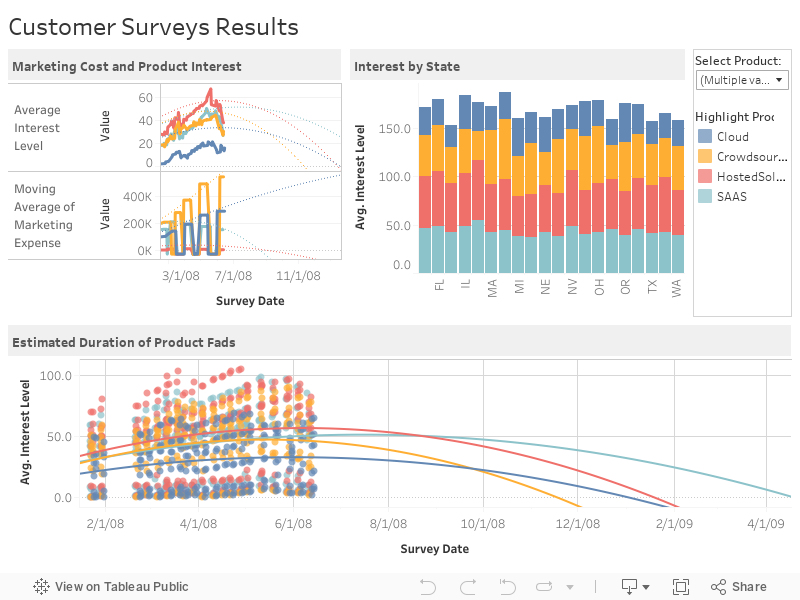
aACME’s lead buyer, Dominic Alonso, keeps a close eye on changing trends. aACE’s Tableau integration allows him to monitor customer interest in aACME’s products, weigh that interest against the cost of marketing each product, and predict how long a product will remain in demand before customers move on to the next big thing.


Shipping

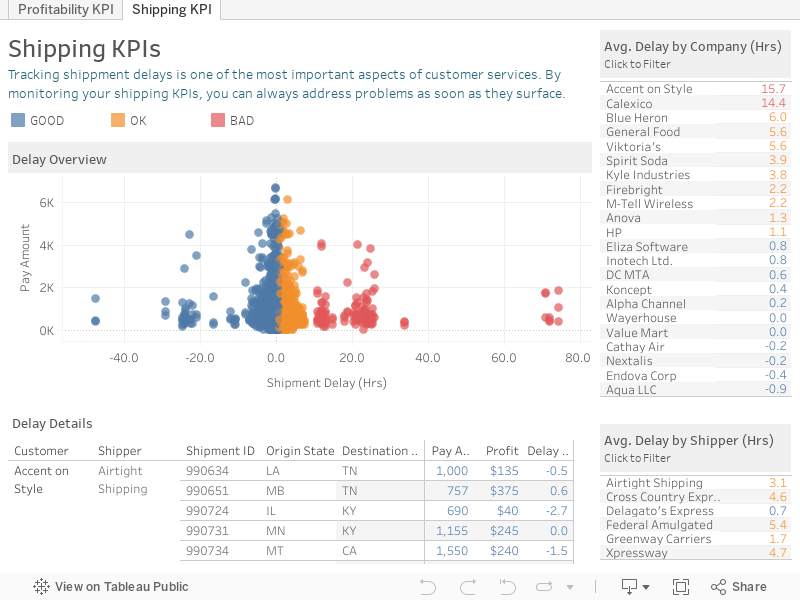
As head of aACME’s Shipping department, Kristie Hernandez knows the importance of getting the right products to the right customers at the right time. That’s why she relies on aACE+ Tableau combined with data from her shipping solution to monitor delays and spot carriers with frequent issues.


aACE+ Tableau can help you visualize your company’s essential data, ensuring you always have the information you need to make the right decisions for your business. To see more examples of Tableau in action, check out their Viz Gallery. To learn more about what aACE can do for your SMB, check out our customer success stories or register for an upcoming webinar today.

Learn More
As a business owner, you need to be able to keep tabs on everything that’s happening in your company – from the biggest-picture view right down to the most granular detail. And if that information isn’t organized in a way that’s clear and easily accessible, you may find yourself missing out... Learn More
-->

As a business owner, you need to be able to keep tabs on everything that’s happening in your company – from the biggest-picture view right down to the most granular detail. And if that information isn’t organized in a way that’s clear and easily accessible, you may find yourself missing out on critical facts. Wouldn’t it be great if you could combine your vast array of data with easy-to-understand visual layouts?

Now you can do just that with aACE+ Tableau.

Our latest integration is designed to show you the stats you need at a glance, with dashboards that combine multiple data sources into elegant and user-friendly visuals. To better illustrate how aACE+ Tableau can help you understand your company’s data, here are a few of the ways that our fictional company, aACME Education Solutions, uses it in their day-to-day operations – accompanied by real Tableau dashboards from their online Viz Gallery.

Sales Opportunities


Account Manager Mara Harvey needs to know how her sales team is performing, so she turns to Tableau to break down the data. With information taken directly from her company’s aACE solution, she’s able to see sales opportunities and win rates company-wide. In just a few clicks she can drill down by date, location, industry and more.


Product Selection

aACME’s lead buyer, Dominic Alonso, keeps a close eye on changing trends. aACE’s Tableau integration allows him to monitor customer interest in aACME’s products, weigh that interest against the cost of marketing each product, and predict how long a product will remain in demand before customers move on to the next big thing.


Shipping

As head of aACME’s Shipping department, Kristie Hernandez knows the importance of getting the right products to the right customers at the right time. That’s why she relies on aACE+ Tableau combined with data from her shipping solution to monitor delays and spot carriers with frequent issues.


aACE+ Tableau can help you visualize your company’s essential data, ensuring you always have the information you need to make the right decisions for your business. To see more examples of Tableau in action, check out their Viz Gallery. To learn more about what aACE can do for your SMB, check out our customer success stories or register for an upcoming webinar today.

Learn More
Read more about Automate Recurring Transactions with aACE

Automate Recurring Transactions with aACE

With aACE, you can.

aACE’s automated Recurring Transactions module allows you to set and forget your regular transactions. To see this feature in action, let’s take a look at just a few examples of how our fictional company, aACME Education Solutions, uses it in their day-to-day operations.

Receipts

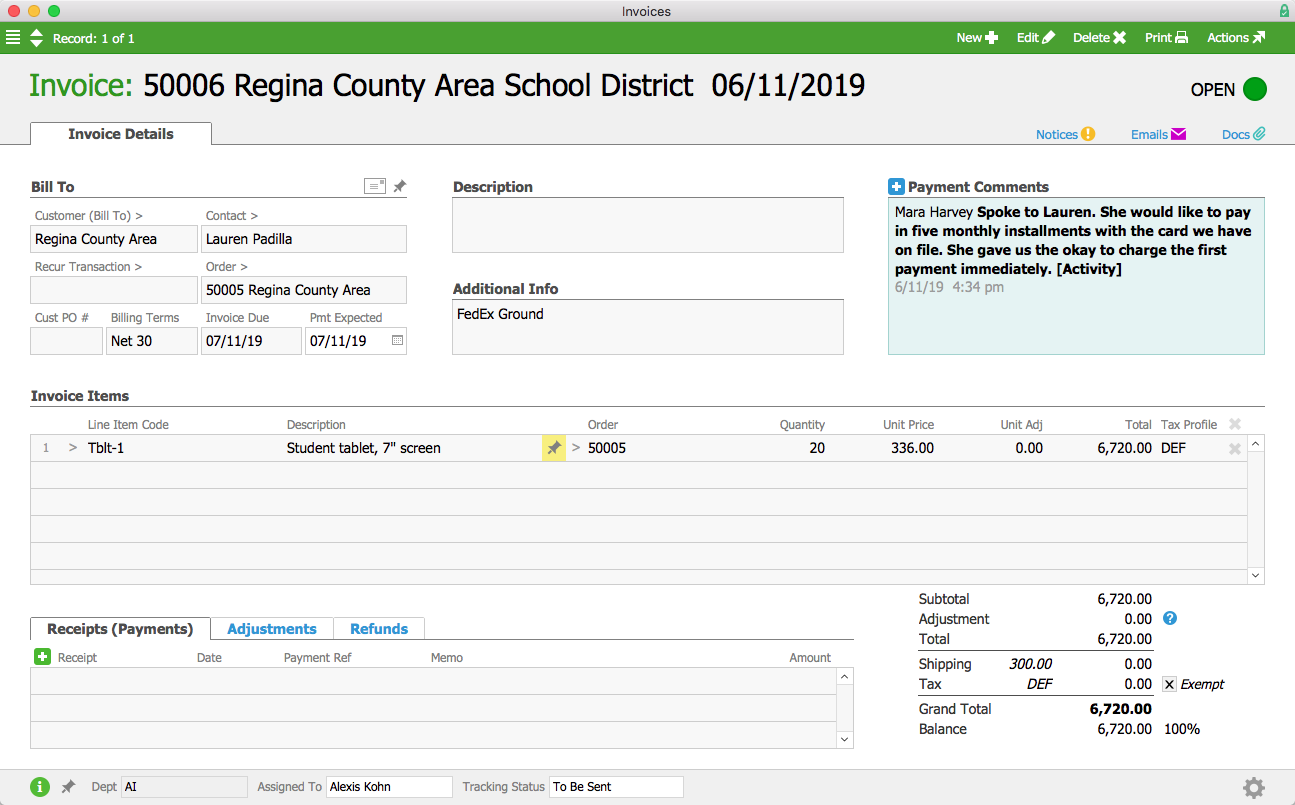
The Regina County Area School District places an order for 20 tablet computers for their students. Account Manager Mara Harvey receives a call from Lauren Padilla at the school district, asking if they could pay for the tablets in five installments. When aACE auto-generates the order’s invoice, Mara makes a note of the agreement in the Payment Comments field.

Invoice

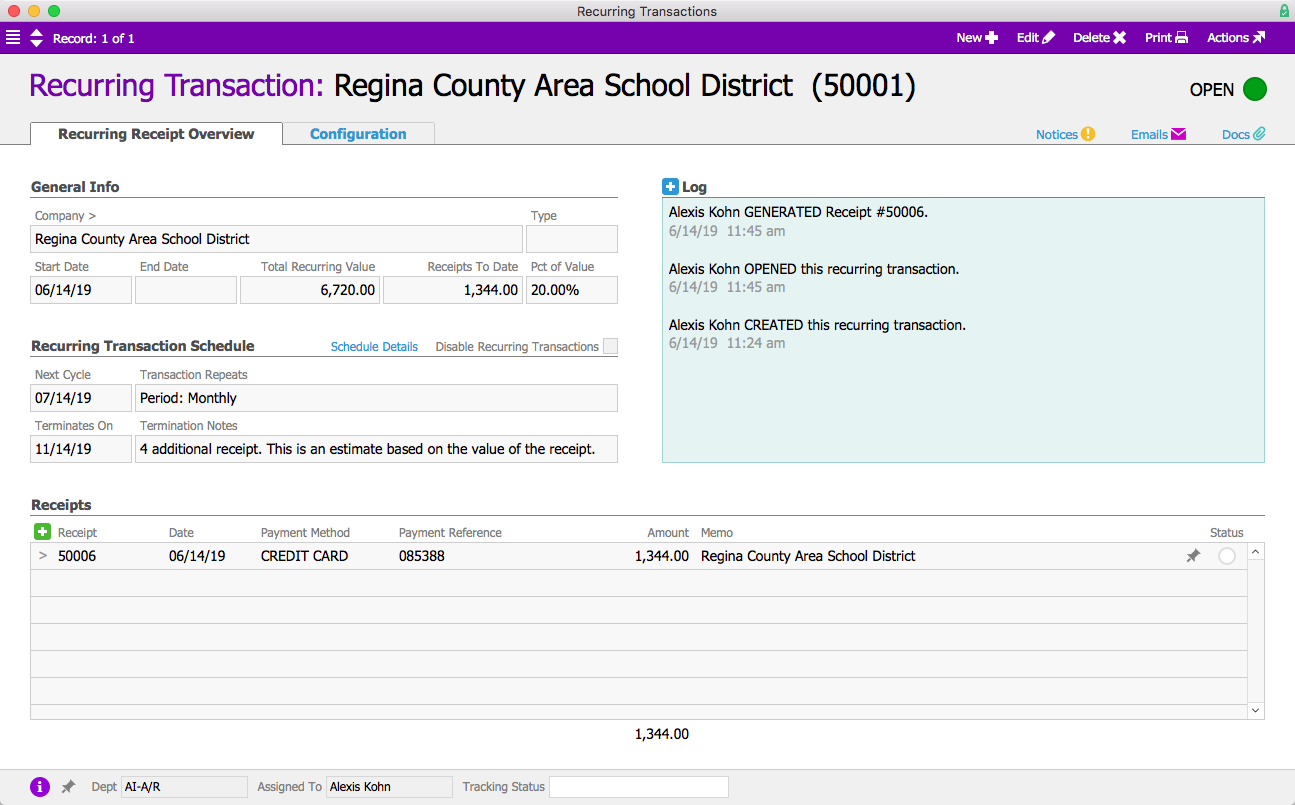
When Alexis Kohn in the Accounts Receivable department sees this note, she creates a new customer payment receipt in the Recurring Transactions module. Lauren has agreed to pay each installment via a credit card that’s kept on file, so Alexis configures the transaction to automatically charge that card and post the resulting receipt each month until the invoice has been paid off. Lauren had asked for the payment plan to begin immediately, so Alexis manually runs the first cycle. aACE generates the first receipt and updates the transaction’s schedule so it will run automatically next month.

Recurring Receipt

Purchases

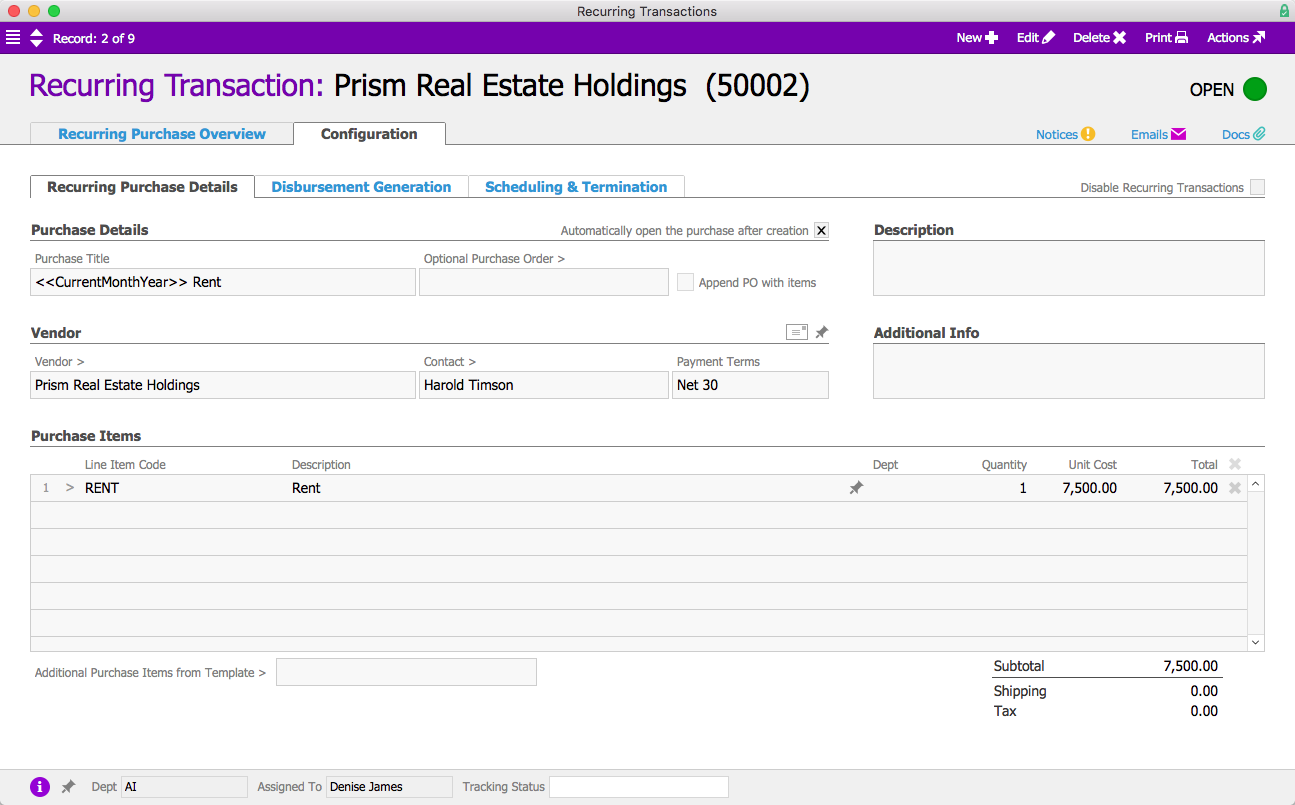
aACME Education Solutions has just signed a lease on a new office space, and Denise James in the Accounts Payable department needs to set up a recurring transaction for the monthly rent. To do that, she creates a new purchase in the Recurring Transactions module.

Using merge fields, she sets up the title of each purchase to reflect the then-current month and year. Then she configures the record to automatically generate a purchase and disbursement on the first of each month. The disbursement will be left pending, and a member of the A/P team will be notified when it is time to process it and cut the monthly rent check.

Recurring Purchase

General Journal Entries

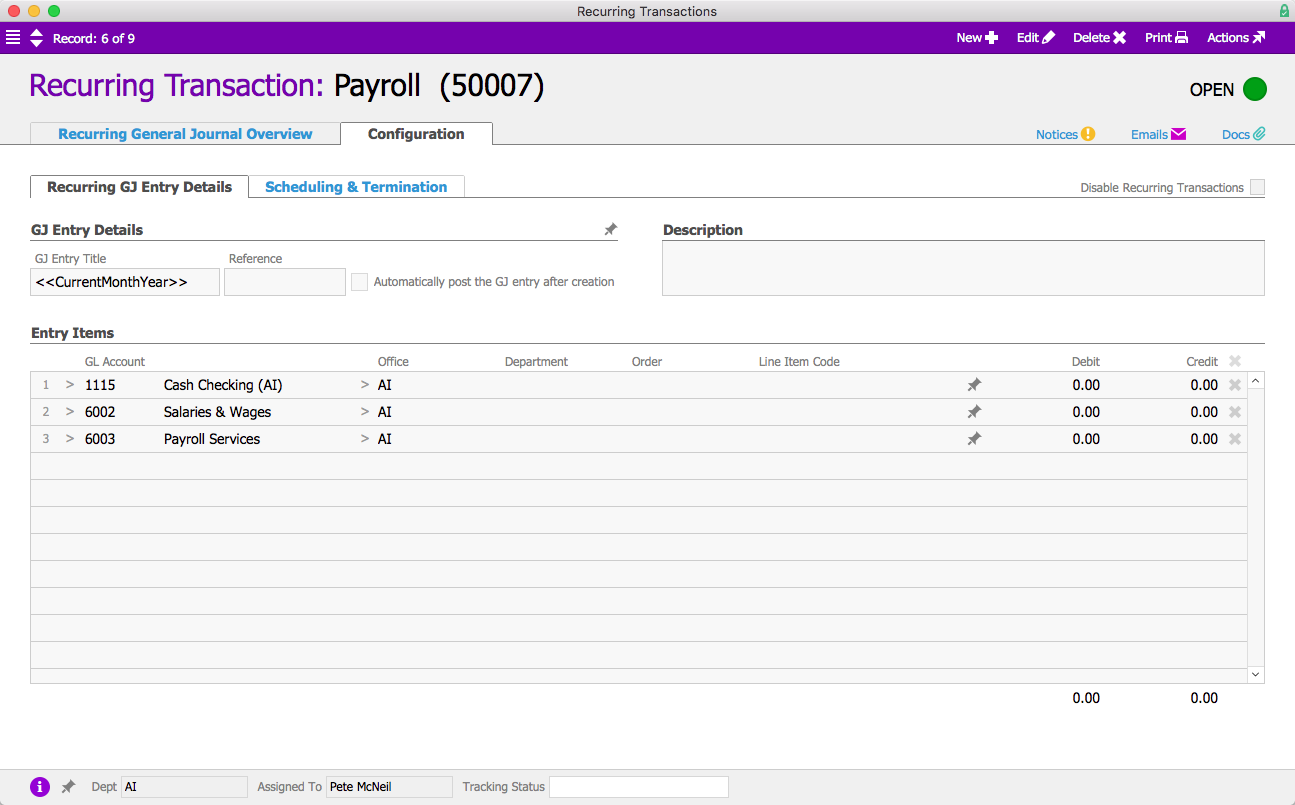
Pete McNeil, aACME’s Director of Human Resources, processes payroll every two weeks. To manage this data in aACE, he creates a new general journal entry in the Recurring Transactions module.

Because every pay period is slightly different, Pete does not configure the transaction to automatically post the GJ entry once it’s been generated. Instead, the recurring transaction will be used as a template and Pete will fill in the details each time payroll is processed. Because payroll will continue to run indefinitely, he doesn’t set an end date; aACE will continue generating GJ entries every two weeks until someone manually disables the transaction.

Recurring GJ Entry

Invoices

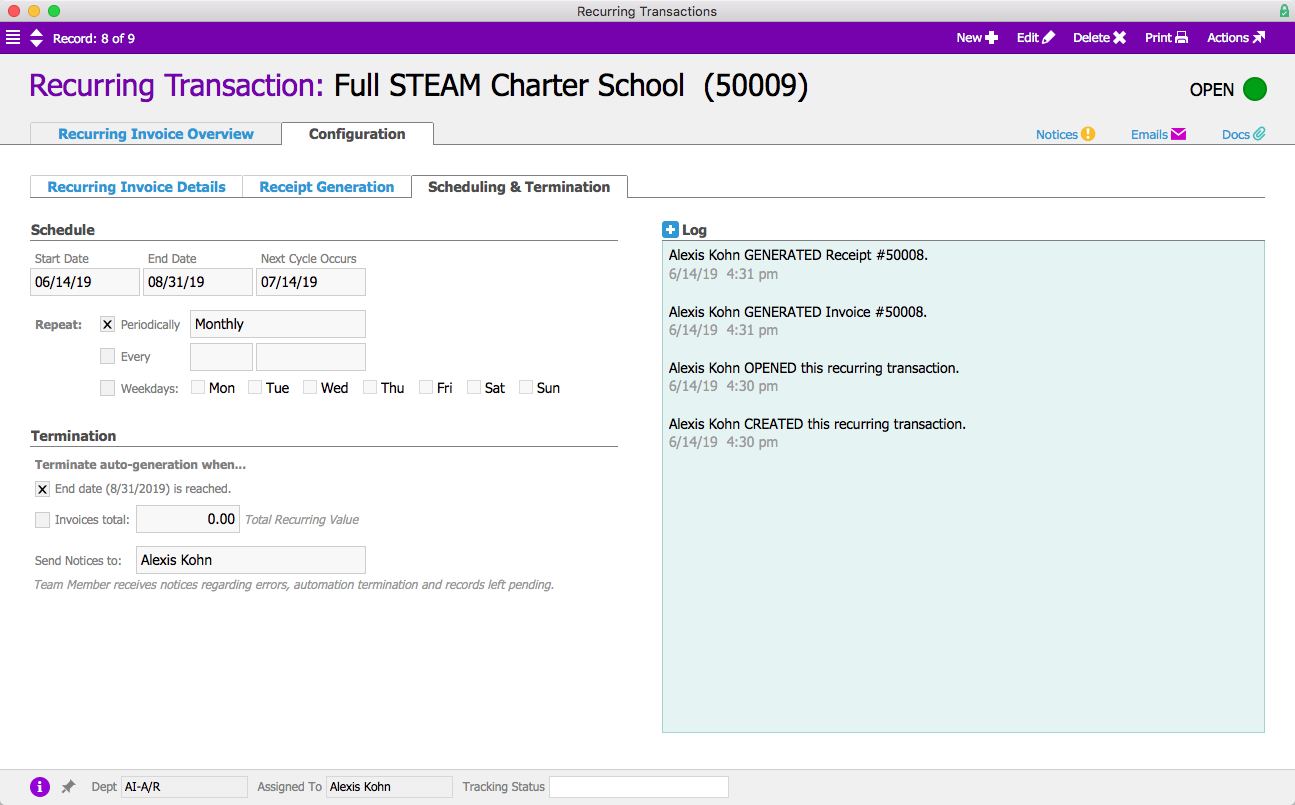
In addition to selling new and refurbished electronic whiteboards, aACME offers schools the option to rent these expensive products. The Full STEAM Academy Charter School rents three whiteboards for their summer term. To ensure that the revenue for each month’s payment is accounted for correctly, Alexis Kohn in the A/R department creates an invoice in the Recurring Transactions module.

Each month, aACE will generate a new invoice for the monthly rental fee and charge the credit card on file for Full STEAM. The transaction will automatically terminate at the end of the summer. Unlike a recurring receipt, which considered each payment as part of a single transaction, aACE will recognize revenue from the recurring invoices separately.

Recurring Invoice

Orders

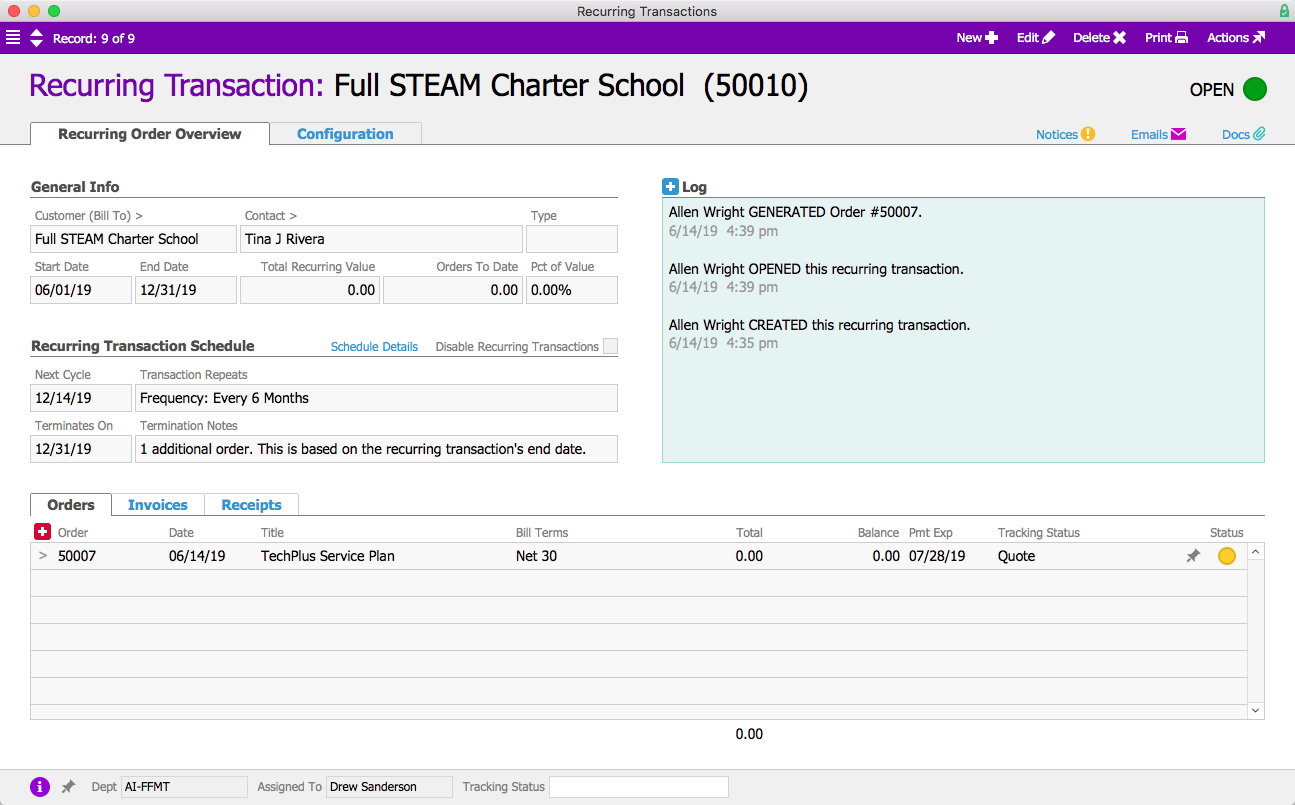
For customers who buy or lease electronic whiteboards or other tech, aACME offers a service plan for a technician to come onsite and make sure their products are in good working condition. Twice a year, aACE generates an order that automatically appears on the calendar for scheduling, and when the technician goes onsite they have a job ready to apply their time and any materials used on maintenance.

Recurring Order

Disbursements

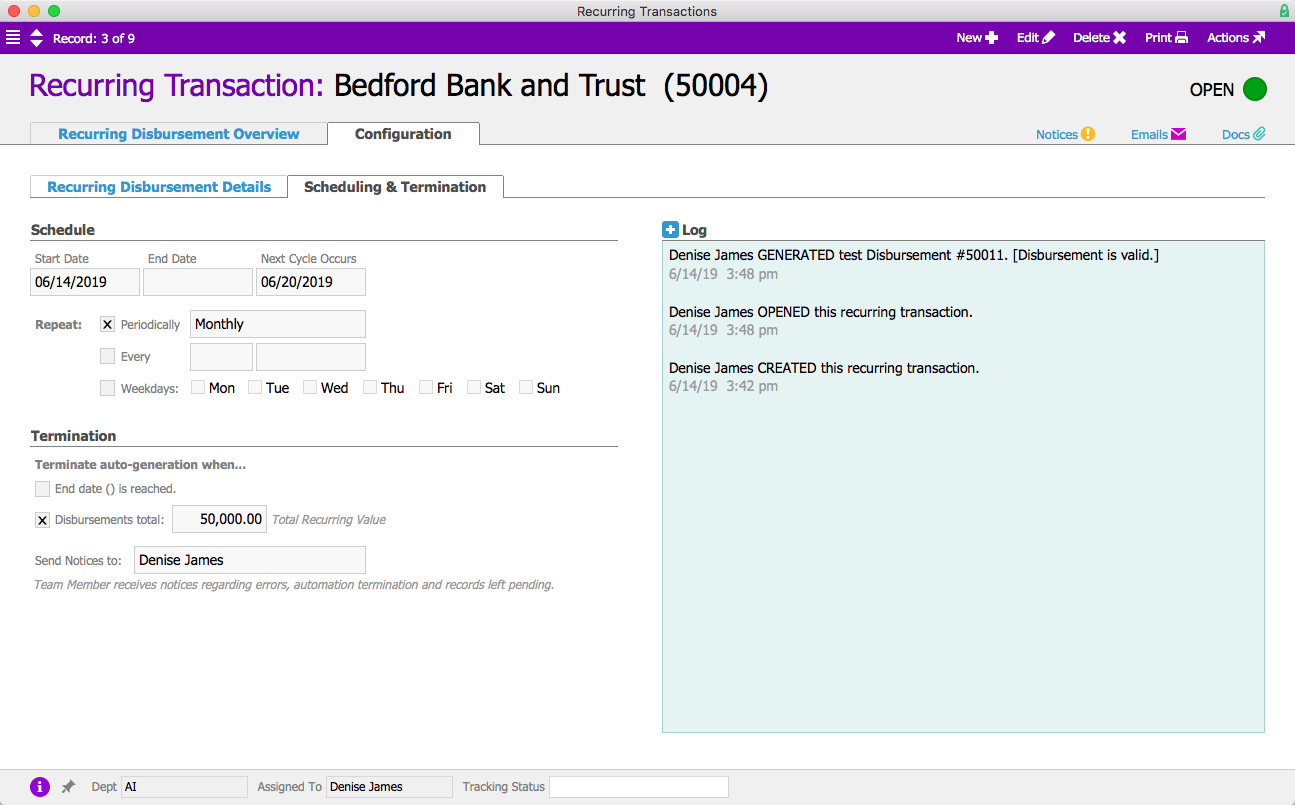
aACME has funds automatically withdrawn from their operating account each month to pay down a loan. To account for those payments, Denise James in the A/P department creates a recurring disbursement and tests the transaction to ensure that it generates an accurate disbursement record. On the 20th of each month – the date that the loan payments are due – aACE automatically generates and posts a disbursement for the exact amount of the loan payment.

Recurring Disbursement

Purchase Orders

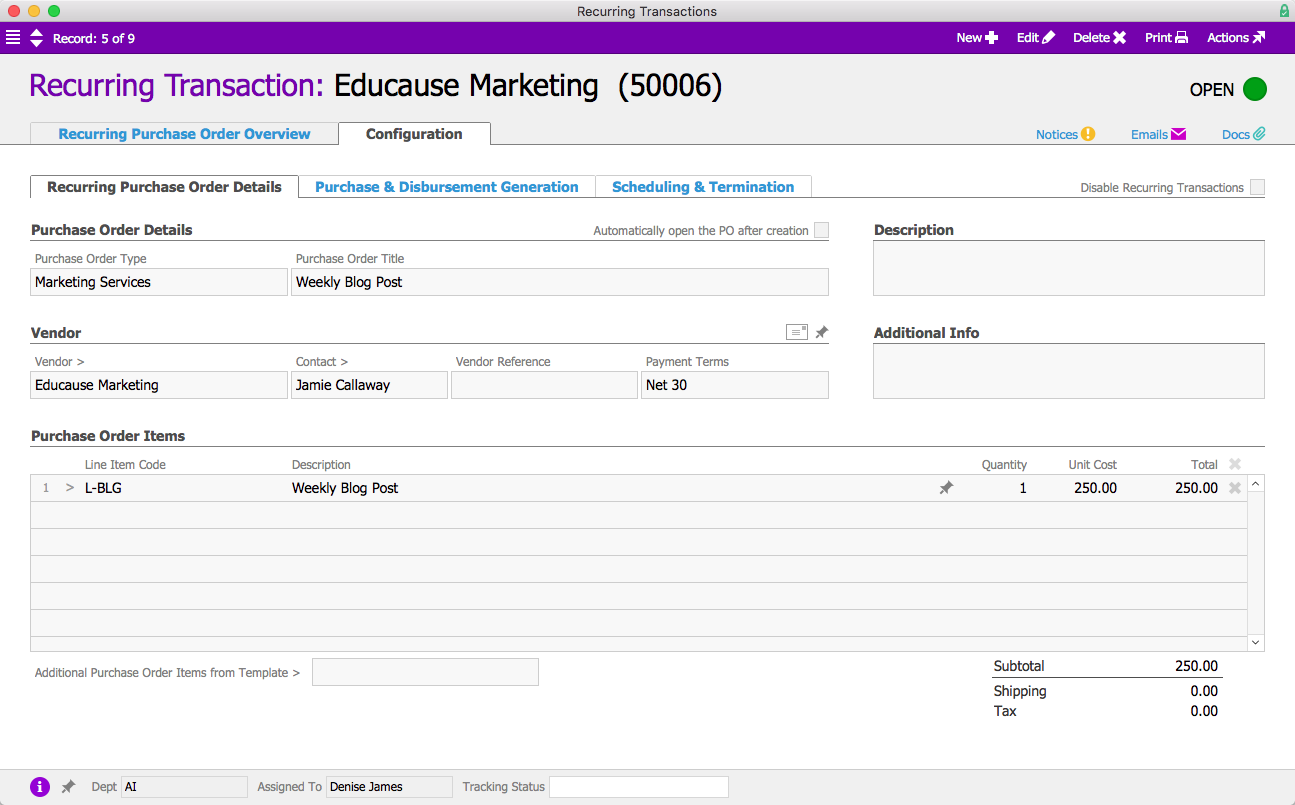
aACME provides resources for educators and school administrators on current best practices in education. To keep up with the demand for new content, they outsource their weekly blog posts to a handful of rotating writers. Denise James creates a recurring purchase order for these posts. Each week aACE automatically generates a PO for that week’s article, which will ultimately be invoiced and published upon delivery.

Recurring PO

These are just a few of the ways that aACME uses the Recurring Transactions in their day-to-day operations. To learn more about how aACE automation can help streamline your business, sign up for a webinar today.

"aACE software is easy to use, intuitive, logical, and easily customized. It is clear that the architecture of aACE has been very well thought out. We were able to automate some previously manual processes that is resulting in literally hundreds of saved labor hours each month." -Daniel Chapman , Founder & CEO, Redd Remedies
Learn More
Whether it’s paying the rent, billing for subscription services, or allowing customers to take out a payment plan, most businesses have at least a few transactions that are set to recur regularly. Wouldn’t it be great if you could enter these transactions once and trust your business management... Learn More
-->

Whether it’s paying the rent, billing for subscription services, or allowing customers to take out a payment plan, most businesses have at least a few transactions that are set to recur regularly. Wouldn’t it be great if you could enter these transactions once and trust your business management solution to do the rest?

With aACE, you can.

aACE’s automated Recurring Transactions module allows you to set and forget your regular transactions. To see this feature in action, let’s take a look at just a few examples of how our fictional company, aACME Education Solutions, uses it in their day-to-day operations.

Receipts

The Regina County Area School District places an order for 20 tablet computers for their students. Account Manager Mara Harvey receives a call from Lauren Padilla at the school district, asking if they could pay for the tablets in five installments. When aACE auto-generates the order’s invoice, Mara makes a note of the agreement in the Payment Comments field.

Invoice

When Alexis Kohn in the Accounts Receivable department sees this note, she creates a new customer payment receipt in the Recurring Transactions module. Lauren has agreed to pay each installment via a credit card that’s kept on file, so Alexis configures the transaction to automatically charge that card and post the resulting receipt each month until the invoice has been paid off. Lauren had asked for the payment plan to begin immediately, so Alexis manually runs the first cycle. aACE generates the first receipt and updates the transaction’s schedule so it will run automatically next month.

Recurring Receipt

Purchases

aACME Education Solutions has just signed a lease on a new office space, and Denise James in the Accounts Payable department needs to set up a recurring transaction for the monthly rent. To do that, she creates a new purchase in the Recurring Transactions module.

Using merge fields, she sets up the title of each purchase to reflect the then-current month and year. Then she configures the record to automatically generate a purchase and disbursement on the first of each month. The disbursement will be left pending, and a member of the A/P team will be notified when it is time to process it and cut the monthly rent check.

Recurring Purchase

General Journal Entries

Pete McNeil, aACME’s Director of Human Resources, processes payroll every two weeks. To manage this data in aACE, he creates a new general journal entry in the Recurring Transactions module.

Because every pay period is slightly different, Pete does not configure the transaction to automatically post the GJ entry once it’s been generated. Instead, the recurring transaction will be used as a template and Pete will fill in the details each time payroll is processed. Because payroll will continue to run indefinitely, he doesn’t set an end date; aACE will continue generating GJ entries every two weeks until someone manually disables the transaction.

Recurring GJ Entry

Invoices

In addition to selling new and refurbished electronic whiteboards, aACME offers schools the option to rent these expensive products. The Full STEAM Academy Charter School rents three whiteboards for their summer term. To ensure that the revenue for each month’s payment is accounted for correctly, Alexis Kohn in the A/R department creates an invoice in the Recurring Transactions module.

Each month, aACE will generate a new invoice for the monthly rental fee and charge the credit card on file for Full STEAM. The transaction will automatically terminate at the end of the summer. Unlike a recurring receipt, which considered each payment as part of a single transaction, aACE will recognize revenue from the recurring invoices separately.

Recurring Invoice

Orders

For customers who buy or lease electronic whiteboards or other tech, aACME offers a service plan for a technician to come onsite and make sure their products are in good working condition. Twice a year, aACE generates an order that automatically appears on the calendar for scheduling, and when the technician goes onsite they have a job ready to apply their time and any materials used on maintenance.

Recurring Order

Disbursements

aACME has funds automatically withdrawn from their operating account each month to pay down a loan. To account for those payments, Denise James in the A/P department creates a recurring disbursement and tests the transaction to ensure that it generates an accurate disbursement record. On the 20th of each month – the date that the loan payments are due – aACE automatically generates and posts a disbursement for the exact amount of the loan payment.

Recurring Disbursement

Purchase Orders

aACME provides resources for educators and school administrators on current best practices in education. To keep up with the demand for new content, they outsource their weekly blog posts to a handful of rotating writers. Denise James creates a recurring purchase order for these posts. Each week aACE automatically generates a PO for that week’s article, which will ultimately be invoiced and published upon delivery.

Recurring PO

These are just a few of the ways that aACME uses the Recurring Transactions in their day-to-day operations. To learn more about how aACE automation can help streamline your business, sign up for a webinar today.

"aACE software is easy to use, intuitive, logical, and easily customized. It is clear that the architecture of aACE has been very well thought out. We were able to automate some previously manual processes that is resulting in literally hundreds of saved labor hours each month." -Daniel Chapman , Founder & CEO, Redd Remedies
Learn More
Read more about Manage Multiple Business Entities in a Single aACE Solution – Here’s How
Manage Multiple Business Entities in a Single aACE Solution – Here’s How

aACE does that.

With aACE, you can track data from different locations, different offices, or even different brands in one comprehensive yet easy-to-use solution. Powerful segregation-of-duties tools allow you to control which parts of the system each user can access, while aACE’s reporting tools allow you to refine financial statements to different entities within the same solution. To see aACE’s multi-entity accounting features in action, let’s take a look at how our fictional company, aACME Education Solutions, manages multiple brands in aACE.

aACME Education Solutions sells technology, textbooks, and classroom resources for students, teachers, and school administrators. They have a regional outlet in the Midwest that sells clearance products at a discount under the aACME brand. They also conduct in-school educational programs under the Education Elite brand, based in Texas. aACME and Education Elite are two separate companies operating under the same ownership, but aACME can sell EE products and programs.
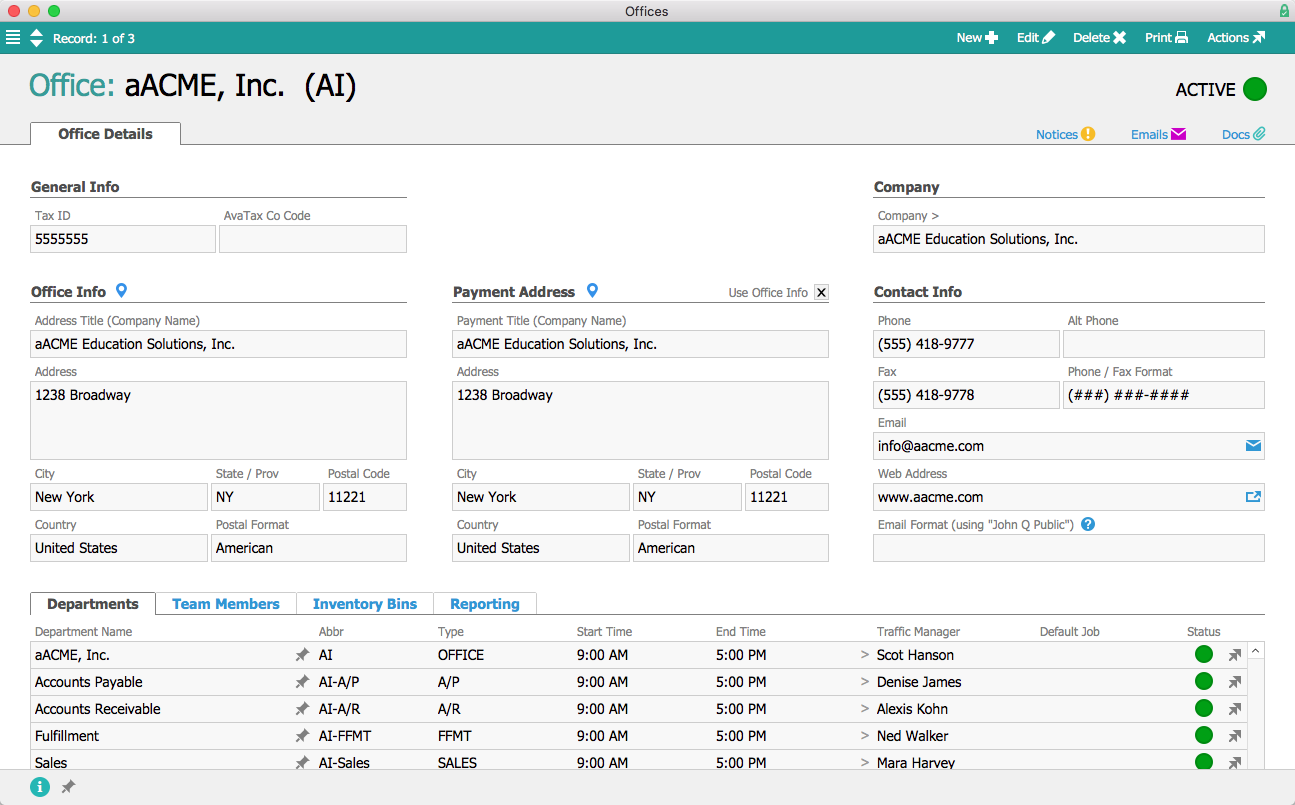
In aACME’s aACE solution there are three separate office records: aACME Inc., the Midwest Regional Outlet, and Education Elite. Each office has its own specific addresses, tax ID, departments, team members, inventory locations, and report branding.

Office Record

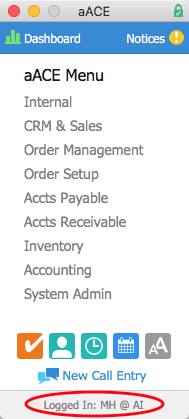
Users are assigned to a particular office. When they log in, their initials and the initials of their office are displayed at the bottom of the main menu. Mara Harvey, for example, is assigned to the aACME Inc. office, so when she logs in the menu displays “MH @ AI”.

Main Menu

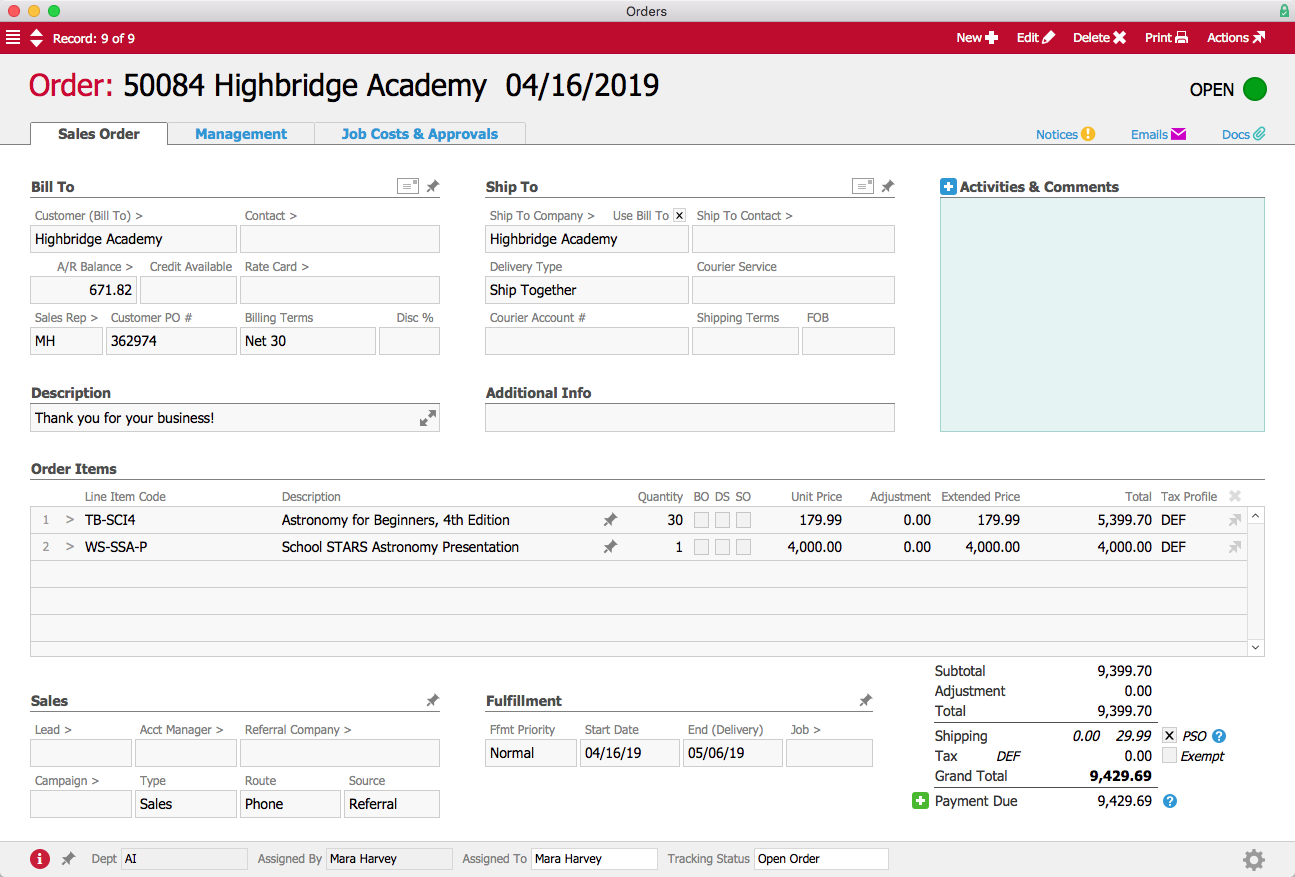
Mara receives an order from the Highbridge Academy. They’re adding a new astronomy elective and need 30 student textbooks. To kick off the new course, they’d also like to bring Education Elite in to give a workshop on astronomy to the entire school.

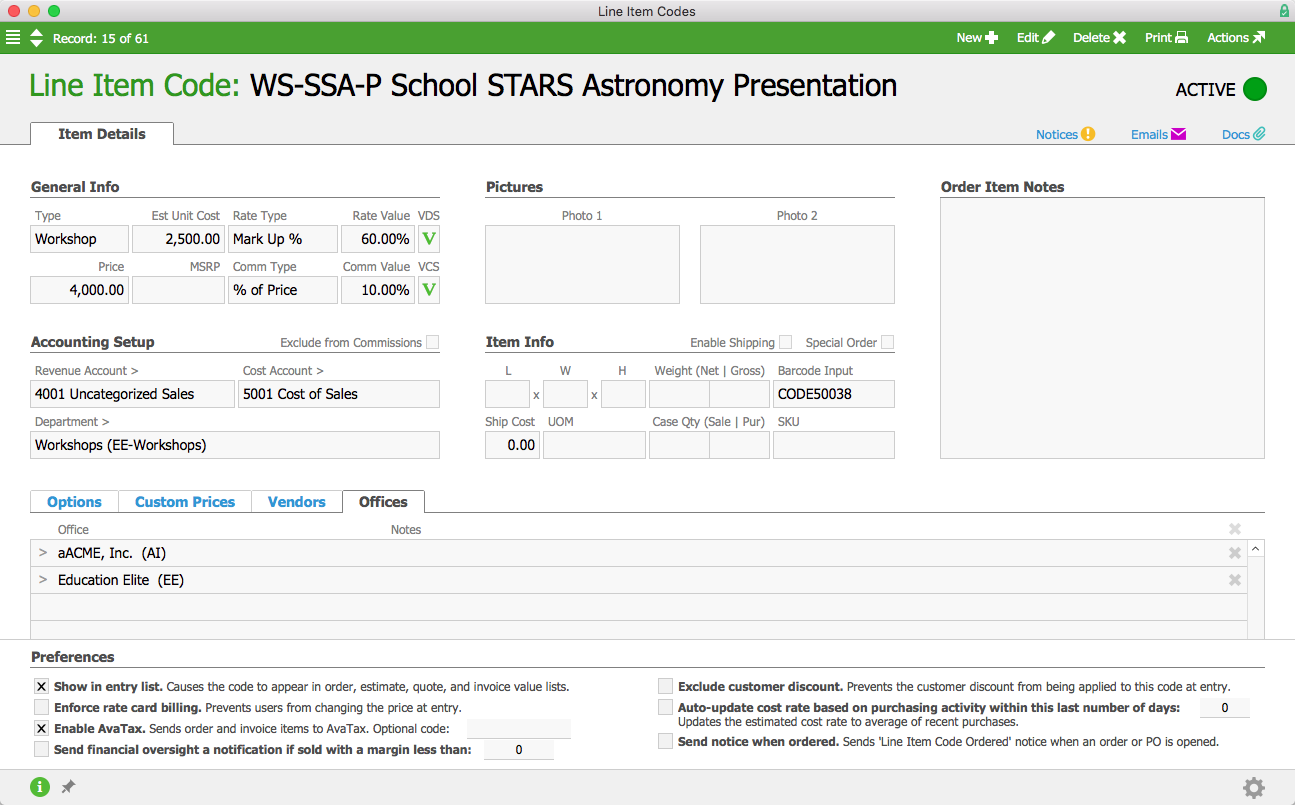
Because Education Elite’s workshops can be sold by employees at aACME’s headquarters, the workshop’s product record lists the aACME Inc. office in addition to the Education Elite office. To ensure that the revenue from the workshop is attributed to Education Elite regardless of which office sells it, the product record’s department is EE-Workshops. The clearance outlet does not sell the workshops, so the Midwest Regional Outlet is not listed in the product’s record. Employees at the outlet don’t see the workshops in their system and are not able to add them to orders.

Workshop Record

As an employee in the aACME Inc. office, Mara can see the astronomy workshop in her list of products. She adds it to the Highbridge Academy order along with the textbooks they requested.

Highbridge Order

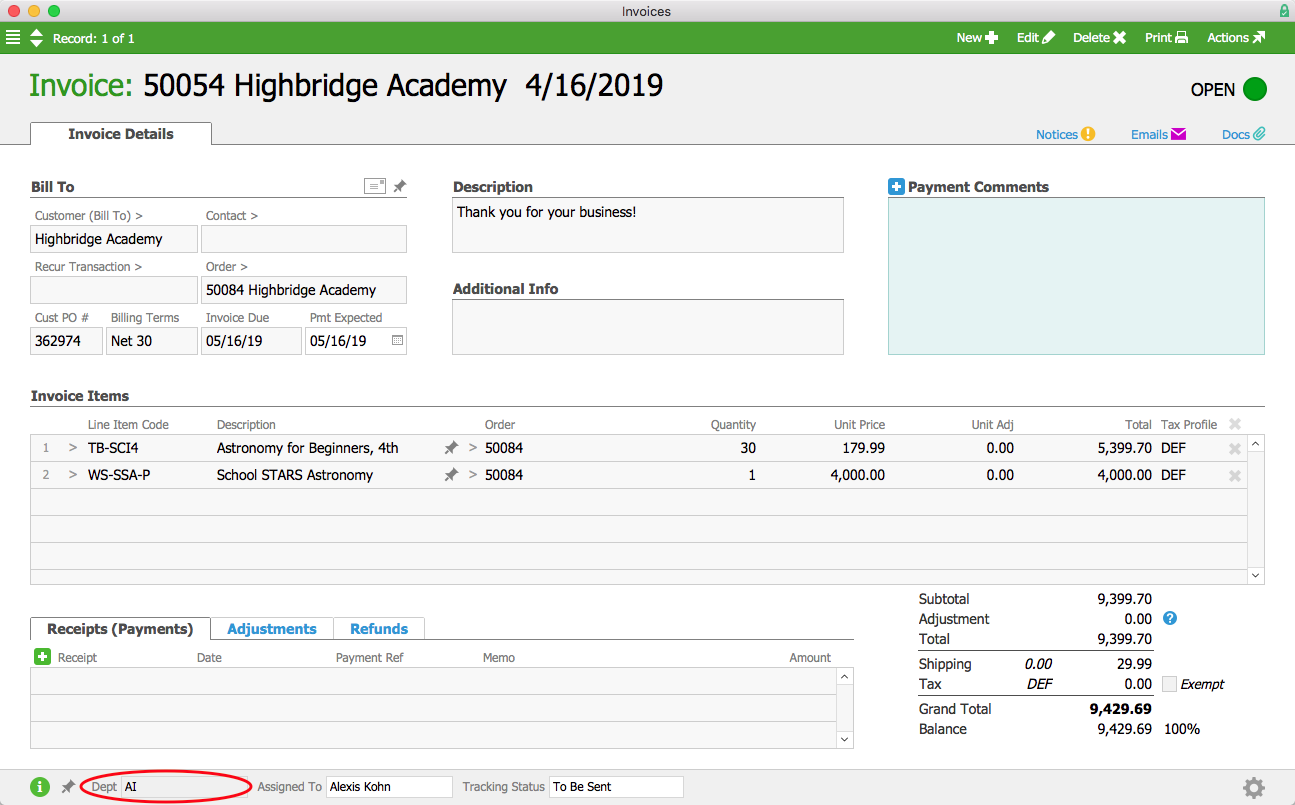
When aACE generates the invoice for this order, it will be assigned to aACME Inc. because that is where the order originated. This ensures that the customer will receive a single invoice for the entire order regardless of how many different offices they’ve ordered products from.

5 Highbridge Invoice-1

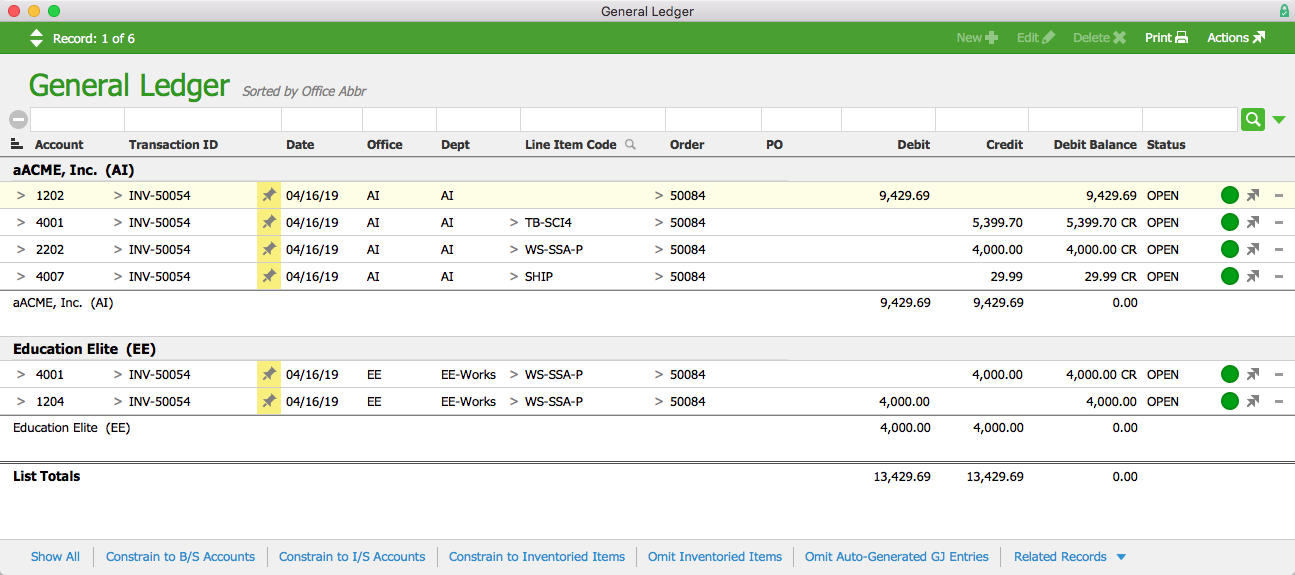
Because the workshop is assigned to Education Elite, the general ledger will attribute the revenue generated from the workshop to EE’s office. Below we can see the GL transactions associated with the invoice. The transactions have been sorted by office to show that the $4,000 revenue (Account #4001) from the workshop has been attributed to EE. There is also a receivables balance (Account #1204) for the $4,000 due from AI. We can see the corresponding payables balance (Account #2202) associated with AI’s office.

General Ledger

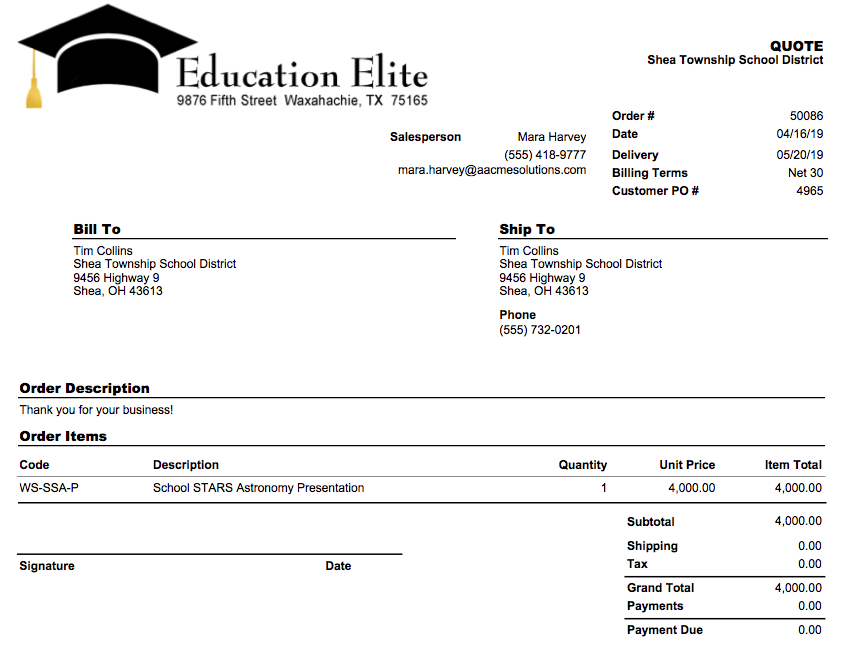
Later, Mara receives an order from the Shea Township School District. They would also like to run the astronomy workshop at their high school; because they have worked directly with Mara in the past, they placed the order through her instead of through Education Elite. When Mara processes the order, she changes the department associated with the order to Education Elite since she is only selling their products. This change means that the quote she sends to Shea Township will have EE’s branding instead of aACME’s.

Shea Twp Quote

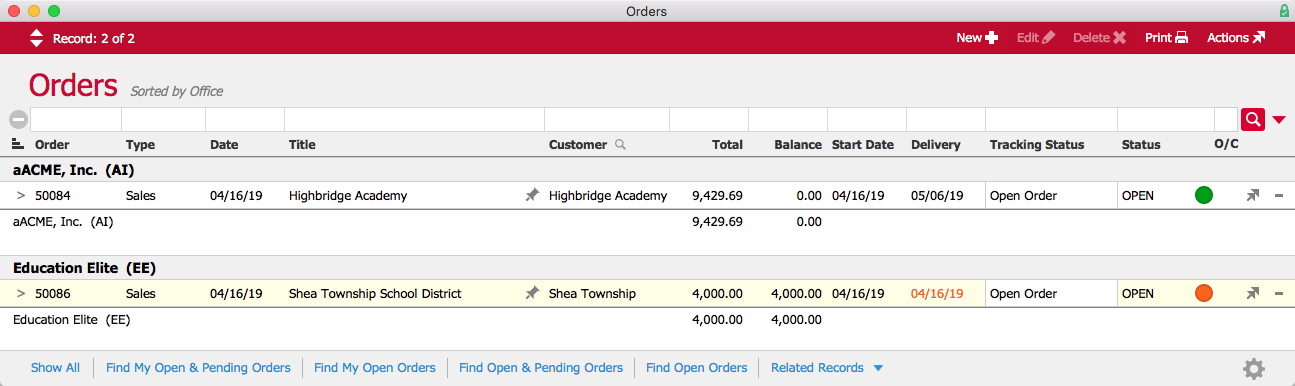
As an account manager, Mara has privileges in aACE that allow her to see orders from all three offices. In the Orders module list view, she can sort her list of orders by office to see which ones belong to aACME Inc., the Midwest Regional Outlet, or Education Elite.

Orders List View

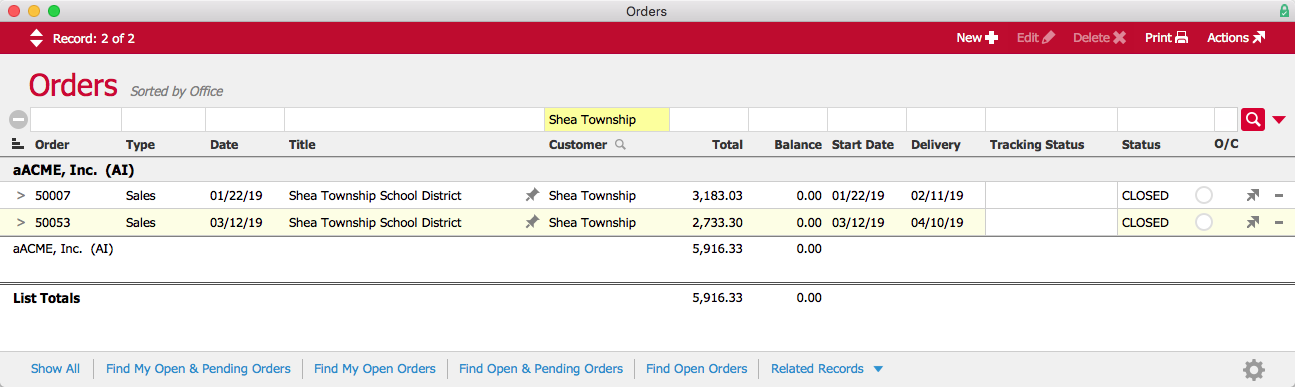
Not all users are able to view data from all of aACME’s offices. Jamie Gianelli, a sales representative for aACME Inc., is only able to view orders pertaining to her own office. If she searches for Shea Township, for example, she won’t see Order #50086 for the astronomy workshop because that order belongs to Education Elite.

Orders List View

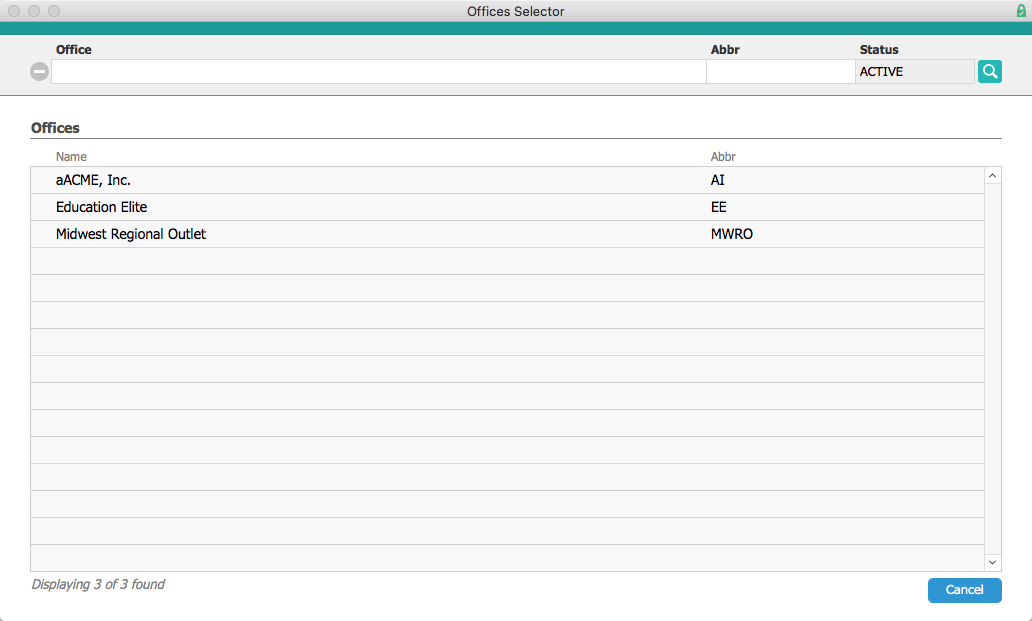
Stockroom manager Allen Wright typically works out of aACME Inc.’s main office in New York, but when the stockroom manager at the Midwest Regional Outlet is promoted out of the role, Allen is sent there to temporarily fill the vacancy. When Allen logs into aACE, he’s automatically logged into the aACME, Inc. office. But because he’s a manager, he has privileges in aACE that allow him to switch between offices. While he’s working in the outlet, he changes his office to the MWRO so that he has access to all of the correct data.

Office Selector

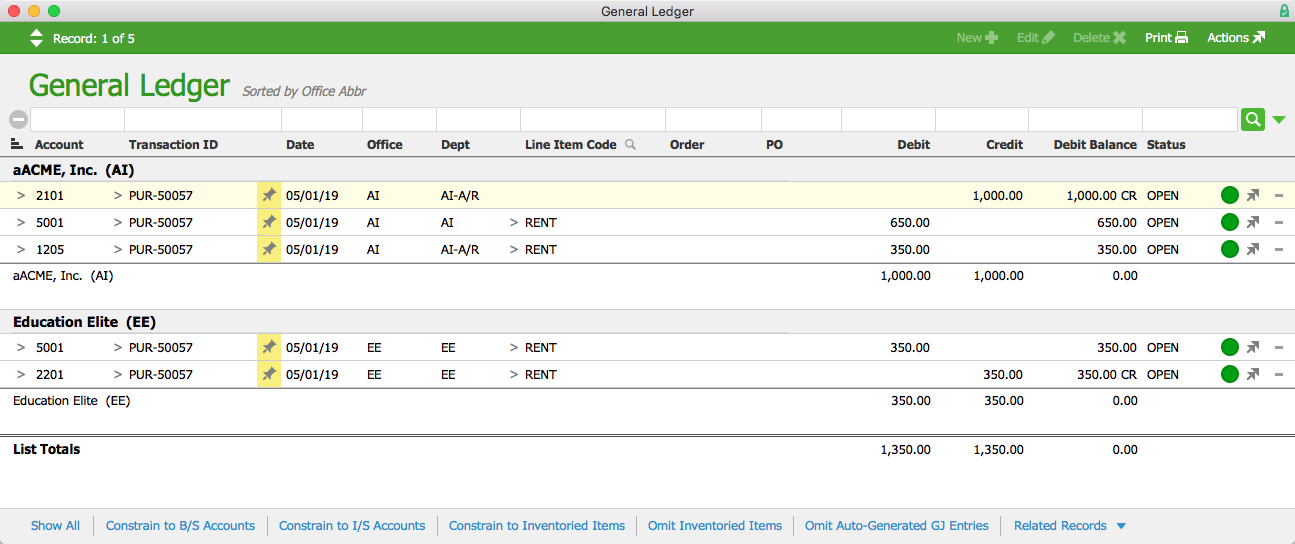
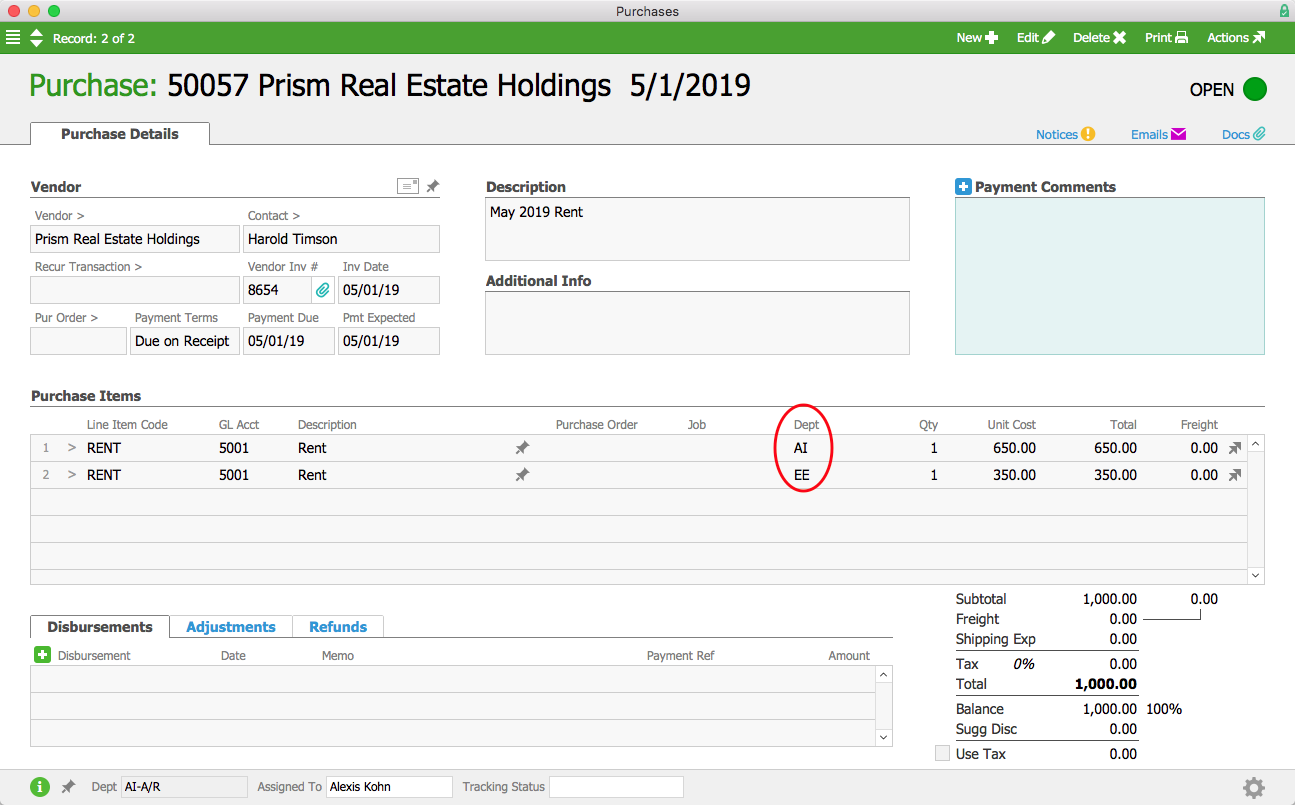
Now let’s look at how aACE handles accounting transactions among multiple entities. Education Elite is based in Texas, but they also occupy a satellite office within aACME Inc.’s Manhattan headquarters. The $1,000 monthly rent paid to aACME’s landlord, Prism Real Estate Holdings, is therefore split between the two companies. In aACME’s Accounts Payable department, Alexis Kohn enters the May rent in the Purchases module. She enters $650 for rent as the first line item, and chooses AI from the drop-down list of departments. In the second line item she enters the remaining $350 for rent and chooses EE from the list of departments.

Purchase

The full $1,000 is paid to the landlord in one purchase, with the correct totals attributed to each company in the general ledger. Below we can see the GL transactions associated with this purchase sorted by office. Because the purchase originated in the aACME Inc. office, the AP balance for the entire purchase is attributed to AI (Account #2101). The expense code for the rent, however, only lists the $650 that AI was responsible for under AI’s office (Account #5001). The remaining $350 is a receivable balance due from Education Elite (Account #1205). Likewise, the transactions associated with EE’s office show a $350 expense for rent (Account #5001) and a $350 payable balance due to AI (Account #2201).

GL Rent Entries

We’ve now seen several examples of workflows involving multiple entities in aACE, but what happens when an executive needs to see the bigger picture?

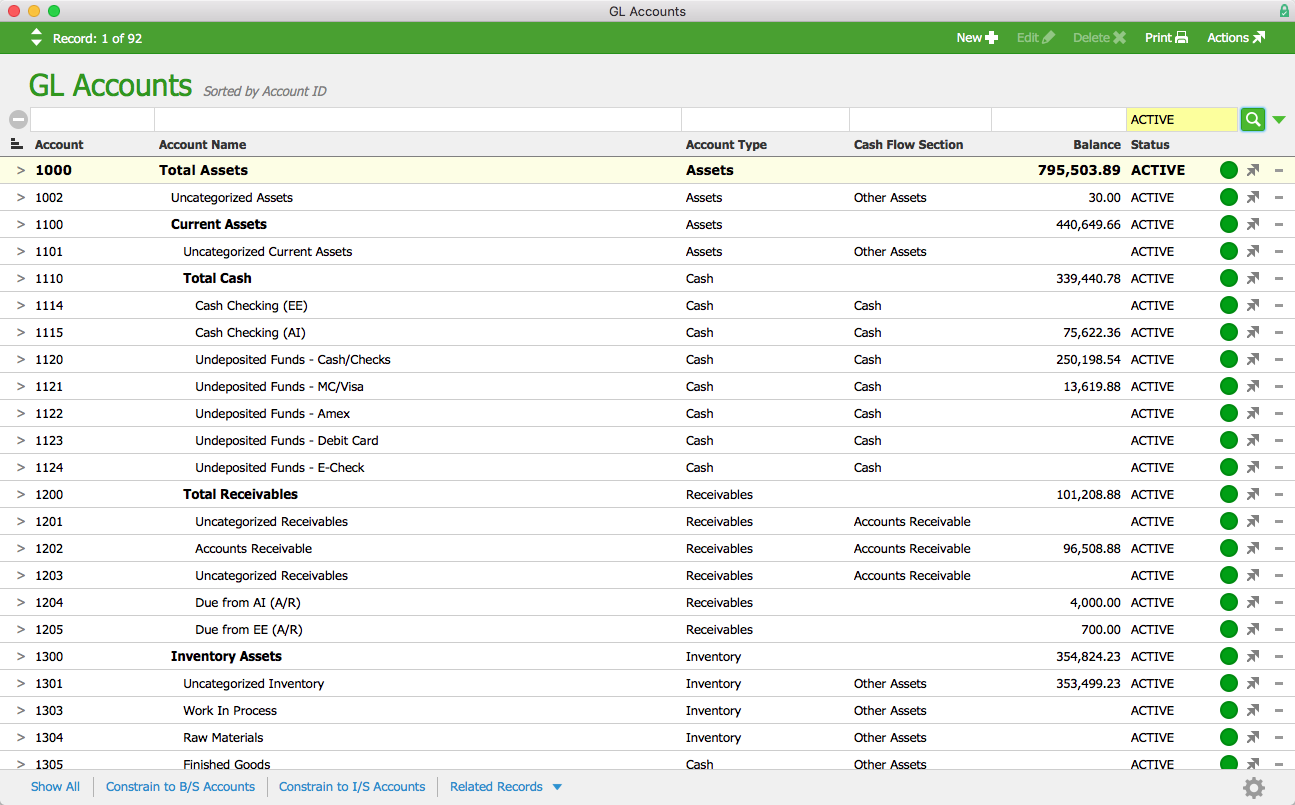
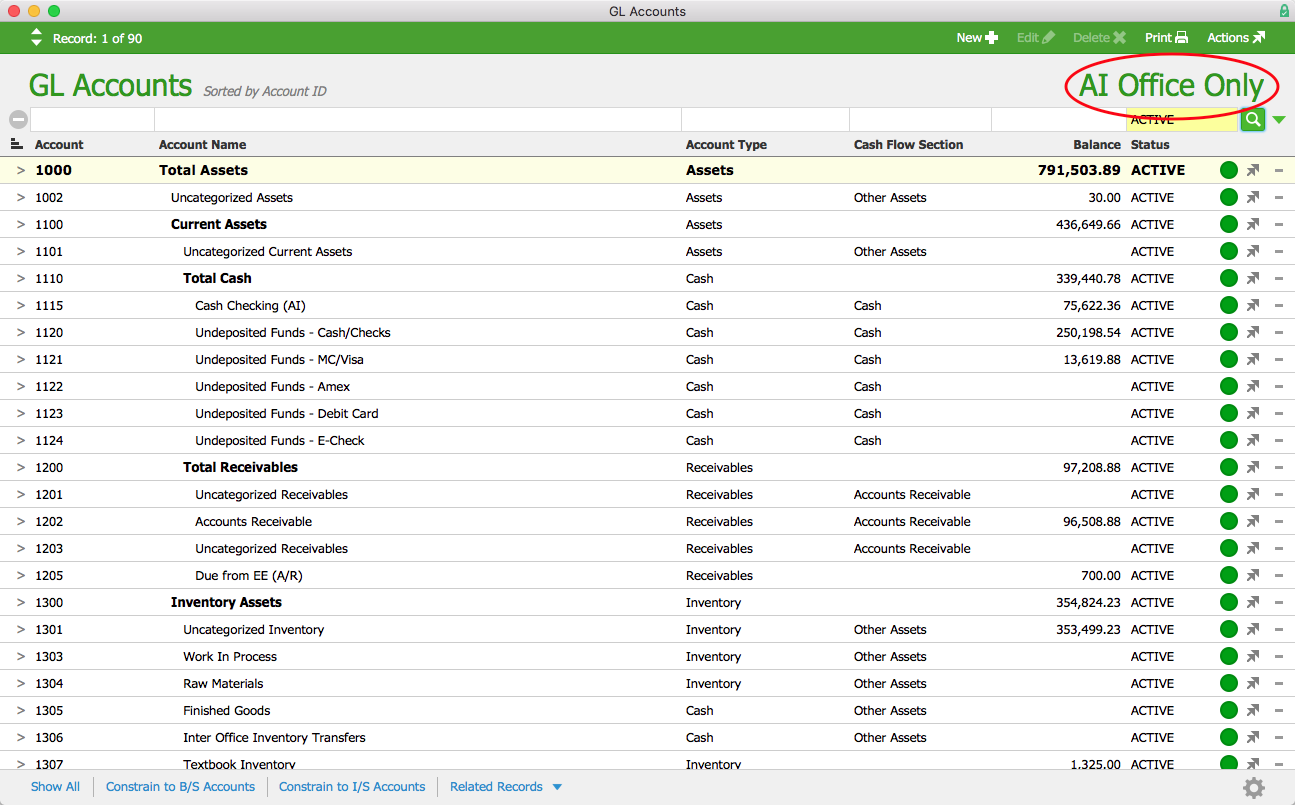
When aACME Inc. President Jacob Young logs into aACE and views the GL Accounts module, he can see accounts from each of aACME’s three offices in one consolidated chart of accounts.

GL Accounts

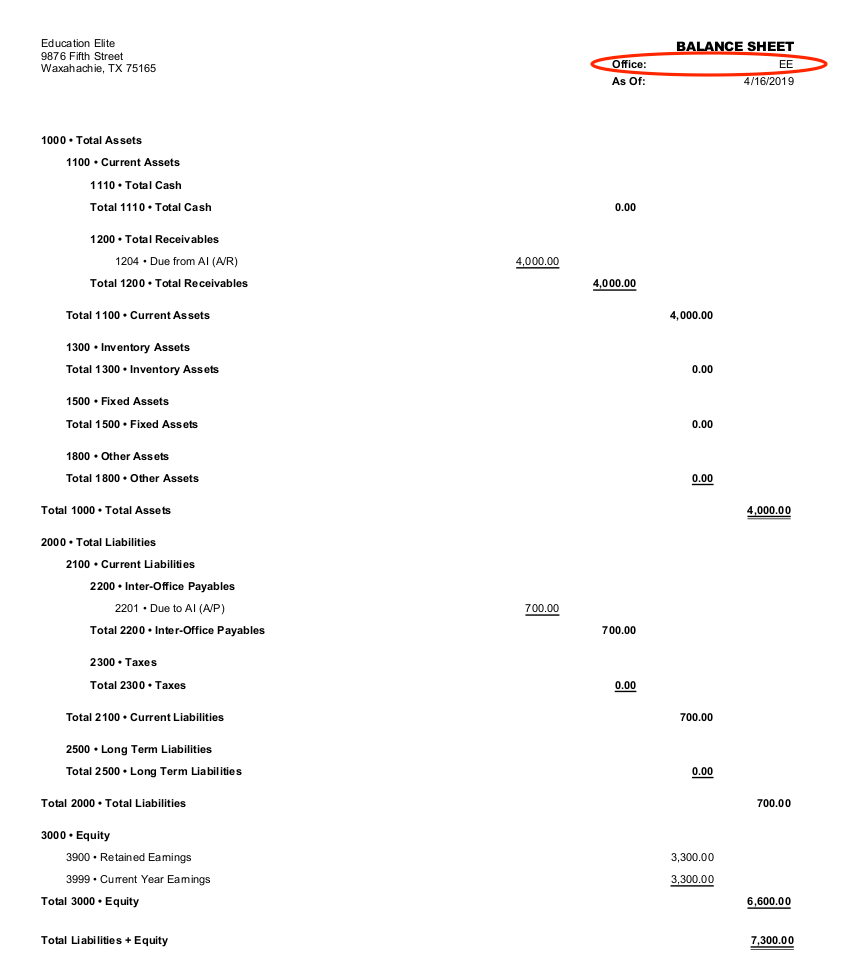
If he wants to constrain the data to a single entity — for instance, Education Elite — he can select Balance Sheet from the Print menu and choose Education Elite’s office.

EE Balance Sheet

For some purposes, it may be better to manages the three offices’ general ledgers separately. Jacob can do that by enabling a preference in aACE’s Data Entry settings. Now when he views the GL Accounts module, he’ll see only the accounts for the office he’s currently logged into.

aACME Inc GL Accounts

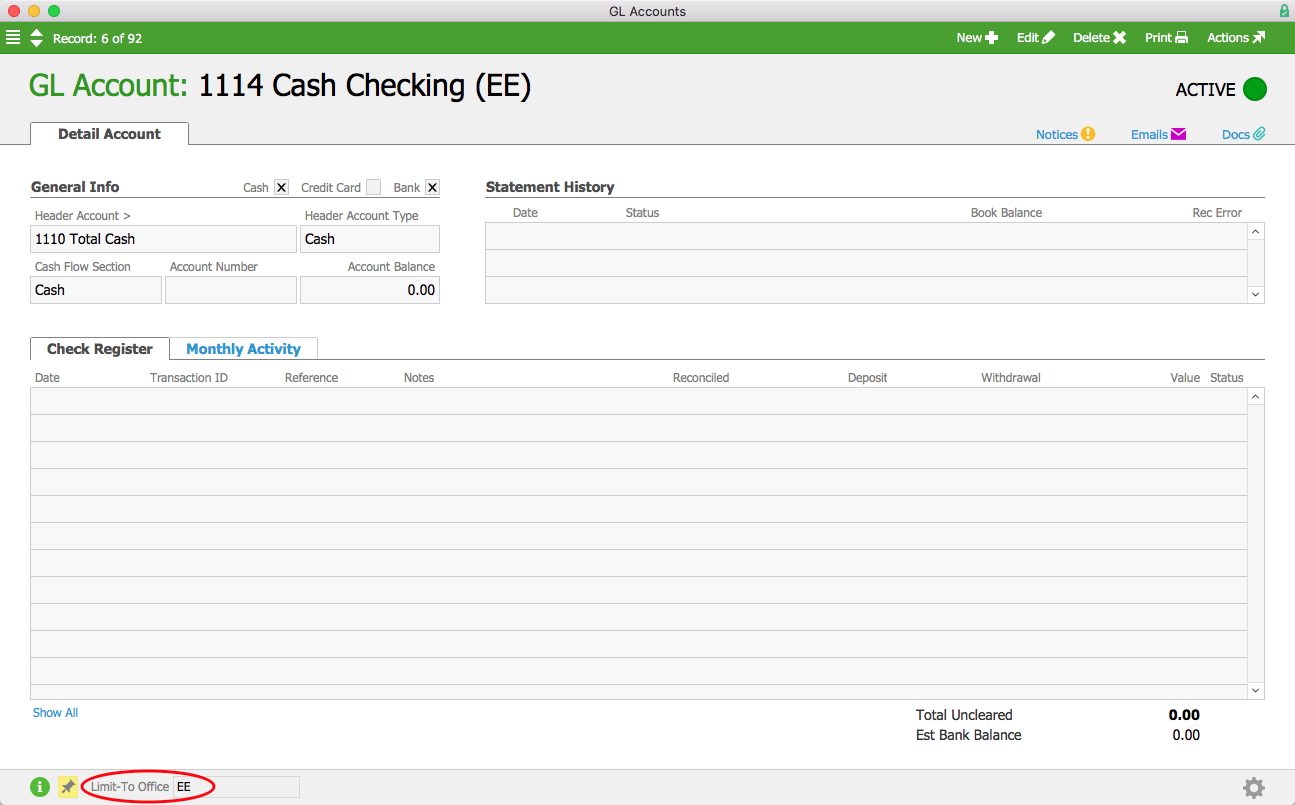
If Jacob wants to limit a particular GL account to the Education Elite office, he can simply select EE from the Limit-To Office drop down menu when creating a new GL account or editing an existing one. If the preference to prevent multi-office transactions is enabled, this GL account will not be visible to users who are not logged in to Education Elite’s office.

Cash Checking EE

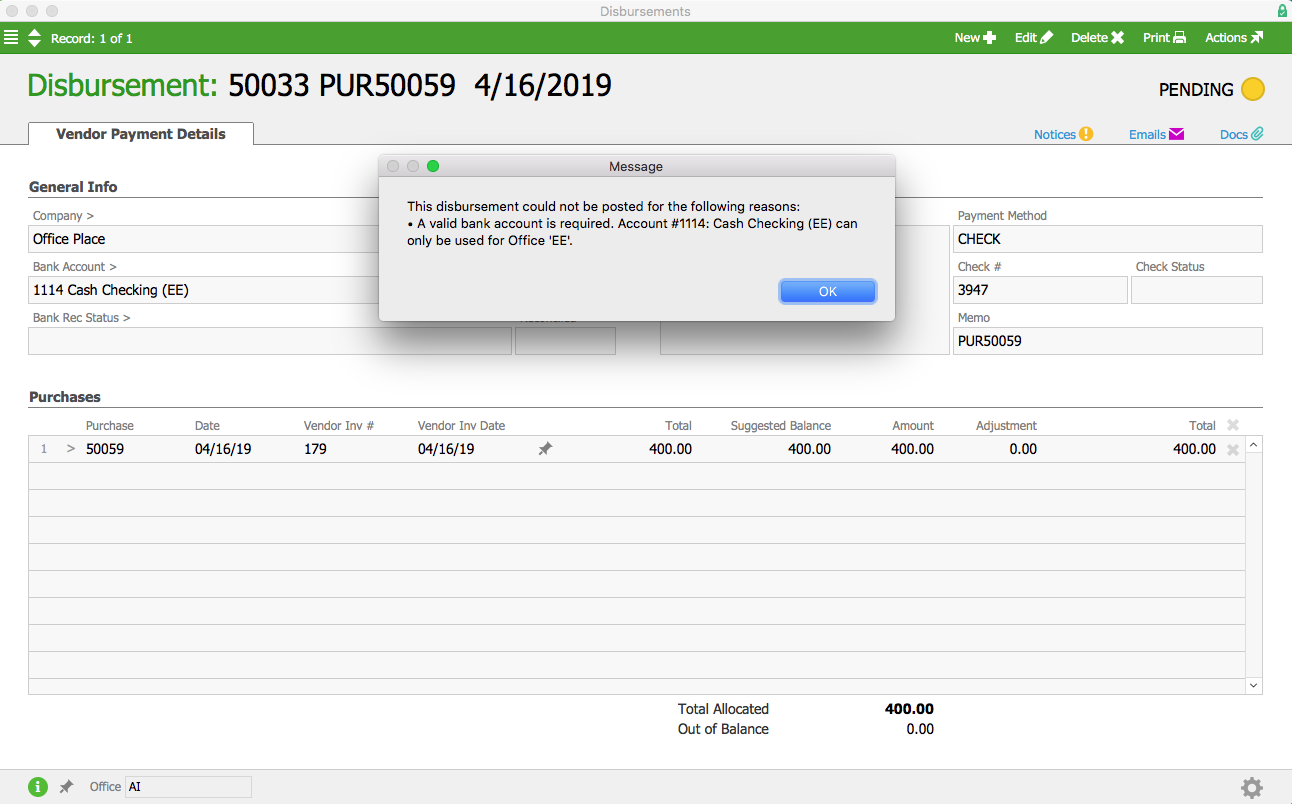
This means that when Denise James in the Accounts Payable department cuts a check for office supplies on behalf of aACME Inc. she will only be able to do so from the AI office’s checking account. If she tries to use an Education Elite account to cut a check assigned to aACME Inc., aACE will display an error message and prevent the disbursement from being posted.

Disbursement Error

These scenarios highlight some of the most useful features of aACE multi-entity accounting. Whether you’re managing multiple locations or multiple companies, aACE makes it easy to accurately track all of your data in a single, comprehensive solution. To learn more about how an actual business manages multiple entities in aACE, check out our success story on Special EFX. And to see aACE in action, register for a webinar today.

 "I cannot begin to tell you what a breath of fresh air this has been for us. Implementing aACE is the best thing we ever did. The solution evolves with us as our needs change." ~ Peter Osborne, CEO, Special EFX Ltd.

Learn More

Managing the financials for one office can be tricky enough. Add in multiple locations or even multiple separate businesses, and you may find yourself having to choose between separate accounting solutions that don’t talk to each other or a single solution that commingles data from each entity,... Learn More

-->

Managing the financials for one office can be tricky enough. Add in multiple locations or even multiple separate businesses, and you may find yourself having to choose between separate accounting solutions that don’t talk to each other or a single solution that commingles data from each entity, forcing you or your accountant to spend time manually separating out the information you need. Wouldn’t it be great if one solution could give you a clear picture of your entire financial situation?

aACE does that.

With aACE, you can track data from different locations, different offices, or even different brands in one comprehensive yet easy-to-use solution. Powerful segregation-of-duties tools allow you to control which parts of the system each user can access, while aACE’s reporting tools allow you to refine financial statements to different entities within the same solution. To see aACE’s multi-entity accounting features in action, let’s take a look at how our fictional company, aACME Education Solutions, manages multiple brands in aACE.

aACME Education Solutions sells technology, textbooks, and classroom resources for students, teachers, and school administrators. They have a regional outlet in the Midwest that sells clearance products at a discount under the aACME brand. They also conduct in-school educational programs under the Education Elite brand, based in Texas. aACME and Education Elite are two separate companies operating under the same ownership, but aACME can sell EE products and programs.

In aACME’s aACE solution there are three separate office records: aACME Inc., the Midwest Regional Outlet, and Education Elite. Each office has its own specific addresses, tax ID, departments, team members, inventory locations, and report branding.

Office Record

Users are assigned to a particular office. When they log in, their initials and the initials of their office are displayed at the bottom of the main menu. Mara Harvey, for example, is assigned to the aACME Inc. office, so when she logs in the menu displays “MH @ AI”.

Main Menu

Mara receives an order from the Highbridge Academy. They’re adding a new astronomy elective and need 30 student textbooks. To kick off the new course, they’d also like to bring Education Elite in to give a workshop on astronomy to the entire school.

Because Education Elite’s workshops can be sold by employees at aACME’s headquarters, the workshop’s product record lists the aACME Inc. office in addition to the Education Elite office. To ensure that the revenue from the workshop is attributed to Education Elite regardless of which office sells it, the product record’s department is EE-Workshops. The clearance outlet does not sell the workshops, so the Midwest Regional Outlet is not listed in the product’s record. Employees at the outlet don’t see the workshops in their system and are not able to add them to orders.

Workshop Record

As an employee in the aACME Inc. office, Mara can see the astronomy workshop in her list of products. She adds it to the Highbridge Academy order along with the textbooks they requested.

Highbridge Order

When aACE generates the invoice for this order, it will be assigned to aACME Inc. because that is where the order originated. This ensures that the customer will receive a single invoice for the entire order regardless of how many different offices they’ve ordered products from.

5 Highbridge Invoice-1

Because the workshop is assigned to Education Elite, the general ledger will attribute the revenue generated from the workshop to EE’s office. Below we can see the GL transactions associated with the invoice. The transactions have been sorted by office to show that the $4,000 revenue (Account #4001) from the workshop has been attributed to EE. There is also a receivables balance (Account #1204) for the $4,000 due from AI. We can see the corresponding payables balance (Account #2202) associated with AI’s office.

General Ledger

Later, Mara receives an order from the Shea Township School District. They would also like to run the astronomy workshop at their high school; because they have worked directly with Mara in the past, they placed the order through her instead of through Education Elite. When Mara processes the order, she changes the department associated with the order to Education Elite since she is only selling their products. This change means that the quote she sends to Shea Township will have EE’s branding instead of aACME’s.

Shea Twp Quote

As an account manager, Mara has privileges in aACE that allow her to see orders from all three offices. In the Orders module list view, she can sort her list of orders by office to see which ones belong to aACME Inc., the Midwest Regional Outlet, or Education Elite.

Orders List View

Not all users are able to view data from all of aACME’s offices. Jamie Gianelli, a sales representative for aACME Inc., is only able to view orders pertaining to her own office. If she searches for Shea Township, for example, she won’t see Order #50086 for the astronomy workshop because that order belongs to Education Elite.

Orders List View

Stockroom manager Allen Wright typically works out of aACME Inc.’s main office in New York, but when the stockroom manager at the Midwest Regional Outlet is promoted out of the role, Allen is sent there to temporarily fill the vacancy. When Allen logs into aACE, he’s automatically logged into the aACME, Inc. office. But because he’s a manager, he has privileges in aACE that allow him to switch between offices. While he’s working in the outlet, he changes his office to the MWRO so that he has access to all of the correct data.

Office Selector

Now let’s look at how aACE handles accounting transactions among multiple entities. Education Elite is based in Texas, but they also occupy a satellite office within aACME Inc.’s Manhattan headquarters. The $1,000 monthly rent paid to aACME’s landlord, Prism Real Estate Holdings, is therefore split between the two companies. In aACME’s Accounts Payable department, Alexis Kohn enters the May rent in the Purchases module. She enters $650 for rent as the first line item, and chooses AI from the drop-down list of departments. In the second line item she enters the remaining $350 for rent and chooses EE from the list of departments.

Purchase

The full $1,000 is paid to the landlord in one purchase, with the correct totals attributed to each company in the general ledger. Below we can see the GL transactions associated with this purchase sorted by office. Because the purchase originated in the aACME Inc. office, the AP balance for the entire purchase is attributed to AI (Account #2101). The expense code for the rent, however, only lists the $650 that AI was responsible for under AI’s office (Account #5001). The remaining $350 is a receivable balance due from Education Elite (Account #1205). Likewise, the transactions associated with EE’s office show a $350 expense for rent (Account #5001) and a $350 payable balance due to AI (Account #2201).

GL Rent Entries

We’ve now seen several examples of workflows involving multiple entities in aACE, but what happens when an executive needs to see the bigger picture?

When aACME Inc. President Jacob Young logs into aACE and views the GL Accounts module, he can see accounts from each of aACME’s three offices in one consolidated chart of accounts.

GL Accounts

If he wants to constrain the data to a single entity — for instance, Education Elite — he can select Balance Sheet from the Print menu and choose Education Elite’s office.

EE Balance Sheet

For some purposes, it may be better to manages the three offices’ general ledgers separately. Jacob can do that by enabling a preference in aACE’s Data Entry settings. Now when he views the GL Accounts module, he’ll see only the accounts for the office he’s currently logged into.

aACME Inc GL Accounts

If Jacob wants to limit a particular GL account to the Education Elite office, he can simply select EE from the Limit-To Office drop down menu when creating a new GL account or editing an existing one. If the preference to prevent multi-office transactions is enabled, this GL account will not be visible to users who are not logged in to Education Elite’s office.

Cash Checking EE

This means that when Denise James in the Accounts Payable department cuts a check for office supplies on behalf of aACME Inc. she will only be able to do so from the AI office’s checking account. If she tries to use an Education Elite account to cut a check assigned to aACME Inc., aACE will display an error message and prevent the disbursement from being posted.

Disbursement Error

These scenarios highlight some of the most useful features of aACE multi-entity accounting. Whether you’re managing multiple locations or multiple companies, aACE makes it easy to accurately track all of your data in a single, comprehensive solution. To learn more about how an actual business manages multiple entities in aACE, check out our success story on Special EFX. And to see aACE in action, register for a webinar today.

 "I cannot begin to tell you what a breath of fresh air this has been for us. Implementing aACE is the best thing we ever did. The solution evolves with us as our needs change." ~ Peter Osborne, CEO, Special EFX Ltd.

Learn More

Read more about aACE Lot and Serial Tracking Offers Precision in Inventory Management

aACE Lot and Serial Tracking Offers Precision in Inventory Management

To understand how aACE tracks lots and serial numbers, let’s take a look at how our fictional company, aACME Education Solutions, uses these features in their day-to-day operations.

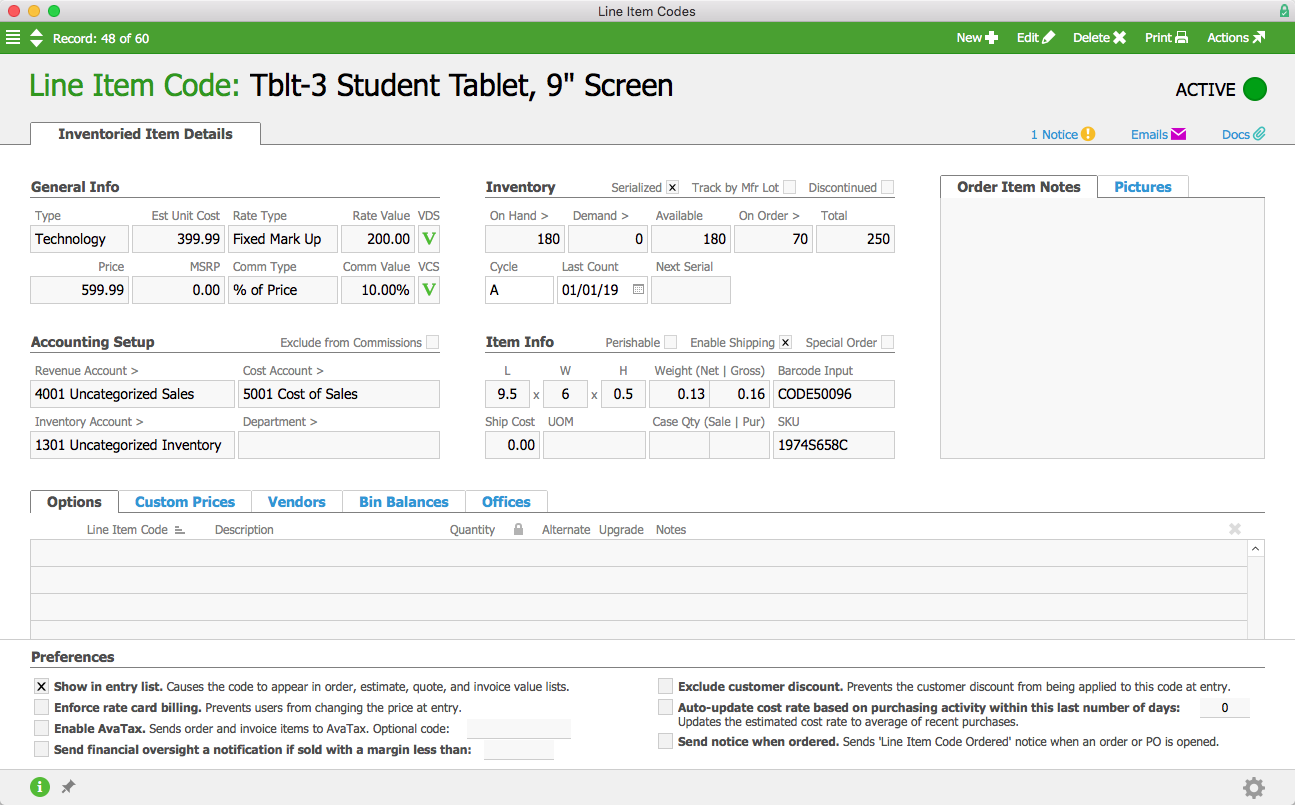
aACME sells student tablet computers, which are tracked individually by serial number. In each tablet’s product record, the Serialized flag is checked.

Tablet LIC

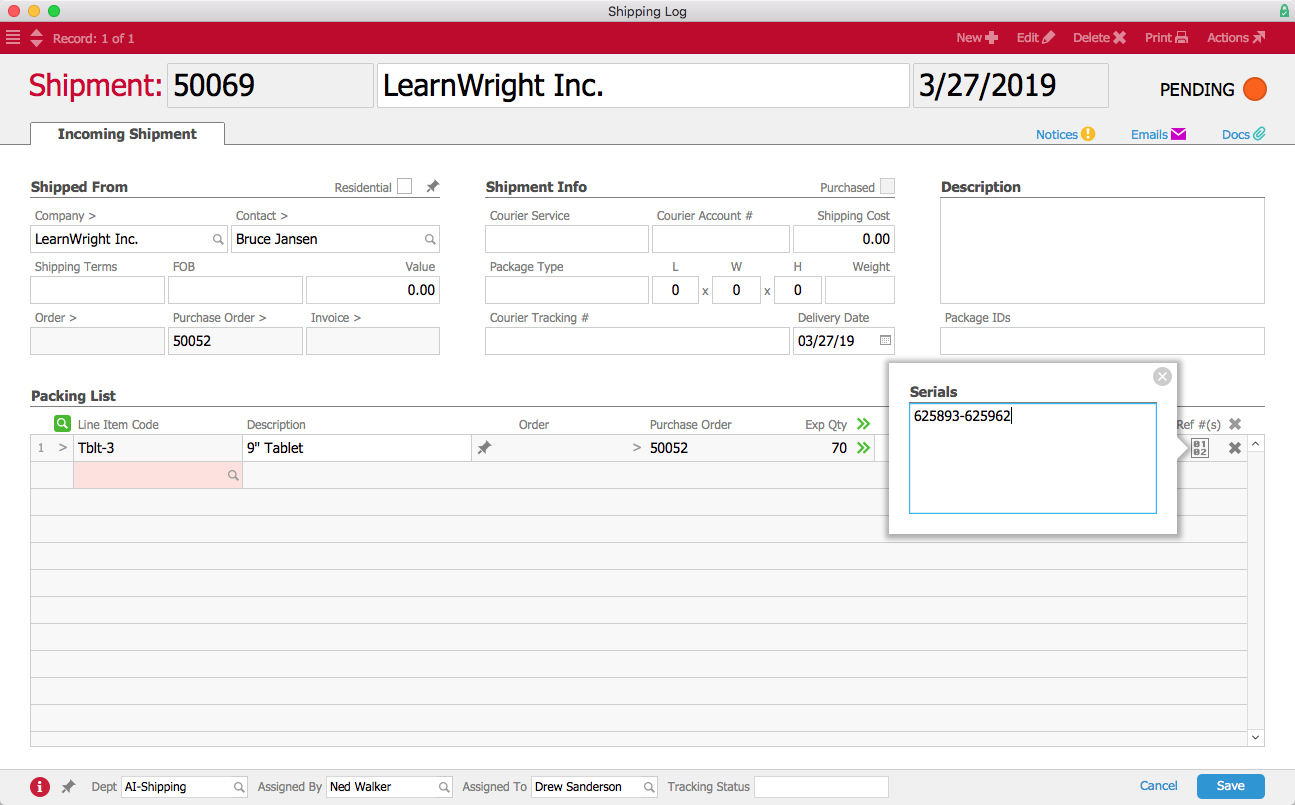
When a shipment of tablets comes in from the vendor, aACME employee Drew Sanderson fills out the shipment record in aACE. Because this product is serialized, aACE includes a space to enter the serial numbers received in this particular shipment. He clicks on the Serial Numbers icon in the Reference Numbers field and enters the range of serial numbers. He could also scan them in via a barcode scanner. The Serialized flag makes this is a required field; aACE won’t allow Drew to process the shipment unless he enters a serial number for each tablet.

Incoming Tablet Shipment

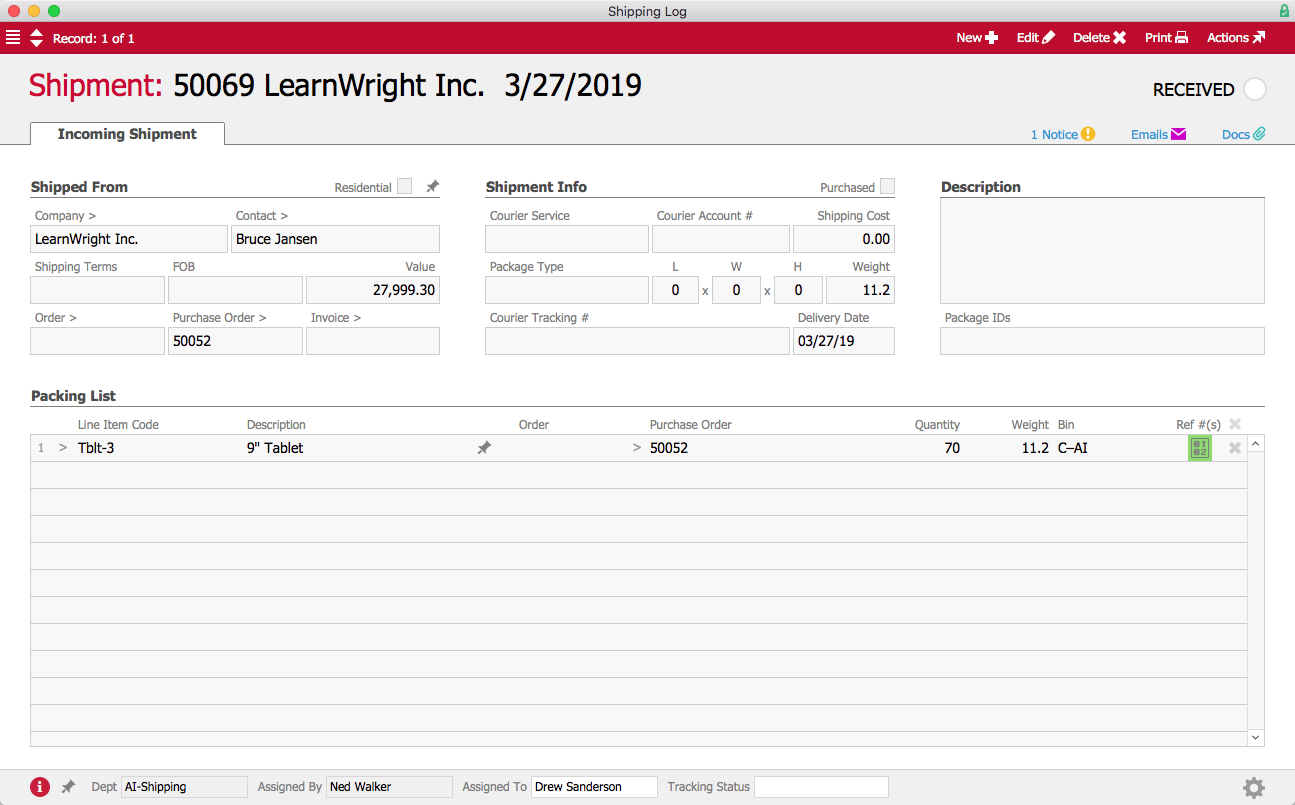
After Drew enters those numbers, the Serial Numbers icon is highlighted in green to show that the field has been populated. He can now process the shipment, letting aACE know it’s been received.

Received Tablet Shipment

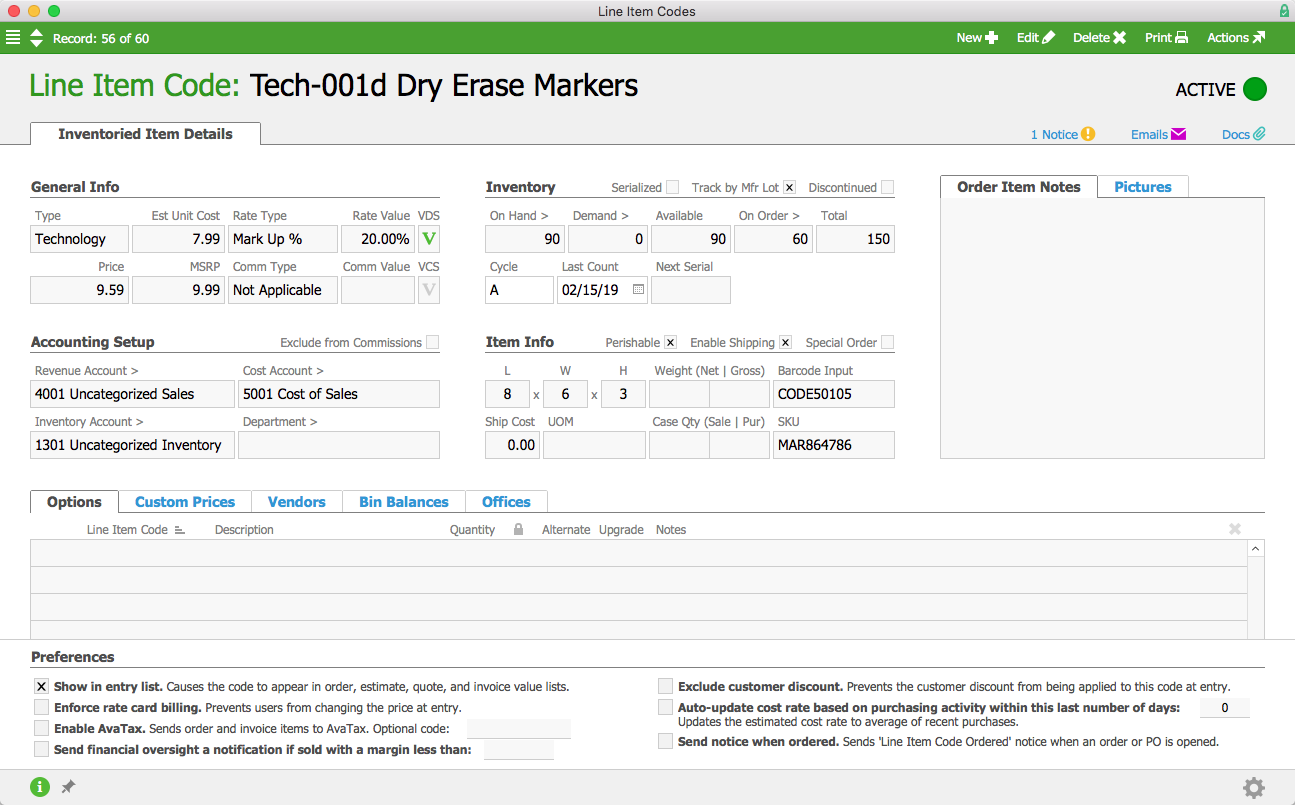
aACME also sells dry erase markers, which are tracked by manufacturer lot. In the markers’ product record, the Track by Mfr Lot flag is checked. Because the markers expire after a few years, the Perishable flag is also checked.

Dry Erase Marker LIC

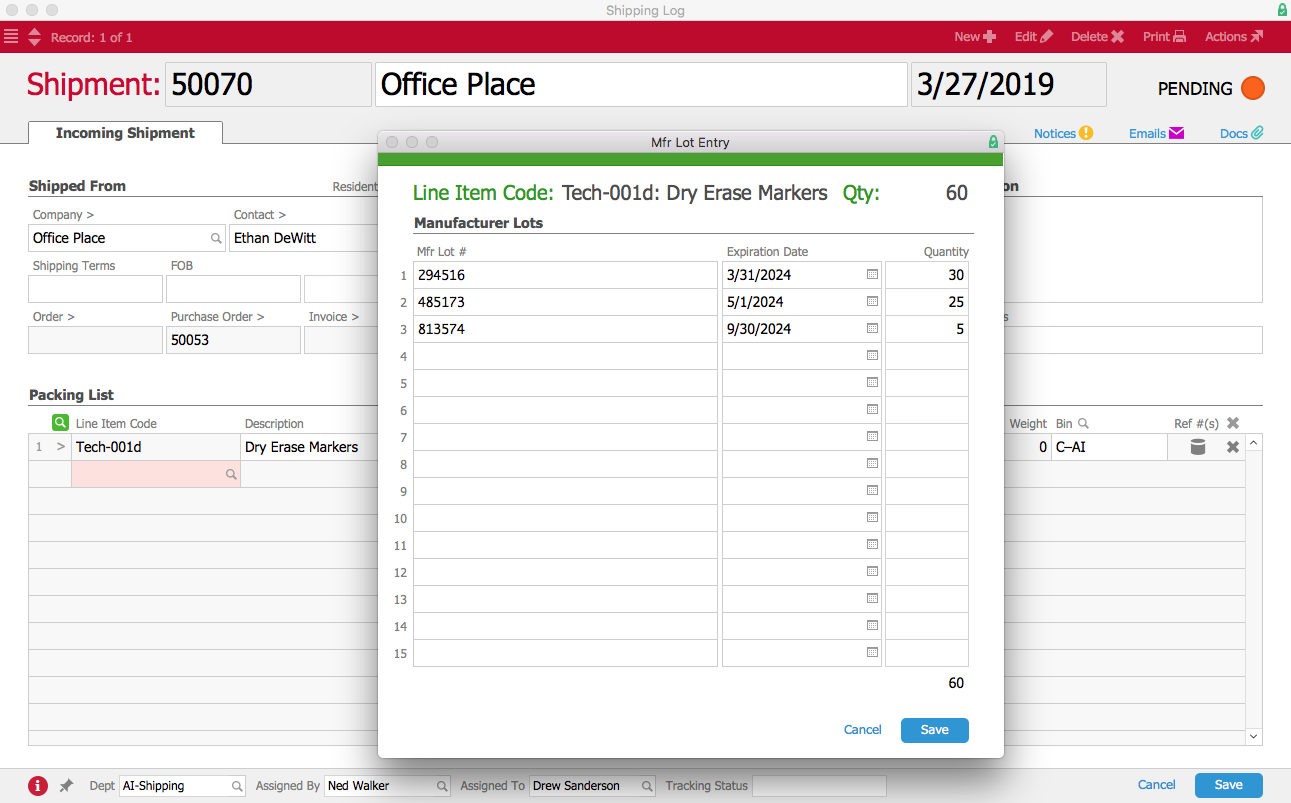
When a shipment of dry erase markers comes in, Drew again fills out the shipment record in aACE. When Drew clicks the Lot Number icon, he is able to enter the lot numbers, expiration dates, and quantities of each lot of markers in this shipment. He could also scan them in with a barcode scanner. As with serial numbers, aACE requires Drew to enter this information in order to process the shipment.

Dry Erase Markers Incoming Shipment

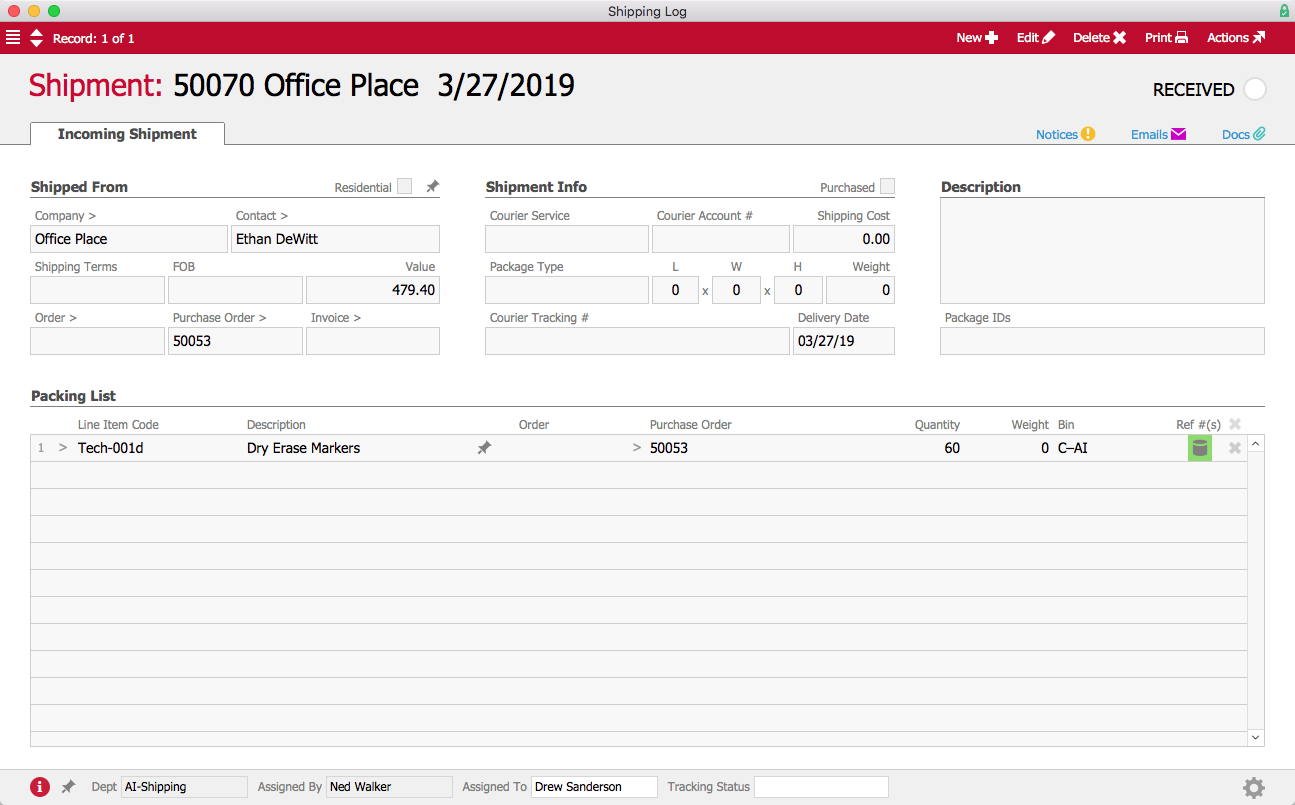
When Drew finishes entering the lot information, the Lot Number icon is highlighted in green. He is now able to process the shipment, and the shipment record’s status changes to Received.

Dry Erase Markers Received Shipment

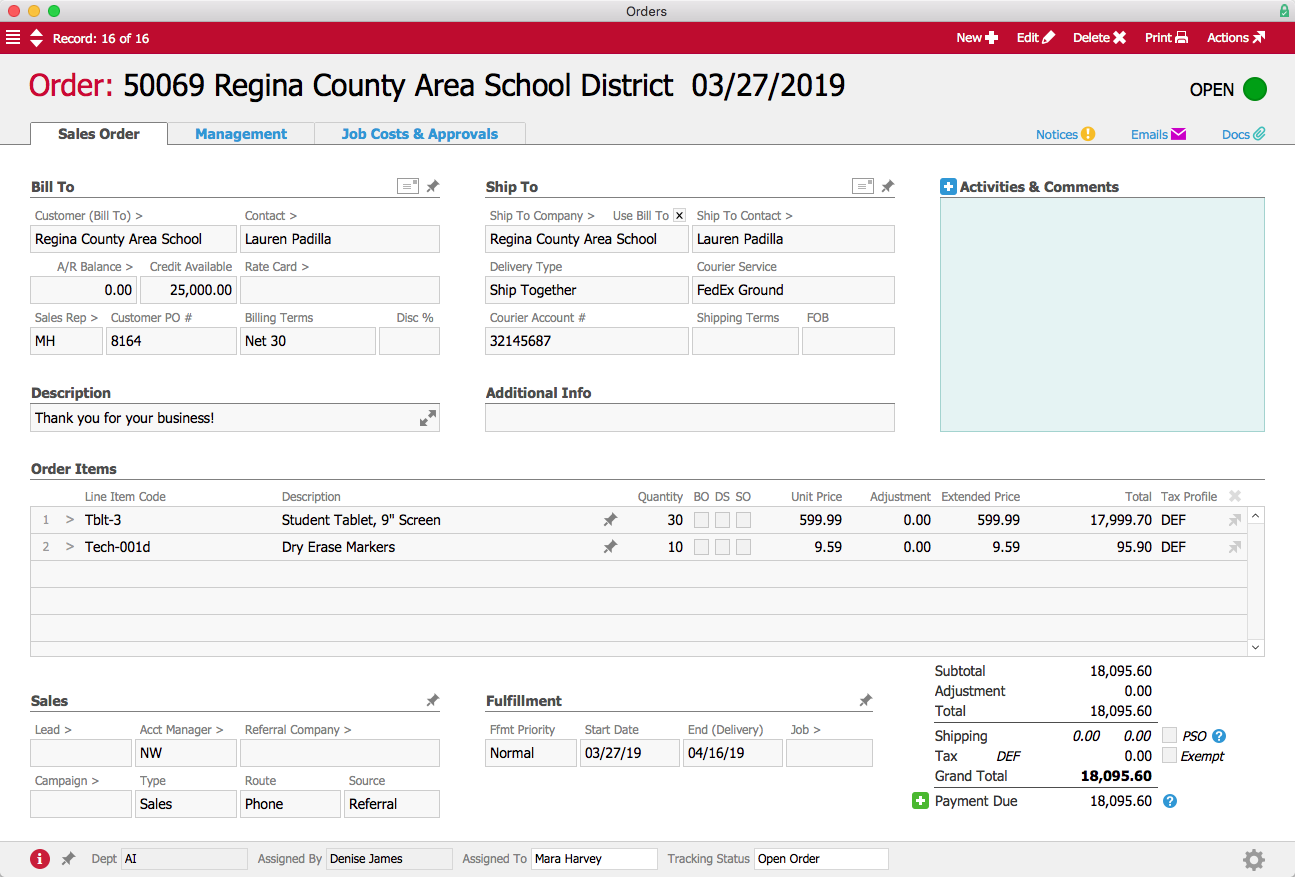
Now let’s see what happens when an order is placed. Over in the Sales Department, Mara Harvey receives an order for 30 student tablets and 10 packs of dry erase markers from the Regina County Area School District.

Order

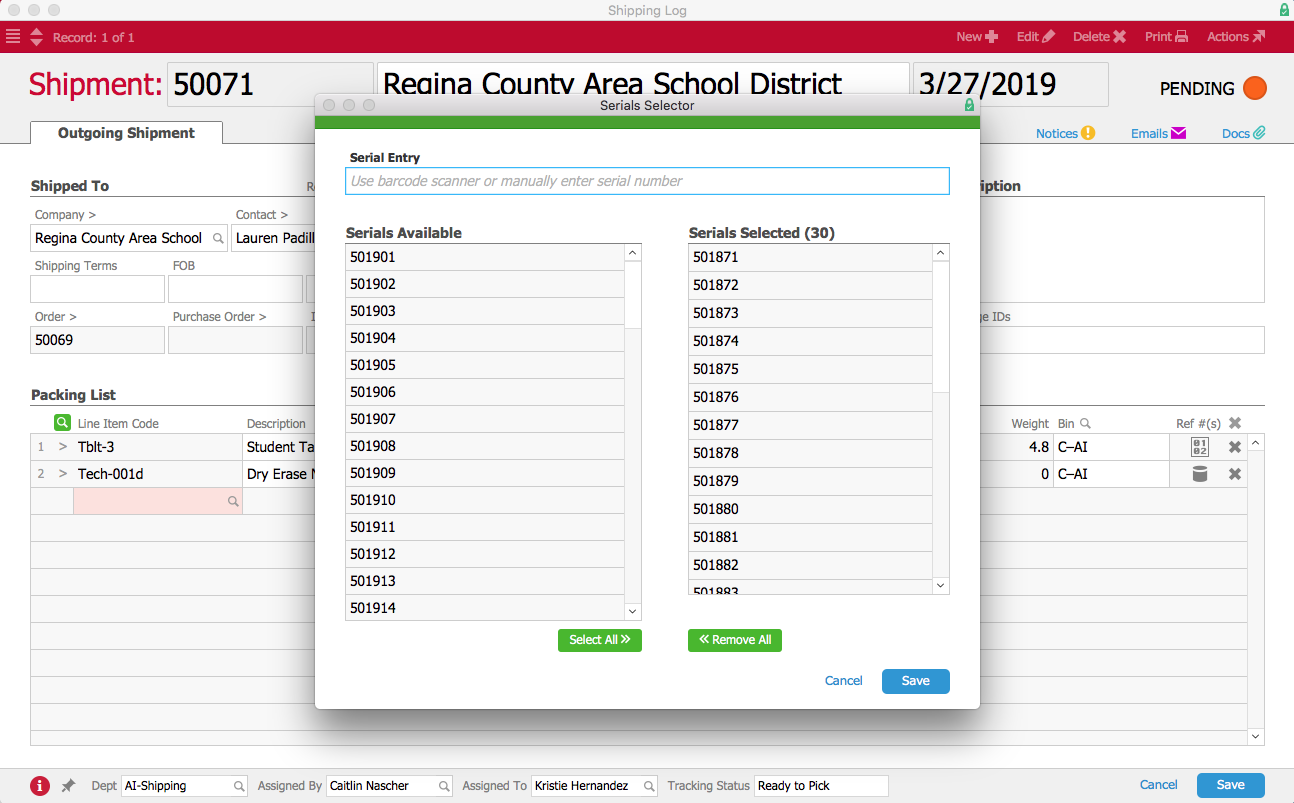
In the warehouse, aACME employee Kristie Hernandez prepares the order to be shipped. To process the outgoing shipment, she must enter the tracking numbers for both tablets and markers. For the tablets, when she clicks on the Serial Numbers icon, aACE gives her a list of the serial numbers for all tablets currently in stock.

Shipment Serial Selector

Kristie can scan in each tablet with a barcode reader or choose the applicable serial numbers from the list. After she has entered and saved the serial numbers of all 30 tablets, the Serial Numbers icon is highlighted in green.

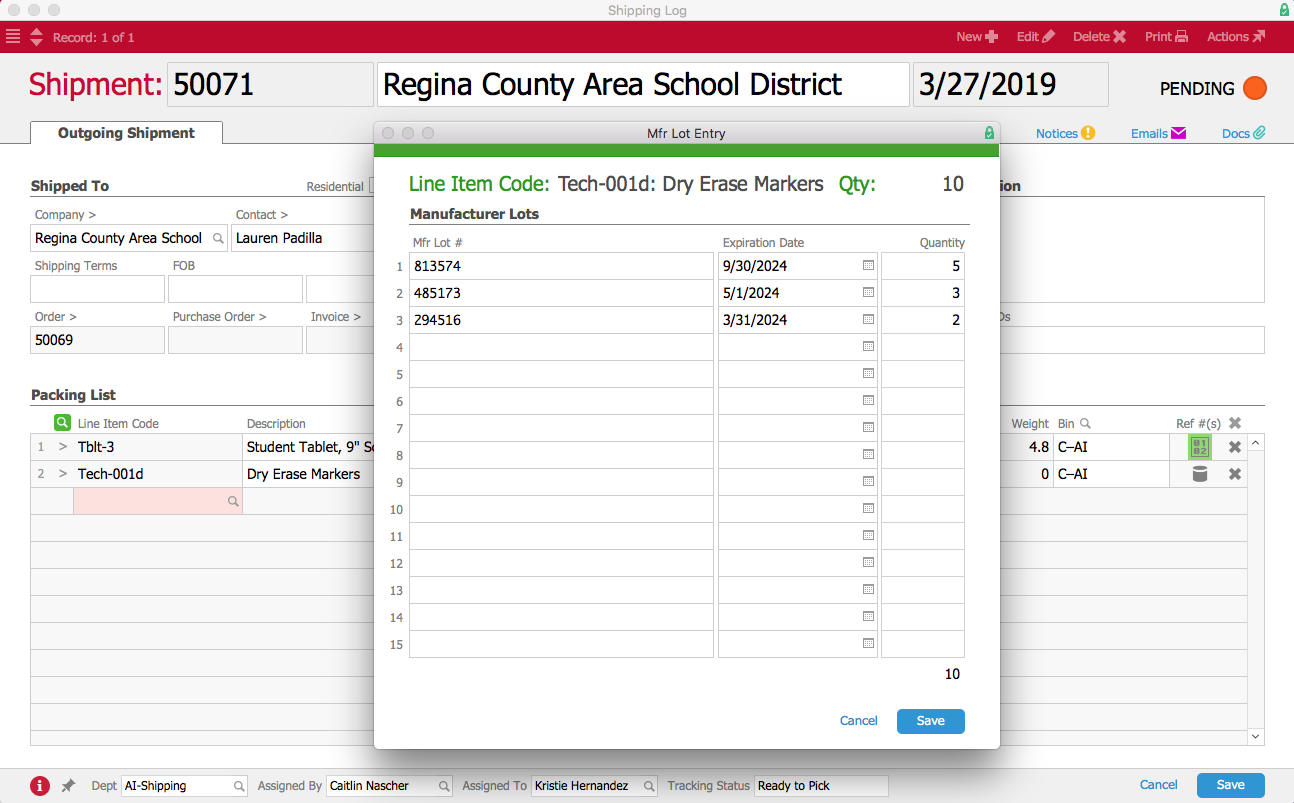
Next, she clicks on the Lot Numbers icon. This opens the Manufacturer Lot Entry screen, where Kristie can choose lot numbers from a drop-down list that tells her which lots are available and how many items are in each lot.

Shipment Lot Selector

When Kristie chooses a lot, aACE automatically populates the Expiration Date field with the date that was entered when the lot was received. Kristie then enters the quantity of items from each lot. If the shipment includes dry erase markers from multiple lots, she can enter each lot either manually or by using a barcode scanner. When she finishes entering the lots, the Lot Numbers icon is highlighted in green.

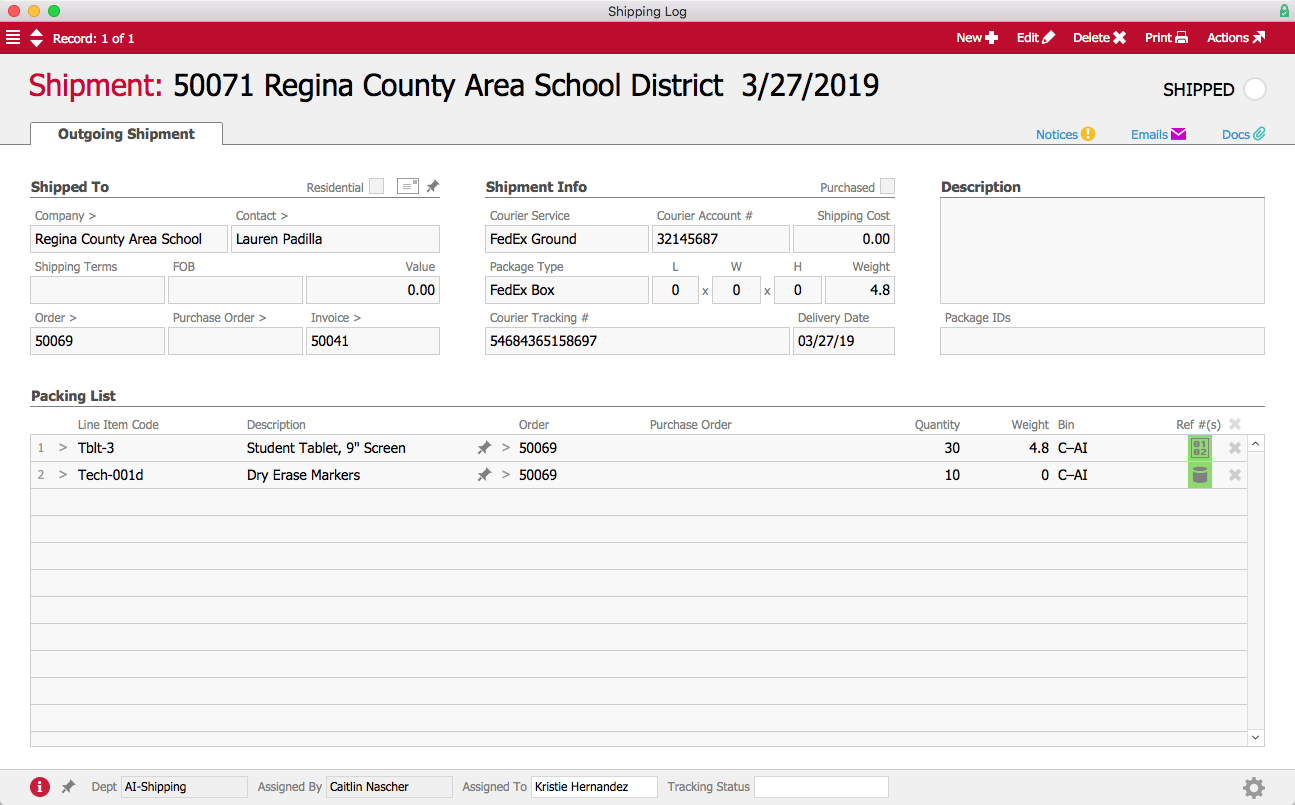
Now that all the tracking information is entered, the outgoing shipment can be processed.

Outgoing Shipment

But what happens when aACME needs to locate products from a specific lot or a particular serial number, for instance because a recall has been issued? This is where aACE’s Inventory Transactions module comes in.

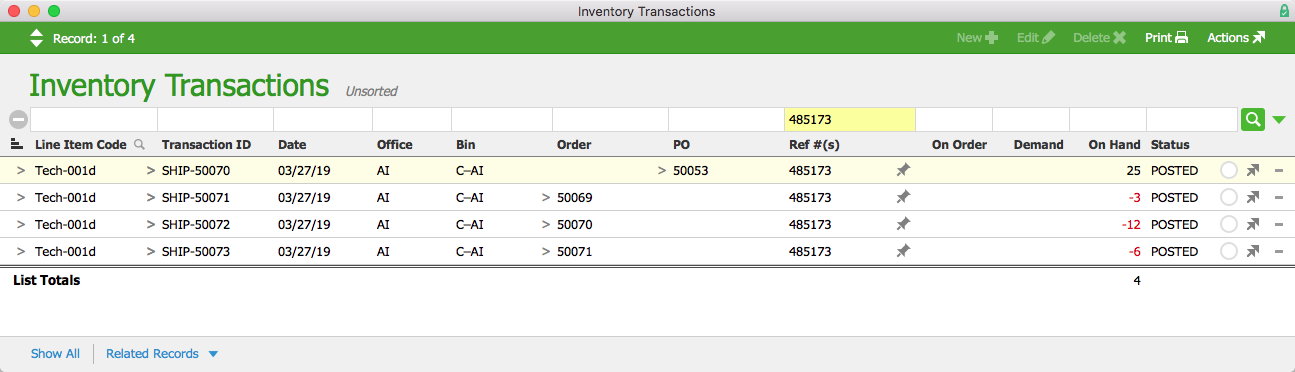
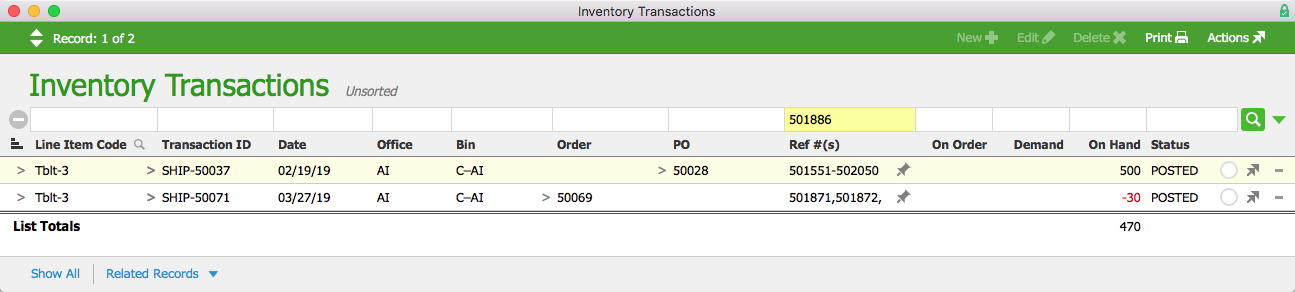
When aACME manager Denise James receives word that the manufacturer of the dry erase markers has issued a recall on lot #485173, she opens the Inventory Transactions module and performs a quick search. Immediately, aACE generates a list of every transaction involving the markers from that lot.

Inventory Transactions

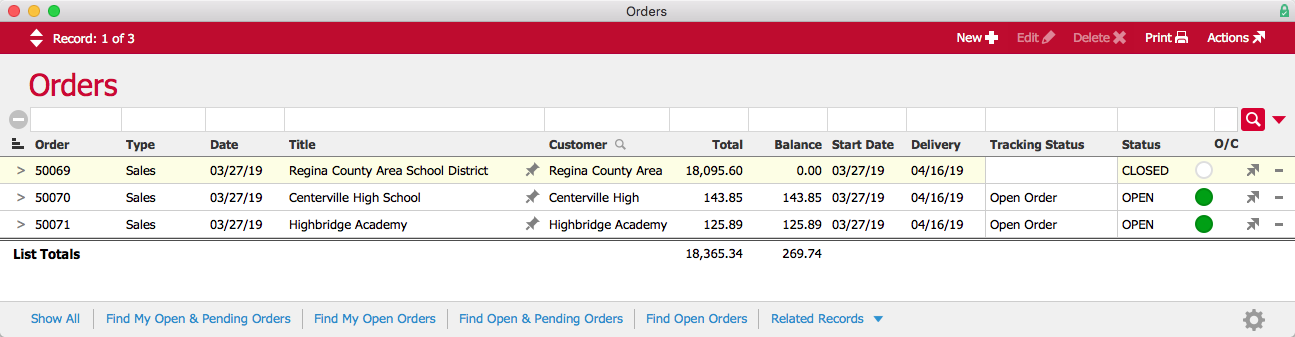
Denise selects Orders from the Related Records link at the bottom of the screen. With one click, she can see all of the orders that are affected by the recall and take steps to recall the product.

Orders

Likewise, if Denise needs to find out where a certain tablet is, she can enter the tablet’s serial number in the Quick Search bar and aACE will generate a list of every transaction involving that particular tablet.

13 Inventory Transactions Serial


aACE lot and serial number tracking gives you better insight into your inventory, ensuring that you’re always prepared in the event of a recall or return. To learn more about what aACE can do for your business, check out our customer success stories or register for an upcoming webinar today.

Learn More

Managing inventory well involves a lot of moving parts – especially when you need to know exactly which specific units are going to whom. aACE allows you to track products by lot or by serial number, giving you the traceability required to handle product recalls, warranty claims, and other... Learn More

-->

Managing inventory well involves a lot of moving parts – especially when you need to know exactly which specific units are going to whom. aACE allows you to track products by lot or by serial number, giving you the traceability required to handle product recalls, warranty claims, and other requirements linked to specific units.

To understand how aACE tracks lots and serial numbers, let’s take a look at how our fictional company, aACME Education Solutions, uses these features in their day-to-day operations.

aACME sells student tablet computers, which are tracked individually by serial number. In each tablet’s product record, the Serialized flag is checked.

Tablet LIC

When a shipment of tablets comes in from the vendor, aACME employee Drew Sanderson fills out the shipment record in aACE. Because this product is serialized, aACE includes a space to enter the serial numbers received in this particular shipment. He clicks on the Serial Numbers icon in the Reference Numbers field and enters the range of serial numbers. He could also scan them in via a barcode scanner. The Serialized flag makes this is a required field; aACE won’t allow Drew to process the shipment unless he enters a serial number for each tablet.

Incoming Tablet Shipment

After Drew enters those numbers, the Serial Numbers icon is highlighted in green to show that the field has been populated. He can now process the shipment, letting aACE know it’s been received.

Received Tablet Shipment

aACME also sells dry erase markers, which are tracked by manufacturer lot. In the markers’ product record, the Track by Mfr Lot flag is checked. Because the markers expire after a few years, the Perishable flag is also checked.

Dry Erase Marker LIC

When a shipment of dry erase markers comes in, Drew again fills out the shipment record in aACE. When Drew clicks the Lot Number icon, he is able to enter the lot numbers, expiration dates, and quantities of each lot of markers in this shipment. He could also scan them in with a barcode scanner. As with serial numbers, aACE requires Drew to enter this information in order to process the shipment.

Dry Erase Markers Incoming Shipment

When Drew finishes entering the lot information, the Lot Number icon is highlighted in green. He is now able to process the shipment, and the shipment record’s status changes to Received.

Dry Erase Markers Received Shipment

Now let’s see what happens when an order is placed. Over in the Sales Department, Mara Harvey receives an order for 30 student tablets and 10 packs of dry erase markers from the Regina County Area School District.

Order

In the warehouse, aACME employee Kristie Hernandez prepares the order to be shipped. To process the outgoing shipment, she must enter the tracking numbers for both tablets and markers. For the tablets, when she clicks on the Serial Numbers icon, aACE gives her a list of the serial numbers for all tablets currently in stock.

Shipment Serial Selector

Kristie can scan in each tablet with a barcode reader or choose the applicable serial numbers from the list. After she has entered and saved the serial numbers of all 30 tablets, the Serial Numbers icon is highlighted in green.

Next, she clicks on the Lot Numbers icon. This opens the Manufacturer Lot Entry screen, where Kristie can choose lot numbers from a drop-down list that tells her which lots are available and how many items are in each lot.

Shipment Lot Selector

When Kristie chooses a lot, aACE automatically populates the Expiration Date field with the date that was entered when the lot was received. Kristie then enters the quantity of items from each lot. If the shipment includes dry erase markers from multiple lots, she can enter each lot either manually or by using a barcode scanner. When she finishes entering the lots, the Lot Numbers icon is highlighted in green.

Now that all the tracking information is entered, the outgoing shipment can be processed.

Outgoing Shipment

But what happens when aACME needs to locate products from a specific lot or a particular serial number, for instance because a recall has been issued? This is where aACE’s Inventory Transactions module comes in.

When aACME manager Denise James receives word that the manufacturer of the dry erase markers has issued a recall on lot #485173, she opens the Inventory Transactions module and performs a quick search. Immediately, aACE generates a list of every transaction involving the markers from that lot.

Inventory Transactions

Denise selects Orders from the Related Records link at the bottom of the screen. With one click, she can see all of the orders that are affected by the recall and take steps to recall the product.

Orders

Likewise, if Denise needs to find out where a certain tablet is, she can enter the tablet’s serial number in the Quick Search bar and aACE will generate a list of every transaction involving that particular tablet.

13 Inventory Transactions Serial


aACE lot and serial number tracking gives you better insight into your inventory, ensuring that you’re always prepared in the event of a recall or return. To learn more about what aACE can do for your business, check out our customer success stories or register for an upcoming webinar today.

Learn More

Read more about Stock the Right Products at the Right Time with aACE Reorder Management

Stock the Right Products at the Right Time with aACE Reorder Management

Wouldn’t it be great if your ERP software could track changes in inventory and automatically generate or adjust pending POs in real time?

aACE does that.

Our smart reorder management features ensure your purchase orders are always up to date. This saves you time and minimizes the potential for errors that comes with manual data entry. To learn how aACE streamlines this essential process, let’s take a look at our fictional company, aACME Education Solutions, handling inventory reorder management in their day-to-day operations.

As we saw in the backorder management workflow, aACME’s textbooks have a replenishment balance of 50 and a target balance of 125. This means that when a textbook’s inventory dips below 50, aACE automatically generates a purchase order to bring the available inventory back up to 125.

aACME salesperson Jamie Gianelli receives an order for 25 English textbooks from the Brightside Charter School. aACME currently has 60 textbooks in stock, so when Jamie processes the order, a PO is automatically generated for 90 textbooks. It’s kept in Pending status until the A/P department is ready to open it and send it to the vendor.

PO1

Over in the warehouse, a shipment comes in from the Full STEAM Academy Charter School. They accidentally ordered too many English textbooks, so they’re returning five. When Drew Sanderson processes the incoming shipment and returns the textbooks to aACME’s inventory, aACE automatically removes five textbooks from the pending purchase order.

PO2

Back in the Sales department, Mara Harvey receives an order for 30 textbooks from the Shea Township School District. Because the textbook PO from the last order hasn’t yet been sent to the vendor, aACE simply updates that record, adding the 30 additional textbooks to the existing purchase order instead of generating a new one.

PO3

At the end of the day, Denise James in the Accounts Payable department is ready to send the PO off to the vendor. She knows aACE has been adjusting the PO in real time based on current demand, so Denise feels confident that she’s ordering the perfect number of textbooks. She can review recent updates to the PO by checking the log. When the shipment arrives from the vendor a few days later, there are enough textbooks to bring the available inventory back to 125.

PO Log

aACE makes inventory reorder management easy and accurate, saving you time and money by eliminating the need to manually enter and sort through POs. And because aACE leaves the PO in pending status until it’s approved, you’ll never have to worry about sinking money into products you don’t need. Our smart automation and real-time updates give you the peace of mind that comes from knowing you’ll always have the right products on hand.

See more of aACE’s reorder management in action by reading our feature highlights on backorder management and lot and serial tracking. And to learn more about what aACE can do for your business, check out our customer success stories today.

Learn More

Keeping the right number of products in stock can be a challenge – between new orders coming in, returned products being restocked, and other inventory fluctuations, a purchase order created just a few hours ago might already be outdated by the time it’s sent to the vendor. And if your business... Learn More

-->

Keeping the right number of products in stock can be a challenge – between new orders coming in, returned products being restocked, and other inventory fluctuations, a purchase order created just a few hours ago might already be outdated by the time it’s sent to the vendor. And if your business management solution requires you to manually create POs, or if it generates new POs every time there’s a change without considering existing ones, you could end up with a handful of inaccurate or overlapping purchase orders for a single product in the same day.

Wouldn’t it be great if your ERP software could track changes in inventory and automatically generate or adjust pending POs in real time?

aACE does that.

Our smart reorder management features ensure your purchase orders are always up to date. This saves you time and minimizes the potential for errors that comes with manual data entry. To learn how aACE streamlines this essential process, let’s take a look at our fictional company, aACME Education Solutions, handling inventory reorder management in their day-to-day operations.

As we saw in the backorder management workflow, aACME’s textbooks have a replenishment balance of 50 and a target balance of 125. This means that when a textbook’s inventory dips below 50, aACE automatically generates a purchase order to bring the available inventory back up to 125.

aACME salesperson Jamie Gianelli receives an order for 25 English textbooks from the Brightside Charter School. aACME currently has 60 textbooks in stock, so when Jamie processes the order, a PO is automatically generated for 90 textbooks. It’s kept in Pending status until the A/P department is ready to open it and send it to the vendor.

PO1

Over in the warehouse, a shipment comes in from the Full STEAM Academy Charter School. They accidentally ordered too many English textbooks, so they’re returning five. When Drew Sanderson processes the incoming shipment and returns the textbooks to aACME’s inventory, aACE automatically removes five textbooks from the pending purchase order.

PO2

Back in the Sales department, Mara Harvey receives an order for 30 textbooks from the Shea Township School District. Because the textbook PO from the last order hasn’t yet been sent to the vendor, aACE simply updates that record, adding the 30 additional textbooks to the existing purchase order instead of generating a new one.

PO3

At the end of the day, Denise James in the Accounts Payable department is ready to send the PO off to the vendor. She knows aACE has been adjusting the PO in real time based on current demand, so Denise feels confident that she’s ordering the perfect number of textbooks. She can review recent updates to the PO by checking the log. When the shipment arrives from the vendor a few days later, there are enough textbooks to bring the available inventory back to 125.

PO Log

aACE makes inventory reorder management easy and accurate, saving you time and money by eliminating the need to manually enter and sort through POs. And because aACE leaves the PO in pending status until it’s approved, you’ll never have to worry about sinking money into products you don’t need. Our smart automation and real-time updates give you the peace of mind that comes from knowing you’ll always have the right products on hand.

See more of aACE’s reorder management in action by reading our feature highlights on backorder management and lot and serial tracking. And to learn more about what aACE can do for your business, check out our customer success stories today.

Learn More

Read more about Drop Shipping and Special Orders Made Easy with aACE

Drop Shipping and Special Orders Made Easy with aACE

Fortunately aACE offers robust features to automate drop shipping and special ordering. To learn how aACE makes these workflows a snap, let’s take a look at how our fictional company, aACME Education Solutions, handles them in their day-to-day operations.

Drop Shipping

aACME sells multimedia projectors through their website, but they aren’t kept in stock at aACME’s warehouse. When Mara Harvey receives an order for six projectors from the Southglen High School, she enters the order in aACE and checks the Drop Ship (“DS”) flag for the product.

DS Order Annotated

When Mara opens the order, a purchase order is generated and a notice is sent to the Accounts Payable user group. Denise James in the A/P department reviews the purchase order and sends it to the vendor, Aperture Technologies. Unlike a typical purchase order, where the ship-to address would be an aACME warehouse, this PO will be shipped directly to the school. The Drop Ship flag is checked to indicate that the ship-to address belongs to the customer.

DS PO Annotated

A few days later, the vendor ships the order to the customer and sends a bill to aACME’s Accounts Payable department. When Denise enters the vendor’s bill, aACE automatically generates the customer invoice.

aACME wants all of their customers to have a good experience, so when they receive several complaints about drop shipments from Aperture Technologies arriving sloppily packaged, they quickly act to make sure those mistakes aren’t repeated. aACME manager Jason Dunn navigates to Aperture’s company record and checks the “Do not allow drop shipments flag” to prevent further orders from being shipped from this vendor directly to customers.

DS Company Record Annotated

Now when Mara enters an order for an Aperture Technologies product, if she tries to check the Drop Ship flag, she’ll get an error stating that the product cannot be drop shipped. Instead it will be sent to aACME’s warehouse as a special order, where it can be inspected and repackaged before being delivered to the customer.

DS Order Error

Special Orders

aACME also sells scanners for electronically scoring multiple-choice tests, but since these items don’t sell quickly, aACME doesn’t typically keep them in stock on warehouse shelves. Instead the scanners are ordered on an as-needed basis. In the product’s record, the Special Order flag is checked, meaning that the product will be special ordered by default.

SO Line Item Code Annotated

When Mara Harvey receives an order for five of these scanners for the Brightside Charter School, she enters the order in aACE. The Special Order (“SO”) flag for the product is automatically checked since the product is flagged as Special Order. Products that aren’t normally special-ordered can also be flagged as special orders as necessary.

SO Order Annotated

When Mara processes the order, a purchase order is generated and a notice is sent to the Accounts Payable user group. Denise James again opens the purchase order and sends it to the vendor; this time, however, the Ship To address is one of aACME’s warehouses.

SO PO

A few days later, the shipment of scanners arrives from the vendor. When aACME employee Kristie Hernandez marks the shipment as received, a notice is sent to Mara so that she can come and inspect the goods. Additionally, aACE automatically generates a pending outgoing shipment to send the scanners to the Brightside Charter School. This pending shipment is also visible in the order’s Shipping screen.

SO Shipments

Once Mara has approved the products, Kristie repackages the scanners and prepares them for delivery to the customer. When the shipment to the school is processed, aACE automatically generates the customer invoice.


aACE makes managing drop shipments and special orders easy and accurate by automating key aspects of the processes and reducing the need for manual data entry. Check out our customer success stories to learn what else aACE can do for your business.

Learn More

Drop shipping and special ordering allow you to offer a wide range of products to your customers without the overhead costs of storing and managing inventory. But tracking those sales in your business management solution can get complicated fast. Fortunately aACE offers robust features to automate... Learn More

-->

Drop shipping and special ordering allow you to offer a wide range of products to your customers without the overhead costs of storing and managing inventory. But tracking those sales in your business management solution can get complicated fast.

Fortunately aACE offers robust features to automate drop shipping and special ordering. To learn how aACE makes these workflows a snap, let’s take a look at how our fictional company, aACME Education Solutions, handles them in their day-to-day operations.

Drop Shipping

aACME sells multimedia projectors through their website, but they aren’t kept in stock at aACME’s warehouse. When Mara Harvey receives an order for six projectors from the Southglen High School, she enters the order in aACE and checks the Drop Ship (“DS”) flag for the product.

DS Order Annotated

When Mara opens the order, a purchase order is generated and a notice is sent to the Accounts Payable user group. Denise James in the A/P department reviews the purchase order and sends it to the vendor, Aperture Technologies. Unlike a typical purchase order, where the ship-to address would be an aACME warehouse, this PO will be shipped directly to the school. The Drop Ship flag is checked to indicate that the ship-to address belongs to the customer.

DS PO Annotated

A few days later, the vendor ships the order to the customer and sends a bill to aACME’s Accounts Payable department. When Denise enters the vendor’s bill, aACE automatically generates the customer invoice.

aACME wants all of their customers to have a good experience, so when they receive several complaints about drop shipments from Aperture Technologies arriving sloppily packaged, they quickly act to make sure those mistakes aren’t repeated. aACME manager Jason Dunn navigates to Aperture’s company record and checks the “Do not allow drop shipments flag” to prevent further orders from being shipped from this vendor directly to customers.

DS Company Record Annotated

Now when Mara enters an order for an Aperture Technologies product, if she tries to check the Drop Ship flag, she’ll get an error stating that the product cannot be drop shipped. Instead it will be sent to aACME’s warehouse as a special order, where it can be inspected and repackaged before being delivered to the customer.

DS Order Error

Special Orders

aACME also sells scanners for electronically scoring multiple-choice tests, but since these items don’t sell quickly, aACME doesn’t typically keep them in stock on warehouse shelves. Instead the scanners are ordered on an as-needed basis. In the product’s record, the Special Order flag is checked, meaning that the product will be special ordered by default.

SO Line Item Code Annotated

When Mara Harvey receives an order for five of these scanners for the Brightside Charter School, she enters the order in aACE. The Special Order (“SO”) flag for the product is automatically checked since the product is flagged as Special Order. Products that aren’t normally special-ordered can also be flagged as special orders as necessary.

SO Order Annotated

When Mara processes the order, a purchase order is generated and a notice is sent to the Accounts Payable user group. Denise James again opens the purchase order and sends it to the vendor; this time, however, the Ship To address is one of aACME’s warehouses.

SO PO

A few days later, the shipment of scanners arrives from the vendor. When aACME employee Kristie Hernandez marks the shipment as received, a notice is sent to Mara so that she can come and inspect the goods. Additionally, aACE automatically generates a pending outgoing shipment to send the scanners to the Brightside Charter School. This pending shipment is also visible in the order’s Shipping screen.

SO Shipments

Once Mara has approved the products, Kristie repackages the scanners and prepares them for delivery to the customer. When the shipment to the school is processed, aACE automatically generates the customer invoice.


aACE makes managing drop shipments and special orders easy and accurate by automating key aspects of the processes and reducing the need for manual data entry. Check out our customer success stories to learn what else aACE can do for your business.

Learn More

Read more about Low Inventory? No Problem! aACE Makes Backorder Management a Breeze

Low Inventory? No Problem! aACE Makes Backorder Management a Breeze

Fortunately, aACE is here to help. To learn how aACE makes managing backorders easy, let’s follow our fictional company, aACME Education Solutions, as they handle backorders in their day-to-day operations.

To keep the unfortunate occurrence of out-of-stock items to a minimum, aACME has set target balances and replenishment balances on their inventoried items. The target balances tell aACE the maximum number of items that should be kept on their warehouse shelves. The replenishment balances tell aACE when to automatically generate a purchase order to bring the inventory back up. aACME’s textbooks have a target balance of 125 and a replenishment balance of 50.

aACME has 45 math textbooks in stock, with 80 more on order from the publisher. Before that shipment arrives, the sales department receives an order from the Montboro School District for 50 math textbooks. When Account Manager Mara Harvey enters the 50 textbooks into the order, a dialog box pops up informing her that the quantity exceeds the available inventory.

Mara could choose to put all 50 textbooks on backorder so that the entire order will be filled once the inventory is replenished. She also has the option of splitting the line item so the customer receives some of the items from the current inventory, with the rest placed on backorder. She calls her contact, Sam Patel, at Montboro to explain the situation; with all the necessary information at her fingertips in aACE, she’s able to present Sam with all of his options. Sam lets Mara know that they are not in a rush but that they’ll take as many textbooks as they can now and the rest when they’re back in stock.

Order with Back Order Dialog

Mara clicks ‘Yes’ to split the order based on the available inventory. aACE automatically updates the quantity of the textbooks in the first line item to 45 and creates a second line item for the remaining 5. This second line item is marked with the backorder (“BO”) flag, and aACE automatically generates an outgoing shipment for the 45 textbooks in stock.

Order Items with Back Order

But what happens when another order is placed for the same product?

Before the next shipment of textbooks comes in from the vendor, Mara receives another order for 80 math textbooks from the Full STEAM Academy Charter School. Since there are no more books left in the available inventory, all 80 textbooks are placed on backorder. Typically backorders would be filled on a first-come, first-served basis. In this case, however, the Full STEAM Academy needs the textbooks for the fast-approaching winter term, and they’re willing to pay a rush fee to expedite their order.

Mara changes the order’s fulfillment priority to Rush 50%, automatically adding a 50% rush fee to the total. Since the 80 backordered textbooks from the Full STEAM Order plus the 5 backordered textbooks from the Montboro order will use up all of the inventory that’s currently on order from the publisher, aACE automatically generates a purchase order for 130 textbooks to bring the available inventory back up to its target balance.

The typical lead time for the textbooks is two weeks from the time the Accounts Payable department emails the PO to the vendor to the time the new stock arrives in aACME’s warehouse. When the first shipment of 80 textbooks comes in from the publisher a few days later, aACE automatically allocates the new inventory to backorders, first in order of fulfillment priority and then in chronological order. Because the Full STEAM Academy’s order has the Rush 50% fulfillment priority, aACE fills that order first. A shipment is automatically generated to send 80 textbooks to that school.

Full STEAM Rush Shipment

Two weeks later, the shipment of 130 textbooks comes in. With the rush order completed, aACE generates a shipment for the Montboro School District’s 5 backordered textbooks. This brings the available inventory to the target balance of 125, with no additional POs outstanding.

Line Item Code after Back Orders

The table below illustrates the movement of inventory throughout this example, using red and green arrows to indicate the values that have changed with each event.

Chart-Inventory

If the managers at aACME want to see what items are on backorder, aACE offers different ways to access that information. In the Order Items module, they can quickly pull up a list of all backordered items, with links to the associated orders. Likewise, from the Line Item Codes module they can review backorders for a specific item, like the math textbook; aACE makes it easy to view a list of the orders placing demand on that item’s inventory with just one click.

Order Items

aACE streamlines backorder management, keeping your business moving and your customers happy. Now that we've seen what it's done for our fictional company, take a look at our Southwest Auto Accessories success story to learn how this feature helped a real aACE client gain visibility into their backorder process. Check out our other customer success stories below to learn what else aACE can do for your business today.

Learn More

Most businesses experience this at some point or another: orders are pouring in and your inventory can’t quite keep up with the demand. If you can’t manage backorders properly, your customers may get frustrated or go somewhere else. Fortunately, aACE is here to help. To learn how aACE makes... Learn More

-->

Most businesses experience this at some point or another: orders are pouring in and your inventory can’t quite keep up with the demand. If you can’t manage backorders properly, your customers may get frustrated or go somewhere else.

Fortunately, aACE is here to help. To learn how aACE makes managing backorders easy, let’s follow our fictional company, aACME Education Solutions, as they handle backorders in their day-to-day operations.

To keep the unfortunate occurrence of out-of-stock items to a minimum, aACME has set target balances and replenishment balances on their inventoried items. The target balances tell aACE the maximum number of items that should be kept on their warehouse shelves. The replenishment balances tell aACE when to automatically generate a purchase order to bring the inventory back up. aACME’s textbooks have a target balance of 125 and a replenishment balance of 50.

aACME has 45 math textbooks in stock, with 80 more on order from the publisher. Before that shipment arrives, the sales department receives an order from the Montboro School District for 50 math textbooks. When Account Manager Mara Harvey enters the 50 textbooks into the order, a dialog box pops up informing her that the quantity exceeds the available inventory.

Mara could choose to put all 50 textbooks on backorder so that the entire order will be filled once the inventory is replenished. She also has the option of splitting the line item so the customer receives some of the items from the current inventory, with the rest placed on backorder. She calls her contact, Sam Patel, at Montboro to explain the situation; with all the necessary information at her fingertips in aACE, she’s able to present Sam with all of his options. Sam lets Mara know that they are not in a rush but that they’ll take as many textbooks as they can now and the rest when they’re back in stock.

Order with Back Order Dialog

Mara clicks ‘Yes’ to split the order based on the available inventory. aACE automatically updates the quantity of the textbooks in the first line item to 45 and creates a second line item for the remaining 5. This second line item is marked with the backorder (“BO”) flag, and aACE automatically generates an outgoing shipment for the 45 textbooks in stock.

Order Items with Back Order

But what happens when another order is placed for the same product?

Before the next shipment of textbooks comes in from the vendor, Mara receives another order for 80 math textbooks from the Full STEAM Academy Charter School. Since there are no more books left in the available inventory, all 80 textbooks are placed on backorder. Typically backorders would be filled on a first-come, first-served basis. In this case, however, the Full STEAM Academy needs the textbooks for the fast-approaching winter term, and they’re willing to pay a rush fee to expedite their order.

Mara changes the order’s fulfillment priority to Rush 50%, automatically adding a 50% rush fee to the total. Since the 80 backordered textbooks from the Full STEAM Order plus the 5 backordered textbooks from the Montboro order will use up all of the inventory that’s currently on order from the publisher, aACE automatically generates a purchase order for 130 textbooks to bring the available inventory back up to its target balance.

The typical lead time for the textbooks is two weeks from the time the Accounts Payable department emails the PO to the vendor to the time the new stock arrives in aACME’s warehouse. When the first shipment of 80 textbooks comes in from the publisher a few days later, aACE automatically allocates the new inventory to backorders, first in order of fulfillment priority and then in chronological order. Because the Full STEAM Academy’s order has the Rush 50% fulfillment priority, aACE fills that order first. A shipment is automatically generated to send 80 textbooks to that school.

Full STEAM Rush Shipment

Two weeks later, the shipment of 130 textbooks comes in. With the rush order completed, aACE generates a shipment for the Montboro School District’s 5 backordered textbooks. This brings the available inventory to the target balance of 125, with no additional POs outstanding.

Line Item Code after Back Orders

The table below illustrates the movement of inventory throughout this example, using red and green arrows to indicate the values that have changed with each event.

Chart-Inventory

If the managers at aACME want to see what items are on backorder, aACE offers different ways to access that information. In the Order Items module, they can quickly pull up a list of all backordered items, with links to the associated orders. Likewise, from the Line Item Codes module they can review backorders for a specific item, like the math textbook; aACE makes it easy to view a list of the orders placing demand on that item’s inventory with just one click.

Order Items

aACE streamlines backorder management, keeping your business moving and your customers happy. Now that we've seen what it's done for our fictional company, take a look at our Southwest Auto Accessories success story to learn how this feature helped a real aACE client gain visibility into their backorder process. Check out our other customer success stories below to learn what else aACE can do for your business today.

Learn More

Scroll to Top