aACE software blog -  a complete resource for SMBs looking to improve their business processes. Read our articles on all things CRM, Accounting Software, ERP, Inventory Management & more

Stay up-to-date on product releases, company announcements, press coverage, and all things aACE.

aACE software blog -  a complete resource for SMBs looking to improve their business processes. Read our articles on all things CRM, Accounting Software, ERP, Inventory Management & more

Stay up-to-date on product releases, company announcements, press coverage, and all things aACE.

Read more about On-Demand Webinar: Bring Your Processes to Life with The BPR

On-Demand Webinar: Bring Your Processes to Life with The BPR

The BPR is a tool that allows you to gather all of your documentation in one secure, easy-to-use library. To learn more about how The BPR works, check out our on-demand webinar below featuring special guest Tejas Nerarkur of Optimum Output, the creators of The BPR. Here's what you'll learn in the video:

  • How to record and share processes step-by-step in The BPR
  • How to add existing documentation to The BPR
  • How to edit content within The BPR
  • How to use The BPR on mobile devices
  • How The BPR integrates with 3-D modeling programs
  • The importance of securing your internal documentation
  • The benefits of gathering all of your SOPs in one cloud-based tool
  • How your customers can benefit from The BPR

Our thanks go out to Tejas for sharing the benefits of The BPR with our audience! Check out the video of his presentation below, and to learn more about what The BPR can do for you, head over to their website.

And to learn more about how aACE can help you increase your business's efficiency, register now for one of our upcoming webinars. We look forward to seeing you there!

Learn More

Every business has unique policies, processes, and workflows that keep their company moving on a day to day basis. But many organizations struggle with how best to communicate those practices to their staff – and that's where The BPR comes in. The BPR is a tool that allows you to gather all of... Learn More

-->

Every business has unique policies, processes, and workflows that keep their company moving on a day to day basis. But many organizations struggle with how best to communicate those practices to their staff – and that's where The BPR comes in.

The BPR is a tool that allows you to gather all of your documentation in one secure, easy-to-use library. To learn more about how The BPR works, check out our on-demand webinar below featuring special guest Tejas Nerarkur of Optimum Output, the creators of The BPR. Here's what you'll learn in the video:

  • How to record and share processes step-by-step in The BPR
  • How to add existing documentation to The BPR
  • How to edit content within The BPR
  • How to use The BPR on mobile devices
  • How The BPR integrates with 3-D modeling programs
  • The importance of securing your internal documentation
  • The benefits of gathering all of your SOPs in one cloud-based tool
  • How your customers can benefit from The BPR

Our thanks go out to Tejas for sharing the benefits of The BPR with our audience! Check out the video of his presentation below, and to learn more about what The BPR can do for you, head over to their website.

And to learn more about how aACE can help you increase your business's efficiency, register now for one of our upcoming webinars. We look forward to seeing you there!

Learn More

Read more about On-Demand Webinar: 3 Ways to Remove Chaos from Your Business

On-Demand Webinar: 3 Ways to Remove Chaos from Your Business

Susan Fennema is the Chaos Eradicating Officer (CEO) at Beyond the Chaos, a consultancy helping small business owners to simplify their operations and manage their products so that they can grow their business and get their lives back. With over 30 years of operations and project management experience in professional service industries, Susan is on a mission to improve American society exponentially.

We’re very excited to share her wisdom with the aACE Software community. Here’s what you’ll learn in the recording below:

  • Identifying the Causes of Chaos: Are you struggling with completing projects, or staying within their original scope or budget? Are you being pulled in multiple directions and having trouble prioritizing competing goals?
  • Systemizing Your Business: Create policies, processes, and procedures that enable you to delegate work and trust that your team can handle anything that comes their way.
  • Implementing Project Management: Start with clearly-defined, realistic goals to guide your project, and set regular status meetings to stay on track.
  • Managing Interruptions: Keep your day from going off the rails by building blocks of time into your schedule to handle everything on your to-do list — and make sure you give yourself time for important needs like eating lunch, spending time with family, or going to the gym.

Our heartfelt thanks go out to Susan for sharing the benefits of her experience with us! Check out the video of her presentation below, and to learn more about how you can get started on removing chaos from your business with a free project management audit, head over to Beyond the Chaos's website.

Transcript

And to learn more about how aACE can help you increase efficiency in your SMB, register now to save your seat in any of our upcoming webinars.

"I can say that using aACE actually helped us learn how to do business more professionally." -
Jim Parker, President and Owner, iDry LLC


Learn More

At aACE Software, our mission has always been helping small-to-midsize business owners increase their efficiency and improve their bottom line. To that end, last month we welcomed special guest presenter Susan Fennema from Beyond the Chaos to share some tips and tricks with our audience on how they... Learn More

-->

At aACE Software, our mission has always been helping small-to-midsize business owners increase their efficiency and improve their bottom line. To that end, last month we welcomed special guest presenter Susan Fennema from Beyond the Chaos to share some tips and tricks with our audience on how they can eliminate chaos from their lives and their companies. We’re excited to share that webinar on-demand for anyone who feels that their business could use a little less chaos.

Susan Fennema is the Chaos Eradicating Officer (CEO) at Beyond the Chaos, a consultancy helping small business owners to simplify their operations and manage their products so that they can grow their business and get their lives back. With over 30 years of operations and project management experience in professional service industries, Susan is on a mission to improve American society exponentially.

We’re very excited to share her wisdom with the aACE Software community. Here’s what you’ll learn in the recording below:

  • Identifying the Causes of Chaos: Are you struggling with completing projects, or staying within their original scope or budget? Are you being pulled in multiple directions and having trouble prioritizing competing goals?
  • Systemizing Your Business: Create policies, processes, and procedures that enable you to delegate work and trust that your team can handle anything that comes their way.
  • Implementing Project Management: Start with clearly-defined, realistic goals to guide your project, and set regular status meetings to stay on track.
  • Managing Interruptions: Keep your day from going off the rails by building blocks of time into your schedule to handle everything on your to-do list — and make sure you give yourself time for important needs like eating lunch, spending time with family, or going to the gym.

Our heartfelt thanks go out to Susan for sharing the benefits of her experience with us! Check out the video of her presentation below, and to learn more about how you can get started on removing chaos from your business with a free project management audit, head over to Beyond the Chaos's website.

Transcript

And to learn more about how aACE can help you increase efficiency in your SMB, register now to save your seat in any of our upcoming webinars.

"I can say that using aACE actually helped us learn how to do business more professionally." -
Jim Parker, President and Owner, iDry LLC


Learn More

Read more about Ready to Optimize Your Business? Get Started with aACE Basics

Ready to Optimize Your Business? Get Started with aACE Basics


aACE is a single, comprehensive business management solution comprised of “modules" that each handle particular business functions. For example, aACE includes Accounting modules like the General Ledger and General Journal, CRM modules like Companies and Contacts, and ERP modules like Jobs and Projects. Each module has search capabilities, list views, expanded detail views, reporting tools, and record-specific functionality. The way aACE “thinks” is consistent across all modules, so once you understand one module, you’re well on your way to mastering the entire software package. This makes aACE very user friendly.

aACE opens with the main menu. Along with quick access buttons for some of the most-used features like Notices, Tasks, and the Calendar, the menu makes it easy to navigate to the modules you need by grouping them together — clicking on any of these headings displays a list of related modules. Clicking a module title opens the actual module. The main menu can be customized for each group of users to include as few or as many modules as they need.

All aACE modules are designed with a consistent look and feel, making it easy to get oriented and go forward with your work.

aACE header colors help you quickly recognize what kinds of information you are looking at. For example, purple and magenta are for CRM modules, such as Companies, Contacts, and Leads; red and orange are for fulfillment, such as Orders and Jobs; green is for money, so that’s what you’ll find on Invoices and GL Accounts.

When you open most modules, aACE presents a list view showing the records that are likely to need your attention. For example, a sales representative using the Orders module would see a list of orders assigned to him; similarly, a supervisor viewing the Jobs module would see assignments both for her and her subordinates.

At the top of most modules, the header provides access to common functions. For example, the Print button opens a drop-down menu for tasks such as printing, running reports, or emailing the records displayed in the list. The Actions button allows you to import, export, and execute batch updates on all records in the list. Also near the top, the Quick Search bar allows you to search each field in the list view, helping you easily constrain the list and show the records you’re looking for. Clicking on the various list view columns allows you to sort the displayed records.

Each record in a list has a color-coded status indicator that lets you see at a glance whether the record is active, inactive, or pending. If the record has a next step — for example, an invoice that needs to be sent or a task that needs to be completed — the status will indicate whether it’s due today, at some point in the future, or whether it’s already past due. This visual makes it easy to see which records need immediate attention.

At the bottom of most list views, Quick Links allow you to adjust the displayed records with a single click. Additionally, users with administration access privileges can use the Admin Actions button at the bottom-right corner to perform batch updates or drill down into related records.

Clicking on a specific record displays that record’s detail view. This is where you can find extensive information pertaining to the record. For example, an order record’s detail view includes the name of the customer and the items they bought, while a job record’s detail view may include a list of tasks required to complete the job and a bill of materials.

Typically, when you first open a record, it will be in read-only mode. This is indicated by a system-wide convention of showing the data in gray fields. To make changes to a record, users can enter Edit mode by clicking on the Edit button at the top of the screen.

At the top of the detail view, you can work with notices, emails, and documents. The Notices icon opens the Notices module, where you can send messages to other aACE users about particular records. These messages include a link to the records you were viewing, so the recipient can quickly review that data too.

The Emails icon displays the Email Viewer, where you can review emails related to the current record. (For details on how aACE captures and stores email, check out our demo video in the Feature Highlights section of our blog.)

The Docs icon opens the Document Viewer, where you can review files related to the current record. You can drag and drop files such as PDFs, images, or Word documents here as well as anywhere in the system that you see a Paperclip icon. aACE allows you to manage these documents with folders.

Throughout the aACE modules, you will find helpful features. For example, Chevron icons are “go-to” buttons, and anywhere you see them you can navigate to another record. These go-to buttons help keep information at your fingertips without cluttering each interface with ancillary details.

Magnifying Glass icons can also be seen throughout the system. Clicking one opens a search dialog to help you easily find the records you need. And if you discover that the needed record doesn’t exist yet, you can simply click the Plus button to create a new record without having to leave the one you were working with.

Thumbtack icons indicate places where notes can be stored. The thumbtack turns yellow when the Note field is populated. In some cases, notes entered from one module — for instance, billing notes entered in a Company record — will also be visible in related modules – such as the orders and invoices associated with that company.

Some modules have Comments & Activities fields where you can enter call notes and other interactions. Notes entered in these fields show up in the record’s log, which also captures key changes to the record. (To learn more about these features, check out the Advanced Logging feature highlight on our blog.)

In the detail view footer, you may see fields such as Assigned To, Assigned By, and Tracking Status. These fields allow you to easily manage next steps and track who is responsible for which records. Typically, these footer fields are editable, even outside of Edit mode.

aACE is designed to simplify data entry. Drop-down lists make it easy to select existing records or options that have been previously entered in that field. You can use the type-ahead feature to locate a record using the first letters or numbers of a name, code, or associated SKU number. Selecting an existing record auto-populates the related fields, minimizing the chance of error.

Fields highlighted in pink are required, meaning that aACE won’t open or activate the record until those fields have been populated. Similarly, if aACE recognizes a problem with the data, it will keep the record in Pending status and display an error message to alert the user.

Now that you understand these aACE basics, you can feel confident in navigating through the software and working on records. As a comprehensive accounting, CRM, & ERP solution, your aACE system includes extensive functionality. But the consistent layout and conventions mean that even with a small amount of training, you are ready to go deeper into the system with hands-on learning.

Learn More

Learning a new business management solution can be intimidating. Fortunately, aACE makes it easy with our system-wide conventions and intuitive, user-friendly design. Check out our new video or read the transcript below for a crash course on the fundamentals of aACE. Then register for an upcoming... Learn More

-->

Learning a new business management solution can be intimidating. Fortunately, aACE makes it easy with our system-wide conventions and intuitive, user-friendly design. Check out our new video or read the transcript below for a crash course on the fundamentals of aACE. Then register for an upcoming webinar to learn more about how aACE can help you take your business to the next level.


aACE is a single, comprehensive business management solution comprised of “modules" that each handle particular business functions. For example, aACE includes Accounting modules like the General Ledger and General Journal, CRM modules like Companies and Contacts, and ERP modules like Jobs and Projects. Each module has search capabilities, list views, expanded detail views, reporting tools, and record-specific functionality. The way aACE “thinks” is consistent across all modules, so once you understand one module, you’re well on your way to mastering the entire software package. This makes aACE very user friendly.

aACE opens with the main menu. Along with quick access buttons for some of the most-used features like Notices, Tasks, and the Calendar, the menu makes it easy to navigate to the modules you need by grouping them together — clicking on any of these headings displays a list of related modules. Clicking a module title opens the actual module. The main menu can be customized for each group of users to include as few or as many modules as they need.

All aACE modules are designed with a consistent look and feel, making it easy to get oriented and go forward with your work.

aACE header colors help you quickly recognize what kinds of information you are looking at. For example, purple and magenta are for CRM modules, such as Companies, Contacts, and Leads; red and orange are for fulfillment, such as Orders and Jobs; green is for money, so that’s what you’ll find on Invoices and GL Accounts.

When you open most modules, aACE presents a list view showing the records that are likely to need your attention. For example, a sales representative using the Orders module would see a list of orders assigned to him; similarly, a supervisor viewing the Jobs module would see assignments both for her and her subordinates.

At the top of most modules, the header provides access to common functions. For example, the Print button opens a drop-down menu for tasks such as printing, running reports, or emailing the records displayed in the list. The Actions button allows you to import, export, and execute batch updates on all records in the list. Also near the top, the Quick Search bar allows you to search each field in the list view, helping you easily constrain the list and show the records you’re looking for. Clicking on the various list view columns allows you to sort the displayed records.

Each record in a list has a color-coded status indicator that lets you see at a glance whether the record is active, inactive, or pending. If the record has a next step — for example, an invoice that needs to be sent or a task that needs to be completed — the status will indicate whether it’s due today, at some point in the future, or whether it’s already past due. This visual makes it easy to see which records need immediate attention.

At the bottom of most list views, Quick Links allow you to adjust the displayed records with a single click. Additionally, users with administration access privileges can use the Admin Actions button at the bottom-right corner to perform batch updates or drill down into related records.

Clicking on a specific record displays that record’s detail view. This is where you can find extensive information pertaining to the record. For example, an order record’s detail view includes the name of the customer and the items they bought, while a job record’s detail view may include a list of tasks required to complete the job and a bill of materials.

Typically, when you first open a record, it will be in read-only mode. This is indicated by a system-wide convention of showing the data in gray fields. To make changes to a record, users can enter Edit mode by clicking on the Edit button at the top of the screen.

At the top of the detail view, you can work with notices, emails, and documents. The Notices icon opens the Notices module, where you can send messages to other aACE users about particular records. These messages include a link to the records you were viewing, so the recipient can quickly review that data too.

The Emails icon displays the Email Viewer, where you can review emails related to the current record. (For details on how aACE captures and stores email, check out our demo video in the Feature Highlights section of our blog.)

The Docs icon opens the Document Viewer, where you can review files related to the current record. You can drag and drop files such as PDFs, images, or Word documents here as well as anywhere in the system that you see a Paperclip icon. aACE allows you to manage these documents with folders.

Throughout the aACE modules, you will find helpful features. For example, Chevron icons are “go-to” buttons, and anywhere you see them you can navigate to another record. These go-to buttons help keep information at your fingertips without cluttering each interface with ancillary details.

Magnifying Glass icons can also be seen throughout the system. Clicking one opens a search dialog to help you easily find the records you need. And if you discover that the needed record doesn’t exist yet, you can simply click the Plus button to create a new record without having to leave the one you were working with.

Thumbtack icons indicate places where notes can be stored. The thumbtack turns yellow when the Note field is populated. In some cases, notes entered from one module — for instance, billing notes entered in a Company record — will also be visible in related modules – such as the orders and invoices associated with that company.

Some modules have Comments & Activities fields where you can enter call notes and other interactions. Notes entered in these fields show up in the record’s log, which also captures key changes to the record. (To learn more about these features, check out the Advanced Logging feature highlight on our blog.)

In the detail view footer, you may see fields such as Assigned To, Assigned By, and Tracking Status. These fields allow you to easily manage next steps and track who is responsible for which records. Typically, these footer fields are editable, even outside of Edit mode.

aACE is designed to simplify data entry. Drop-down lists make it easy to select existing records or options that have been previously entered in that field. You can use the type-ahead feature to locate a record using the first letters or numbers of a name, code, or associated SKU number. Selecting an existing record auto-populates the related fields, minimizing the chance of error.

Fields highlighted in pink are required, meaning that aACE won’t open or activate the record until those fields have been populated. Similarly, if aACE recognizes a problem with the data, it will keep the record in Pending status and display an error message to alert the user.

Now that you understand these aACE basics, you can feel confident in navigating through the software and working on records. As a comprehensive accounting, CRM, & ERP solution, your aACE system includes extensive functionality. But the consistent layout and conventions mean that even with a small amount of training, you are ready to go deeper into the system with hands-on learning.

Learn More

Read more about Save Time, Improve Accuracy in Time and Materials Tracking With aACE Job Shop App

Save Time, Improve Accuracy in Time and Materials Tracking With aACE Job Shop App

With the aACE Job Shop app, there's a better way.

The aACE Job Shop app is a mobile app that can be deployed on shared iPads. It allows your production staff to quickly log in and record time or apply materials to a job. Information from the app is passed back to aACE automatically, allowing aACE users in the office to stay apprised of what’s happening on the production floor.

Let’s take a look at how it works:

Now that we’ve seen the Job Shop app in action, let’s see how the fictional company aACME Education Solutions uses it in their day-to-day operations.

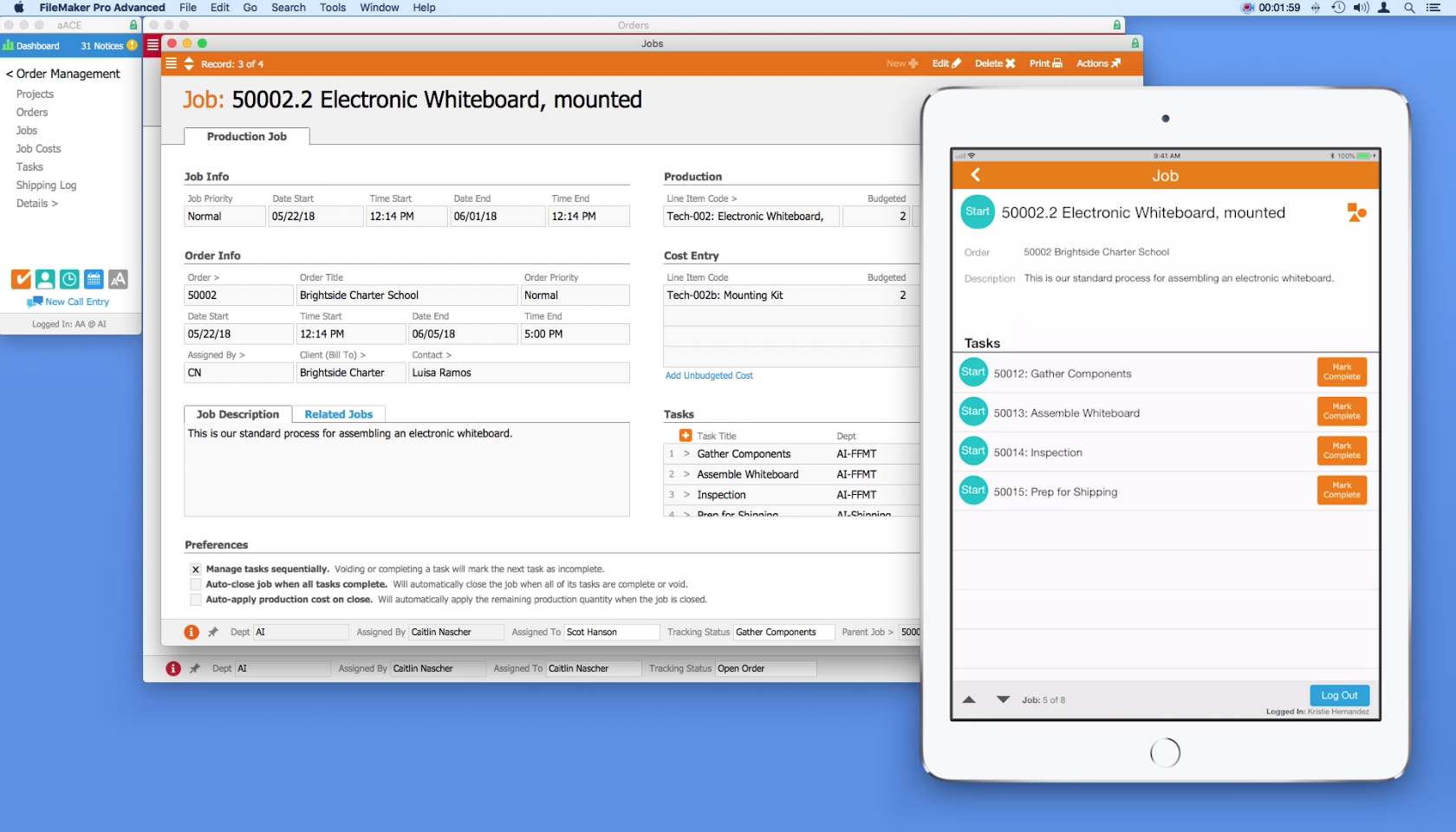
aACME customer Brightside Charter School orders two mounted whiteboards for their classrooms. The whiteboards need to be assembled before they can be shipped. When the order is opened, aACE automatically generates a job record for the assembly. Inside the job are a series of tasks and a bill of materials.

On the production floor, aACME employee Evan Phillips is ready to work. He goes to any of the shared iPads mounted on the wall throughout the site and logs into the Job Shop app by entering his unique PIN. From a list of open jobs, he chooses the Brightside Charter School whiteboard assembly. In the job’s detail view, Evan can see the order associated with the job, a description of the job, and a list of tasks that make up the job. To start a task, he simply taps that task’s Start button. The app then logs him out automatically, clearing the way for the next employee to log in.

The first task in the whiteboard assembly job is to gather materials. When Evan has finished collecting the components needed for the whiteboard, he logs back into the app. To enter the parts in the job record, he taps the Apply Materials icon. Using a barcode scanner connected to the iPad, he quickly scans in each of the required materials. The Job Shop app pushes that information back to the central aACE solution, automatically updating the job record with the materials applied.

After Evan is finished with a task, he logs in and taps the Mark Complete button. The task is also marked complete in aACE. Now he can see that the next task, Assemble Whiteboard, is ready to start.

Back in the office, Account Manager Mara Harvey gets a call from her contact at Brightside Charter School asking for a status update on the whiteboards. With just a few clicks, Mara can see that the job has been started, the materials have been applied, and assembly is currently underway.

At the end of the day, Evan submits his time by logging into the app and tapping the Timesheet button. Here he can review a list of all of the tasks he worked on today and how much time he spent on each task. He notices a mistake though – he forgot to pause a task while he went on his lunch break. The app allows Evan to record a note to his manager which will be sent along with the timesheet so that he can explain the discrepancy.

Evan’s manager can review the notes in aACE, adjust the timesheet, then approve it.

When the job is finished, the project manager can review the details in aACE, checking and approving the time and materials that were applied to the job.

The fully-integrated, easy-to-use Job Shop app allows managers to keep track of what their teams are doing throughout the day, while also giving employees the ability to track their progress without slowing down. To learn more about this app or find out what else aACE can do for your business, contact us today.

"Without much training, you can logically understand how this program fits into your work environment. The program is user friendly and easy enough for our whole staff, with varying levels of technical skills, to embrace." ~ Lili Hall, President, KNOCK Inc.
Learn More

Are your production staff recording time and material usage on paper, in Excel, or with software that doesn't "talk" to your business management solution? Is it somebody's job to manually key that data into your accounting system? With the aACE Job Shop app, there's a better way. The aACE Job Shop... Learn More

-->

Are your production staff recording time and material usage on paper, in Excel, or with software that doesn't "talk" to your business management solution? Is it somebody's job to manually key that data into your accounting system?

With the aACE Job Shop app, there's a better way.

The aACE Job Shop app is a mobile app that can be deployed on shared iPads. It allows your production staff to quickly log in and record time or apply materials to a job. Information from the app is passed back to aACE automatically, allowing aACE users in the office to stay apprised of what’s happening on the production floor.

Let’s take a look at how it works:

Now that we’ve seen the Job Shop app in action, let’s see how the fictional company aACME Education Solutions uses it in their day-to-day operations.

aACME customer Brightside Charter School orders two mounted whiteboards for their classrooms. The whiteboards need to be assembled before they can be shipped. When the order is opened, aACE automatically generates a job record for the assembly. Inside the job are a series of tasks and a bill of materials.

On the production floor, aACME employee Evan Phillips is ready to work. He goes to any of the shared iPads mounted on the wall throughout the site and logs into the Job Shop app by entering his unique PIN. From a list of open jobs, he chooses the Brightside Charter School whiteboard assembly. In the job’s detail view, Evan can see the order associated with the job, a description of the job, and a list of tasks that make up the job. To start a task, he simply taps that task’s Start button. The app then logs him out automatically, clearing the way for the next employee to log in.

The first task in the whiteboard assembly job is to gather materials. When Evan has finished collecting the components needed for the whiteboard, he logs back into the app. To enter the parts in the job record, he taps the Apply Materials icon. Using a barcode scanner connected to the iPad, he quickly scans in each of the required materials. The Job Shop app pushes that information back to the central aACE solution, automatically updating the job record with the materials applied.

After Evan is finished with a task, he logs in and taps the Mark Complete button. The task is also marked complete in aACE. Now he can see that the next task, Assemble Whiteboard, is ready to start.

Back in the office, Account Manager Mara Harvey gets a call from her contact at Brightside Charter School asking for a status update on the whiteboards. With just a few clicks, Mara can see that the job has been started, the materials have been applied, and assembly is currently underway.

At the end of the day, Evan submits his time by logging into the app and tapping the Timesheet button. Here he can review a list of all of the tasks he worked on today and how much time he spent on each task. He notices a mistake though – he forgot to pause a task while he went on his lunch break. The app allows Evan to record a note to his manager which will be sent along with the timesheet so that he can explain the discrepancy.

Evan’s manager can review the notes in aACE, adjust the timesheet, then approve it.

When the job is finished, the project manager can review the details in aACE, checking and approving the time and materials that were applied to the job.

The fully-integrated, easy-to-use Job Shop app allows managers to keep track of what their teams are doing throughout the day, while also giving employees the ability to track their progress without slowing down. To learn more about this app or find out what else aACE can do for your business, contact us today.

"Without much training, you can logically understand how this program fits into your work environment. The program is user friendly and easy enough for our whole staff, with varying levels of technical skills, to embrace." ~ Lili Hall, President, KNOCK Inc.
Learn More

Read more about Streamline Your Shipping Process with aACE+ ReadyCloud

Streamline Your Shipping Process with aACE+ ReadyCloud

With aACE, you can.

The aACE+ ReadyCloud ReadyShipper integration significantly reduces the need for manual data entry, a common source of delays and costly errors. Our automated shipping integration passes information seamlessly between the two solutions, so it's a breeze to get deliveries to your customers on time. And when you receive a bill from a courier, aACE also makes it easy to reconcile that statement with your existing records. Here’s how:


Now that we’ve seen the shipping integration in action, let’s look at how the fictional company aACME Education Solutions uses it in their day-to-day operations.

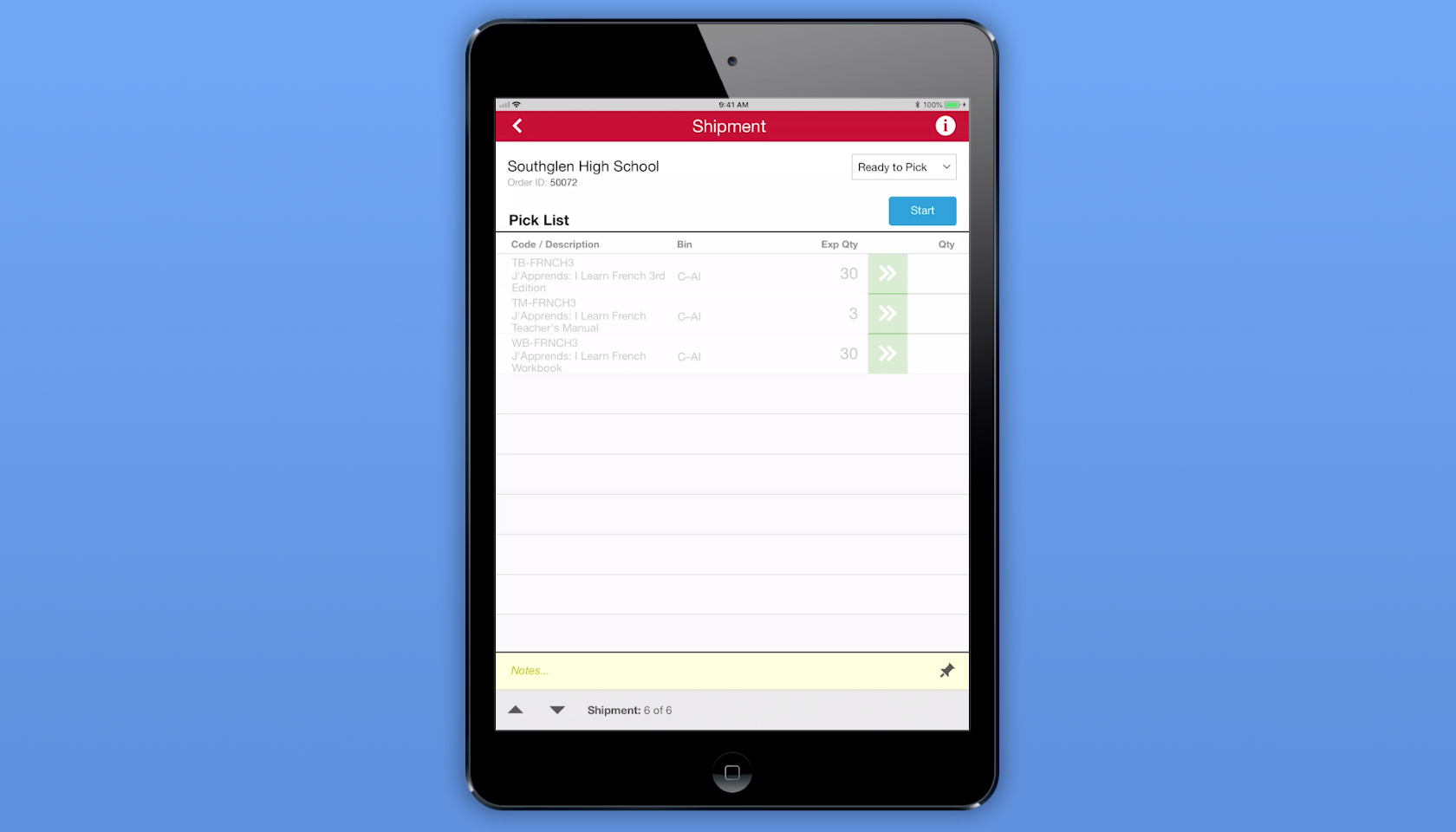
aACME customer Southglen High School places an order for 30 French textbooks, 3 of the corresponding teacher’s manuals, and 30 workbooks. As soon as the order is opened, aACE automatically generates a shipment with the tracking status Ready to Pick. The shipment is immediately passed to the aACE Pick app.

On the warehouse floor, aACME employee Ned Walker logs into the Pick app via a shared iPad. He chooses the Southglen High School shipment from a list of shipments that are ready to pick. In the shipment’s detail view, he sees each line item in the shipment, the bin where each line item is located, and the expected quantity of each item that he needs to pick. When Ned taps the Start button, the Pick app updates the shipment record’s tracking status to In Progress.

When Ned finishes picking the required textbooks, he enters the quantities of each item into the Pick app. When he’s finished with the shipment, he taps the Done button and the app updates the shipment’s tracking status to Ready to Transmit. From there, aACE automatically transmits the shipment to ReadyCloud.

Over in aACME’s Shipping Department, employee Kristie Hernandez packages the shipment. She then logs into ReadyCloud’s ReadyShipper terminal and schedules the packages for delivery. The shipment information is automatically pulled back into aACE, where the record is updated with cost and tracking information and the shipment’s tracking status is changed to Shipped. An invoice for the shipment is automatically generated — and all of this happens without Kristie ever needing to log into aACE.

Another source of frustration for companies like aACME is entering and reconciling courier bills. The aACE+ ReadyCloud integration makes this a snap. Drew Sanderson works in aACME’s Accounts Payable Department. Rather than manually entering the courier bill at the end of each month, Drew can see all of the shipments he hasn’t yet purchased at a glance with aACE’s Build Courier Invoice feature. With one click, Drew can organize each shipment, its costs, and its tracking information for easy line-by-line comparison with the courier’s statement.

What if the cost of a shipment on the courier’s bill doesn’t match the cost in aACE? For example, what if an address turned out to be residential instead of commercial? If Drew finds a discrepancy, he can easily adjust it in the purchase. That change automatically updates the shipment record, which in turn updates the order so the costs stay correct. To keep shipping costs in check, his aACE solution is configured to automatically send notifications to an oversight group if the difference between the courier’s bill and the shipment cost in aACE exceeds a certain value or percentage.

For a company like aACME with hundreds of shipments per day, this automation saves hours of labor and keeps the fulfillment process running smoothly. To learn more about this feature or find out what else aACE can do for your business, contact us today.

"The more we use this program, the more we love it! The biggest asset to our company has been the automated workflows, especially in our customer care and shipping departments. We have been able to reduce order entry errors and drastically improve our ship time from order entry to out-the-door. The shipping integration has helped reduce picking errors and assist in a speedy pick and pack process." - Daniel Chapman, Founder and CEO, Redd Remedies


Learn More

A key to success for any business is getting your customers what they want, when they want it. This means your fulfillment process is crucial. But as your company grows, you may find that shipping solutions that don’t talk to your ERP system are grinding your fulfillment process to a halt as... Learn More

-->

A key to success for any business is getting your customers what they want, when they want it. This means your fulfillment process is crucial. But as your company grows, you may find that shipping solutions that don’t talk to your ERP system are grinding your fulfillment process to a halt as employees manually copy information from one system to the other. Wouldn’t it be great if you could speed up your fulfillment process and improve accuracy?

With aACE, you can.

The aACE+ ReadyCloud ReadyShipper integration significantly reduces the need for manual data entry, a common source of delays and costly errors. Our automated shipping integration passes information seamlessly between the two solutions, so it's a breeze to get deliveries to your customers on time. And when you receive a bill from a courier, aACE also makes it easy to reconcile that statement with your existing records. Here’s how:


Now that we’ve seen the shipping integration in action, let’s look at how the fictional company aACME Education Solutions uses it in their day-to-day operations.

aACME customer Southglen High School places an order for 30 French textbooks, 3 of the corresponding teacher’s manuals, and 30 workbooks. As soon as the order is opened, aACE automatically generates a shipment with the tracking status Ready to Pick. The shipment is immediately passed to the aACE Pick app.

On the warehouse floor, aACME employee Ned Walker logs into the Pick app via a shared iPad. He chooses the Southglen High School shipment from a list of shipments that are ready to pick. In the shipment’s detail view, he sees each line item in the shipment, the bin where each line item is located, and the expected quantity of each item that he needs to pick. When Ned taps the Start button, the Pick app updates the shipment record’s tracking status to In Progress.

When Ned finishes picking the required textbooks, he enters the quantities of each item into the Pick app. When he’s finished with the shipment, he taps the Done button and the app updates the shipment’s tracking status to Ready to Transmit. From there, aACE automatically transmits the shipment to ReadyCloud.

Over in aACME’s Shipping Department, employee Kristie Hernandez packages the shipment. She then logs into ReadyCloud’s ReadyShipper terminal and schedules the packages for delivery. The shipment information is automatically pulled back into aACE, where the record is updated with cost and tracking information and the shipment’s tracking status is changed to Shipped. An invoice for the shipment is automatically generated — and all of this happens without Kristie ever needing to log into aACE.

Another source of frustration for companies like aACME is entering and reconciling courier bills. The aACE+ ReadyCloud integration makes this a snap. Drew Sanderson works in aACME’s Accounts Payable Department. Rather than manually entering the courier bill at the end of each month, Drew can see all of the shipments he hasn’t yet purchased at a glance with aACE’s Build Courier Invoice feature. With one click, Drew can organize each shipment, its costs, and its tracking information for easy line-by-line comparison with the courier’s statement.

What if the cost of a shipment on the courier’s bill doesn’t match the cost in aACE? For example, what if an address turned out to be residential instead of commercial? If Drew finds a discrepancy, he can easily adjust it in the purchase. That change automatically updates the shipment record, which in turn updates the order so the costs stay correct. To keep shipping costs in check, his aACE solution is configured to automatically send notifications to an oversight group if the difference between the courier’s bill and the shipment cost in aACE exceeds a certain value or percentage.

For a company like aACME with hundreds of shipments per day, this automation saves hours of labor and keeps the fulfillment process running smoothly. To learn more about this feature or find out what else aACE can do for your business, contact us today.

"The more we use this program, the more we love it! The biggest asset to our company has been the automated workflows, especially in our customer care and shipping departments. We have been able to reduce order entry errors and drastically improve our ship time from order entry to out-the-door. The shipping integration has helped reduce picking errors and assist in a speedy pick and pack process." - Daniel Chapman, Founder and CEO, Redd Remedies


Learn More

Read more about Make Scheduling a Snap with the aACE+ DayBack Calendar

Make Scheduling a Snap with the aACE+ DayBack Calendar

aACE+DayBack does that.

The aACE+ DayBack calendar combines aACE’s powerful business management software for Mac and PC with Seedcode’s fully integrated, drag ‘n’ drop, DayBack calendar. The result is seamless scheduling that lets you manage company resources, stay on top of deadlines, keep apprised of each department's activities, and more.

As SeedCode CEO John Sindelar explains, “This calendar isn’t about where you should be, it’s about what you should be working on.” The aACE+ DayBack calendar integration lets you see what tasks you have coming up and what resources you have to fulfill them. Let’s take a look at how it works:


Now that you’ve seen what the aACE+ DayBack calendar has to offer, let’s walk through just some of the ways our fictitious company, aACME Education Solutions, uses it in their daily operations.

Shipping Manager Drew Sanderson runs a tight ship. With hundreds of orders coming in each day and a limited pool of resources with which to fulfill them, he needs to be able to plan down to the hour which shipments are going out on which trucks and when. With aACE+ DayBack, he can do exactly that – all from within his calendar.

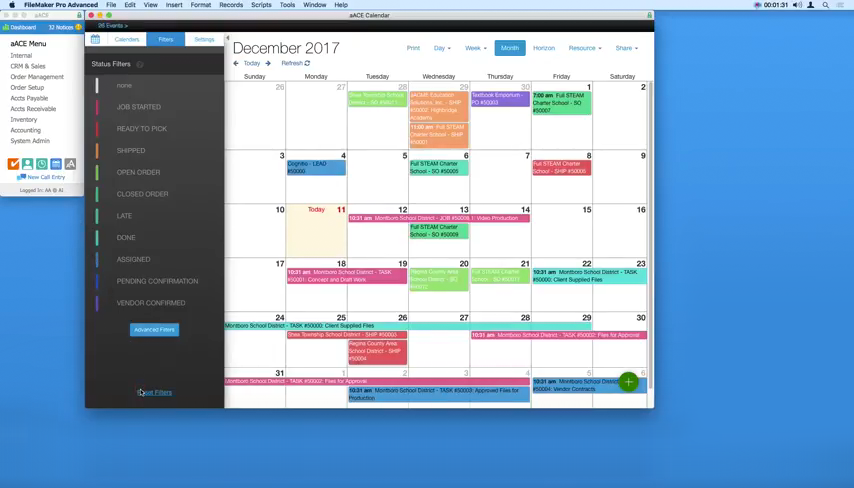
When Drew opens his calendar, he can easily view which shipments have a status of “Ready to Pick” thanks to the calendar’s color-coding and filtering options. To schedule an upcoming day’s shipments, Drew just needs to click on that day, select “View Day,” then navigate to the Resource list in the top menu bar. A table appears with columns for each of the trucks he has available, along with rows representing time-slots in 15-minute increments.

To plan each truck’s route, Drew simply drags shipments from the top-left corner of the table and places them on the right truck at the right time.

But what if a shipment needs to be rescheduled? aACE+ DayBack makes that easy too. Drew can simply drag and drop the shipment to its new date from within the calendar’s Month or Week view.

Now when Drew clicks on that shipment, he’ll see that the shipment record has automatically updated with the new date, and the record log will show that the change was made via the calendar for full visibility.

Over in the Sales department, Account Manager Mara Harvey receives a call from Sam Patel, the Assistant Superintendent at the Montboro School District. Sam wants to place an order for astronomy workshops to be held in April at each of the district’s four elementary schools. To schedule this order and confirm a date with the customer, Mara first needs to know what the Workshop team’s schedule looks like for that month.

Using the calendar’s advanced filters, Mara is able to view events associated with Kristie Hernandez, the Workshop team’s Project Manager. She can see from Kristie’s schedule that the Workshop team is booked to capacity on the first week of April, but that they have ample slots available on the second and third weeks of that month. Sam chooses dates for each of the four workshops; when Mara opens the order, these appointments appear on Kristie’s calendar in real time, giving the Workshop team plenty of time to plan ahead.

To learn how a real-life company uses the aACE+ DayBack calendar, check out our success story on Gable. And if you’d like to know more about this feature or discuss what else aACE can do for you, contact us today to learn more.


“Everybody on our team who knows what we used before is ecstatic over the aACE+DayBack calendar. It's much more user-friendly and much easier for people to get the information that they need, when they need it.” – Jimmie Wolfe, Director of Field Operations, Gable

Learn More

Keeping track of your business’s many moving parts can be a challenge. What if your ERP solution could pull dates from various records and organize them into one easy-to-use, color-coded calendar? aACE+DayBack does that. The aACE+ DayBack calendar combines aACE’s powerful business management... Learn More

-->

Keeping track of your business’s many moving parts can be a challenge. What if your ERP solution could pull dates from various records and organize them into one easy-to-use, color-coded calendar?

aACE+DayBack does that.

The aACE+ DayBack calendar combines aACE’s powerful business management software for Mac and PC with Seedcode’s fully integrated, drag ‘n’ drop, DayBack calendar. The result is seamless scheduling that lets you manage company resources, stay on top of deadlines, keep apprised of each department's activities, and more.

As SeedCode CEO John Sindelar explains, “This calendar isn’t about where you should be, it’s about what you should be working on.” The aACE+ DayBack calendar integration lets you see what tasks you have coming up and what resources you have to fulfill them. Let’s take a look at how it works:


Now that you’ve seen what the aACE+ DayBack calendar has to offer, let’s walk through just some of the ways our fictitious company, aACME Education Solutions, uses it in their daily operations.

Shipping Manager Drew Sanderson runs a tight ship. With hundreds of orders coming in each day and a limited pool of resources with which to fulfill them, he needs to be able to plan down to the hour which shipments are going out on which trucks and when. With aACE+ DayBack, he can do exactly that – all from within his calendar.

When Drew opens his calendar, he can easily view which shipments have a status of “Ready to Pick” thanks to the calendar’s color-coding and filtering options. To schedule an upcoming day’s shipments, Drew just needs to click on that day, select “View Day,” then navigate to the Resource list in the top menu bar. A table appears with columns for each of the trucks he has available, along with rows representing time-slots in 15-minute increments.

To plan each truck’s route, Drew simply drags shipments from the top-left corner of the table and places them on the right truck at the right time.

But what if a shipment needs to be rescheduled? aACE+ DayBack makes that easy too. Drew can simply drag and drop the shipment to its new date from within the calendar’s Month or Week view.

Now when Drew clicks on that shipment, he’ll see that the shipment record has automatically updated with the new date, and the record log will show that the change was made via the calendar for full visibility.

Over in the Sales department, Account Manager Mara Harvey receives a call from Sam Patel, the Assistant Superintendent at the Montboro School District. Sam wants to place an order for astronomy workshops to be held in April at each of the district’s four elementary schools. To schedule this order and confirm a date with the customer, Mara first needs to know what the Workshop team’s schedule looks like for that month.

Using the calendar’s advanced filters, Mara is able to view events associated with Kristie Hernandez, the Workshop team’s Project Manager. She can see from Kristie’s schedule that the Workshop team is booked to capacity on the first week of April, but that they have ample slots available on the second and third weeks of that month. Sam chooses dates for each of the four workshops; when Mara opens the order, these appointments appear on Kristie’s calendar in real time, giving the Workshop team plenty of time to plan ahead.

To learn how a real-life company uses the aACE+ DayBack calendar, check out our success story on Gable. And if you’d like to know more about this feature or discuss what else aACE can do for you, contact us today to learn more.


“Everybody on our team who knows what we used before is ecstatic over the aACE+DayBack calendar. It's much more user-friendly and much easier for people to get the information that they need, when they need it.” – Jimmie Wolfe, Director of Field Operations, Gable

Learn More

Read more about Keep Track of Your Correspondence with aACE Email Integration

Keep Track of Your Correspondence with aACE Email Integration

With aACE, you can.

aACE’s email integration feature spares you from time-consuming data entry by linking emails and their attachments directly to the relevant records anywhere in aACE. This feature works across all aACE modules, so whether your message is about a contact, a project, an order, or more, you can organize your emails directly in your aACE solution. Here’s how:


Now that we’ve seen this feature in action, let’s look at one example of how fictional company aACME Education Solutions uses it in their day-to-day operations:

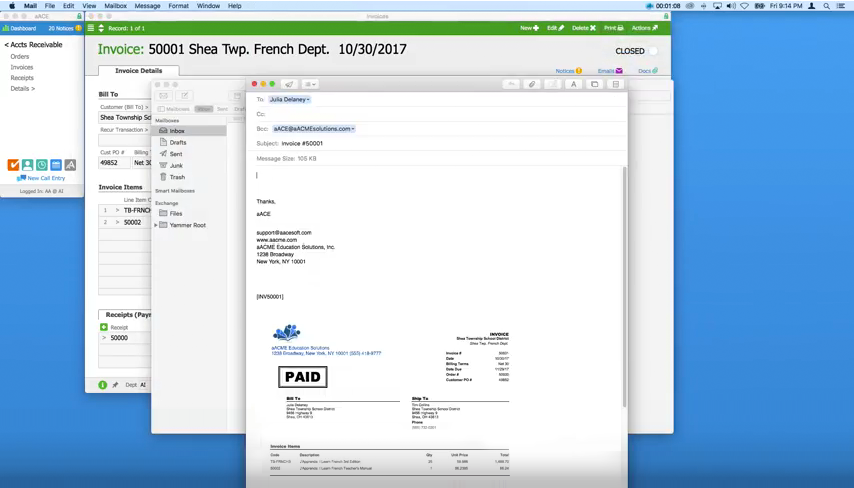
aACME has just fulfilled an order for the Shea Township School District and the invoice has been generated in aACE. John in the Accounts Receivable department is ready to send it to Julia, the school district’s administrative assistant. When John opens the invoice in aACE and selects Email Invoice from the Print menu, his desktop mail app opens with an auto-generated email that has the invoice attached as a PDF. aACE automatically fills in the client’s email address, a pre-set signature, and the invoice’s record ID. Additionally, a special email address for aACME’s aACE solution is included on the BCC line. When John sends the email, a copy appears in aACE’s inbox. Based on keywords in the email, aACE files the message and attachment in three places:

  • the Invoice record for Invoice #50001
  • the Contact record for Julia Delaney, the client who received the invoice
  • the Team Member record of John Smith, the user who sent the invoice

This means that any user with access to these records can view the email right from within aACE. So when Julia contacts her account manager at aACME, Mara Harvey, with a question about the invoice, Mara is able to immediately see what was sent to Julia and when – there's no need to ask John to forward the email or to dig through a long email chain to find the relevant information.

Email Integration Blog Post
 

With aACE’s email integration feature, Mara and her colleagues have everything they need right at their fingertips.

To see how other aACE features could work for your business, check out our aACE Videos series. And if you’d like to know more about this feature or discuss what else aACE can do for you, contact us today to learn more.

Learn More

Most businesses today rely on email to exchange information, but it can be all too easy for messages to get lost in your inbox – and when that happens, you risk missing out on vital details that could impact your communication with your customers. Wouldn’t it be great if you could file those... Learn More

-->

Most businesses today rely on email to exchange information, but it can be all too easy for messages to get lost in your inbox – and when that happens, you risk missing out on vital details that could impact your communication with your customers. Wouldn’t it be great if you could file those messages with their associated records in your ERP solution, without having to manually copy and paste the text?

With aACE, you can.

aACE’s email integration feature spares you from time-consuming data entry by linking emails and their attachments directly to the relevant records anywhere in aACE. This feature works across all aACE modules, so whether your message is about a contact, a project, an order, or more, you can organize your emails directly in your aACE solution. Here’s how:


Now that we’ve seen this feature in action, let’s look at one example of how fictional company aACME Education Solutions uses it in their day-to-day operations:

aACME has just fulfilled an order for the Shea Township School District and the invoice has been generated in aACE. John in the Accounts Receivable department is ready to send it to Julia, the school district’s administrative assistant. When John opens the invoice in aACE and selects Email Invoice from the Print menu, his desktop mail app opens with an auto-generated email that has the invoice attached as a PDF. aACE automatically fills in the client’s email address, a pre-set signature, and the invoice’s record ID. Additionally, a special email address for aACME’s aACE solution is included on the BCC line. When John sends the email, a copy appears in aACE’s inbox. Based on keywords in the email, aACE files the message and attachment in three places:

  • the Invoice record for Invoice #50001
  • the Contact record for Julia Delaney, the client who received the invoice
  • the Team Member record of John Smith, the user who sent the invoice

This means that any user with access to these records can view the email right from within aACE. So when Julia contacts her account manager at aACME, Mara Harvey, with a question about the invoice, Mara is able to immediately see what was sent to Julia and when – there's no need to ask John to forward the email or to dig through a long email chain to find the relevant information.

Email Integration Blog Post
 

With aACE’s email integration feature, Mara and her colleagues have everything they need right at their fingertips.

To see how other aACE features could work for your business, check out our aACE Videos series. And if you’d like to know more about this feature or discuss what else aACE can do for you, contact us today to learn more.

Learn More

Read more about Seamlessly Link Records in aACE to Files on Your Server – Here’s How

Seamlessly Link Records in aACE to Files on Your Server – Here’s How

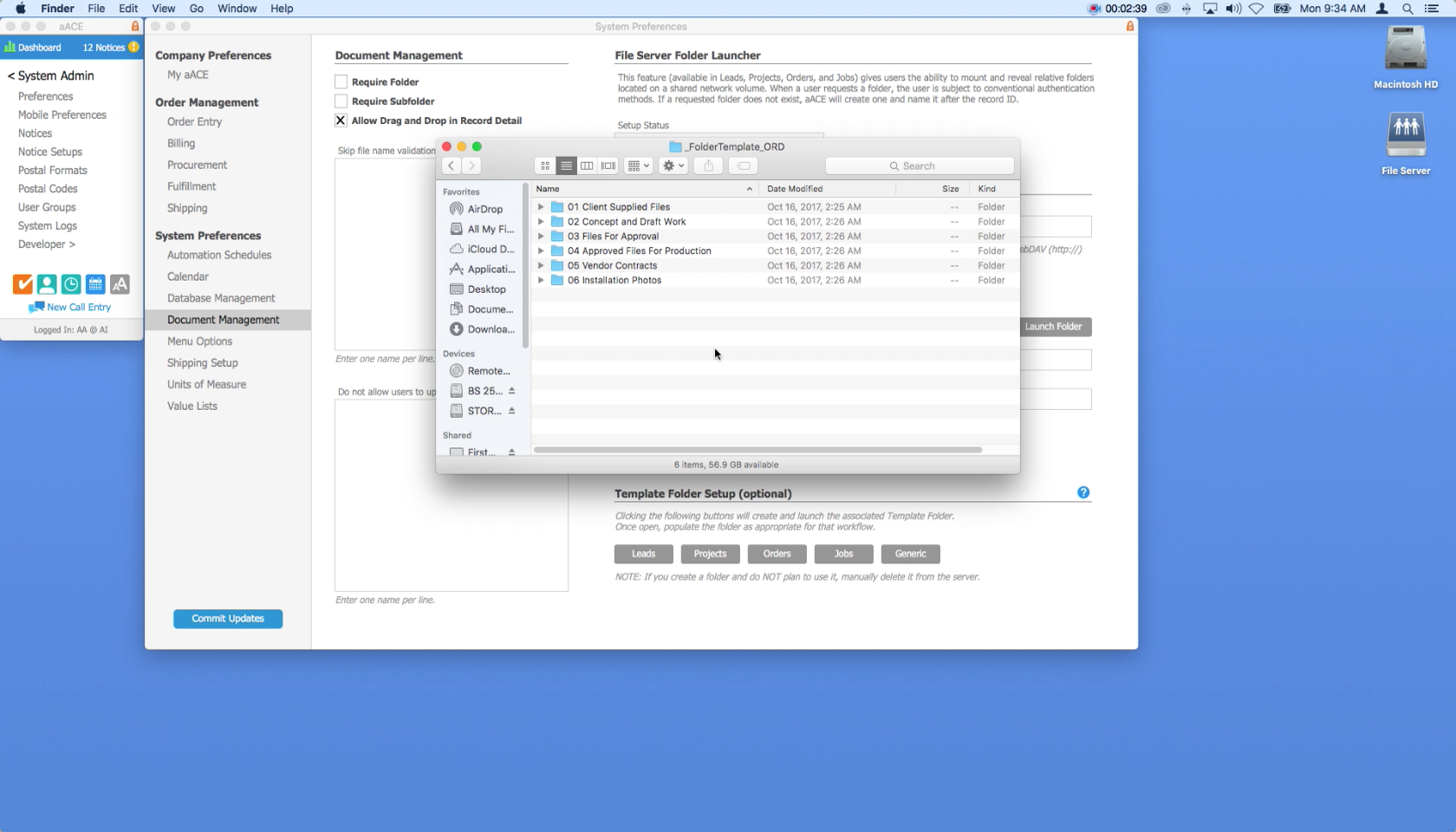
aACE’s File Server Folder Launcher feature allows you to keep files organized on your company server while making it easy to access the folders you need directly from the relevant Lead, Project, Order, or Job record in aACE. Let’s take a look at how it works.


Now that you’ve seen this feature in action, let’s walk through how one company uses it in their day-to-day operations.

Our sample company, aACME Educational Services, publishes educational resources and programs for students, teachers, and school administrators. They’ve just received an order for a School Spirit Week science workshop from the Full STEAM Charter School (FSCS). As part of the order, FSCS has asked for custom signage and curricular materials to promote the school’s astronomy program.

aACME’s graphic designers are not aACE users, so all of their work stays on the company shared drive. Account manager Mara Harvey sends drafts to the client and passes their feedback on to the creative team. Because aACME offers workshops like this regularly, they have a template set up with their standard workflow.

Mara starts by opening the order’s record in aACE. From the Actions menu, she selects “Reveal File Server Folder”. This creates a new folder on her shared drive that’s pre-populated with the subfolders she and her colleagues use to keep their files organized. When Mara follows up with FSCS, she can easily access all of the files related to their order right from her aACE solution – ensuring she has everything she needs close at hand.

If you’d like to know more about this feature or discuss what else aACE can do for you, contact us today to learn more.

Learn More

aACE’s document management system is great for storing files directly in aACE, but if you’re in a creative or an engineering environment, you may need to keep files on your shared company server where colleagues who aren’t aACE users can access them. Wouldn’t it be great if you could access... Learn More

-->

aACE’s document management system is great for storing files directly in aACE, but if you’re in a creative or an engineering environment, you may need to keep files on your shared company server where colleagues who aren’t aACE users can access them. Wouldn’t it be great if you could access those server files directly from the relevant records in your ERP solution?

With aACE, you can.

aACE’s File Server Folder Launcher feature allows you to keep files organized on your company server while making it easy to access the folders you need directly from the relevant Lead, Project, Order, or Job record in aACE. Let’s take a look at how it works.


Now that you’ve seen this feature in action, let’s walk through how one company uses it in their day-to-day operations.

Our sample company, aACME Educational Services, publishes educational resources and programs for students, teachers, and school administrators. They’ve just received an order for a School Spirit Week science workshop from the Full STEAM Charter School (FSCS). As part of the order, FSCS has asked for custom signage and curricular materials to promote the school’s astronomy program.

aACME’s graphic designers are not aACE users, so all of their work stays on the company shared drive. Account manager Mara Harvey sends drafts to the client and passes their feedback on to the creative team. Because aACME offers workshops like this regularly, they have a template set up with their standard workflow.

Mara starts by opening the order’s record in aACE. From the Actions menu, she selects “Reveal File Server Folder”. This creates a new folder on her shared drive that’s pre-populated with the subfolders she and her colleagues use to keep their files organized. When Mara follows up with FSCS, she can easily access all of the files related to their order right from her aACE solution – ensuring she has everything she needs close at hand.

If you’d like to know more about this feature or discuss what else aACE can do for you, contact us today to learn more.

Learn More

Scroll to Top